Download report from export history
The EDC reports system is a tool to keep track of all the user activity and data amendments occurring across the system. With the Export feature, you can download the report data to your computer and use it per your business need. In EDC, all the previously exported report versions are stored in the system and can be downloaded to your computer from the export history.
-
In the EDC application header, select the REPORTS tab.
-
On the page that opens, in the left pane, select the subtab of your interest to expand the list of available reports and select the one you have previously exported and want to download.
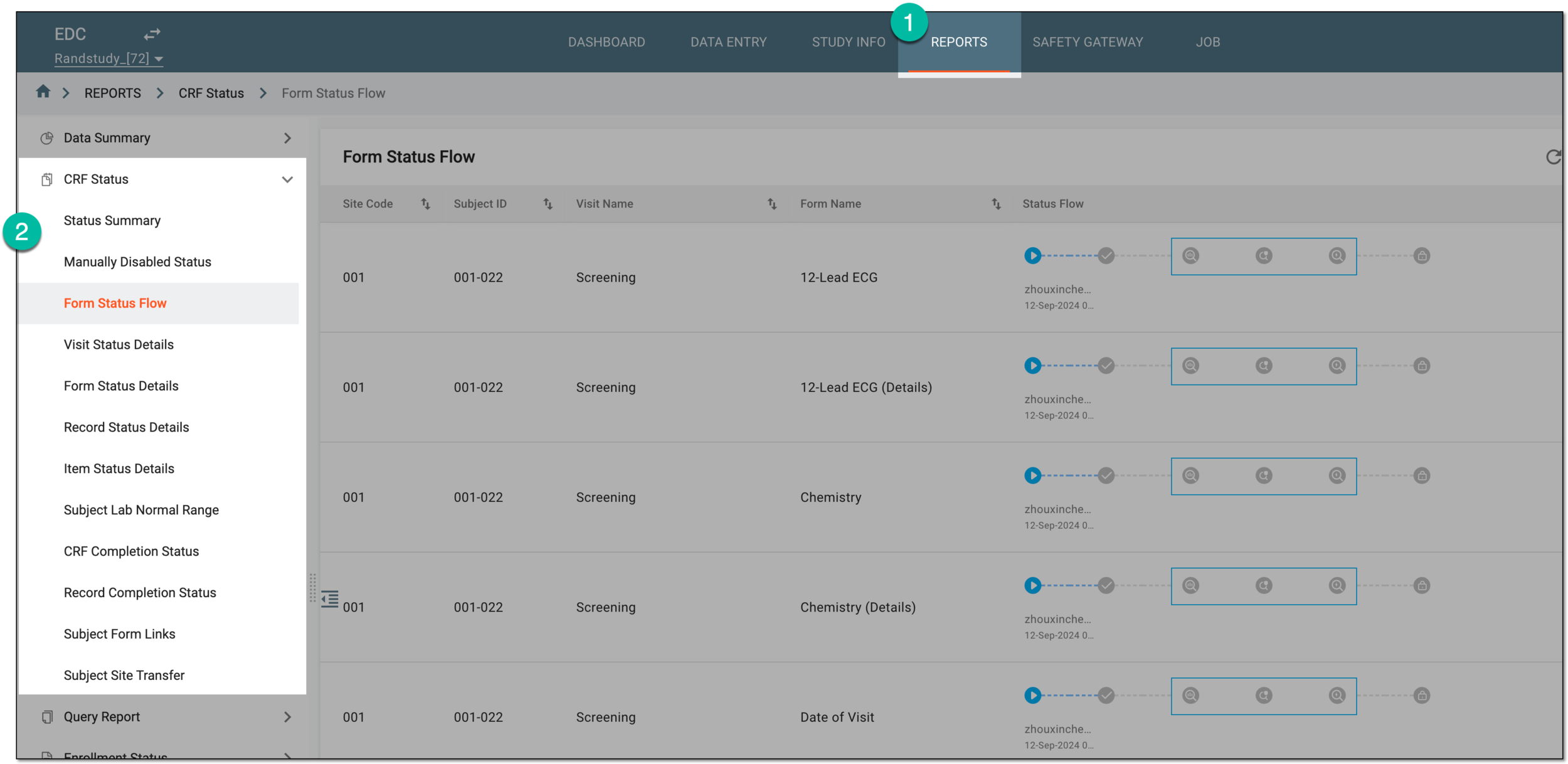 Figure 1. Accessing reports
-
On the page that opens, from the workspace toolbar, select History
 .
.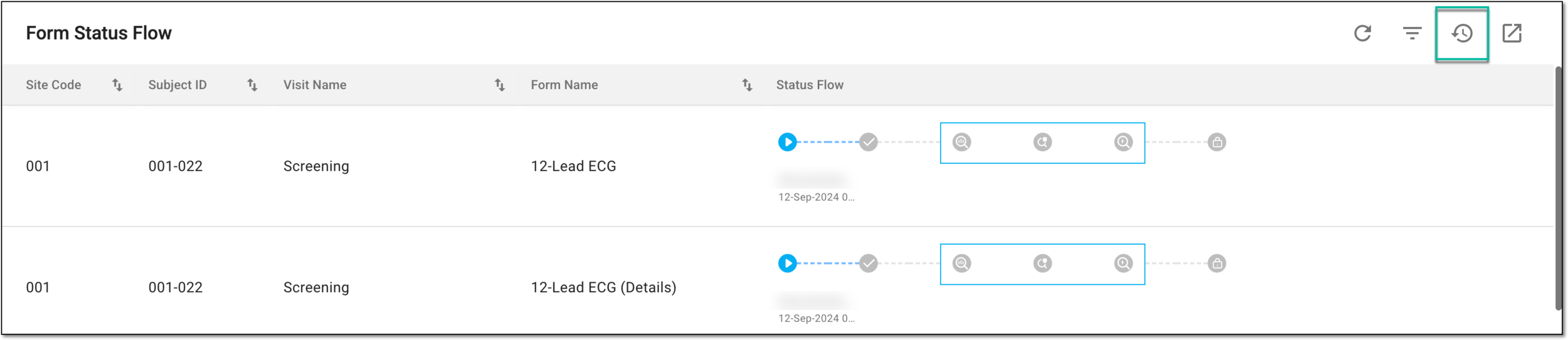 Figure 2. Accessing report export history
-
On the Export History page that opens, locate the needed file version and next to it, select Export
 .
.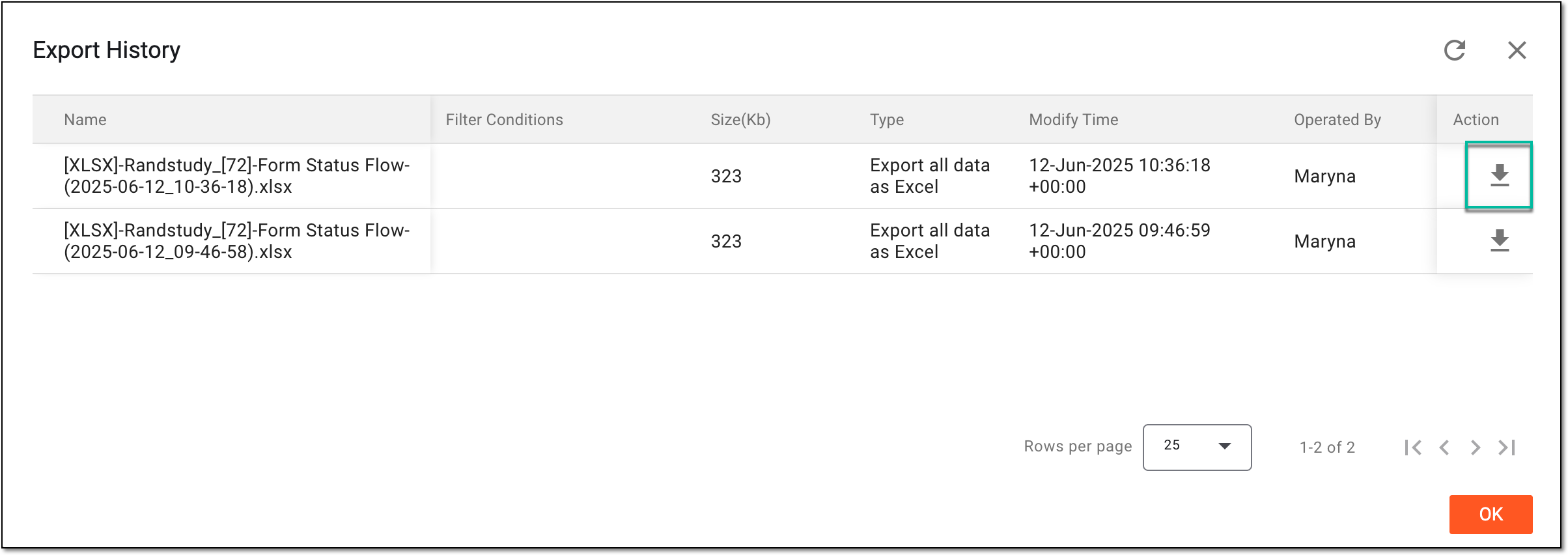 Figure 3. Downloading report from export history
Tip
The columns and data available in the Export History table vary based on the report to which it belongs.
Upon download, the file is available on your computer and can be used offline as per your business need.