Export report
The EDC reports system is a tool to keep track of all the user activity and data amendments occurring across the system. With the export feature, you can download the report data to your computer and use it as per your business need, for example, to reenter data in another system or share it with stakeholders.
-
In the EDC application header, select the REPORTS tab.
-
On the page that opens, in the left pane, select the subtab of your interest to expand the list of available reports and then select the one you want to export.
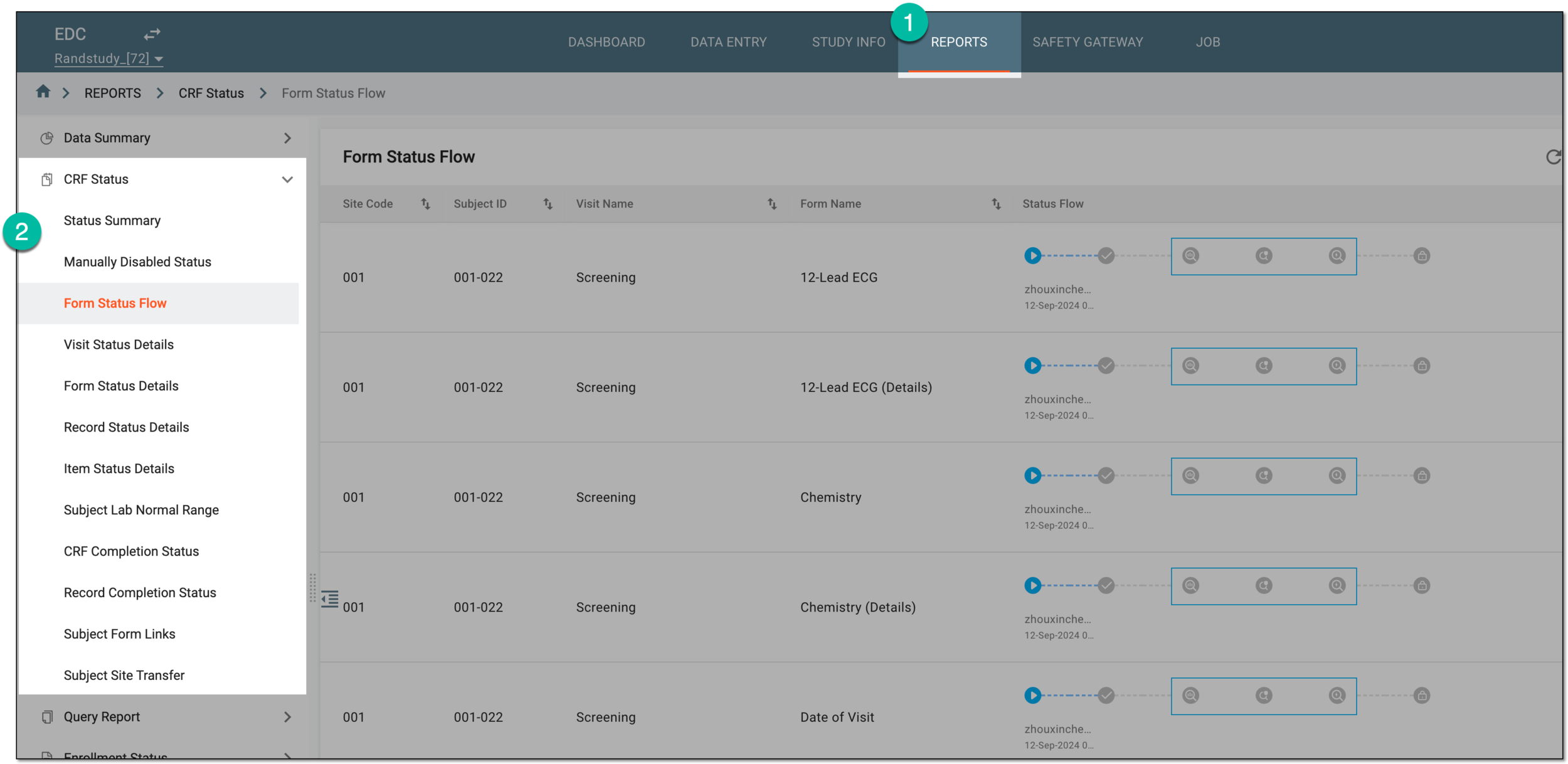 Figure 1. Accessing reports
-
On the page that opens, from the workspace toolbar, select Export
 .
.Tip
Optionally, apply filtering to the table for more focused data representation.
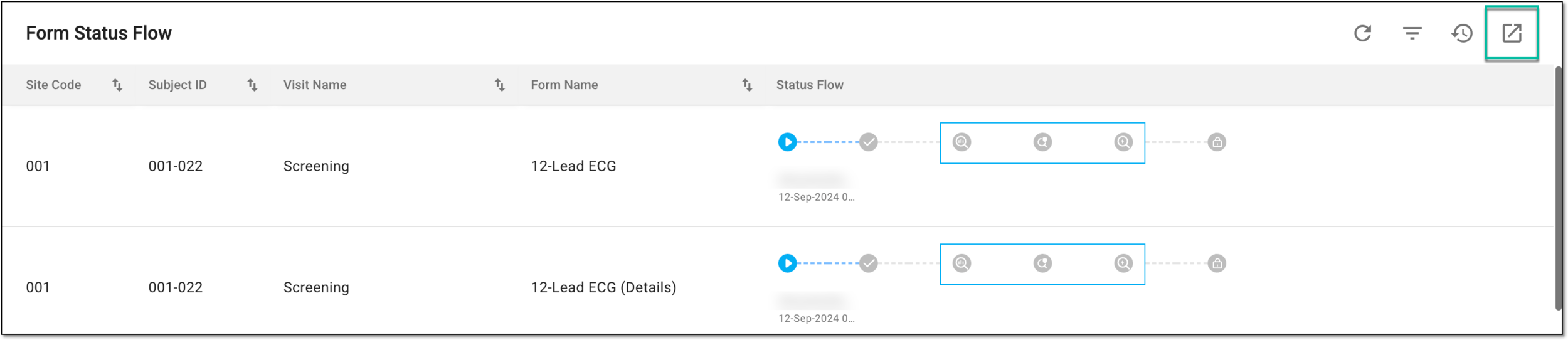 Figure 2. Exporting report data
-
Upon selecting Export
, one of the following scenarios happens:-
The report data is exported right away with no additional configurations.
-
The menu expands providing multiple export options from which you can select the preferred one.
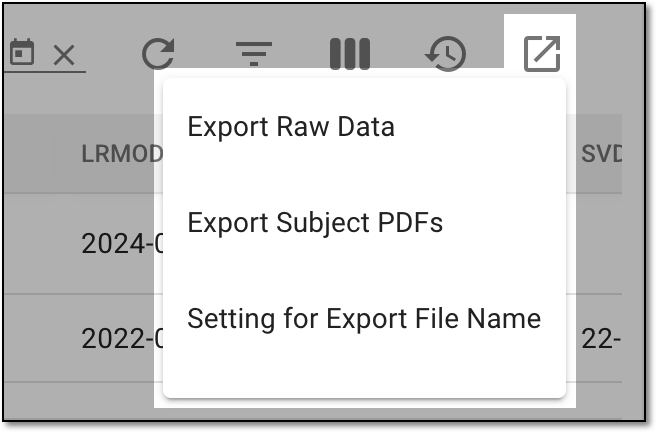 Figure 3. Selecting export options
-
The Export dialog appears in which you need to select the preferred option according to your needs and then select
 to initiate the data extraction.
Tip
For some reports, it is possible to choose to download all data or the filtered version, and for some, you can also select the preferred format—XLSX, CSV, SAS, PDF, or else. There also can be a timestamp format preference—generate the report with time and date as one value or as two separate ones.
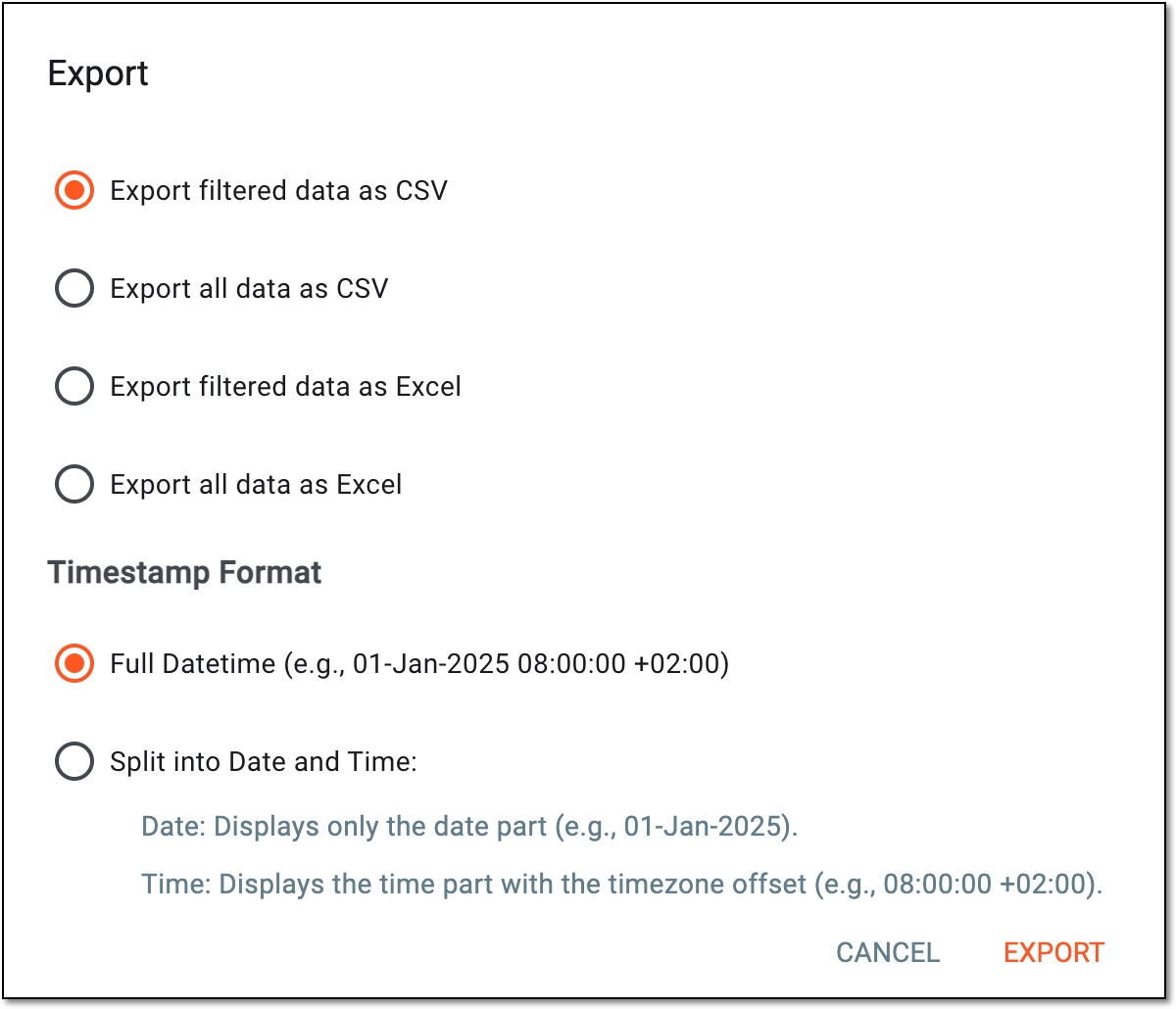 Figure 4. Example of selecting exporting options
-
-
Once the required selections are made, the download widget appears, and—for larger files—a progress bar displays the export completion rate. Select the widget to open the My Downloads dialog.
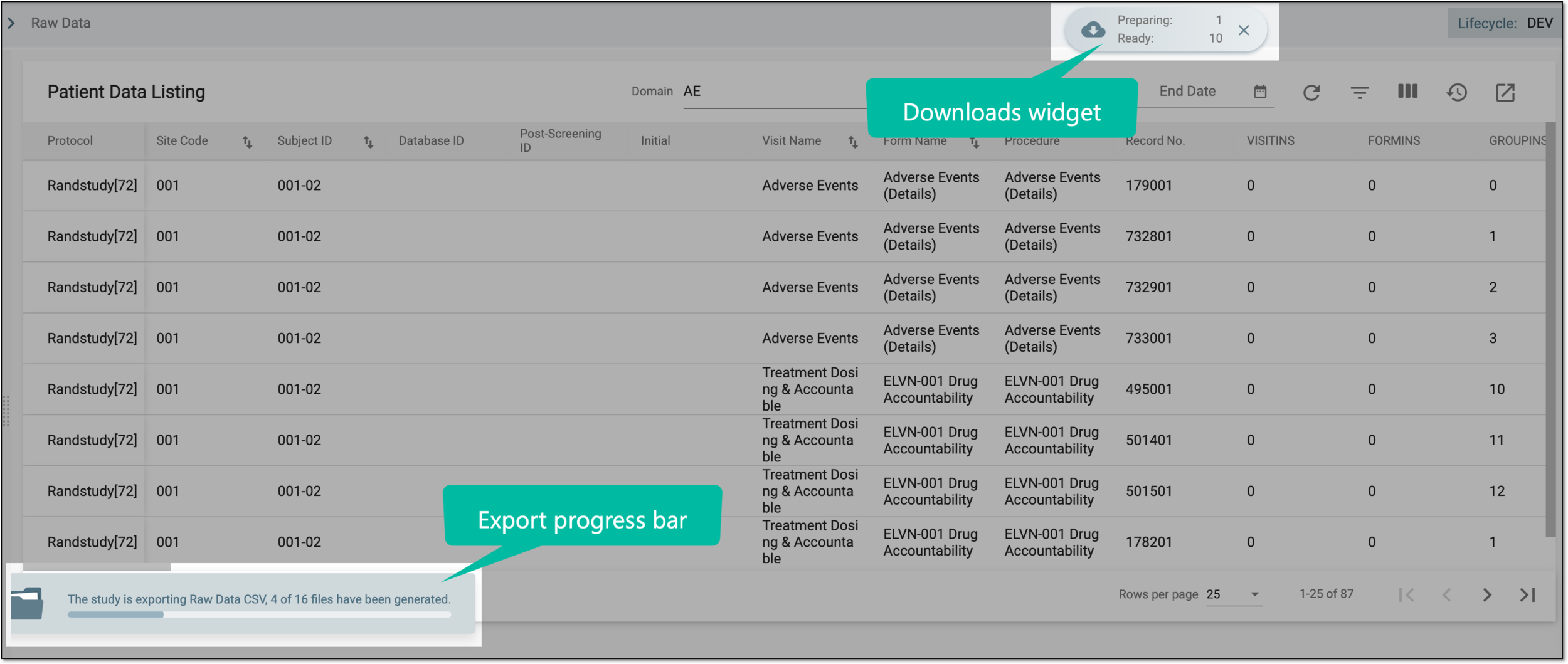 Figure 5. Viewing downloads widget and progress bar
-
In the My Downloads dialog that opens, you can find the following tabs:
-
Preparing: under this tab, you can find all the files whose export is in progress, and they are not yet ready for download.
-
Download is Ready: under this tab, you can find all the files whose export is complete, and they can be downloaded to your computer.
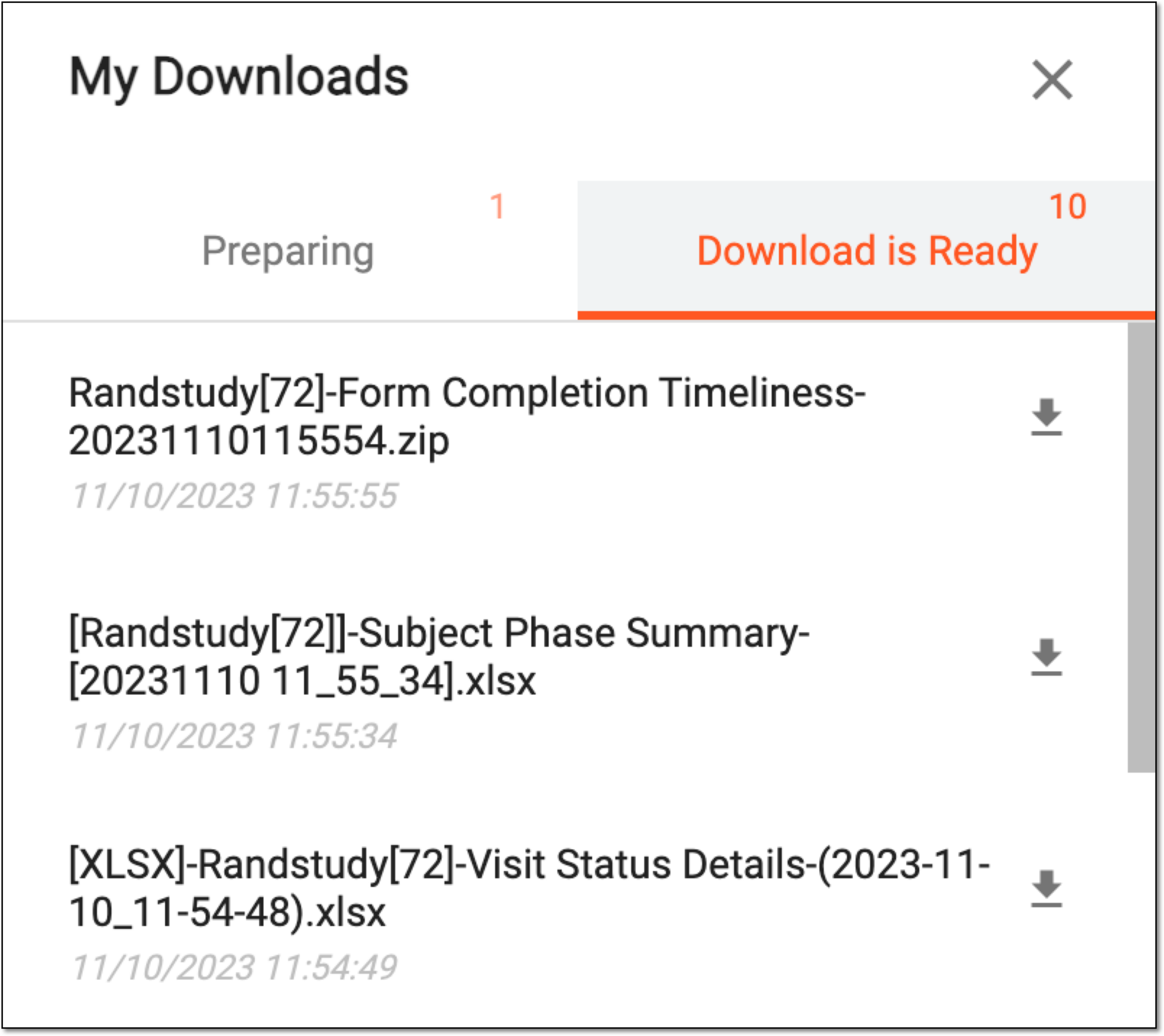 Figure 6. Viewing downloads
-
-
Under the Download is Ready tab, next to the file that you want to download, select
 .
.
Once downloaded and saved, the report version is available on your computer. The exported report version also becomes available for download from the export history.