Set up exemption rules for translation review
The Translation functionality of EDC is designed to support multilingual studies that require data collection and review in different languages based on locations, participating audience, and other factors.
The translation review is performed to ensure the quality and precision of data translation. However, there are cases when the translation review can be automated, especially when the data input is a numeric value, a measurement unit, and so on. Thus, configuring exemption rules helps you save time and resources by optimizing the translation review process.
-
In the EDC application header, select the STUDY INFO tab.
-
On the page that opens, in the left pane, select Translation > Translation Review.
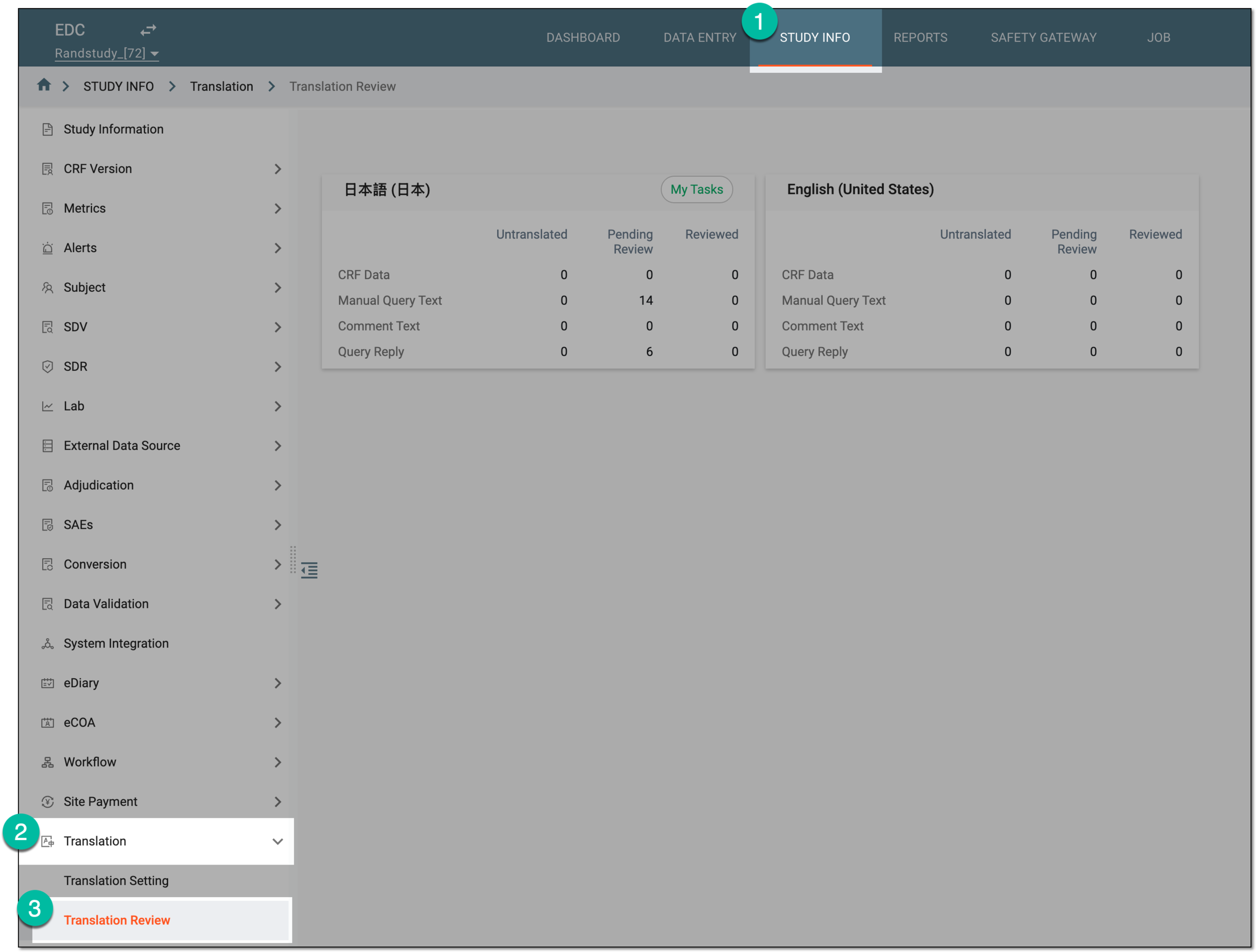 Figure 1. Accessing translation review
-
On the page that opens, select the tile representing the language in which you want to access the translations.
Tip
Select My Tasks to access the translation reviews assigned to you.
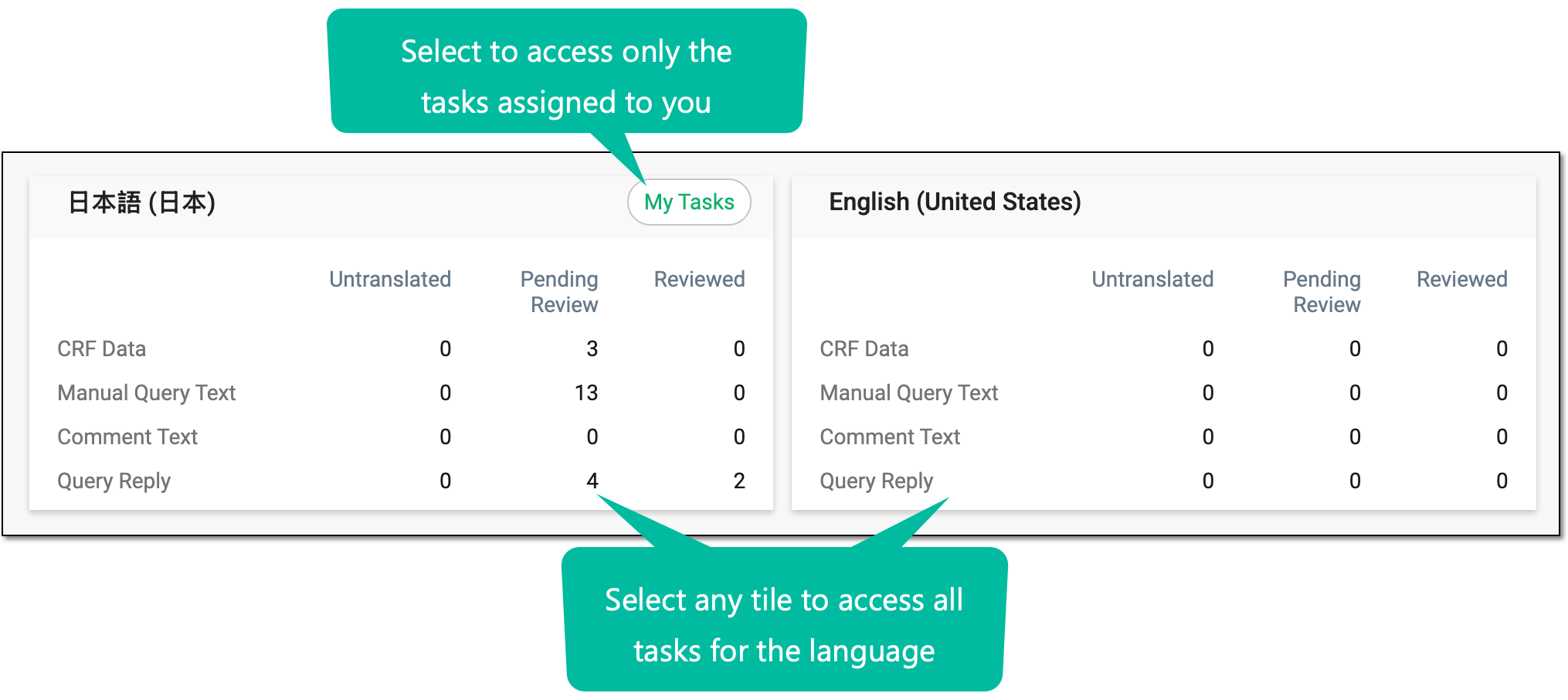 Figure 2. Accessing translation review tasks
-
On the page that opens, from the workspace toolbar, select Exemption Rules Settings
 .
-
In the dialog that opens, set up the exemption rules for translation review as explained in the following table.
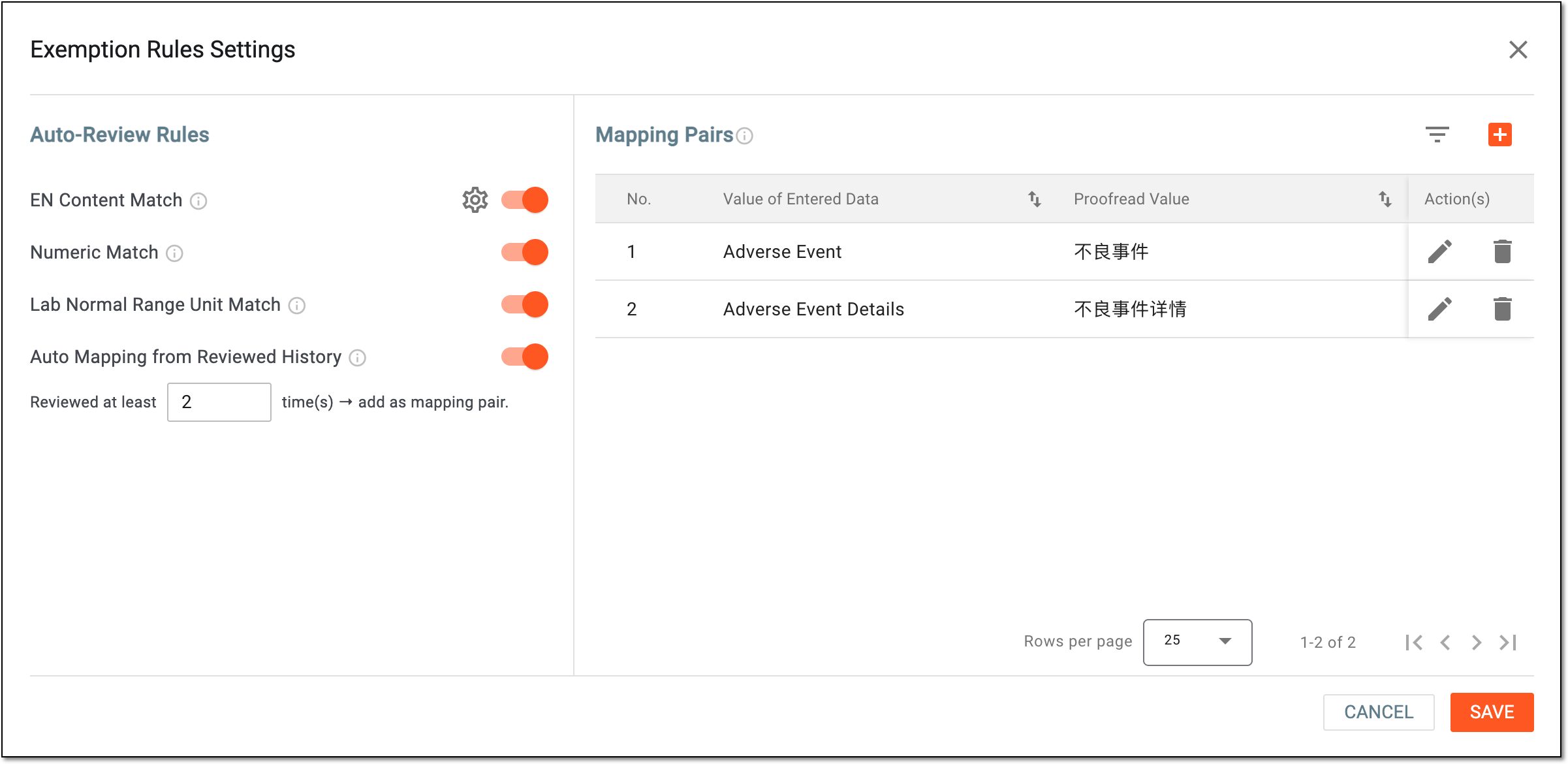 Figure 3. Setting exemption rules for translation review
Element
Details
Auto-Review Rules
EN Content Match
Turn on the toggle to automatically review the items where entered data consists only of English letters, digits, and configured symbols. In this scenario, the system autopopulates the source letters and digits, and symbols and characters are converted as configured.
Configure allowed symbols and character conversion table
Select
next to the EN Content Match field to open the EN Content Match
Configuration dialog and do the following:-
Allowed Symbols: add and manage the symbols that should be populated from the source to the translation language as is. To add a new symbol, simply enter the respective one in the text field and select Add. To remove any symbol, select
 next to it.
-
Character Conversion Table: add and manage the symbols that you want the system to convert in a specific way. To add a pair of alterable symbols, enter the Source and Target values and select Add. To remove any symbol pair, select
next to it.
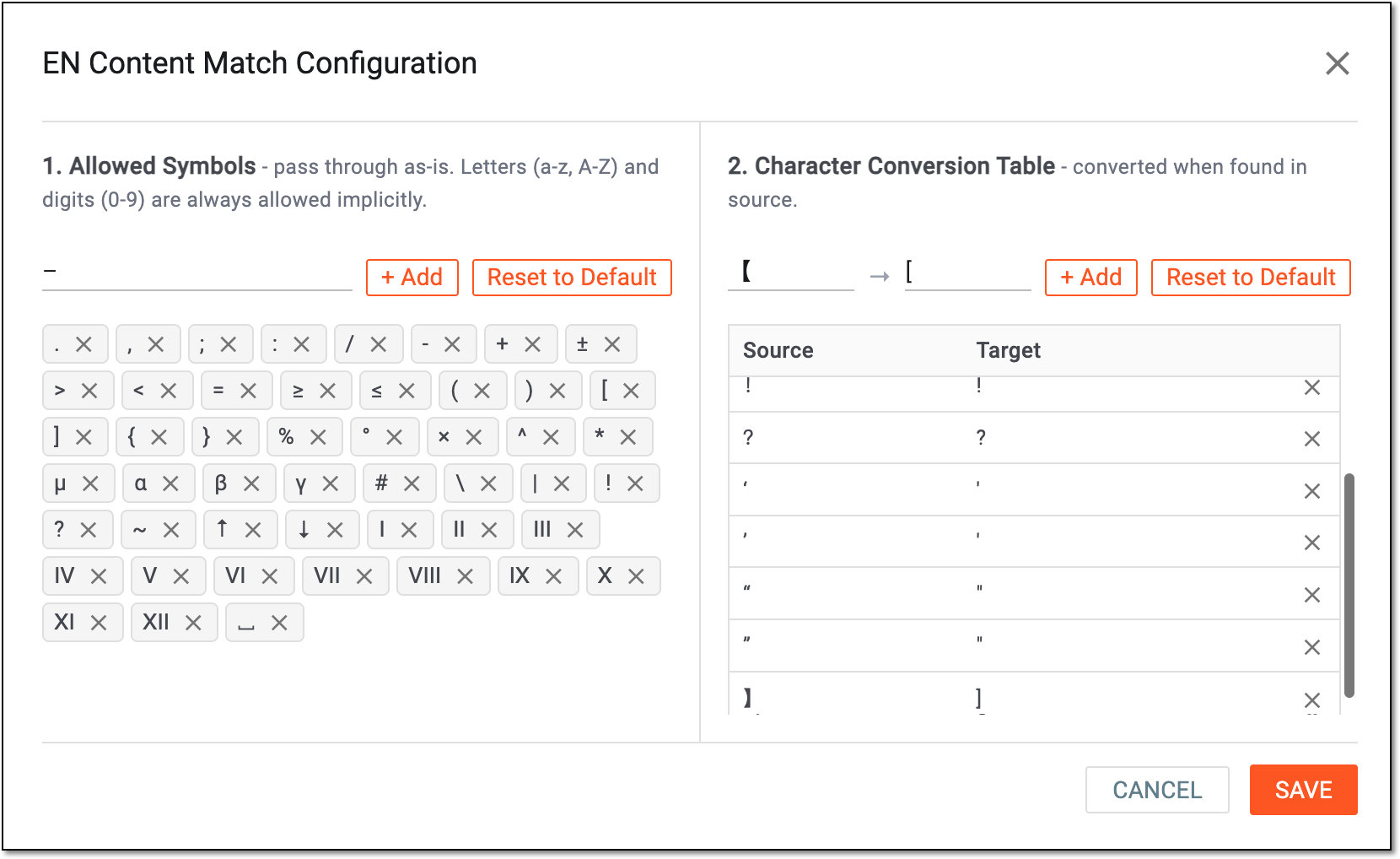 Figure 4. Configuring characters for translation
Numeric Match
Turn on the toggle to automatically review the items where entered data consists only of digits, operators, decimal points, and common punctuation (no alphabetic characters). In this scenario, the system autopopulates the source value as a translation value and considers this translation as proofread with no involvement of autotranslation or human review.
Lab Normal Range Unit Match
Turn on the toggle to automatically review the items of the LBORRESU (lab result unit) field where values consist only of digits, English letters, and punctuation (there are no Chinese or non-Latin characters). In this scenario, the system autopopulates the source value as a translation value and considers this translation as proofread with no involvement of autotranslation or human review.
Auto Mapping from Reviewed History
Turn on the toggle to automatically add a new mapping pair of the target text and its translation value if it is approved upon translation review for a customizable number of times.
Reviewed at least [number] time(s) → add as mapping pair
Enter the number of times that the translaion value must be reviewed to be automatically added as a mapping pair.
This setting is only available if the automapping from review history is enabled.Mapping Pairs
Add Mapping Pair
Select
 to add a pair of translation terms for the system to automatically review.
Value of Entered Data
Enter the value that should be autoreviewed by the system. For instance, this can be useful to autoreview the common terms and field names.
Proofread Value
Enter the translation value that the system should autopopulate as translation for the source value and automatically set the translation as proofread.
Delete
Select
 next to a mapping pair to remove it from the list. Once removed, the system no longer considers it for autoreview.
SAVE
Select
 to implement the changes, close the dialog, and return to the translation review page.
CANCEL
Select
 to discard the changes without saving, close the dialog, and return to the translation review page.
-
-
On the translation review page, to execute the set exemption rules, from the workspace toolbar, select
 . Once in progress, the icon is disabled; the
system applies the set exemption rules to automatically review the translations that have not been reviewed yet.
 Figure 5. Executing set exemption rules for translation review
Once done, the translation autoreview is completed according to the set exemption rules. The exemption rule execution icon tooltip shows the date and time
of the latest execution.