Export study-level subject data
In IWRS, under the Subject List page, you can export different statistical subject data for your study as explained in the following sections.
A subject is a healthy volunteer or a patient enrolled to participate in the clinical trial according to criteria defined in the study protocol.
All the subjects participating in your study can be tracked and managed via the Subject List page. You can also export the subject list as an XLSX file to use offline or share it with parties without access to IWRS.
-
In the IWRS application header, select the SUBJECT tab.
-
On the Subject List page that opens, from the workspace toolbar, select Export
 and then Export Subject List.
 Figure 1. Exporting subject list
-
Once selected, the widget appears displaying your download progress. Select the widget to open the My Downloads dialog.
 Figure 2. Downloads widget
-
In the My Downloads dialog that opens, you can find the following tabs:
-
Preparing: under this tab, you can find all the files whose export is in progress, and they are not yet ready for download.
-
Download is Ready: under this tab, you can find all the files whose export is complete, and they can be downloaded to your computer.
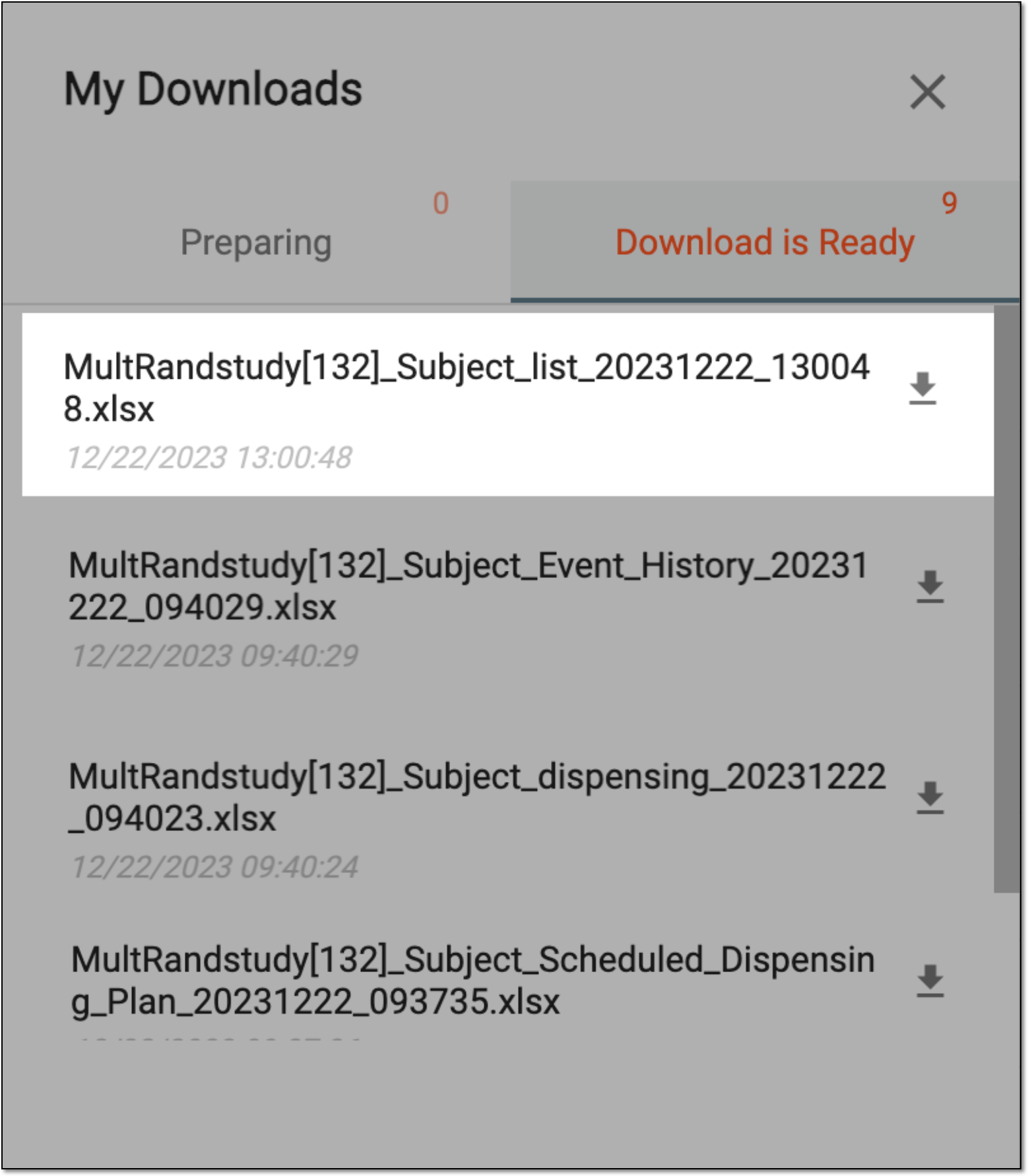 Figure 3. Viewing downloads
-
-
Under the Download is Ready tab, next to the file that you want to download, select
 .
.
Upon exporting, the XLSX file with the list of all subjects in your study is downloaded to your computer. You can now work with this data offline.
Tip
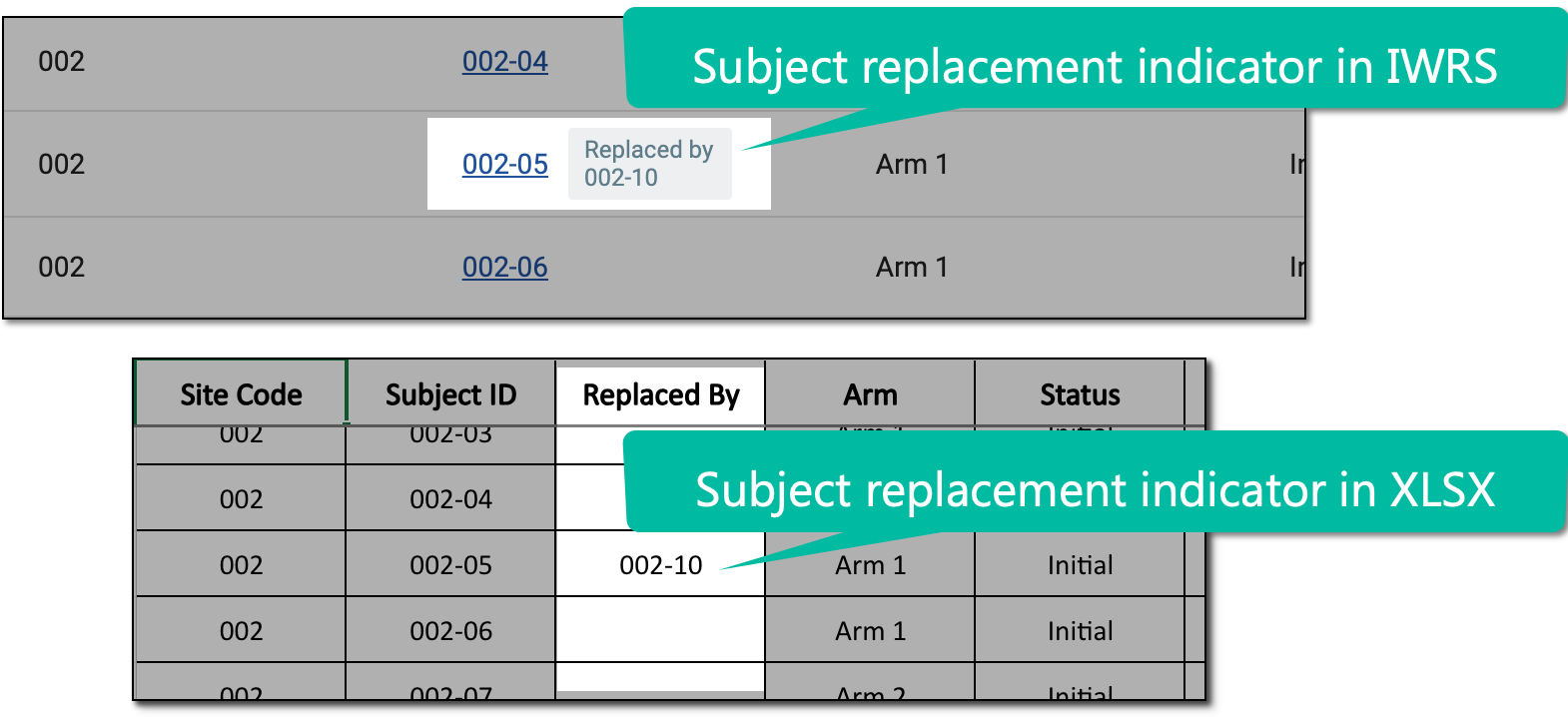
The resulting XLSX file has an additional column Replaced By. In this column, next to the discontinued subject, you can find the ID of a subject with whom the discontinued one is replaced.
A subject dispensing plan outlines the procedures for administering a particular drug or treatment to subjects in a clinical trial. When the visit dispensing is defined in IWRS, the system automatically creates a dispensing plan for subject visits in the EDC application. This subject dispensing plan is also reflected in IWRS and it indicates the drugs that must be dispensed to the subject during corresponding visits.
In IWRS, you can export the scheduled dispensing plan for all the subjects of your study as an XLSX file to use offline or share it with parties without access to IWRS.
-
In the IWRS application header, select the SUBJECT tab.
-
On the Subject List page that opens, from the workspace toolbar, select Export
and then Export Subject Scheduled Dispensing Plan. Figure 1. Exporting subject scheduled dispensing plan
-
Once selected, the widget appears displaying your download progress. Select the widget to open the My Downloads dialog.
Figure 2. Downloads widget
-
In the My Downloads dialog that opens, you can find the following tabs:
-
Preparing: under this tab, you can find all the files whose export is in progress, and they are not yet ready for download.
-
Download is Ready: under this tab, you can find all the files whose export is complete, and they can be downloaded to your computer.
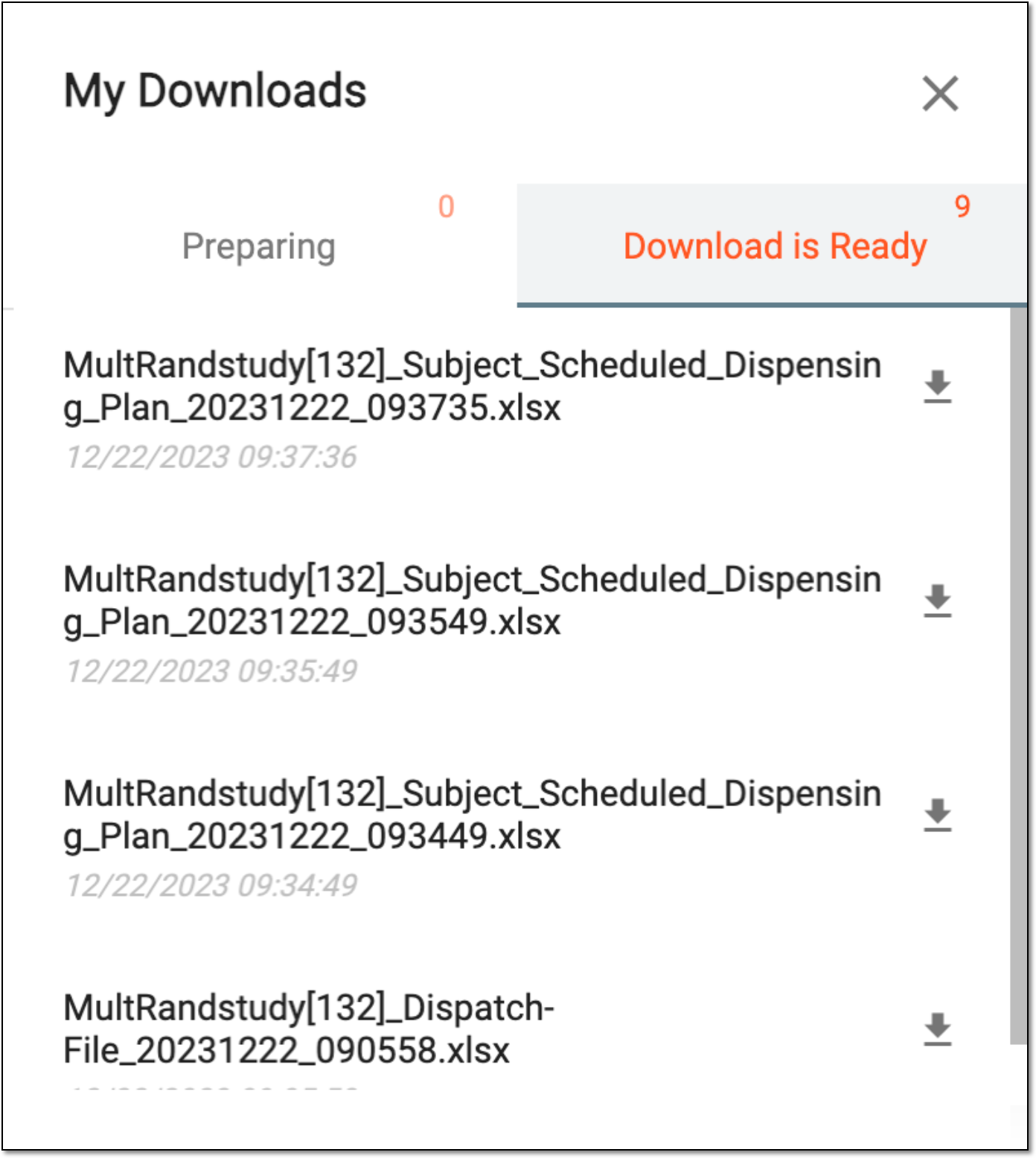 Figure 3. Viewing downloads
-
-
Under the Download is Ready tab, next to the file that you want to download, select
.
Upon exporting, the XLSX file with the scheduled dispensing plans for all subjects in your study is downloaded to your computer. You can now work with this data offline.
Subject dispensing refers to the process of assigning a specific treatment or medication to a study subject. Once a subject has been assigned to a treatment group, the appropriate medication or treatment is dispensed to them based on the study protocol.
In IWRS, the record of all subject dispensations for an entire study can be exported to your computer as an XLSX file.
-
In the IWRS application header, select the SUBJECT tab.
-
On the Subject List page that opens, from the workspace toolbar, select Export
and then Export Subject Dispensing. Figure 1. Exporting subject dispensing
-
Once selected, the widget appears displaying your download progress. Select the widget to open the My Downloads dialog.
Figure 2. Downloads widget
-
In the My Downloads dialog that opens, you can find the following tabs:
-
Preparing: under this tab, you can find all the files whose export is in progress, and they are not yet ready for download.
-
Download is Ready: under this tab, you can find all the files whose export is complete, and they can be downloaded to your computer.
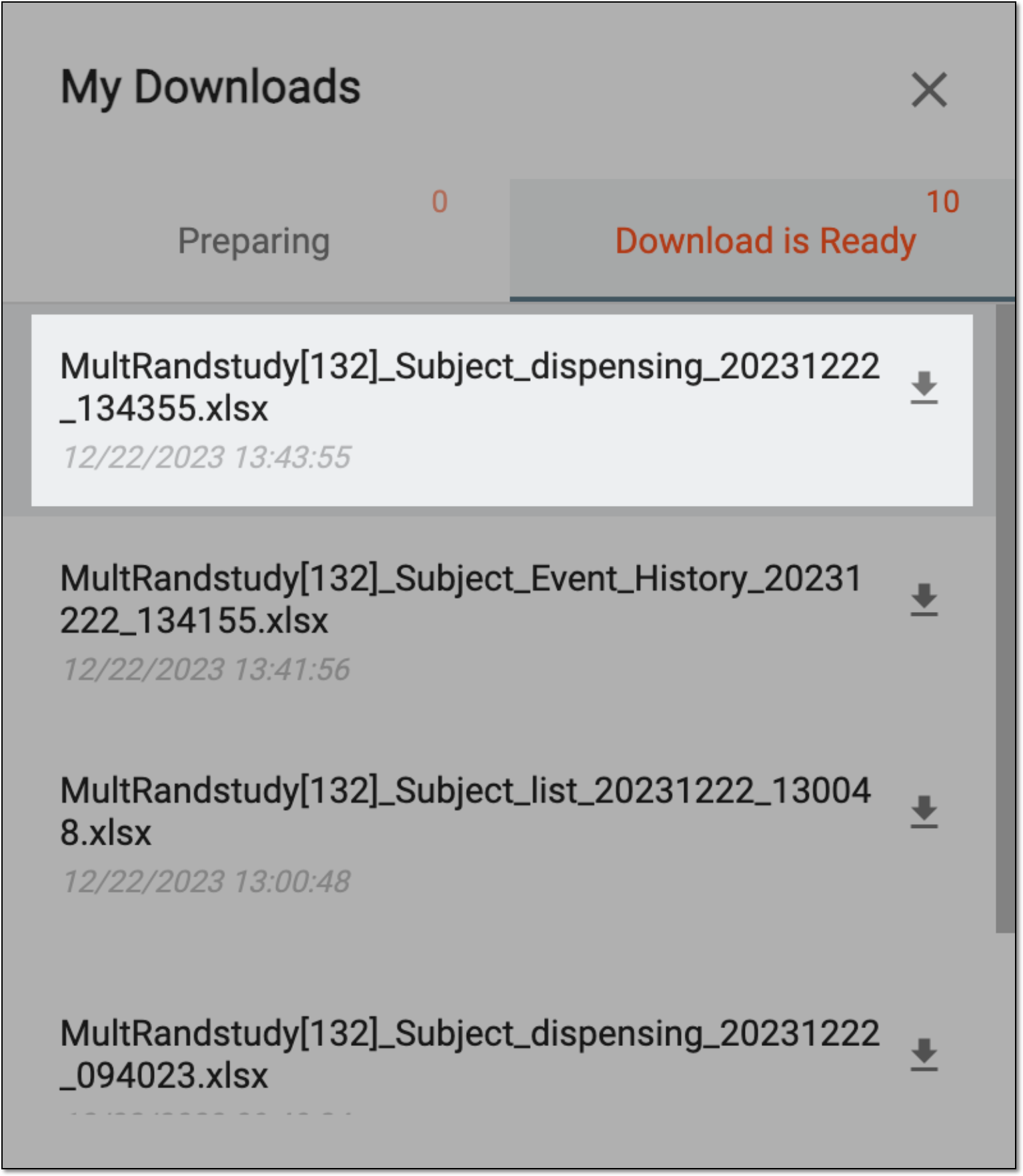 Figure 3. Viewing downloads
-
-
Under the Download is Ready tab, next to the file that you want to download, select
.
Upon exporting, the XLSX file with the dispensing details for all subjects in your study is downloaded to your computer. You can now work with this data offline.
In IWRS, you can manage a dispensation plan and handle drug dispensing for any subject. When you do any manipulations with subjects, the history of actions is recorded on a separate page. On this page, you can view when and who randomized a particular subject, dispensed a drug, and so on.
You can also export the entire subject event history for the subjects of your study as an XLSX file and work with this data offline or share it with interested parties without access to IWRS.
-
In the IWRS application header, select the SUBJECT tab.
-
On the Subject List page that opens, from the workspace toolbar, select Export
and then Export Subject Event History. Figure 1. Exporting subject event history
-
Once selected, the widget appears displaying your download progress. Select the widget to open the My Downloads dialog.
Figure 2. Downloads widget
-
In the My Downloads dialog that opens, you can find the following tabs:
-
Preparing: under this tab, you can find all the files whose export is in progress, and they are not yet ready for download.
-
Download is Ready: under this tab, you can find all the files whose export is complete, and they can be downloaded to your computer.
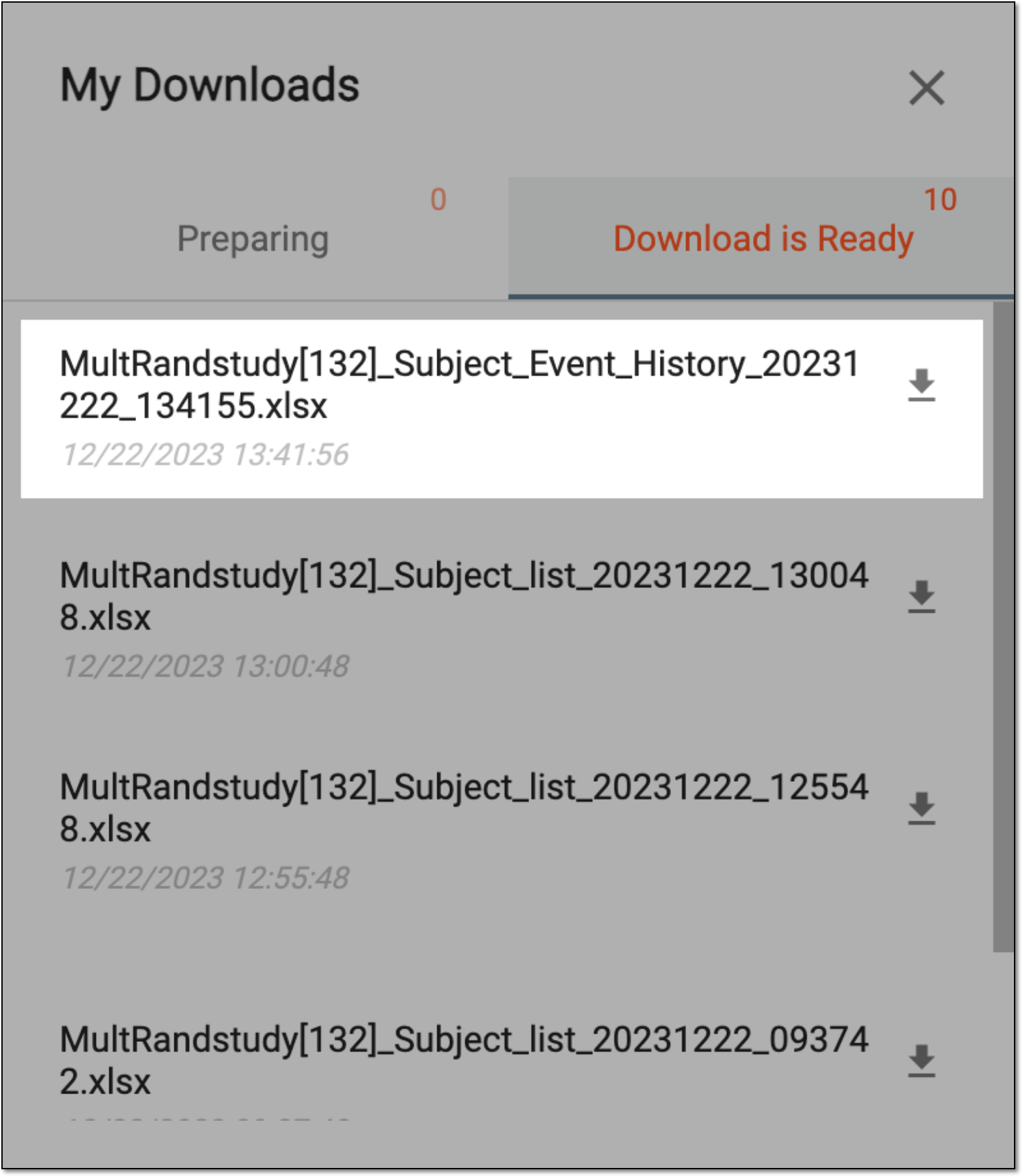 Figure 3. Viewing downloads
-
-
Under the Download is Ready tab, next to the file that you want to download, select
.
Upon exporting, the XLSX file with the event history details for all subjects in your study is downloaded to your computer. You can now work with this data offline.