Register new subject
Before site personnel can start entering the subject's data collected during their participation in a clinical trial, you need to register (create) that subject in the EDC application.
Important
In EDC, the subject registration functionality is only available if the Managing Subjects value is set to In EDC in the ADMIN app.
If in the ADMIN app Managing Subjects is set to In IWRS, you cannot register subjects via EDC and the New Subject icon is absent from the Subject Information page.
-
In the EDC application header, select the STUDY INFO tab.
-
On the page that opens, in the left pane, expand the Subject option.
-
In the menu that appears, select the Subject Information subtab.
-
On the Subject Information page that opens, above the Subject List table, select New Subject
 .
. -
In the Register Subject dialog that appears, fill in the fields as explained in the following table.
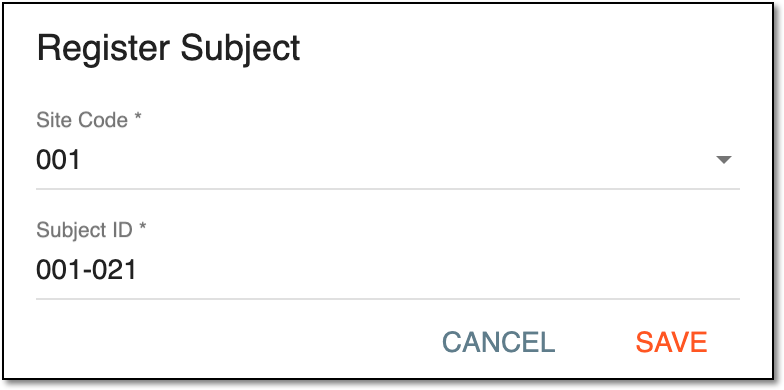 Figure 1. Registering new subject
Tip
In the following table, mandatory elements are marked with an asterisk (*).
Element
Details
Site Code*
Expand the dropdown list to select the site code at which you want to register the subject.
[Unique ID Label]*
Enter the unique ID or edit the autogenerated one for the subject you intend to register.
The name of this field and the editability of the value depend on the unique ID configurations of
                                  your study in IWRS.
SAVE
Select
 to save the implemented changes.
CANCEL
Select
 to discard the changes, close the dialog, and return to the Subject Information
page.
to discard the changes, close the dialog, and return to the Subject Information
page.
Upon saving, the new subject is registered and added to the Subject List table.