Activate/Inactivate subject
In the EDC application, you can activate or inactivate subjects at any time during the study.
For example, if a subject is taken off the study for some reason but might be reintroduced when necessary, you can temporarily inactivate this subject and activate them later on.
-
In the EDC application header, select the STUDY INFO tab.
-
On the page that opens, in the left pane, expand the Subject option.
-
In the menu that appears, select the Subject Information subtab.
-
In the Subject List table that appears, locate the subject ID of your interest.
-
In the Actions column, next to the subject, select More
 and
then one of the following:
and
then one of the following:-
Activate
 : to make the subject available for data collection, phase change, and other activities within the EDC
application.
: to make the subject available for data collection, phase change, and other activities within the EDC
application. -
Inactivate
 : to make the subject unavailable for data collection, phase change, and other activities within the EDC
application.
: to make the subject unavailable for data collection, phase change, and other activities within the EDC
application.
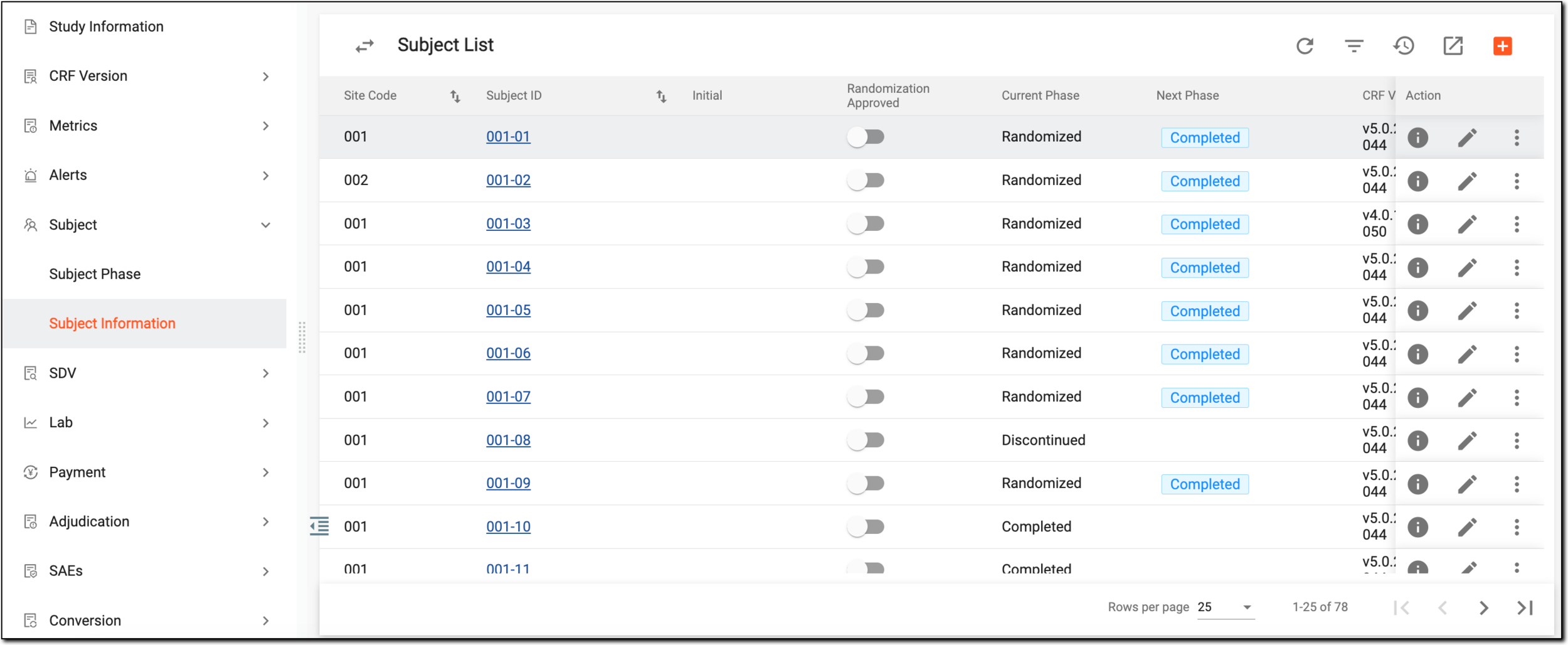 Figure 1. Activating/Inactivating subject
-
-
In the Change Reason dialog that opens, state the reason for the subject activation/inactivation for traceability purposes.
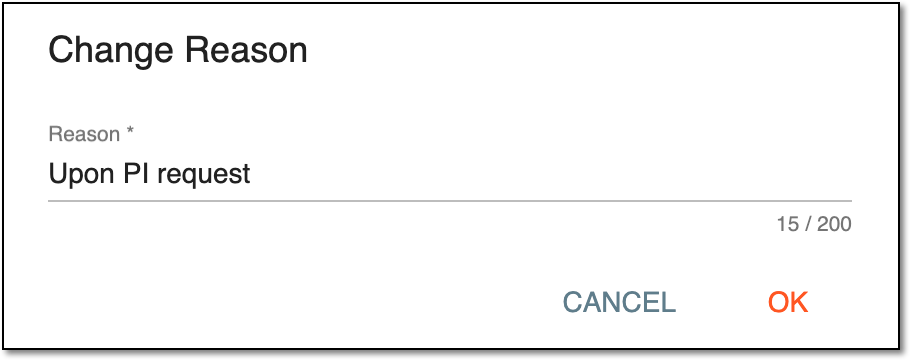 Figure 2. Stating reason of subject activation/inactivation
-
Select
 to confirm the subject activation/inactivation.
Upon confirmation, the subject is activated/inactivated depending on your selection.