Review CRF settings
In the CRF Setting subtab, you can view the default settings specific to the selected CRF version. This page is read-only and has a strictly informative purpose for the users to quickly check the needed details. You cannot update the information here.
Tip
To update any CRF setting, you need to edit the CRF version through the VERSIONING tab. Once edited, the updates are reflected under the CRF Setting subtab.
-
In the Study Designer application header, select the CONFIGURATION tab.
-
From the left pane, select the CRF Setting subtab.
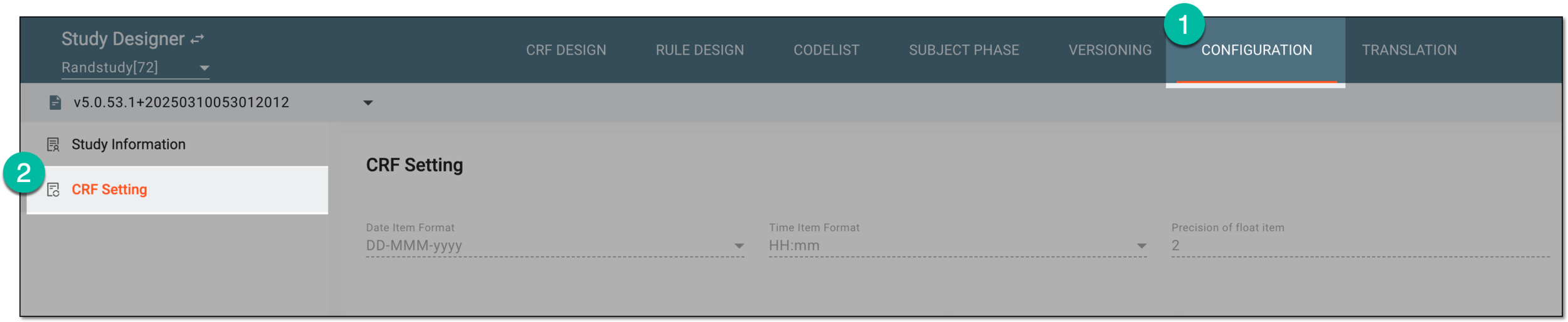 Figure 1. Accessing CRF settings
-
On the CRF Setting page that opens, review the available details as explained in the following table.
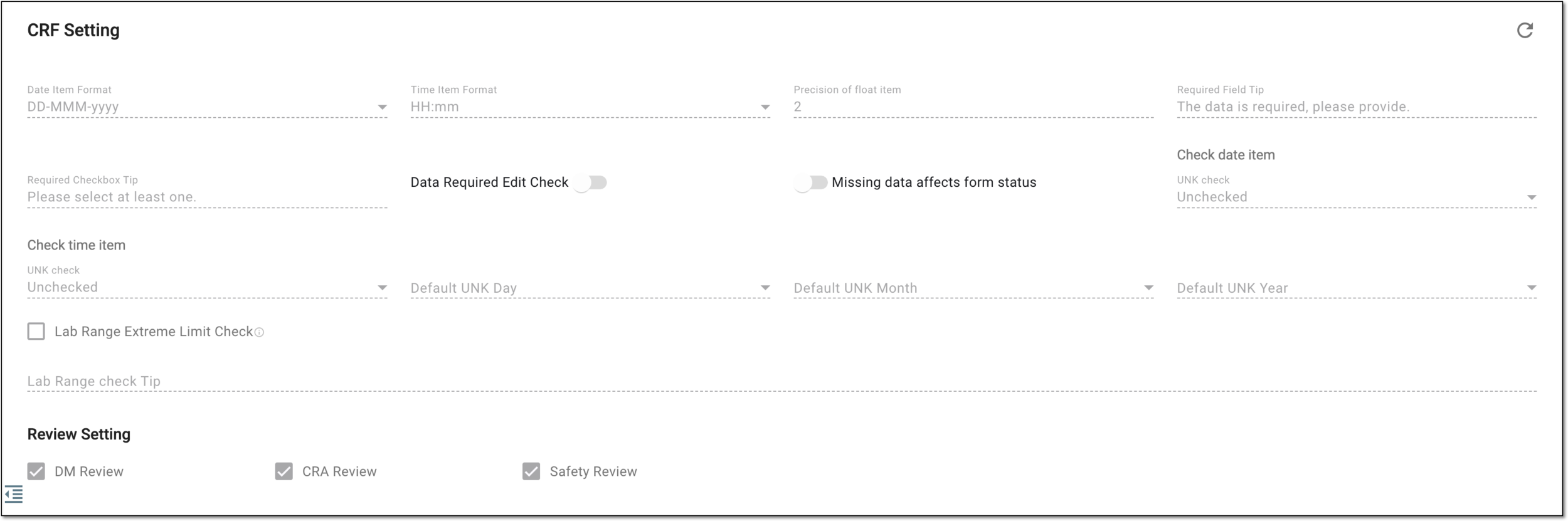 Figure 2. Reviewing CRF settings
Tip
In the following table, mandatory elements are marked with an asterisk (*).
Element
Details
Data Item Format*
Represents the default date format that is displayed on date fields when performing the CRF design.
Time Item Format*
Represents the default hour format that is displayed on date fields when performing the CRF design.
Precision of float item*
Represents the default precision number for all float items when performing the CRF design.
Required Field Tip*
Represents the text to be displayed on the hover over the CRF fields that are required when entering data in the EDC application.
Required Checkbox Tip*
Represents the text to be displayed on the hover over the CRF fields with checkboxes when entering data in the EDC application.
Data Required Edit Check
If this checkbox is selected, all CRF date fields will undergo edit check validation.
Missing data affects form status
If this checkbox is selected, the missing date data willaffect the status of CRFs when entering data in the EDC application.
Check date item
UNK check*
This dropdown list represents any of the following options that indicates the action that the system will perform on unknown date values:
-
Unchecked: when entering data to CRFs in EDC, the system will do nothing if date values are indicated as UNK (unknown).
-
Not allow: when entering data to CRFs in EDC, there will be no option to select the UNK (unknown) value for date fields.
-
Generated EC: when entering data to CRFs in EDC, the system will generate the edit check system query if there will be UNK (unknown) values in date fields.
Check time item
UNK check*
This dropdown list represents any of the following options that indicates the action that the system will perform on unknown time values:
-
Unchecked: when entering data to CRFs in EDC, the system will do nothing if time values are indicated as UNK (unknown).
-
Not allow: when entering data to CRFs in EDC, there will be no option to select the UNK (unknown) value for time fields.
-
Generated EC: when entering data to CRFs in EDC, the system will generate the edit check system query if there will be UNK (unknown) values in time fields.
Default UNK Day
Represents the default day number to be considered during date calculation or comparison if the UNK (Unknown) value is entered as a day on the CRF.
Default UNK Month
Represents the default month to be considered during date calculation or comparison if the UNK (Unknown) value is entered as a month on the CRF.
Default UNK Year
Represents the default year to be considered during date calculation or comparison if the UNK (Unknown) value is entered as a year on the CRF.
Lab Range Extreme Limit Check
If this checkbox is selected, the system uses the specified lower and upper extreme limit ratio set in the Lab Admin module when checking the laboratory test results.
Lab Range check Tip
Represents the text to be displayed on the hover over the CRF fields if the laboratory test results exceed the lower or upper extreme limit.
Review Setting
DM Review
If this checkbox is selected, the data manager (DM) review of the study data is enabled.
CRA Review
If this checkbox is selected, the clinical research associate (CRA) review of the study data is enabled.
Safety Review
If this checkbox is selected, the safety review of the study data is enabled.
Refresh
Select
 to refresh the page and check for any updates on the CRF Setting information.
 -
You have reviewed the configurations of the selected CRF version.
A module of the eClinical administrative system that enables users to configure and maintain laboratory test assessment and unit conversion rules for the EDC application to follow.
A person responsible for managing and ensuring the integrity, accuracy, and confidentiality of data collected during clinical trials. The DM’s scope of work might include maintaining the quality of data, complying with regulatory requirements, and supporting the overall success of clinical research.
In the eClinical system, the Data Manager (DM) user role is granted to a person who is mainly responsible for cleaning the data, making sure the data is entered correctly according to all requirements and industry standards, and creating manual queries for clinical research coordinators on any questionable data pieces. Before the study goes live, works with the sponsor and receives and addresses their feedback to set up the study and CRFs in EDC in a way that the sponsor approves.
A person responsible for overseeing and monitoring a clinical trial to ensure it is conducted in compliance with regulatory standards and protocols. The CRA’s scope of work might include protocol review, site selection and initiation, monitoring, data entry control, and more.
In the eClinical system, the Clinical Research Associate (CRA) user role is assigned to a person who works with the sites, and in EDC, mainly has to make sure that the entered data is truthful to the source document. CRA checks the source document in a process called source data verification and ensures that everything entered by the clinical research coordinators is valid to avoid any discrepancies caused by human errors.