Edit CRF version
A CRF stands for case report form, a document used in clinical trials to collect and record study data. As the trial evolves, new insights or challenges may emerge, requiring changes to the CRF. These modifications, especially after data collection has commenced in the EDC system, lead to what is known as versioning. This process involves adapting the CRF to new protocol requirements or data collection processes during the clinical trial.
When the study is added to eClinical and basic information is entered in Study Designer (SD), the very first CRF version is automatically generated. To work with this version, you can simply start designing the CRF by creating visits, adding new forms, defining dependencies, and so on. However, if this version has already been published to EDC for data collection purposes but now requires updates, a new CRF version can be created.
If you only need to change a few details specific to the CRF version that has not been published to EDC yet, you can simply edit the CRF version through the VERSIONING tab. The updated information is populated to the CRF Setting subtab of the CONFIGURATION tab, where it is not editable but available for informative purposes to SD users. Any changes you make when you edit a CRF version appears in the CRF Setting subtab.
-
In the Study Designer application header, select the VERSIONING tab.
 Figure 1. Accessing CRF versions
-
From the workspace toolbar of the Version Information table that appears, select More
 > Edit
  .
.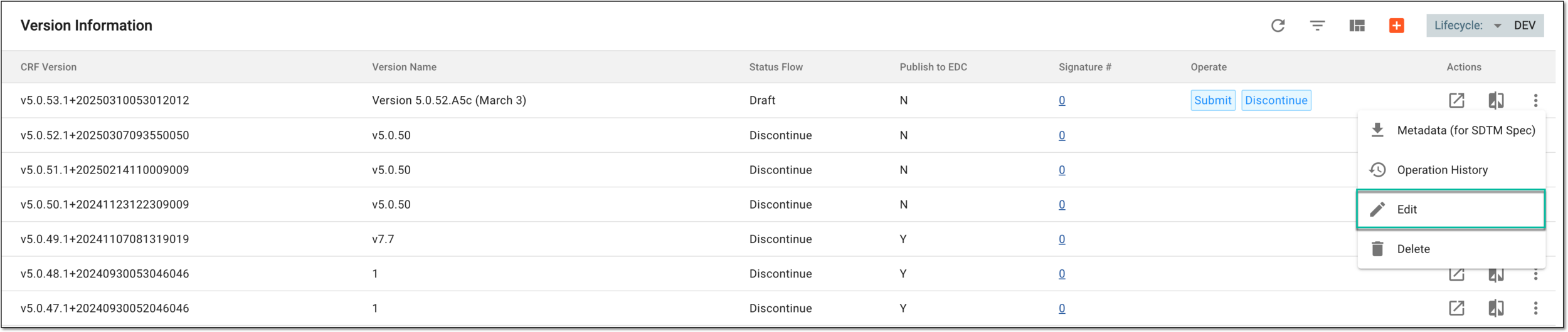 Figure 2. Selecting to edit CRF version
-
In the Update CRF Version dialog that appears, provide CRF version details as explained in the following table.
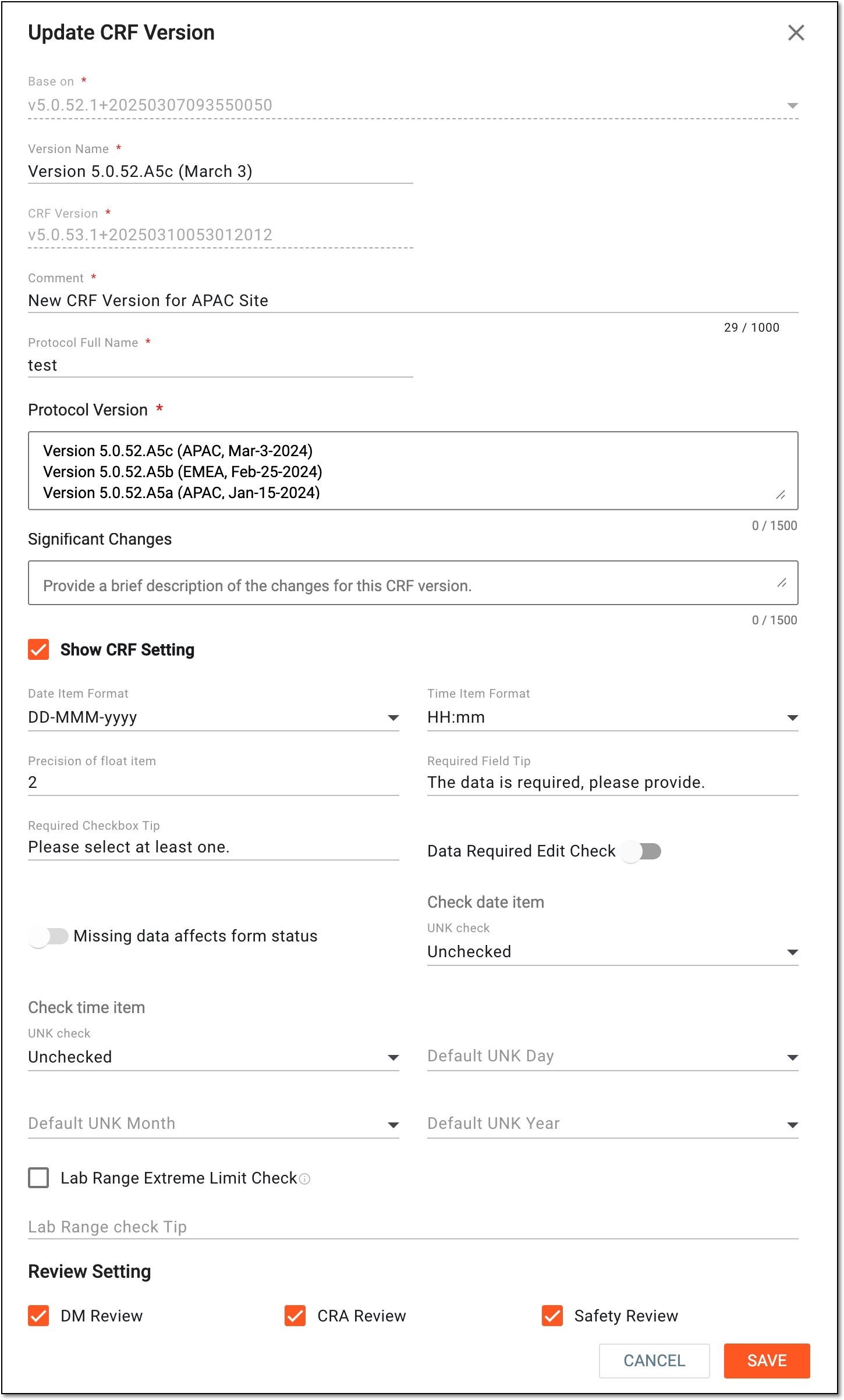 Figure 3. Updating CRF version
Tip
In the following table, mandatory elements are marked with an asterisk (*).
Element
Details
Base on*
Select the previous CRF version based on which you want to create a new one.
Version Name*
Enter the updated version name of the CRF version and the date when the version is created.
The CRF Creation Date field does not appear in the cover page of the CRF version reports, so you have to manually enter the CRF creation date after the version name.Master Version
Represents the CRF version of the master study that is currently published to EDC in the same lifecycle—DEV, UAT, or PROD. This version is referenced by the substudy during CRF design and version submission.
The value is autopopulated by the system and cannot be manually changed. This field is only available when creating a CRF version for a substudy.CRF Version*
Enter a custom version of the CRF to comply with the protocol of your study.
Comment*
Enter a reason that explains the need for creating a new CRF version.
You can edit the information in this field from when the CRF is in the draft stage until just before it's published to EDC.Protocol Full Name*
Enter the full protocol name of the new CRF version.
You can edit the information in this field from when the CRF is in the draft stage until just before it's published to EDC.Protocol Version*
Enter the protocol versions of the CRF.
A CRF can be linked to multiple protocol versions.You can edit the information in this field from when the CRF is in the draft stage until just before it's published to EDC.Significant Changes
Enter the significant changes that were applied to the new CRF version.
These changes help the users better understand what the changes are and why they were implemented.You can edit the information in this field from when the CRF is in the draft stage until just before it's published to EDC.Show CRF Setting
Select this checkbox to show the CRF Setting information that you can configure.
Date Item Format*
Select the default date format to display on date fields when performing the CRF design.
Time Item Format*
Select the default hour format to display on time fields when performing the CRF design.
Precision of float item*
Select the default precision number for all float items when performing the CRF design.
Required Field Tip*
Enter the text to be displayed on the hover over the CRF fields that are required when entering data in the EDC application.
Required Checkbox Tip*
Enter the text to be displayed on the hover over the CRF fields with checkboxes when entering data in the EDC application.
Data Required Edit Check
Select this checkbox if you want all CRF date fields to undergo edit check validation.
Missing data affects form status
Select this checkbox if you want the missing date data to affect the status of CRFs when entering data in the EDC application.
Check date item
UNK check*
Select one of the following options:
-
Unchecked: when entering data to CRFs in EDC, the system does not check if the date values are indicated as UNK (unknown).
-
Not allow: when entering data to CRFs in EDC, no option is available to select the UNK (unknown) value for date fields.
-
Generated EC: when entering data to CRFs in EDC, the system generates the edit check system query if there are UNK (unknown) values in date fields.
Check time item
UNK check*
Select one of the following options:
-
Unchecked: when entering data to CRFs in EDC, the system does not check if the time values are indicated as UNK (unknown).
-
Not allow: when entering data to CRFs in EDC, no option is available to select the UNK (unknown) value for time fields.
-
Generated EC: when entering data to CRFs in EDC, the system generates the edit check system query if there are UNK (unknown) values in time fields.
Default UNK Day
Select the default day number to be considered during date calculation or comparison if the UNK (unknown) value is entered as a day on the CRF.
Default UNK Month
Select the default month to be considered during date calculation or comparison if the UNK (unknown) value is entered as a month on the CRF.
Default UNK Year
Select the default year to be considered during date calculation or comparison if the UNK (unknown) value is entered as a year on the CRF.
Lab Range Extreme Limit Check
Select this checkbox so the system uses the specified lower and upper extreme limit ratio set in the Lab Admin module when checking the laboratory test results.
Lab Range check Tip
Enter the text to be displayed on the hover over the CRF fields if the laboratory test results exceed the lower or upper extreme limit.
Review Setting
DM Review
Select this checkbox to enable the data manager (DM) review of the study data.
If the DM review is not required, clear the checkbox.
CRA Review
Select this checkbox to enable the clinical research associate (CRA) review of the study data.
If the CRA review is not required, clear the checkbox.
Safety Review
Select this checkbox to enable the safety review of the study data.
If the safety review is not required, clear the checkbox.
SAVE
Select
 to update the CRF version settings.
CANCEL
Select
 to discard the changes without saving.
 -
Once saved, the settings for the CRF version are updated and populated to the CONFIGURATION > CRF Settings subtab.