Review failed test cases for CRFs
In EDC, you can generate and run testing cases for your configured CRF versions in the test—UAT—lifecycle before pushing the newest version and initiating actual data entry in the production—PROD—lifecycle. This helps you review and verify if the CRF logic is working correctly to prepare the fault-free version and avoid situations of broken logic only outing when the actual data entry starts.
Then, when the test cases are reviewed and marked either passed or failed, you can access all the failed ones in one list and review them in the CRFs depicting the failed logic. This helps you recreate the scenario to see how it failed the expected logic and understand the needed amendments.
-
In the EDC application header, select the STUDY INFO tab.
-
On the page that opens, in the left pane, select CRF Version > Edit Check Testing Case.
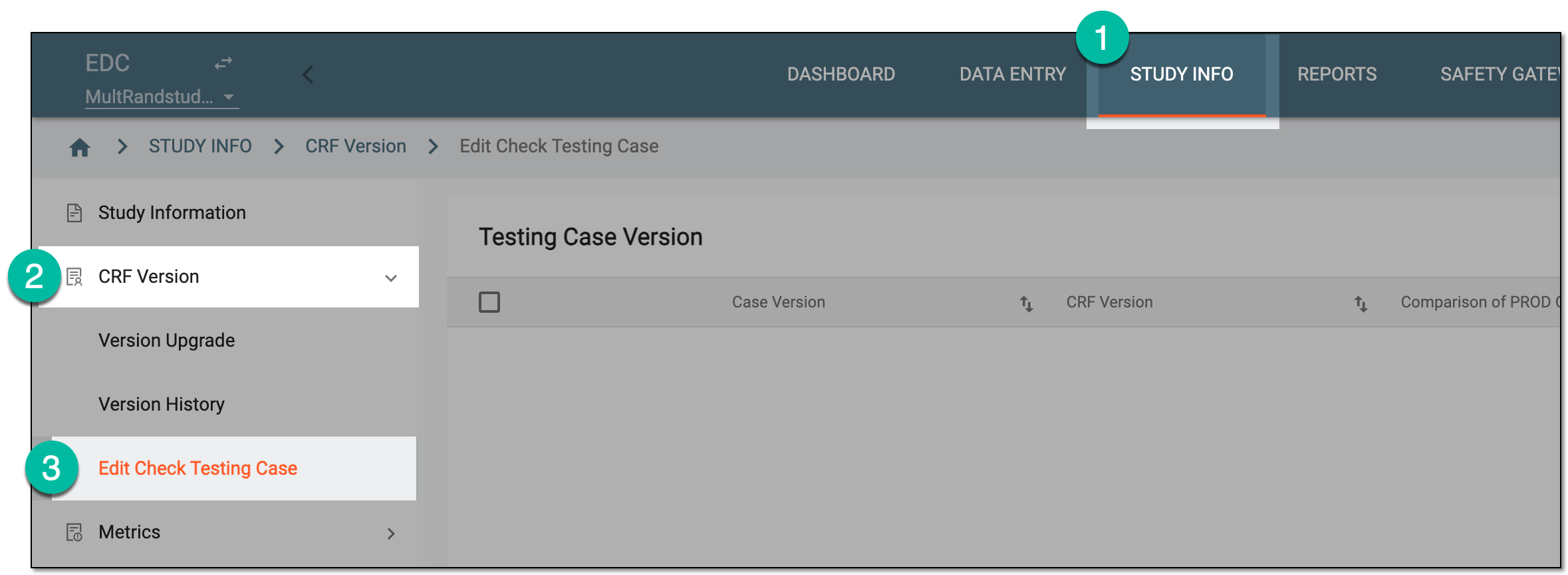 Figure 1. Accessing edit check testing
-
On the Testing Case Version page that opens, locate the test case version for which you want to review results. Then from the Action column, select Info
 .
. Figure 2. Accessing CRF version test case results
-
On the Testing Case List page that opens, from the workspace toolbar, select Failed Testing Case
 .
. Figure 3. Accessing failed test cases
-
On the page that opens, you can review the failed test cases one by one switching between them via the list at the bottom as follows:
-
Assign subject data for failed test cases: select Current or All to switch between the list of failed test cases for the currently opened subject and the study-wide testing cases.
-
Select the needed case from the list to open the pertinent visit or CRF page and attempt recreating the scenario to see how it failed the expected logic.
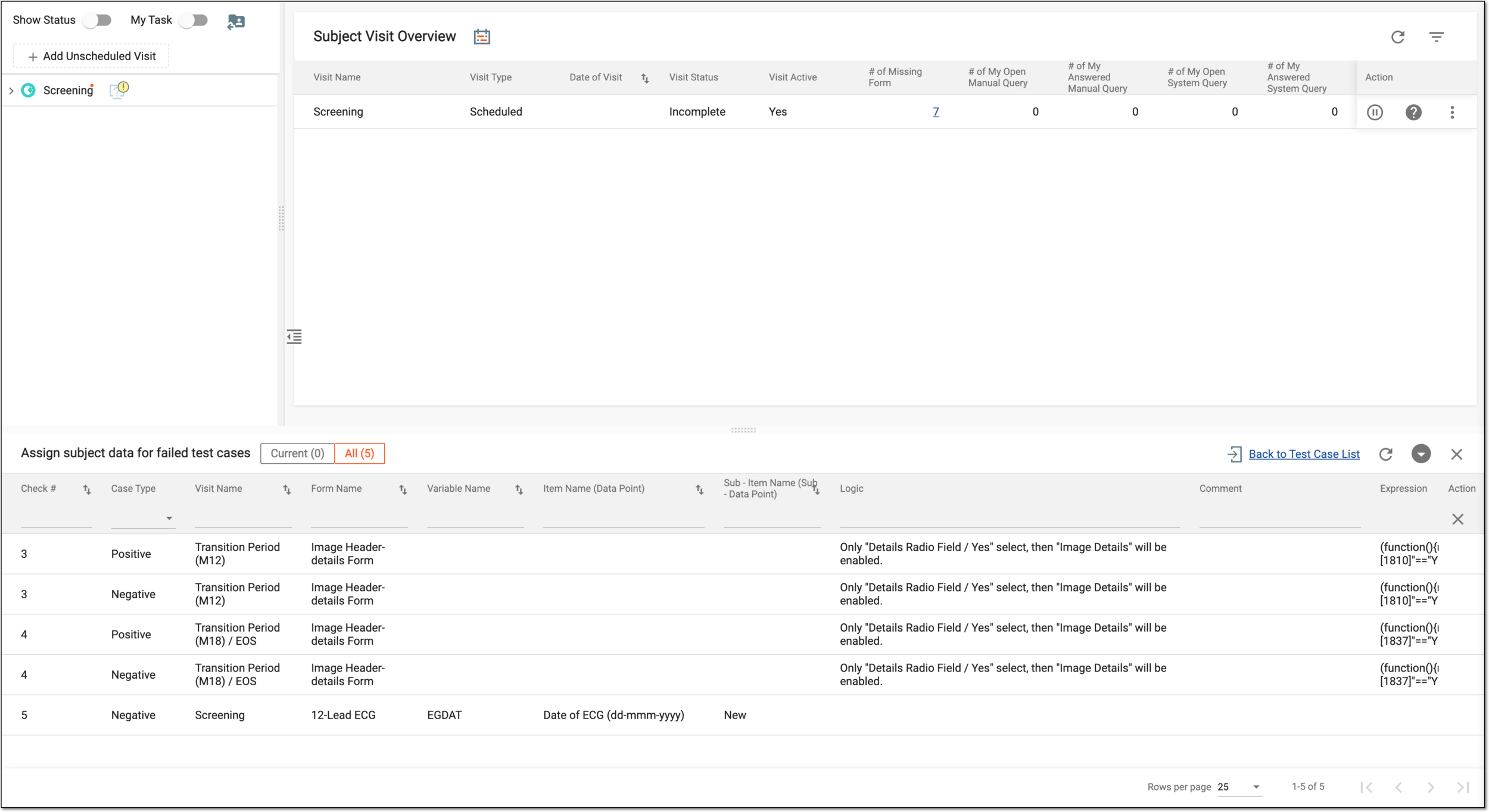 Figure 4. Reviewing failed test cases
-
You have reviewed the failed test cases in the respective CRFs. You can now select Back to Test Case List to return to the comprehensive test case result table.