Edit form question
The Study Designer application enables study teams to configure CRFs for clinical trial visits with a variety of tools. There are various form field options such as text fields, checkboxes, dropdown menus, date pickers, and more. You can place these fields on the form canvas, arrange them as needed, and make sure they are associated with the corresponding variables.
When maintaining a form, there can be two different types of questions such as custom ones and variable-oriented questions. The latter is used for data collection purposes while custom questions are added to the form when a clarification or a tip is needed and are not used for data collection. You need to consider this information whenever you edit questions on the form.
Important
By updating a unique form, you introduce changes to all visit forms linked to it and vice versa.
-
In the Study Designer application header, select the CRF DESIGN tab.
-
In the toolbar, select the latest draft CRF version marked with the respective unlock symbol
 , otherwise, you cannot perform any actions.
 Figure 1. Selecting latest draft CRF version
-
In the left pane that appears, select the needed form.
Tip
To locate the needed forms faster, use Search
 on the workspace toolbar of the
left pane.
on the workspace toolbar of the
left pane.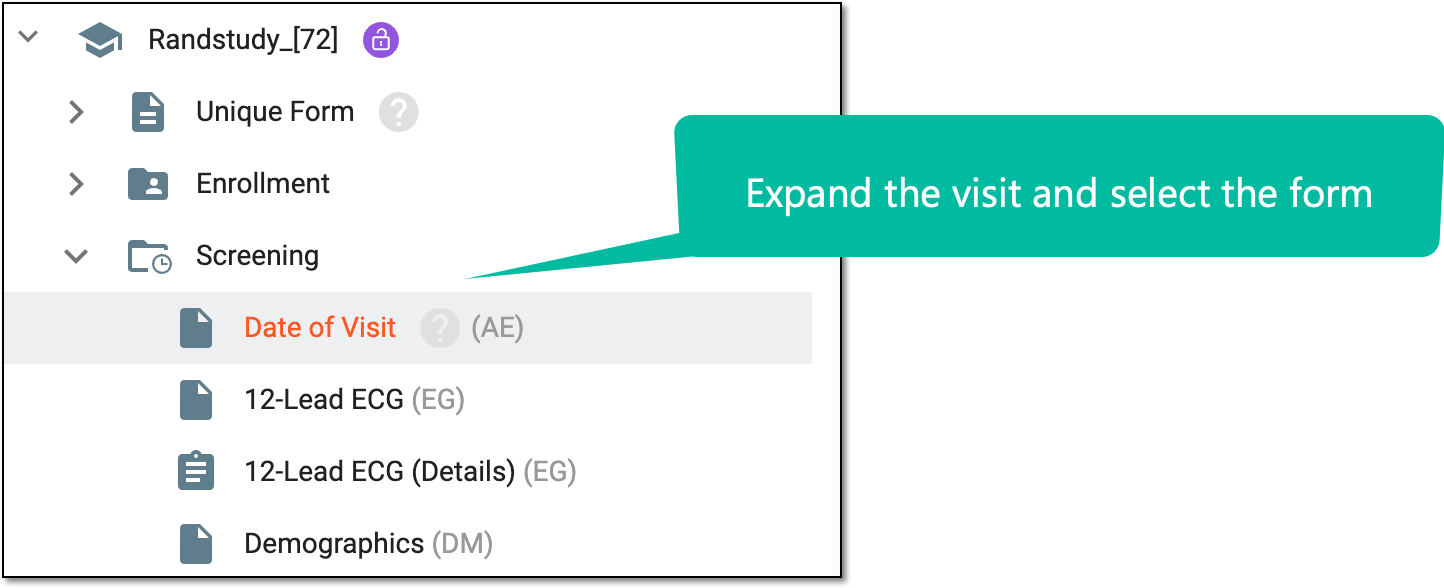 Figure 2. Accessing form to configure
-
On the form content page that appears, next to the needed question, select More
 > Edit
Question
> Edit
Question  .
.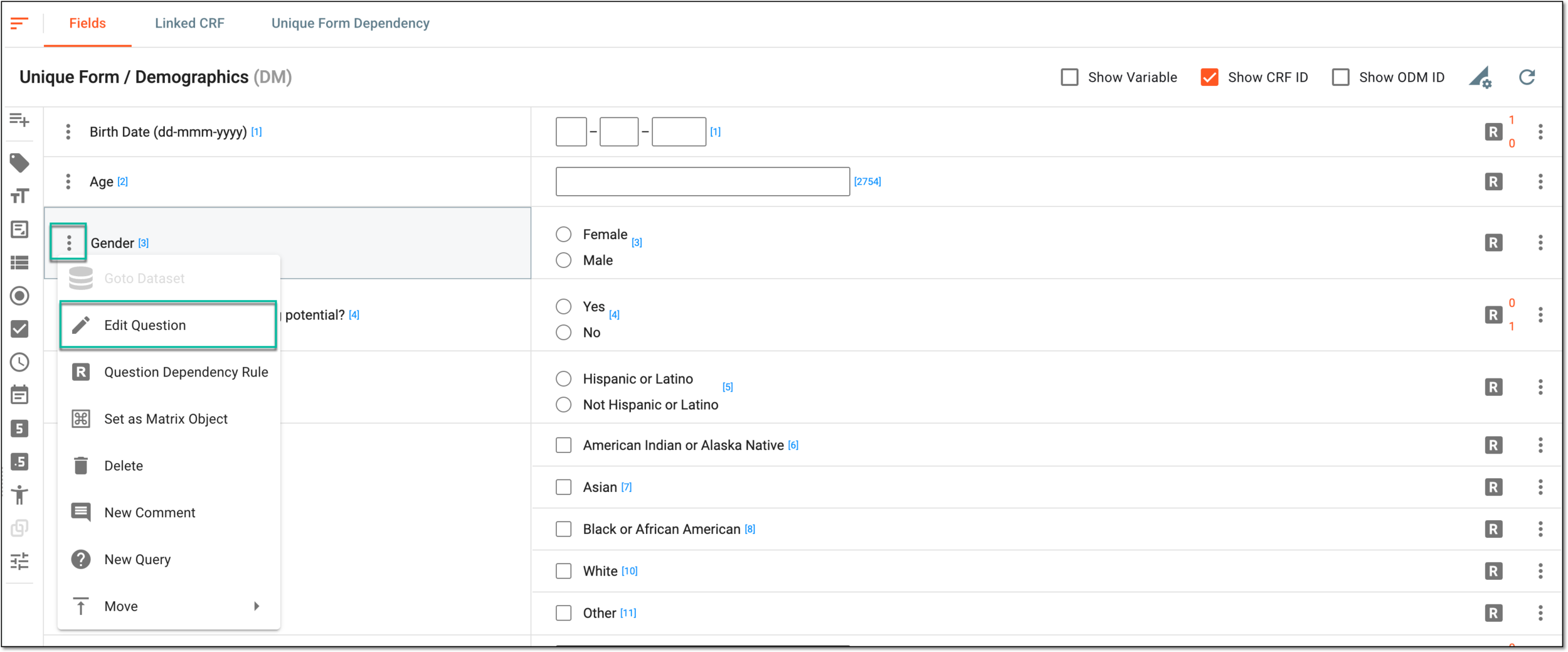 Figure 3. Selecting option to edit question
Tip
Note that when editing questions in grid forms, you update the column header names.
-
In the Edit Question panel that expands, update the details as needed. These details are identical to those explained in the table of the Add question to form section.
Important
The Output Only As Label checkbox is inactive if there are field options associated with the question, meaning this question is used for data collection purposes.
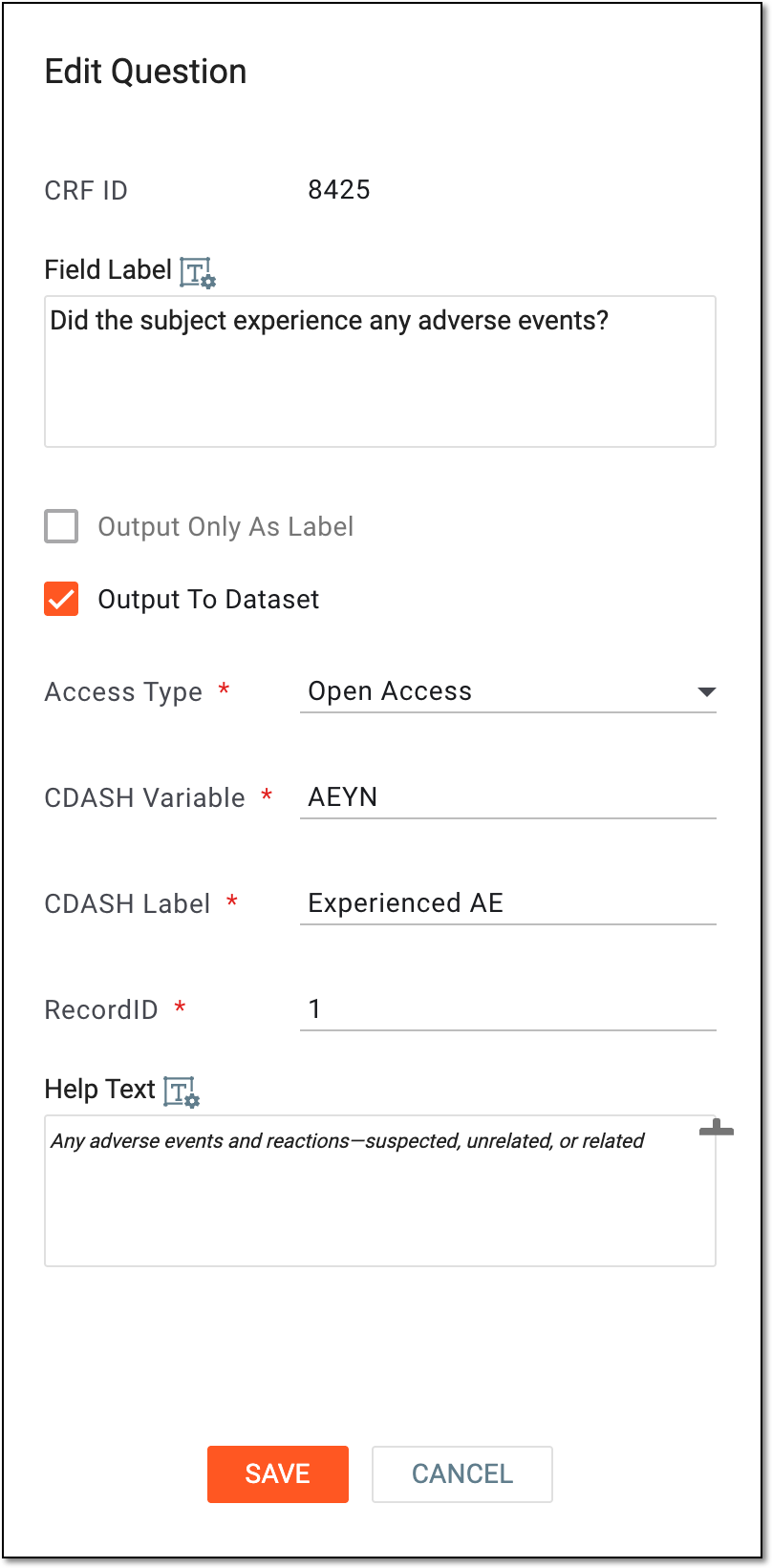 Figure 4. Editing question details
-
Select
 to update a question.
Once saved, the question details are updated. You can now continue to maintain forms with available actions.