Update study SOA matrix
The Study Designer application has various tools to maintain different form settings. One such setting includes the configuration of the SOA matrix for the entire study. This matrix represents a list of questions and items that are shared between a parent unique form and its child visit forms.
During the CRF design, it may occur that some questions or items available on the unique form may not be required on forms of some visits. To have the possibility to hide them, first, you need to set such questions and items as matrix objects and then maintain the SOA matrix where you can specify what questions or items need to be available or hidden in visit forms across the study.
When working with forms, you can easily distinguish the statuses of questions or items in terms of association with the SOA matrix:
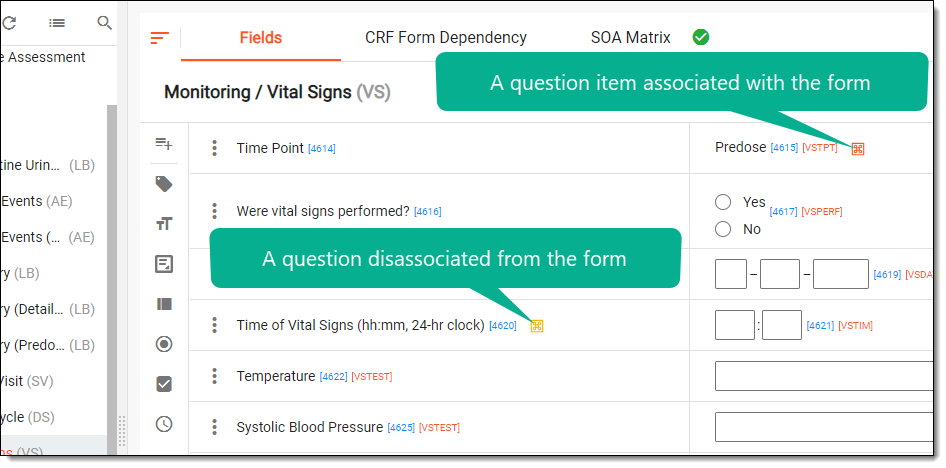
-
Matrix Object
 : this icon is displayed next to questions or items on unique forms, indicating their belonging to
the SOA matrix.
: this icon is displayed next to questions or items on unique forms, indicating their belonging to
the SOA matrix. -
Associated Matrix Object
 : this icon is displayed next to questions or items on visit forms if they are
associated with the form. This means that the corresponding question or item will be displayed on the visit form during data entry in EDC.
: this icon is displayed next to questions or items on visit forms if they are
associated with the form. This means that the corresponding question or item will be displayed on the visit form during data entry in EDC. -
Disassociated Matrix Object
 : this icon is displayed next to questions or items on visit forms if
they are not associated with the form. This means that the corresponding question or item will be excluded from the visit form during data entry in EDC.
: this icon is displayed next to questions or items on visit forms if
they are not associated with the form. This means that the corresponding question or item will be excluded from the visit form during data entry in EDC.
-
In the Study Designer application header, select the CRF DESIGN tab.
-
In the toolbar, select the latest draft CRF version marked with the respective unlock symbol
 , otherwise, you cannot perform any actions.
 Figure 2. Selecting latest draft CRF version
Tip
The identifier next to the study name aids you in diversifying between the Locked
 CRF
version unavailable for edits and Unlocked one that you can amend and configure.
CRF
version unavailable for edits and Unlocked one that you can amend and configure.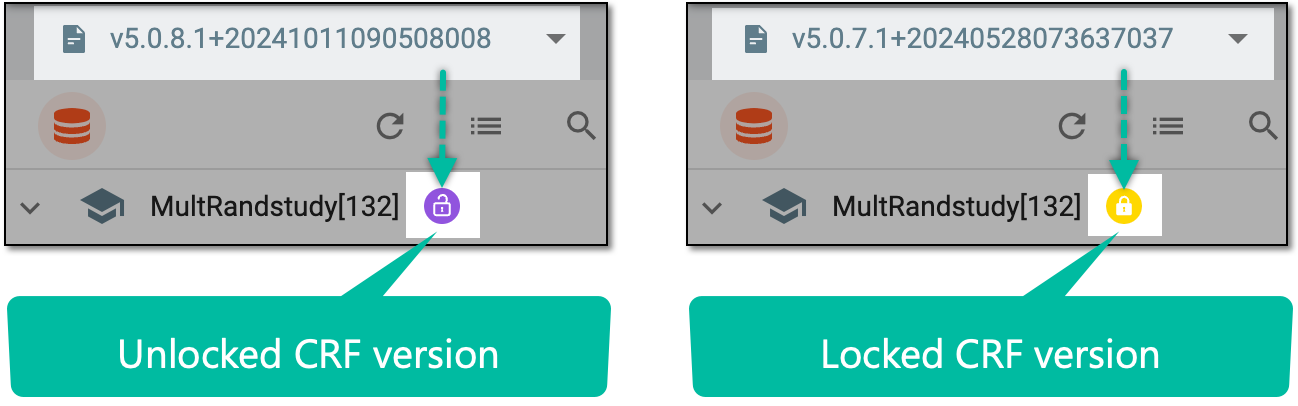 Figure 3. Unlocked vs locked CRF version
-
In the left pane that appears, select the study node.
-
In the contents panel that appears, select the SOA Matrix tab.
Important
If this tab is not available, it means that there are no items set as matrix objects or questions set as matrix objects within the study.
-
From the workspace toolbar, select the visit whose matrix objects you want to maintain.
-
In the table that appears, select checkboxes in visit columns to associate corresponding questions or items with those visits or clear checkboxes to disassociate them.
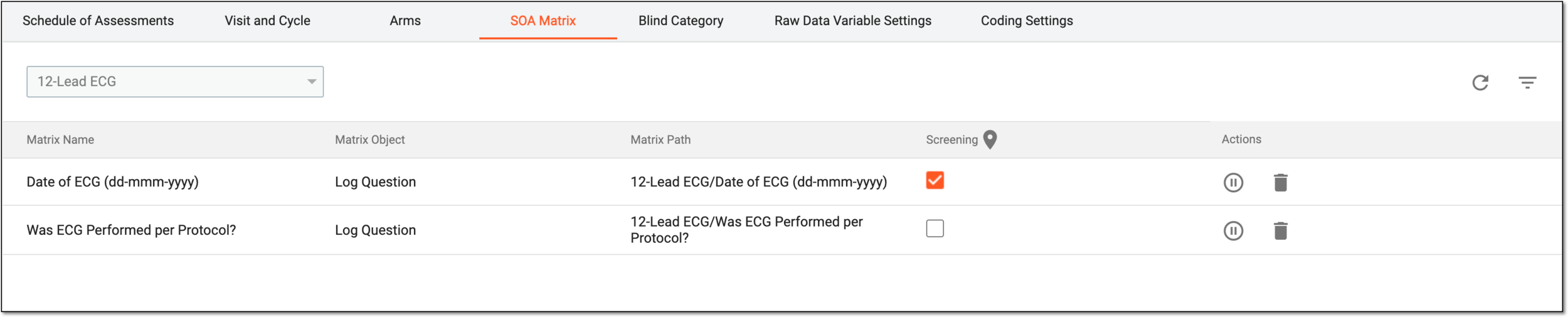 Figure 4. Maintaining study SOA matrix
Tip
Within the SOA Matrix tab, you have the following additional actions to handle matrix objects:
-
Edit name
 : select this icon to update the name of the matrix
object.
: select this icon to update the name of the matrix
object. -
Go to visit form
 : select this icon to navigate to the corresponding visit
form.
: select this icon to navigate to the corresponding visit
form. -
Inactivate
 or Activate
  : select this icon to make a matrix object temporarily unavailable or available, respectively.
 -
Delete
 : select this icon to permanently delete a matrix object from the
list.
: select this icon to permanently delete a matrix object from the
list.
-
-
Repeat steps 5-6 to maintain the SOA matrix for other visits if necessary.
-
When you attempt to leave the page and there are some disassociated questions or items, in the confirmation dialog that appears, select
 .
.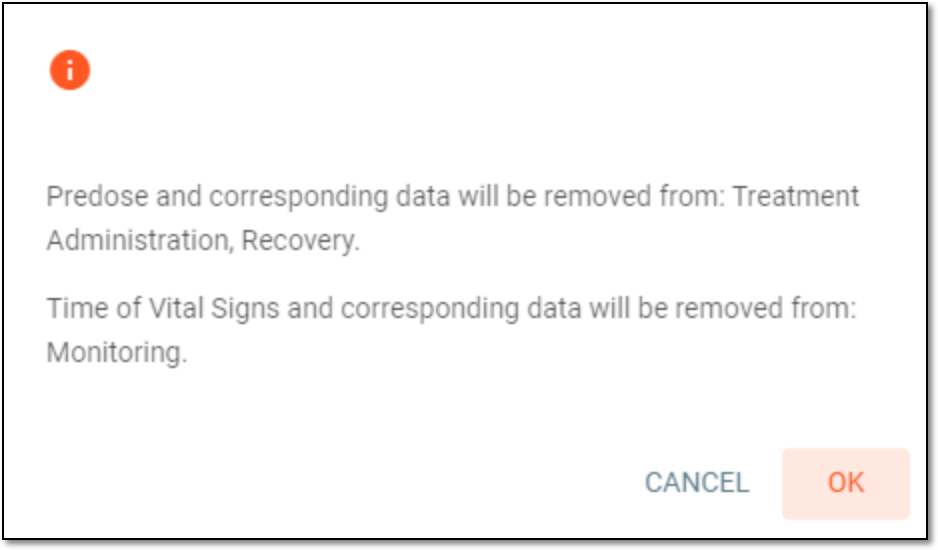 Figure 5. Confirming question and item disassociation
Once confirmed, the study SOA matrix is updated.