Associate arms with forms
An arm refers to a group or a subset of subjects within the study who receive a specific intervention or treatment. Clinical trials are often designed to compare different treatments or interventions so these different groups are known as arms. Each arm represents a different experimental condition, such as a different dose of a drug, a placebo, or a different treatment altogether.
For example, in a drug trial, the following arms can exist:
-
Arm A: subjects receive the experimental drug at a low dose.
-
Arm B: subjects receive the experimental drug at a high dose.
-
Arm C: subjects receive a placebo (no active drug).
In Study Designer, forms are designed to capture specific data for each subject at different visits. Since each arm of a study can receive different treatments or interventions, it is crucial to associate the CRF data with the appropriate arm. This ensures that the collected data is properly linked to the specific intervention the participant is receiving. It enables accurate analysis and comparison of outcomes between different arms.
Important
Arm association functionality is only available if, in your study's basic configurations, you have enabled to associate arms with various visits instead of imposing a uniform visit structure across all arms of your study.
After adding arms and associating them with visit forms, the configuration becomes available in IWRS for randomization and drug supply management. IWRS is used for real-time randomization of subjects into different treatment arms and helps manage the supply and distribution of investigational products.
-
In the Study Designer application header, select the CRF DESIGN tab.
-
In the toolbar, select the latest draft CRF version marked with the respective unlock symbol
 , otherwise, you cannot perform any actions.
 Figure 1. Selecting latest draft CRF version
Tip
The identifier next to the study name aids you in diversifying between the Locked
 CRF
version unavailable for edits and Unlocked one that you can amend and configure.
CRF
version unavailable for edits and Unlocked one that you can amend and configure.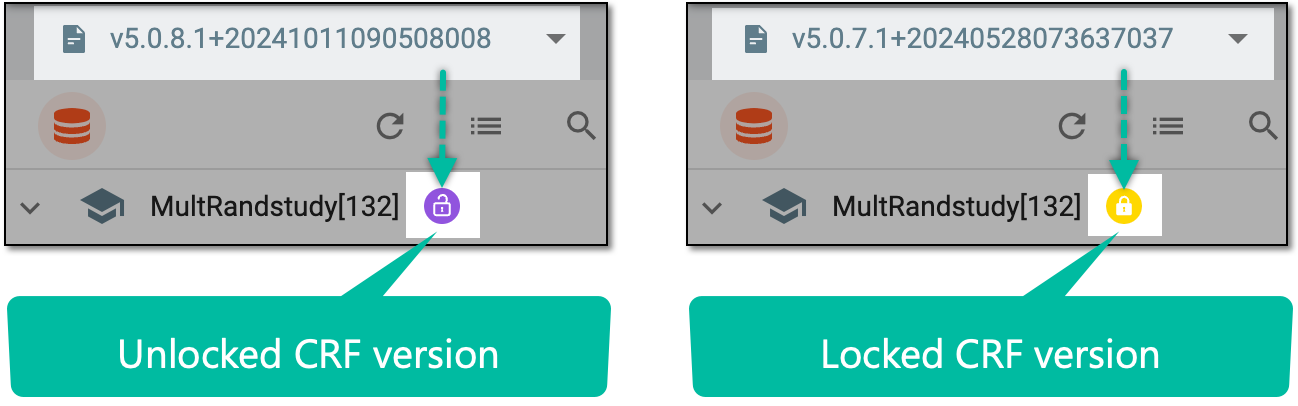 Figure 2. Unlocked vs locked CRF version
-
In the left pane that appears, select the study node.
-
In the contents panel that appears, select the Arms tab.
-
From the workspace toolbar of the Arm List table, select New Item
 to add an arm
to the study as shown in the following figure. Repeat this step as many times as needed to add the necessary number of arms.
to add an arm
to the study as shown in the following figure. Repeat this step as many times as needed to add the necessary number of arms.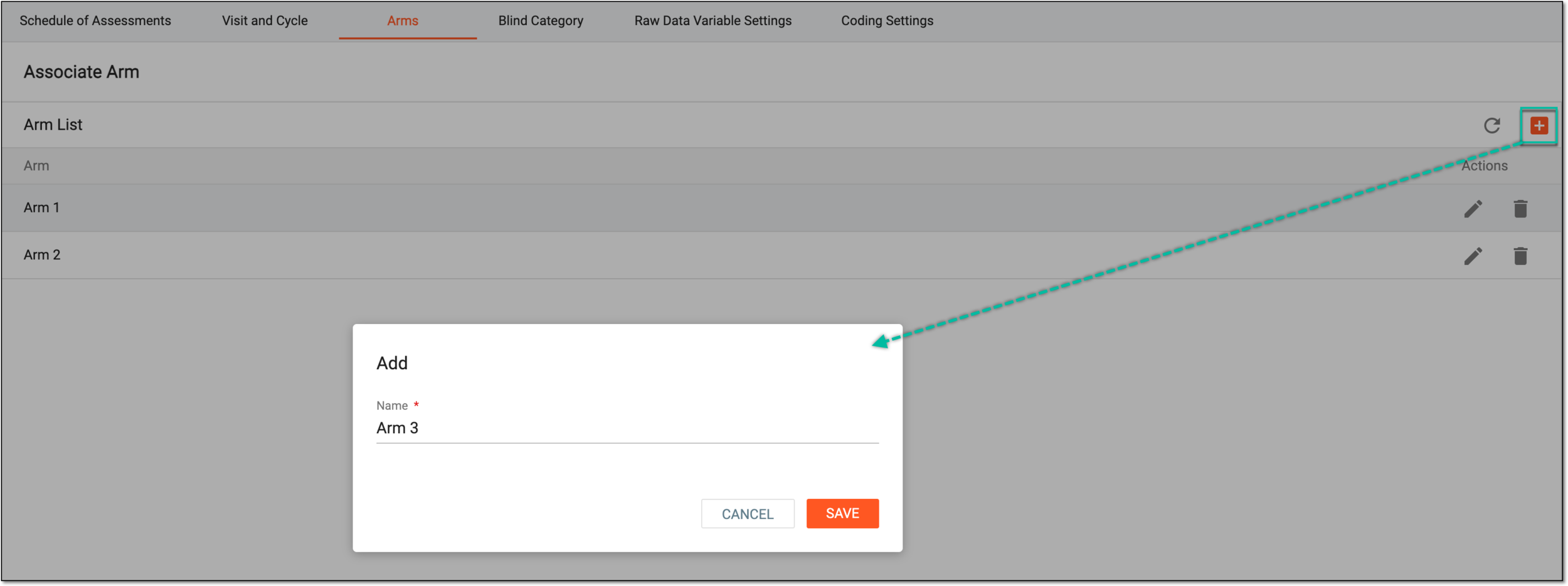 Figure 3. Adding arm to study
Tip
After adding the necessary arms, you can edit their name by selecting Edit
 or delete them by
selecting Delete
or delete them by
selecting Delete  next to the needed arm from the list.
 -
In the same Arm List table, select the needed arm to associate it with visit forms that become available in the study tree next to the Arm List table.
-
In this study tree, select checkboxes next to the forms that need to be associated with the selected arm. Alternatively, select the entire study to associate all visit forms with the arm, or select a specific visit to associate all of its forms with the arm.
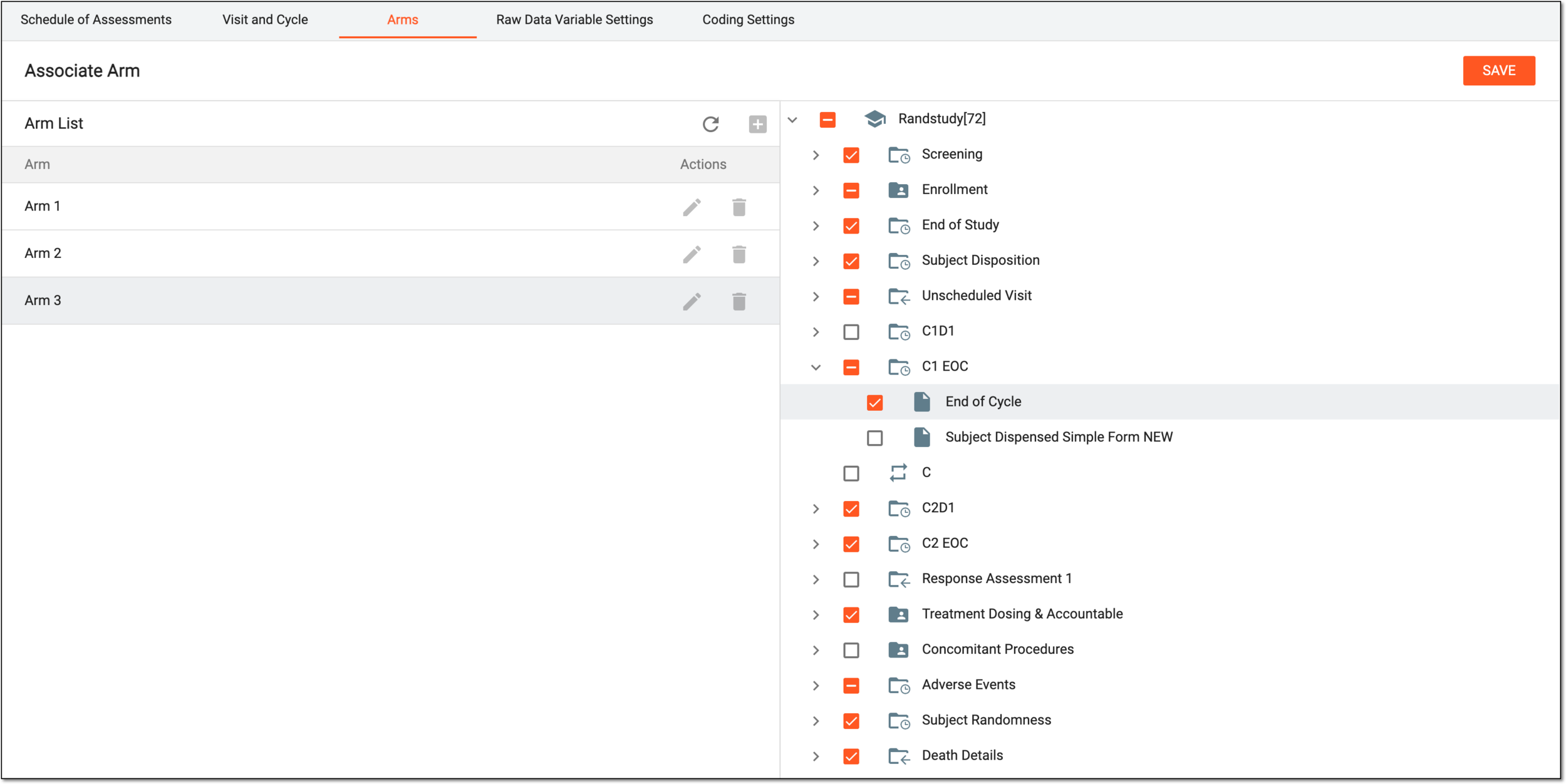 Figure 4. Associating arm with forms
-
From the workspace toolbar of the Associate Arm page, select
 to apply the arm-form association.
 -
Repeat steps 6-8 to associate other arms with forms.
Once done, the arms are associated with forms. After publishing CRF, the arms become available in IWRS for subject randomization purposes.