Set window for unscheduled visit
A visit window refers to a specific time frame during which a study subject is expected to complete a scheduled visit or assessment. In clinical trials, participants are often required to visit a site or undergo specific assessments at predetermined intervals. The visit window provides a degree of flexibility around the exact date of the scheduled visit as it defines a range of acceptable dates within which the visit needs to occur.
In Study Designer, you can configure a window for each of the created unscheduled visits by defining the number of times a specific unscheduled visit needs to be automatically generated in the EDC system with the indicated frequency.
For example, for studies involving chronic or progressive diseases, the repeatedly occurring unscheduled visit can help track disease progression and assess the impact of the intervention more frequently, leading to a more detailed understanding of treatment efficacy.
-
In the Study Designer application header, select the CRF DESIGN tab.
-
In the toolbar, select the latest draft CRF version marked with the respective unlock symbol
 , otherwise, you cannot perform any actions.
 Figure 1. Selecting latest draft CRF version
Tip
The identifier next to the study name aids you in diversifying between the Locked
 CRF
version unavailable for edits and Unlocked one that you can amend and configure.
CRF
version unavailable for edits and Unlocked one that you can amend and configure.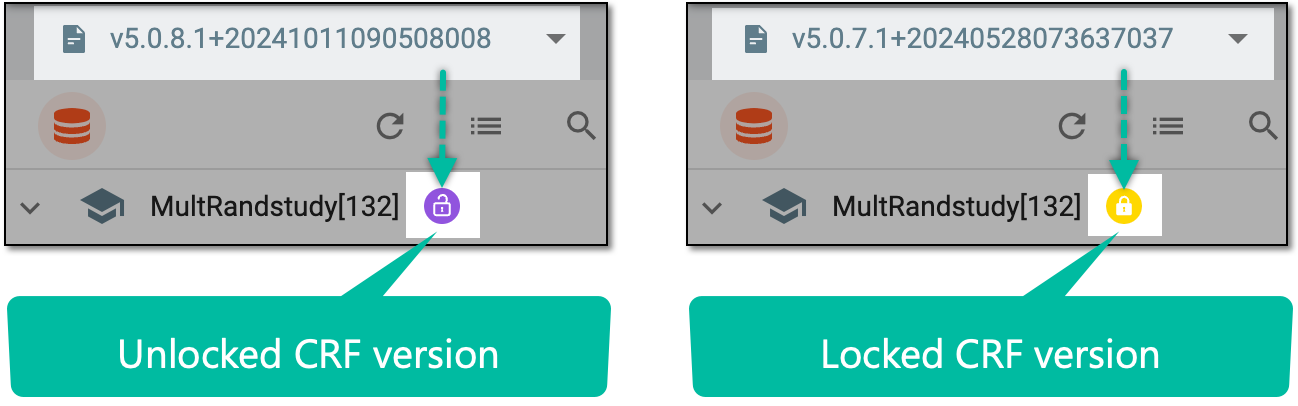 Figure 2. Unlocked vs locked CRF version
-
In the left pane that appears, select the study node.
-
In the contents panel that appears, select the Visit and Cycle tab.
-
In the table that appears, select Unscheduled Visit Window
 next to the needed unscheduled visit.
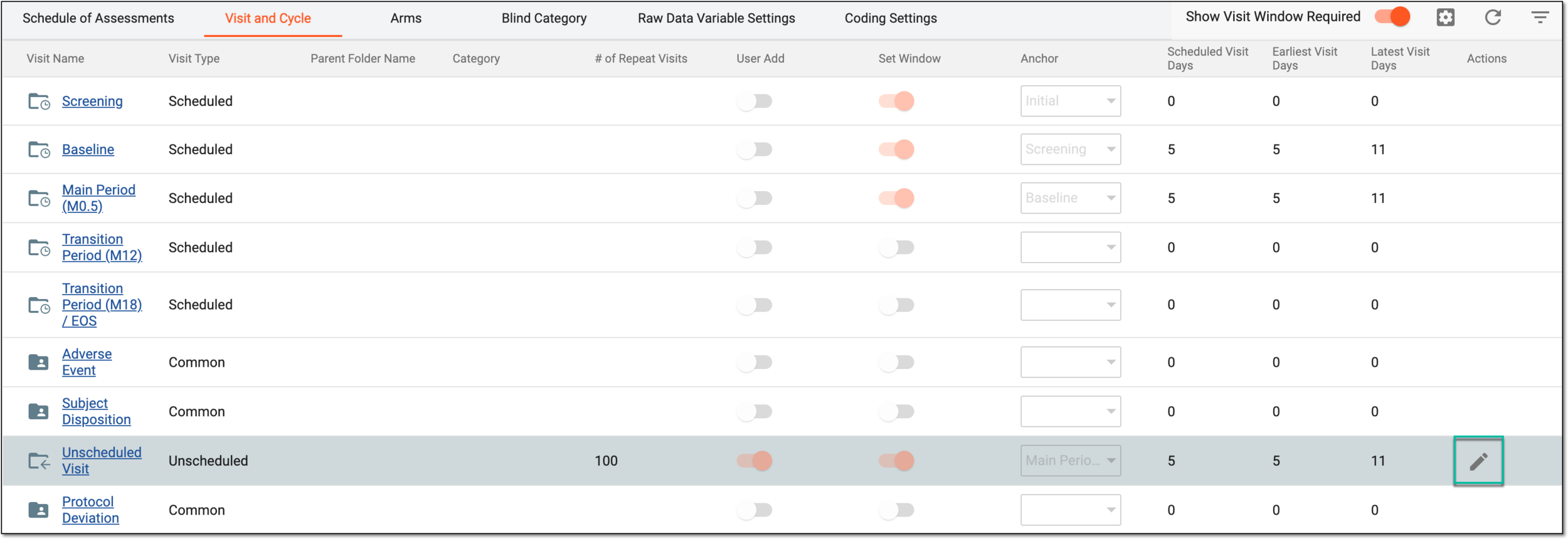 Figure 3. Accessing window definition for unscheduled visit
Important
This option is available only when the Set Window toggle has been switched on for a corresponding unscheduled visit.
-
In the Unscheduled Visit Window dialog that appears, define the number of repeats and select
 to add them. This number
determines how many times the unscheduled visit needs to be automatically generated in EDC.
to add them. This number
determines how many times the unscheduled visit needs to be automatically generated in EDC.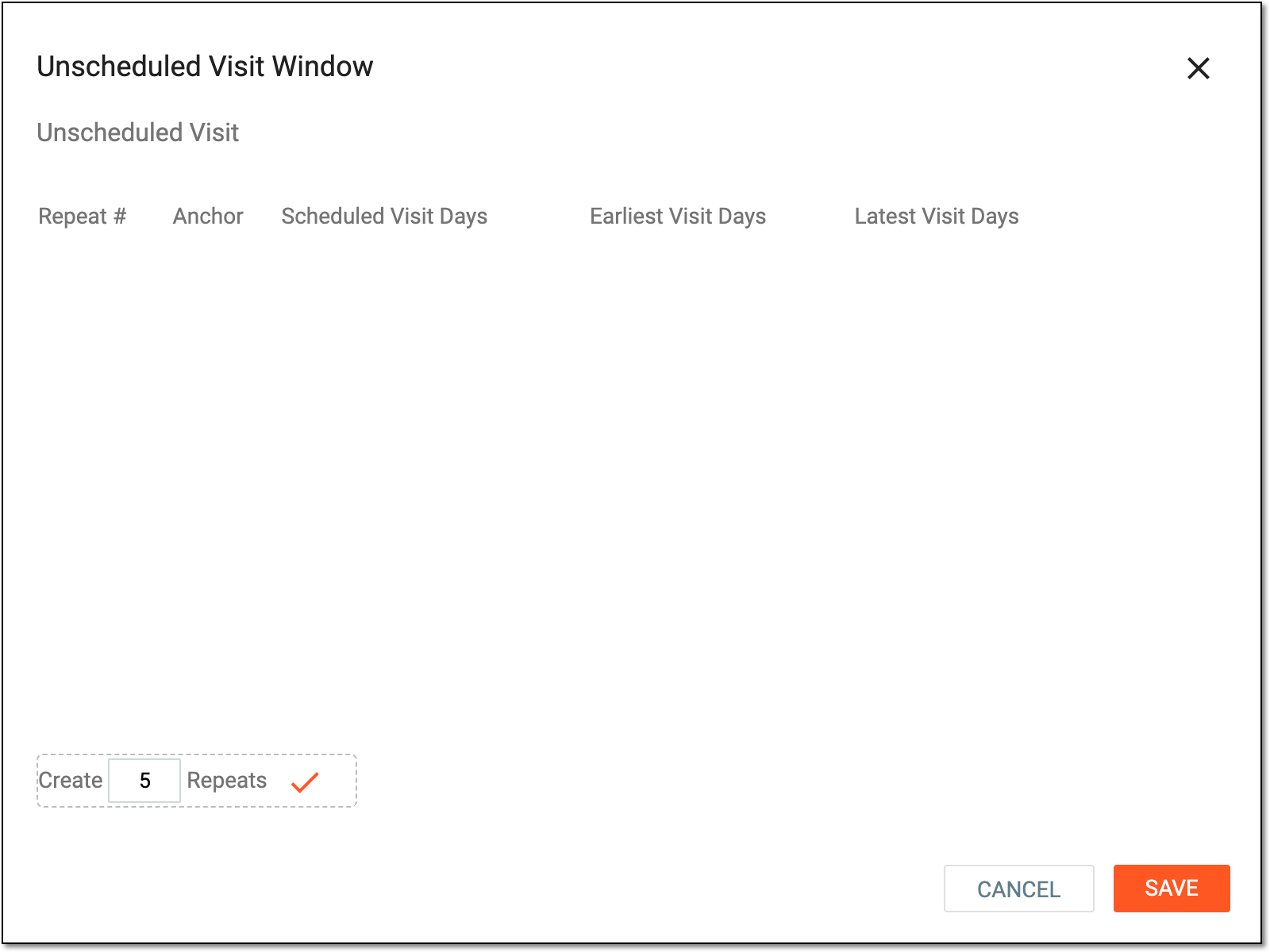 Figure 4. Adding number of repeats
-
In the table with the list of visit repeats that are generated, specify visit anchor information as explained in the following table.
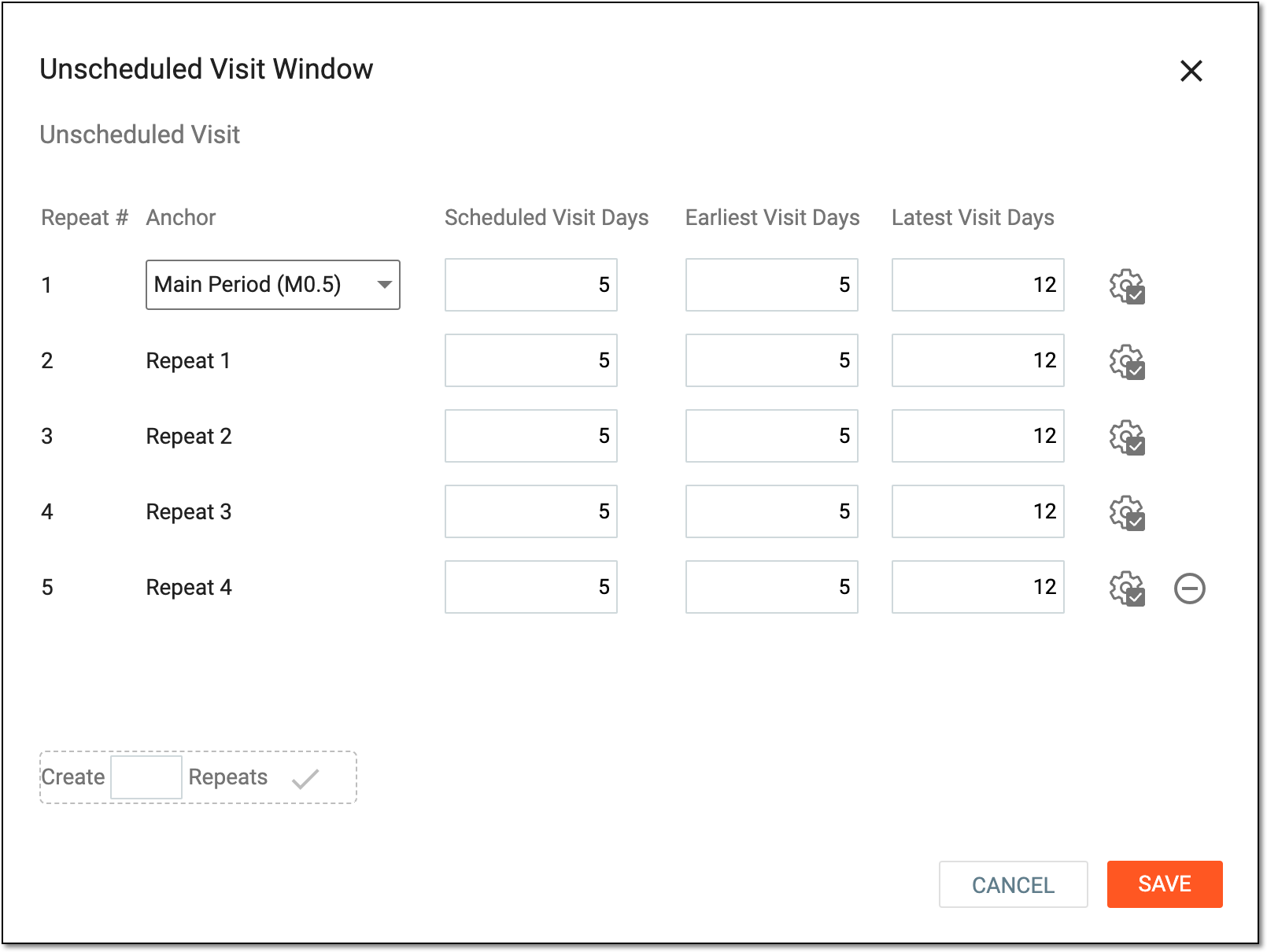 Figure 5. Defining window for unscheduled visit
Element
Details
Anchor
Select an anchor for the unscheduled visit. This anchor serves as a baseline for the current visit, meaning this unscheduled visit can only occur after the visit that is indicated as an anchor.
Scheduled Visit Days
Enter the number of days that must pass after the anchor visit or a previous repeat for the unscheduled visit to become available for data entry in EDC. This number cannot be less than the one indicated previously for this visit.
Earliest Visit Days
Enter the minimum number of days that must pass after the anchor visit or a previous repeat for the unscheduled visit to become available for data entry in EDC. This number cannot be less than the one indicated previously for this visit.
When you set the Early Visit Days to 0, this indicates that the patient's Earliest Visit Date and Latest
                                  Visit Date must fall on the same date as the scheduled visit within the time frame from 00:00 AM to 11:59 PM.
Latest Visit Days
Enter the maximum number of days that must pass after the anchor visit or a previous repeat for the unscheduled visit to stop being available for data entry in EDC.
When you set the Early Visit Days to 0, this indicates that the patient's Earliest Visit Date and Latest
                                  Visit Date must fall on the same date as the scheduled visit within the time frame from 00:00 AM to to 11:59 PM.
Select to apply the configured scheduled visit days, earliest visit days, and latest visit days for a specific visit repeat to the rest of the repeats on the list.

Select to remove the last visit repeat from the list.
SAVE
Select
 to apply the window for the unscheduled visit.
CANCEL
Select
 to discard window definition for the unscheduled visit.
Once saved, the window for the unscheduled visit is configured and applied. The unscheduled visit will be repeatedly generated in EDC as many times as indicated.