Edit unique form
In the Study Designer application, you can design unique forms for study visits. A unique form is a CRF template that serves as a starting point for creating new forms for different visits of the clinical trial. Unique forms are stored in the Unique Form folder under the CRF DESIGN tab and serve as a reusable blueprint for creating other CRFs in the study, cycle, or folder visits.
After adding unique forms to your study, it may occur that some of their details need to be updated due to new protocol requirements or errors that have been made during the configuration.
-
In the Study Designer application header, select the CRF DESIGN tab.
-
In the toolbar, select the latest draft CRF version marked with the respective unlock symbol
 , otherwise, you cannot perform any actions.
 Figure 1. Selecting latest draft CRF version
-
In the left pane that appears, expand the Unique Form folder and right-click the needed form.
Tip
To locate the needed forms faster, use Search
 on the workspace toolbar of the
left pane.
on the workspace toolbar of the
left pane. -
In the context menu that opens, select Edit Form
 .
.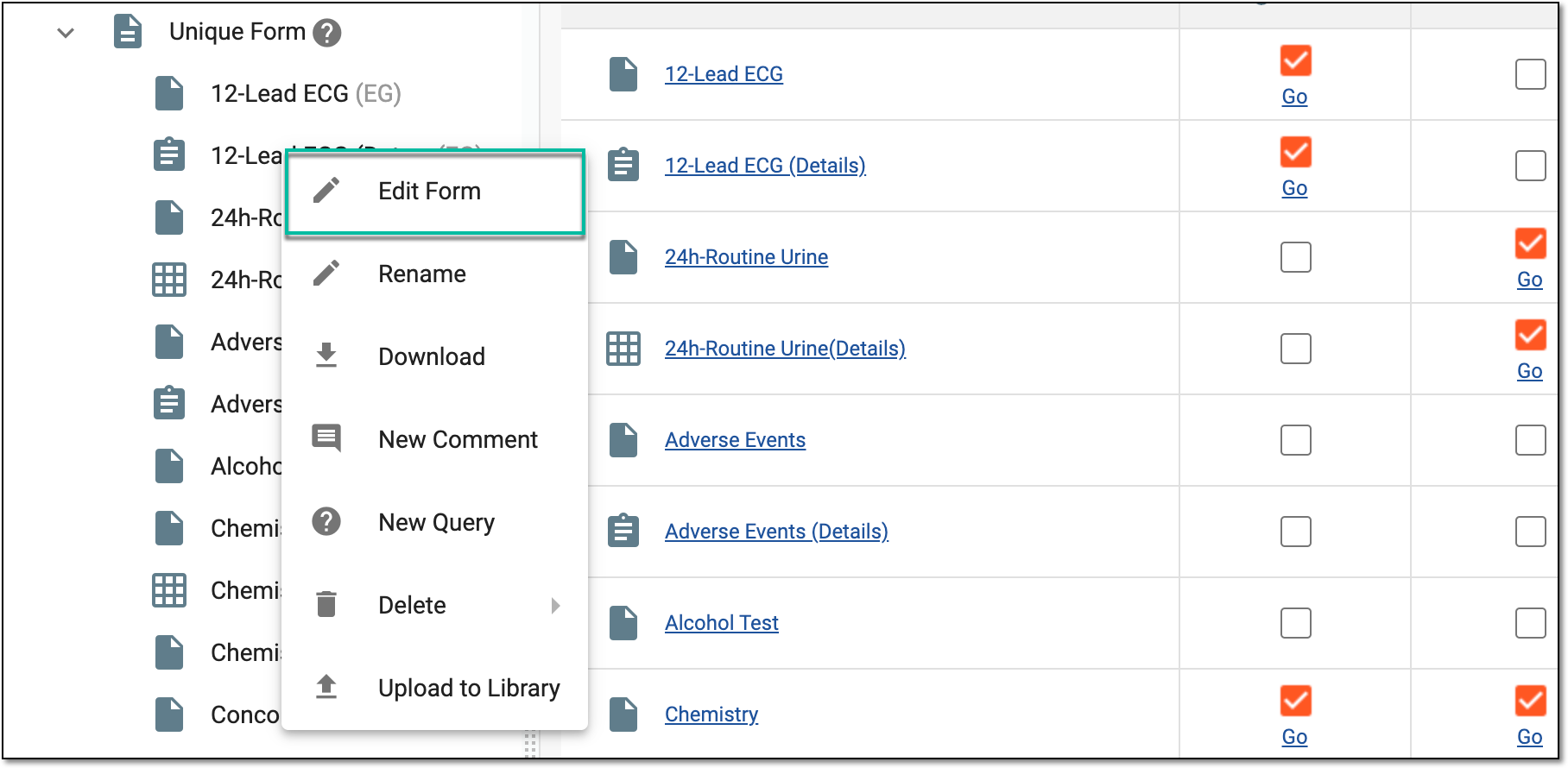 Figure 2. Selecting to edit unique form
-
In the Edit Form panel that expands, update the fields as needed. These fields are identical to the ones explained in the table of the Add unique form from scratch section.
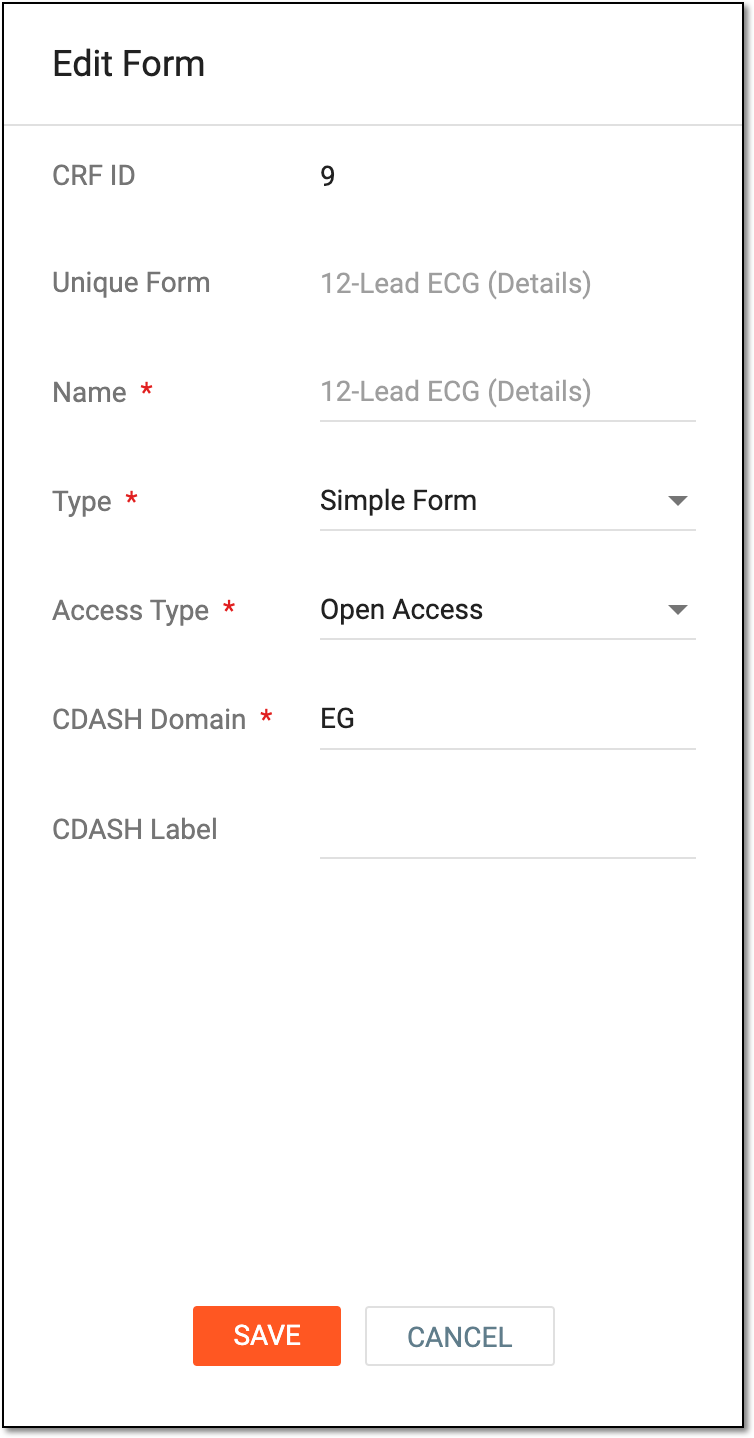 Figure 3. Editing unique form
-
Select
 to update the form details.
 -
If you have changed the form type from Log to Simple, in the confirmation dialog that appears, select
 to proceed. This is due to potential data implications in the EDC system upon form type conversion.
 Figure 4. Confirming form type change
Once saved, a unique form is updated.