Rename unique form
In the Study Designer application, you can design unique forms for study visits. A unique form is a CRF template that serves as a starting point for creating new forms for different visits of the clinical trial. Unique forms are stored in a separate folder under the CRF DESIGN tab and serve as a reusable blueprint for creating other CRFs in the study, cycle, or folder visits.
After adding unique forms to your study, it may occur that some of them need to be renamed due to new protocol requirements or changes in the naming convention.
-
In the Study Designer application header, select the CRF DESIGN tab.
-
In the toolbar, select the latest draft CRF version marked with the respective unlock symbol
 , otherwise, you cannot perform any actions.
 Figure 1. Selecting latest draft CRF version
-
In the left pane that appears, expand the Unique Form folder and right-click the needed form.
Tip
To locate the needed forms faster, use Search
 on the workspace toolbar of the
left pane.
on the workspace toolbar of the
left pane. -
In the context menu that opens, select Rename
 .
.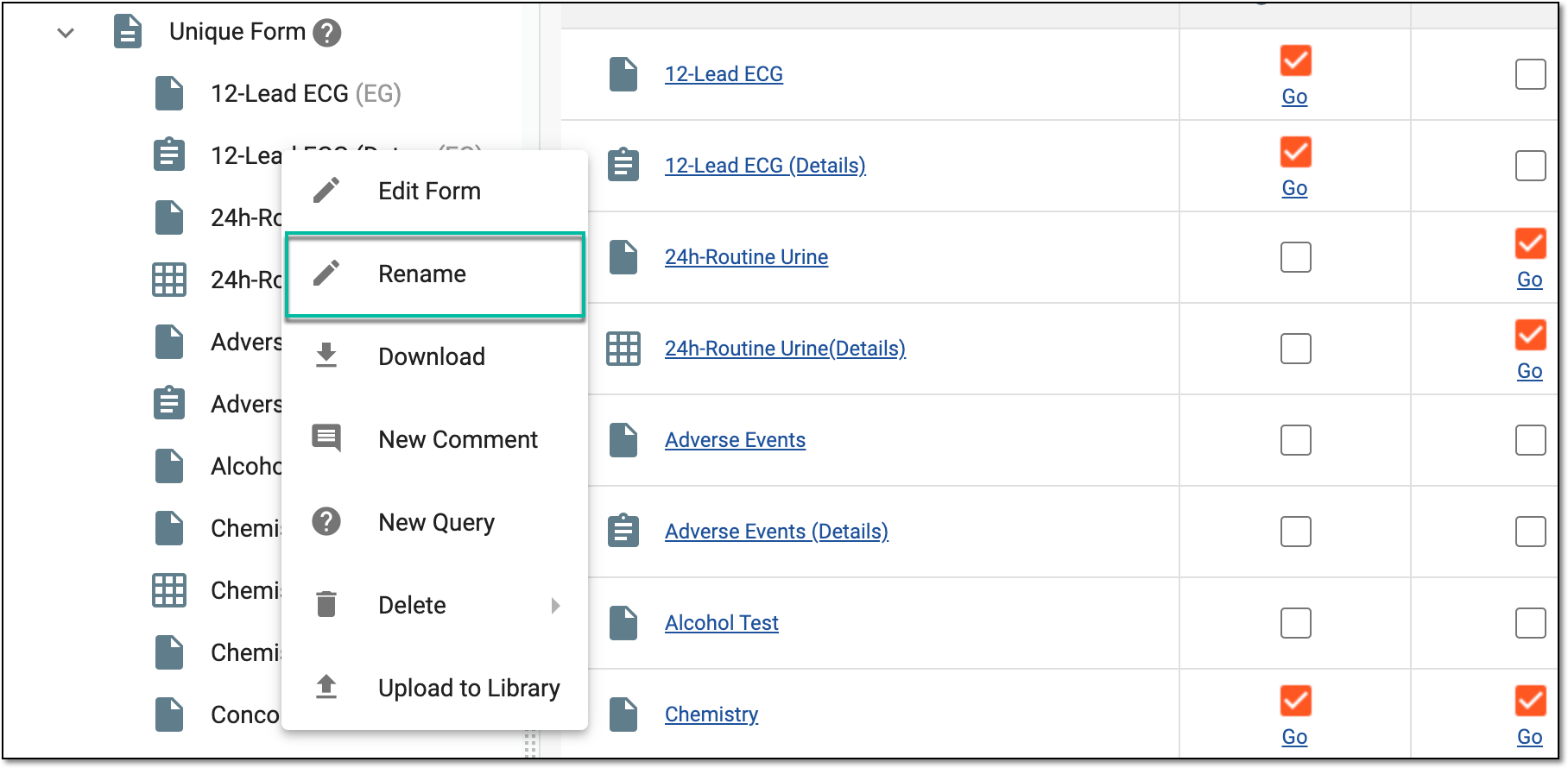 Figure 2. Selecting to rename unique form
-
In the Rename dialog that appears, update the unique form name. When updating the name, it automatically propagates to all of its linked visit forms.
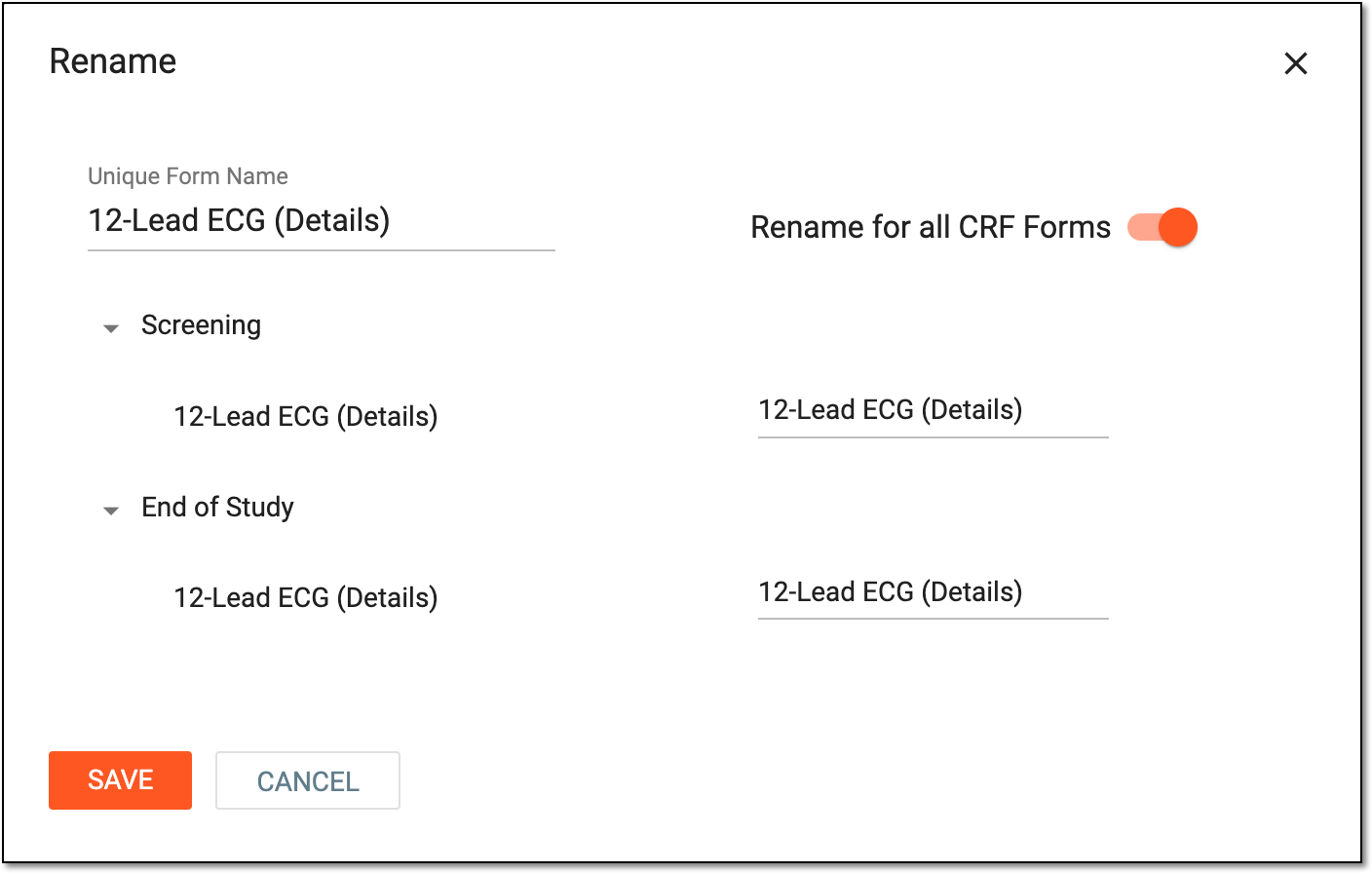 Figure 3. Renaming unique form
Element
Details
Unique Form Name
Enter the new or update the existing name of the form. When the field is selected, from the dropdown menu, you can select one of the following elements to add to the form name:
-
Nonbreaking Hyphen: to insert a hyphen into the form name that, in the final output (EDC or smaller screens of mobile devices with eCOA and eDiary), will bind the hyphenated combination as one word, preventing it from being broken to a different line in the hyphen's position.
-
Nonbreaking Space: to insert a space between form name elements that, in the final output, will be bound together as one structure, preventing it from being broken to a different line in the position of the nonbreaking space.
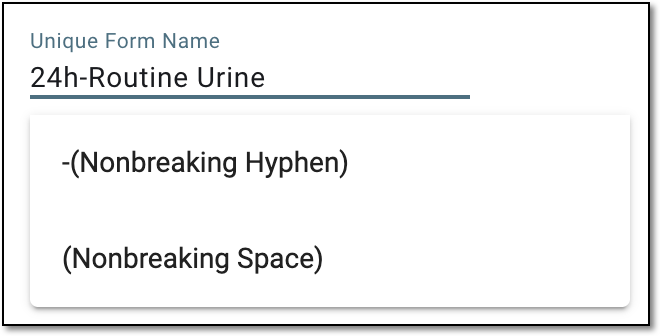 Figure 4. Adding elements to unique form name
Rename for all CRF Forms
Control as follows:
-
Turn on the toggle if you want to name visit forms linked to this unique form differently. Once turned on, the list of all linked visits appears. Expand the needed visit and enter a new name for the corresponding form. Note that even after naming the linked forms differently, the linkage to the unique form is preserved.
-
Turn off the toggle to propagate the name of the unique form to all the linked forms.
SAVE
Select
 to implement the changes.
CANCEL
Select
 to discard the changes without saving.
 -
Once saved, the names of the unique form and its linked visit forms are updated accordingly.