Define schedule of assessments
After creating unique forms and adding visits to the necessary cycles and folders, the visits need to be associated with unique forms. This is required in order to enable the data entry process in the EDC application when subjects perform a corresponding visit. In the Study Designer application, you can associate any unique forms with study visits for your study within a single page when defining the schedule of assessments.
-
In the Study Designer application header, select the CRF DESIGN tab.
-
In the toolbar, select the latest draft CRF version marked with the respective unlock symbol
 , otherwise, you cannot perform any actions.
 Figure 1. Selecting latest draft CRF version
Tip
The identifier next to the study name aids you in diversifying between the Locked
 CRF
version unavailable for edits and Unlocked one that you can amend and configure.
CRF
version unavailable for edits and Unlocked one that you can amend and configure.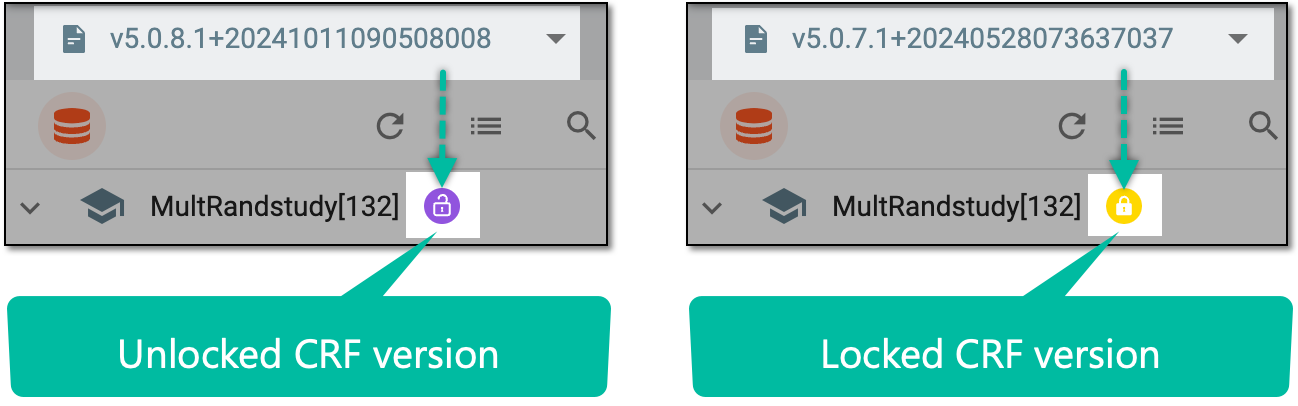 Figure 2. Unlocked vs locked CRF version
-
In the left pane that appears, select the study node.
-
Under the Schedule of Assessments tab of the contents panel that appears, select checkboxes next to forms that you want to associate with corresponding visits listed in the table columns. Alternatively, clear checkboxes to remove the association.
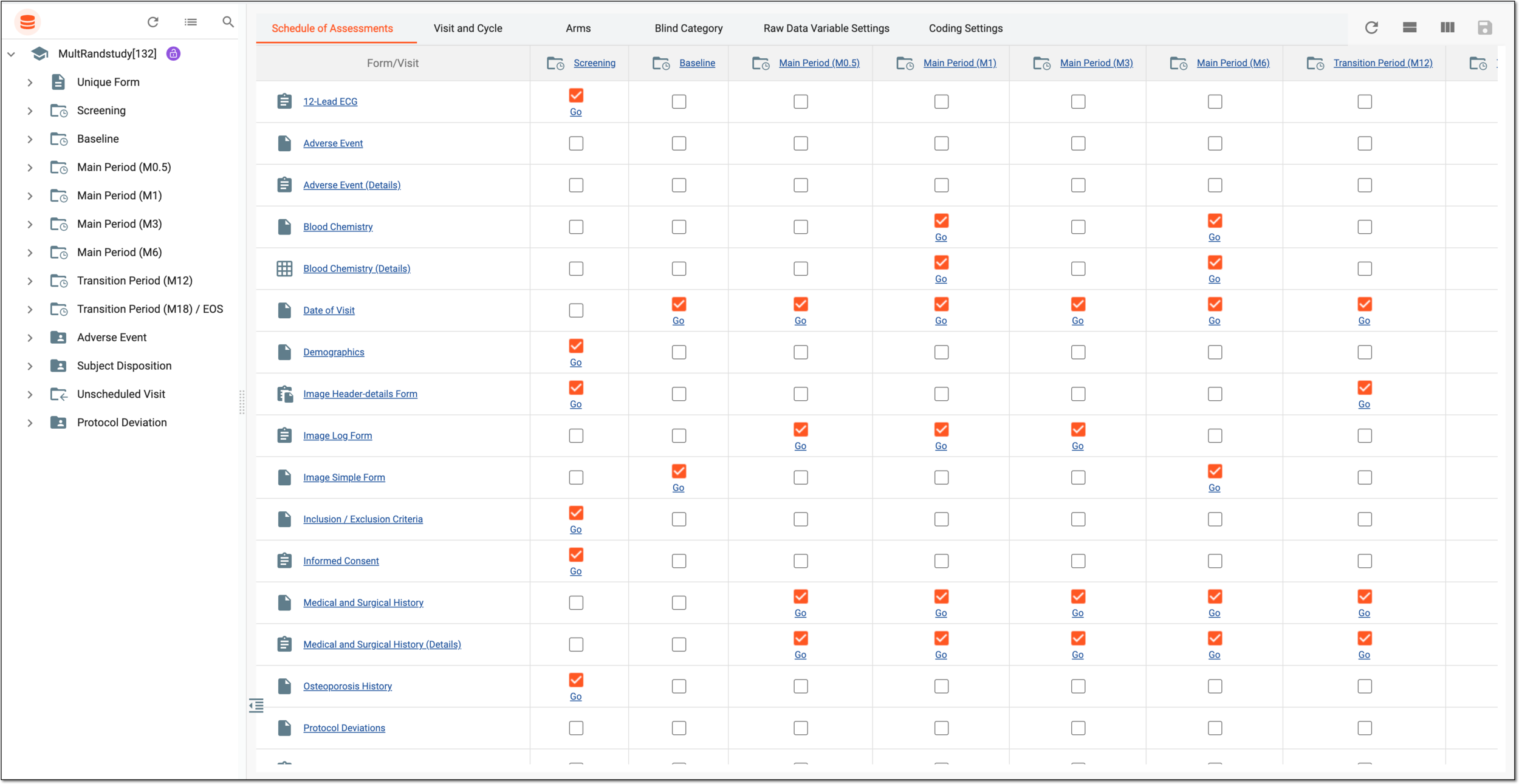 Figure 3. Defining schedule of assessments
Tip
From the workspace toolbar, select
 to open the list of all unique forms so you can hide or show them in the Schedule of
Assessments table. Or select
to open the list of all unique forms so you can hide or show them in the Schedule of
Assessments table. Or select  to open the list of all visits so you can hide or show them in the same table.
 -
From the workspace toolbar, select
 to save the defined schedule for your study.
Once saved, the schedule of assessments is defined for your study.