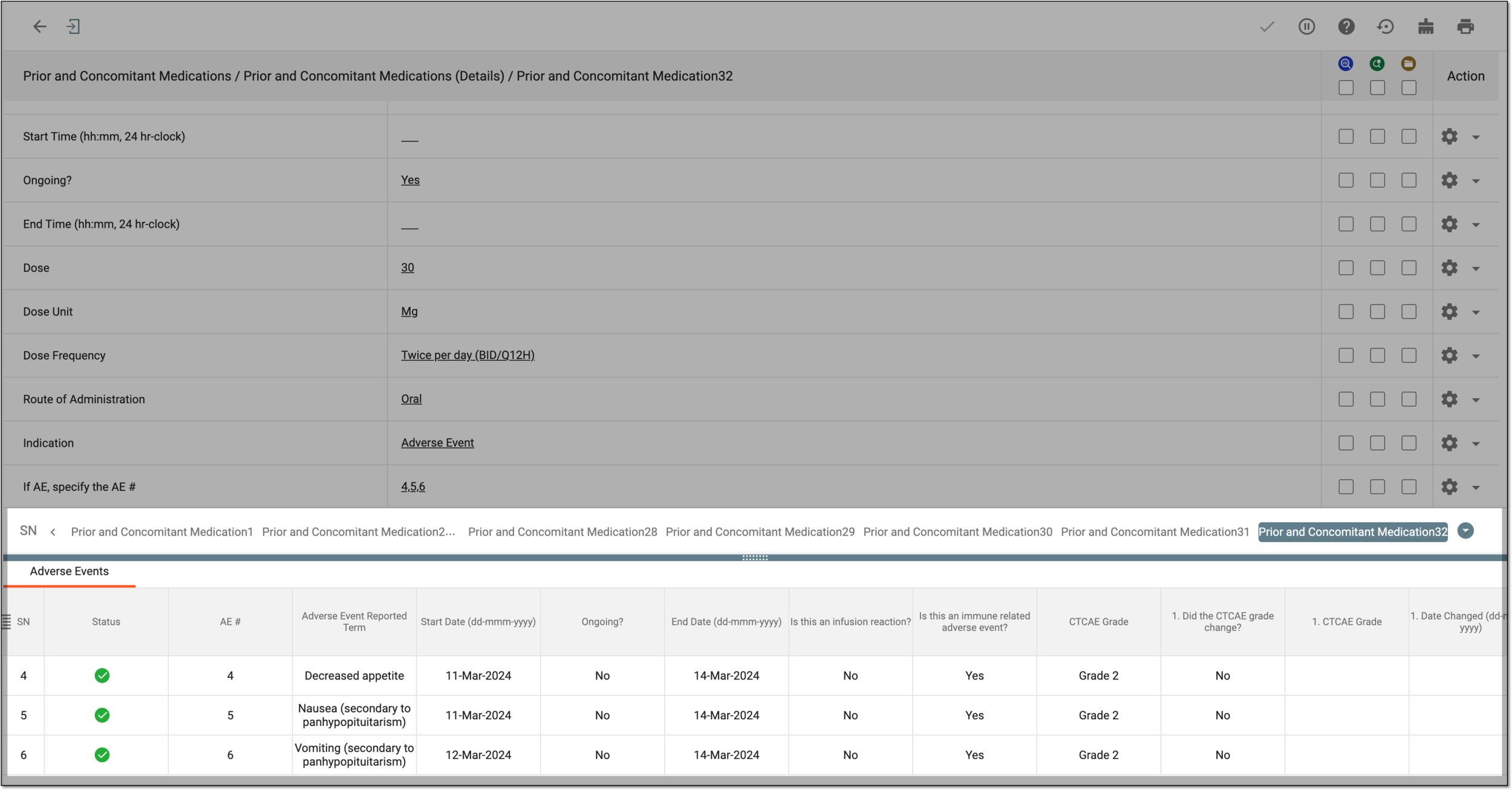
Enter data into related form
The functionality of Related Forms provides the option to connect the forms that have associated details, allowing for direct connection between data elements and helping to avoid discrepancies. The form relation is preconfigured for your study via the SD application, where you can establish which forms are interconnected and map their respective data elements for exhaustive precision of the final data output.
For instance, mapping allows you to ensure that the serial numbers of the related AE records are populated to the "Specify AE record number" field and not the verbatim term or any other value.
Once the CRF configuration is available in EDC and your site is upgraded to the required CRF version, you can start entering details into related forms and utilize their linking to your advantage.
-
In the EDC application header, select the DATA ENTRY tab.
-
On the site list page that opens, select the tile representing the site with which you want to work.
 Figure 1. Accessing site tile
-
In the Subject ID column, select the ID of a subject to open their visit overview.
 Figure 2. Selecting subject
-
In the subject visit tree of the page that opens, expand the needed visit that contains the form you want to access.
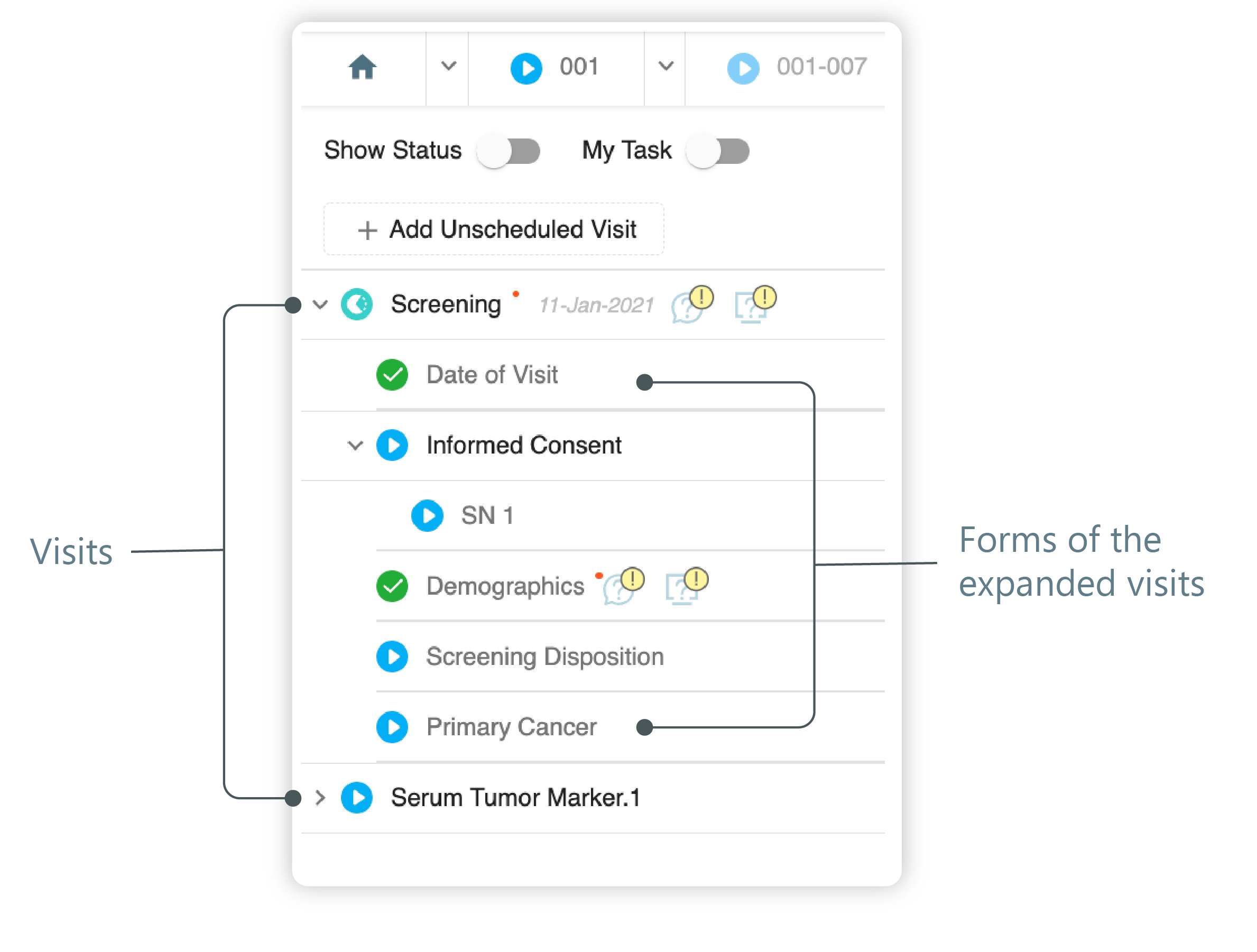 Figure 3. Left panel. Visits and their forms
-
From the expanded list of forms, select the form that you know to be configured as related. Mostly, these are the forms on the subject's medication.
-
On the page that opens, for a simple form, proceed to data entry, and for the log form, initiate a new or open the existing record to access form fields.
Tip
For more details, refer to Enter data into simple forms and Enter data into log form sections.
-
For the question that is configured to be related to another form, select the relation option
 to open the list of records available for linking.
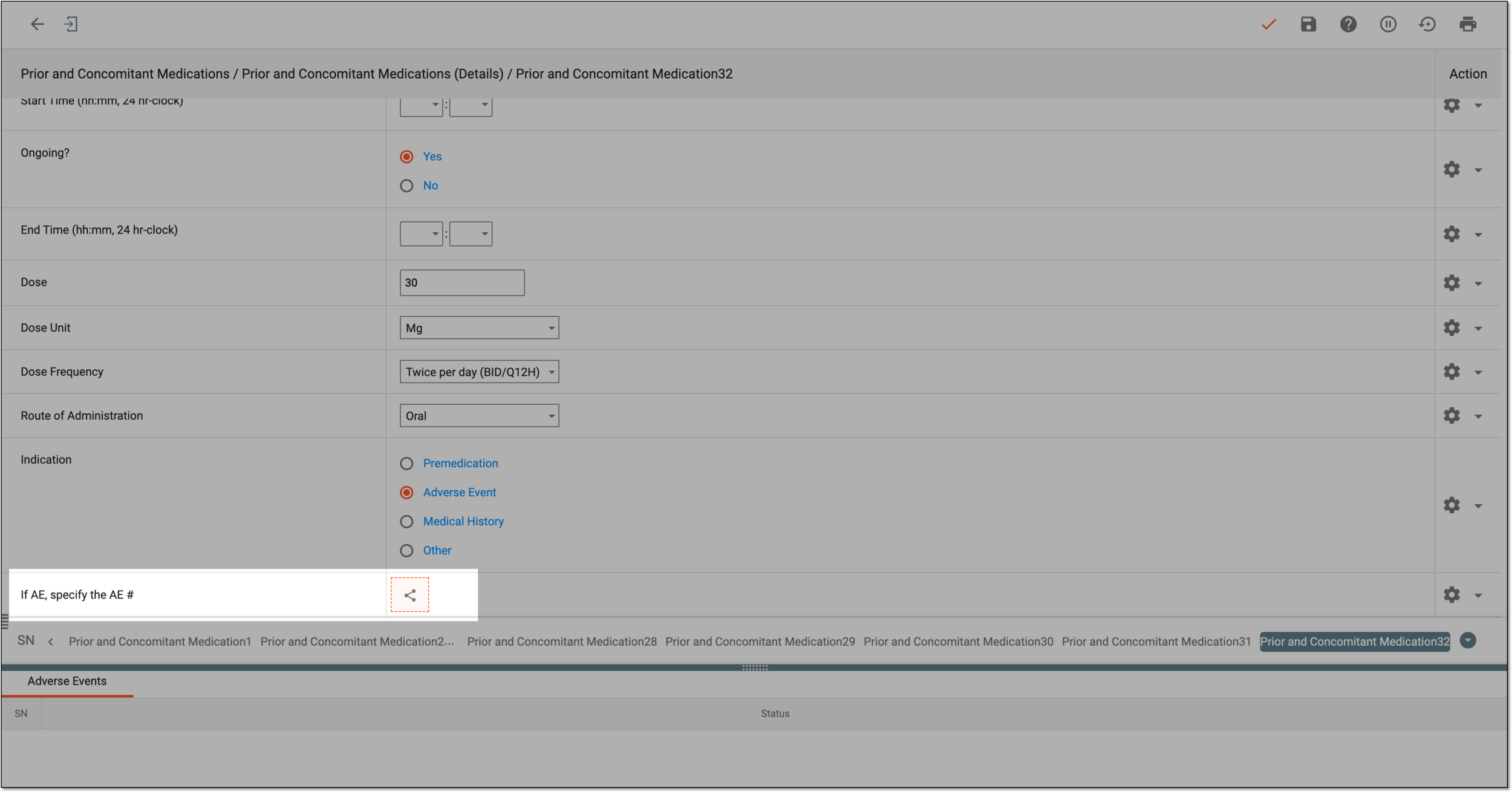 Figure 4. Accessing related records for selection
Tip
Another option that might be available for record linking in forms is Reference Item
 . Utilizing this option results in the same dialog for related record selection. The difference between related forms and reference items is in their SD configuration specifics. To learn more, refer to the Edit related form settings and Add reference
item to question sections.
. Utilizing this option results in the same dialog for related record selection. The difference between related forms and reference items is in their SD configuration specifics. To learn more, refer to the Edit related form settings and Add reference
item to question sections. Figure 5. Referenced item option
-
In the dialog that appears, review the list of records of the related form. Select the checkboxes next to the records you want to associate to your current form. Then click
 .
.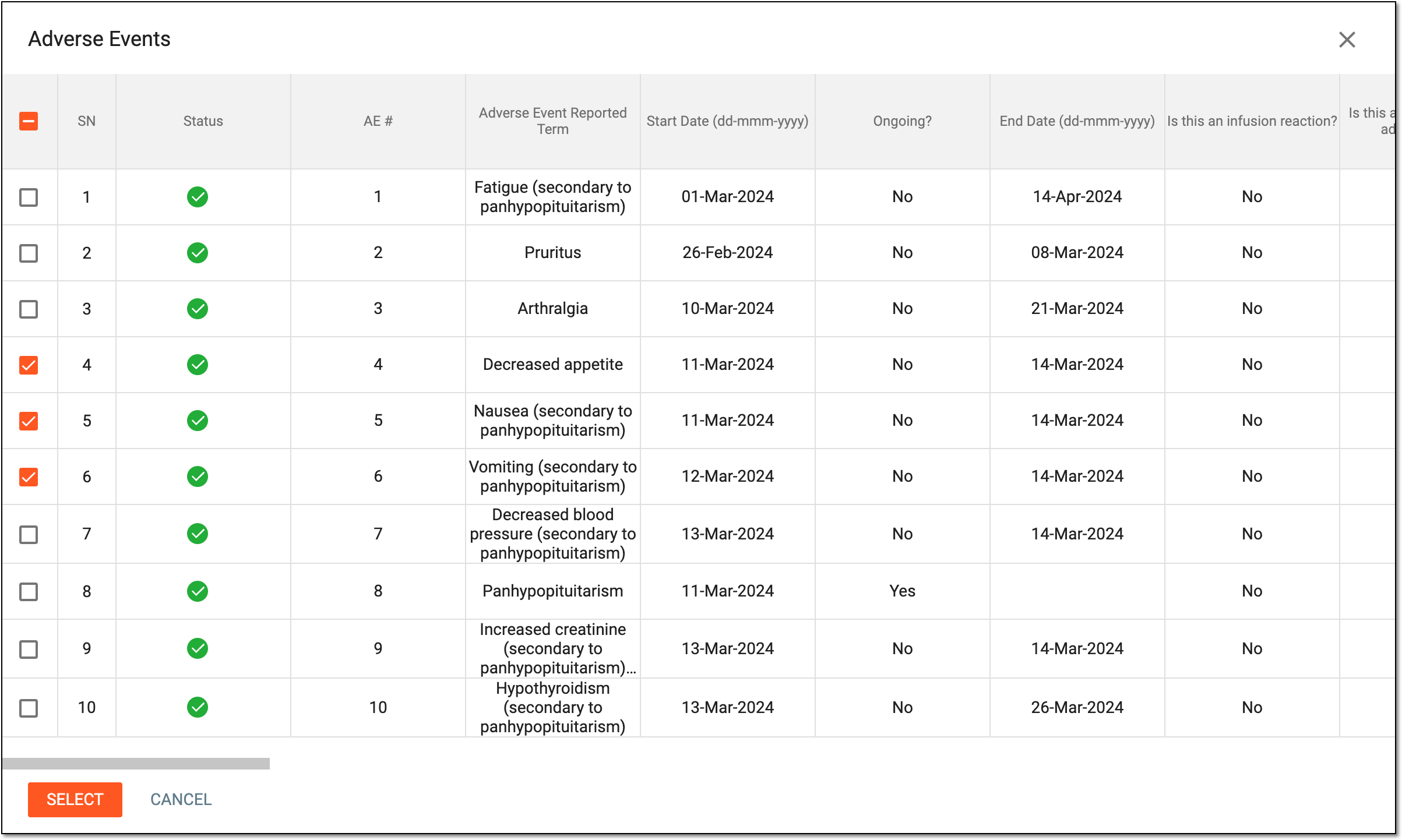 Figure 6. Selecting related records
Tip
The exclamation mark symbol
 indicates the record is unfit for use because it does not satisfy
the rule established via SD. Selecting such a record autotriggers a system query and must be checked by the dedicated user.
indicates the record is unfit for use because it does not satisfy
the rule established via SD. Selecting such a record autotriggers a system query and must be checked by the dedicated user.For instance, when you need to choose the AE that occurred in relation to the given medication, you cannot select the AE record whose date is earlier than the date when the medication was given to the subject, so the respective indicator can be seen next to the date of the AE.
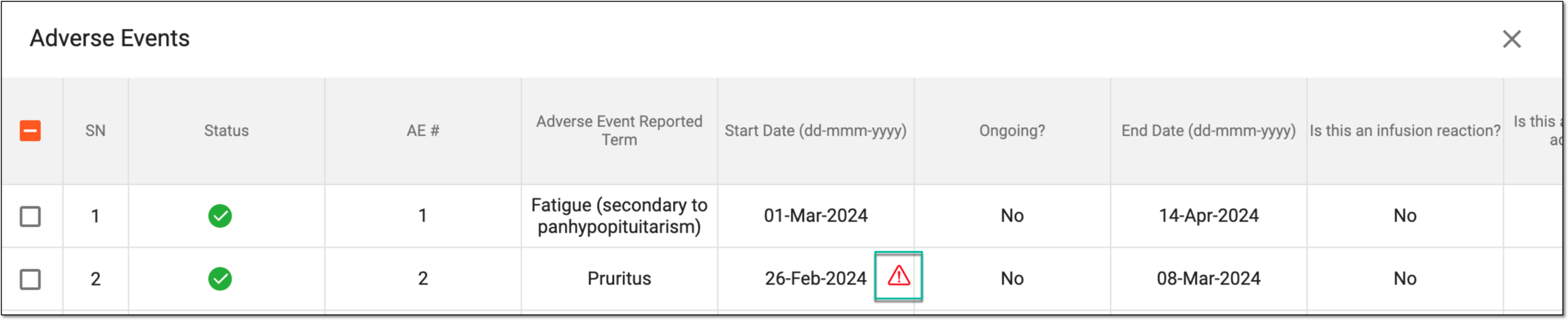 Figure 7. Locating unfit record for selection
-
The selected records' sequential numbers are now displayed in the respective field. If the data entry is completed, select Submit
 .
.
Once submitted, the selected records are related to your current form. You can now review the list of related records and their details via the interactive panel below the form window.