Browse available source documents
Source documents are original records or certified copies of records that provide evidence of the existence, activities, and results of a clinical trial or study. Some of the source documents that can be related to data verification and documentation review are case report forms (CRFs), medical records, informed consent forms, pharmacy records, adverse event reports, regulatory documents, and so on.
In the EDC application, all the uploaded source files are stored under the Source Document module in the hierarchical structure that aids you in browsing for files that belong to certain sites, subjects, visits, or even particular CRFs.
By browsing the existing directories and available files, you can check if all the required source documents are collected or if there is a need to collect some missing ones.
Important
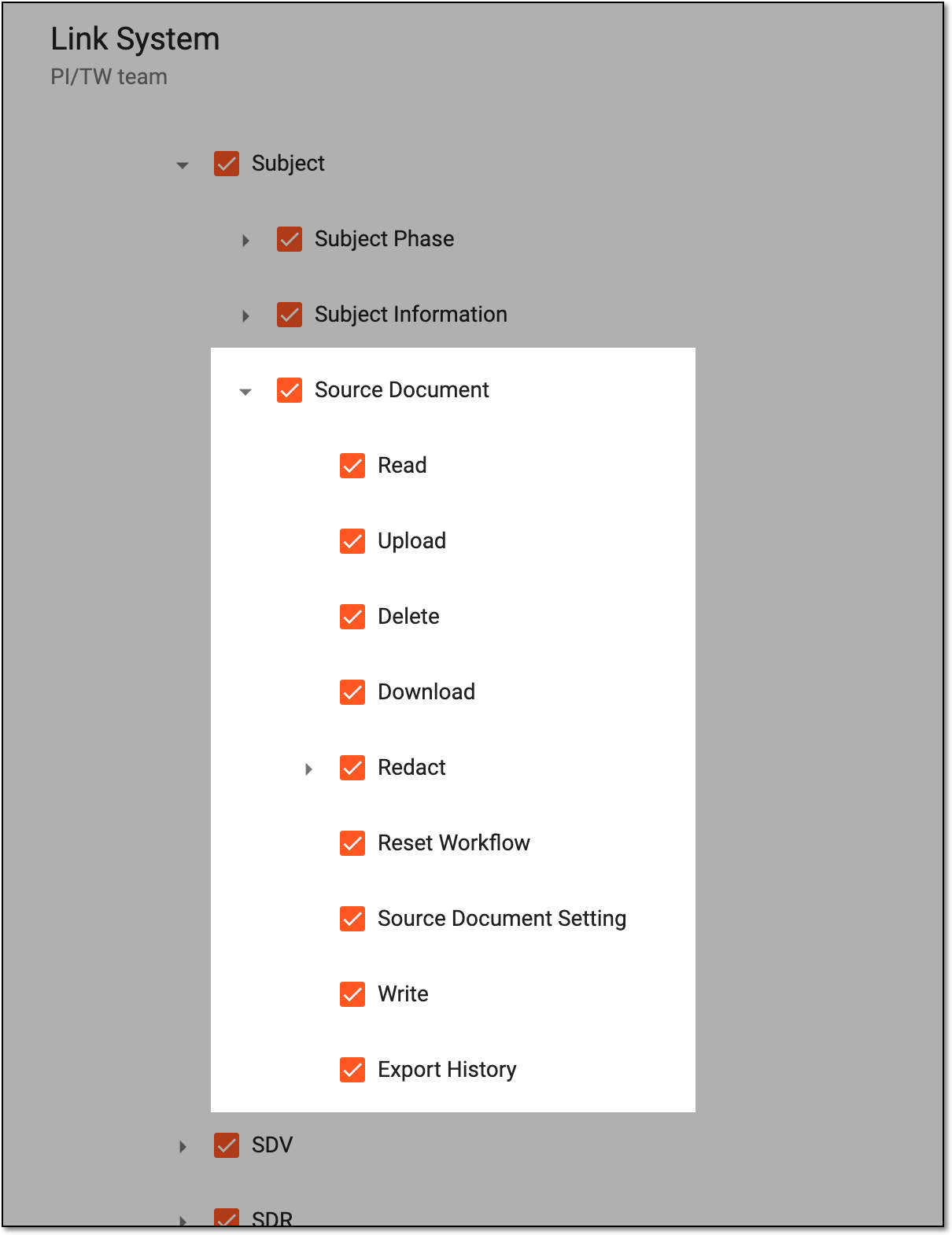
The ability to view and manage the Source Document page depends on the permission granted to your user role in ADMIN.
 |
-
In the EDC application header, select the STUDY INFO tab.
-
In the left pane of the page that opens, select Subject > Source Document.
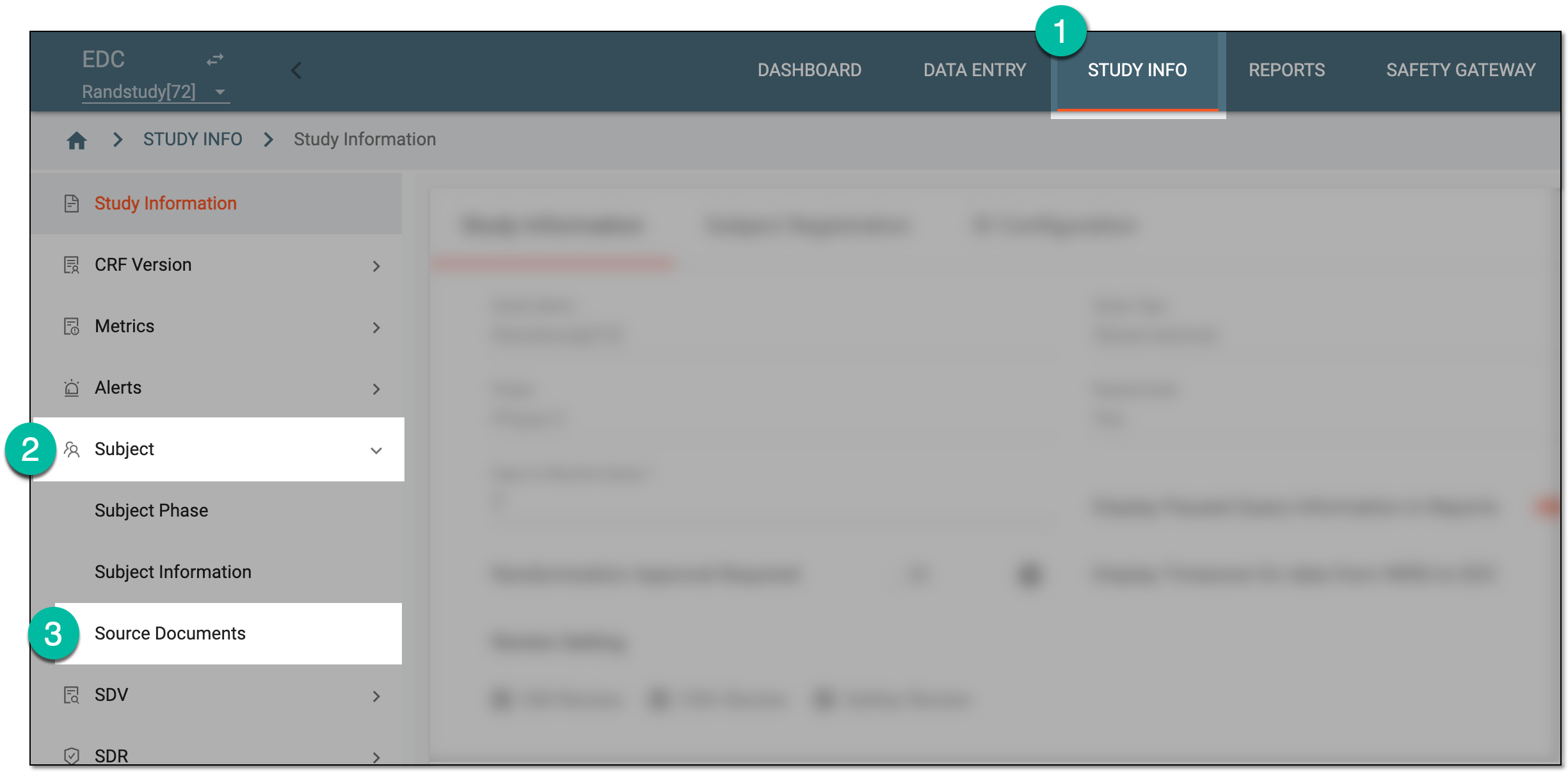 Figure 2. Accessing source documents
-
On the page that opens, optionally set up the filters to assist you in locating the needed documents as explained in the following table.
 Figure 3. Setting source document filters
Element
Details
Site Code
Select the unique identifier of the site to display the source document directories that belong to it.
Subject ID
Select the unique identifier of the subject to display the source document directories that belong to them.
Visit Name
Select the name of the visit to display the source document directories that belong to it.
Form Name
Select the name of the CRF to display the source document directories that belong to it.
SDV/SDR
Select one of the following:
-
SDV Required: to browse the directories whose files are intended for source data verification (SDV).
-
SDR Required: to browse the directories whose files are intended for source data review (SDR).
Empty Folder Only
Select Yes or No to show only the empty directories. Leave the selection cleared if you want to see both empty directories and the ones with files.
Indicating empty folders might be helpful, for instance, if you want to check what source files are missing and should be uploaded for a certain site or subject.
-
-
In the Hierarchy tree, expand the directories to locate the needed files as follows:
-
 : the site-level directory comprises source documents that belong to subjects—and their visits and forms—registered at a certain site. This directory is not intended for
file upload and you can see the files within only if the Show Child File(s) toggle is turned on.
: the site-level directory comprises source documents that belong to subjects—and their visits and forms—registered at a certain site. This directory is not intended for
file upload and you can see the files within only if the Show Child File(s) toggle is turned on. -
 : the subject-level directory comprises the source documents that belong to a certain patient. For instance, it can be the informed consent form original copy.
 -
 : the visit-level directory comprises the source documents that belong to a certain visit. For instance, it can be the approved work instruction or
standard operation procedure document.
: the visit-level directory comprises the source documents that belong to a certain visit. For instance, it can be the approved work instruction or
standard operation procedure document. -
 : the form-level directory comprises the source documents that belong to a certain CRF. For instance, it can be the original copy of the CRF completed
by the doctor conducting a visit for a subject.
: the form-level directory comprises the source documents that belong to a certain CRF. For instance, it can be the original copy of the CRF completed
by the doctor conducting a visit for a subject.
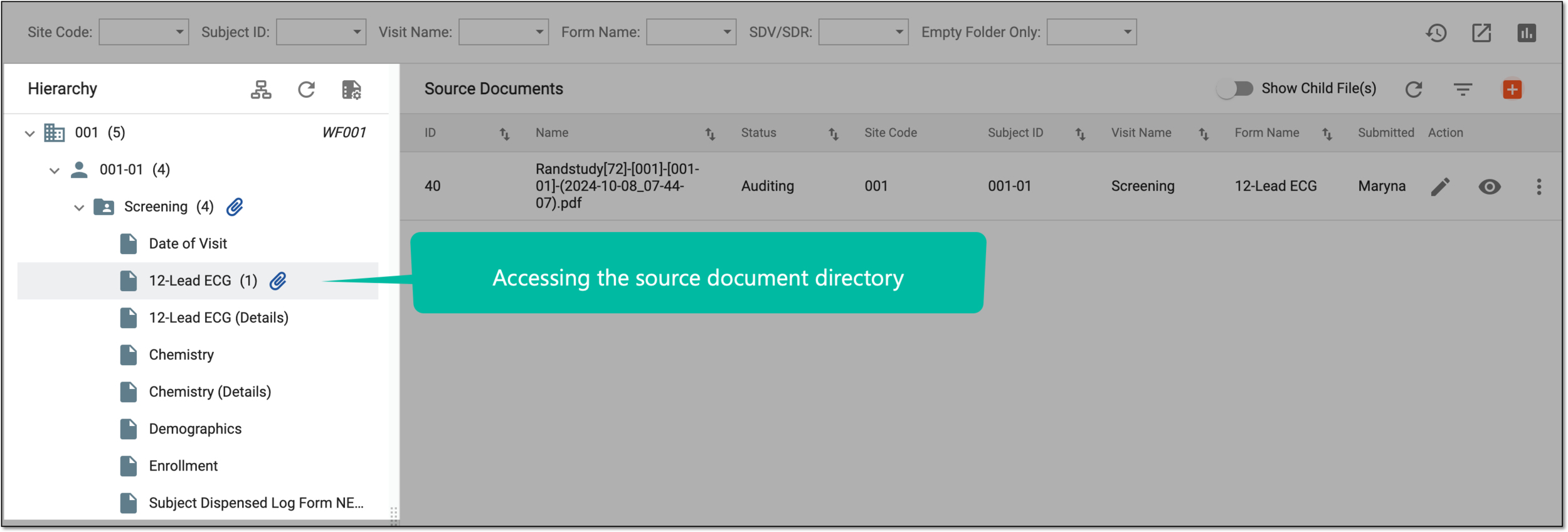 Figure 4. Accessing source document directory
Tip
Here are some useful tips to navigate the source document storage:
-
The number next to each directory shows how many files are uploaded there.
-
Turn on the Show Child File(s) toggle to display the files belonging to the currently selected directory and the files of all its child-level folders.
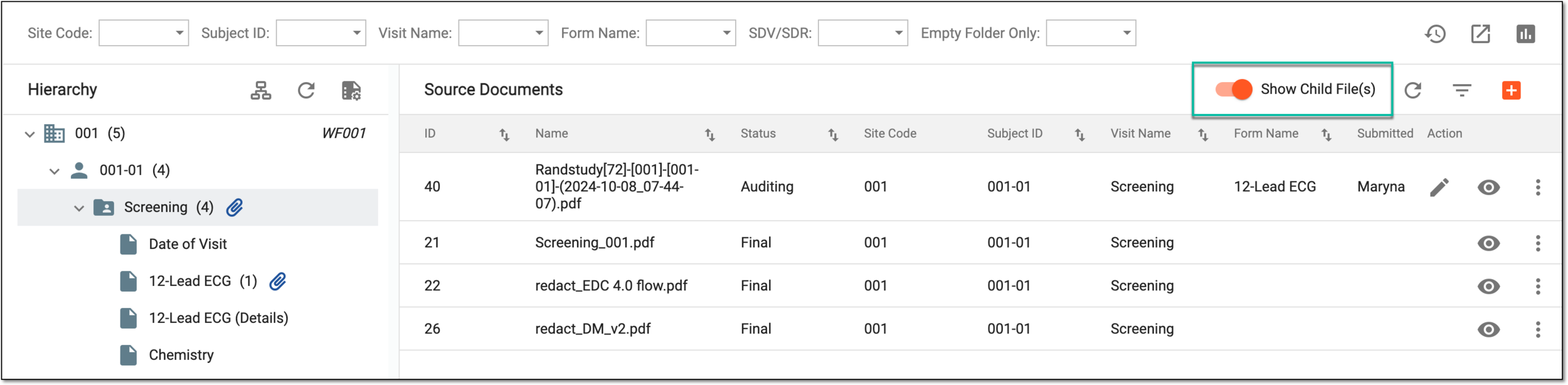 Figure 5. Showing child-level files
For instance, when selecting a visit-level directory in the hierarchy tree, you can see the source documents that belong to that visit and all the CRFs within.
-
Select Refresh
 to clear all the selections and collapse the expanded
directories.
to clear all the selections and collapse the expanded
directories.
-
-
In the Source Documents contents panel, find all the files pertinent to the selected directory or—if the Show Child File(s) toggle is turned on—its child-level files as well.
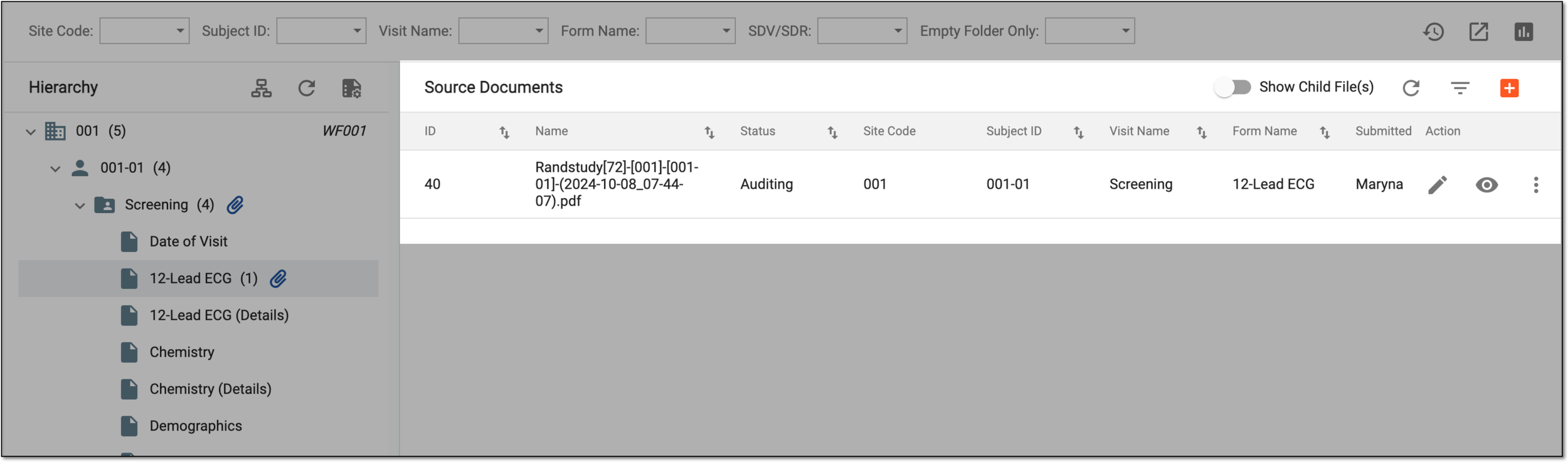 Figure 6. Reviewing source document files in directory
You have browsed the available source documents of your study in EDC.
Tip
To get more insights on the available source documents of your study, you can access the comprehensive source document tracker report by selecting Go to Chart  on the workspace toolbar.
