View validation result tasks
Data validation refers to the process of ensuring the accuracy, reliability, and integrity of CRF data collected during the study. It involves a series of checks and procedures that aim to identify and resolve data inconsistencies. The importance of data validation lies in its role in maintaining the scientific validity and credibility of the study results. By ensuring the quality of the data, researchers can have confidence in the findings and draw accurate conclusions, which ultimately impacts patient safety and the decision-making process for regulatory authorities.
After you have executed the data validation process, the system generates validation result tasks if some CRF data fails to pass validation rules. Each task is assigned to a specific user role so the corresponding users need to review these tasks and confirm whether to open queries based on them or cancel the tasks. Under the Validation Result Tasks tab, you can view the full list of tasks that have been generated upon the executed data validation.
-
In the EDC application header, select the STUDY INFO tab.
-
In the left pane of the page that opens, expand Data Validation and select the Validation Result tab.
-
On the page that appears, view the list of validation result tasks under the preselected Validation Result Tasks tab.
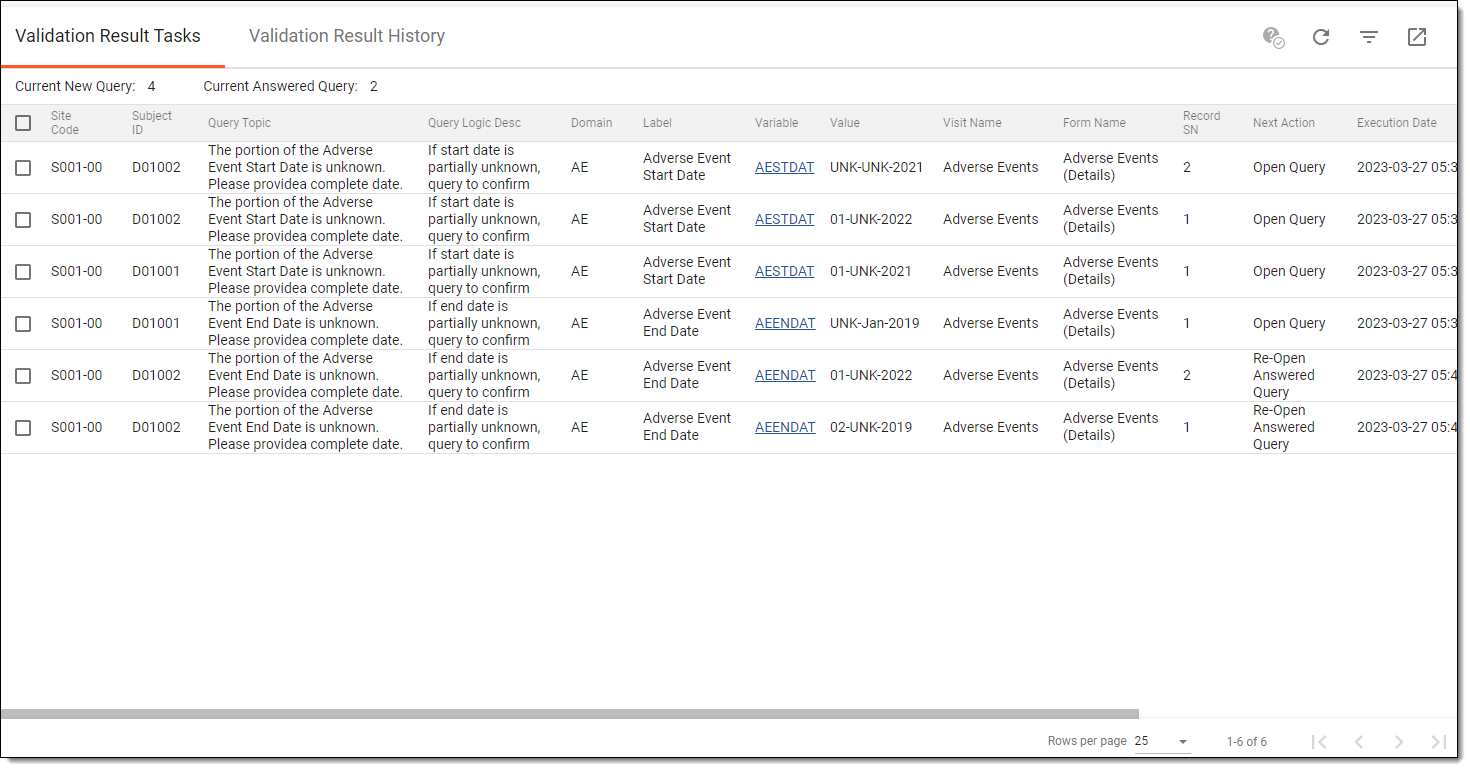 Figure 1. Viewing validation result tasks
Once viewed, you can start confirming tasks to open queries based on them or cancel these tasks.
Confirm validation result task
Data validation refers to the process of ensuring the accuracy, reliability, and integrity of CRF data collected during the study. It involves a series of checks and procedures that aim to identify and resolve data inconsistencies. The importance of data validation lies in its role in maintaining the scientific validity and credibility of the study results. By ensuring the quality of the data, researchers can have confidence in the findings and draw accurate conclusions, which ultimately impacts patient safety and the decision-making process for regulatory authorities.
After you have executed the data validation process, the system generates validation result tasks if some CRF data fails to pass validation rules. Each task is assigned to a specific user role so the corresponding users need to review these tasks and confirm whether to open queries based on them or cancel the tasks. A new query can be opened based on the generated task if, for example, the site personnel has erroneously entered the date for the occurrence of the adverse event in a corresponding form and a validation rule has identified this mistake.
-
In the EDC application header, select the STUDY INFO tab.
-
In the left pane of the page that opens, expand Data Validation and select the Validation Result tab.
-
On the page that appears, make sure that the Validation Result Tasks tab is selected.
-
In the Validation Result Tasks table, select checkboxes next to the tasks that you want to confirm.
-
Then from the workspace toolbar, select Validation Result Confirm
 .
.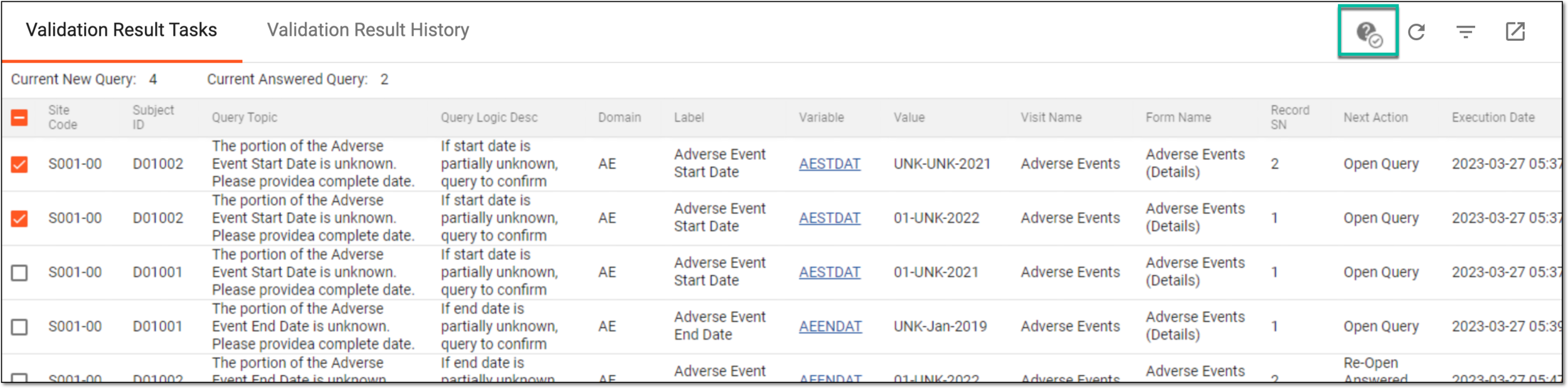 Figure 1. Selecting Validation Result Confirm option
-
In the Confirm panel that expands, select either Open Query or Cancel Query option depending on whether you want to open a query based on the selected tasks or cancel the tasks. Then in the Reason text box, provide the reason for opening or canceling selected queries.
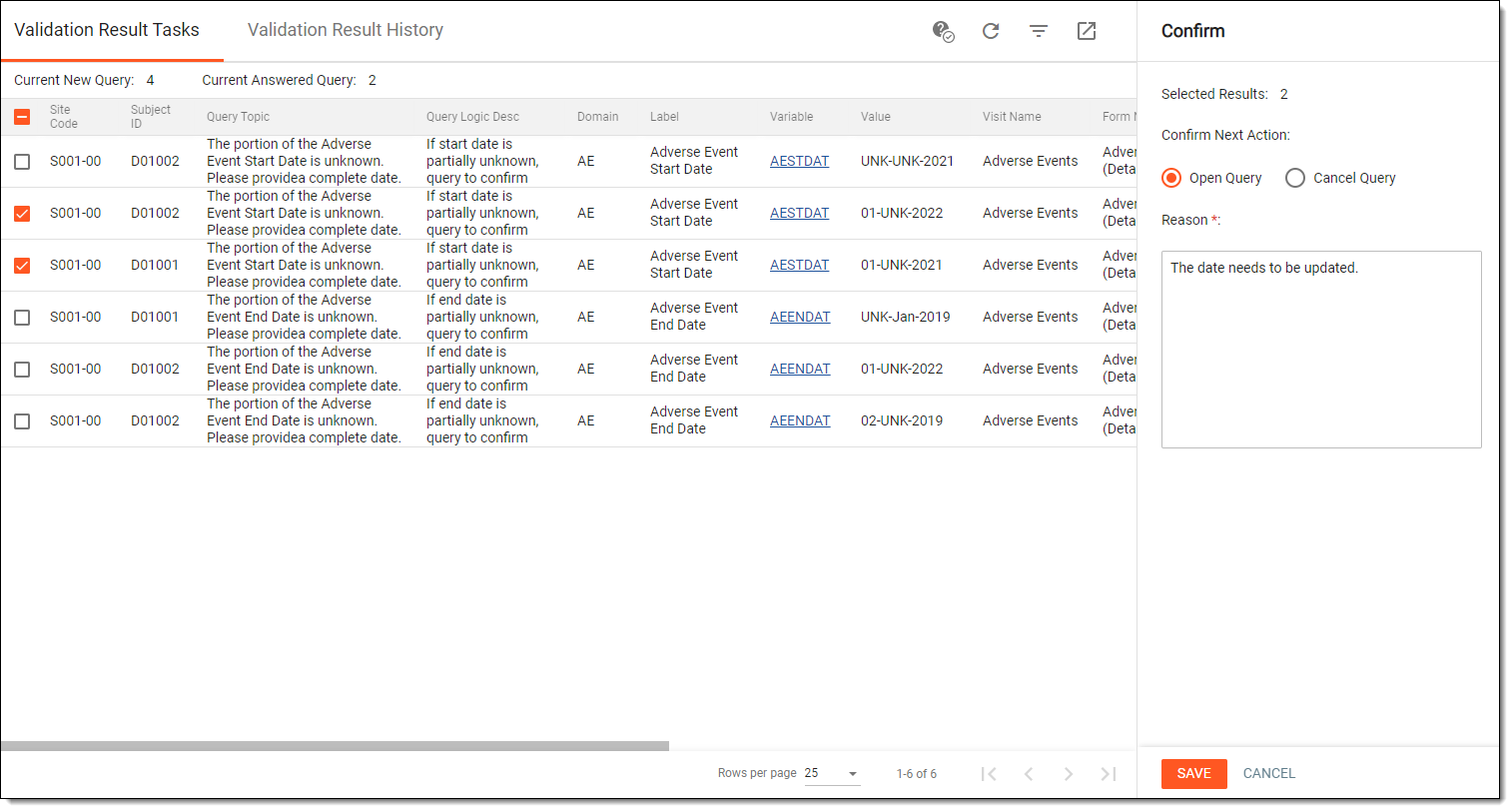 Figure 2. Confirming validation result task
-
Select
 to confirm the opening or cancellation of queries.
Once saved, the selected queries become opened or canceled. You can now view the validation result history to see the list of pending validation queries.
Export validation result tasks
Data validation refers to the process of ensuring the accuracy, reliability, and integrity of CRF data collected during the study. It involves a series of checks and procedures that aim to identify and resolve data inconsistencies. The importance of data validation lies in its role in maintaining the scientific validity and credibility of the study results. By ensuring the quality of the data, researchers can have confidence in the findings and draw accurate conclusions, which ultimately impacts patient safety and the decision-making process for regulatory authorities.
After you have executed the data validation process, the system generates validation result tasks if some CRF data fails to pass validation rules. All of such tasks are stored under the Validation Result Tasks tab and they can be exported to your computer in the XLSX file. Once exported, you can work with the list of tasks offline or provide it to the study team for further analysis and investigation.
-
In the EDC application header, select the STUDY INFO tab.
-
In the left pane of the page that opens, expand Data Validation and select the Validation Result tab.
-
On the page that appears, make sure that the Validation Result Tasks tab is selected.
-
From the workspace toolbar of the Validation Result Tasks table, select Export
 .
. Figure 1. Exporting validation result tasks
-
Once selected, the widget appears displaying your download progress. Select the widget to open the My Downloads dialog.
 Figure 2. Downloads widget
-
In the My Downloads dialog that opens, you can find the following tabs:
-
Preparing: under this tab, you can find all the files whose export is in progress, and they are not yet ready for download.
-
Download is Ready: under this tab, you can find all the files whose export is complete, and they can be downloaded to your computer.
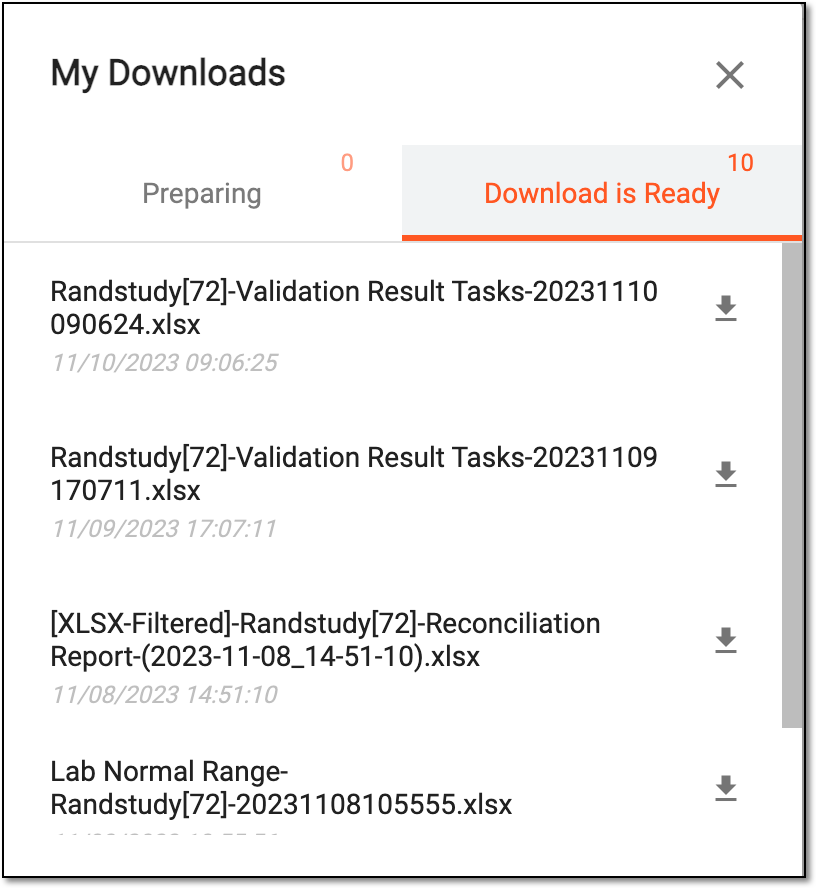 Figure 3. Viewing downloads
-
-
Under the Download is Ready tab, next to the file that you want to download, select
 .
.
Once exported, the list of validation result tasks is downloaded to your computer. You can now work with this file offline.