Execute data validation
Data validation refers to the process of ensuring the accuracy, reliability, and integrity of CRF data collected during the study. It involves a series of checks and procedures that aim to identify and resolve data inconsistencies. The importance of data validation lies in its role in maintaining the scientific validity and credibility of the study results. By ensuring the quality of the data, researchers can have confidence in the findings and draw accurate conclusions, which ultimately impacts patient safety and the decision-making process for regulatory authorities.
The purpose of data validation execution is for the system to automatically generate the list of query tasks that need to be reviewed by the study team. Once reviewed, the dedicated personnel decides whether to open queries based on the generated query tasks or cancel them since the issues may have been resolved promptly. Before you can start to execute the data validation process, make sure to satisfy the following conditions first:
-
Biostatisticians have programmed the Excel file with validation rules and uploaded it to EDC.
-
There is a validation rules template that has been activated in case all of the templates have been previously deactivated.
-
The email setting has been configured so the study team members can be notified about the status of the executed data validation.
-
The manual query setting has been configured so the responsible users with a specific role can work on validation result tasks and open or cancel queries.
You can execute the data validation immediately or with the defined frequency depending on study requirements as explained in the following sections.
Manual execution provides an opportunity to run data validation and receive its results immediately.
-
In the EDC application header, select the STUDY INFO tab.
-
In the left pane of the page that opens, expand Data Validation and select the Validation List tab.
-
From the workspace toolbar of the Validation List table that appears, select the Execute
 and then select the Execute Now option.
 Figure 1. Executing data validation
Once executed, the data validation process is triggered immediately. You can now export the source data or start working on validation results.
Establishing the execution pattern provides an opportunity to run data validation and receive its results regularly with a defined frequency.
-
In the EDC application header, select the STUDY INFO tab.
-
In the left pane of the page that opens, expand Data Validation and select the Validation List tab.
-
From the workspace toolbar of the Validation List table that appears, select the Execute
and then select the Execution Pattern option. Figure 1. Selecting Execution Pattern option
-
In the Execution Pattern dialog that appears, define the data validation execution frequency as explained in the following table.
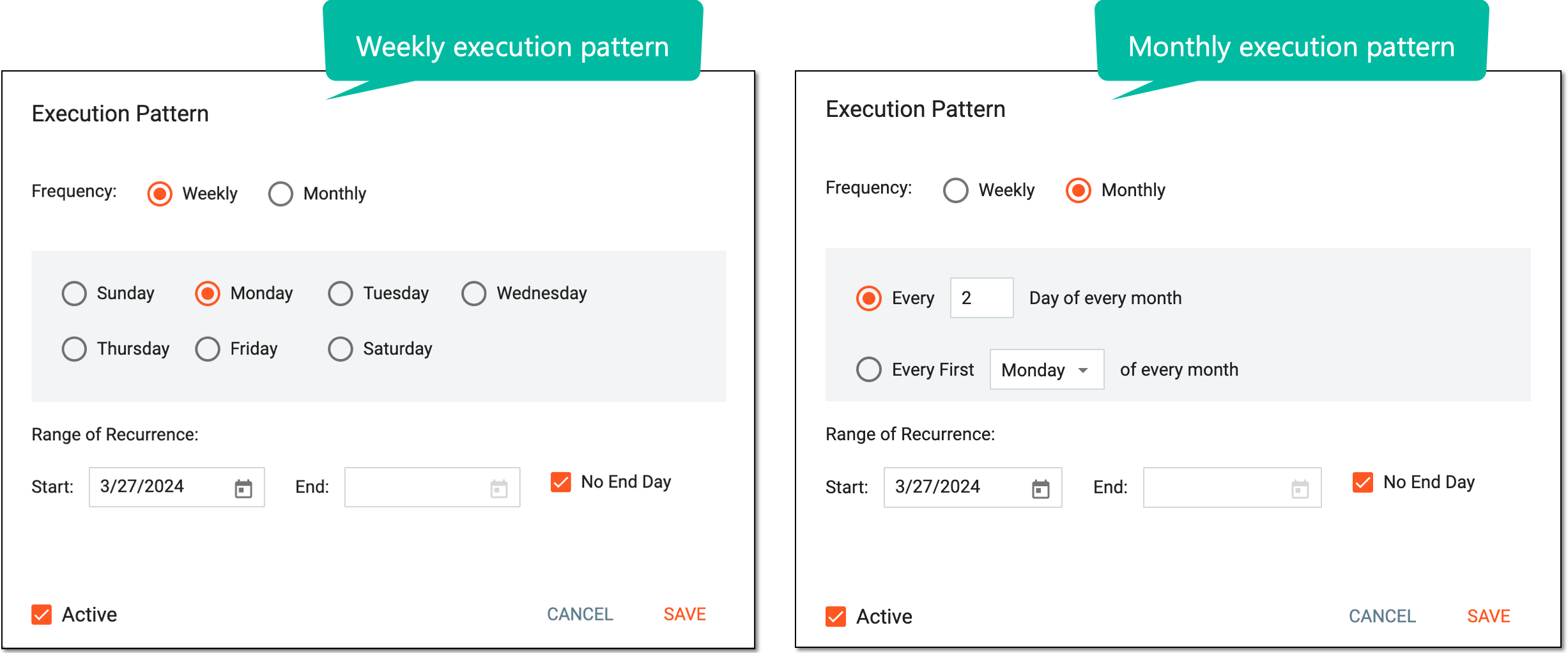 Figure 2. Defining execution pattern
Element
Details
Frequency
Select one of the following options:
-
Weekly: to specify on what day of the week the data validation needs to be triggered on a weekly basis.
-
Monthly: to specify either the day number
 or the first weekday of the month
  when the data validation needs to be triggered on a monthly basis.
Range of Recurrence
Select the start and end date when the data validation triggering needs to occur. You do not need to specify the end date if the No End Date checkbox has been selected.
No End Day
Select this checkbox if you want the data validation triggering to occur infinitely.
Active
Select this checkbox if you want to make the configured pattern active, meaning it will be used to trigger data validation based on the defined frequency.
SAVE
Select
 to save the defined frequency.
CANCEL
Select
 to discard the changes and close the dialog.
 -
Once saved, the data validation process is triggered based on the defined frequency. You can now export the source data or start working on validation results.