Add SDR setting record
Source Data Review (SDR) refers to a comprehensive review of the collected data to evaluate its quality, consistency, and compliance with the study protocol, standard operating procedure, and regulatory requirements. During SDR, the CRA or data management team examines the data for completeness, accuracy, and compliance with the study protocol and regulatory requirements.
The SDR process is usually done offline by the CRA who needs to go to each study site to review source documents. All of the source documents can be uploaded to EDC in order to achieve data compliance. Once uploaded, you can specify for which visits and subjects the SDR must occur in order to conduct the most thorough documentation review.
When defining the SDR procedure, you can add SDR setting records by visit or by subject or enable SDR for all visits and subjects of your study.
When setting the SDR by visit, you can define if source documents related to the specific visit for some subjects must undergo SDR.
-
In the EDC application header, select the STUDY INFO tab.
-
In the left pane of the page that opens, expand SDR and select the SDR Setting tab.
-
On the SDR Setting page that opens, select the By Visit tab.
-
From the workspace toolbar, select New Item
 .
. Figure 1. Selecting to add SDR by visit
-
In the Add dialog that appears, fill in the form as explained in the following table.
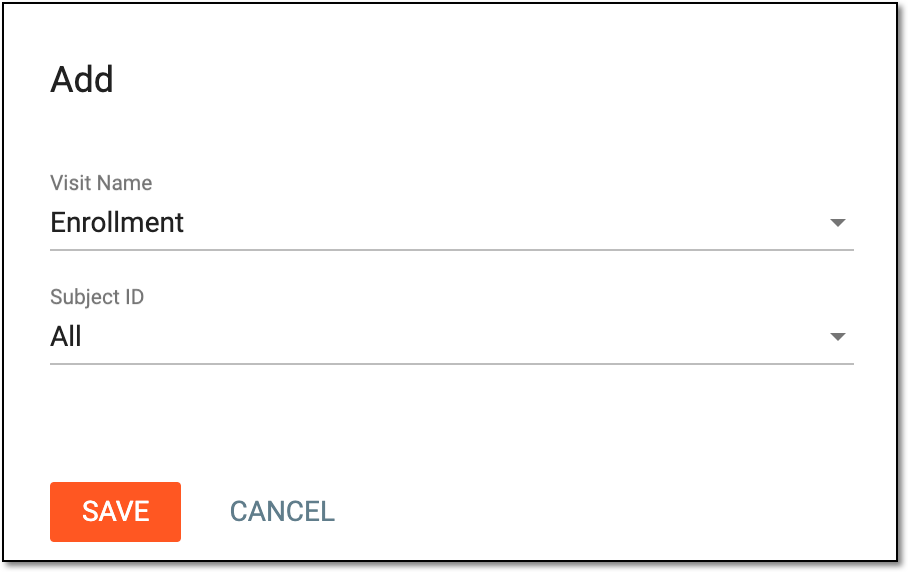 Figure 2. Adding SDR setting record by visit
Element
Details
Visit Name
Select the visit whose source documents must undergo SDR.
Subject ID
Expand the subject list and select either all or individual subjects to whose data SDR must be applied in relation to the selected visit.
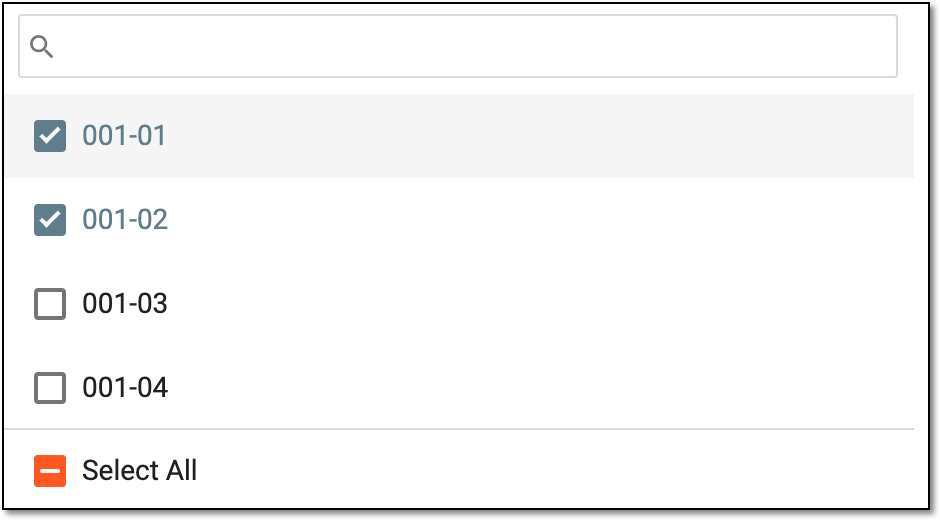 Figure 3. Selecting subjects
SAVE
Select
 to add the selected visit to the list of those to be verified.
CANCEL
Select
 to discard the changes and close the dialog.
Once saved, the SDR setting record is added. You can now execute SDR setting to apply the configuration.
When setting the SDR by subject, you can define if source documents related to the specific subject for some visits must undergo SDR.
-
In the EDC application header, select the STUDY INFO tab.
-
In the left pane of the page that opens, expand SDR and select the SDR Setting tab.
-
On the SDR Setting page that opens, select the By Subject tab.
-
From the workspace toolbar, select New Item
.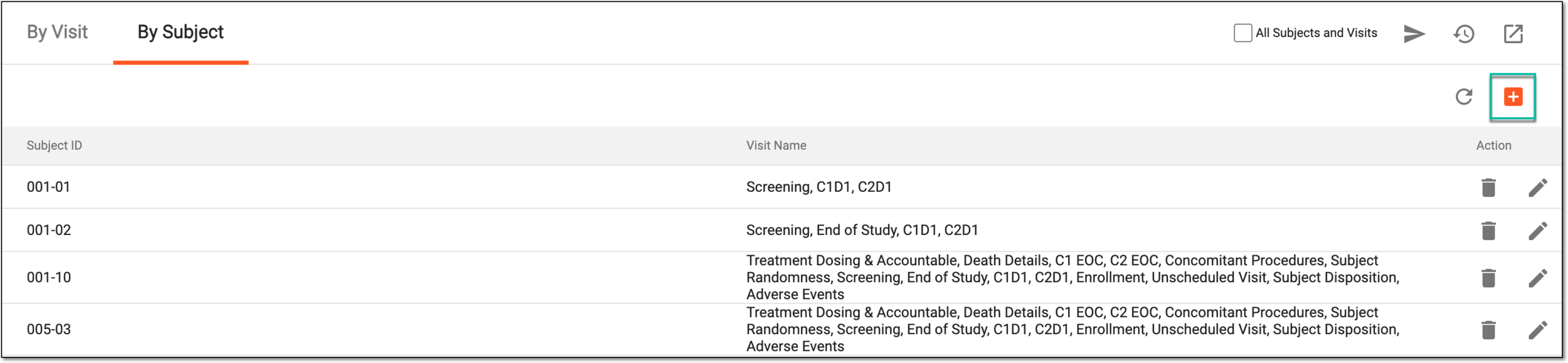 Figure 1. Selecting to add SDR by subject
-
In the Add dialog that appears, fill in the form as explained in the following table.
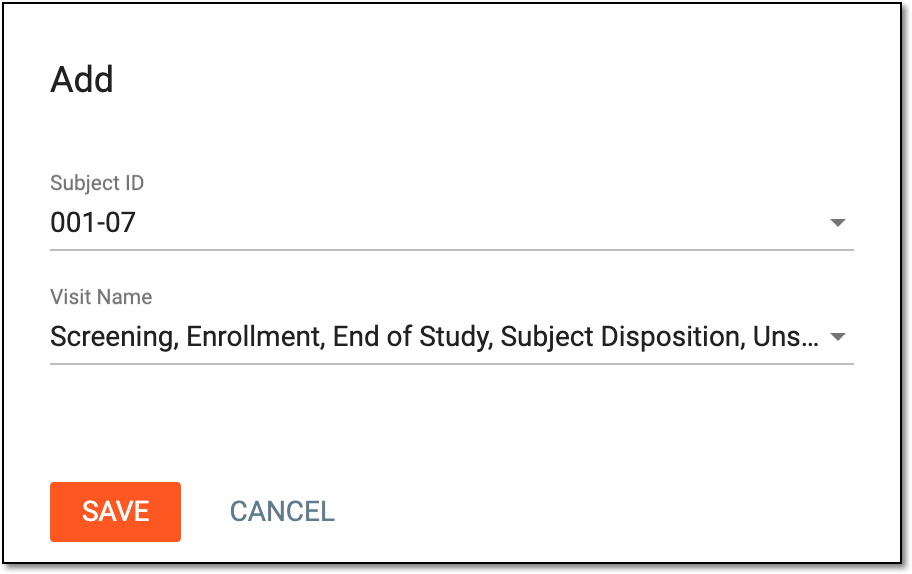 Figure 2. Adding SDR setting record by subject
Element
Details
Subject ID
Select the subject whose source documents must undergo SDR.
Visit Name
Expand the visit list and select either all or individual visits to which SDR must be applied in relation to the selected subject.
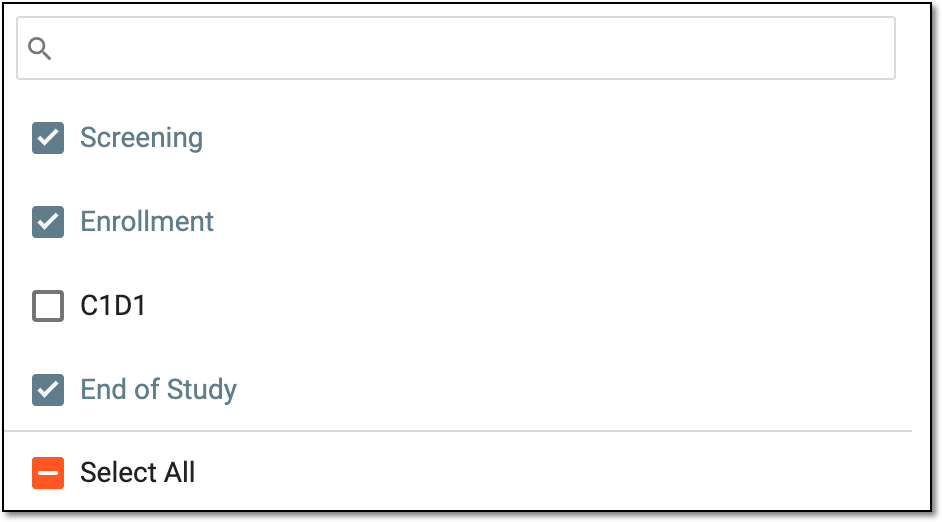 Figure 3. Selecting subjects
SAVE
Select
to add the selected visit to the list of those to be verified.CANCEL
Select
to discard the changes and close the dialog.
Once saved, the SDR setting record is added. You can now execute SDR setting to apply the configuration.
In EDC, you can make the SDR procedure mandatory for all the subjects and visits of your study with no need to configure any other SDR setting records. However, if your study requirements change, you can disable this configuration and proceed to set your selective SDR by visit or by subject.
-
In the EDC application header, select the STUDY INFO tab.
-
In the left pane of the page that opens, expand SDR and select the SDR Setting tab.
-
On the SDR Setting page that opens, from the workspace toolbar, select or clear the All Subjects and Visits checkbox to enable or disable the configuration respectively.
 Figure 1. Enabling/Disabling SDR for all subjects and visits
-
In the confirmation dialog that appears, select
 to proceed with your action.
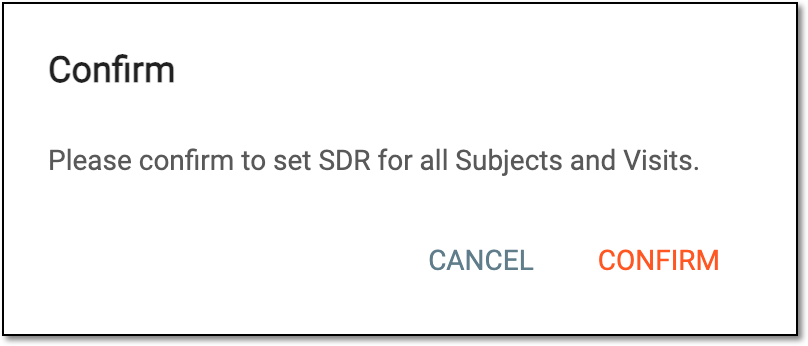 Figure 2. Confirming action
Once confirmed, the SDR procedure is either enabled and becomes mandatory for all the subjects and visits of your study or is disabled and you can now configure selective ASDR settings.