Reactivate query
While working with forms in EDC and finding some inaccurate or missing data, you can create queries for responsible users to address the issues and either correct them or confirm the data's accuracy. A query is a request to fix the encountered discrepancy in the study data.
The queries can be paused due to different reasons, such as requiring more time to verify the data issue or waiting for the sponsor's approval on a specific field. However, after receiving the needed information pertaining to the query resolution, you can reactivate previously paused queries.
-
In the EDC application header, select the DATA ENTRY tab.
-
On the site list page that opens, select the tile representing the site with which you want to work.
 Figure 1. Accessing site
-
In the Subject ID column, select the needed subject.
 Figure 2. Selecting subject
-
Once the needed subject is accessed, select either of the following two options:
-
In the subject visit tree of the page that opens, expand the needed visit to select the form with the query you intend to work.
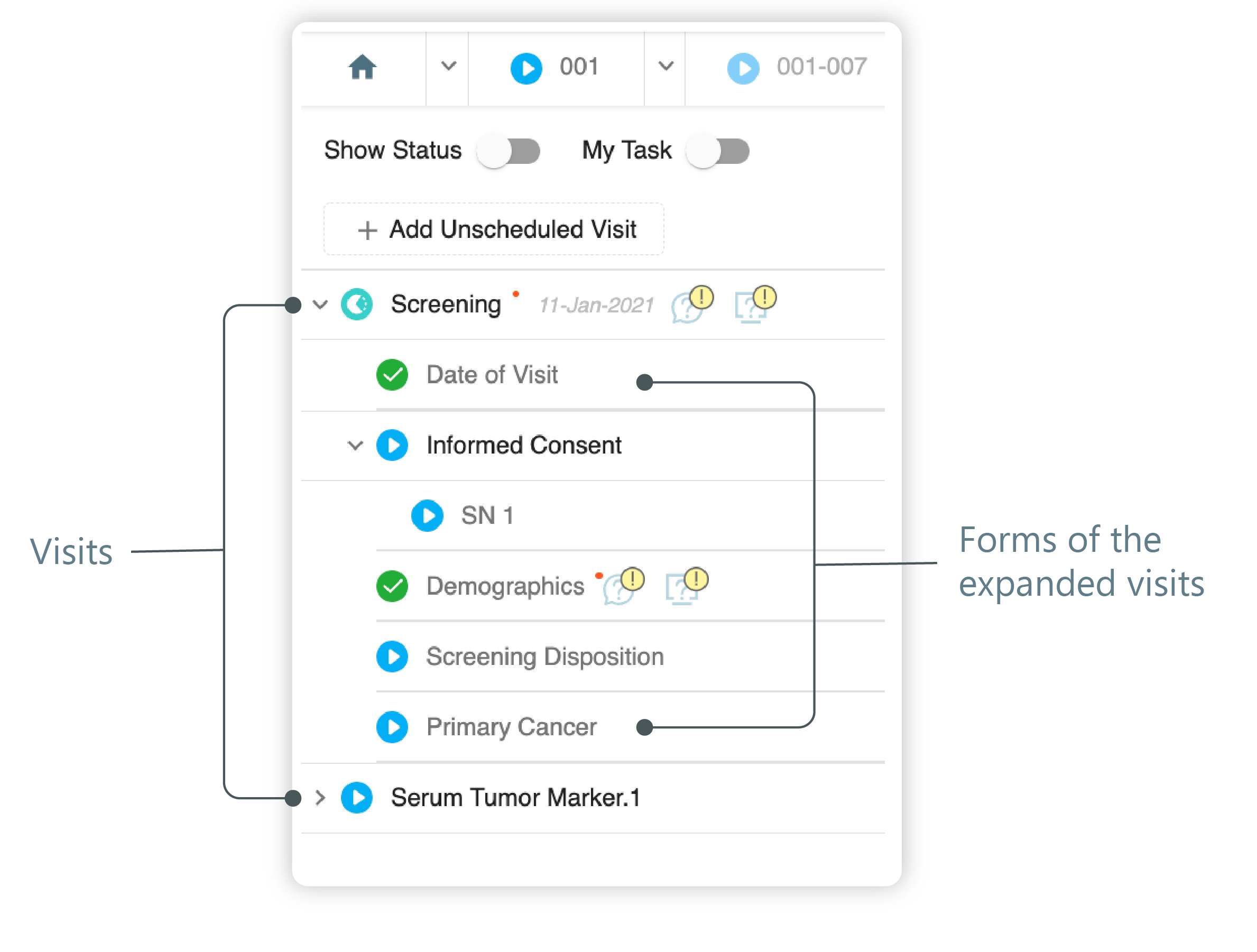 Figure 3. Left panel. Visits and their forms
-
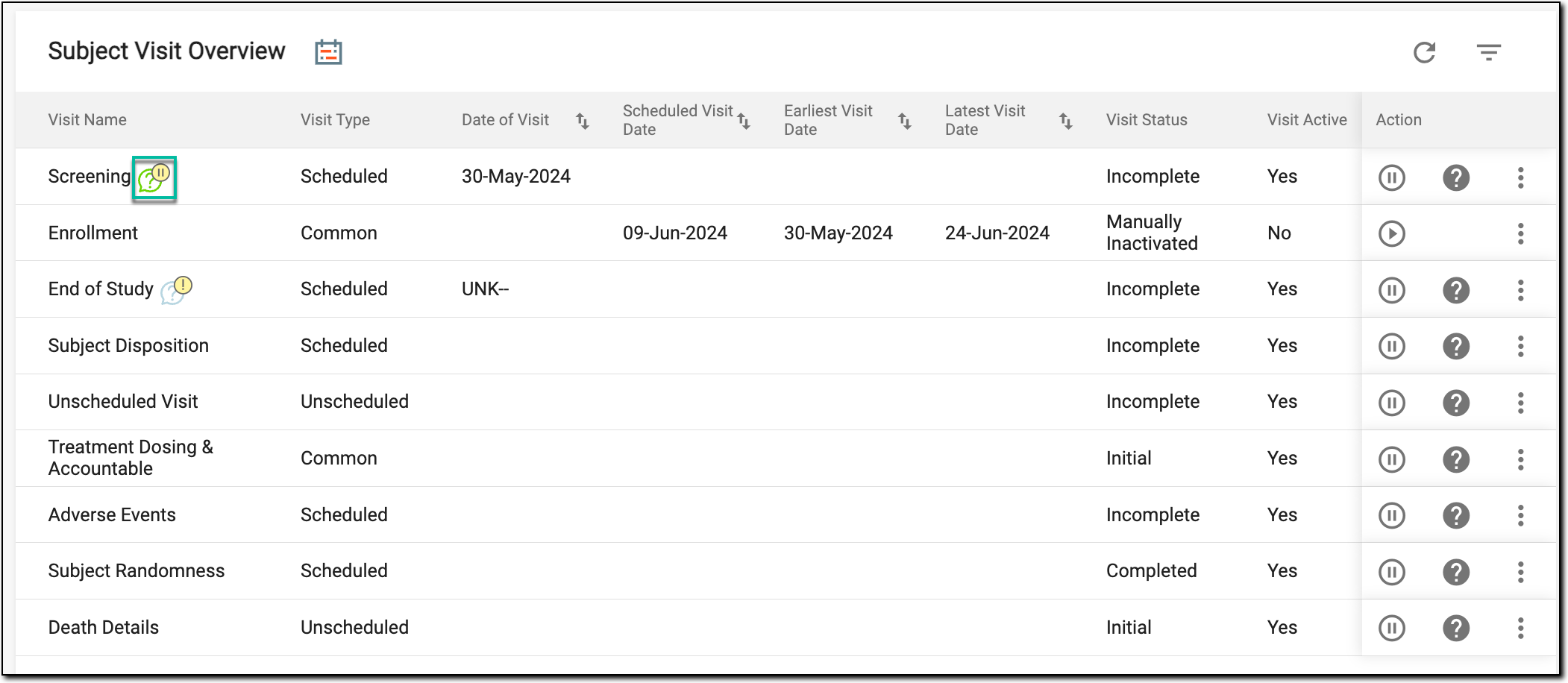
On the Subject Visit Overview page, locate the needed visit.
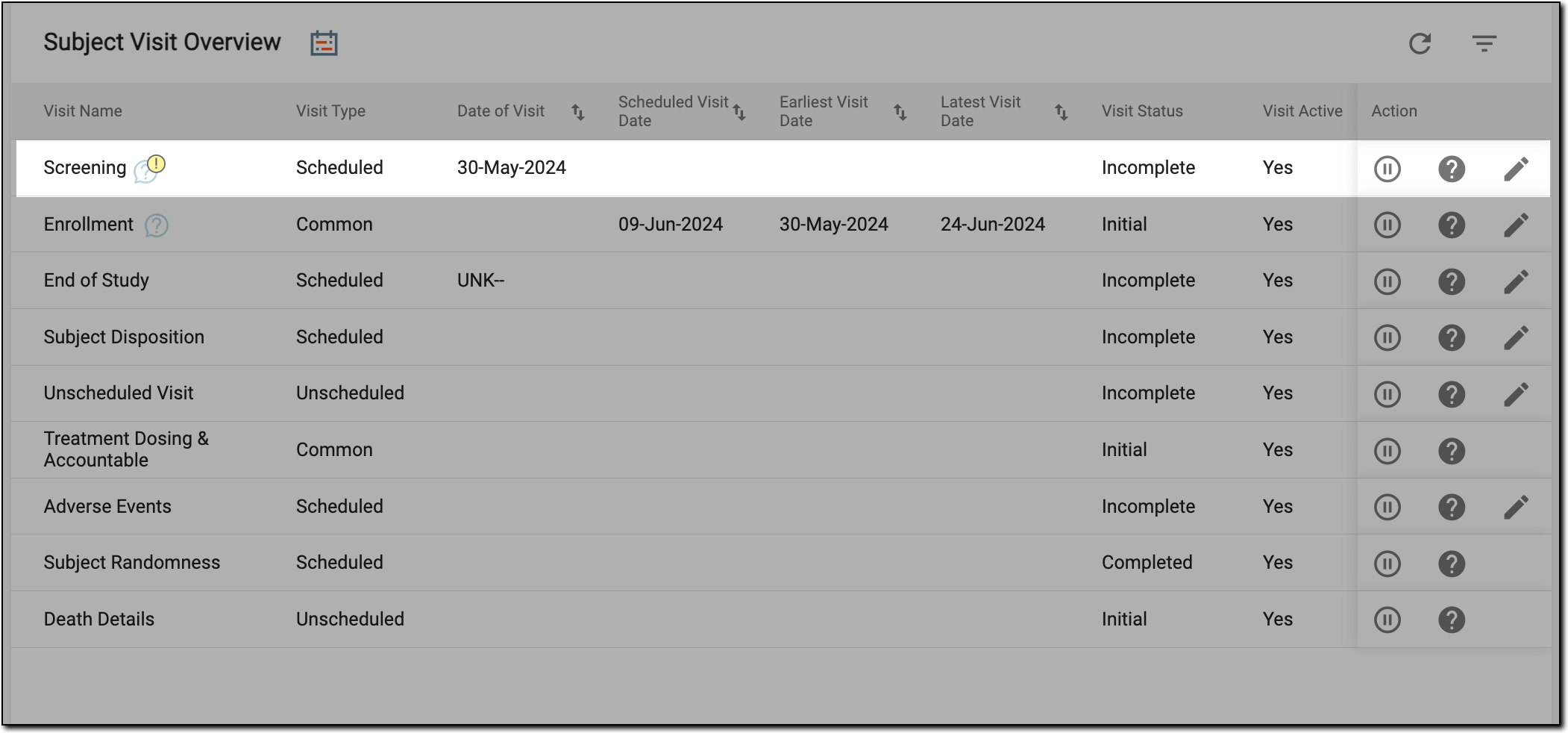 Figure 4. Locating visit
-
-
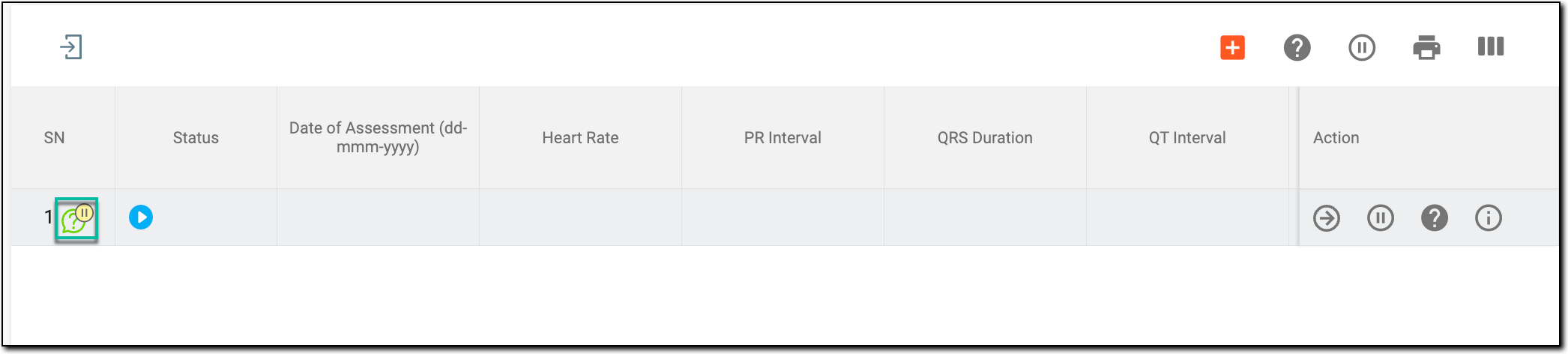
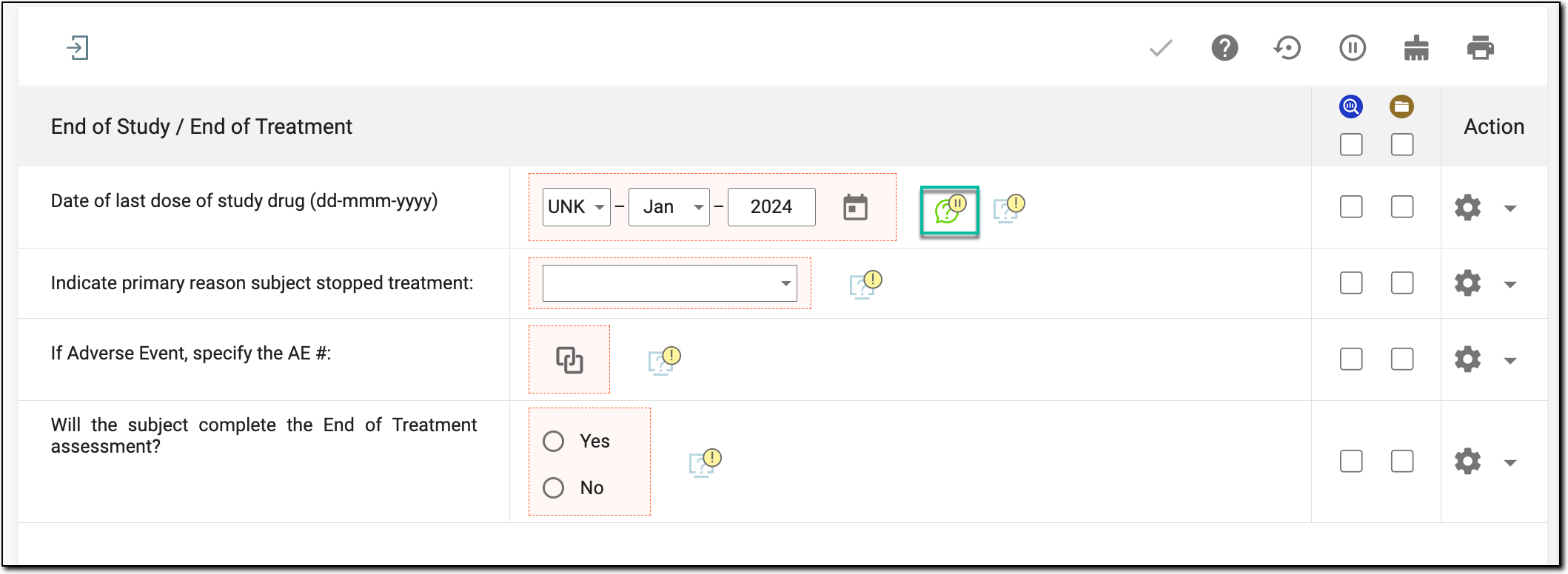
Next, access the paused manual query for the needed visit, form, record, or item as follows.
-
In the panel that expands, next to the paused query, select Re-Activate
 .
.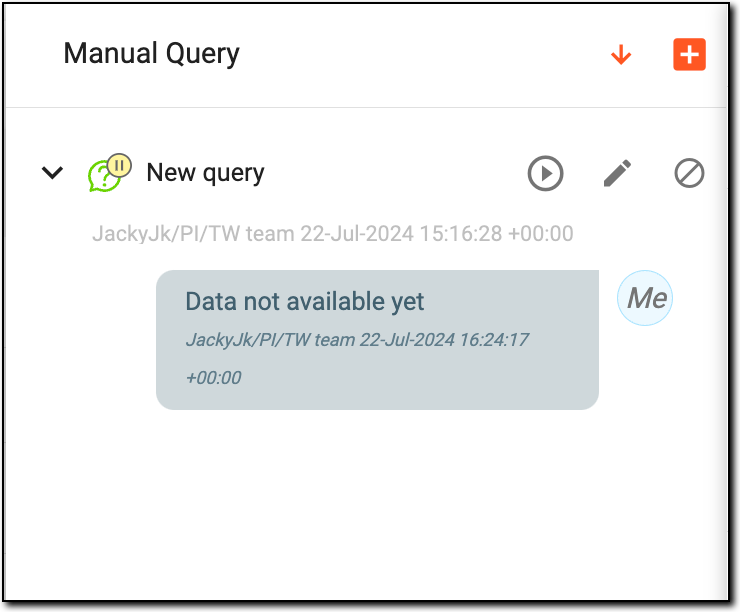 Figure 9. Reactivating query
-
In the dialog that appears, select or enter a reason for reactivating a previously paused query. Then select
 .
.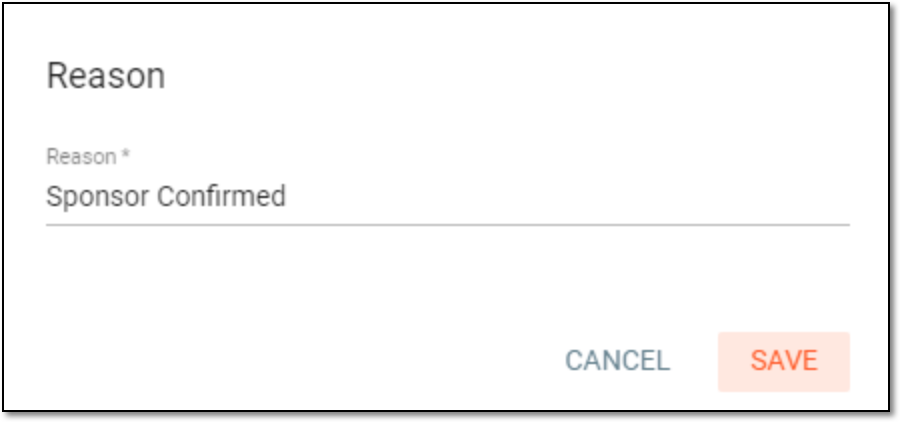 Figure 10. Reactivating query


Once saved, the query is reactivated. You can now continue working on this query.