Close query
While working with forms in EDC and finding some inaccurate or missing data, you can create queries for responsible users to address the issues and either correct them or confirm the data's accuracy. A query is a request to fix the encountered discrepancy in the study data.
When needed, you can close a manual query once it has been addressed.
There are multiple ways to access the queries assigned to you in the EDC system:
-
Access all your queries from the My Queries tile of the My Work dashboard.
-
Access all your queries from the Task module of the Quick panel.
-
Locate a certain query by opening the form page in which the query resides.
-
As a DM, close the system queries in bulk from the System Query Details report page.
This procedure focuses on how to close a query by locating it directly in the form to which it belongs.
-
In the EDC application header, select the DATA ENTRY tab.
-
On the site list page that opens, select the tile representing the site with which you want to work.
 Figure 1. Accessing site
-
In the Subject ID column, select the needed subject.
 Figure 2. Locating your subject
-
Once the needed subject is accessed, select either of the following two options:
-
In the subject visit tree of the page that opens, expand the needed visit to select the form with the query you intend to work.
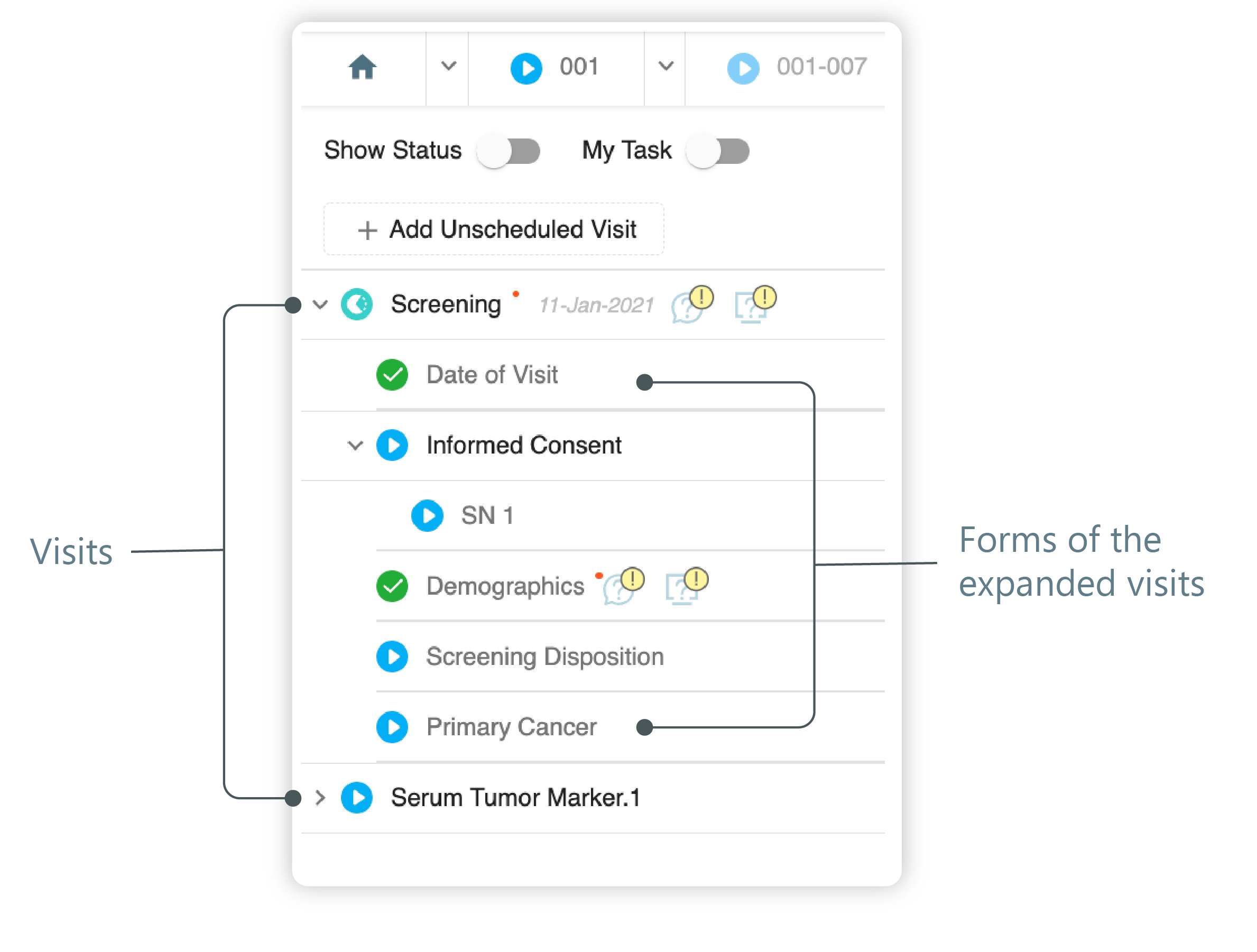 Figure 3. Left panel. Visits and their forms
-
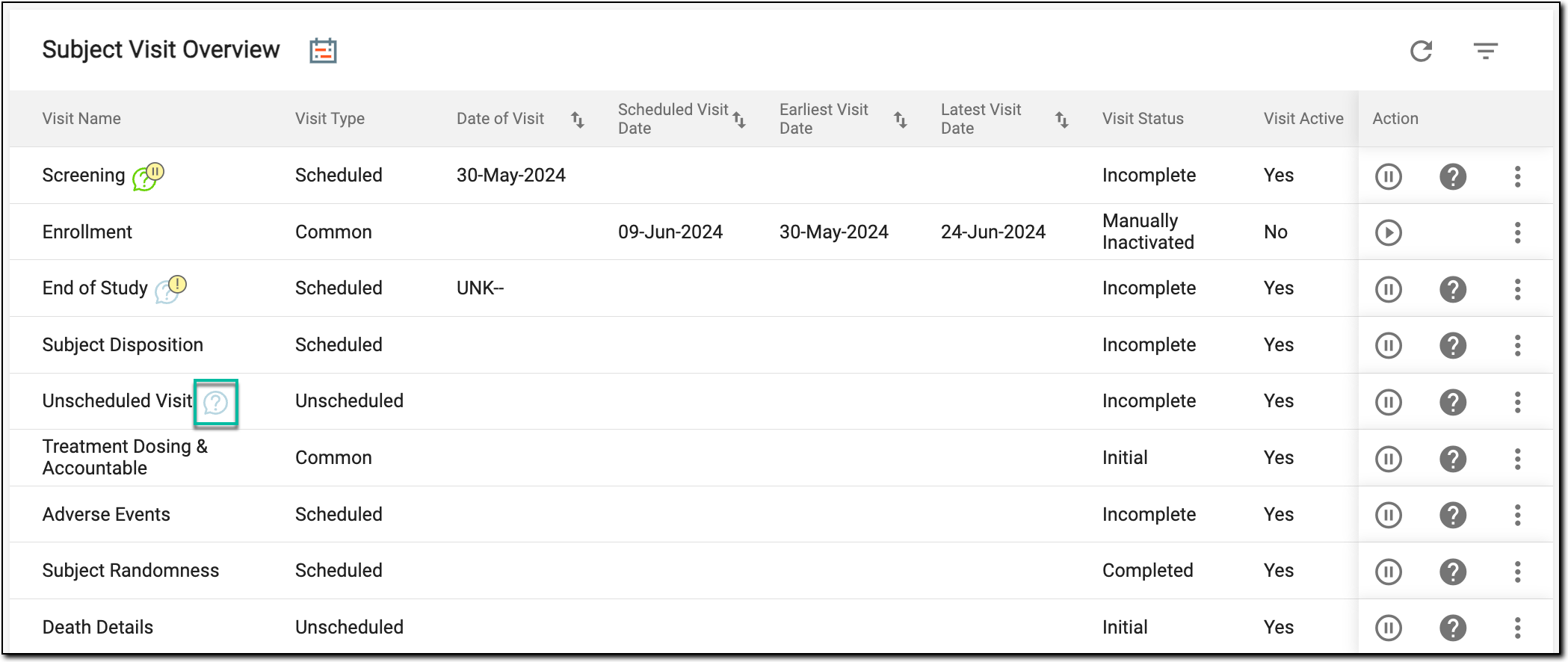
On the Subject Visit Overview page, locate the needed visit.
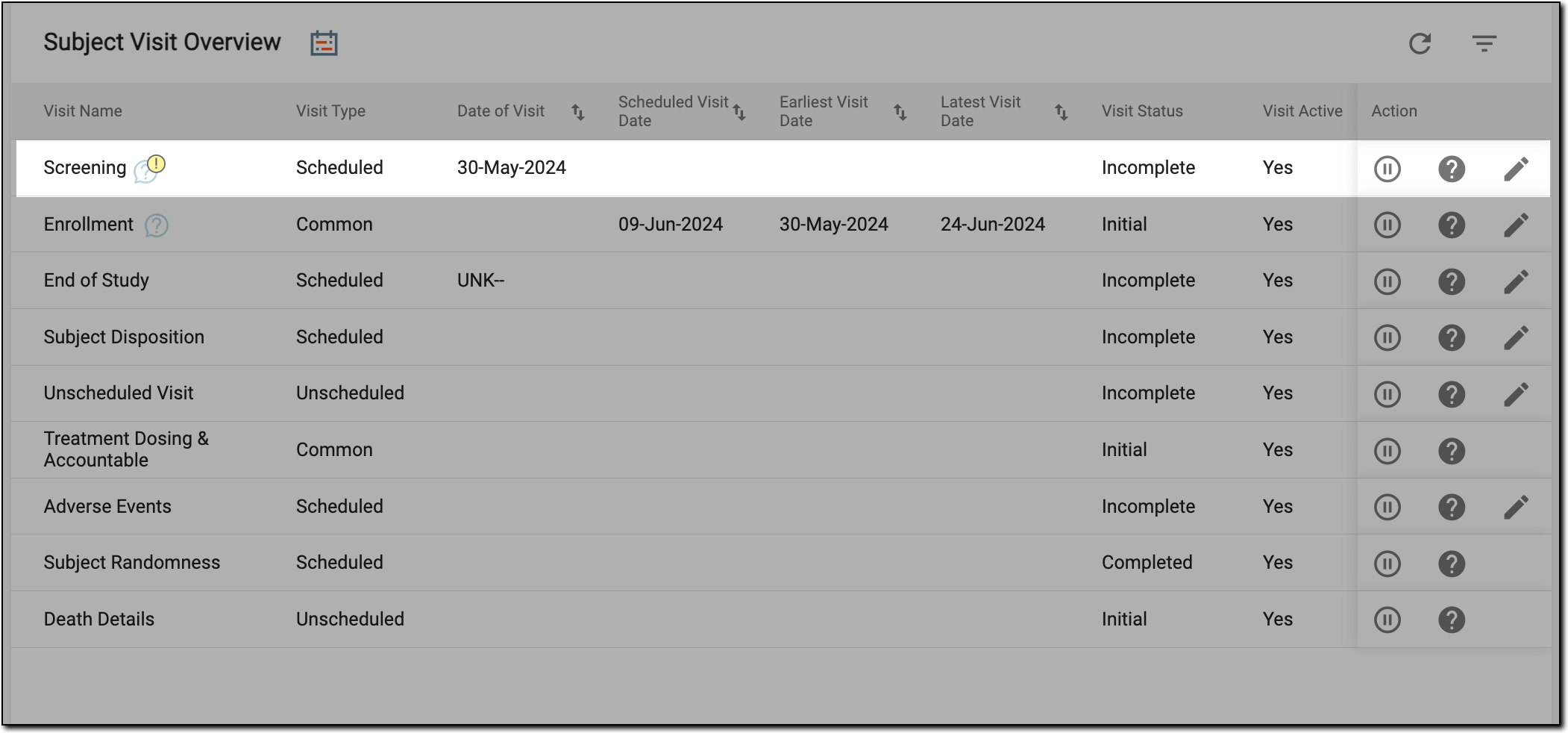 Figure 4. Locating visit
-
-
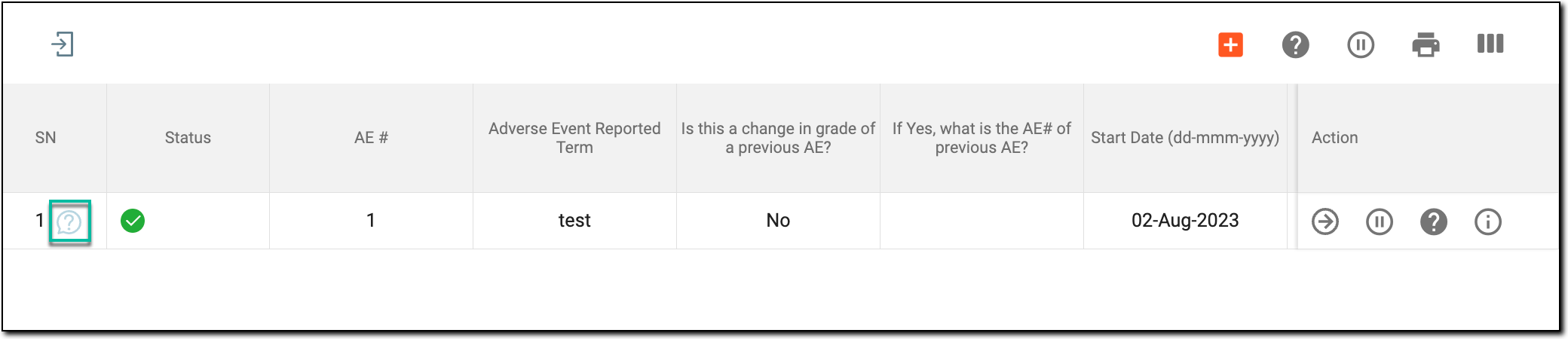
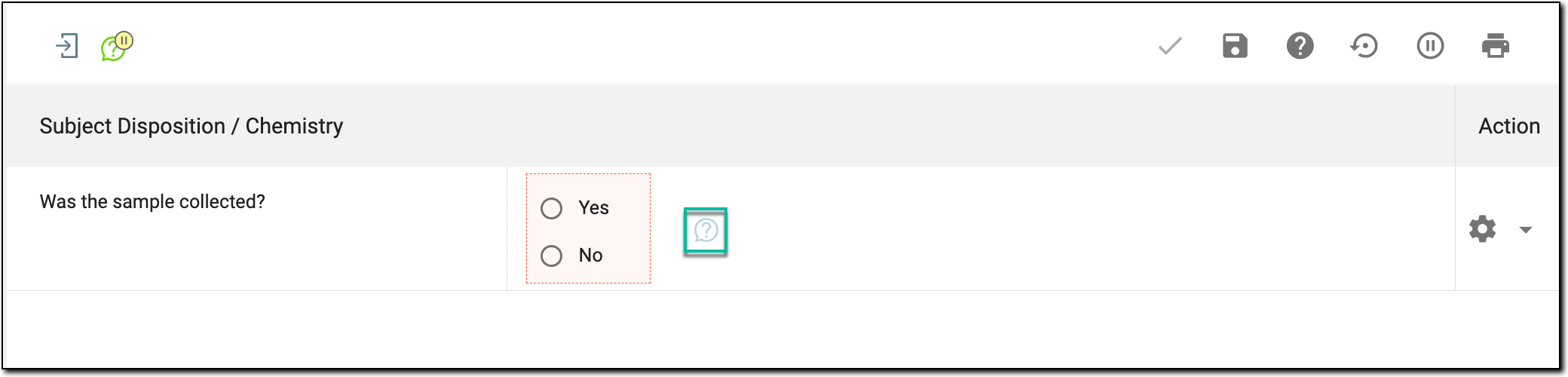
Next, access a manual query for the needed visit, form, record, or item as follows.
Tip
If you are an assignee of the query, the open query icon displays green
 , and if you are not an assignee—the icon
appears blue
, and if you are not an assignee—the icon
appears blue  .
. -
In the Manual Query panel that appears on the right, select Close
 .
.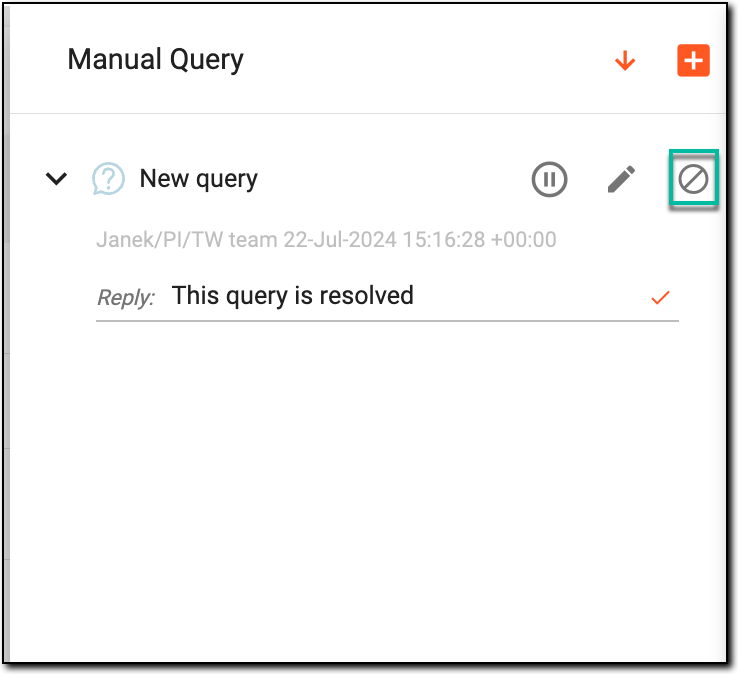 Figure 9. Selecting to close query
-
In the confirmation dialog that opens, select YES.
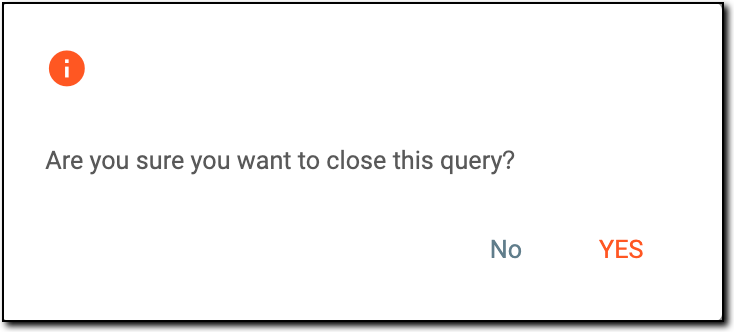 Figure 10. Closing query

Upon confirmation, the query is closed.