Close system queries in batch
The System Query Details report displays all the queries per each form item automatically created by the system. The report includes data on query status, topic, due/overdue, replies, users addressing them, and other useful details.
From the report page, the data manager (DM) user can also close the system queries in batch.
For instance, this might be helpful before the database lock and study finalization. Closing queries in batches helps your study staff to avoid the time-consuming process of going through every query and resolving them one by one.
-
In the EDC application header, select the REPORTS tab.
-
On the page that opens, in the left pane, select the Query Report subtab to expand the list of available reports and select System Query Details.
-
On the System Query Details page, you can adjust your report data with the following options:
-
Display Site Name: turn this toggle on/off to show/hide the Site Name column in your report.
 Figure 1. Enabling site name display
-
Only show activated data: turn this toggle on/off for your report to exclude/include the data on queries that belong to inactivated forms.
 Figure 2. Enabling active data calculation
-
-
To select the queries for batch-closure, do the following:
-
To close all the open and answered queries in batch, from the workspace toolbar, select the Select All Open/Answered Queries checkbox.
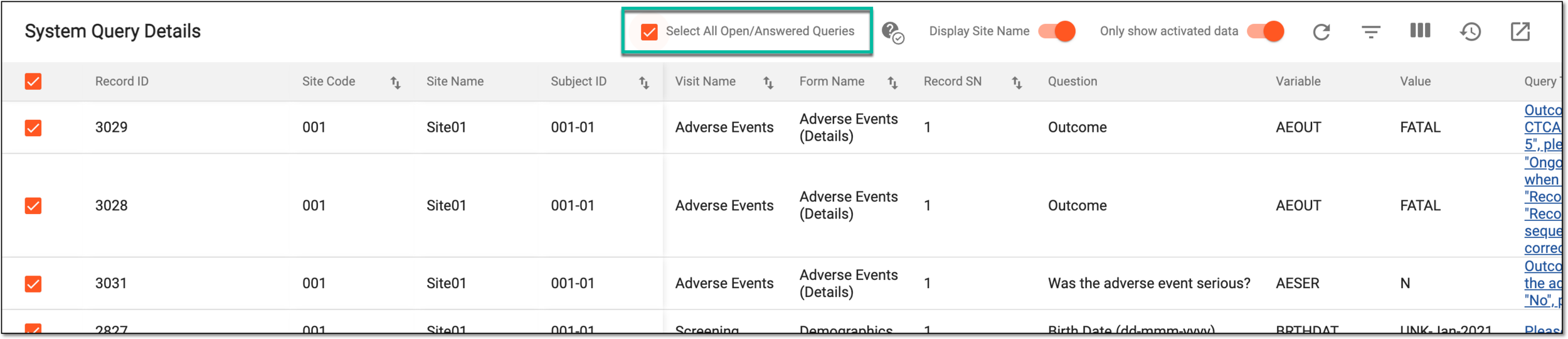 Figure 3. Selecting all open and answered queries
-
To close some specific queries in batch, select the checkboxes next to the individual report items.
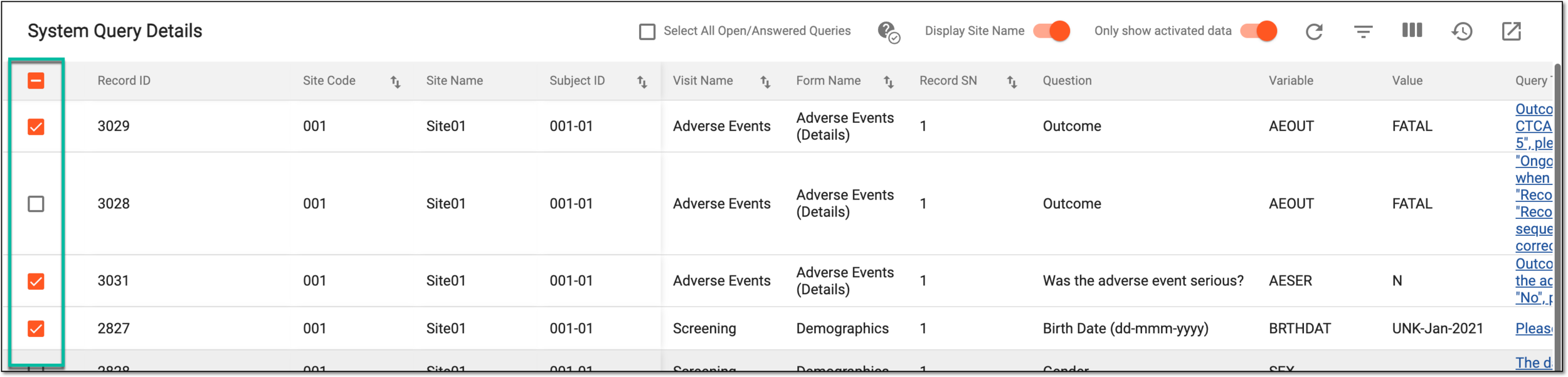 Figure 4. Selecting specific queries
-
-
From the workspace toolbar, select Close queries in batch
 and in the form that opens, enter the
reason for closing the selected queries and select
and in the form that opens, enter the
reason for closing the selected queries and select  .
.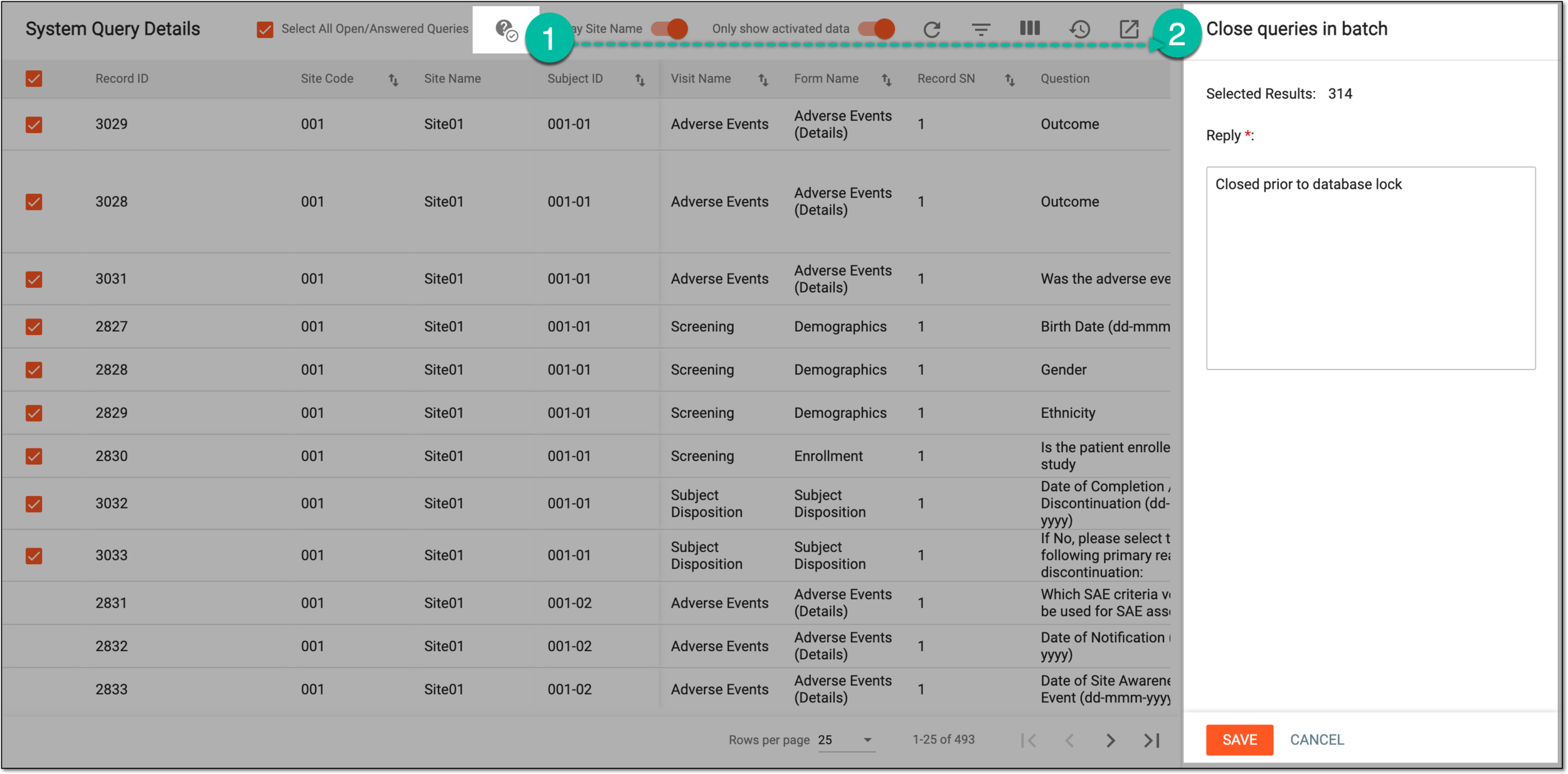 Figure 5. Closing queries in batch
-
In the dialog that appears, select
 to confirm closing the queries.
 Figure 6. Confirming to close queries
Once confirmed, the selected queries are closed.