Edit query
While working with forms in EDC and finding some inaccurate or missing data, you can create queries for responsible users to address the issues and either correct them or confirm the data's accuracy. A query is a request to fix the encountered discrepancy in the study data.
If needed, you can edit the previously created manual queries to meet new requirements.
-
In the EDC application header, select the DATA ENTRY tab.
-
On the site list page that opens, select the tile representing the site with which you want to work.
 Figure 1. Accessing site
-
In the Subject ID column, select the needed subject.
 Figure 2. Selecting subject
-
Once the needed subject is accessed, select either of the following two options:
-
In the subject visit tree of the page that opens, expand the needed visit to select the form with the query you intend to work.
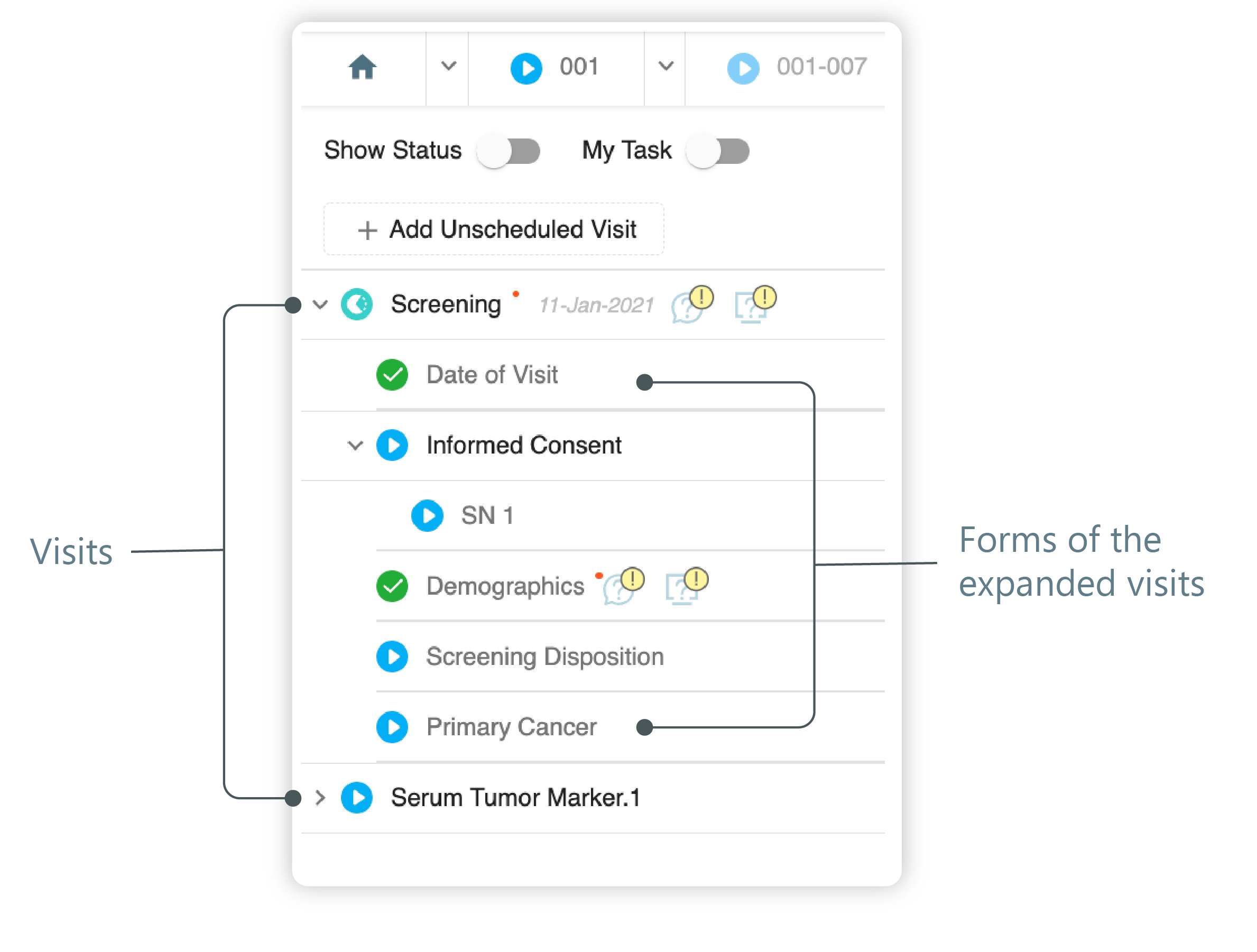 Figure 3. Left panel. Visits and their forms
-
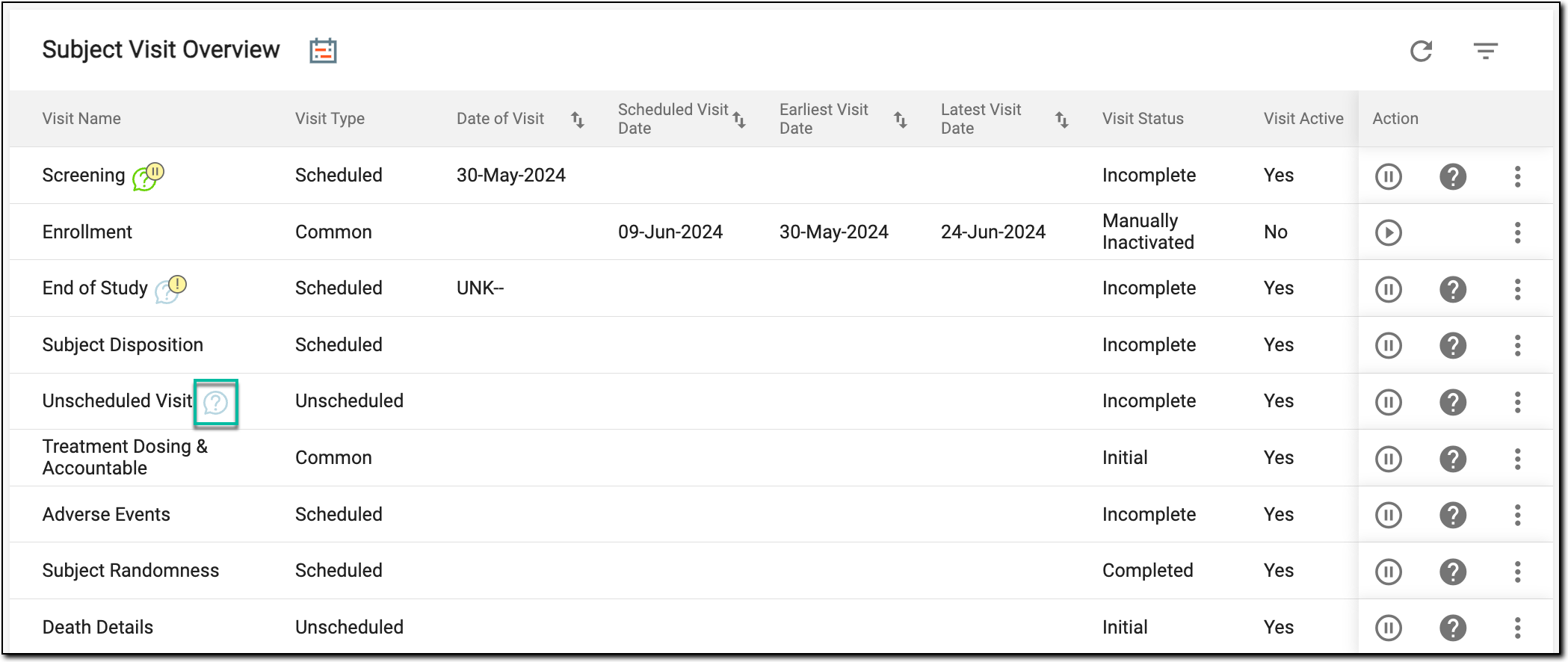
On the Subject Visit Overview page, locate the needed visit.
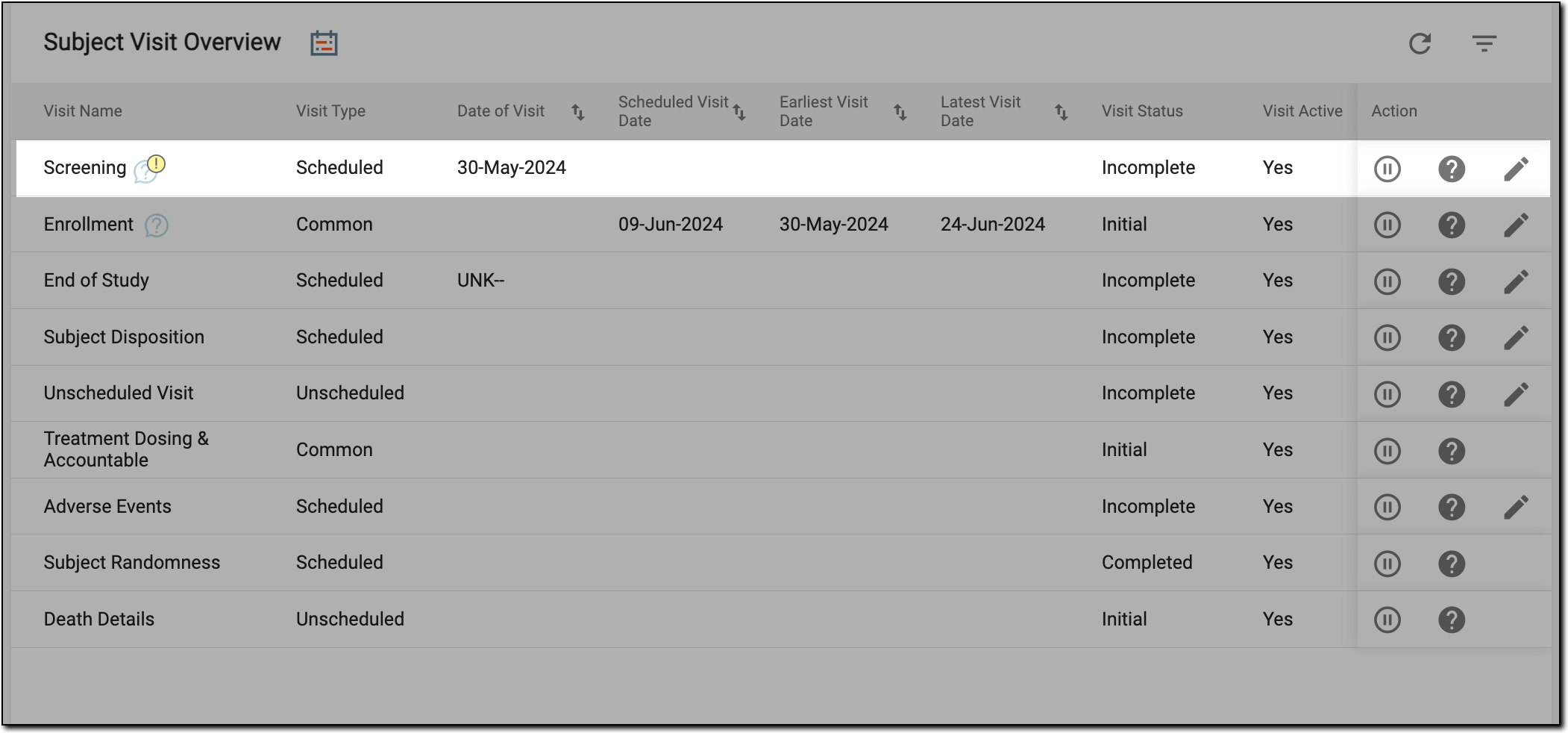 Figure 4. Locating visit
-
-
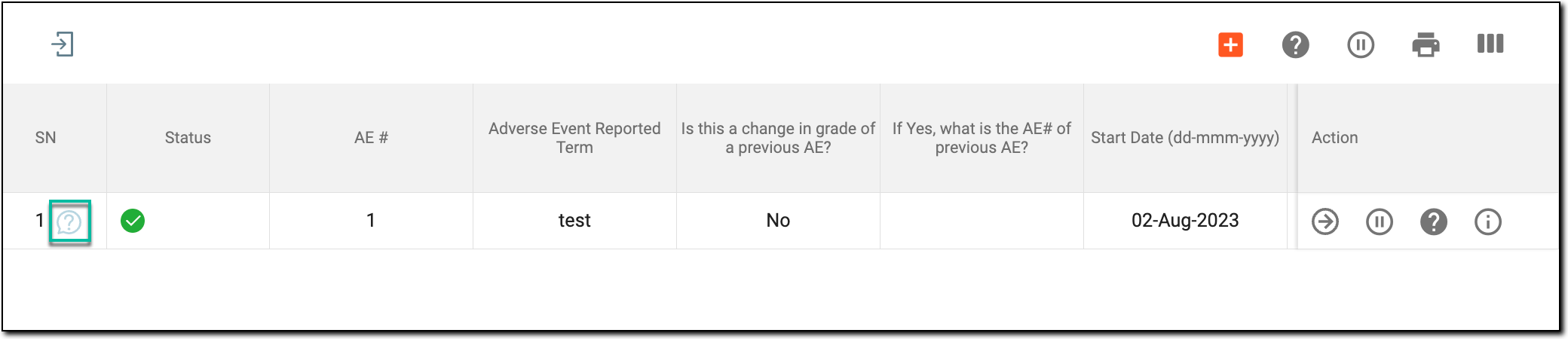
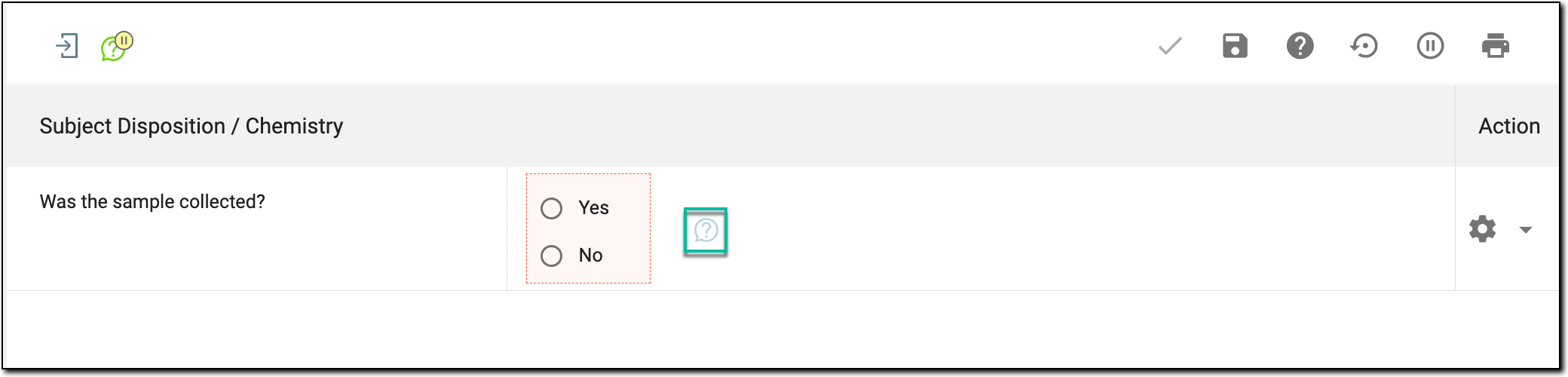
Next, access a manual query for the needed visit, form, record, or item as follows.
Tip
If you are an assignee of the query, the open query icon displays green
 , and if you are not an assignee—the icon
appears blue
, and if you are not an assignee—the icon
appears blue  .
. -
In the Manual Query panel that appears, select Edit
 .
.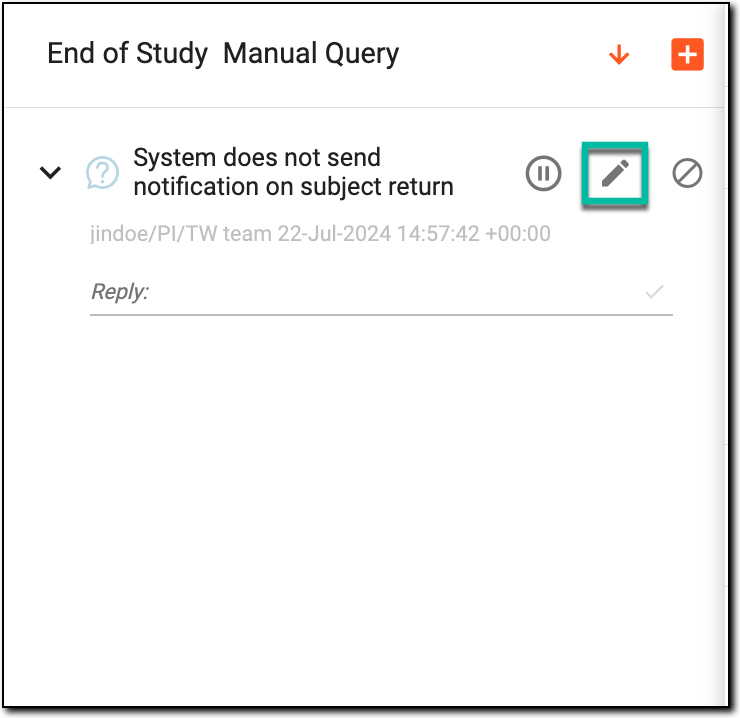 Figure 9. Selecting to edit query
-
In the dialog that opens, update the fields as explained in the following table.
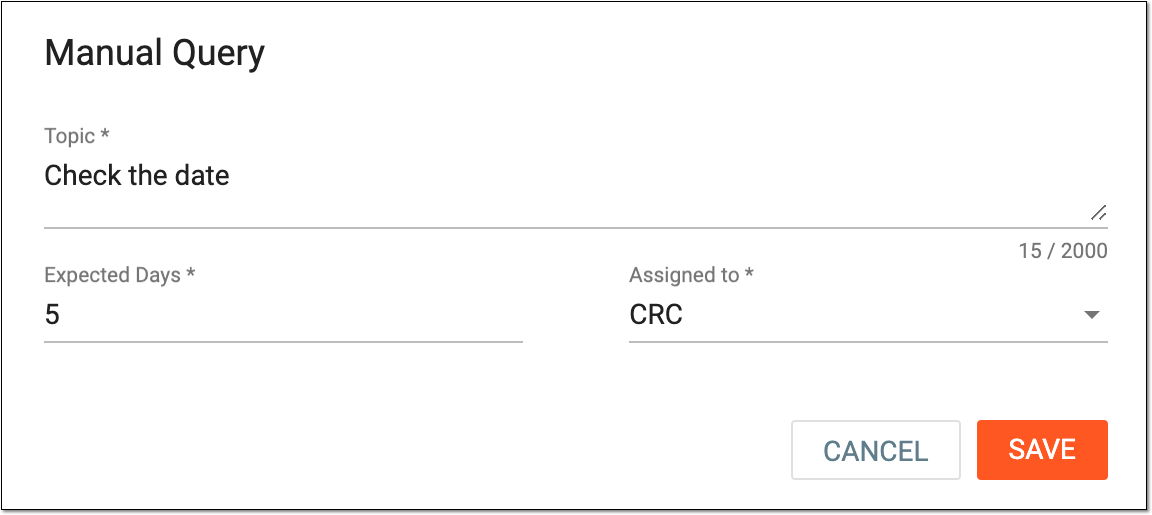 Figure 10. Editing query details
Element
Details
Topic*
Enter the issue on which you are creating the query: point out data discrepancies, ask a question of an addressee, provide the correct data to be updated, or else.
Expected Days*
Enter the number of days for an assignee to resolve the query before it becomes overdue.
If the query is not addressed before the window of days established for resolving it has been exceeded, the query icon changes to Overdue Open Manual Query
 .
.Assigned to*
Expand the dropdown menu to select the user role that you want to address the query. Be very careful when specifying the assignee because only the users of the selected role can view the query in their tasks. Assigning the query to the wrong user role can cause a serious delay or even prevent it from resolution.
The list of available user roles for this field is study-specific and depends on settings made in the ADMIN application.
SAVE
Select
 to save the implemented changes.
CANCEL
Select
 to dismiss all the implemented changes without saving and close the dialog.

Upon saving, the query is updated.