Audit source document
Source documents are original records or certified copies of records that provide evidence of the existence, activities, and results of a clinical trial or study. Some of the source documents that can be related to data verification and documentation review are case report forms (CRFs), medical records, informed consent forms, pharmacy records, adverse event reports, regulatory documents, and so on.
The source documents can be susceptible due to the information they comprise, so they require special handling and controlled maintenance. In EDC, this is achieved via the introduction of documentation auditing workflows established per site.
Depending on the workflow configured for the site, certain maintenance stages must be completed for each document uploaded under that site's directory in EDC before the document is considered valid in the system.
All files uploaded to EDC that went through auditing and have their status as Final are automatically forwarded to the eTMF storage and can be accessed in the EDC > Source Document directory of your study.
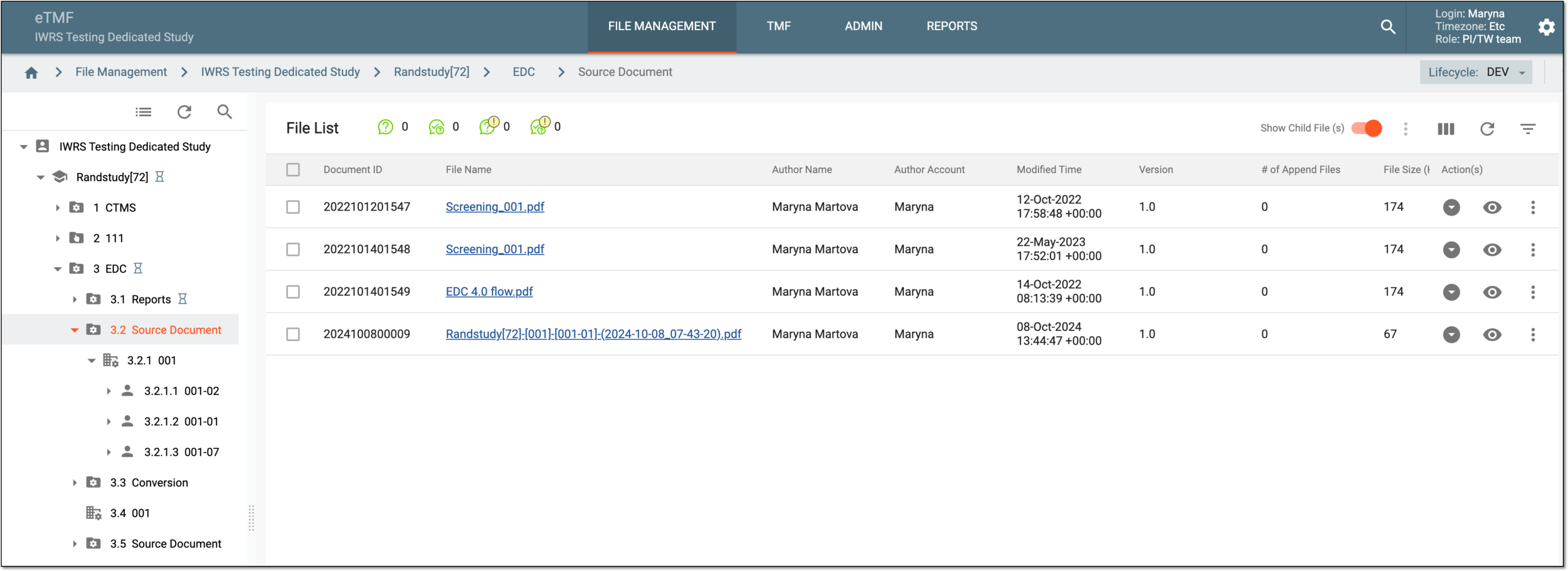
One of the ways to access all your auditing tasks is via the Source Documents tile of the My Work dashboard. Another is to go to the Source Documents storage to browse and audit the available files. This section is focused on the latter.
Important
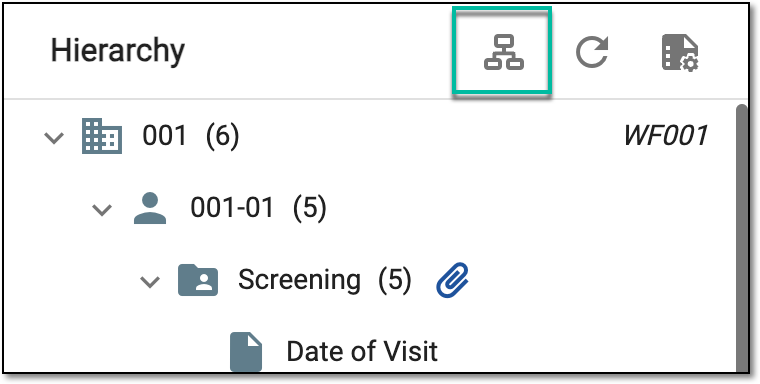
If no workflow is created for the site, the source document can be uploaded to EDC without additional requirements. This reduces the security of the document management procedure. From the Hierarchy tree workspace toolbar, select Workflow  to go to the workflow
setting page and create new or edit existing workflows.
to go to the workflow
setting page and create new or edit existing workflows.
 |
-
In the EDC application header, select the STUDY INFO tab.
-
In the left pane of the page that opens, select Subject > Source Document.
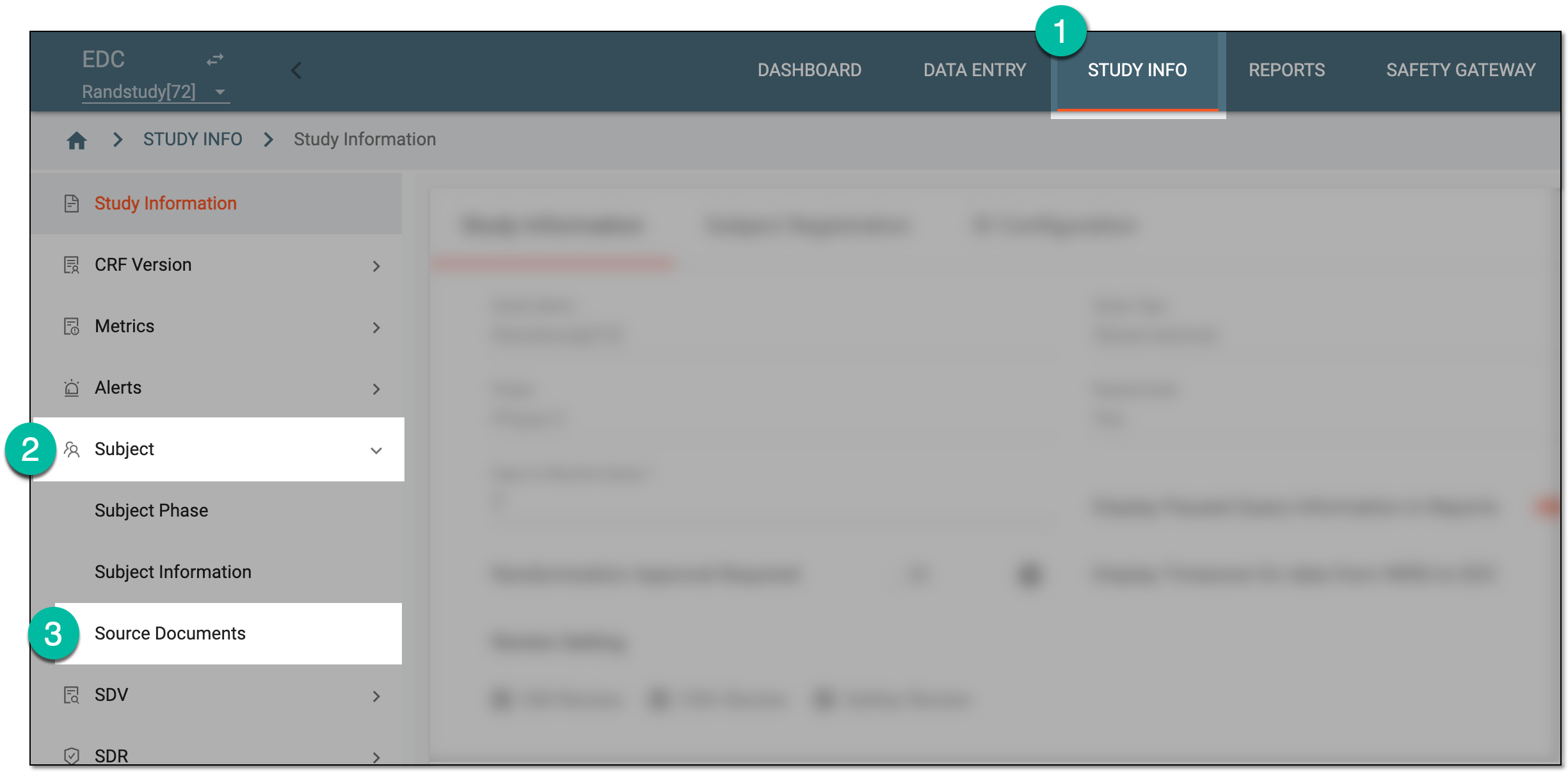 Figure 3. Accessing source documents
-
In the Hierarchy tree that appears, expand the site of your interest.
Tip
Next to the site-level hierarchies, you can see the name of the associated workflow if any. Select the workflow name to open the dialog and preview the document management schema preconfigured for the site.
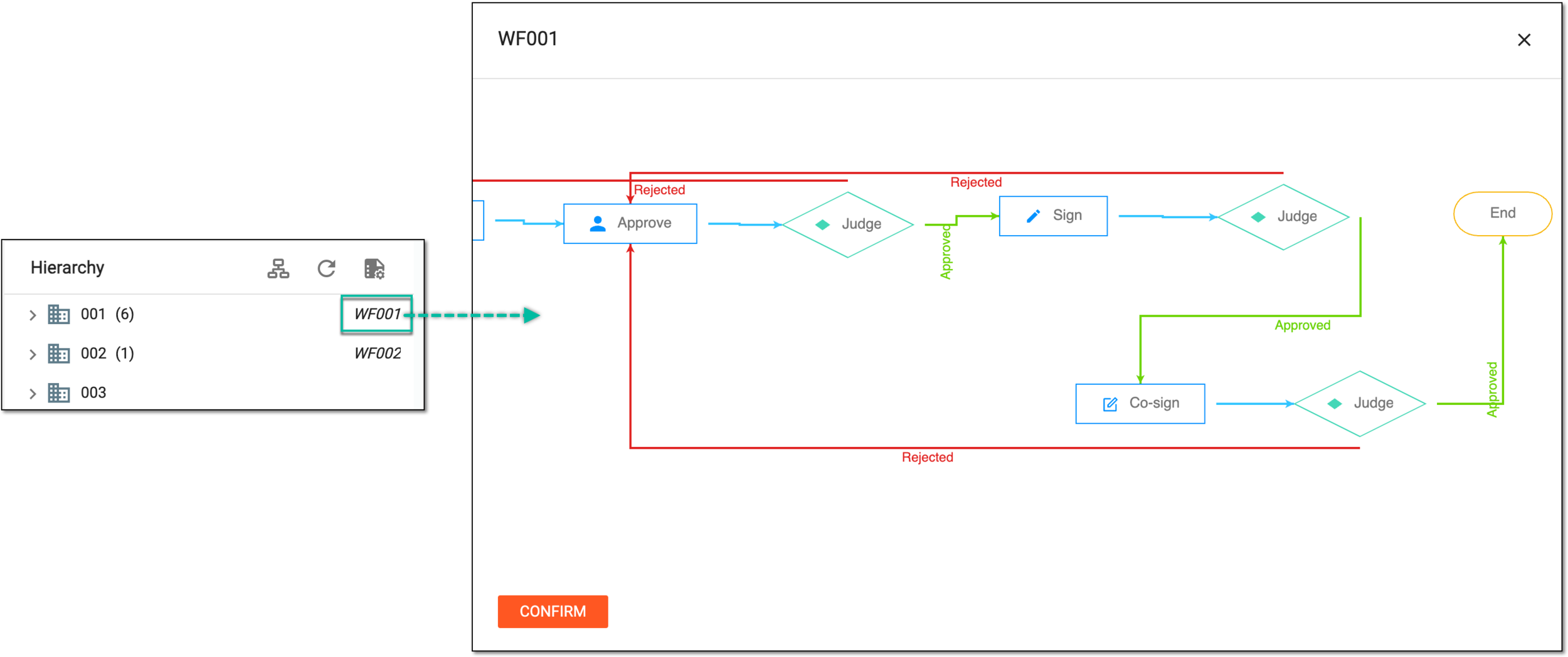 Figure 4. Reviewing workflow for site
-
Drill down the tree and select the directory containing the source document you want to audit. Then in the Source Document contents panel, next to the needed file, select More
 > Audit
  .
.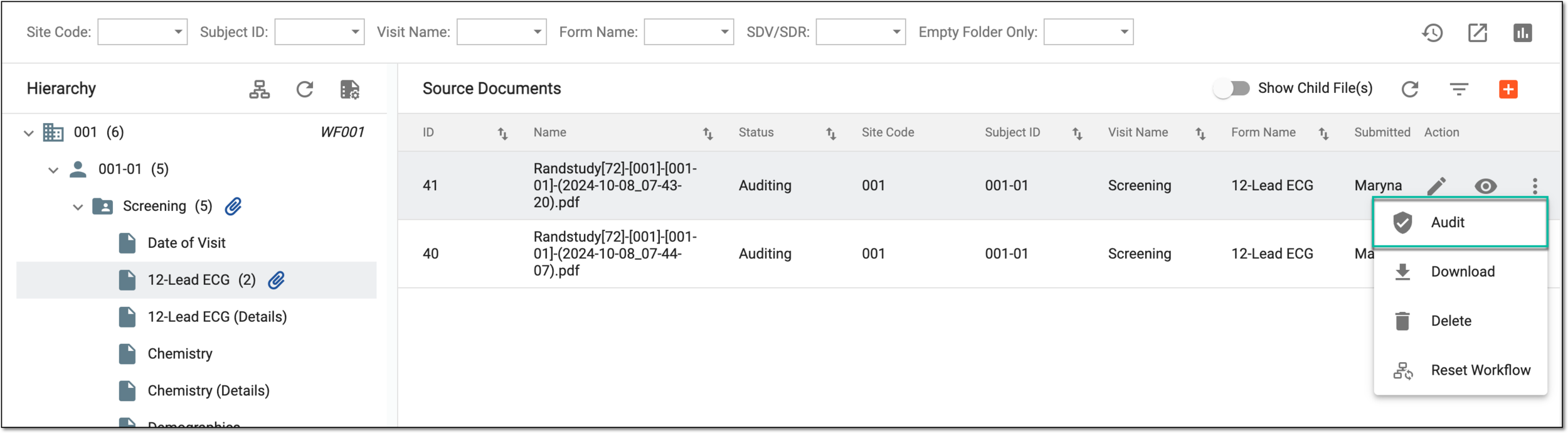 Figure 5. Accessing source document audit
-
In the dialog that opens, perform the operation assigned to you as the file auditor as follows.
Verify the source document by selecting the Approve option and providing your credentials to submit the electronic signature as explained in the following table.
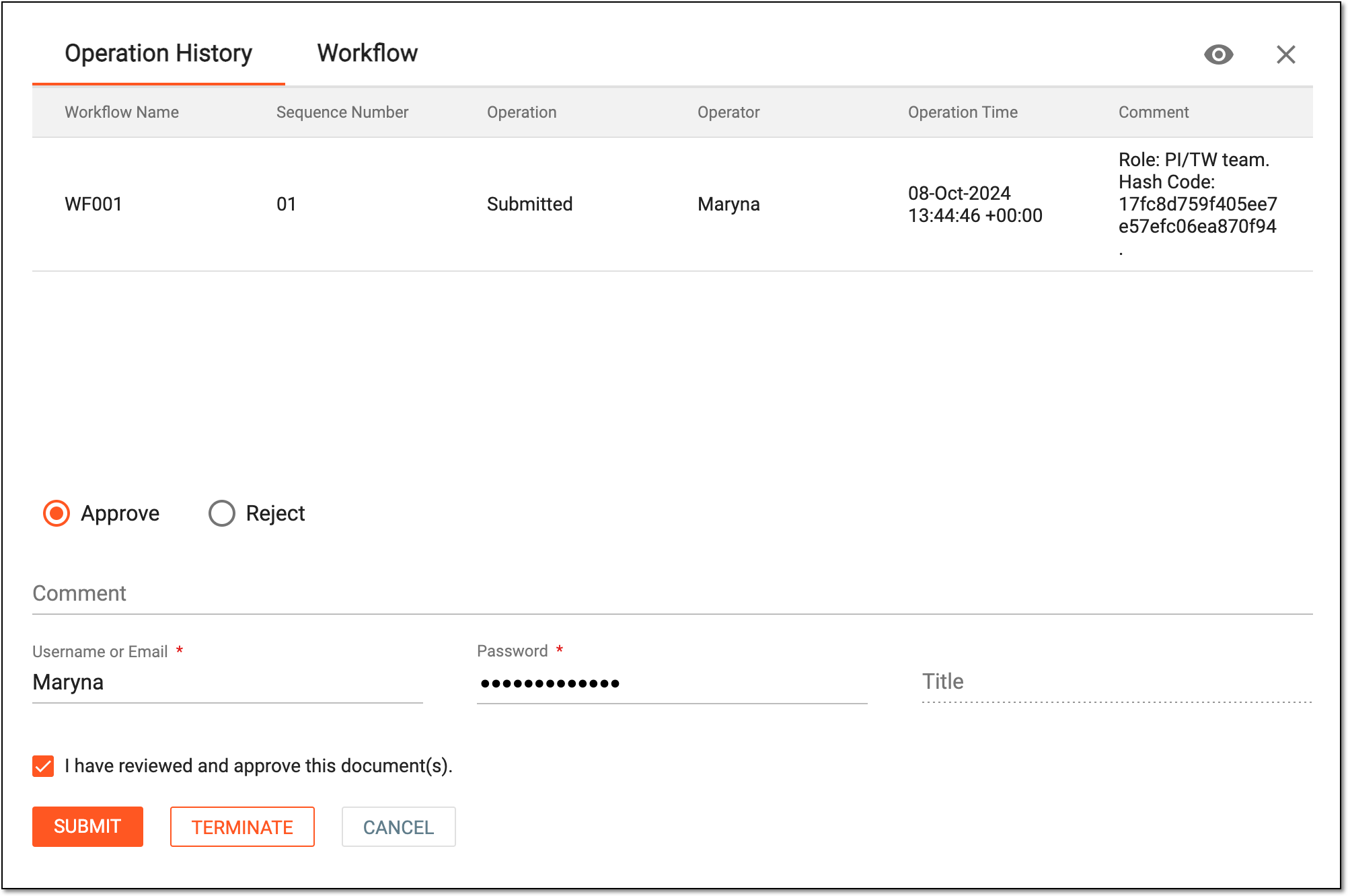 Figure 6. Approving source document
Tip
Here are some tips to aid the audit process:
-
Under the Operation History tab, review the log of all actions performed with the document, who performed them, and when.
-
Switch to the Workflow tab to preview the associated document management schema.
-
Select View
 to open the document contents preview in the new browser tab.
Element
Details
Username or Email*
Enter your username or email that you use to log in to the eClinical system.
Send Code
Select
 to send the temporary PIN code to your email for which the SSO method is configured.
The button is only available if you use the authorization method via SSO.Code*
Enter the temporary PIN code that you received via email.
The field is only available if you use the authorization method via SSO.Password*
Enter the password that you use to log in to the eClinical applications.
The field is only available if you use the authorization method by providing your login and password.Title
Represents the title of the user assigned to them via the ADMIN application. The field is autopopulated by the system and cannot be entered manually.
I have reviewed and approve this document(s)
Select this checkbox to confirm that you have reviewed the source document and verified that it is valid.
SUBMIT
Select
 to confirm your action with your signature and save the implemented changes.
TERMINATE
Select
 to terminate the workflow for the document and abort all the following review and approval stages.
CANCEL
Select
 to discard the changes, close the dialog, and return to the Upload File(s)
page.
to discard the changes, close the dialog, and return to the Upload File(s)
page.Dismiss the source document by selecting the Reject option and providing the mandatory reason for your action. This becomes useful if you find any discrepancies or issues in the uploaded file and cannot verify for it. Based on the assigned workflow, rejected file returns to some previous stage of processing.
For instance, if the workflow dictates that after the approver's rejection, the document returns to the submission stage, then the user who uploaded (submitted) the file receives a notification that they have file submission duties. Thus, they know they must log in to the system and check the file in question.
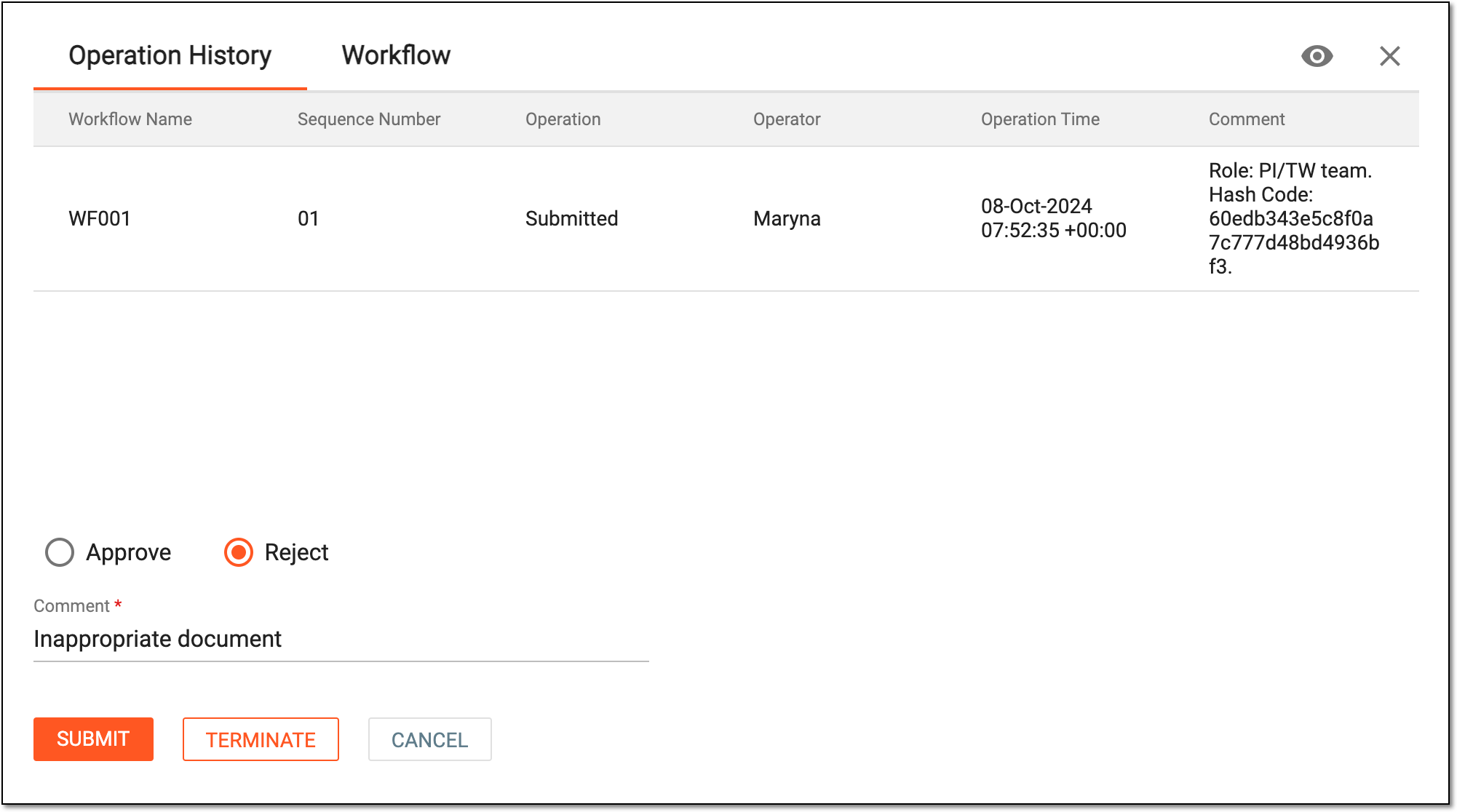 Figure 7. Rejecting source document
Tip
Here are some tips to aid the audit process:
-
Under the Operation History tab, review the log of all actions performed with the document, who performed them, and when.
-
Switch to the Workflow tab to preview the associated document management schema.
-
Select View
to open the document contents preview in the new browser tab.
Abort the auditing process and all the following workflow stages for the source document by selecting
. Then in the Comment dialog that appears, provide the mandatory reason for your action. This becomes useful if you find the source document invalid and cannot verify it, moreover, you see no reason to forward its maintenance to the following users.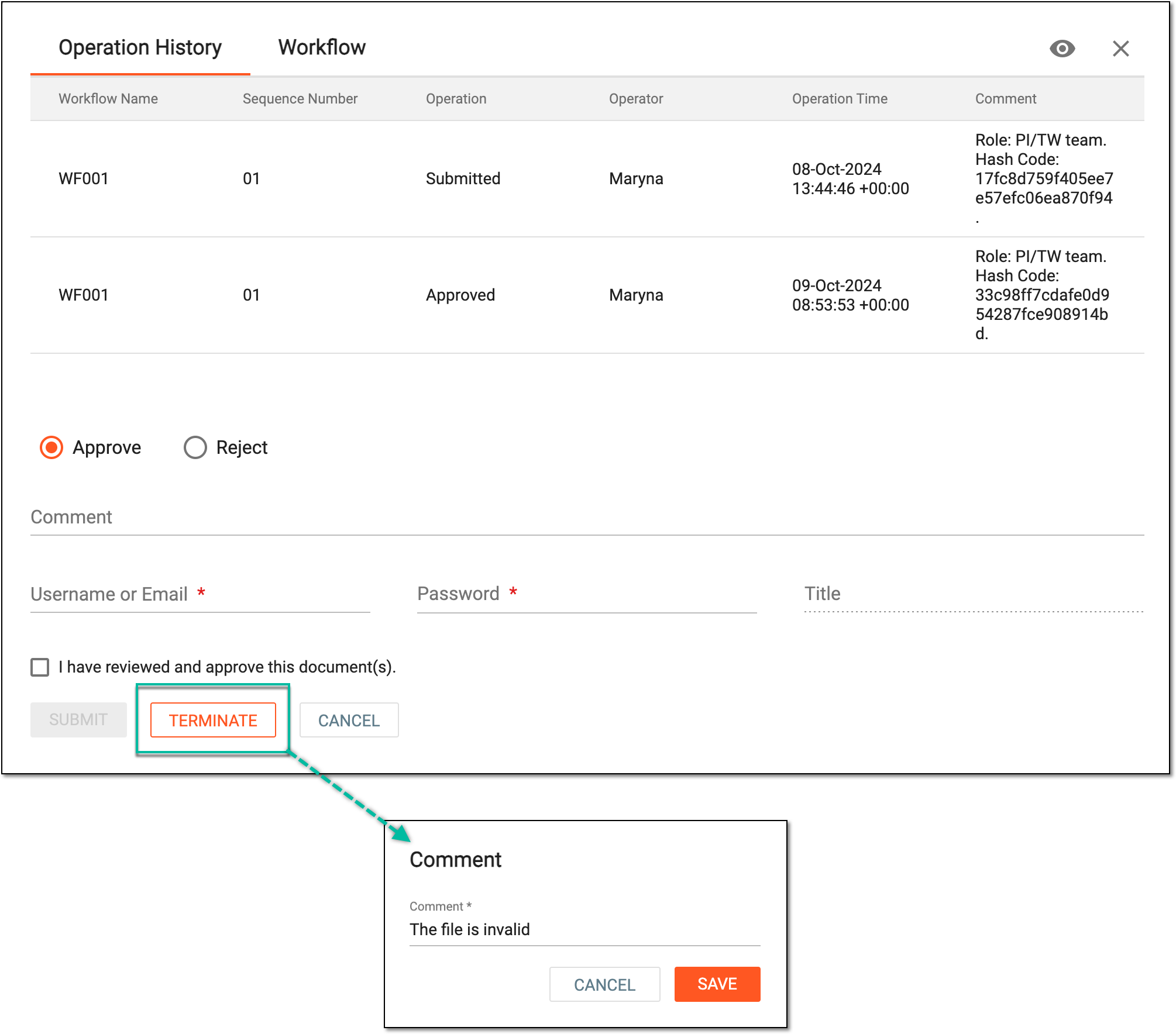 Figure 8. Terminating source document
Tip
Here are some tips to aid the audit process:
-
Under the Operation History tab, review the log of all actions performed with the document, who performed them, and when.
-
Switch to the Workflow tab to preview the associated document management schema.
-
Select View
to open the document contents preview in the new browser tab.
-
Once the respective action is performed—approval, rejection, or termination—the audit is completed on your side. Based on the performed action, the source document status changes:
-
For files that require further user review and approval, the status is Auditing.
-
For rejected files, the status is Rejected.
-
For files whose audit is terminated, the status is Dropped.
-
For files with completed audits that do not require further user review and approval, the status is Final.
A specialized document in a clinical trial designed to collect the subject data.
See also eCRF.
An ongoing process that provides the subject with explanations that will help in making educated decisions about whether to begin or continue participating in a trial.
Any untoward medical occurrence in a clinical investigation subject administered a pharmaceutical product that does not necessarily have a causal relationship with this treatment. An adverse event (AE) can therefore be any unintended sign (including an abnormal laboratory finding), symptom, or disease temporally associated with the use of a medicinal (investigational) product, whether or not related to the medicinal (investigational) product.
A schema, each step of which represents a stage of a specific entity lifecycle in the system.
A workflow can be considered an instrument to help control various actions on system entities for the sake of accountability, as it limits the actions that can be performed on the entity associated with a workflow. This provides an additional tier of scrutiny, and the approval/rejection mechanism reduces the risk of unintended impact on sensitive resources and important information.
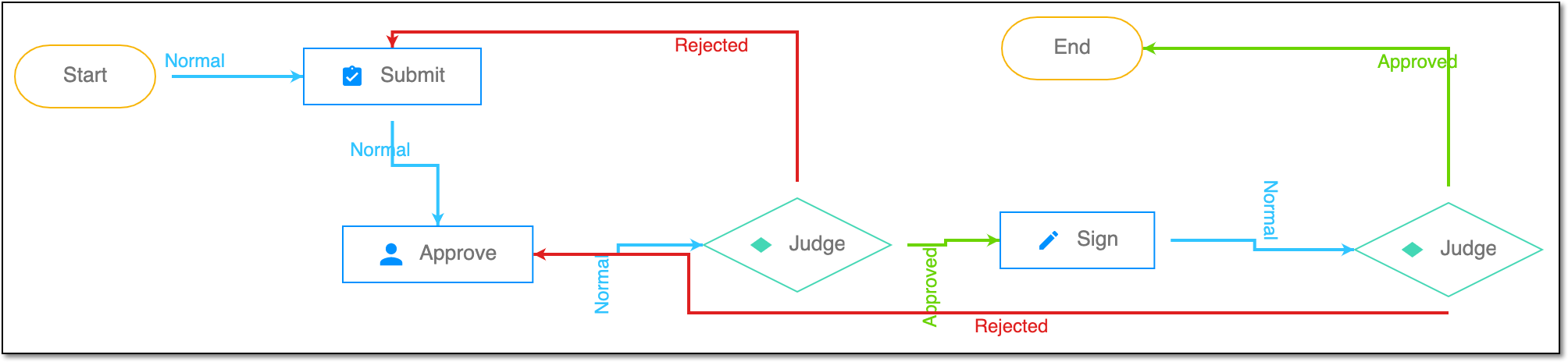 |
For instance, in eTMF, the workflow dictates the procedure of file and folder management from the moment of upload to the approval stage; in CTMS, the workflow controls the process of creation, completion, and approval of a trip report; in EDC, the workflow covers the process of source document handling.
An electronic version of a trial master file (TMF) is a type of content management system for a clinical trial used to organize and store files required for compliance with government regulatory authorities like the FDA, EMA, or others.
Get to know all the possibilities of the app with the comprehensive eTMF User Guide.