Edit workflow
In EDC, workflows are intended to control the source document and payment request handling, introducing an additional tier of scrutiny and the approval or rejection mechanism to reduce the risk of unintended impact on sensitive resources and financial operations.
When a workflow is created, it has all the relevant stages of the process and assigned users responsible for completing each stage. However, during the clinical trial, your requirements for the source document or payment handling might change, for instance, the person in charge resigns and you need to change the assignee of the approval procedure in the workflow.
In EDC, you can update your workflow details and configurations at any time to satisfy your evolving business needs.
-
In the EDC application header, select the STUDY INFO tab.
-
On the page that opens, from the left pane, select Workflow > Workflow Setting.
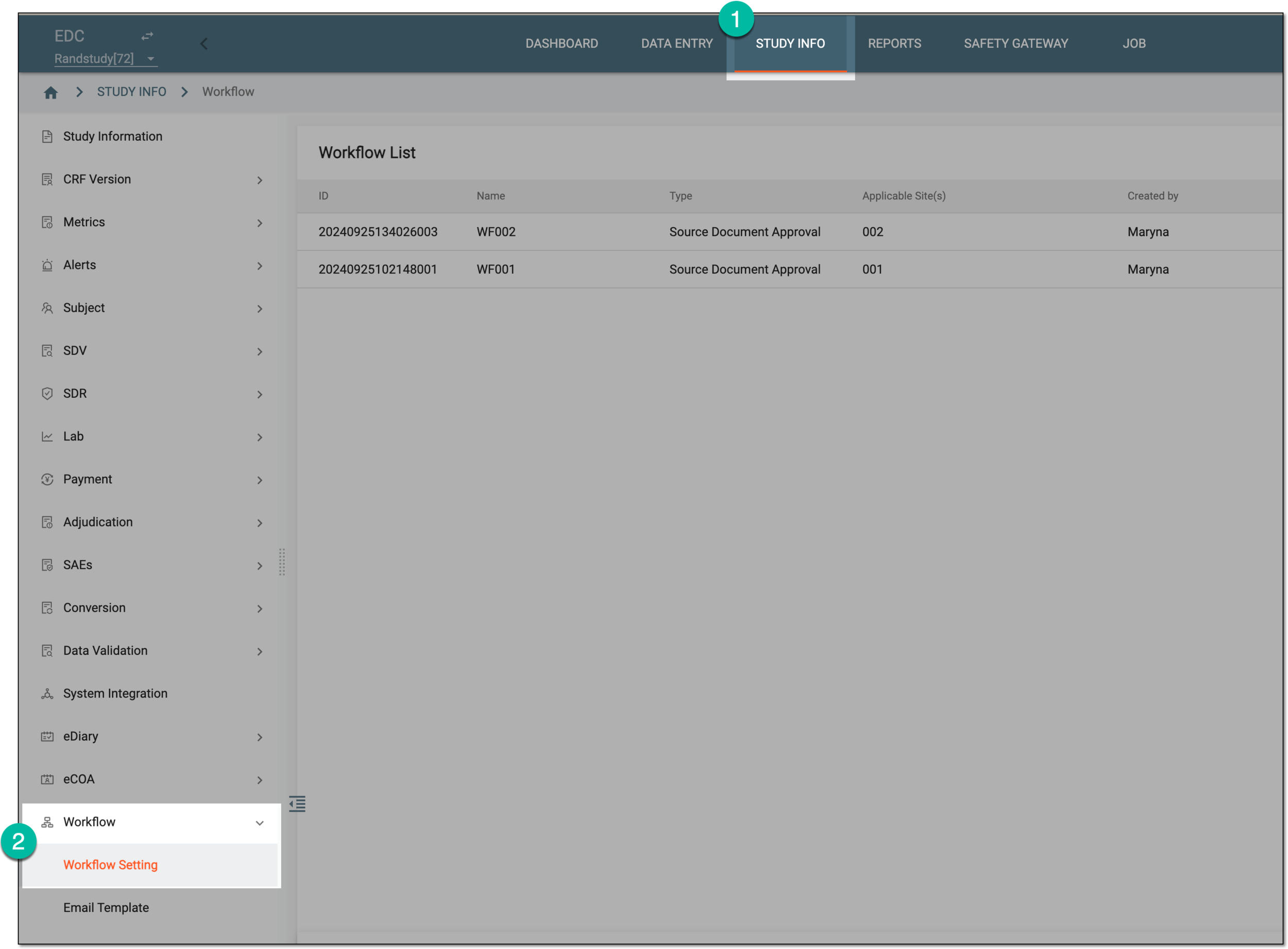 Figure 1. Accessing workflow setting
-
In the Workflow List table that appears, locate the workflow that you want to update and in the Action(s) column, select Edit
 .
. Figure 2. Accessing option to edit workflow
-
In the workflow designer that appears, edit the workflow by applying the same procedures of configuration as provided in the following sections:
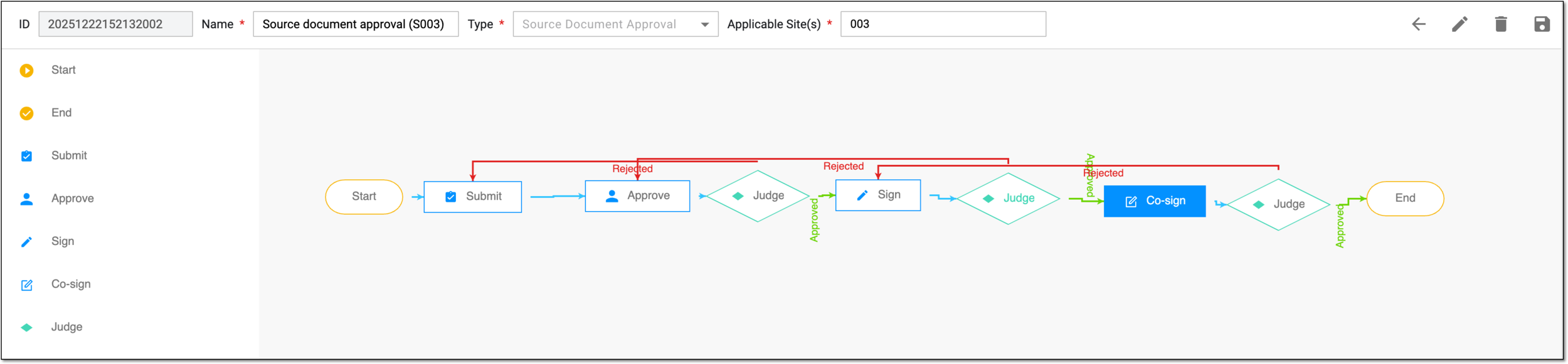 Figure 3. Editing workflow details
-
Once you have updated the workflow, from the workspace toolbar of the workflow designer, select Save
 .
.
Once saved, the workflow is updated for the selected site. Now all the documents or payments submitted at that site must follow the established procedure of approval.
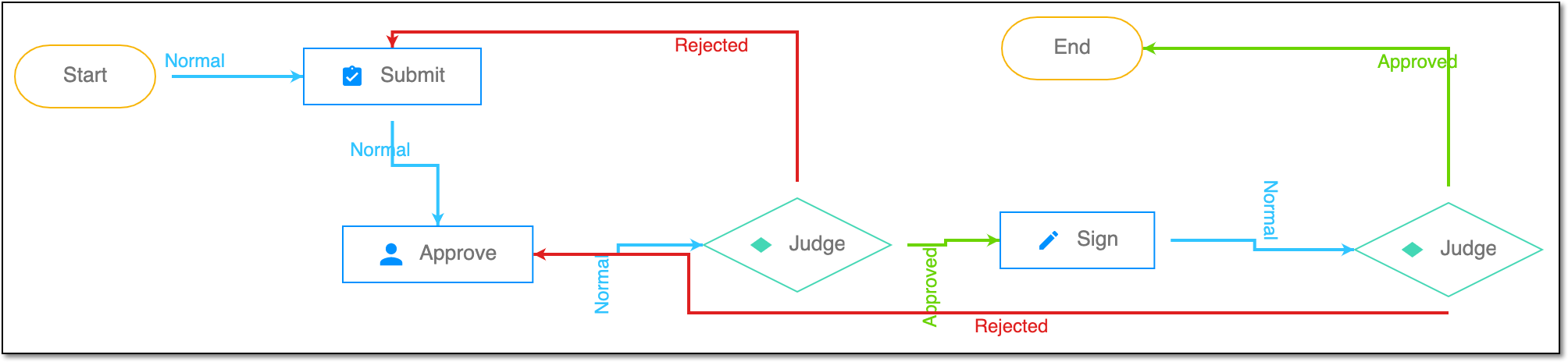
A schema, each step of which represents a stage of a specific entity lifecycle in the system.
A workflow can be considered an instrument to help control various actions on system entities for the sake of accountability, as it limits the actions that can be performed on the entity associated with a workflow. This provides an additional tier of scrutiny, and the approval/rejection mechanism reduces the risk of unintended impact on sensitive resources and important information.
 |
For instance, in eTMF, the workflow dictates the procedure of file and folder management from the moment of upload to the approval stage; in CTMS, the workflow controls the process of creation, completion, and approval of a trip report; in EDC, the workflow covers the process of source document handling.