Creating workflows
In EDC, workflows are intended to control the source document and payment request handling, introducing an additional tier of scrutiny and the approval or rejection mechanism to reduce the risk of unintended impact on sensitive resources and financial operations.
In the following sections, you can learn how to create workflows for your specific processes.
When creating a new workflow for the payment request audit, you add all the relevant stages of the process and assign users responsible for completing each stage.
For instance, the payment request approval process at Site 001 has two stages: first, it must be approved by the principal investigator (PI) and then signed by the sponsor. For such a scenario, you create a workflow "WF001" for Site 001 with Approve and Sign nodes and assign them to PI and sponsor, respectively.
Then, once the workflow WF001 is added, no payment request can be considered valid at Site 001 before it passes PI approval and sponsor signature.
Important
Before creating a new workflow, ensure to add the email templates required for all the stages (nodes) of the workflow.
-
In the EDC application header, select the STUDY INFO tab.
-
On the page that opens, from the left pane, select Workflow > Workflow Setting.
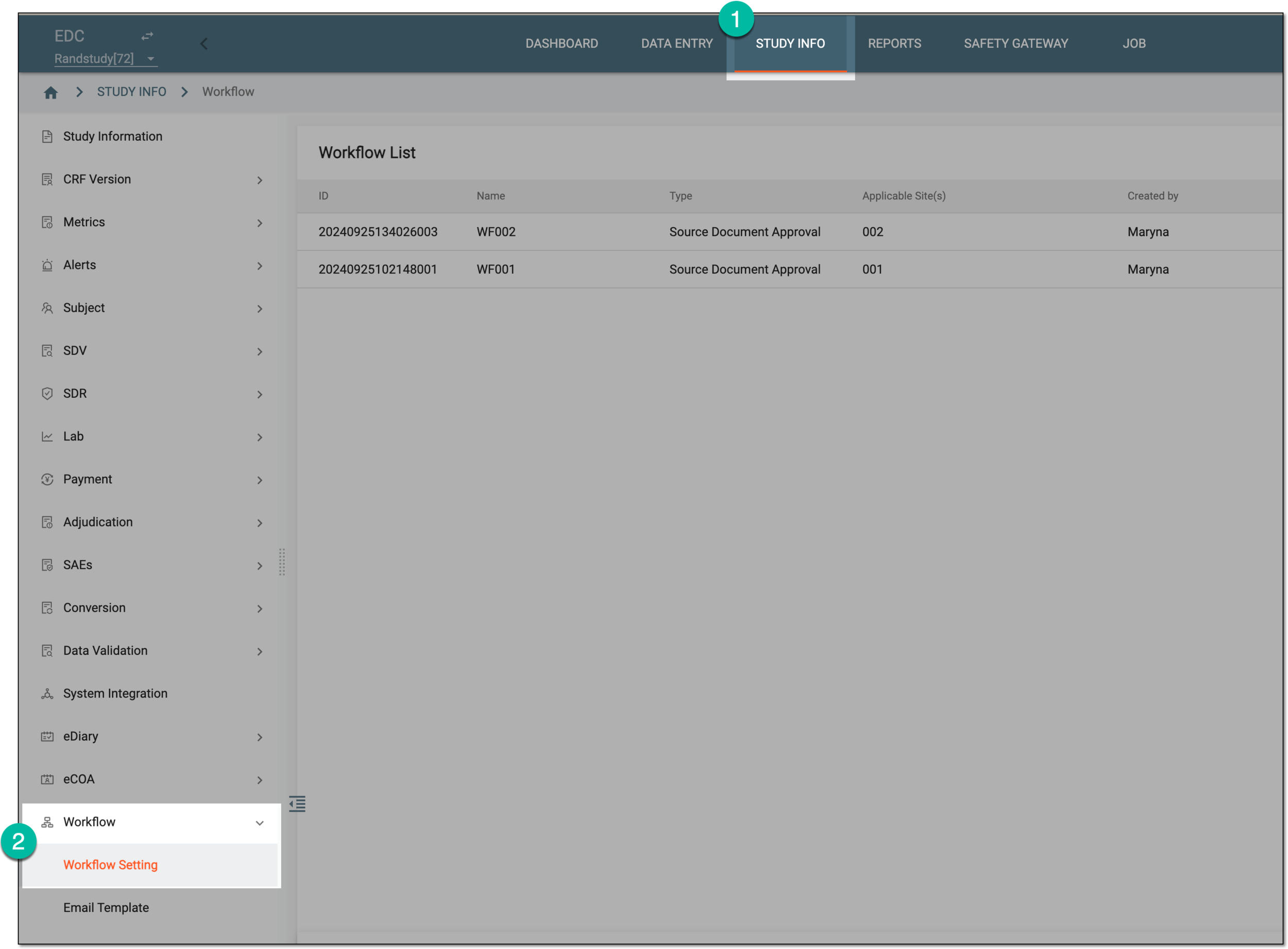 Figure 1. Accessing workflow setting
-
On the Workflow List page that opens, from the workspace toolbar, select New Item
 .
. Figure 2. Selecting option to add new workflow
-
On the page that opens, fill in the workflow details as explained in the following table.
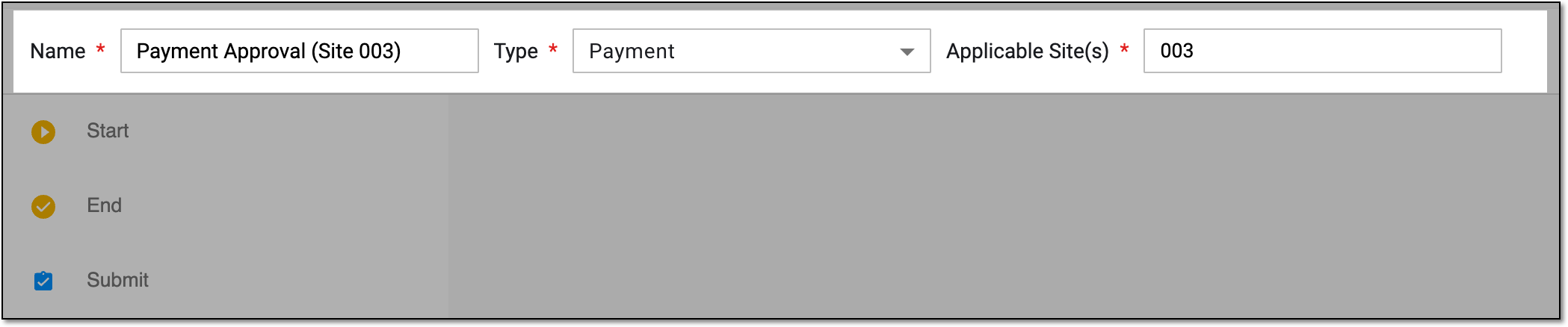 Figure 3. Adding payment approval workflow details
Tip
In the following table, mandatory elements are marked with an asterisk (*).
Element
Details
Name*
Enter the unique distinguishable workflow name.
Type
Select the Payment type for review and approval of payment requests created in EDC for financial operations between the sponsor and vendors (sites, labs, research facilities, and such).
Another available type of operation is explained in the Create workflow for source document audit section.Applicable Site(s)*
Select the sites for which you want to establish the workflow to control the payment request auditing procedure.
-
In the workflow designer, start configuring the workflow by dragging the required task nodes from the left pane to the designer pane.
The significance of the workflow task nodes is explained in the following table.
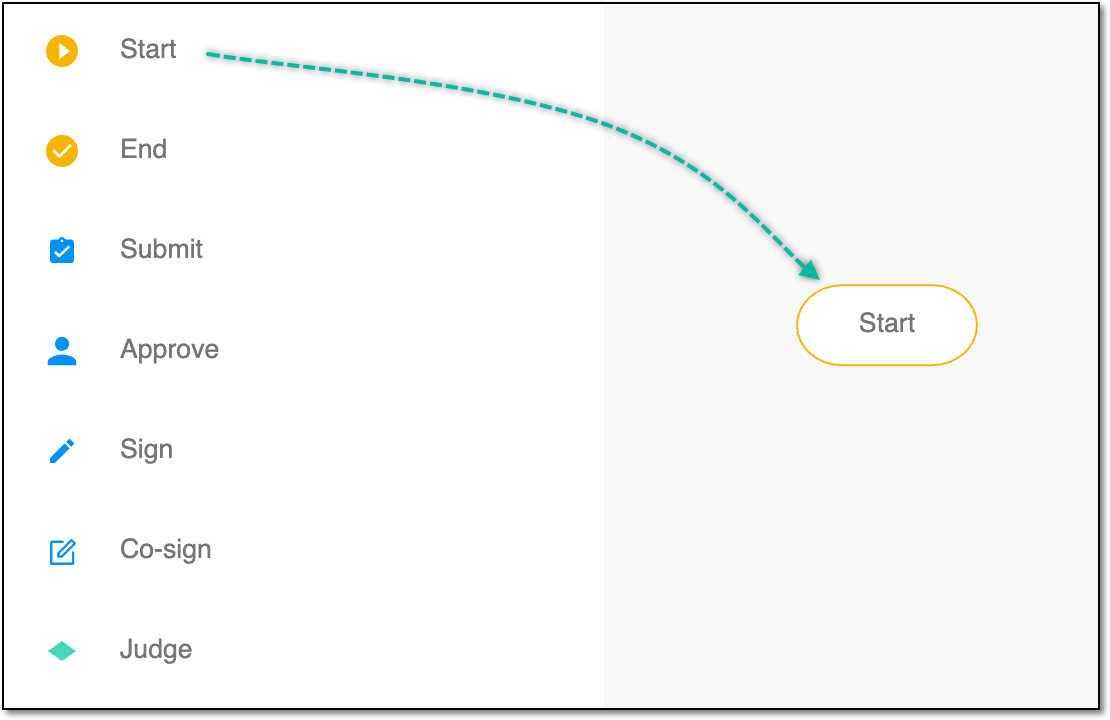 Figure 4. Dragging task to workflow designer pane
Important
The payment request workflow can be created with only Start, Submit, and End nodes, meaning that once the payment request is submitted in EDC, it goes to CTMS for auditing.
Element
Details
Start

Represents the beginning of the workflow process.
Whenever you create a workflow, this node is added by default. Also, the node is mandatory to add to every workflow.End

Represents the end or completion of the workflow process.
Whenever you create a workflow, this node is added by default. Also, the node is mandatory to add to every workflow.Submit

Represents that an action has been submitted; for the payment request, this task represents payment request submission.
Whenever you create a workflow, this node is added by default.Approve

Add the node to your workflow if, at a certain point, the action requires approval from designated personnel, such as the PI, sponsor, or others.
For example, after the payment request is submitted, you may require approval for this request from PI.
Note that the Judge node is automatically added along with the Approve node and provides you with the following options:
Sign

Add the node to your workflow if, at a certain point, the action requires a signature from designated personnel, such as the PI, sponsor, or others.
For example, after the payment request has been approved, you may require the sponsor to sign it.
Note that the Judge node is automatically added along with the Sign node and provides you with the following options:
Co-sign

Add the node to your workflow if the action requires a signature from multiple designated personnel, such as the PI, sponsor, or others.
Note that the Judge node is automatically added along with the Co-sign node and provides you with the following options:
Judge

Represents tasks that can have successful or unsuccessful outcomes. This node includes Y (yes) and N (no) task nodes, using which you can define the corresponding task to execute when the task linked to the Judge node is successfully completed or it is unsuccessful, respectively.
For example, once the payment request goes to the approval stage, the assignee can judge whether to approve or reject it and, based on their judgment, the workflow dictates the following step—signature for a successful outcome or back to submission for rejection.
-
Once a task node is added, link it to the required node by hovering over the node that you want to link (input node) and using the gray dots that appear to connect it to the desired output node.
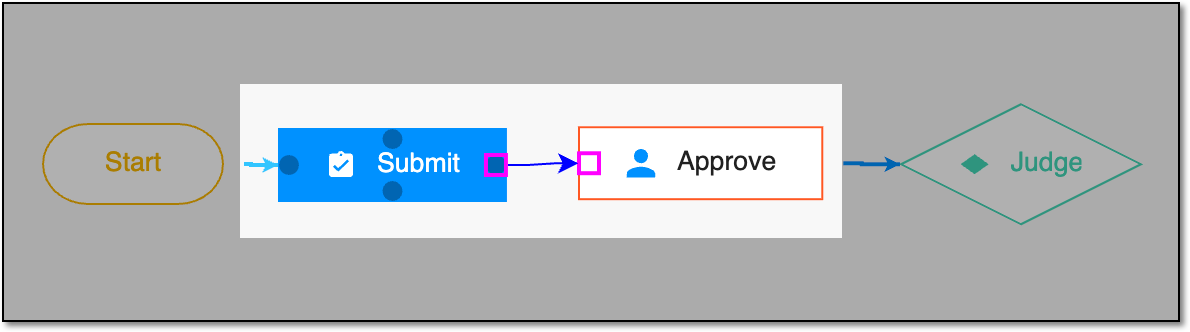 Figure 5. Linking workflow task nodes
Important
There are some restrictions for node linking:
-
The Start node cannot be targeted by any other node's linking arrow. This ensures that the workflow does not restart over and over getting into a loop.
-
The End node cannot target any other node with the linking arrow. This ensures that the workflow is finalized and does not trigger any processes once all the stages are passed.
-
The Submit, Approve, Sign, and Co-sign nodes cannot have only one consecutive node after them. This ensures that these types of operations have the Judge node and at least one more stage after them.
-
-
For the Judge node, link the Y and N nodes—that represent successful and unsuccessful completion of the associated task—separately as follows:
-
Select either Y or N node as required.
-
Hover over the Judge node and select the gray dot that appears to connect it to the desired output node.
For example, as shown in the following figure, the link is added to end the workflow when the payment request is successfully co-signed.
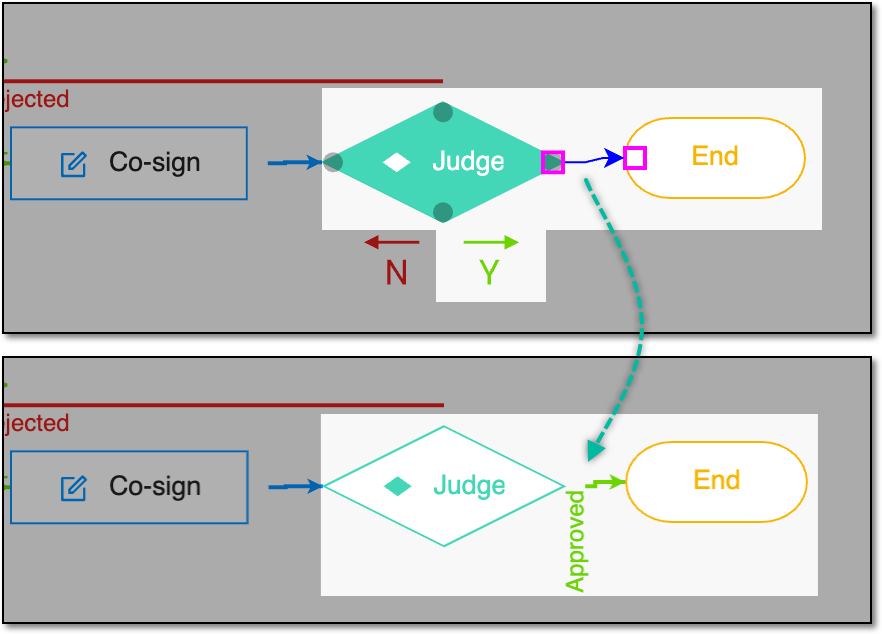 Figure 6. Example of linking judge node
-
-
After the task nodes are linked, add or modify details for the Submit, Approve, Sign, and Co-sign task nodes (if added). To add the details, double-click the task node or select the task node and then from the workspace toolbar, select Edit
 .
. -
In the panel that expands, configure the task node details as follows.
The available settings of the Submit node are explained in the following table.
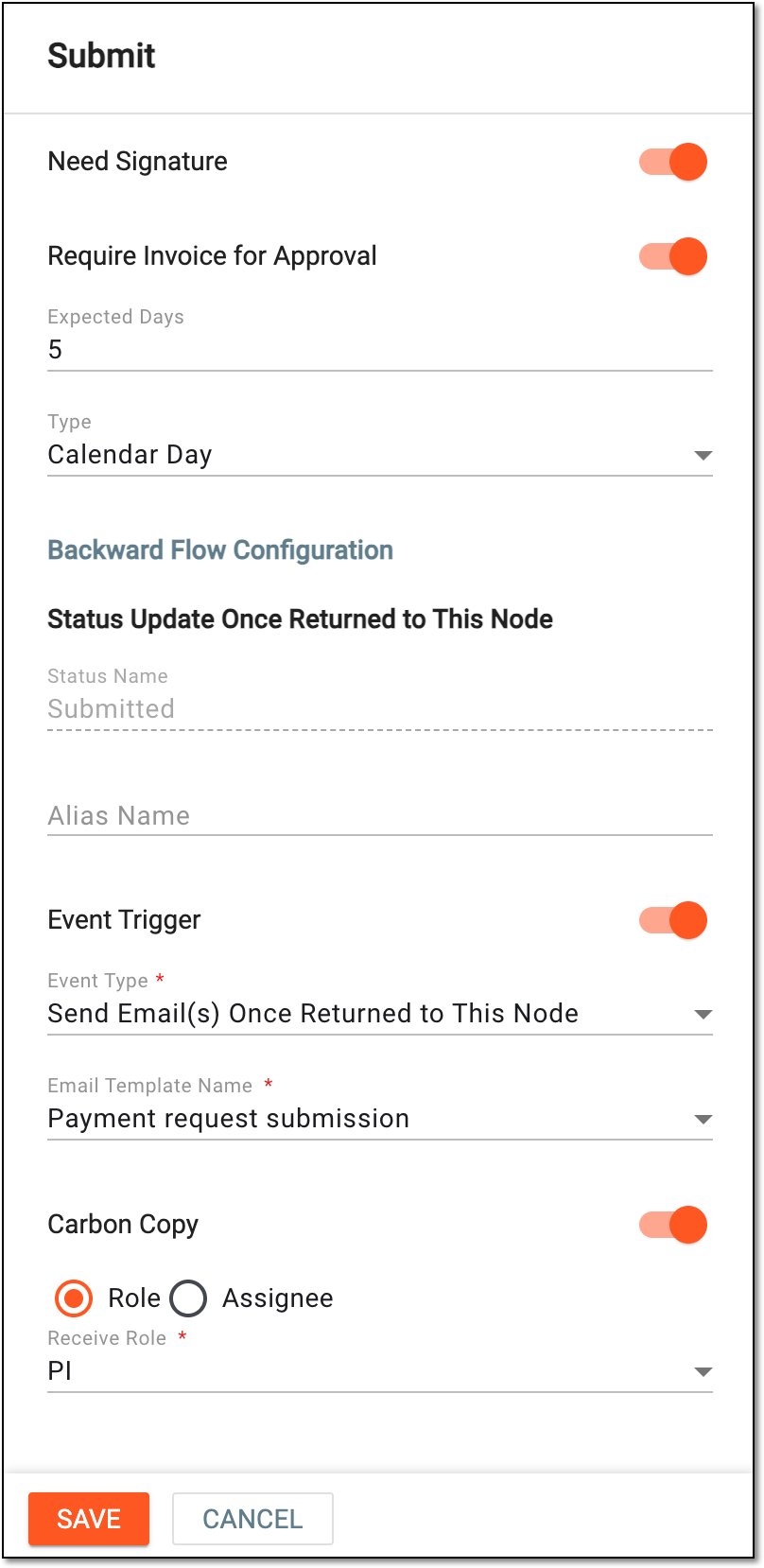 Figure 7. Configuring submission stage of payment workflow
Tip
In the following table, mandatory elements are marked with an asterisk (*).
Element
Details
Need Signature
Turn this toggle on if you want the submitter to provide their electronic signature upon payment request submission in the EDC system.
Require Invoice for Approval
Turn this toggle on if you want to make the upload of the invoice file mandatory upon the payment request submission and before its approval. If turned on, the user can upload attachment upon creating or editing the draft payment request or attach files later from the payment request list.
Expected Days
Enter the number of days to outline the completion period for the submission stage.
Type
Select if the Expected Days period must be calculated in calendar days or weekdays.
Backward Flow Configuration
Status Update Once Returned to This Node
Status Name
Represents the default name of the status obtained by the payment request that is returned to the Submit node as the result of auditing, for instance, when being rejected at the approval stage.
Note that the return to the submission node depends on the configuration of the Judge nodes of your respective
                                              workflow stages.
Alias Name
Enter a custom name of the status obtained by the payment request that is returned to the Submit node as the result of auditing. This can differ from the default name to better reflect your business requirements regarding the payment request processing flow.
Note that if left blank, the system uses the default status name.Event Trigger
Turn this toggle on if you want the system to notify the personnel responsible for completing the Submit workflow stage on a certain event.
Event Type*
Select the type of event for which you want to send an email notification. For the Submit node, the available event type is Send Email(s) Once Reached this Node.
Email Template Name*
Select the previously configured email template according to which the notification is sent to a recipient.
Carbon Copy
Turn this toggle on if you want to forward the copy of the email generated for this workflow stage to other users along with the document submitter.
This toggle is only available if the Event Trigger toggle is turned on.Role
Select this option and in the Receive Role field that appears, select the user roles to whom you want to forward the copy of the email generated for this workflow stage.
Assignee
Select this option and in the User Name field that appears, select the user to whom you want to forward the copy of the email generated for this workflow stage.
SAVE
Select
 to implement your changes.
CANCEL
Select
 to discard your changes and return to the workflow designer.
The available settings of the Approve node are explained in the following table.
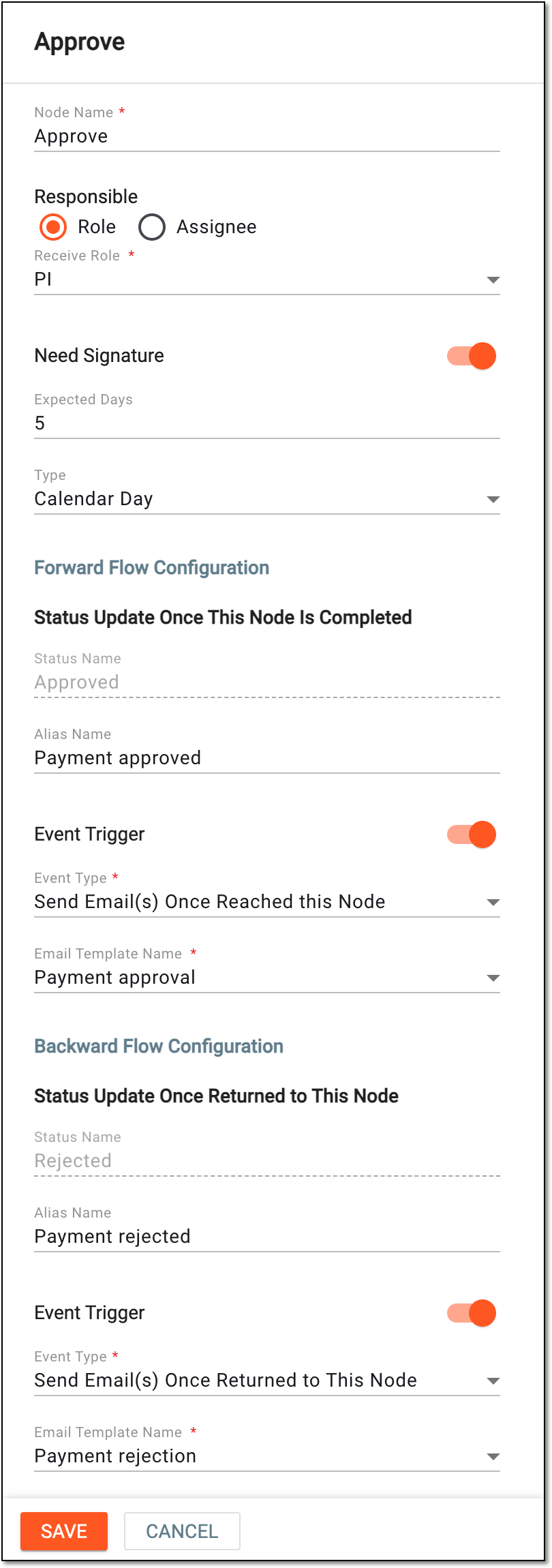 Figure 8. Configuring approval stage of payment workflow
Tip
In the following table, mandatory elements are marked with an asterisk (*).
Element
Details
Node Name*
Enter the name of the task node. By default, it is Approve and you can customize it to your business needs.
Responsible
Role
Select this option and in the Receive Role field that appears, select the user responsible for the payment request audit and approval, such as DM, PI, or others.
Assignee
Select this option to activate the User Name field that appears, select the user who must audit and approve the payment request.
Need Signature
Turn this toggle on if the approval action requires a signature from the assignee of the task.
Expected Days
Enter the number of days to outline the completion period for the approval stage.
Type
Select if the Expected Days period must be calculated in calendar days or weekdays.
Forward Flow Configuration
Status Update Once This Node Is Completed
Status Name
Represents the default name of the status obtained by the payment request once it is approved by the user in charge.
Alias Name
Enter a custom name of the status obtained by the payment request once it is approved by the user in charge. This can differ from the default name to better reflect your business requirements regarding the payment request processing flow.
Note that if left blank, the system uses the default status name.Event Trigger
Turn this toggle on if you want the system to notify the personnel in charge that the payment request is ready for their approval.
Event Type*
Select the type of event for which you want to send an email notification. For Forward Flow Configuration of the Approve node, the available event type is Send Email(s) Once Reached this Node.
Email Template Name*
Select the previously configured email template according to which the notification is sent to a recipient.
Backward Flow Configuration
Status Update Once Returned to This Node
Status Name
Represents the default name of the status obtained by the payment request that is returned to the Approve node as the result of auditing, for instance, when being rejected at another stage.
Note that the return to the approval node depends on the configuration of the Judge nodes of your respective
                                              workflow stages.
Alias Name
Enter a custom name of the status obtained by the payment request that is returned to the Approve node as the result of auditing. This can differ from the default name to better reflect your business requirements regarding the payment request processing flow.
Note that if left blank, the system uses the default status name.Event Trigger
Turn this toggle on if you want the system to notify the personnel in charge that the payment request is rejected and needs to be re-approved.
Event Type*
Select the type of event for which you want to send an email notification. For Backward Flow Configuration of the Approve node, the available event type is Send Email(s) Once Returned to This Node.
Email Template Name*
Select the previously configured email template according to which the notification is sent to a recipient.
SAVE
Select
to save your changes.CANCEL
Select
to discard your changes and return to the workflow designer.The available settings of the Sign node are explained in the following table.
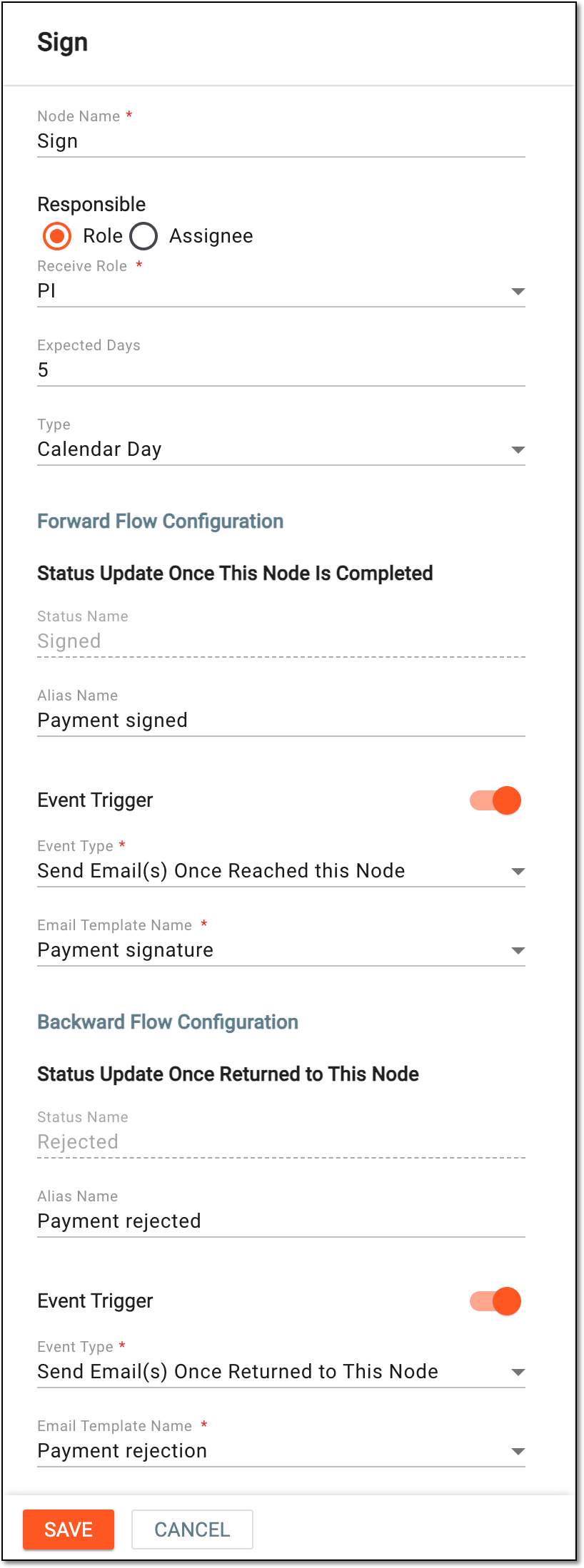 Figure 9. Configuring signature stage of payment workflow
Tip
In the following table, mandatory elements are marked with an asterisk (*).
Element
Details
Node Name*
Enter the name of the task node. By default, it is Sign and you can customize it to your business needs.
Responsible
Role
Select this option and in the Receive Role field that appears, select the user responsible for the payment request audit and signature, such as DM, PI, or others.
Assignee
Select this option to activate the User Name field that appears, select the user who must audit and sign the payment request.
Expected Days
Enter the number of days to outline the completion period for the signature stage.
Type
Select if the Expected Days period must be calculated in calendar days or weekdays.
Forward Flow Configuration
Status Update Once This Node Is Completed
Status Name
Represents the default name of the status obtained by the payment request once it is signed by the user in charge.
Alias Name
Enter a custom name of the status obtained by the payment request once it is signed by the user in charge. This can differ from the default name to better reflect your business requirements regarding the payment request processing flow.
Note that if left blank, the system uses the default status name.Event Trigger
Turn this toggle on if you want the system to notify the personnel in charge that the payment request is ready for their signature.
Event Type*
Select the type of event for which you want to send an email notification. For Forward Flow Configuration of the Sign node, the available event type is Send Email(s) Once Reached this Node.
Email Template Name*
Select the previously configured email template according to which the notification is sent to a recipient.
Backward Flow Configuration
Status Update Once Returned to This Node
Status Name
Represents the default name of the status obtained by the payment request that is returned to the Sign node as the result of auditing, for instance, when being rejected at another stage.
Note that the return to the signature node depends on the configuration of the Judge nodes of your respective
                                              workflow stages.
Alias Name
Enter a custom name of the status obtained by the payment request that is returned to the Sign node as the result of auditing. This can differ from the default name to better reflect your business requirements regarding the payment request processing flow.
Note that if left blank, the system uses the default status name.Event Trigger
Turn this toggle on if you want the system to notify the personnel in charge that the payment request is rejected and needs to be audited and signed again.
Event Type*
Select the type of event for which you want to send an email notification. For Backward Flow Configuration of the Sign node, the available event type is Send Email(s) Once Returned to This Node.
Email Template Name*
Select the previously configured email template according to which the notification is sent to a recipient.
SAVE
Select
to save your changes.CANCEL
Select
to discard your changes and return to the workflow designer.The available settings of the Co-sign node are explained in the following table.
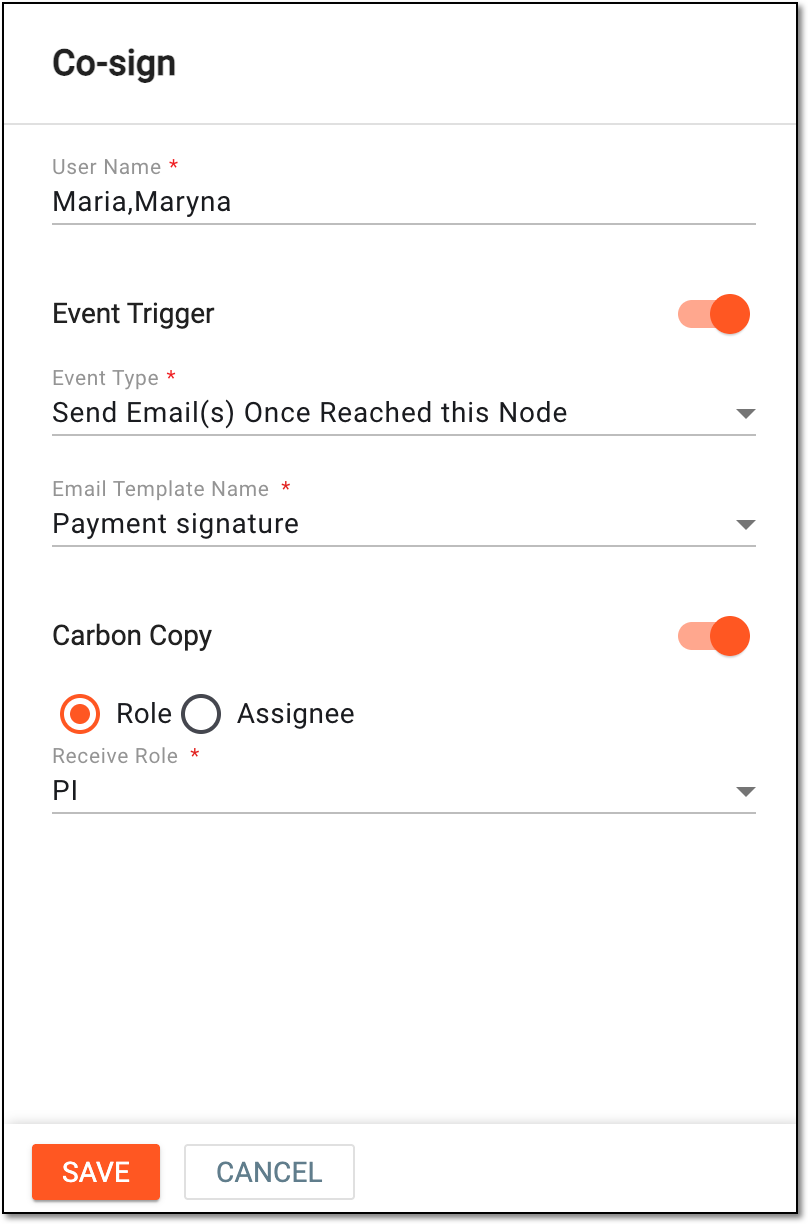 Figure 10. Configuring co-signature stage of payment workflow
Tip
In the following table, mandatory elements are marked with an asterisk (*).
Element
Details
User Name*
Select the names of the users each of whom must audit and sign the payment request. The signatures of all users selected here are mandatory to consider the workflow stage completed.
Event Trigger
Turn this toggle on if you want the system to notify the personnel responsible for completing the Co-sign workflow stage on a certain event.
Event Type*
Select the type of event for which you want to send an email notification. For the Co-sign node, the available event type is Send Email(s) Once Reached this Node.
Email Template Name*
Select the previously configured email template according to which the notification is sent to a recipient.
Carbon Copy
Turn this toggle on if you want to forward the copy of the email generated for this workflow stage to other users along with the document co-signers.
Role
Select this option and in the Receive Role field that appears, select the user role to whom you want to forward the copy of the email generated for this workflow stage.
Assignee
Select this option to activate the User Name field that appears, select the user to whom you want to forward the copy of the email generated for this workflow stage.
SAVE
Select
to save your changes.CANCEL
Select
to discard your changes and return to the workflow designer.The available settings of the End node are explained in the following table.
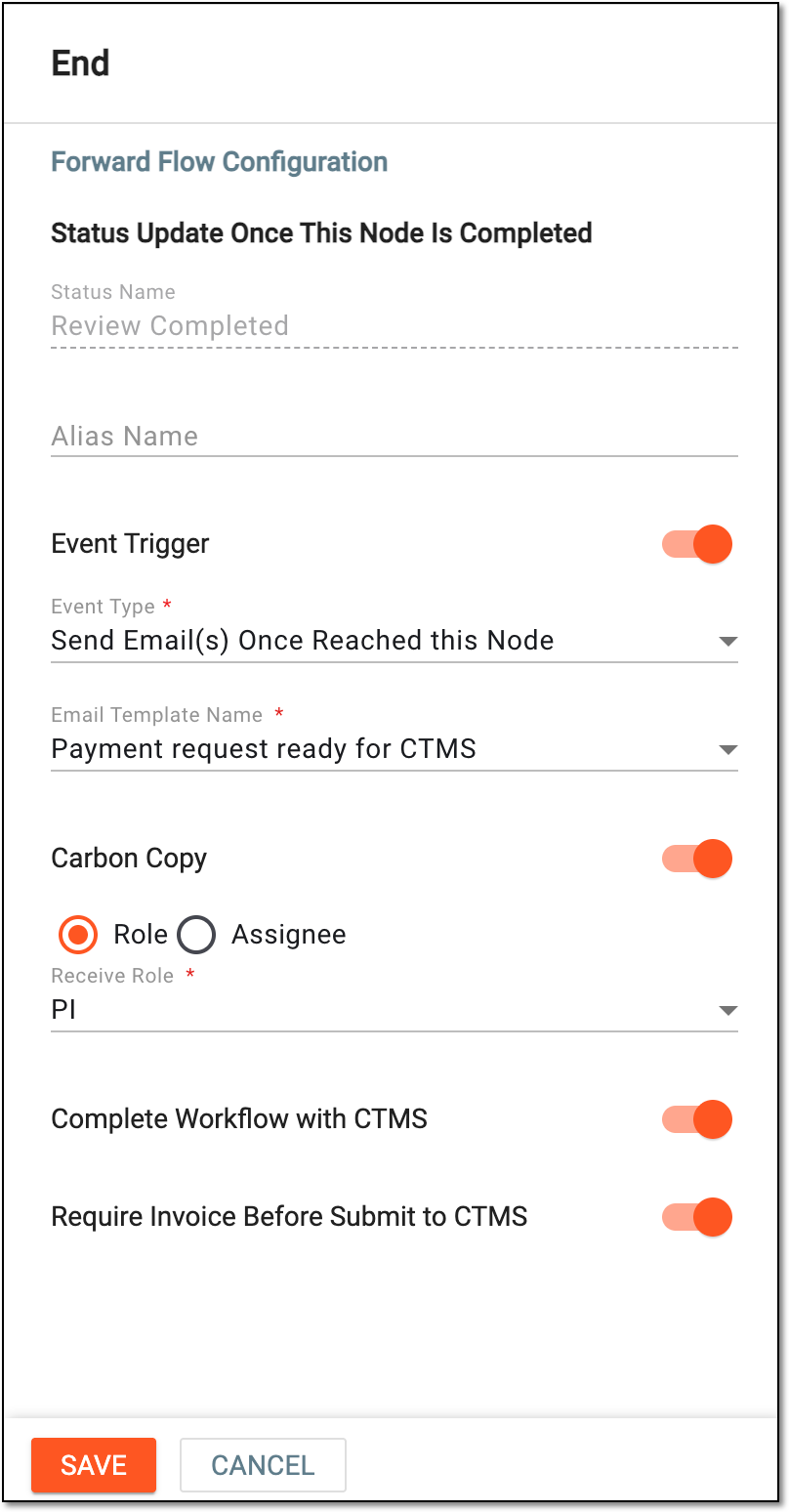 Figure 11. Configuring end stage of payment workflow
Tip
In the following table, mandatory elements are marked with an asterisk (*).
Element
Details
Forward Flow Configuration
Status Update Once This Node Is Completed
Status Name
Represents the default name of the status obtained by the payment request once all the stages of its audit are completed by the users in charge.
Alias Name
Enter a custom name of the status obtained by the payment request once all the stages of its audit are completed by the users in charge. This can differ from the default name to better reflect your business requirements regarding the payment request processing flow.
Note that if left blank, the system uses the default status name.Event Trigger
Turn this toggle on if you want the system to notify the personnel responsible for the End workflow stage on a certain event.
Event Type*
Select the type of event for which you want to send an email notification. For the End node, the available event type is Send Email(s) Once Reached this Node.
Email Template Name*
Select the previously configured email template according to which the notification is sent to a recipient.
Carbon Copy
Turn this toggle on if you want to forward the copy of the email generated for this workflow stage to other users along with the assignee.
Role
Select this option and in the Receive Role field that appears, select the user role to whom you want to forward the copy of the email generated for this workflow stage.
Assignee
Select this option to activate the User Name field that appears, select the user to whom you want to forward the copy of the email generated for this workflow stage.
Complete Workflow with CTMS
Turn this toggle on if you want the system to forward this payment request review procedure to CTMS for further audit. This way, once all the auditing procedures end in EDC, the payment request audit begins in CTMS, and the users in charge will have to complete the needed workflow stages according to CTMS configurations.
If the toggle is turned off, once the payment request audit is completed in EDC according to the configured workflow stages, the payment request is considered finalized and no actions in CTMS are required.
Require Invoice Before Submit to CTMS
Turn this toggle on if you want the invoice file attachment to be uploaded to the payment request after it is approved according to all the configured workflow stages and before its submission to CTMS. This way, once the workflow for the payment request reaches the End node, the status becomes Pending Invoice, and once the file is uploaded, the payment request becomes ready for audit in CTMS.
If the toggle is turned off, once the payment request audit is completed in EDC according to the configured workflow stages, the payment request is submitted to CTMS for further audit, with or without an attached invoice.
This toggle is only available if the Complete Workflow with CTMS toggle is turned on.SAVE
Select
to implement your changes.CANCEL
Select
to discard your changes and return to the workflow designer. -
To save the designed workflow, from the workspace toolbar of the workflow designer, select Save
 .
.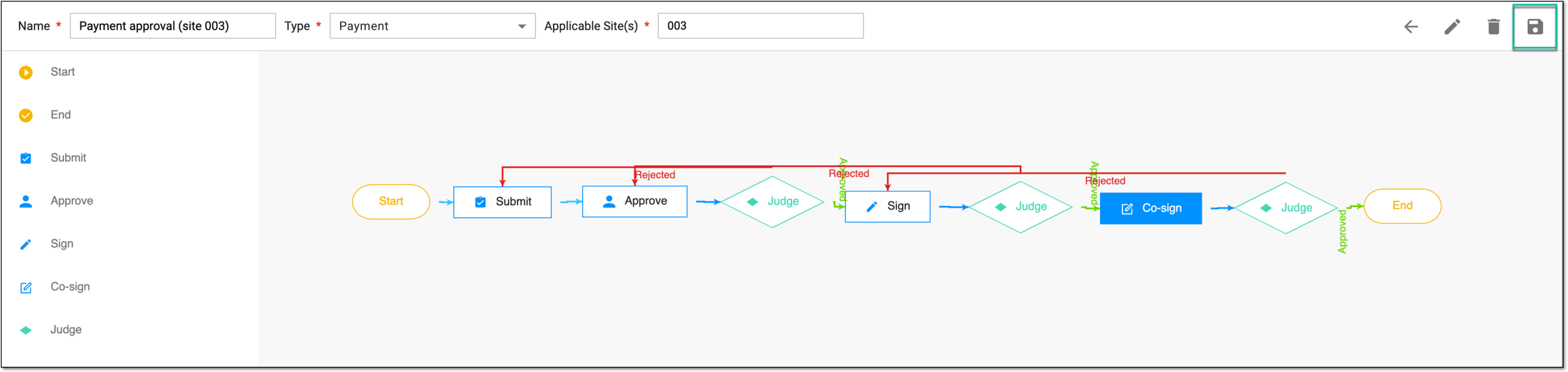 Figure 12. Saving configured payment workflow
Once saved, the workflow becomes active for the selected sites. Now all the payment requests submitted at that site must follow the established procedure of approval.
When creating a new workflow for the source document audit, you add all the relevant stages of the process and assign users responsible for completing each stage.
For instance, the source document approval process at Site 001 has two stages: first, it must be approved by the data manager (DM) and then signed by the principal investigator (PI). For such a scenario you create a workflow "WF001" for Site 001 with Approve and Sign nodes and assign them to DM and PI, respectively.
Then, once the workflow WF001 is added, no source document can be considered valid at Site 001 before it passes DM approval and PI signature.
Important
Before creating a new workflow, ensure to add the email templates required for all the stages (nodes) of the workflow.
-
In the EDC application header, select the STUDY INFO tab.
-
On the page that opens, from the left pane, select Workflow > Workflow Setting.
Figure 1. Accessing workflow setting
-
On the Workflow List page that opens, from the workspace toolbar, select New Item
.Figure 2. Selecting option to add new workflow
-
On the page that opens, fill in the workflow details as explained in the following table.
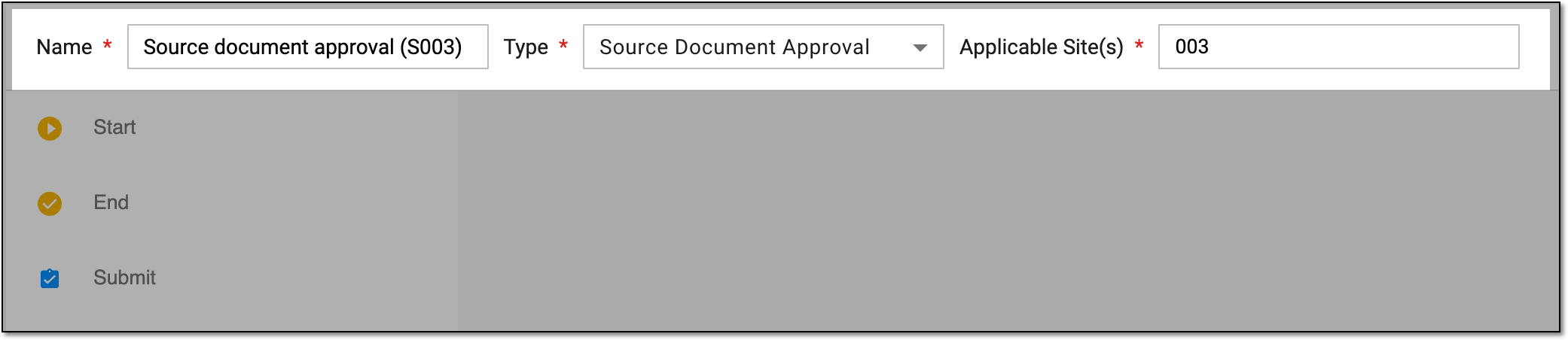 Figure 3. Adding source document approval workflow details
Tip
In the following table, mandatory elements are marked with an asterisk (*).
Element
Details
Name*
Enter the unique distinguishable workflow name.
Type
Select the Source Document Approval type for review and approval of the original (source) files uploaded to EDC.
Another available type of operation is explained in the Create workflow for payment request audit section.Applicable Site(s)*
Select the sites for which you want to establish the workflow to control the source document auditing procedure.
-
In the workflow designer, start configuring the workflow by dragging the required task nodes from the left pane to the designer pane.
The significance of the workflow task nodes is explained in the following table.
Figure 4. Dragging task to workflow designer pane
Important
The workflow must have at least one Approve, Sign, or Co-sign task node.
Element
Details
Start
Represents the beginning of the workflow process.
Whenever you create a workflow, this node is added by default. Also, the node is mandatory to add to every workflow.End
Represents the end or completion of the workflow process.
Whenever you create a workflow, this node is added by default. Also, the node is mandatory to add to every workflow.Submit
Represents that an action has been submitted; for a source document, when a document is uploaded to the EDC system, then this task is executed.
Whenever you create a workflow, this node is added by default.Approve
Add the node to your workflow if, at a certain point, the action requires approval from designated personnel, such as DM, PI, or others.
For example, after the source document is uploaded, you may require approval for this file from DM.
Note that the Judge node is automatically added along with the Approve node and provides you with the following options:
Sign
Add the node to your workflow if, at a certain point, the action requires a signature from designated personnel, such as a DM, PI, or others.
For example, after the source document has been approved, you may require the PI to sign it.
Note that the Judge node is automatically added along with the Sign node and provides you with the following options:
Co-sign
Add the node to your workflow if the action requires a signature from multiple designated personnel, such as the DM, PI, or others.
Note that the Judge node is automatically added along with the Co-sign node and provides you with the following options:
Judge
Represents tasks that can have successful or unsuccessful outcomes. This node includes Y (yes) and N (no) task nodes, using which you can define the corresponding task to execute when the task linked to the Judge node is successfully completed or it is unsuccessful, respectively.
For example, once the source document goes to the approval stage, the assignee can judge whether to approve or reject it and, based on their judgment, the workflow dictates the following step—signature for a successful outcome or back to submission for rejection.
-
Once a task node is added, link it to the required node by hovering over the node that you want to link (input node) and using the gray dots that appear to connect it to the desired output node.
Figure 5. Linking workflow task nodes
Important
There are some restrictions for node linking:
-
The Start node cannot be targeted by any other node's linking arrow. This ensures that the workflow does not restart over and over getting into a loop.
-
The End node cannot target any other node with the linking arrow. This ensures that the workflow is finalized and does not trigger any processes once all the stages are passed.
-
The Submit, Approve, Sign, and Co-sign nodes cannot have only one consecutive node after them. This ensures that these types of operations have the Judge node and at least one more stage after them.
-
-
For the Judge node, link the Y and N nodes—that represent successful and unsuccessful completion of the associated task—separately as follows:
-
Select either Y or N node as required.
-
Hover over the Judge node and select the gray dot that appears to connect it to the desired output node.
For example, as shown in the following figure, the link is added to end the workflow when the source document is successfully co-signed.
Figure 6. Example of linking nodes
-
-
After the task nodes are linked, add or modify details for the Submit, Approve, Sign, and Co-sign task nodes (if added). To add the details, double-click the task node or select the task node and then from the workspace toolbar, select Edit
. -
In the panel that expands, configure the task node details as follows.
The available settings of the Submit node are explained in the following table.
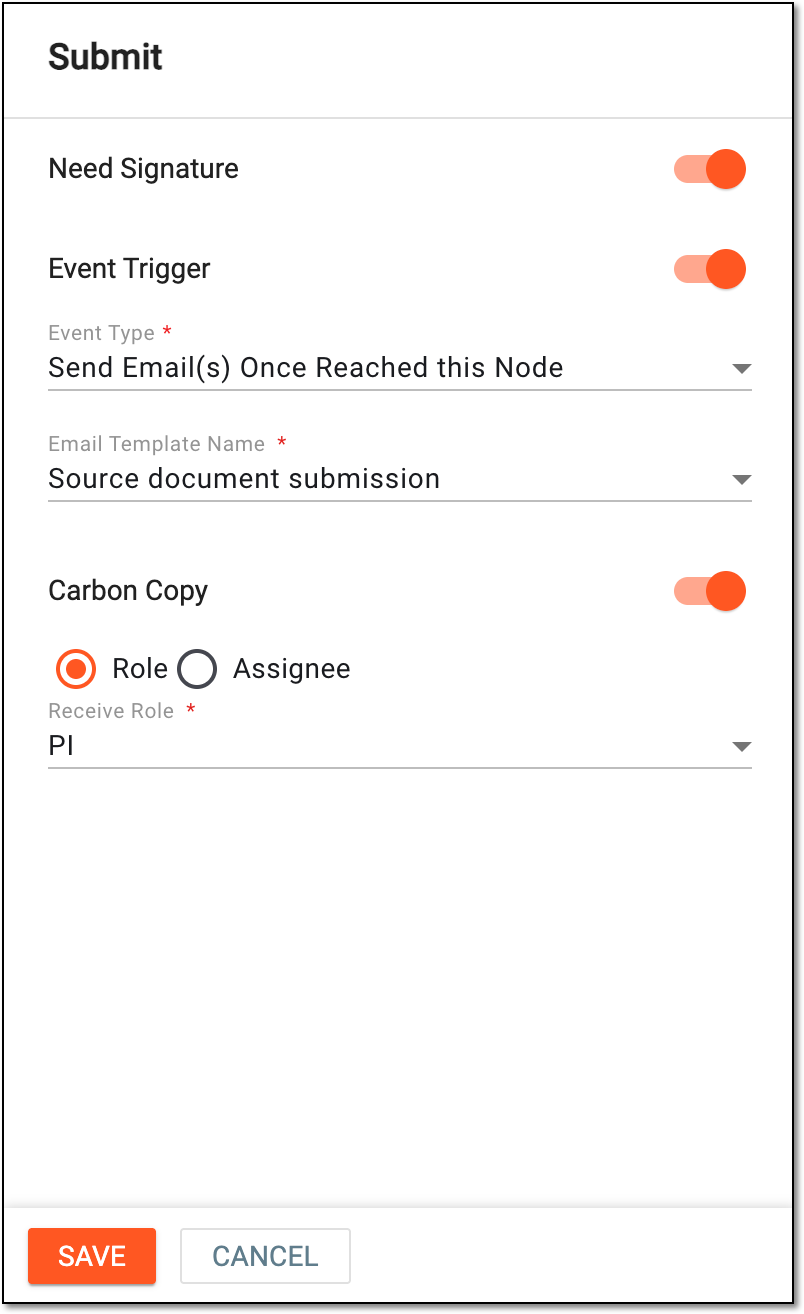 Figure 7. Configuring submission stage of source document workflow
Tip
In the following table, mandatory elements are marked with an asterisk (*).
Element
Details
Need Signature
Turn this toggle on if you want the file submitter to provide their electronic signature upon source file upload in the EDC system.
Event Trigger
Turn this toggle on if you want the system to notify the personnel responsible for completing the Submit workflow stage on a certain event.
Event Type*
Select the type of event for which you want to send an email notification. For the Submit node, the available event type is Send Email(s) Once Reached the Node.
Email Template Name*
Select the previously configured email template according to which the notification is sent to a recipient.
Carbon Copy
Turn this toggle on if you want to forward the copy of the email generated for this workflow stage to other users along with the document submitter.
This toggle is only available if the Event Trigger toggle is turned on.Role
Select this option and in the Receive Role field that appears, select the user roles to whom you want to forward the copy of the email generated for this workflow stage.
Assignee
Select this option and in the User Name field that appears, select the user to whom you want to forward the copy of the email generated for this workflow stage.
SAVE
Select
to implement your changes.CANCEL
Select
to discard your changes and return to the workflow designer.The available settings of the Approve node are explained in the following table.
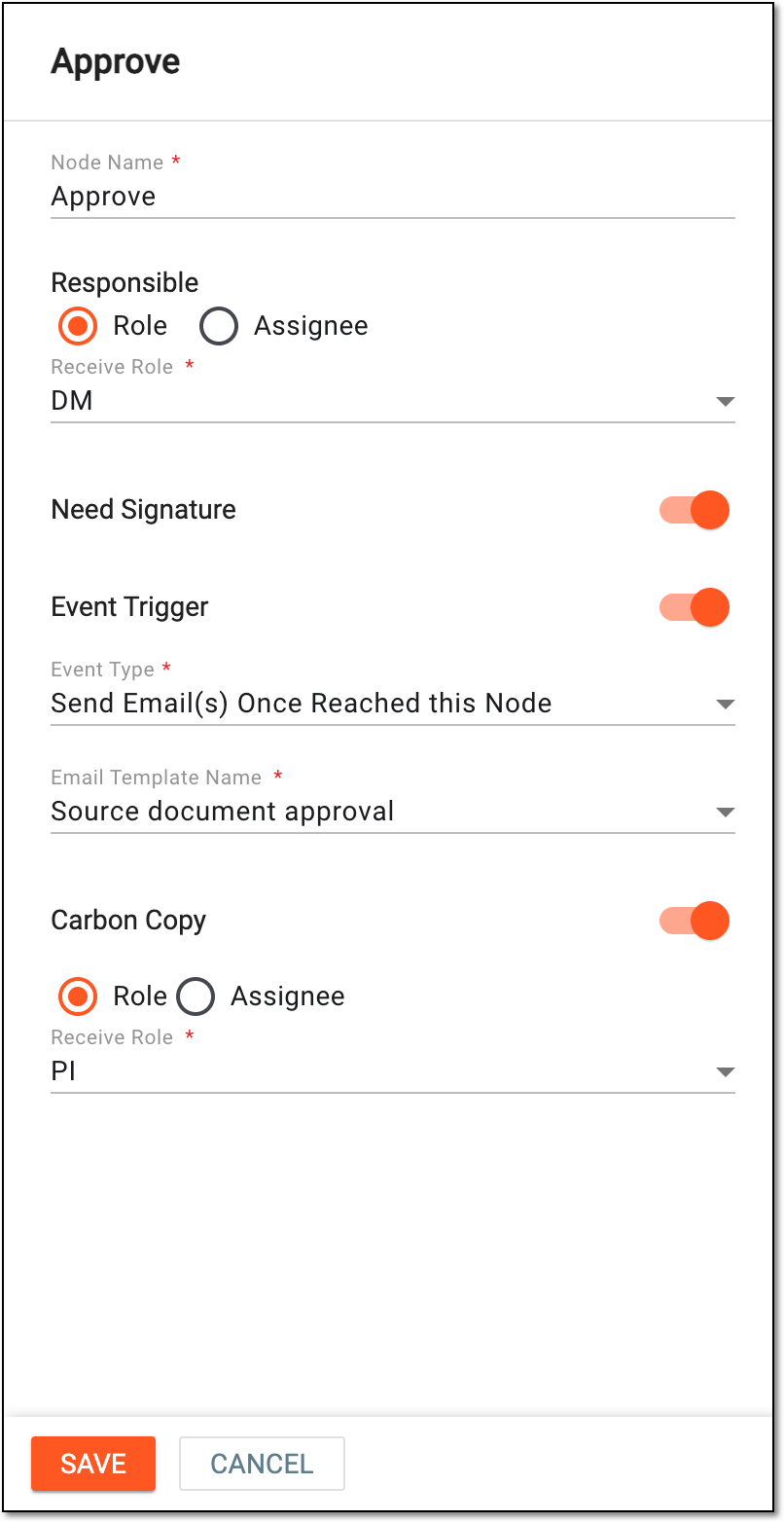 Figure 8. Configuring approval stage of source document workflow
Tip
In the following table, mandatory elements are marked with an asterisk (*).
Element
Details
Node Name*
Enter the name of the task node. By default, it is Approve and you can customize it to your business needs.
Responsible
Role
Select this option and in the Receive Role field that appears, select the user responsible for the source document audit and approval, such as DM, PI, or others.
Assignee
Select this option to activate the User Name field that appears, select the user who must audit and approve the source document.
Need Signature
Turn this toggle on if the approval action requires a signature from the assignee of the task.
Event Trigger
Turn this toggle on if you want the system to notify the personnel responsible for approving the source document or payment request via email.
Event Type*
Select the type of event for which you want to send an email notification. For the Approve node, the available event type is Send Email(s) Once Reached the Node.
Email Template Name*
Select the previously configured email template according to which the notification is sent to a recipient.
Carbon Copy
Turn this toggle on if you want to forward the copy of the email generated for this workflow stage to other users along with the document approver.
This toggle is only available if the Event Trigger toggle is turned on.Role
Select this option and in the Receive Role field that appears, select the user roles to whom you want to forward the copy of the email generated for this workflow stage.
Assignee
Select this option and in the User Name field that appears, select the user to whom you want to forward the copy of the email generated for this workflow stage.
SAVE
Select
to save your changes.CANCEL
Select
to discard your changes and return to the workflow designer.The available settings of the Sign node are explained in the following table.
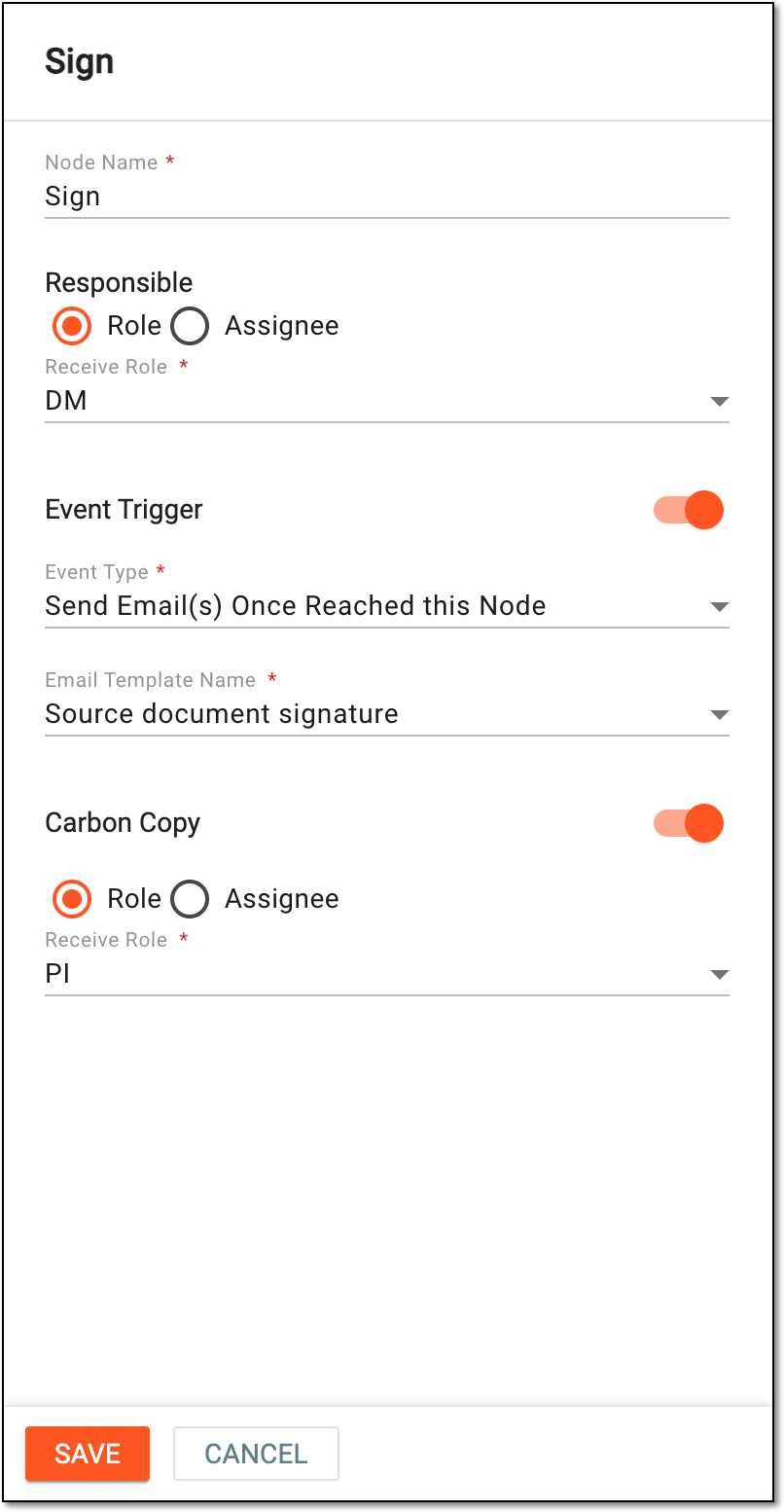 Figure 9. Configuring signature stage of source document workflow
Tip
In the following table, mandatory elements are marked with an asterisk (*).
Element
Details
Node Name*
Enter the name of the task node. By default, it is Sign and you can customize it to your business needs.
Responsible
Role
Select this option and in the Receive Role field that appears, select the user responsible for the source document audit and signature, such as DM, PI, or others.
Assignee
Select this option to activate the User Name field that appears, select the user who must audit and sign the source document.
Event Trigger
Turn this toggle on if you want the system to notify the personnel responsible for signing the source document via email.
Event Type*
Select the type of event for which you want to send an email notification. For the Sign node, the available event type is Send Email(s) Once Reached this Node.
Email Template Name*
Select the previously configured email template according to which the notification is sent to a recipient.
Carbon Copy
Turn this toggle on if you want to forward the copy of the email generated for this workflow stage to other users along with the document signer.
This toggle is only available if the Event Trigger toggle is turned on.Role
Select this option and in the Receive Role field that appears, select the user roles to whom you want to forward the copy of the email generated for this workflow stage.
Assignee
Select this option and in the User Name field that appears, select the user to whom you want to forward the copy of the email generated for this workflow stage.
SAVE
Select
to save your changes.CANCEL
Select
to discard your changes and return to the workflow designer.The available settings of the Co-sign node are explained in the following table.
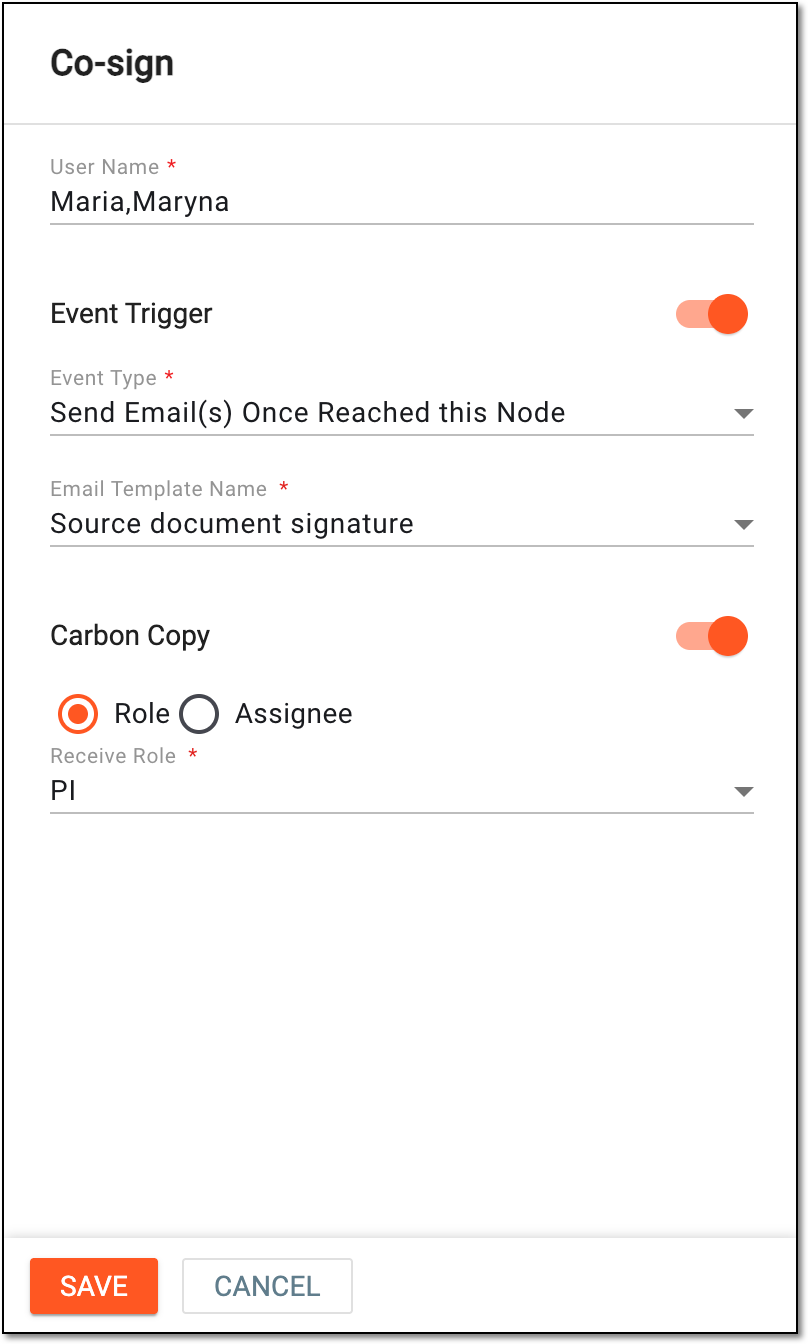 Figure 10. Configuring co-signature stage of source document workflow
Tip
In the following table, mandatory elements are marked with an asterisk (*).
Element
Details
User Name*
Select the name of the users each of whom must audit and sign the source document or payment request. The signatures of all users selected here are mandatory to consider the workflow stage completed.
Event Trigger
Turn this toggle on if you want the system to notify the personnel in charge completing the Co-sign workflow stage on a certain event.
Event Type*
Select the type of event for which you want to send an email notification. For the Co-sign node, the available event type is Send Email(s) Once Reached this Node.
Email Template Name*
Select the previously configured email template according to which the notification is sent to a recipient.
Carbon Copy
Turn this toggle on if you want to forward the copy of the email generated for this workflow stage to other users along with the document co-signers.
Role
Select this option and in the Receive Role field that appears, select the user roles to whom you want to forward the copy of the email generated for this workflow stage.
Assignee
Select this option and in the User Name field that appears, select the user to whom you want to forward the copy of the email generated for this workflow stage.
SAVE
Select
to save your changes.CANCEL
Select
to discard your changes and return to the workflow designer. -
To save the designed workflow, from the workspace toolbar of the workflow designer, select Save
.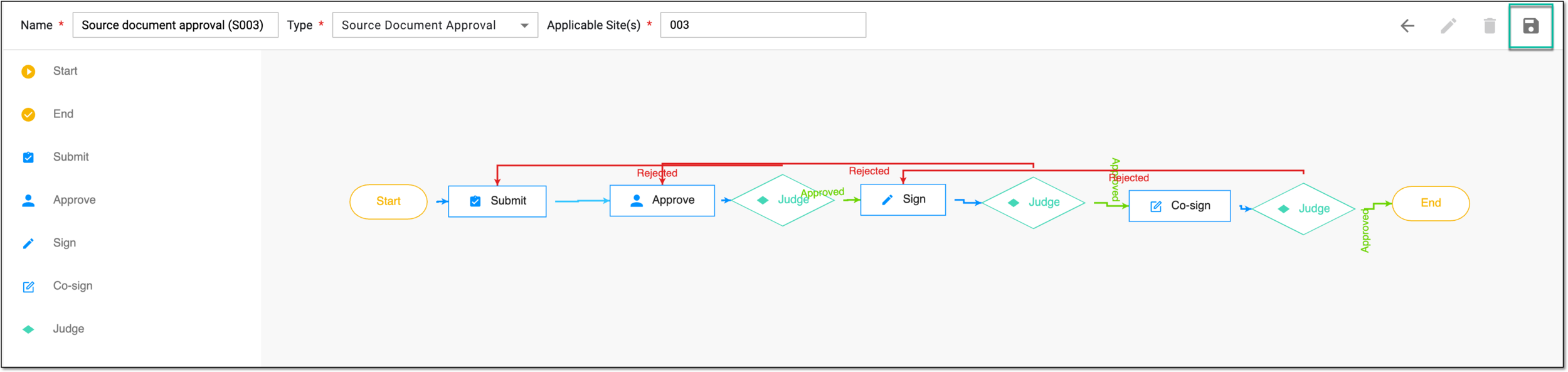 Figure 11. Saving configured source document workflow
Once saved, the workflow becomes active for the selected sites. Now all the documents submitted at that sites must follow the established procedure of approval.
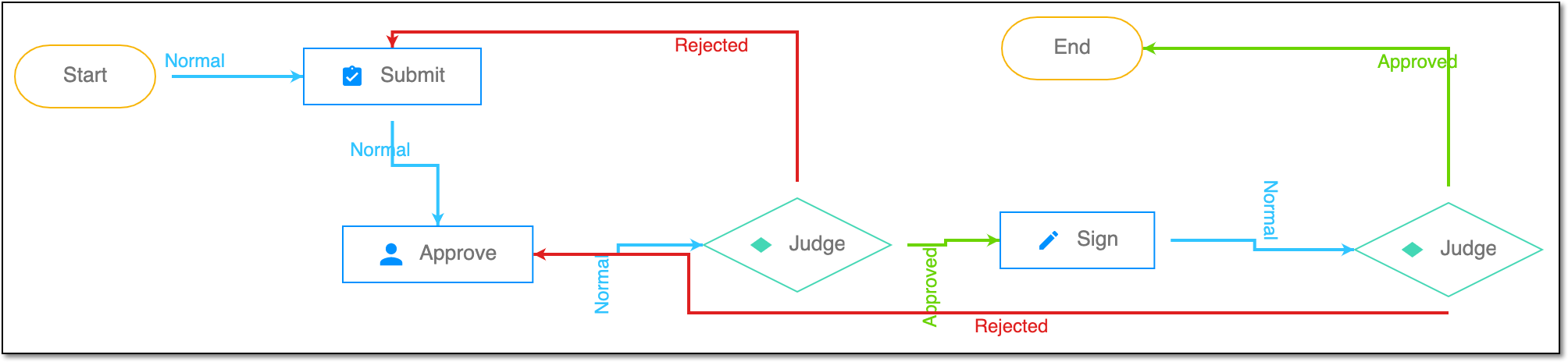
A schema, each step of which represents a stage of a specific entity lifecycle in the system.
A workflow can be considered an instrument to help control various actions on system entities for the sake of accountability, as it limits the actions that can be performed on the entity associated with a workflow. This provides an additional tier of scrutiny, and the approval/rejection mechanism reduces the risk of unintended impact on sensitive resources and important information.
 |
For instance, in eTMF, the workflow dictates the procedure of file and folder management from the moment of upload to the approval stage; in CTMS, the workflow controls the process of creation, completion, and approval of a trip report; in EDC, the workflow covers the process of source document handling.
A person responsible for overseeing and conducting the research study at a specific investigational site or multiple sites, depending on the study's design. The role of a PI is multifaceted and involves various responsibilities, such as study oversight, protocol adherence, participant recruitment and informed consent implementation, regulatory compliance, and so on.
In the eClinical system, the Principal Investigator (PI) role that is assigned to a person who oversees the data entering and signs off subjects—gives authorized confirmation that all the entered data is valid and follows the industry standards. The responsibilities of PI can vary depending on study requirements.
Any person, company, institution, group, or organization that is a client of EDETEK and a user of the eClinical system.
In the eClinical system, the Sponsor role is assigned to the user who oversees or pays for a clinical trial and collects and analyzes the data. Before the study goes live, the Sponsor users work closely with the data managers, configuring CRFs and other aspects to make sure everything meets their requirements before giving the green light for the study to go live. In the course of a trial, the Sponsor users make requests for amendments in the system according to a new protocol version, changes in business requirements, or other needs.
A person responsible for managing and ensuring the integrity, accuracy, and confidentiality of data collected during clinical trials. The DM’s scope of work might include maintaining the quality of data, complying with regulatory requirements, and supporting the overall success of clinical research.
In the eClinical system, the Data Manager (DM) user role is granted to a person who is mainly responsible for cleaning the data, making sure the data is entered correctly according to all requirements and industry standards, and creating manual queries for clinical research coordinators on any questionable data pieces. Before the study goes live, works with the sponsor and receives and addresses their feedback to set up the study and CRFs in EDC in a way that the sponsor approves.