Create email template
Creation of email templates facilitates user interaction with EDC for workflow setting, as instead of setting up the email configurations each time you create a workflow, you configure versatile email templates for different scenarios. Then, when configuring various workflow stages, you can select one of the preconfigured templates.
-
In the EDC application header, select the STUDY INFO tab.
-
On the page that opens, from the left pane, select Workflow > Email Template.
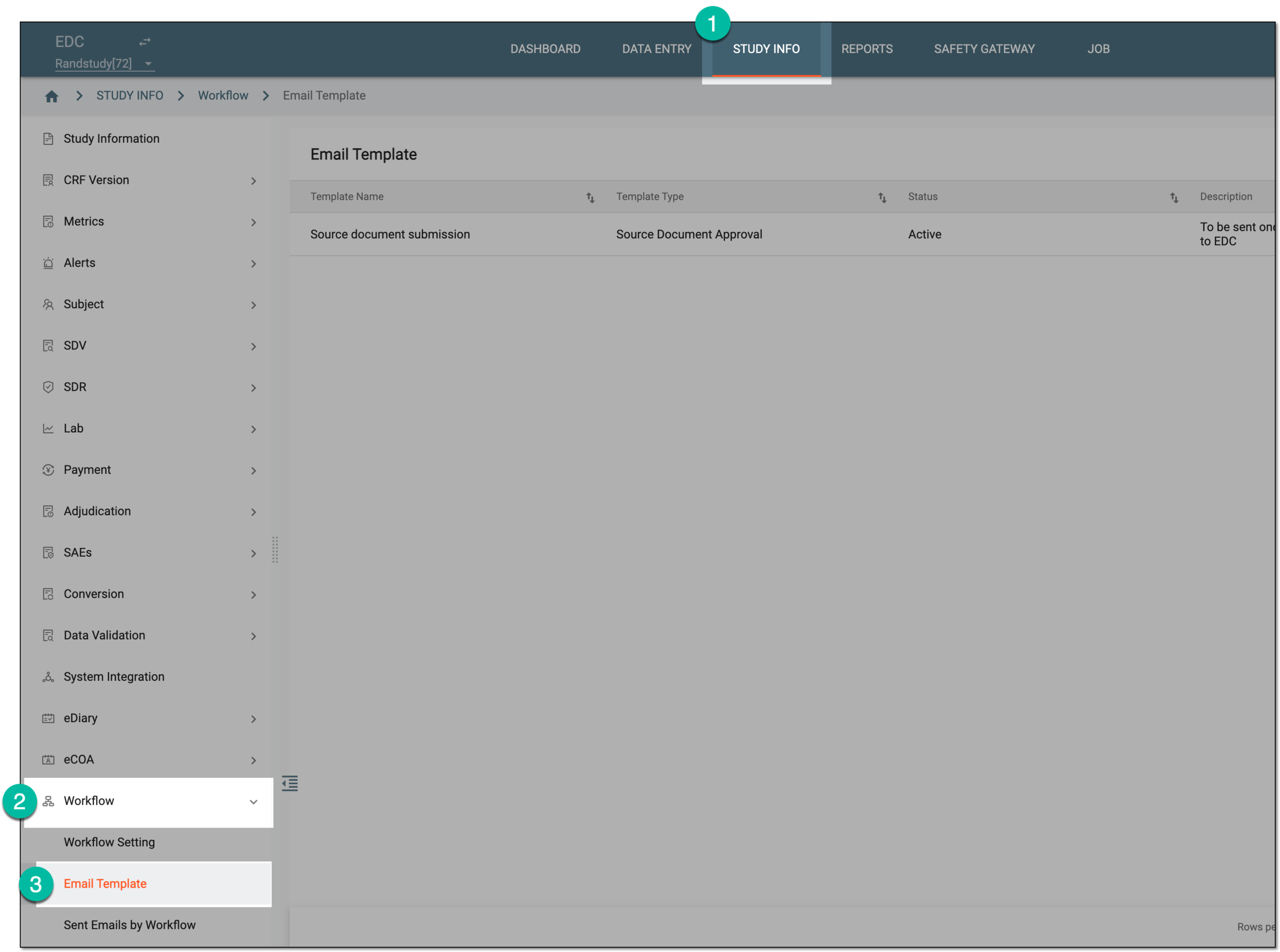 Figure 1. Accessing email template list
-
On the Email Template page that opens, from the workspace toolbar, select New Item
 .
. Figure 2. Adding email template
-
On the page that opens, fill in the workflow details as explained in the following table.
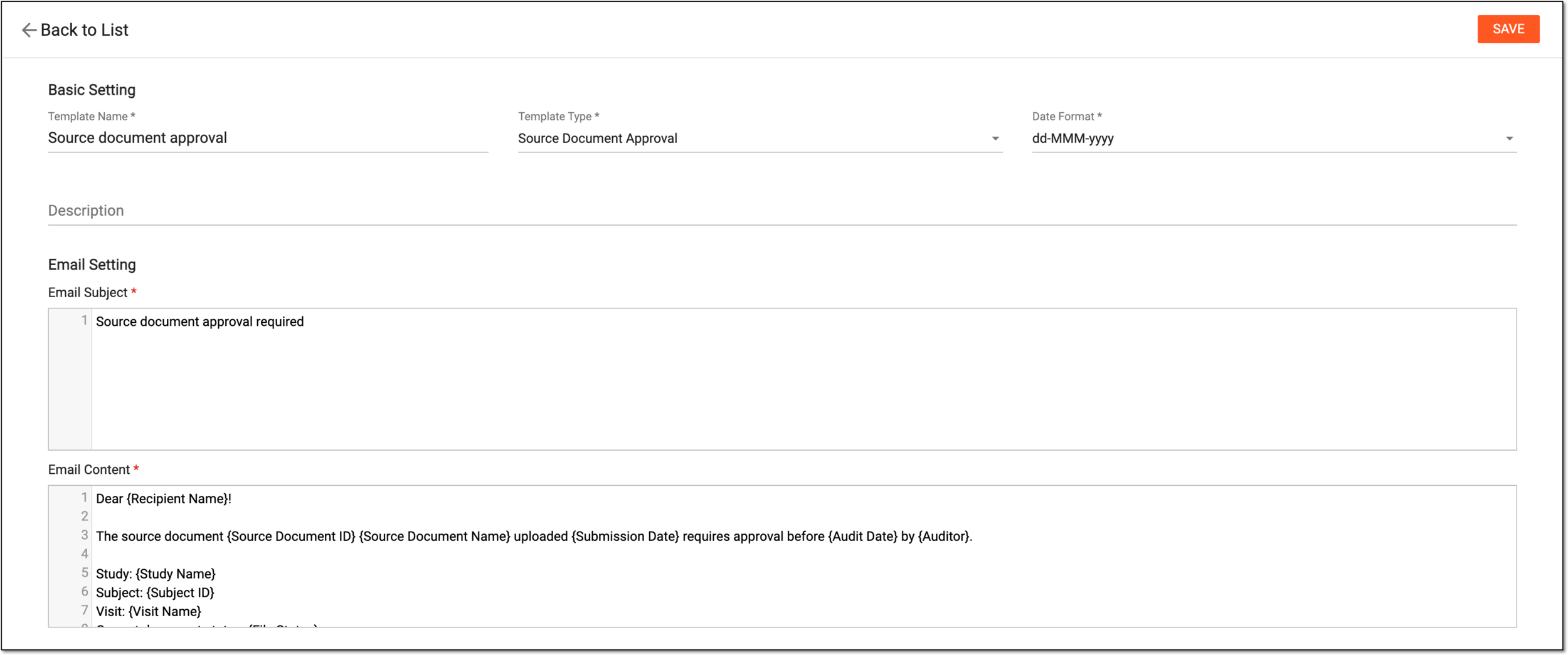 Figure 3. Configuring new email template
Tip
In the following table, mandatory elements are marked with an asterisk (*).
Element
Details
Basic Setting
Template Name*
Enter the unique distinguishable email template name.
Template Type*
Select the type of operation for which the email template is intended:
-
Source Document Approval: to configure the template suitable for the source document handling workflows.
-
Payment: to configure the template suitable for the payment request handling workflows.
Date Format*
Select one of the available date formats to establish how the dates inserted into the email subject and contents are to be presented, for instance, dd-MMM-yyyy, yyyy-MM-dd, and so on.
Description
Enter any information that you find useful to provide along with your template. This information remains for the internal use in EDC and might be helpful for other users when deciding on the template selection.
Email Setting
Email Subject*
Enter the subject of the email that is to be used as a template for sending workflow-related notifications. You can also start typing with the opening brace "{" to expand the list of variables and include them in the email subject.
A variable is a placeholder representing a piece of data that will be replaced by the actual value depending on the recipient or context. The available variables are preconfigured for you in the system to suit the purpose of workflow-related emails.
For example, if you add a {Recipient Name} variable to the email subject, then it would be replaced with the actual name of the user receiving the email.
Email Content*
Enter the content of the email body that is to be used as a template for sending task and query reminders. You can also start typing with the opening brace "{" to expand the list of variables that you want to include in the email content.
Elements Setup
List of Payable Items
Select the checkboxes next to the payable item details that you want to be included in the email body in a form of a table. Clear the checkboxes next to the details that should not be included in the email.
This list is applicable for the Payment template type and only available if the {List of Payable Items} variable is added to the email content.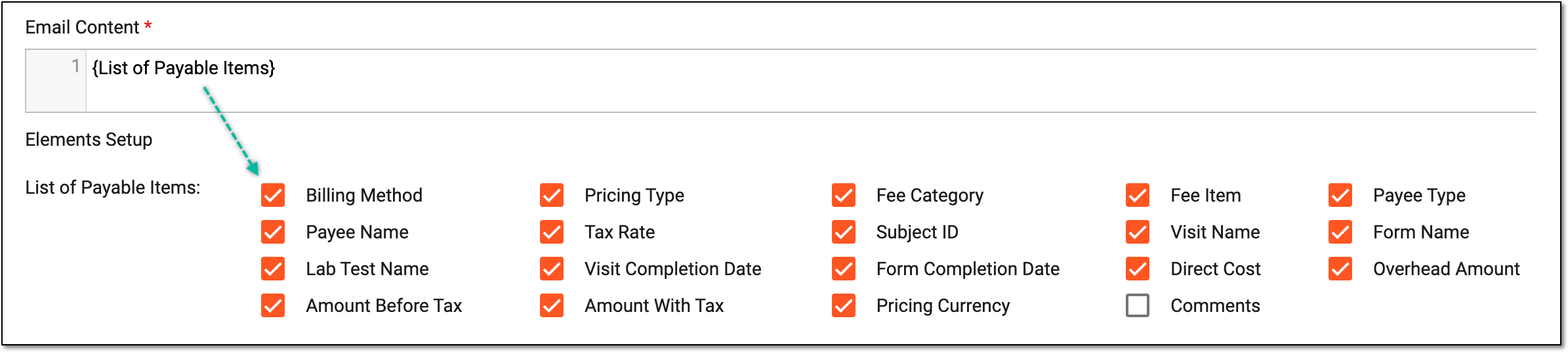 Figure 4. Displaying list of payable items to include into email
SAVE
Select
 to implement the implemented changes.
Back to List
Select
 to discard all changes without saving and return to the email template list.
 -
Once saved, the email template is created.