Upload attachment to payment request
In EDC, you create a new payment request each time you need to reflect a certain financial operation—cost or service compensation for the vendor according to agreed conditions. Each payment request can be supported with the attached files, such as invoices or other documents that justify or clarify the payment. These files can be uploaded upon creation or later on based on the logic configured in the associated payment type workflow that dictates how the payment request is handled.
Beside the upload upon creation, there are two possible scenarios when the files can be uploaded to the payment request:
-
Upon the payment request submission and during auditing according to all the configured workflow stages. Such a scenario is configured by enabling the Require Invoice for Approval toggle for the Submit node of the associated workflow. If this functionality is disabled in the workflow, then the attachment upload becomes available only upon the payment request approval per the second scenario.
-
Upon the payment request approval—according to all the configured workflow stages—and before its submission to CTMS. Such a scenario is configured by enabling the Require Invoice Before Submit to CTMS toggle for the End node of the associated workflow. This way, once the workflow for the payment request reaches the End node, the status becomes Pending Invoice, and only upon the file upload, the payment request becomes ready for audit in CTMS.
Tip
In a payment request, there can also be attachments of files autogenerated by the system according to the financial documentation configurations of CTMS.
-
In the EDC application header, select the STUDY INFO tab.
-
On the page that opens, in the left pane, select Site Payment > Payment Request List.
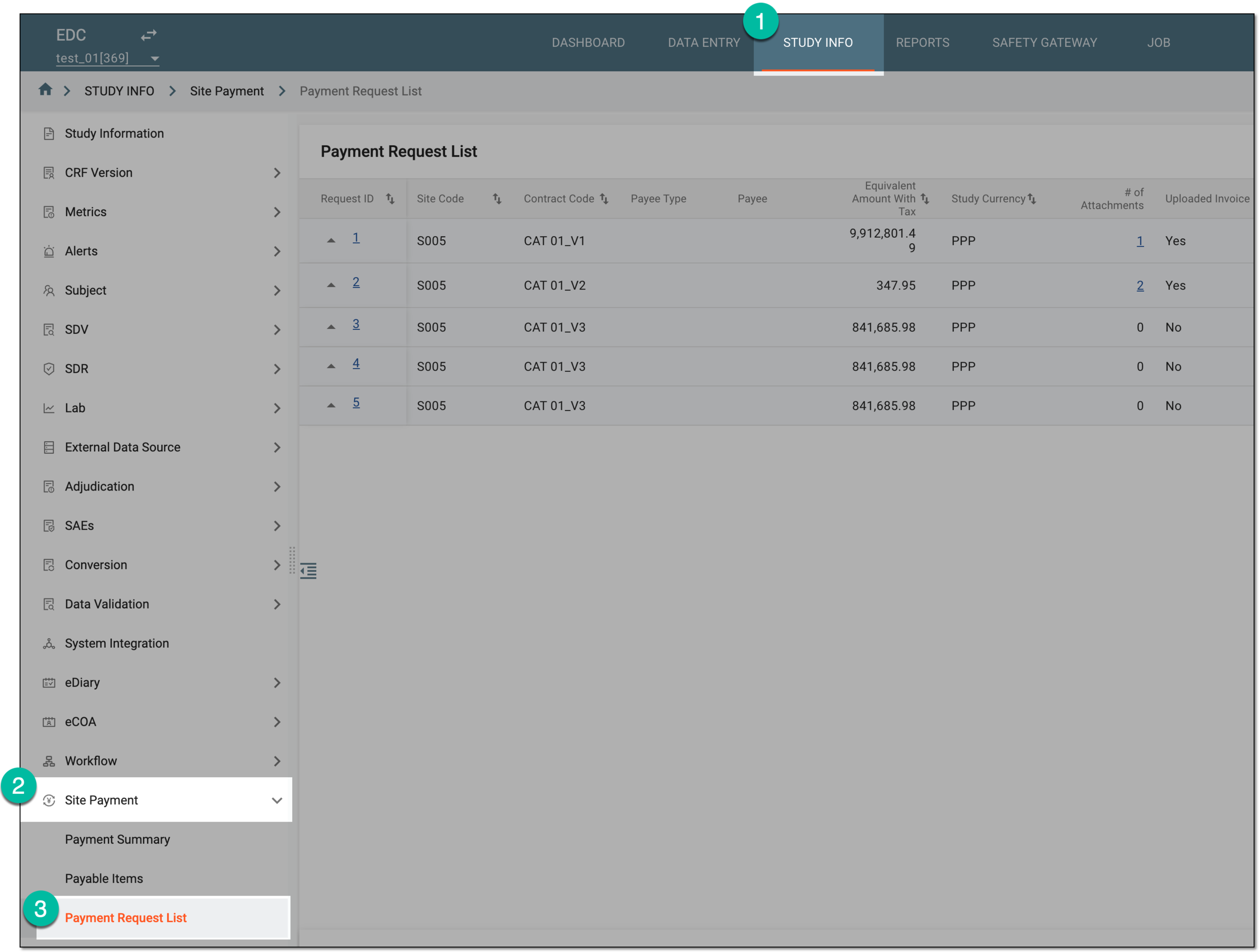 Figure 1. Accessing payment request list
-
On the Payment Request List page, locate the payment request of your interest and in the Action column next to it, select Upload Attachment
 .
. Figure 2. Selecting option to upload attachment to payment request
-
In the Upload Attachment dialog that opens, add the files as explained in the following table.
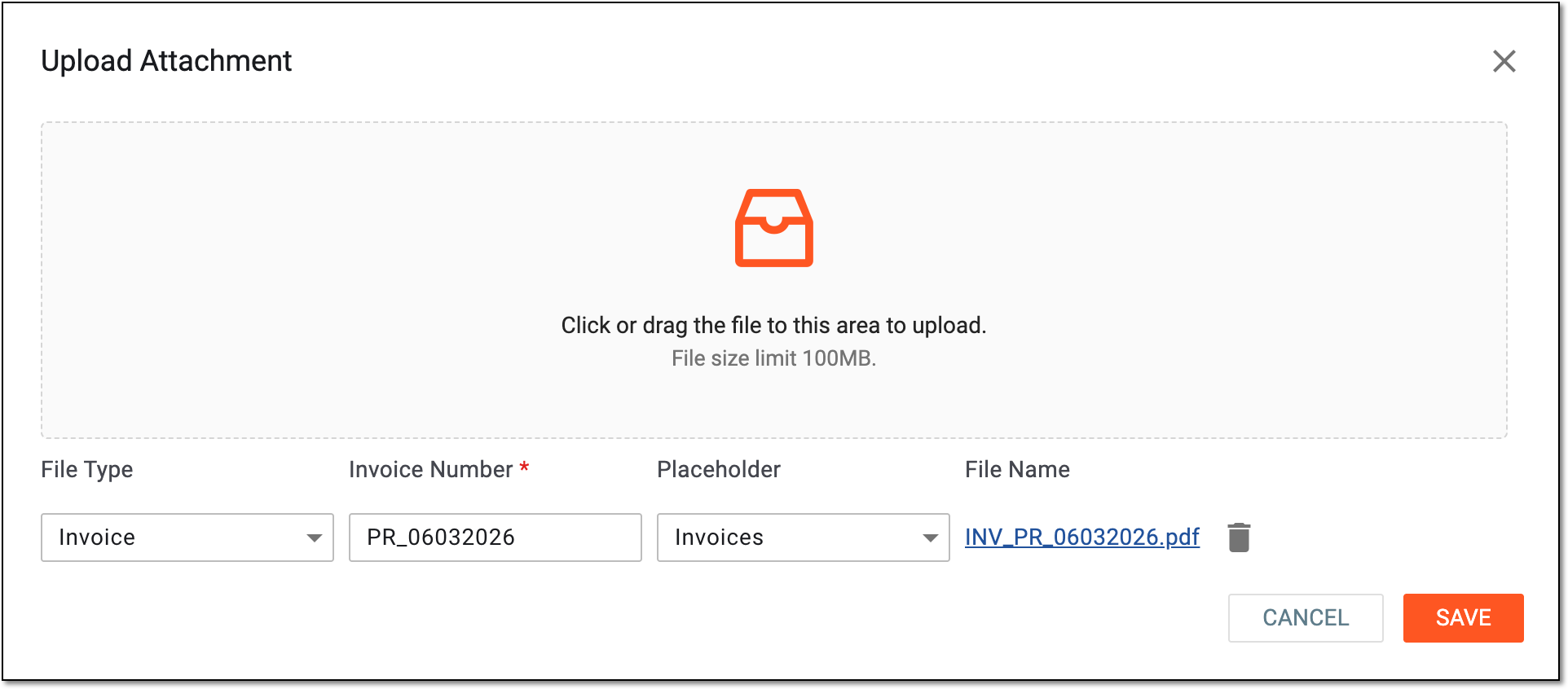 Figure 3. Uploading attachment to payment request
Tip
In the following table, mandatory elements are marked with an asterisk (*).
Element
Details
Click or drag the file to this area to upload
Drag the files from your computer to this area or select this area and choose the documents you want to upload from your computer. Multiple files can be uploaded at once.
File Type
Select the type of the uploaded file, such as Invoice or Other.
Invoice Number*
Enter the unique identifier of the attached file.
Placeholder
Select the file placeholder that further categorizes the document you are adding to the payment request—Financial Documentation, Financial Summary Tracker, Invoices, Payments, and Receipts. The selected placeholder determines the file categorization when populated to eTMF.
File Name
Represents the name of the uploaded file.

Select the deletion option next to the uploaded file name in case it needs to be removed from the list.
SAVE
Select
 to implement the changes.
CANCEL
Select
 to discard the file upload, close the dialog, and return to Payment Request List.
The file is attached to the payment request. The system users can now access them for reference or download from Payment Request List.