Reset source document workflow
Source documents are original records or certified copies of records that provide evidence of the existence, activities, and results of a clinical trial or study. Some of the source documents that can be related to data verification and documentation review are case report forms (CRFs), medical records, informed consent forms, pharmacy records, adverse event reports, regulatory documents, and so on.
In EDC, the procedure of the source document handling is controlled by workflows, introducing an additional tier of scrutiny and the approval/rejection mechanism to reduce the risk of unintended impact on sensitive resources and important information.
At any time of source document maintenance in the system, you might be required to reset its workflow and reinitiate the review and approval procedure from the start.
This might become helpful, for instance, if the document is edited and requires a follow-up review of all the users in charge.
Important
The ability to view and manage the Source Document page depends on the permission granted to your user role in ADMIN.
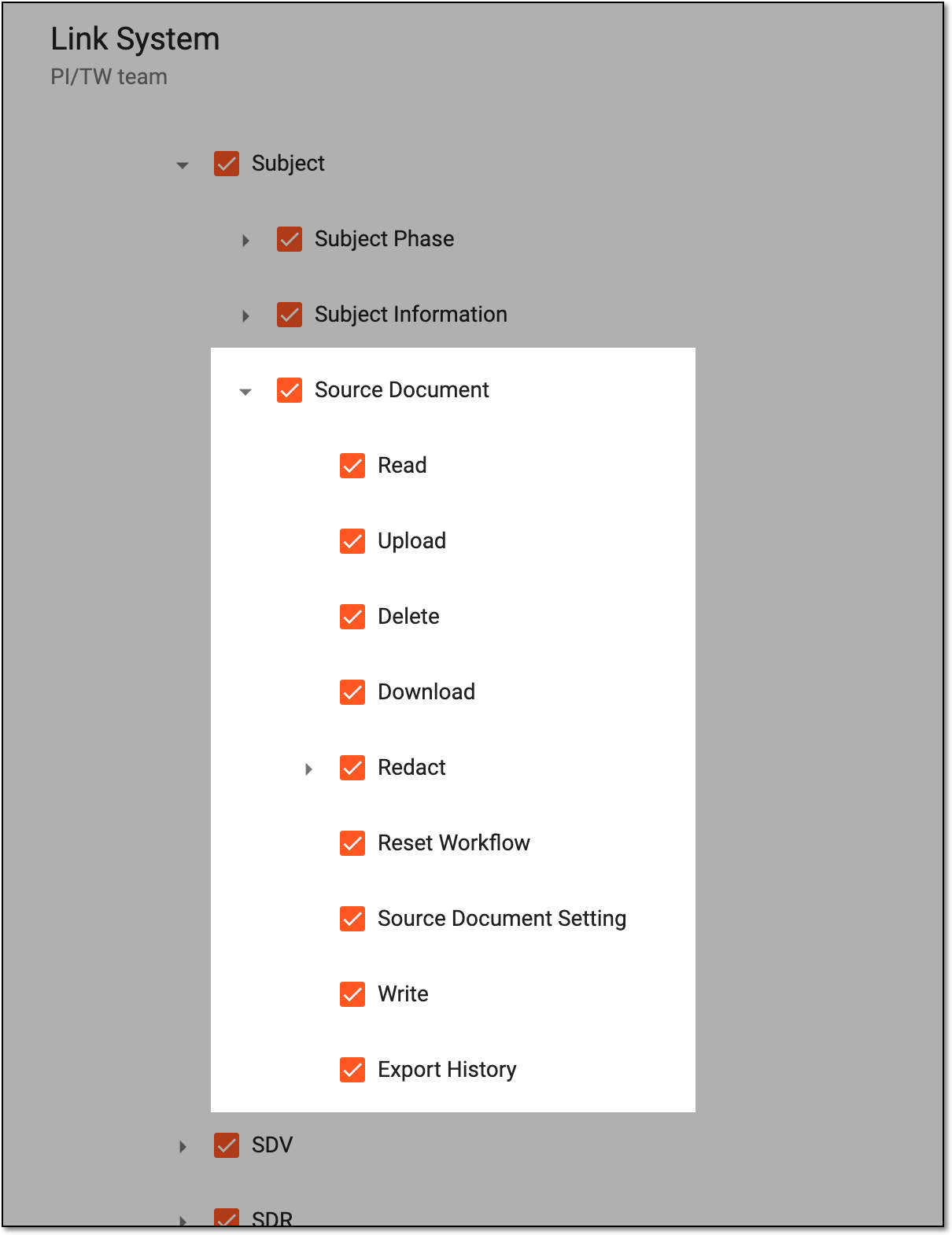 |
-
In the EDC application header, select the STUDY INFO tab.
-
In the left pane of the page that opens, select Subject > Source Document.
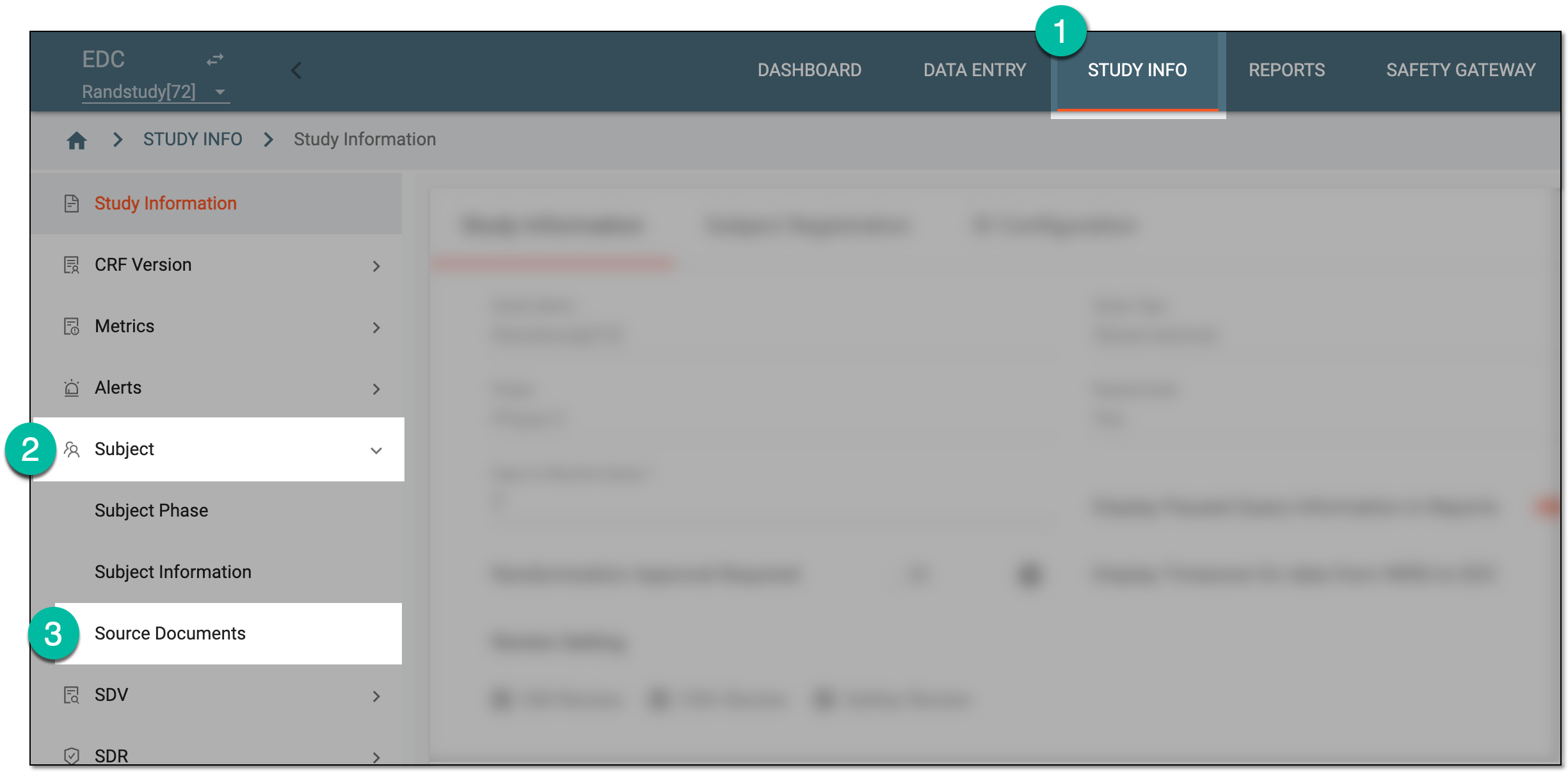 Figure 2. Accessing source documents
-
In the Hierarchy tree that appears, expand the site of your interest and select the directory where resides the source document for which you need to restart the workflow.
-
In the Source Document contents panel, next to the needed document, select More
 > Reset Workflow
  .
.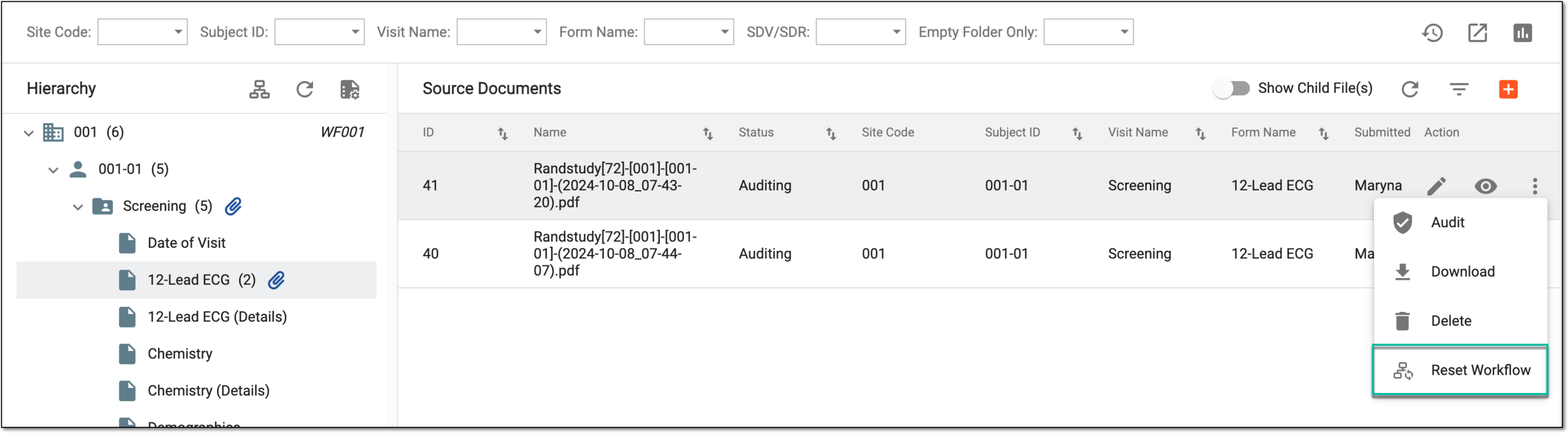 Figure 3. Resetting source document workflow
-
In the Reset Workflow dialog that appears, confirm your action with credentials as explained in the following table.
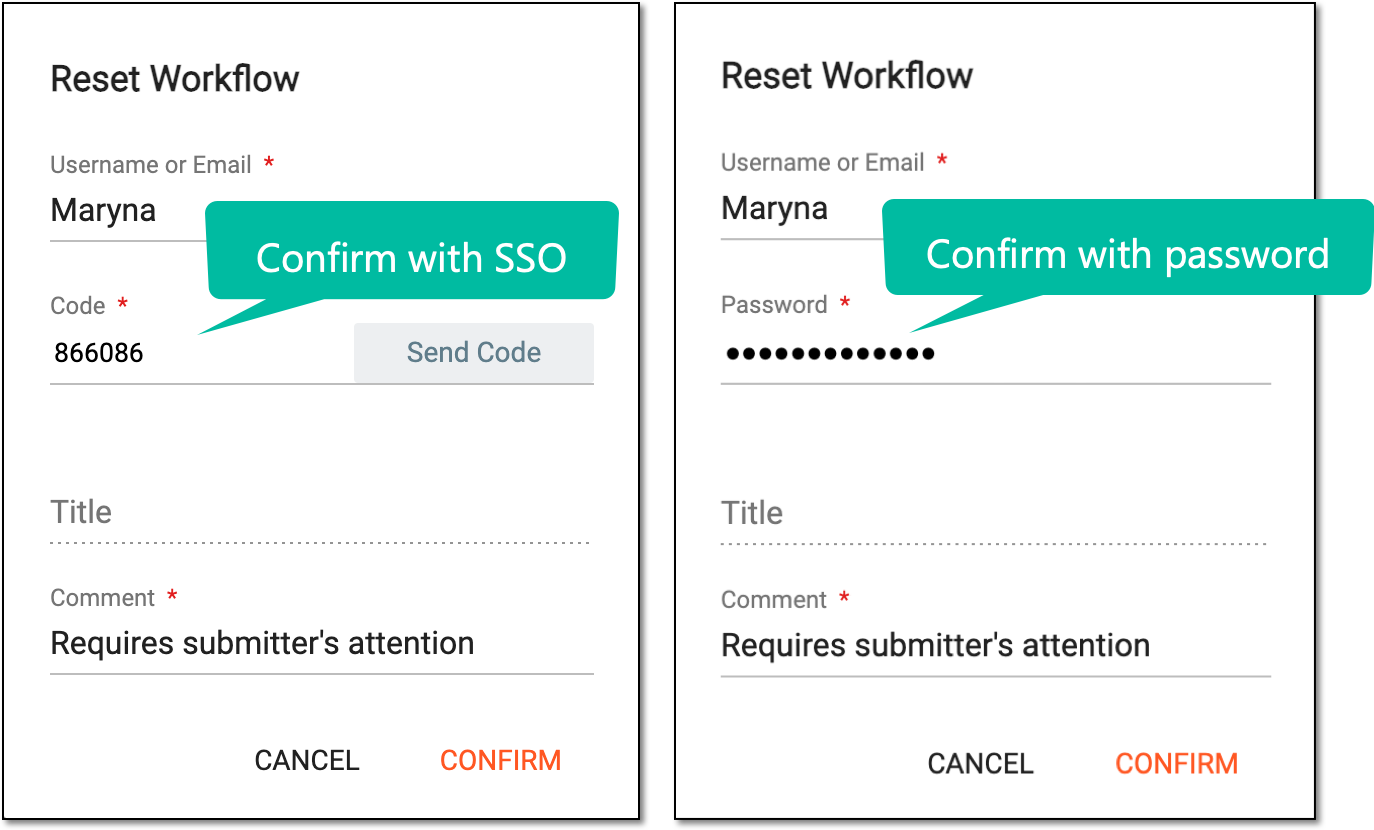 Figure 4. Confirming source document workflow reset
Tip
In the following table, mandatory elements are marked with an asterisk (*).
Element
Details
Username or Email*
Enter your username or email that you use to log in to the eClinical system.
Send Code
Select
 to send the temporary PIN code to your email for which the SSO method is configured.
The button is only available if you use the authorization method via SSO.Code*
Enter the temporary PIN code that you received via email.
The field is only available if you use the authorization method via SSO.Password*
Enter the password that you use to log in to the eClinical applications.
The field is only available if you use the authorization method by providing your login and password.Title
Represents the title of the user assigned to them via the ADMIN application. The field is autopopulated by the system and cannot be entered manually.
Comment*
Select this checkbox to confirm that you are the author of the documents being uploaded.
CONFIRM
Select
 to confirm your action with your signature and save the implemented changes.
CANCEL
Select
 to discard the changes, close the dialog, and return to the Upload File(s)
page.
to discard the changes, close the dialog, and return to the Upload File(s)
page.
Upon confirmation, the workflow of the document is reset and returns to its initial point. The document status becomes Auditing.