Edit open lab query
In the EDC application, once there is an open lab query, you can edit its details according to your desired changes.
-
In the EDC application header, select the STUDY INFO tab.
-
In the left pane, select Lab > Site Normal Range.
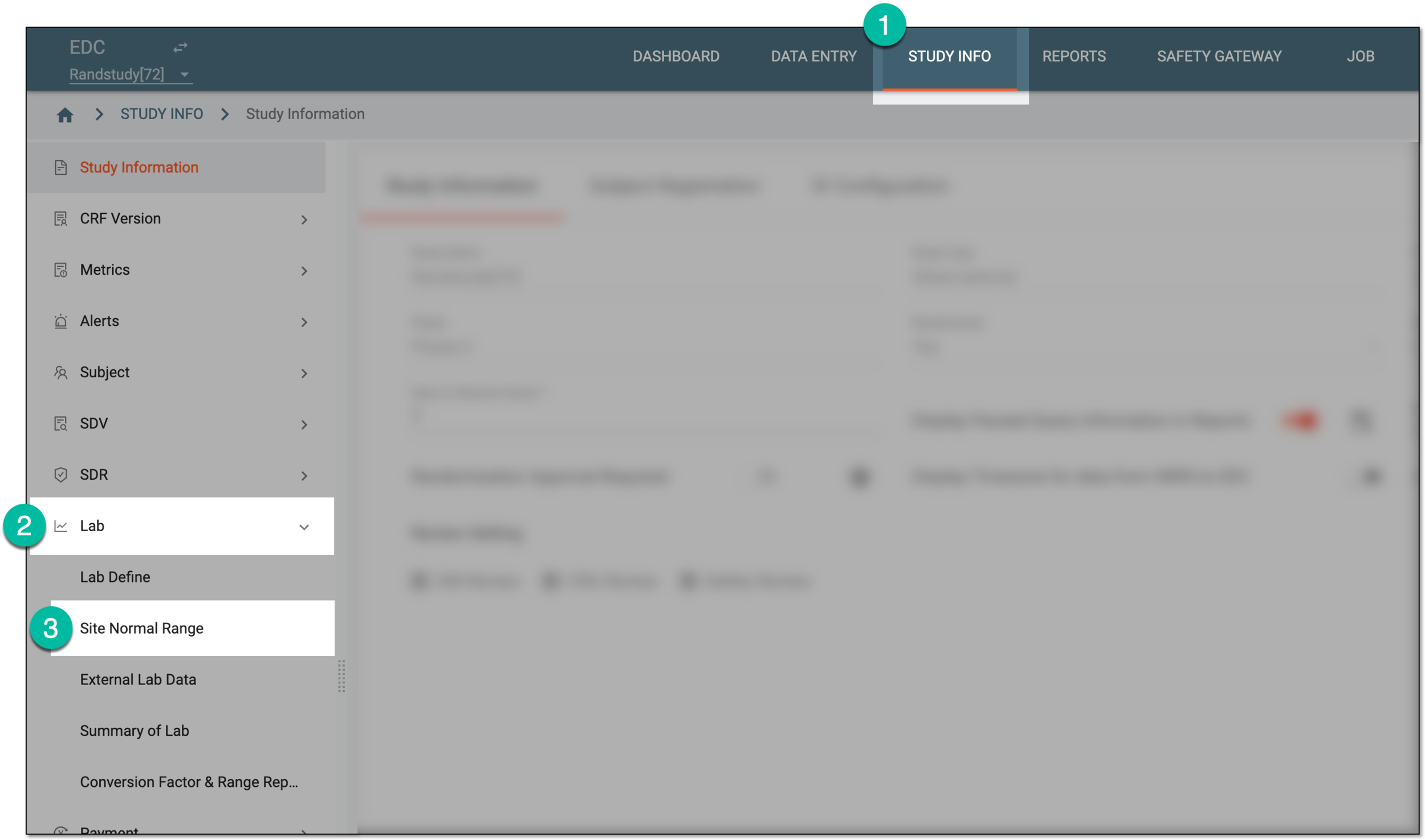 Figure 1. Accessing normal range list
-
On the Normal Range List page that appears, do one of the following:
-
To access the lab query opened for a category, in the Normal Range List table, next to the category name, select the query icon
 .
. Figure 2. Accessing category queries
-
To access the lab query opened for a specific test, in the Normal Range List table, select the query symbol
next
to the lab name. Then on the Lab Data page that opens, locate the test of your interest and select the query symbol
next to its name.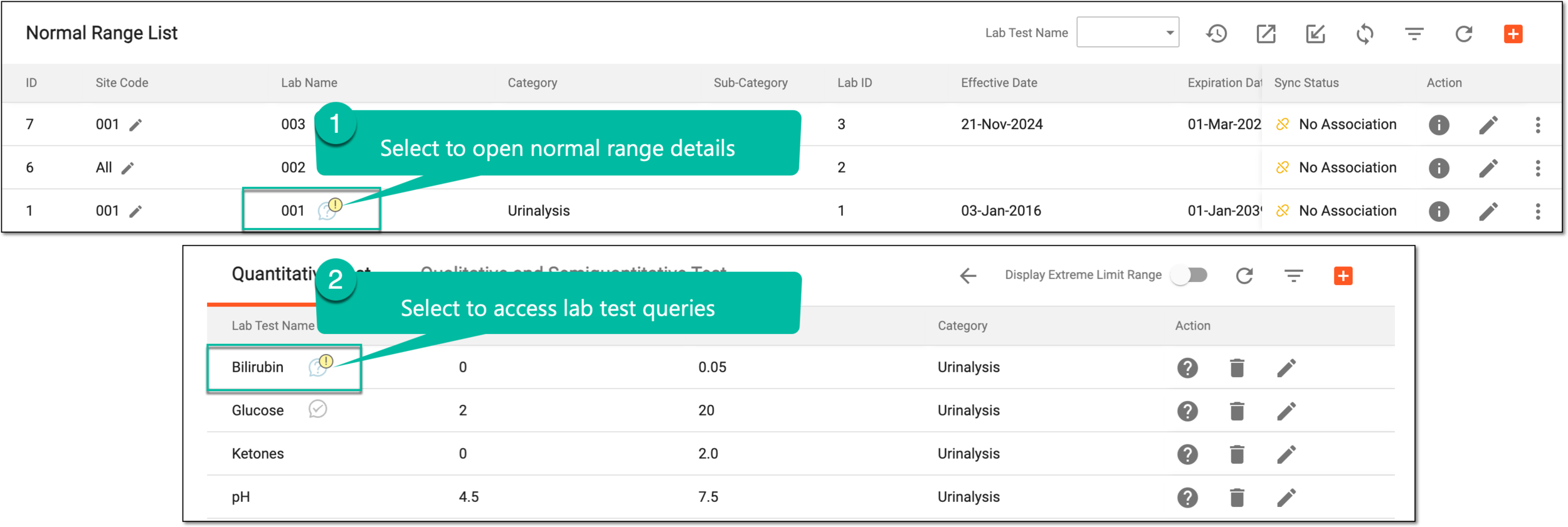 Figure 3. Accessing lab test queries
Tip
Depending on the query status, the query symbol differs—My Open Manual Query
 , My Paused Manual Query
  , Overdue Open Manual
Query
, Overdue Open Manual
Query  , and so on.
 -
-
In the side panel that expands, next to the query of your interest, select Edit
 .
.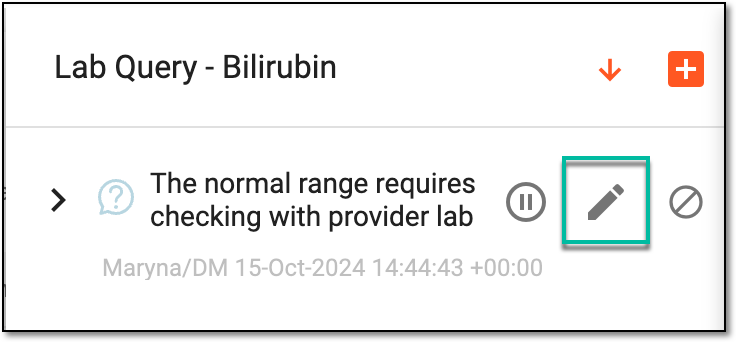 Figure 4. Selecting to edit lab query
-
In the Lab Query table that appears, make the necessary changes as explained in the following table.
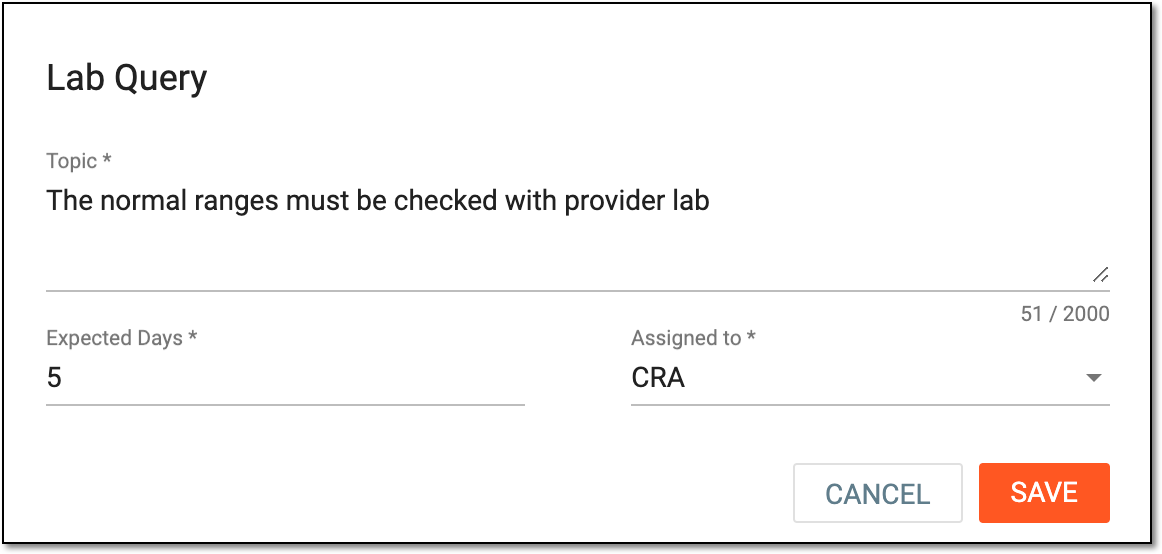 Figure 5. Editing lab query details
Element
Details
Topic*
Enter the classification of the query being edited.
Expected Days*
Select the deadline in days for resolving the query being edited.
Assigned to*
From the dropdown list, select the user role responsible for resolving the query.
SAVE
Select
 to save the implemented changes.
CANCEL
Select
 to dismiss without making any changes.
Once saved, all the changes made are incorporated.