Open lab query
In the EDC application, a lab query is a request for clarifying, fixing, or otherwise addressing discrepancies in the data collected from the lab. This query is generated by the system or created manually by users when the lab data collected at the site does not come under the normal range, thus, creating uncertainties that need to be resolved.
Important
To open a lab query, you must have the respective system permission granted to your user role via the ADMIN application.
From Normal Range List, you can open a lab query in the following two ways—by category or by specific lab test.
With this functionality, you can create a request for clarification or fixes for the entire lab test category with all the lab test normal ranges within.
-
In the EDC application header, select the STUDY INFO tab.
-
In the left pane, select Lab > Site Normal Range.
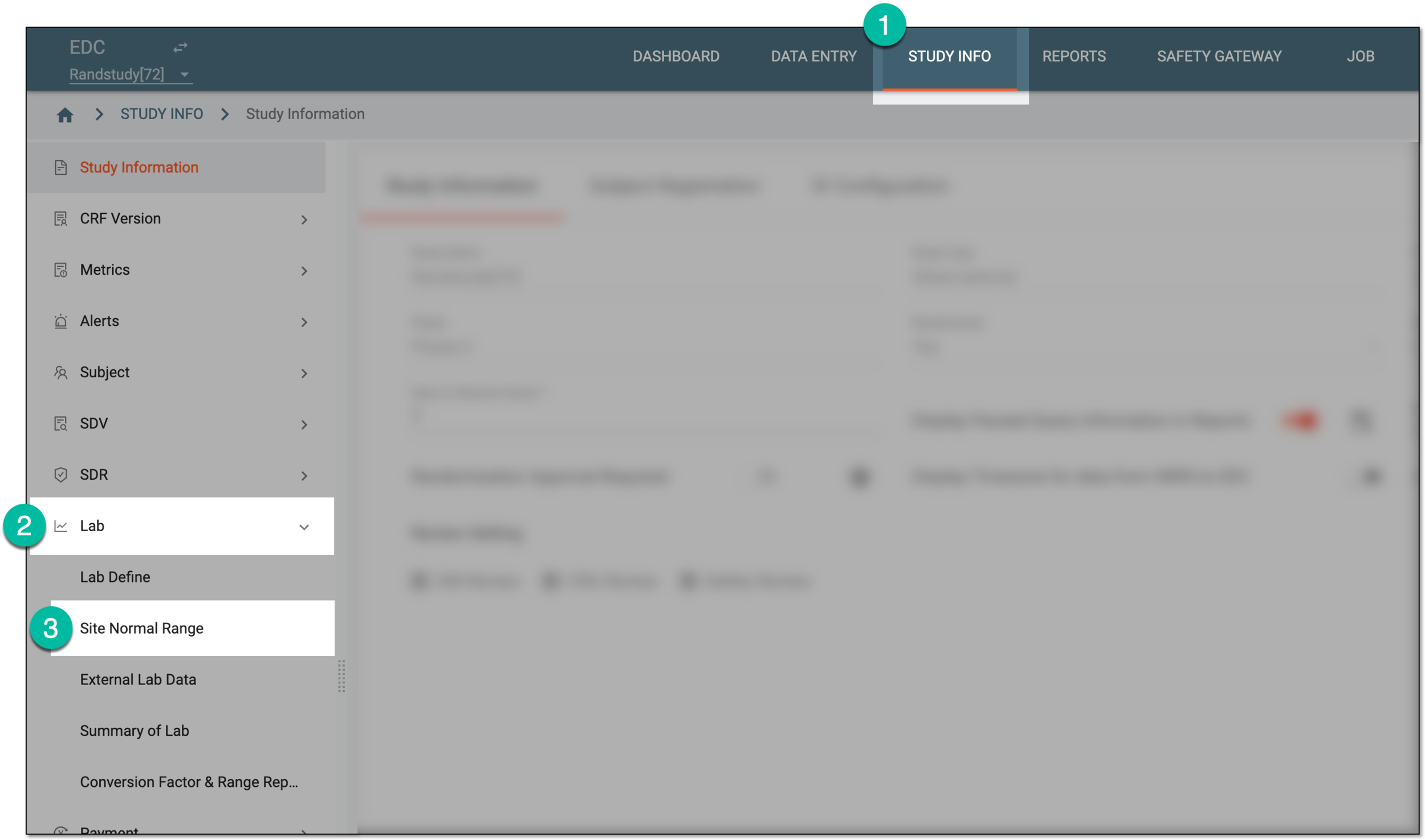 Figure 1. Accessing normal range list
-
On the Normal Range List page that opens, next to the needed category, select More
 > Open Query
  .
.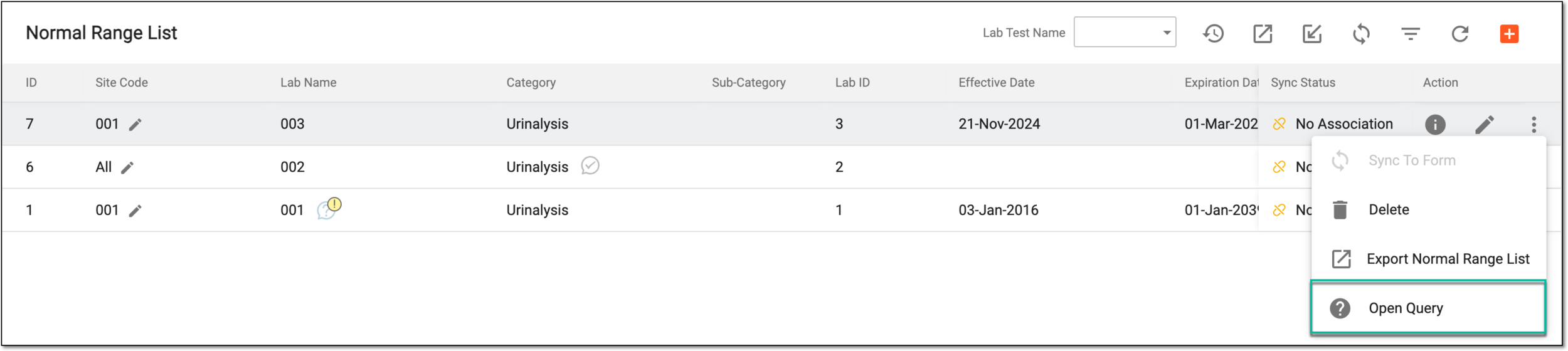 Figure 2. Opening query for category
-
In the Lab Query dialog that appears, fill in the fields as explained in the following table.
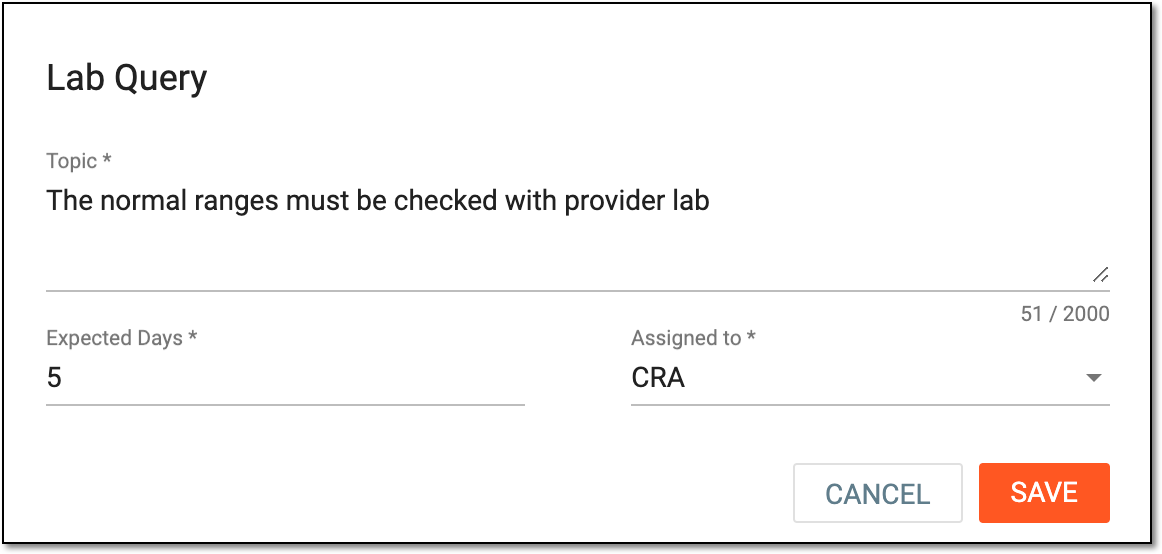 Figure 3. Adding query details
Tip
In the following table, mandatory elements are marked with an asterisk (*).
Element
Details
Topic*
Enter the details of the query being generated. Here, exhaustively outline your request or concern for the assignee to address.
Expected Days*
Enter the deadline in days for resolving the query being generated.
Assigned to*
From the dropdown menu, select the user role responsible for resolving the query being generated.
SAVE
Select
 to save the implemented changes.
CANCEL
Select
 to dismiss without saving any changes.
Once saved, the query is added. The assignee is notified via email and can address the query.
With this functionality, you can create a request for clarification or fixes for the individual lab test and its normal ranges within the specific category.
Important
You can only open queries for quantitative tests as they have predefined normal ranges and might require clarification or amendment. Whereas qualitative and semiquantitative tests do not qualify to be queried as their values are either entered manually in CRFs or autopopulated by the system and have no quantitative value in question.
-
In the EDC application header, select the STUDY INFO tab.
-
In the left pane, select Lab > Site Normal Range.
Figure 1. Accessing normal range list
-
In the Normal Range List table that appears, for the needed lab name, select Info
 .
. Figure 2. Accessing site normal range details
-
On the Lab Data page that opens, under the Quantitative Test tab, next to the lab test in question, select Open Query
.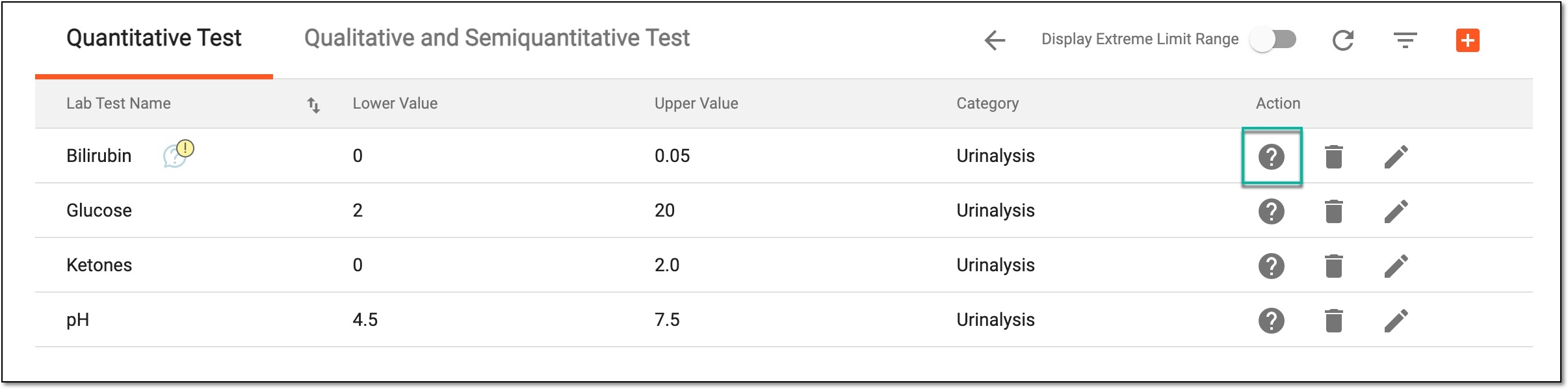 Figure 3. Opening query for lab test
-
In the Lab Query dialog that appears, fill in the fields as explained in the following table.
Figure 4. Adding query details
Tip
In the following table, mandatory elements are marked with an asterisk (*).
Element
Details
Topic*
Enter the details of the query being generated. Here, exhaustively outline your request or concern for the assignee to address.
Expected Days*
Enter the deadline in days for resolving the query being generated.
Assigned to*
From the dropdown menu, select the user role responsible for resolving the query being generated.
SAVE
Select
to save the implemented changesCANCEL
Select
to dismiss without saving any changes.
Once saved, the lab query is added. The assignee is notified via email and can address the query.