ICSR forms
In PV, when managing your ICSR—either updating the data in the report generated from EDC import, E2B R3 import, or creating one from scratch—you interact with the following forms:
-
Complete general form: comprises the general details of the reported case.
-
Complete study form: comprises the study details for which the case is reported.
-
Complete reporter form: comprises information and contact details of the person(s) who has reported the case.
-
Complete patient form: comprises information on the patient for whom the case is reported, their medical records, and death if such occurred.
-
Complete patient drug history form: comprises the detailed drug history of the patient.
-
Complete lab test form: comprises the laboratory test data related to the patient.
-
Complete parent form: comprises information on a parent of the patient for whom the case is reported.
-
Complete parent drug history form: comprises the detailed drug history of the patient's parent if there is one.
-
Complete pregnancy form: comprises information on the patient's pregnancy if the patient is a pregnant woman.
-
Complete products form: comprises details on the medication product related to the case.
-
Complete events form: comprises detailed information on the adverse event that has occurred to the patient of the case.
-
Complete assessment form: comprises details of the causality assessment between the suspect drug and the adverse event.
-
Complete narrative form: comprises a narrative that contains the summary of the adverse event experienced by the patient during the course of treatment.
-
Complete source form: comprises source documents that are not to be transmitted to regulatory authorities upon submission but may need to be transmitted to a non-regulatory authority receiver.
-
Complete literature form: comprises information and attachments related to literature article sources that are to be transmitted externally upon submission, especially to regulatory authorities.
-
Complete attachments form: comprises any clinical (non-literature) documents that are to be transmitted externally upon submission and mainly to regulatory authorities.
-
Complete linked form: comprises identification for another case report related to the current one.
-
Complete MedWatch form: comprises required details on the case for MedWatch.
-
Submission form: comprises submission reports generated for the ICSR.
Important
The rules on the form fields completion according to the E2B (R3) standard can be found in the respective ICH documentation on implementation rules.
To facilitate the form management in PV, you can use the following tools and tips:
-
Help: select
 to open the Help panel showing the tips on the selected field completion
according to regulatory or other requirements. Select Help
to open the Help panel showing the tips on the selected field completion
according to regulatory or other requirements. Select Help  to close the panel.
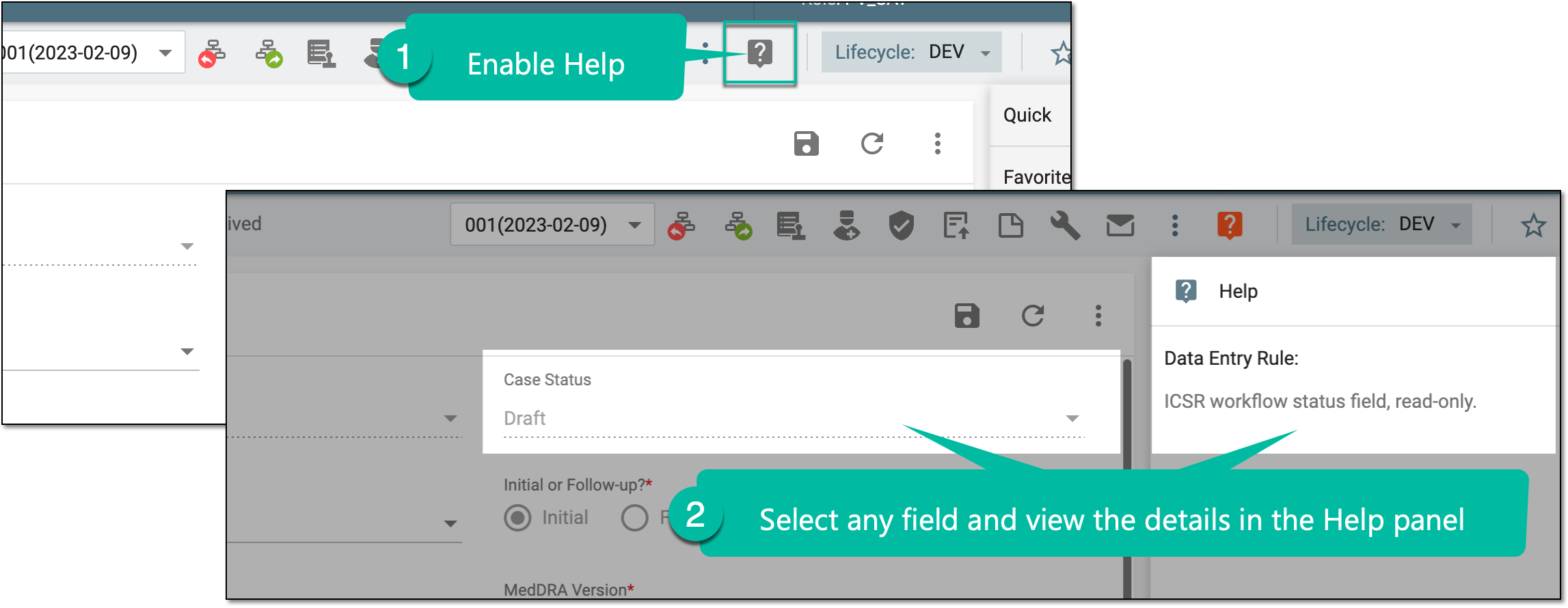 Figure 1. Enabling help on field completion
-
Breadcrumbs: use the breadcrumb trail to see the main details of your case, such as the study, country, MedDRA version, sponsor's study number, subject ID, and so on, regardless of the currently open form.
 Figure 2. Locating case details in breadcrumbs
-
Case version switch: switch to another version of the case from the current page without returning to the ICSR List page. For this, from the workspace toolbar, expand the respective dropdown menu and select the needed version. The data appears in the following format: Case Version (Latest Date Received: YYYY-MM-DD).
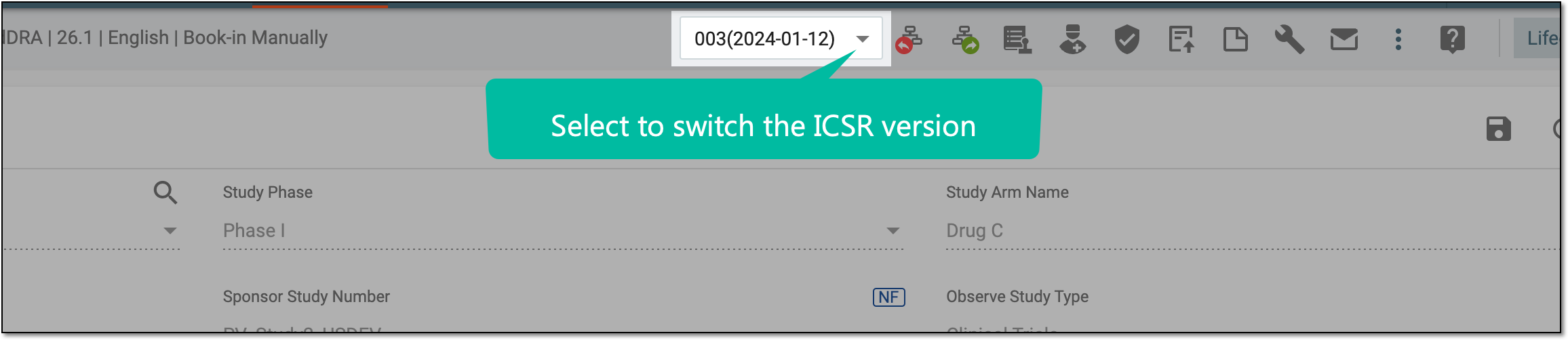 Figure 3. Switching case version
-
Translation: select
 next to the form field to translate its value into available languages.
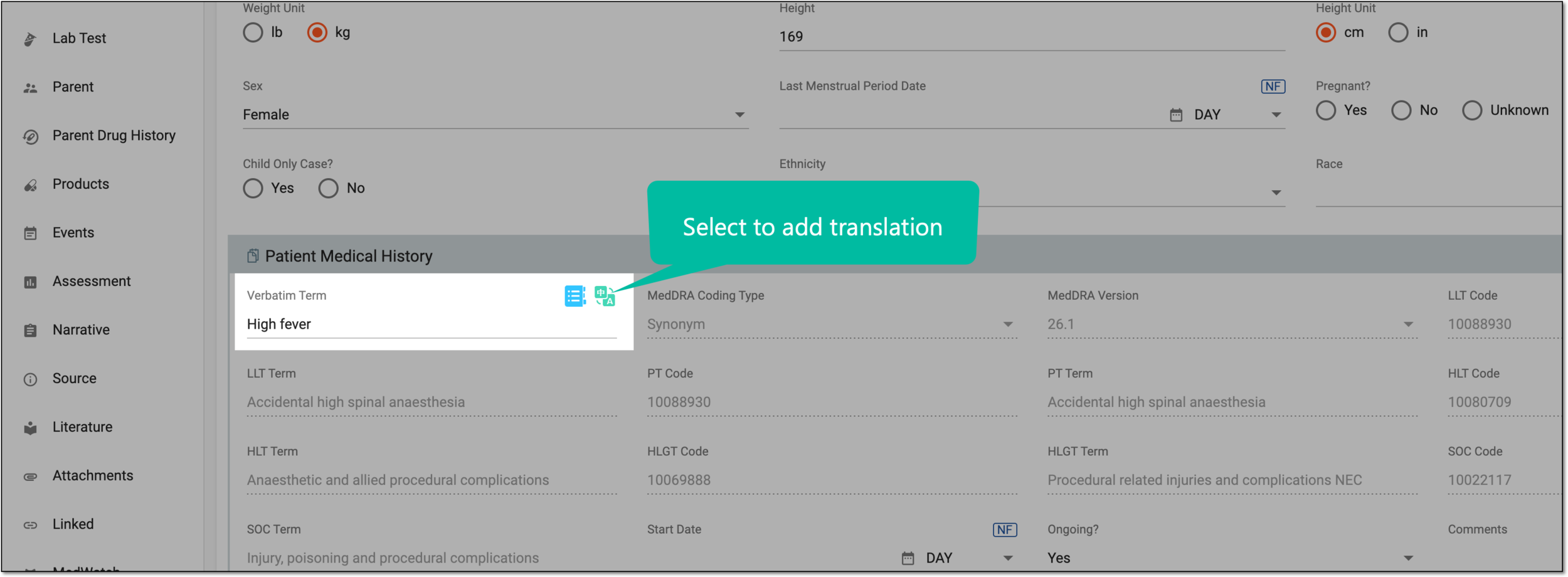 Figure 4. Selecting to add translation
The General form is the first and very important one to complete as it serves as a base for the further generation of the report.
For instance, if in the General form, you do not specify that the case comes from a study and select the unknown source of information, then the Study form is not generated for your ICSR.
-
In the PV application header, select the ICSR tab.
-
On the ICSR List page that opens, select the needed case.
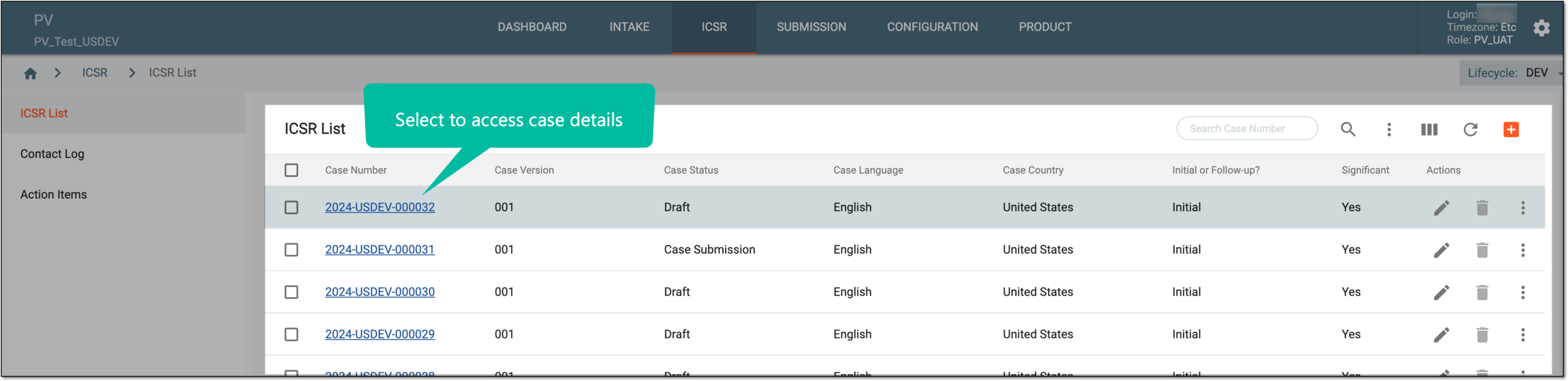 Figure 1. Accessing case details
-
On the page that opens in the new browser tab, in the General form selected by default, maintain general details of an ICSR as explained in the following table.
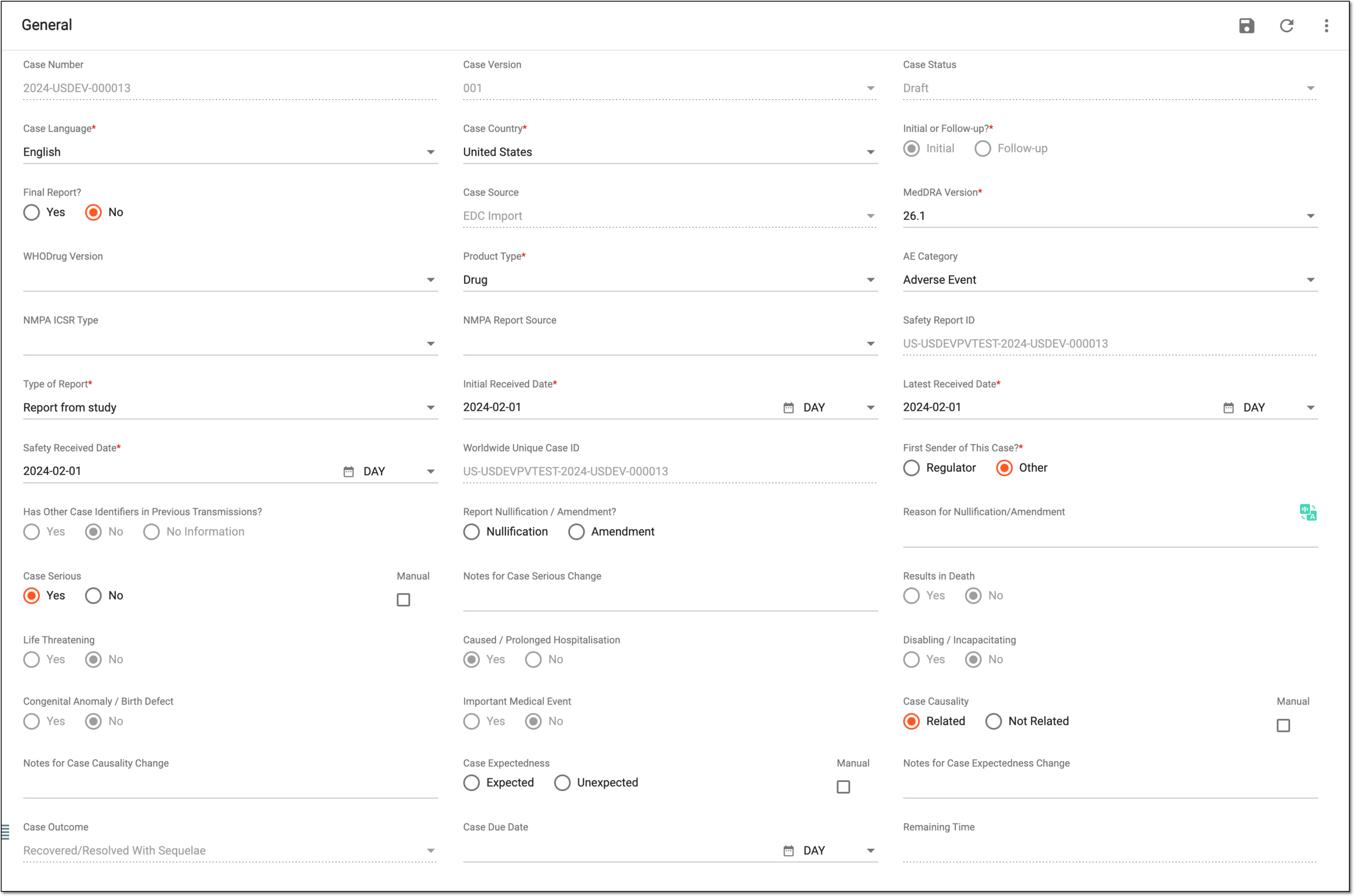 Figure 2. Maintaining general details of ICSR
Tip
In the following table, mandatory elements are marked with an asterisk (*).
Element
Details
Case Number
An autonumbering field that you cannot amend manually. By default, the case number is generated according to the formula: [Four-digit year]-[Case No.Abbreviation]-[Six-digit serial number].
The Case No.Abbreviation element of the preceding formula you can configure via System Parameters according to your business requirements.
Case Version
An autonumbering field that you cannot amend manually. Your initial case is assigned number 001, and the follow-up data will have version numbers 002, 003, and so on.
Case Status
An autofilled field that the system completes with the current workflow status of your case, for instance, Draft or Data Entry.
Case Language*
Select the language in which the AE/SAE case you are reporting is recorded.
Case Country*
Select the country in which the first AE occurred at the time of the initial report.
Initial or Follow-up?*
Represents if the report is initial (the case is reported for the first time) or follow-up (the data in the report is an additional/updated version of the previously reported case).
Significant
Select the respective option, as follows:
This field is only available for the reports of the Follow-up type. The field is missing in the forms of the Initial reports.Final Report
Select the respective option, as follows:
Case Source
The value is autopopulated by the system and represents the manner in which the case is created.
MedDRA Version*
Select the MedDRA version according to which the reported data is coded (standardized).
By default for new ICSRs created from scratch, the latest MedDRA version is autopopulated, however, it can be changed to meet your business needs.
For EMA and NMPA submission-oriented cases, due to regulatory requirements, you can only select the latest or the previous to the latest MedDRA version. Otherwise, the ICSR validation fails.WHODrug Version
Select the WHODrug version according to which the reported product data is coded (standardized).
By default for new ICSRs created from scratch, the latest WHODrug version is autopopulated, however, it can be changed to meet your business needs.
Product Type*
Select the type of product reported for the AE/SAE case.
Classification
Select one or more categories to which your case belongs to outline the nature of the report:
NMPA ICSR Type
Select the ICSR type according to the NMPA requirements.
NMPA Report Source
Select the source of your ICSR according to the NMPA requirements.
Safety Report ID
An automatically calculated identification number that comprises the following three elements according to the ICH E2B (R3) standard: [Reporter's Country]-[Company Name Abbreviation]-[Case No.].
The Company Name Abbreviation element of the preceding formula you can configure via System Parameters according to your business requirements.Type of Report*
Select the report types to which your ICSR relates.
Initial Received Date*
Select the date to specify when the initial AE/SAE case data has been first received.
Latest Received Date*
Select the date to specify when the latest version of the AE/SAE case data has been received.
Safety Received Date*
Select the dates to specify when the safety department first received the AE/SAE case.
Additional Documents Available?
Represents an autocalculated value of whether the documents are uploaded in the report via the Attachments form as follows:
This field is only available if Case Source is selected as E2B R3 Import Manually or
                                        E2B R3 Gateway Received.
Expedited Report Required?
Represents an autocalculated value of whether the report is to be considered expedited—such that requires immediate attention due to its seriousness, severity, or potential impact on public health.
This value is based on the Expedited Report value set upon submission destination configuration.Worldwide Unique Case ID
An automatically calculated identification number that is typically the same as the Safety Report ID value.
First Sender of This Case?*
Select the respective option to represent the person/institution that was the first reporter of the occurred AE/SAE case.
Has Other Case Identifiers in Previous Transmissions?
Select Yes if ICSR either has been exchanged by the two parties in the past using a different identifier or has been exchanged simultaneously with a different identifier. For the ICSR created from scratch or sent from EDC, the No Information option is preselected and cannot be manually changed.
Report Nullification / Amendment?
Select the respective option to indicate the following:
The date originally reported in Latest Received Date should not be changed in an amended or nullified report if no new
                                        information on the case has been received from a primary source.
Reason for Nullification / Amendment
Enter the reason why a previously transmitted ICSR is either considered completely nullified or has been amended, depending on the value selected for Report Nullification / Amendment.
Case Serious
The value in this field is set to Yes automatically if at least one event has been recorded as serious in the Events form. If none of the events have been recorded as serious, then the value in this field is set to No automatically.
Notes for Case Serious Change
Represents a free-text field to provide justification for changes in case seriousness.
Results in Death
Represents if the case resulted in the patient's death (Yes) or not (No).
The value is populated from the Results in Death field of the Events form.
Life Threatening
Represents if the case occurrence threatens the patient's life (Yes) or not (No).
The value is populated from the Life Threatening field of the Events form.
Caused / Prolonged Hospitalisation
Represents if the case occurrence led to/prolonged the patient's hospitalization (Yes) or not (No).
The value is populated from the Caused / Prolonged Hospitalisation field of the Events form.
Disabling / Incapacitating
Represents if the case occurrence led to the patient's disability or incapacity (Yes) or not (No).
The value is populated from the Disabling / Incapacitating field of the Events form.
Congenital Anomaly / Birth Defect
Represents if the case occurrence led to the patient's congenital anomaly or birth defect (Yes) or not (No).
The value is populated from the Congenital Anomaly / Birth Defect field of the Events form.
Important Medical Event
Represents if the case occurrence is an important (significant) medical event (Yes) or not (No).
The value is populated from the Important Medical Event field of the Events form.
Case Causality
Select either Related or Not Related causality for the manually created ICSR.
Notes for Case Causality Change
Represents a free-text field to provide justification for changes in case causality.
Case Expectedness
The value in this field is set to Unexpected automatically if at least one recorded event has been assessed as unexpected in the Assessment form.
Notes for Case Expectedness Change
Represents a free-text field to provide justification for changes in case expectedness.
Case Outcome
A read-only field that represents the most current state of the case.
Case Due Date
Enter the report processing deadline according to your business process specification. Only manual input is supported for the time being, and automatic calculation will be available in the future.
Remaining Time
An auto-calculated value that represents the number of days remaining from the current date (when you are completing the form) to the deadline set via the Case Due Date field.
Translation
Select
next to the form field to translate its value into available languages.SAVE
Select
 to implement the changes of the General form.
Tip
If you attempt to leave the form without saving it, the confirmation dialog appears. Select
 to leave the form
and discard the changes.
to leave the form
and discard the changes. Figure 3. Confirming to leave form without saving
Upon saving, the General form of your ICSR is completed, and you can proceed to the following forms, such as Complete reporter form, Complete patient form, and so on.
In any ICSR, the Study form is intended for general information about the study, such as the name, type, registration data, and so on. When creating an ICSR from scratch, the Study form should be completed manually. This form is only available when the type of report is entered as Report from study in the General form and is not available for spontaneous or other reports.
-
In the PV application header, select the ICSR tab.
-
On the ICSR List page that opens, select the needed case.
Figure 1. Accessing case details
-
On the page that opens in the new browser tab, from the left pane, select Study.
-
In the Study form that appears, complete the study details as explained in the following table.
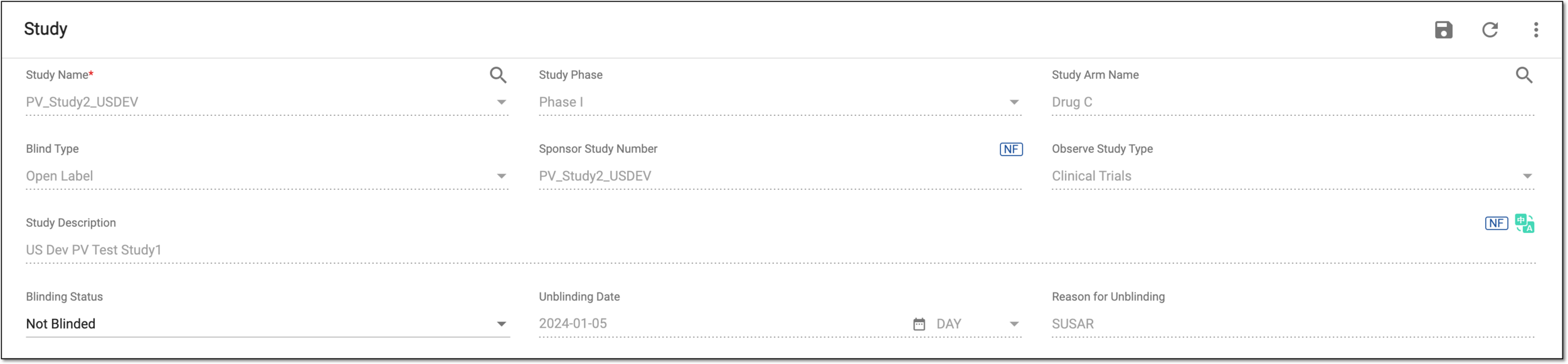 Figure 2. Completing study details
Tip
In the following table, mandatory elements are marked with an asterisk (*).
Element
Details
Study Name*
Represents the study for which the case is reported.
To populate the value to this field, select the study using the Select Study
 option.
Select Study
Click Select Study
to open the Select Study and Arm dialog and select
the study and arm for which the case is reported.The search results are based on the study access permission granted via ADMIN.Once the selection is made, click
 .
.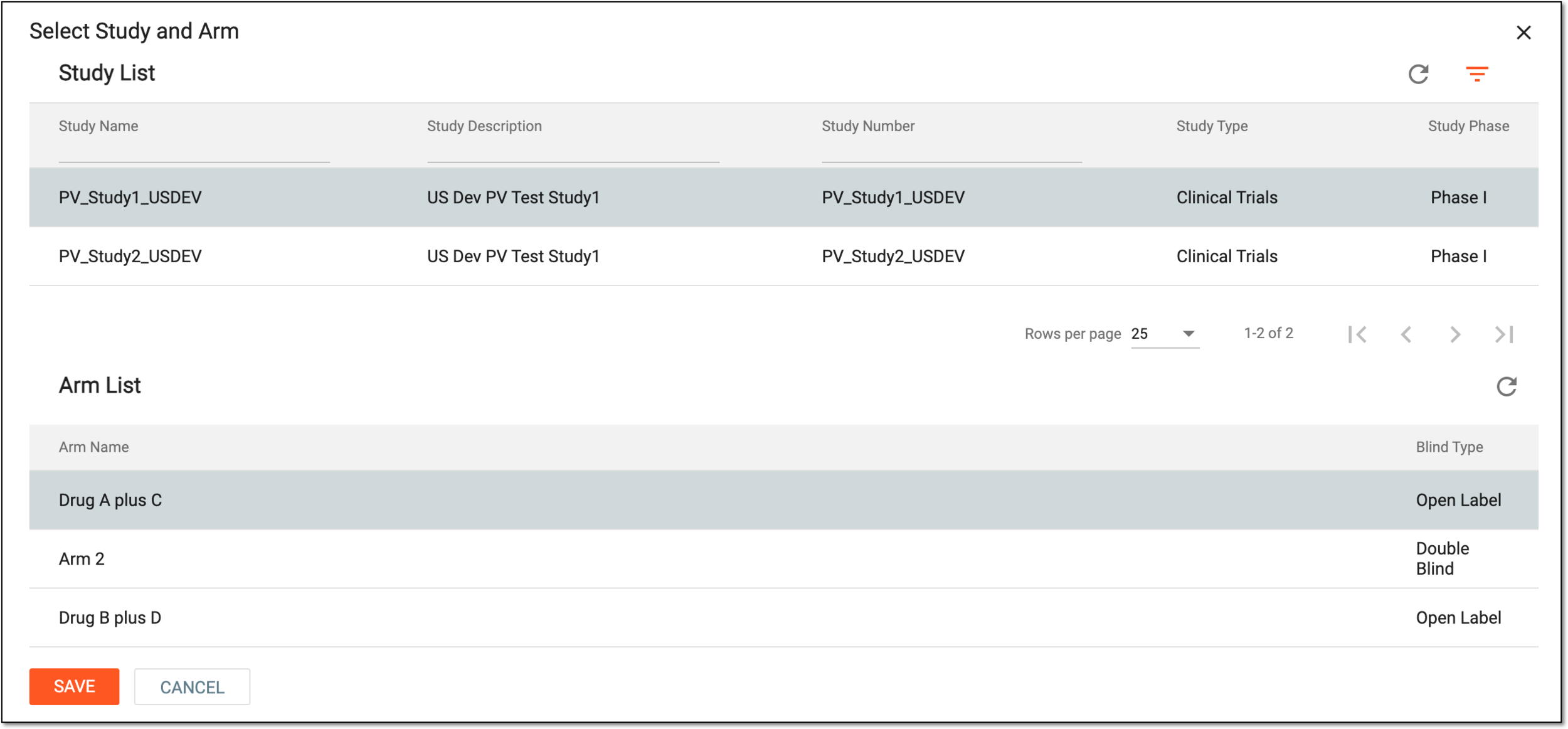 Figure 3. Selecting study and arm
Select Filter
 to apply filtering and search for a study by its name, description, or number.
Note that based on the selected study and arm the system automatically creates product records for your ICSR. If а blind arm іс selected, only one product record with this arm name is created even if there are more blind study products in the arm.Study Phase
Represents the study phase during which the reported case has occurred. An automatically filled value that depends on the selection you have made with the Select Study option.
Study Arm Name
Represents the name of the study arm for which the reported case has occurred. An automatically filled value that depends on the selection you have made with the Select Study option.
However, for data migration, if the field is not autopopulated, select the arm manually by clicking Select Study Arm (Migration Only)
and selecting the study and arm.The search results are based on the study access permission granted via ADMIN.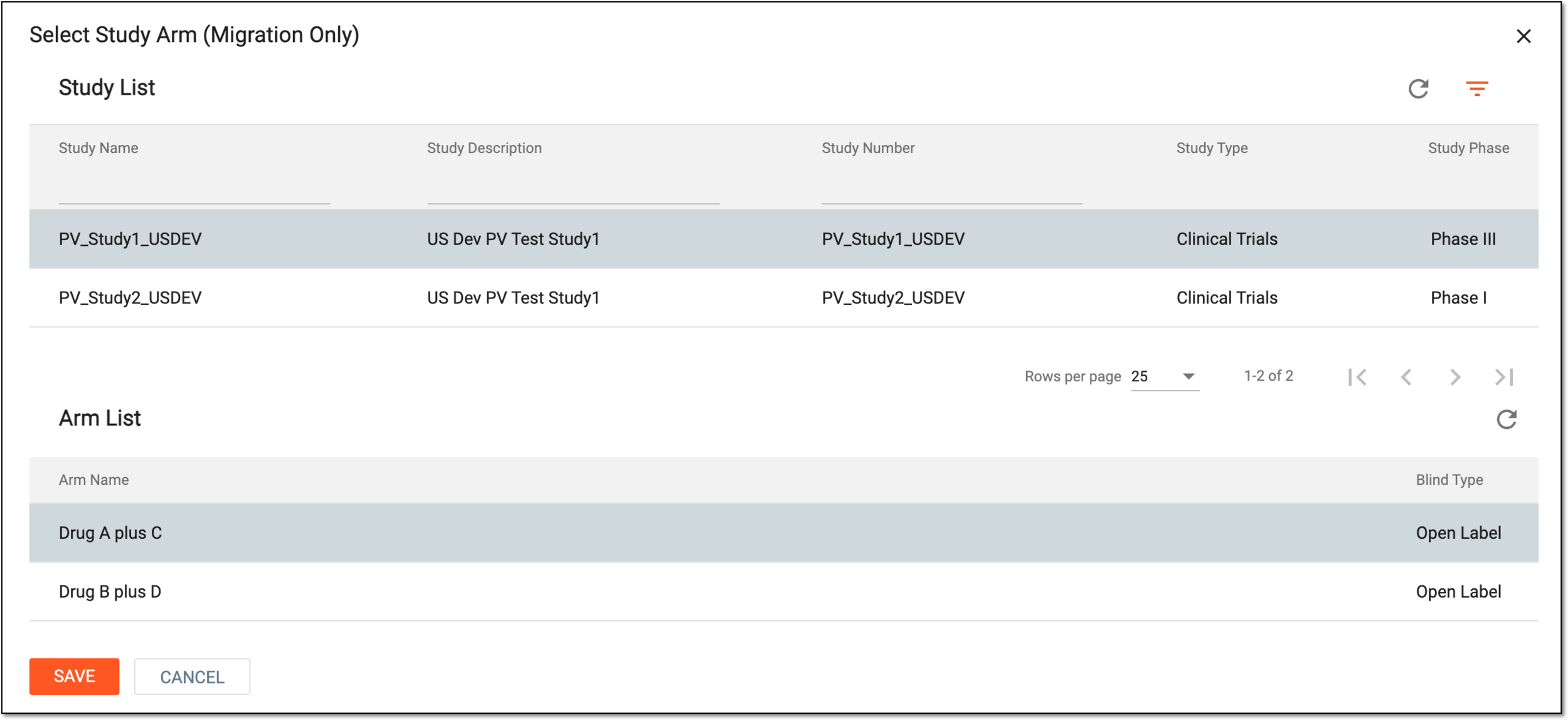 Figure 4. Selecting study arm
Blind Type
Represents the blinding type of the selected study—Open Label, Blinded, and so on.
Sponsor Study Number
Represents the study identification number assigned by the sponsor. An automatically filled value that depends on the selection you have made with the Select Study option.
Observe Study Type
Represents the type of the study according to the E2B R3 standard, such as clinical trials, individual patient use, or other studies (for instance, pharmacoepidemiology or intensive monitoring).
IND Number where AE Occurred
Enter the Investigational New Drug (IND) number for which the case is reported.
Study Description
Represents the description of the study. The value is automatically pulled from the study description provided upon configuration and depends on the selected study.
Translation
Select
next to the form field and in the dialog that opens, review the translation text pulled from the study description translation provided upon configuration. You can also manually enter or amend the existing translation text. Once ready, save the changes.You can learn more about the translation capabilities in the Translate ICSR form field section.Blinding Status
Select the blinding status of your study. This field is populated upon the study selection, although it can be changed manually if your user has the respective system permission.
Note that when the blinding status is changed to Broken After Study or Broken by Investigator, it cannot be changed back to Blinded.Unblinding Date
Select the date when the study was unblinded.
This field is only enabled if the case is in one of the unblinding statuses—Broken After Study or Broken by Investigator—and if your user has the system permission to
                                        unblind.
Reason for Unblinding
Enter the reason for unblinding the study.
This field is only enabled if the case is in one of the unblinding statuses—Broken After Study or Broken by Investigator—and if your user has the system permission to
                                        unblind.
SAVE
Select
to save the implemented changes of the Study form.Tip
For some of the fields, Null flavor
 is available. This option is used to describe
the reason for missing data. By selecting it, you activate the options No Information, Masked, Unknown, and so on. You can find the details for the available null flavor options and their
codes in Appendix A. Null flavor specification.
is available. This option is used to describe
the reason for missing data. By selecting it, you activate the options No Information, Masked, Unknown, and so on. You can find the details for the available null flavor options and their
codes in Appendix A. Null flavor specification.
Upon saving, the Study form of your ICSR is completed, and you can proceed to the following forms, such as Complete reporter form, Complete patient form, and so on.
The Reporter form is intended for information and contact details of the person reporting the case for which the ICSR is being created. When creating an ICSR from scratch, the Reporter form should be completed manually. For intake of EDC data to PV, some fields are auto-populated but may still need to be completed manually to add missing information like the reporter's title, reporter's middle name, and so on.
Each ICSR shall have one primary reporter (primary source) identified in conformance with regional confidentiality requirements. Depending on the local legal requirements regarding confidentiality, it might be necessary to mask some elements used to identify the reporter in the transmitted message (for instance, their full name). For such data elements in the form, you can use the Null Flavour option.
-
In the PV application header, select the ICSR tab.
-
On the ICSR List page that opens, select the needed case.
Figure 1. Accessing case details
-
On the page that opens in the new browser tab, from the left pane, select Reporter.
-
In the Reporter form that appears, complete the reporter details as explained in the following table.
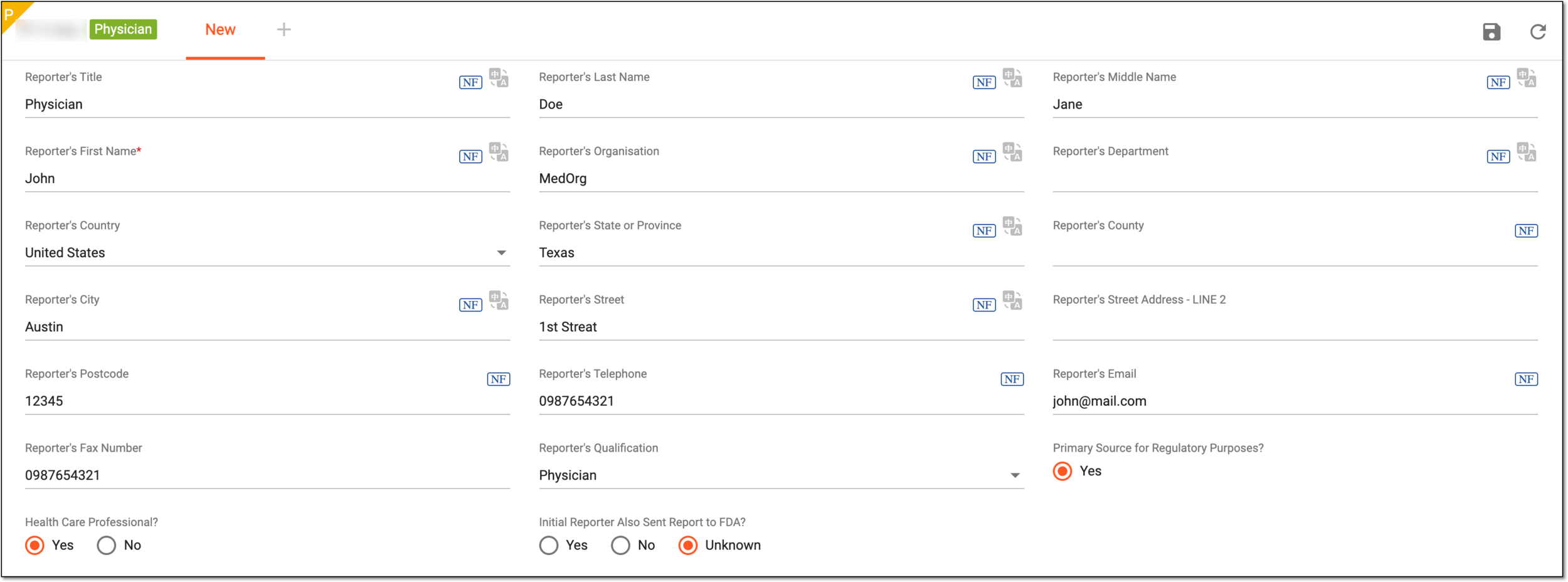 Figure 2. Completing reporter information
Tip
In the following table, mandatory elements are marked with an asterisk (*).
Element
Details
Reporter's Title
Represents the reporter's official title.
Reporter's Last Name
Represents the reporter's last name.
Reporter's Middle Name
Represents the reporter's middle name.
Reporter's First Name*
Represents the reporter's first name
Reporter's Organisation
Represents the name of the organization to which the reporter belongs.
Reporter's Department
Represents the department name within the reporter's organization to which they belong.
Reporter's Country
Represents the country of the reporter's residence.
Reporter's State or Province
Represents the state or province of the reporter's residence.
Reporter's County
Represents the county of the reporter's residence.
Reporter's City
Represents the city of the reporter's residence.
Reporter's Street
Represents the street of the reporter's residence.
Reporter's Street Address - LINE 2
Represents the alternate street of the reporter's residence.
Reporter's Postcode
Represents the reporter's postcode.
Reporter's Telephone
Represents the reporter's contact telephone number.
Reporter's Email
Represents the reporter's contact email address.
Reporter's Fax Number
Represents the reporter's contact fax number.
Reporter's Qualification
Represents the reporter's qualification such as a Lawyer, Physician, or else.
Primary Source for Regulatory Purposes?
The Yes option is selected if the reporter is the primary source of information underlying the ICSR.
Health Care Professional?
Represents the autoselected option that depends on the value of the Reporter's Qualification field. The system logic is as follows:
-
Neither option is selected if the Reporter's Qualification field remains empty.
-
Yes is selected if the reporter's qualification is one of the following: Physician, Pharmacist, Other Healthcare Professional, Nurse Practitioner, Nurse, Dentist, or Physician Assistant.
-
No is selected if the reporter's qualification is not empty and not one of the stated previously (for instance, Lawyer).
You can change the selection manually if you want to state whether the reporter is a specialist in the healthcare industry.
Initial Reporter Also Sent Report to FDA?
The selected option represents if the reporter has also submitted the case occurrence to the FDA along with the ICSR creation.
Translation
Select
next to the form field to translate its value into available languages.SAVE
Select
to save the implemented changes of the Reporter form.
Select this icon to add a new reporter to the ICSR. Bear in mind, that you can add new reporters only after saving the previous one.
Tip
For some of the fields, Null flavor
is available. This option is used to describe
the reason for missing data. By selecting it, you activate the options No Information, Masked, Unknown, and so on. You can find the details for the available null flavor options and their
codes in Appendix A. Null flavor specification. -
Upon saving, the Reporter form of your ICSR is completed, and you can proceed to the following forms, such as Complete patient form, Complete patient drug history form, and so on.
The Patient form represents information on the patient for whom the case has occurred, and the ICSR is being created. When creating an ICSR from scratch, the Patient form should be completed manually.
National confidentiality laws or directives might prohibit patient identification. The information should be provided when it is in conformance with the confidentiality requirements. If the patient's personal information is known to the sender of the report but cannot be transmitted due to data privacy requirements, respective data elements should be masked using the Null Flavor options.
-
In the PV application header, select the ICSR tab.
-
On the ICSR List page that opens, select the needed case.
Figure 1. Accessing case details
-
On the page that opens in the new browser tab, from the left pane, select Patient.
-
In the Patient form that appears, complete the patient details as explained in the following table.
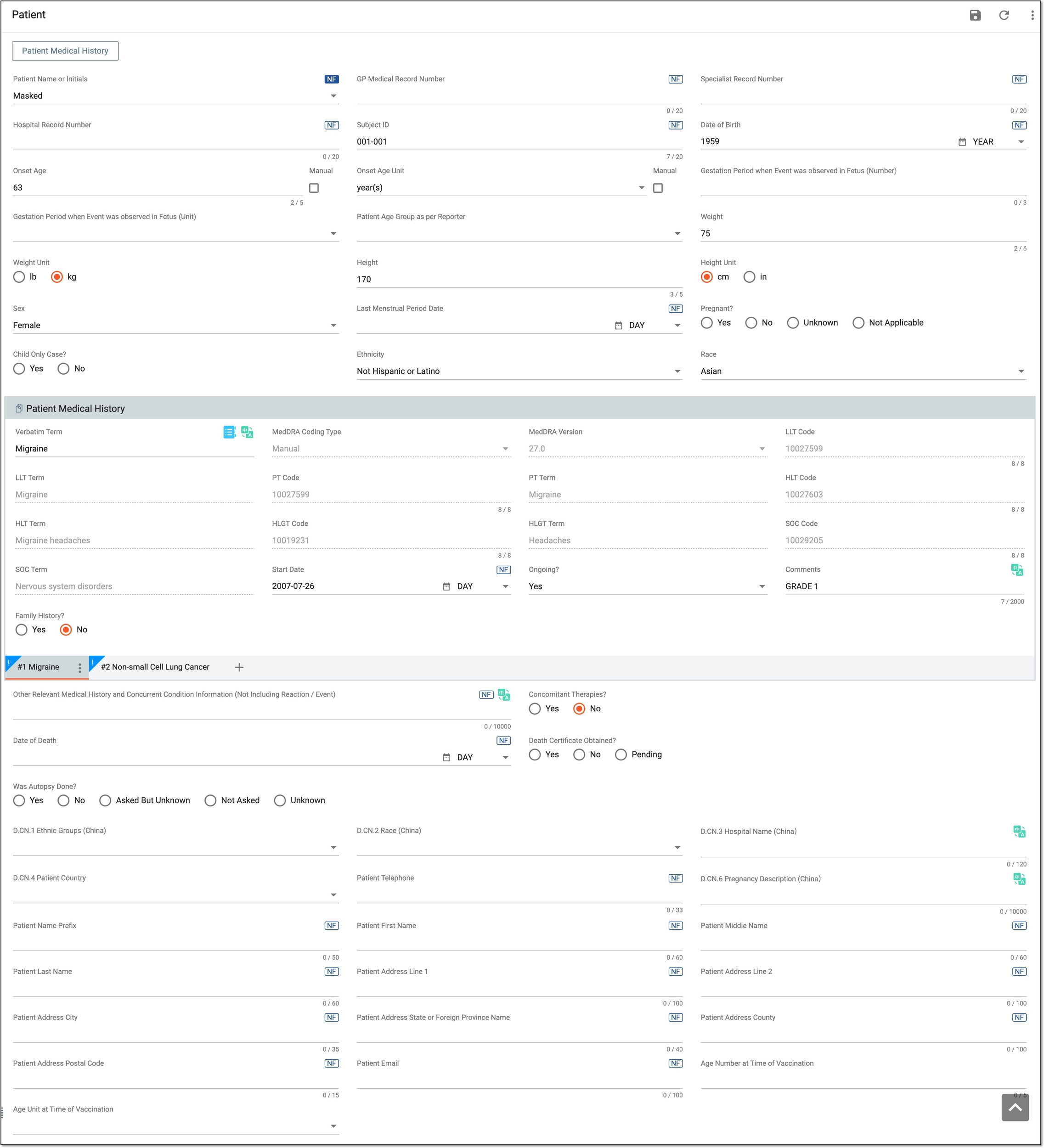 Figure 2. Completing patient information
Tip
In the following table, mandatory elements are marked with an asterisk (*).
Element
Details
Patient Name or Initials
Represents the patient's name or initials.
GP Medical Record Number
Enter the health record ID of the patient (subject), which, depending on the business scenario, can be the health professional record number, hospital record number, or subject identification number in a study.
Specialist Record Number
Enter the record number of the healthcare professional caring for the patient.
Hospital Record Number
Enter the record number of the facility where the patient is located.
Subject ID
Enter the ID number assigned to a subject during the course of the study.
Date of Birth
Select the date of birth of the patient.
Onset Age
Represents the age of the patient at the time of event onset. This value is autocalculated by the system based on the specified date of the patient's birth and considering the Onset Date/Time value set in the Events form.
To amend the value, select the Manual checkbox.
Onset Age Unit
Represents the unit to measure the age of the patient. For the autocalculated Onset Age value, the unit is also autopopulated by the system.
To amend the value, select the Manual checkbox.
Manual
Select this checkbox next to both the Onset Age or Onset Age Unit field to change their value manually disabling the autocalculation functionality.
-
If selected, you can manually enter the field value and save the form as is.
-
If cleared and you enter a custom value manually, the system overrides your manual entry according to the autocalculation rule upon saving the form.
 Figure 3. Manually updating onset age details
Gestation Period when Event was observed in Fetus (Number)
Represents the gestation period when an adverse reaction or event has been observed in the fetus. The focus here is not on the fetus but on the pregnant patient who carries this fetus and experienced an adverse event or reaction.
Gestation Period when Event was observed in Fetus (Unit)
Represents the unit to measure the value of the gestation period when the adverse reaction or event has been observed in the fetus.
Patient Age Group as per Reporter
Represents the age group to which the patient belongs.
Weight
Represents the weight of the patient.
Weight Unit
Represents the unit to measure the weight of the patient.
Height
Represents the height of the patient.
Height Unit
Represents the unit to measure the height of the patient.
Sex
Represents the sex of the patient.
Last Menstrual Period Date
Represents the date when the last menstrual cycle has ended. This field is enabled only if the sex of the patient is female.
Pregnant?
Represents the pregnancy status of the patient. This field is enabled only if the sex of the patient is female.
Child Only Case?
Select Yes if the case is related to the child only.
Ethnicity
Represents the ethnicity of the patient.
Race
Represents the race of the patient. You can select multiple values in this field.
Other Race
If the patient's race code is Other, enter the race of the patient manually in this field.
Text for Relevant Medical History and Concurrent Conditions Not Including Reaction / Event
Represents information about medical history records that could not be coded in the Patient Medical History form. The None value should be used here when there is no relevant medical history and no concurrent conditions reported. If relevant patient medical history is not documented at the time of the report, this field is set to UNK.
Concomitant Therapies?
Select Yes if at the time of the reaction, there have been concomitant therapies such as radiotherapy, drug class, dietary supplements, or other products described in the Product form. If no products have been added, relevant information needs to be entered in the Narrative form.
Date of Death
Represents the date of the patient's death. You need to fill in the Cause of Death form afterward.
Death Certificate Obtained?
Select Yes, No, or Pending depending on whether the death certificate has been received or is pending obtainment.
Was Autopsy Done?
Represents the status of the autopsy for the deceased patient. This field becomes required if the date of death is mentioned. If Yes is selected, the Autopsy Results form becomes available.
D.CN.1 Ethnic Groups (China)
Represents the ethnic group to which the patient belongs under the condition that this patient is from China.
D.CN.2 Patient Race Code (China)
Represents the race to which the patient belongs under the condition that this patient is from China.
D.CN.3 Hospital Name (China)
Represents the name of the medical facility where the patient is registered under the condition that this patient is from China.
D.CN.4 Patient Country
Represents the country of the patient.
Patient Telephone
Represents the phone number of the patient.
D.CN.6 Pregnancy Description (China)
Represents the description of the patient's pregnancy under the condition that this patient is from China.
Patient Name Prefix
Represents the abbreviation of the patient's name.
Patient First Name
Represents the first name of the patient.
Patient Middle Name
Represents the middle name of the patient.
Patient Last Name
Represents the last name of the patient.
Patient Address Line 1
Represents the address of the patient.
Patient Address Line 2
Represents the address of the patient in case it does not fit in the first line.
Patient Address City
Represents the city where the patient currently lives.
Patient Address State or Foreign Province Name
Represents the state or province where the patient currently lives.
Patient Address Country
Represents the country where the patient currently lives.
Patient Address Postal Code
Represents the postal code of the patient's current living location.
Patient Email
Represents the email address of the patient.
Age Number at Time of Vaccination
Represents the age of the patient when they have been vaccinated.
Age Unit at Time of Vaccination
Represents the unit to measure the age of the patient when they have been vaccinated.
SAVE
Select
to save the implemented changes of the Patient form.Patient Medical History
Verbatim Term*
Select
 to choose the MedDRA LLT term for the medical history record of the patient. All the details pertaining to the selected term are populated in
the corresponding fields of the form and they are disabled by default.
to choose the MedDRA LLT term for the medical history record of the patient. All the details pertaining to the selected term are populated in
the corresponding fields of the form and they are disabled by default.Start Date
Represents the date when the disease has started.
The date can be specified fully or partially, for instance, "01.05.2024" or "01.2024." However, the system validates the start date not to be later than the end date.Ongoing?
Represents the current status of the disease.
End Date
Represents the date when the disease has ended.
This field becomes available if the disease is not ongoing anymore (the Ongoing field value is set to No).The date can be specified fully or partially, for instance, "01.05.2024" or "01.2024." However, the system validates the end date not to be earlier than the start date.Comments
Represents additional comments that may help to give further details to the medical history that cannot be captured with just the term, code, start, and end dates.
Family History
Select Yes if the reported disease has occurred in family members of the patient.

Select this icon to add a new medical record related to the patient. Bear in mind, you can add new records only after saving the form with the previously added medical record.
Translation
Select
next to the form field to translate its value into available languages.Cause of Death
Reported Cause(s) of Death
Select
to choose the MedDRA LLT term for the reported cause of death of the patient. All the details pertaining to the selected LLT term are populated
in the corresponding fields of the form and they are disabled by default. The reported cause of death needs to be entered manually.Select this icon to add a new reported cause of the patient's death. Bear in mind, you can add new causes only after saving the form with the previously added cause of death.
Autopsy Results
Autopsy-determined Cause(s) of Death
Select
to choose the MedDRA LLT term for the autopsy-determined cause of death of the patient after it has been mentioned that the autopsy has been done. All the details pertaining to the selected LLT term are populated in the corresponding fields of the form and they are disabled by default. The autopsy-determined cause needs to
be entered manually.Select this icon to add a new autopsy-determined cause of the patient's death. Bear in mind, you can add new causes only after saving the form with the previously added autopsy-determined cause of death.
Tip
For some of the fields, Null flavor
is available. This option is used to describe
the reason for missing data. By selecting it, you activate the options No Information, Masked, Unknown, and so on. You can find the details for the available null flavor options and their
codes in Appendix A. Null flavor specification. -
Upon saving, the Patient form of your ICSR is completed, and you can proceed to the following forms, such as Complete patient drug history form, Complete lab test form, and so on.
The Patient Dug History form represents information on the drug that the patient has been taking before the AE occurrence for which the ICSR is being created. When creating an ICSR from scratch, the Patient Dug History form needs to be completed manually.
This form concerns exclusively the drugs previously administered for the patient, that have been stopped before the AE onset. It does not concern any drugs taken concomitantly or that have potentially been involved in the current adverse reaction(s)/event(s). If the patient's drug history contains multiple drug data, you can add unlimited forms to have an individual one for each drug.
-
In the PV application header, select the ICSR tab.
-
On the ICSR List page that opens, select the needed case.
Figure 1. Accessing case details
-
On the page that opens in the new browser tab, from the left pane, select Patient Drug History.
-
In the form that appears, complete the details as explained in the following table.
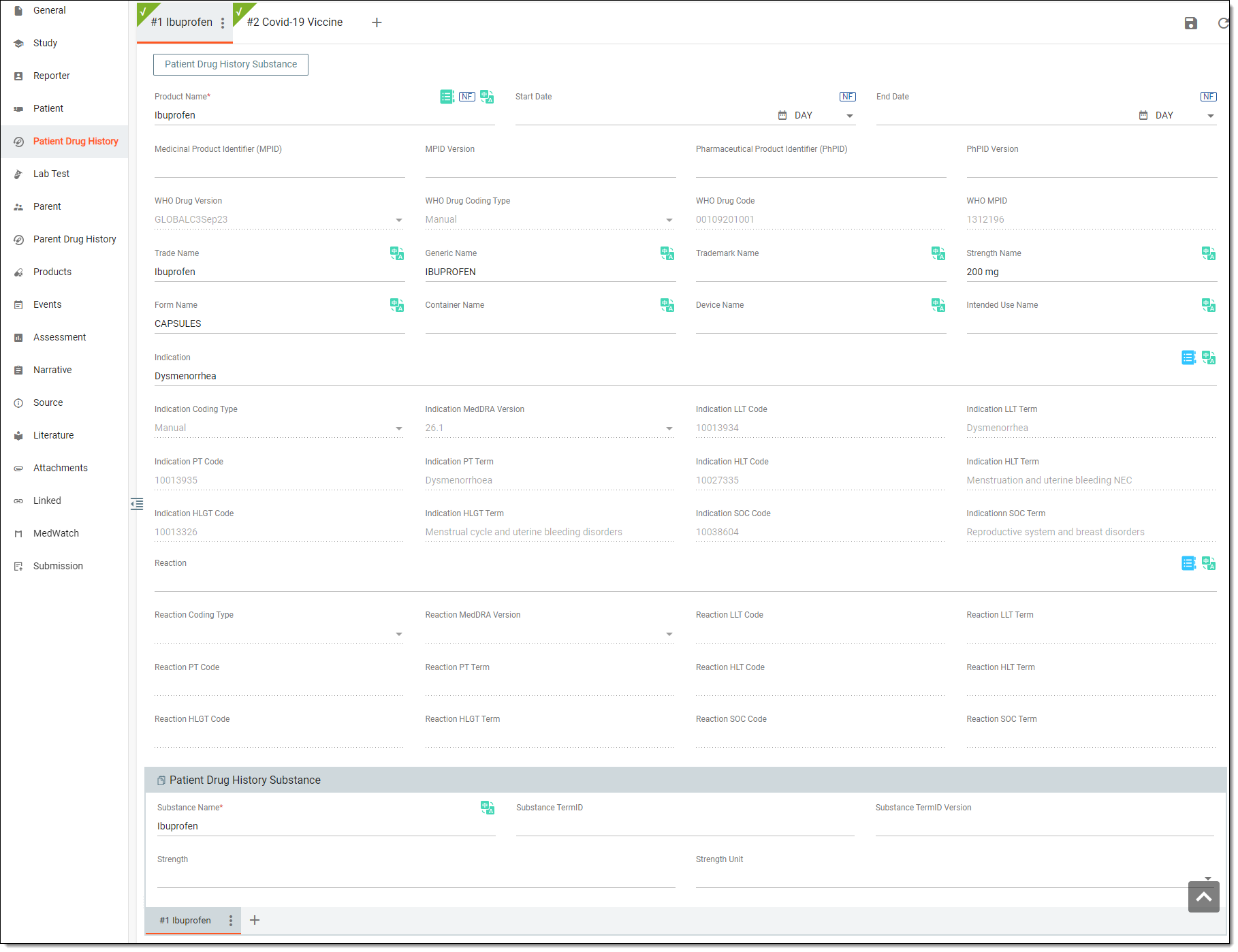 Figure 2. Adding record to patient's drug history
Tip
In the following table, mandatory elements are marked with an asterisk (*).
Element
Details
Product Name*
Enter the product name previously given to the patient. Or select WHODrug
 to apply WHODrug coding to the existing product.
Start Date
Specify the date when the patient has started taking the indicated drug.
The date can be specified fully or partially, for instance, "01.05.2024" or "01.2024". However, the system validates the start date not to be later than the end date.End Date
Specify the date when the patient has finished taking the indicated drug.
The date can be specified fully or partially, for instance, "01.05.2024" or "01.2024". However, the system validates the end date not to be earlier than the start date.Medicinal Product Identifier (MPID)
Enter the definition of the drug as per ISO 11615 Medicinal Product Identification (MPID). This field is inactive if you enter any value in the Pharmaceutical Product Identifier (PhPID) or PhPID Version Date / Number field.
MPID Version
Enter the version of the drug as per ISO 11615 Medicinal Product Identification (MPID). This field is inactive if you enter any value in the Pharmaceutical Product Identifier (PhPID) or PhPID Version Date / Number field.
Pharmaceutical Product Identifier (PhPID)
Enter a unique identifier calculated by an algorithm based on substance identification (ISO 11238), dosage form (ISO 11239), and strengths with units of measurement (ISO 11240). This field is inactive if you enter any value in the Medicinal Product Identifier (MPID) or MPID Version Date / Number field.
PhPID Version
Enter the version of the pharmaceutical product identifier. This field is inactive if you enter any value in the Medicinal Product Identifier (MPID) or MPID Version Date / Number field.
WHO Drug Version
Represents the version of the World Health Organization (WHO) Drug Dictionary used for coding drug information. The field is read-only and populated via product coding.
WHO Drug Coding Type
Represents the type of coding used for adding the product. The field is read-only and populated via product coding.
WHO Drug Code
Represents a unique identifier for a drug within the WHO Drug Dictionary. The field is read-only and populated via product coding.
WHO MPID
Represents the WHO medical product identifier, which is a unique number assigned to a drug for identification purposes. The field is read-only and populated via product coding.
Trade Name
Enter the trade or brand name of the medicine.
Generic Name
Enter the chemical name of the drug based on the compound's chemical structure.
Trademark Name
Enter the company name that owns the product.
Strength Name
Enter the name of the active ingredient in the drug.
Form Name
Enter one of the common drug dosages, for example, capsules, pills, and so on.
Container Name
Enter the name of the packaging used to store the drug, for example, the bottle.
Device Name
Enter the name of the medical device.
Intended Use Name
Enter the population or condition for which the product is intended to be used, for example, intended for children aged 0-12 months, intended use for heartburn relief, and so on.
Indication
Select MedDRA Search
to apply MedDRA term coding for the state of the patient when the drug has been given to them. The details about the selected term are populated in corresponding fields of the form and they are inactive by default.Reaction
Select MedDRA Search
to apply MedDRA term coding for the patient's reaction to the given drug if any. The details about the selected term are populated in corresponding fields of the form and they are inactive by default.Translation
Select
next to the form field to translate its value into available languages.SAVE
Select
to save and add the drug to the patient's drug history.Select this icon to add another drug to the patient's drug history.
Note that you can add new drugs only after saving the previously added drug record.Patient Drug History Substance
Substance Name*
Enter the name of the substance or ingredient in the given drug.
Substance TermID
Enter the ID of the substance in the given drug as per ISO IDMP standards.
Substance TermID Version
Enter the version of the substance in the given drug as per ISO IDMP standards.
Strength
Enter the amount of drug in the given dosage form, for example, 200 mg/tablet.
Strength Unit
Select the unit to measure the strength of the given drug, for example, mg.
Select this icon to add another drug substance to the patient's drug history.
Note that you can add new drug substances only after saving the previously added one.Tip
For some of the fields, Null flavor
is available. This option is used to describe
the reason for missing data. By selecting it, you activate the options No Information, Masked, Unknown, and so on. You can find the details for the available null flavor options and their
codes in Appendix A. Null flavor specification.
Upon saving, the Patient Drug History form of your ICSR is completed, and you can proceed to the following forms, such as Complete lab test form, Complete parent form, and so on.
The Lab Test form represents the data and results of laboratory test(s) held to assess the condition of a patient for whom the AE case is reported in the ICSR. When creating an ICSR from scratch, the Lab Test form should be completed manually. If multiple tests have been held for a patient, you can add unlimited forms to have an individual one for each lab test data and result.
-
In the PV application header, select the ICSR tab.
-
On the ICSR List page that opens, select the needed case.
Figure 1. Accessing case details
-
On the page that opens in the new browser tab, from the left pane, select Lab Test.
-
In the form that appears, complete the lab data as explained in the following table.
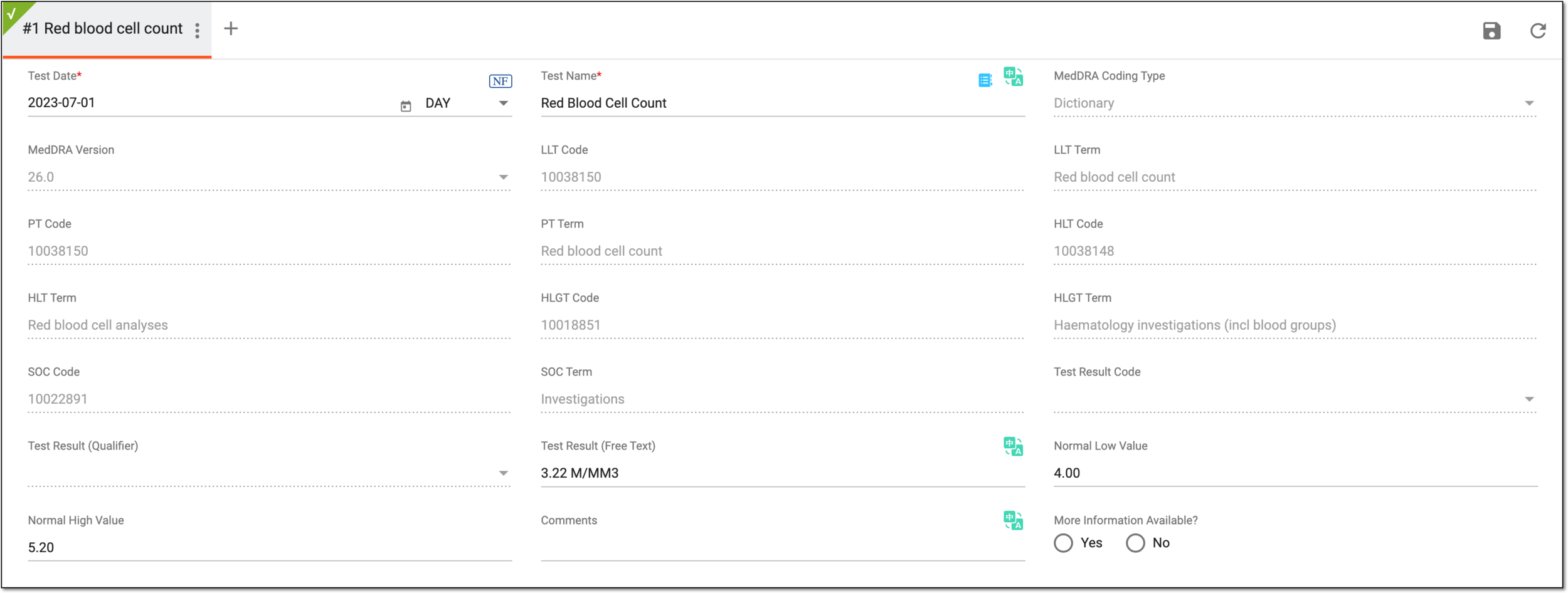 Figure 2. Adding lab test data
Tip
In the following table, mandatory elements are marked with an asterisk (*).
Element
Details
Test Date*
Represents the date when the lab test has occurred.
Test Name*
Select
to choose the MedDRA LLT term for the lab test that has been done. All the details pertaining to the selected term are populated in the
corresponding fields of the form and they are disabled by default.Test Result Code
Represents the outcome of the lab test. If the test result code is selected, the Test Result (Qualifier) and Test Result (Free Text) fields become disabled.
Test Result (Qualifier)
Represents the indicators for test results that qualify for a set of reference ranges, for example, equal to, equal to or greater than, and so on. If the test result qualifier is specified, the Test Result Code and Test Result (Free Text) fields become disabled.
Test Result (Value)
Represents the test result value. This field is available only if the test result qualifier has been specified.
Test Result (Unit)
Represents the unit to measure the test result value. This field is available only if the test result qualifier has been specified.
Test Result (Free Text)
Represents the test result value described in a free text. If the test result is entered manually, the Test Result (Code) and Test Result (Qualifier) fields become disabled.
Normal Low Value
Represents the lowest normal value in the performed lab test.
Normal High Value
Represents the highest normal value in the performed lab test.
Comments
Represents any comment related to the performed lab test.
More Information Available?
Select Yes if there is more information held by the company about the test and test results. If Yes is selected, relevant lab documents must be uploaded and described in the Attachments form.
Translation
Select
next to the form field to translate its value into available languages.SAVE
Select
to save and add the lab test to the ICSR.Select this icon to add another lab test to the ICSR. Note that you can add new lab tests only after saving the previously added one.
Tip
For some of the fields, Null flavor
is available. This option is used to describe
the reason for missing data. By selecting it, you activate the options No Information, Masked, Unknown, and so on. You can find the details for the available null flavor options and their
codes in Appendix A. Null flavor specification.
Upon saving, the Lab Test form of your ICSR is completed, and you can proceed to the following forms, such as Complete parent form, Complete parent drug history form, and so on.
The Parent form can be filled in when the patient who had a reported adverse event is a child or foetus, otherwise, this section is not used.
Important
The Parent form becomes available if in the General form, the Parent-Child/Foetus Report classification is selected.
When creating an ICSR from scratch, the Parent form should be completed manually and only if the case satisfies the prior indicated conditions.
-
In the PV application header, select the ICSR tab.
-
On the ICSR List page that opens, select the needed case.
Figure 1. Accessing case details
-
On the page that opens in the new browser tab, from the left pane, select Parent.
-
In the Parent form that appears, complete the parent details as explained in the following table.
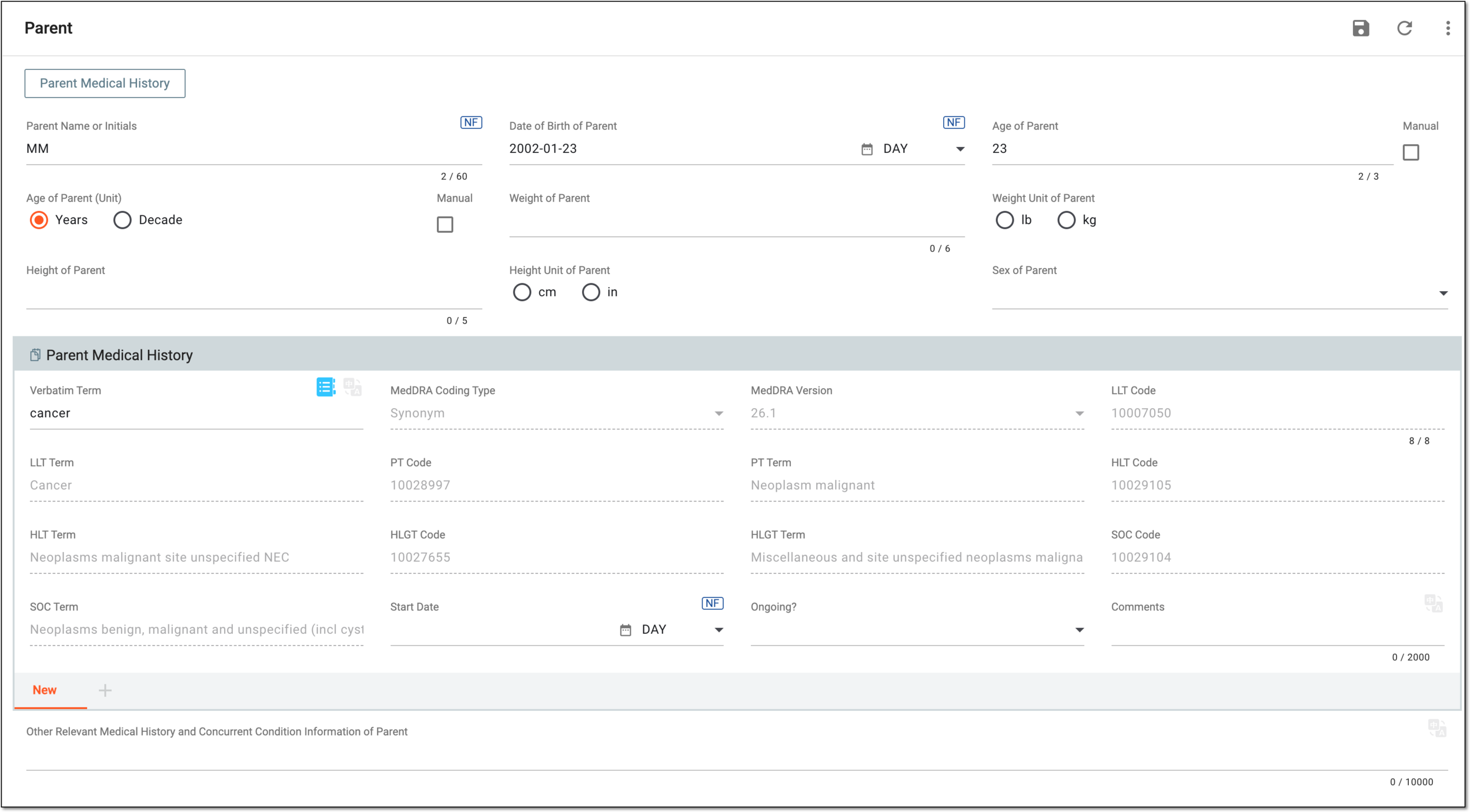 Figure 2. Completing parent information
Important
At least one of the following fields must be completed: Parent Name or Initials, Date of Birth of Parent, or Sex of Parent.
Element
Details
Parent Name or Initials
Enter the name or initials of the patient's parent.
Date of Birth of Parent
Enter the date of birth of the patient's parent.
Age of Parent
Represents the age of the parent at the time of the adverse event or reaction. This value is autocalculated by the system based on the specified date of the patient's birth and considering the Onset Date/Time value set in the Events form.
To amend the value, select the Manual checkbox.Age of Parent (Unit)
Represents the unit to measure the age of the patient's parent. For the autocalculated Age of Parent value, the unit is also autopopulated by the system.
To amend the value, select the Manual checkbox.Manual
Select this checkbox next to both the Age of Parent or Age of Parent (Unit) fields to change their value manually disabling the autocalculation functionality.
-
If selected, you can manually enter the field value and save the form as is.
-
If cleared and you enter a custom value manually, the system overrides your manual entry according to the autocalculation rule upon saving the form.
Weight of Parent
Enter the weight of the patient's parent.
Weight Unit of Parent
Select the unit to measure the weight of the patient's parent.
Height of Parent
Enter the height of the patient's parent.
Height Unit of Parent
Select the unit to measure the height of the patient's parent.
Sex of Parent
Select the sex of the patient's parent.
Last Menstrual Period Date of Parent
Represents the date when the last menstrual cycle of the patient's parent has ended.
This field is enabled only if the sex of the parent is female.SAVE
Select
to save the implemented changes of the Parent form.Parent Medical History
Verbatim Term
Select
to chose the MedDRA LLT term for the medical record of the patient's parent. All the details pertaining to the selected term are populated in
the corresponding fields of the form and they are disabled by default.Start Date
Select the date when the reported disease has started.
The date can be specified fully or partially, for instance, "01.05.2024" or "01.2024." However, the system validates the start date not to be later than the end date.Ongoing?
Select the current status of the disease:
End Date
Select the date when the disease has ended.
This field becomes available if the disease is not ongoing anymore (the Ongoing field value is set to No).The date can be specified fully or partially, for instance, "01.05.2024" or "01.2024." However, the system validates the end date not to be earlier than the start date.Comments
Enter any auxiliary information or notes related to the reported disease.
Other Relevant Medical History and Concurrent Condition Information of Parent
Enter information about any other medical history for the parent that could not be coded.
Translation
Select
next to the form field to translate its value into available languages.Select this icon to add a new medical record related to the patient's parent. Bear in mind, you can add new records only after saving the form with the previously added medical record.
Tip
For some of the fields, Null flavor
is available. This option is used to describe
the reason for missing data. By selecting it, you activate the options No Information, Masked, Unknown, and so on. You can find the details for the available null flavor options and their
codes in Appendix A. Null flavor specification. -
Upon saving, the Parent record of your ICSR is completed.
Important
The parent form record cannot be deleted if any information is already provided in the parent drug history record.
The Parent Dug History form can be filled in when the patient who had a reported adverse event is a child or foetus, otherwise, this section is not used.
Important
The Parent Dug History becomes available only once the Parent form is completed.
When creating an ICSR from scratch, the Parent Dug History form needs to be completed manually and only if the case satisfies the prior indicated conditions.
This form concerns exclusively the drugs previously administered for the patient's parent that have been stopped before the AE onset in the child or fetus. It does not concern any drugs taken concomitantly or that have potentially been involved in the current adverse reaction of the patient. If the parent's drug history contains multiple drug data, you can add unlimited forms to have an individual one for each drug.
-
In the PV application header, select the ICSR tab.
-
On the ICSR List page that opens, select the needed case.
Figure 1. Accessing case details
-
On the page that opens in the new browser tab, from the left pane, select Parent Drug History.
-
In the form that appears, complete the details as explained in the following table.
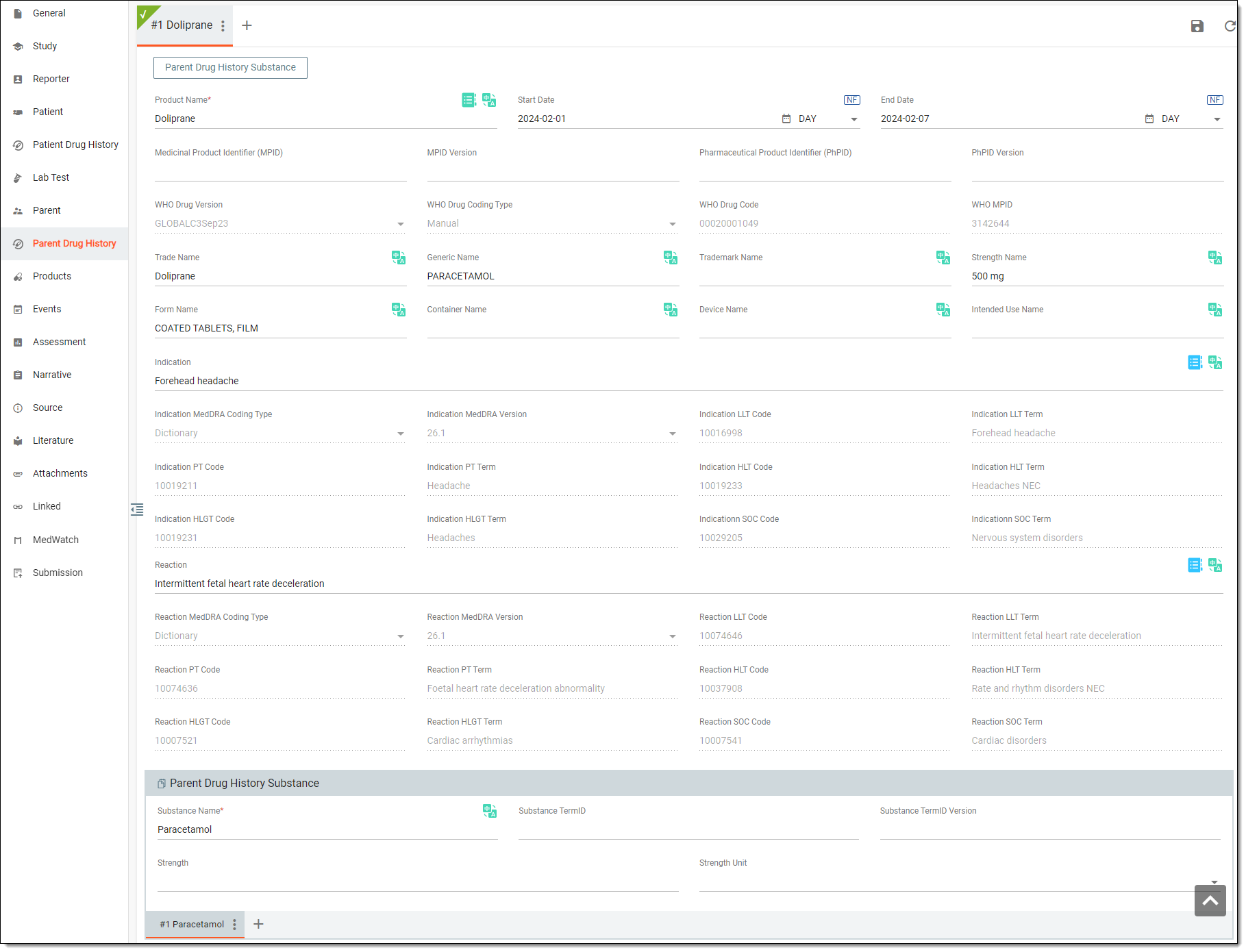 Figure 2. Adding record to parent's drug history
Tip
In the following table, mandatory elements are marked with an asterisk (*).
Element
Details
Product Name*
Enter the product name previously given to the patient's parent. Or select WHODrug
to apply WHODrug coding to the existing product.Start Date
Specify the date when the patient's parent has started taking the indicated drug.
The date can be specified fully or partially, for instance, "01-05-2024" or "01-2024". However, the system validates the start date not to be later than the end date.End Date
Specify the date when the patient's parent has finished taking the indicated drug.
The date can be specified fully or partially, for instance, "01-05-2024" or "01-2024". However, the system validates the end date not to be earlier than the start date.Medicinal Product Identifier (MPID)
Enter the definition of the drug as per ISO 11615 Medicinal Product Identification (MPID). This field is inactive if you enter any value in the Pharmaceutical Product Identifier (PhPID) or PhPID Version Date / Number field.
MPID Version
Enter the version of the drug as per ISO 11615 Medicinal Product Identification (MPID). This field is inactive if you enter any value in the Pharmaceutical Product Identifier (PhPID) or PhPID Version Date / Number field.
Pharmaceutical Product Identifier (PhPID)
Enter a unique identifier calculated by an algorithm based on the substance identification (ISO 11238), dosage form (ISO 11239), and strengths with units of measurement (ISO 11240). This field is inactive if you enter any value in the Medicinal Product Identifier (MPID) or MPID Version Date / Number field.
PhPID Version
Enter the version of the pharmaceutical product identifier. This field is inactive if you enter any value in the Medicinal Product Identifier (MPID) or MPID Version Date / Number field.
WHO Drug Version
Represents the version of the World Health Organization (WHO) Drug Dictionary used for coding drug information. The field is read-only and populated via product coding.
WHO Drug Coding Type
Represents the type of coding used for adding the product. The field is read-only and populated via product coding.
WHO Drug Code
Represents a unique identifier for a drug within the WHO Drug Dictionary. The field is read-only and populated via product coding.
WHO MPID
Represents the WHO medical product identifier, which is a unique number assigned to a drug for identification purposes. The field is read-only and populated via product coding.
Trade Name
Enter the trade or brand name of the medicine.
Generic Name
Enter the chemical name of the drug based on the compound's chemical structure.
Trademark Name
Enter the company name that owns the product.
Strength Name
Enter the name of the active ingredient in the drug.
Form Name
Enter one of the common drug dosages, for example, capsules, pills, and so on.
Container Name
Enter the name of the packaging used to store the drug, for example, the bottle.
Device Name
Enter the name of the medical device.
Intended Use Name
Enter the population or condition for which the product is intended to be used, for example, intended for children aged 0-12 months, intended use for heartburn relief, and so on.
Indication
Select MedDRA Search
to apply MedDRA term coding for the state of the patient's parent when the drug has been given to them. The details about the selected term are populated in corresponding fields of the form and they are inactive by default.Reaction
Select MedDRA Search
to apply MedDRA term coding for the parent's reaction to the given drug if any. The details about the selected term are populated in corresponding fields of the form and they are inactive by default.SAVE
Select
to save and add the drug to the parent's drug history.Select this icon to add another drug to the parent's drug history.
Note that you can add new drugs only after saving the previously added drug record.Parent Drug History Substance
Substance Name*
Enter the name of the substance in the given drug.
Substance TermID
Enter the ID of the substance in the given drug as per ISO IDMP standards.
Substance TermID Version
Enter the version of the substance in the given drug as per ISO IDMP standards.
Strength
Enter the amount of drug in the given dosage form, for example, 200 mg/tablet.
Strength Unit
Select the unit to measure the strength of the given drug, for example, mg.
Translation
Select
next to the form field to translate its value into available languages.Select this icon to add another drug substance to the parent's drug history.
Note that you can add new drug substances only after saving the previously added one.Tip
For some of the fields, Null flavor
is available. This option is used to describe
the reason for missing data. By selecting it, you activate the options No Information, Masked, Unknown, and so on. You can find the details for the available null flavor options and their
codes in Appendix A. Null flavor specification.
Upon saving, the Parent Drug History form of your ICSR is completed, and you can proceed to the following forms, such as Complete pregnancy form, Complete products form, and so on.
The Pregnancy form represents information about the flow and outcome of the patient's pregnancy.
Important
This form is available only if in the Patient form, the sex is Female and the pregnancy question is answered Yes.
When creating an ICSR from scratch, the Pregnancy form should be completed manually and only if the case satisfies the described condition.
-
In the PV application header, select the ICSR tab.
-
On the ICSR List page that opens, select the needed case.
Figure 1. Accessing case details
-
On the page that opens in the new browser tab, from the left pane, select Pregnancy.
-
In the form that appears, complete pregnancy details as explained in the following table.
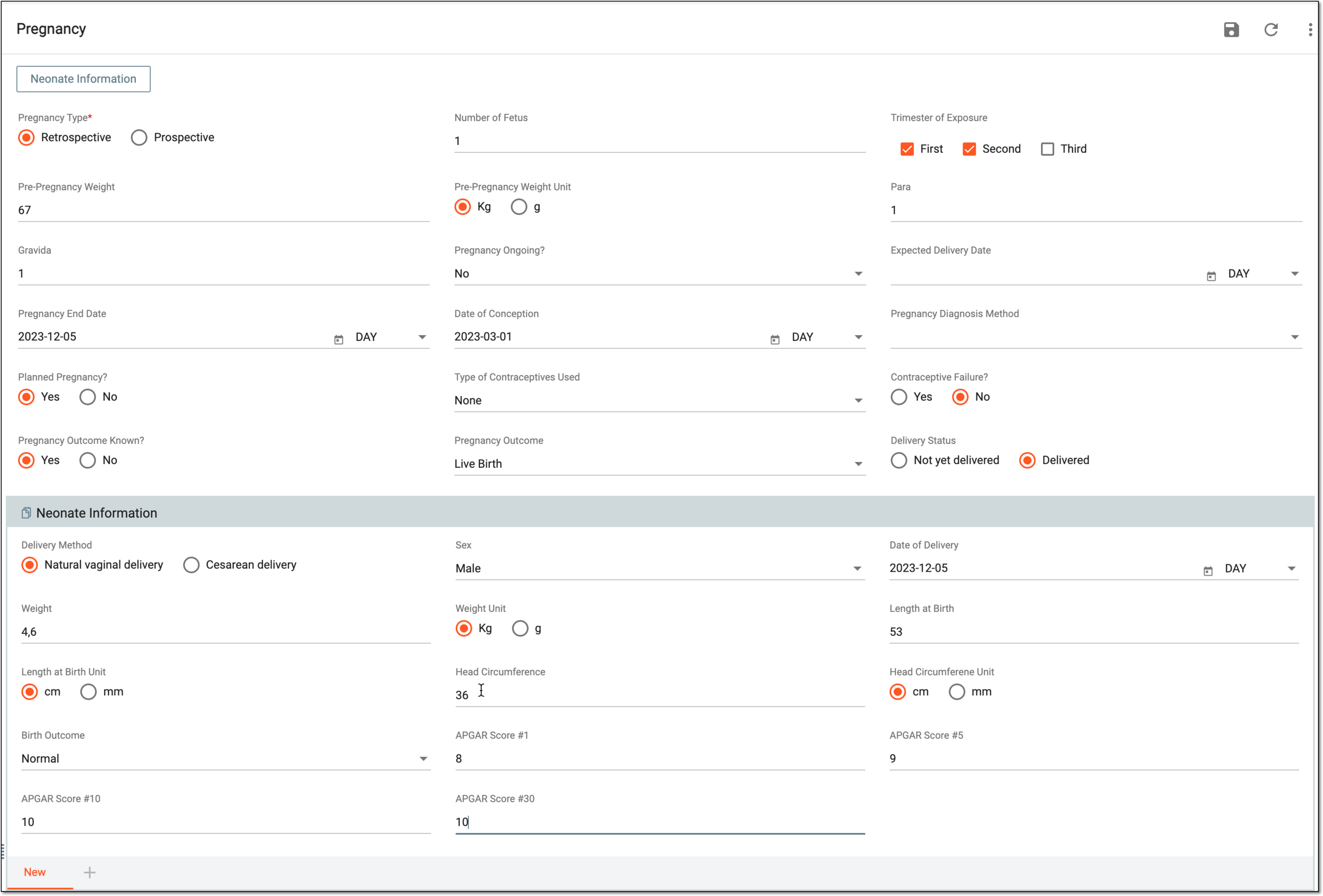 Figure 2. Completing pregnancy history
Tip
In the following table, mandatory elements are marked with an asterisk (*).
Element
Details
Pregnancy Type*
Represents one of the following types of pregnancy:
-
Retrospective: refers to pregnancy information when the reporter or the company has been made aware of an event or anomaly after the pregnancy has ended and the outcome of the pregnancy is already known, for example, vaginal delivery, cesarean delivery, miscarriage, and so on.
-
Prospective: refers to pregnancy information when the reporter or the company has been made aware of the case before the baby has been born. It is possible that the patient has been still pregnant when an anomaly event occurred.
Number of Fetus
Represents the number of fetuses during the pregnancy.
Trimester of Exposure
Represents the trimester when the pregnant female patient has first been exposed to the suspect drug or device. You can select multiple trimesters if needed.
Pre-Pregnancy Weight
Represents the weight that the woman had before the pregnancy.
Pre-Pregnancy Weight Unit
Represents the unit to measure the woman's pre-pregnancy weight.
Para
Represents the number of times a woman has given birth to a viable child.
Gravida
Represents the number of times a woman has been pregnant, including a current pregnancy.
Pregnancy Ongoing?
Represents the status of the pregnancy, either it is still ongoing or has already finished.
Expected Delivery Date
Represents the date of expected child delivery. Select the date if the child has not yet been born.
End of Pregnancy Date
Represents the date when the pregnancy has come to an end.
Date of Conception
Represents the date when the child has been supposedly conceived.
Pregnancy Diagnosis Method
Represents the method that has been used to identify the fetus in a pregnant woman.
Planned Pregnancy?
Select Yes if the pregnancy has been planned beforehand.
Type of Contraceptives Used
Represents the type of contraceptives that have been used before the child's conceiving.
Contraceptive Failure?
Select Yes if there has been a contraceptive failure that has resulted in pregnancy.
Pregnancy Outcome Known?
Select Yes if the outcome of the pregnancy is already known.
Pregnancy Outcome
Represents the outcome of the pregnancy, for example, live birth or stillbirth.
Delivery Status
Select Not yet delivered or Delivered depending on whether the child has been delivered after the pregnancy. If the Delivered option is selected, the Neonate Information form appears where you can fill in information about the newborn baby or babies.
SAVE
Select
to save and update the patient's pregnancy history.Select this icon to add another pregnancy to the patient's history. Bear in mind, you can add pregnancies only after saving the previously added one.
Neonate Information
Delivery Method
Represents the method of how the neonate has been born.
Sex
Represents the sex of the neonate.
Date of Delivery
Represents the date when the neonate has been born.
Weight
Represents the weight of the neonate at birth.
Weight Unit
Represents the unit to measure the weight of the neonate.
Length at Birth
Represents the length of the neonate at birth.
Length at Birth Unit
Represents the unit to measure the length of the neonate.
Head Circumference
Represents the head circumference size of the neonate at birth.
Head Circumference Unit
Represents the unit to measure the head circumference of the neonate.
Birth Outcome
Represents the outcome of the neonate's birth.
APGAR Score#1
Represents a standardized method used to quickly assess the physical condition of a newborn baby. The score is based on five parameters that are evaluated one minute after birth: skin color, heart rate, reflex irritability, muscle tone, and breathing effort. Each parameter is assigned a score of 0, 1, or 2, with a maximum possible score of 10.
APGAR Score#5
Represents a standardized method used to quickly assess the physical condition of a newborn baby. The score is based on five parameters that are evaluated five minutes after birth: skin color, heart rate, reflex irritability, muscle tone, and breathing effort. Each parameter is assigned a score of 0, 1, or 2, with a maximum possible score of 10.
APGAR Score#10
Represents a standardized method used to assess the physical condition of a newborn baby. The score is based on five parameters that are evaluated ten minutes after birth: skin color, heart rate, reflex irritability, muscle tone, and breathing effort. Each parameter is assigned a score of 0, 1, or 2, with a maximum possible score of 10.
APGAR Score#30
Represents a standardized method used to assess the physical condition of a newborn baby. The score is based on five parameters that are evaluated thirty minutes after birth: skin color, heart rate, reflex irritability, muscle tone, and breathing effort. Each parameter is assigned a score of 0, 1, or 2, with a maximum possible score of 10.
Select this icon to add another neonate to the patient's pregnancy history. Bear in mind, you can add neonates only after saving the previously added one.
-
Upon saving, the Pregnancy form of your ICSR is completed, and you can proceed to the following forms, such as Complete products form, Complete events form, and so on.
The Products form is completed with information on the medicinal product that is connected to the AE case for which the ICSR has been created. This can be a concomitant medication, the drug suspected to cause the adverse reaction, and so on. When creating an ICSR from scratch, the Products form needs to be completed manually. If there are multiple products connected to the reported case, you can add unlimited forms to have an individual one for each product.
-
In the PV application header, select the ICSR tab.
-
On the ICSR List page that opens, select the needed case.
Figure 1. Accessing case details
-
On the page that opens in the new browser tab, from the left pane, select Products.
-
In the form that appears, complete product details in the available form blocks as follows.
The main product information form has three blocks as follows.
-
The first part of the product information form is explained in the following table.
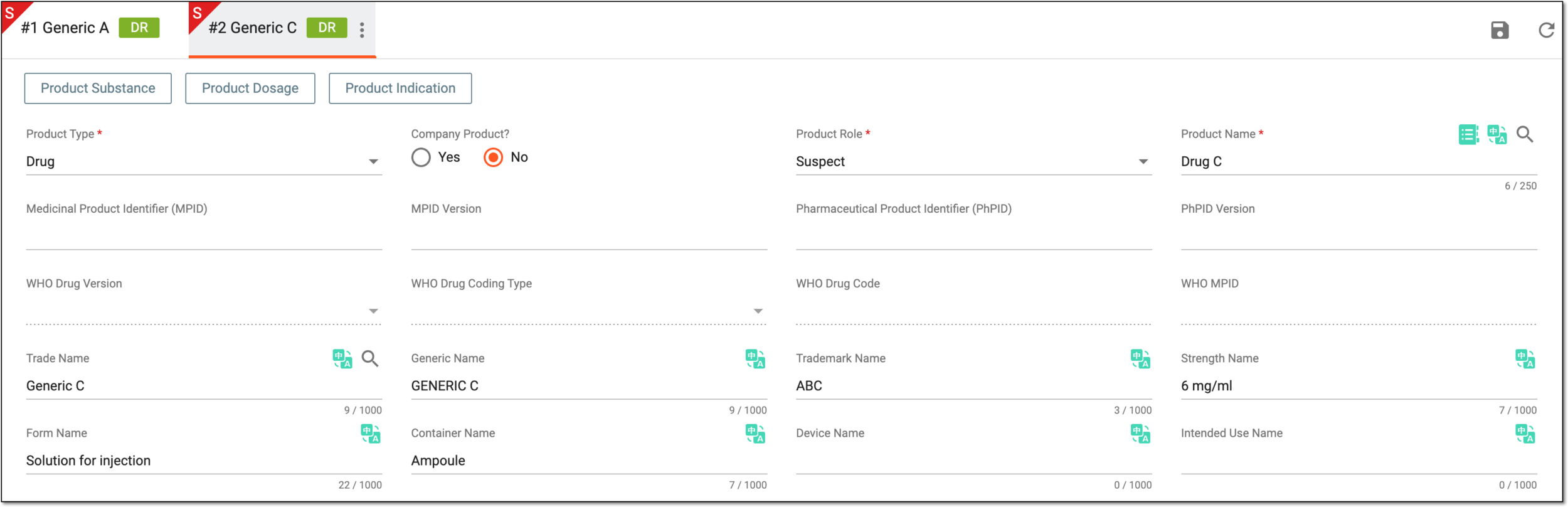 Figure 2. Completing product information
Tip
In the following table, mandatory elements are marked with an asterisk (*).
Element
Details
Product Type*
Select the type of medical product, for example, a drug or vaccine.
Company Product?
Select Yes if the reported product is under study or it is a sponsored product.
If the product is selected form preconfigured in PV, this value is
                                                    autopopulated based on the respective field value specified upon product family configuration. However, you can still update the value if needed.
Product Role*
Select the role of the product in the reported case.
Product Name*
There are several options to introduce a product as follows.
Enter the medicinal name of the product manually and select WHODrug
 to
perform the manual coding for your verbatim term to the existing WHODrug product.
to
perform the manual coding for your verbatim term to the existing WHODrug product.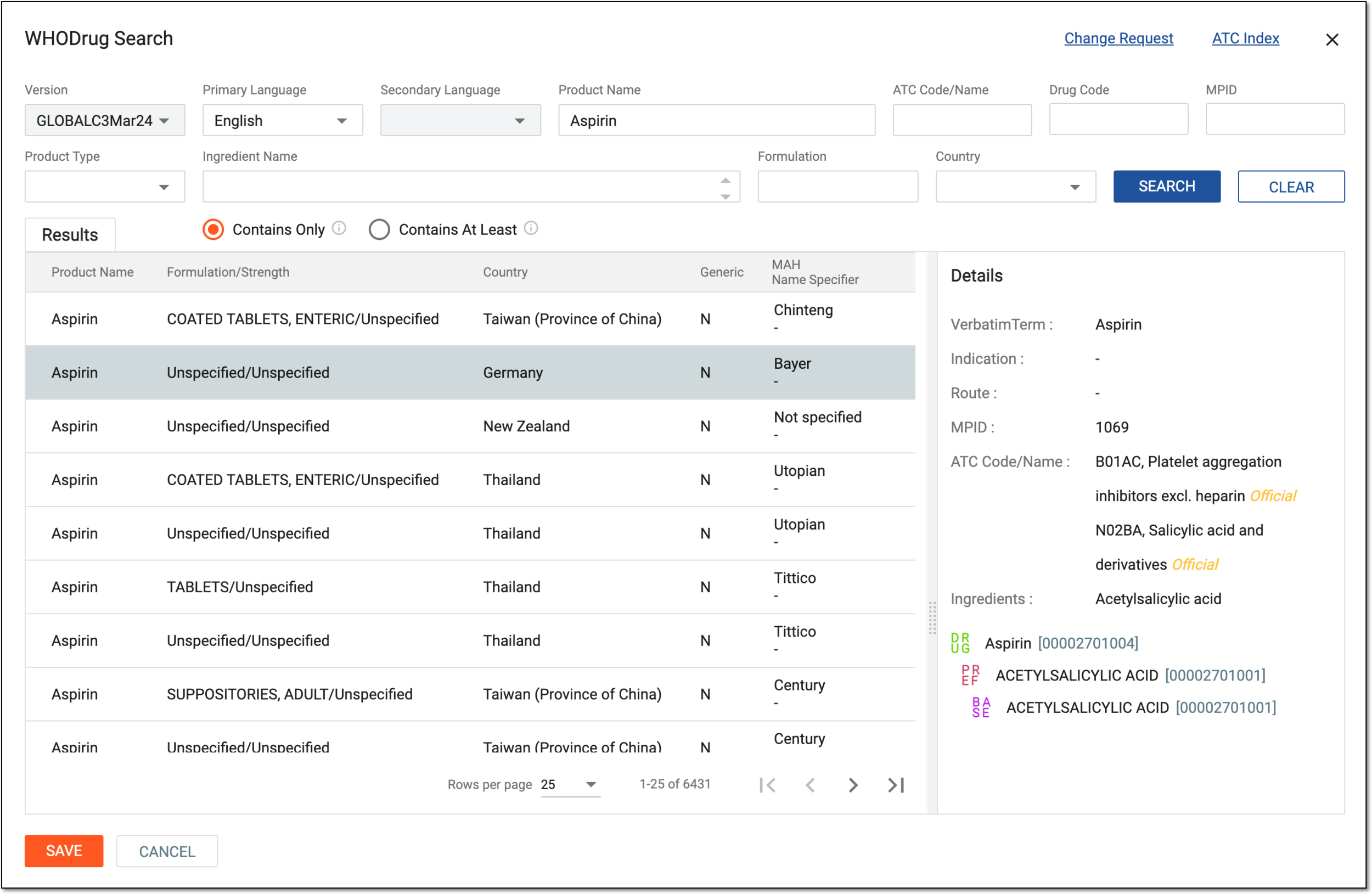 Figure 3. Example of coding product with WHODrug
To perform WHODrug coding, the case language and WHODrug version must be specified in the General form.Enter the medicinal name of the product manually and save the form. Then go to Coding Review to perform the autocoding for your verbatim term according to the WHODrug synonym list associated with your study.
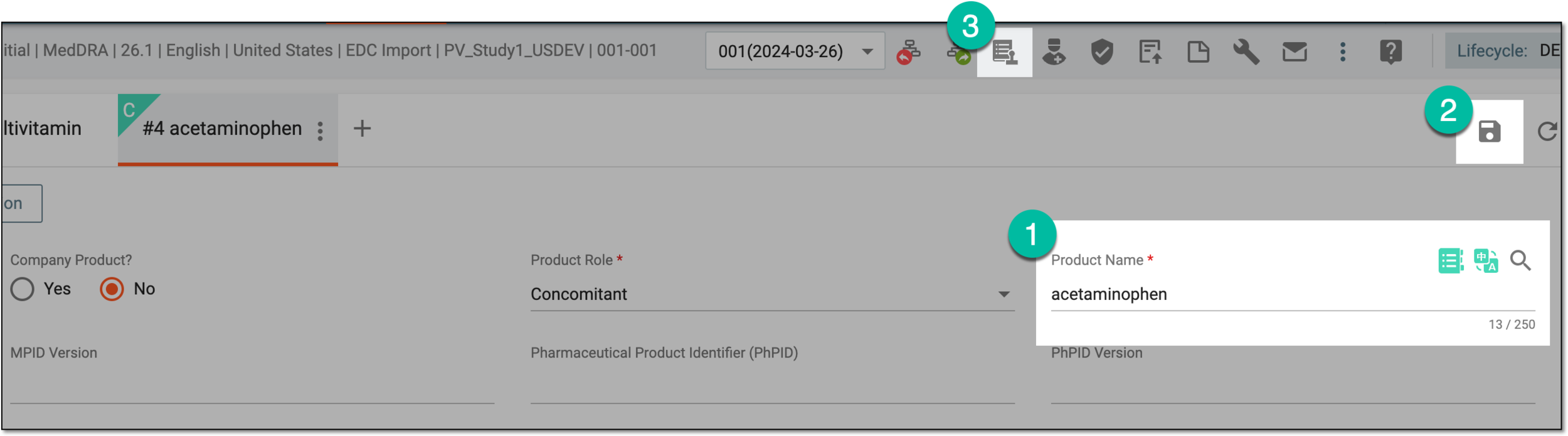 Figure 4. Accessing product autocoding with synonym list
Click Select Product
to code the record with the previously configured product available in PV by selecting its trade name and .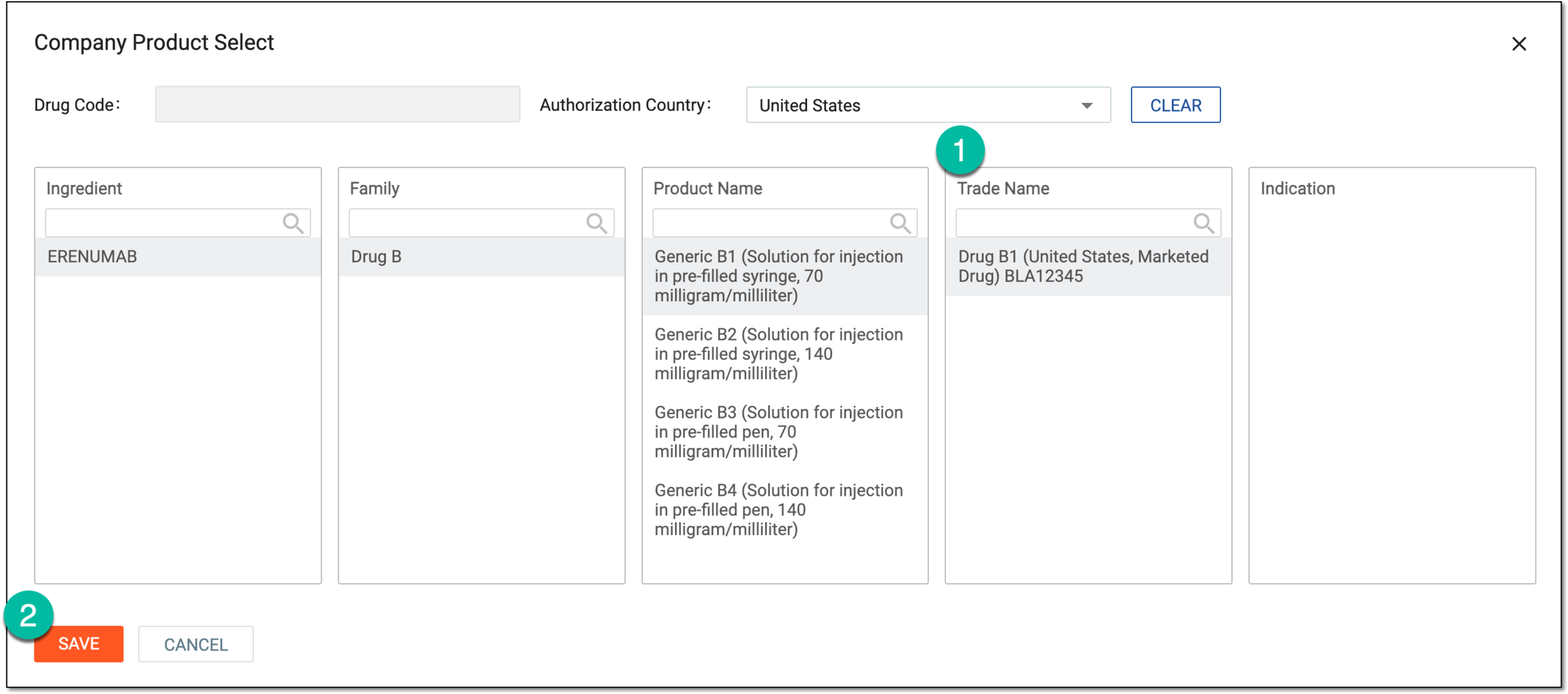 Figure 5. Example of coding preconfigured Drug B1
Medicinal Product Identifier (MPID)
Enter the definition of the product as per ISO 11615 Medicinal Product Identification (MPID).
This field is inactive if you enter any value in the Pharmaceutical Product Identifier (PhPID) or PhPID Version field.MPID Version
Enter the version of the product as per ISO 11615 Medicinal Product Identification (MPID).
This field is inactive if you enter any value in the Pharmaceutical Product Identifier (PhPID) or PhPID Version field.Pharmaceutical Product Identifier (PhPID)
Enter a unique identifier calculated by an algorithm based on substance identification (ISO 11238), dosage form (ISO 11239), and strengths with units of measurement (ISO 11240).
This field is inactive if you enter any value in the Medicinal Product Identifier (MPID) or MPID Version field.PhPID Version
Enter the version of the pharmaceutical product identifier.
This field is inactive if you enter any value in the Medicinal Product Identifier (MPID) or MPID Version field.WHO Drug Version
Represents the version of the World Health Organization (WHO) Drug Dictionary used for coding drug information. The field is read-only and populated via product coding.
WHO Drug Coding Type
Represents the type of coding used for adding the product. The field is read-only and populated via product coding.
WHO Drug Code
Represents a unique identifier for a drug within the WHO Drug Dictionary. The field is read-only and populated via product coding.
WHO MPID
Represents the WHO medical product identifier, which is a unique number assigned to a drug for identification purposes. The field is read-only and populated via product coding.
Trade Name
Enter the trade or brand name of the medicine.
For data migration, you can select the product manually by clicking Select Study Product (Migration Only)
and selecting the medicine from the resulting dialog.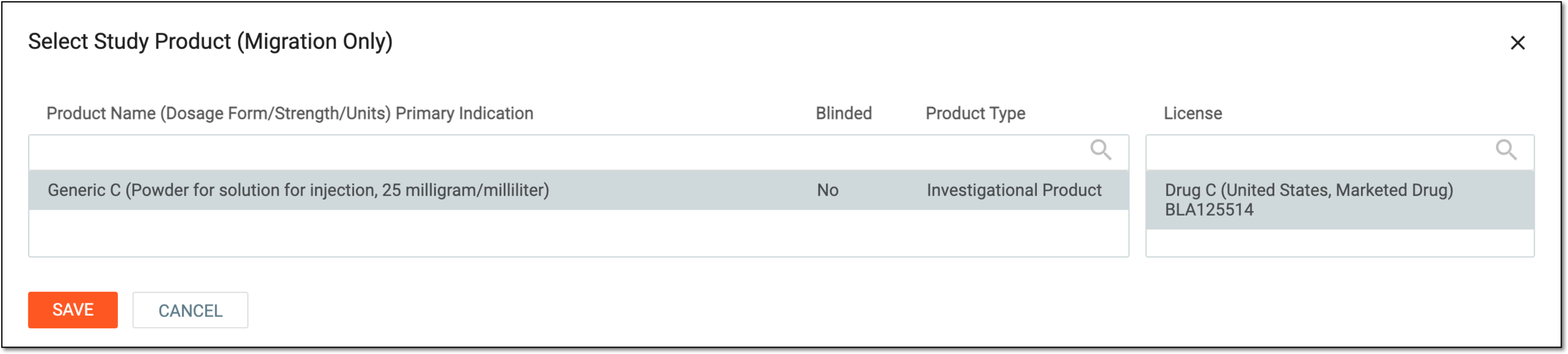 Figure 6. Selecting study product
Generic Name
Enter the generic name of the product.
Trademark Name
Enter the company name that owns the product.
Strength Name
Enter the amount of drug in a given dosage form.
Form Name
Enter the physical form of a dose of a chemical compound used as a drug or medication intended for administration or consumption.
Container Name
Enter the name of the packaging used to store the product, for example, the bottle.
Device Name
Enter the name of the medical device.
Intended Use name
Enter the population or condition for which the product is intended to be used, for example, intended for children aged 0-12 months, intended use for heartburn relief, and so on.
Translation
Select
next to the form field to translate its value into available languages.SAVE
Select
to save the implemented changes.Refresh
Select
 to reload the page, discard any changes you have made, and return to the last saved values in all fields.
 -
The second part of the product information form follows the product substance block and its fields are explained in the following table.
 Figure 7. Completing second part of product information
Element
Details
Investigational Product Blinded?
Select Yes if the product information must be blinded. If set to Yes, such reports as MedWatch and CIOMS blind the drug information, including its product name, trade name, dose, route of administration, and therapy dates.
Leave the option cleared if no blinding is required.
This field is only available if, in the Study form, the Blinding
                                                    Status is selected as Blinded, Broken After Study, or Broken by Sponsor.
Study Drug
Select Select Study Product
to choose the study drug and its relevant license preconfigured for the study arm to
which this case belongs. Once selected, the system populates the product and authorization details automatically. However, the product name of the drug is displayed based on the following logic:-
If the blinding status of the study is Blinded, the value for this field must be Blinded Name.
-
If the blinding status of the study is Broken After Study or Broken by Sponsor—meaning that the blinding of the study is broken—then the actual product name must be entered here.
This field is only available if, in the Study form, the Blinding Status is selected as Blinded, Broken After Study, or Broken by
                                                    Sponsor.
Study Drug Trade Name
Represents the trade name of the drug autopopulated based on the selection made in the Study Drug field. The value is displayed based on the following logic:
-
If the blinding status of the study is Blinded, the value for this field must be Blinded Name.
-
If the blinding status of the study is Broken After Study or Broken by Sponsor—meaning that the blinding of the study is broken—then the actual trade name must be entered here.
This field is only available if, in the Study form, the Blinding Status is selected as Blinded, Broken After Study, or Broken by
                                                    Sponsor.
Study Product Type
Represents the product type—such as investigational product, placebo, and so on—autopopulated based on the selection made in the Study Drug field.
This field is only available if, in the Study form, the Blinding Status is selected as Blinded, Broken After Study, or Broken by
                                                    Sponsor.
Company Drug Code
Represents the company code of the drug autopopulated based on the selection made in the Study Drug field.
This value is originally configured as the Company Code field of the product configuration form.Country Where the Drug Was Obtained
Select the country where the patient has obtained the product.
This value is autopopulated based on the selection made in the Study Drug field but can be manually
                                                    changed.
FDA Product Type
Select the type of product as per FDA specifications.
This value is autopopulated based on the selection made in the Study Drug field but can be manually
                                                    changed.
Authorization / Application Number (China)
Enter the application number of a medical product assigned by the Chinese regulatory agency.
This value is autopopulated based on the selection made in the Study Drug field but can be manually
                                                    changed.
Country of Authorization / Application
Select the country where the application number has been assigned to the product by the corresponding regulatory agency.
This value is autopopulated based on the selection made in the Study Drug field but can be manually
                                                    changed.
Authorization / Application Number
Enter the application number of a medical product assigned by the regulatory agency of the selected country.
Name of Holder / Applicant
Enter the name of the marketing authorization holder (MAH).
The field is autopopulated if the study drug is coded in this form and MAH data is provided for the product via product license configuration. The translation text (if it is provided upon configuration) is also autopopulated along with the original value.Translation
Select
next to the form field to translate its value into available languages.SAVE
Select
to save the implemented changes.Refresh
Select
to reload the page, discard any changes you have made, and return to the last saved values in all fields. -
-
The third part of the product information form follows the product indication block and its fields are explained in the following table.
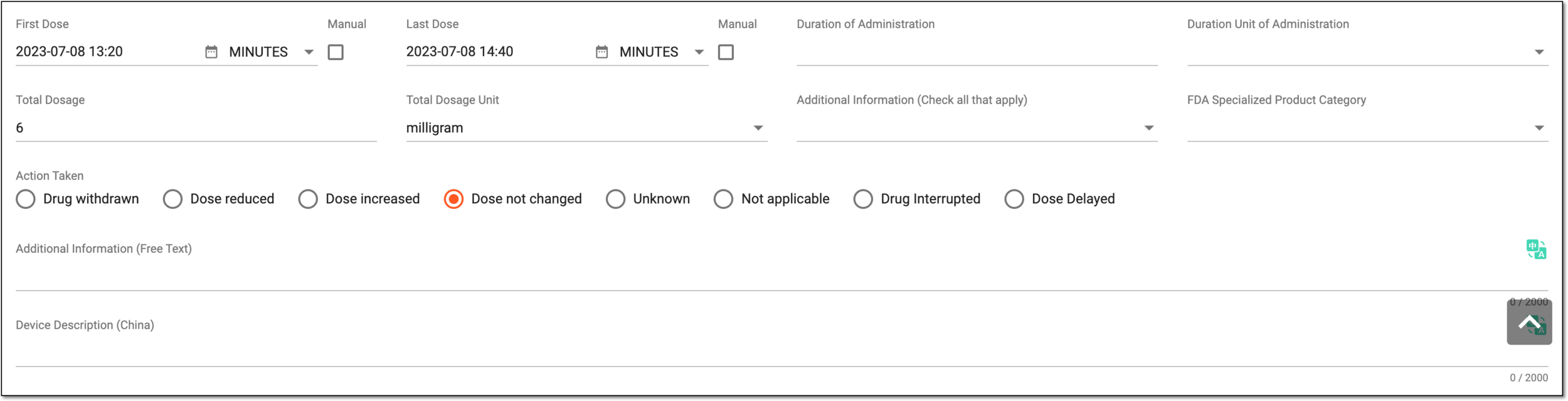 Figure 8. Completing third part of product information
Element
Details
First Dose
Represents the date of the first administration of the drug dose to a patient. The value is autocalculated by the system based on the Start Date/Time value specified in the Product Dosage block. If there are multiple dosage records added, then the First Dose value is the earliest of the dates from all the records.
The autocalculation happens upon saving the form with the specified Start Date/Time value.To amend the value, select the Manual checkbox.
Last Dose
Select the date of the last administration of the drug dose to a patient.
Represents the date of the last administration of the drug dose to a patient. The value is autocalculated by the system based on the Start Date/Time value specified in the Product Dosage block. If there are multiple dosage records added, then the Last Dose value is the earliest of the dates from all the records.
The autocalculation happens upon saving the form with the specified Stop Date/Time value.To amend the value, select the Manual checkbox.
Manual
Select this checkbox next to both the First Dose and Last Dose fields to change their value manually disabling the autocalculation functionality.
-
If selected, you can manually enter the field value and save the form as is.
-
If cleared and you enter a custom value manually, the system overrides your manual entry according to the autocalculation rule upon saving the form.
Duration of Administration
Enter a number to indicate a period of drug administration to a patient, for instance, 365.
Duration Unit of Administration
Select a unit to determine the period of drug administration to a patient, for instance, days.
Total Dosage
Enter a number to indicate the amount of drug administered to a patient in total during the indicated period, for instance, 2500.
Total Dosage Unit
Select a unit to determine the amount of drug administered to a patient in total during the indicated period, for instance, milligrams.
Additional Information (Check all that apply)
Select additional information about the reported product.
FDA Specialized Product Category
Select a value from the dropdown list to indicate whether the product is a combination one and of which type.
Action Taken
Select the action that has been taken with the reported product, for example, the dose reduced or the drug withdrawn.
Additional Information on Drug (Free Text)
Enter additional information about the reported product that cannot be captured in other fields of this form.
Device Description (China)
Enter the description of the medical device as per the National Medical Products Administration of China.
Translation
Select
next to the form field to translate its value into available languages.SAVE
Select
to save the implemented changes.Refresh
Select
to reload the page, discard any changes you have made, and return to the last saved values in all fields. -
 Figure 9. Completing product substance details
Tip
In the following table, mandatory elements are marked with an asterisk (*).
Element
Details
Substance Name*
Enter the name of the substance in the reported product.
Substance TermID
Enter the ID of the substance in the reported product as per ISO IDMP standards.
Substance TermID Version
Enter the version of the substance in the reported product as per ISO IDMP standards.
Strength
Enter the amount of product substance in the given dosage form, for example, 200 mg/tablet.
Strength Unit
Select the unit to measure the strength of the given substance, for example, mg.
Select this icon in the Product Substance block to add a new product substance.
Note that you can add new product substances only after saving the form with the previously added one.Translation
Select
next to the form field to translate its value into available languages.SAVE
Select
to save the implemented changes.Refresh
Select
to reload the page, discard any changes you have made, and return to the last saved values in all fields.Tip
For some of the fields, Null flavor
is available. This option is used to
describe the reason for missing data. By selecting it, you activate the options No Information, Masked, Unknown, and so on. You can find the details for the available null flavor
options and their codes in Appendix A. Null flavor specification.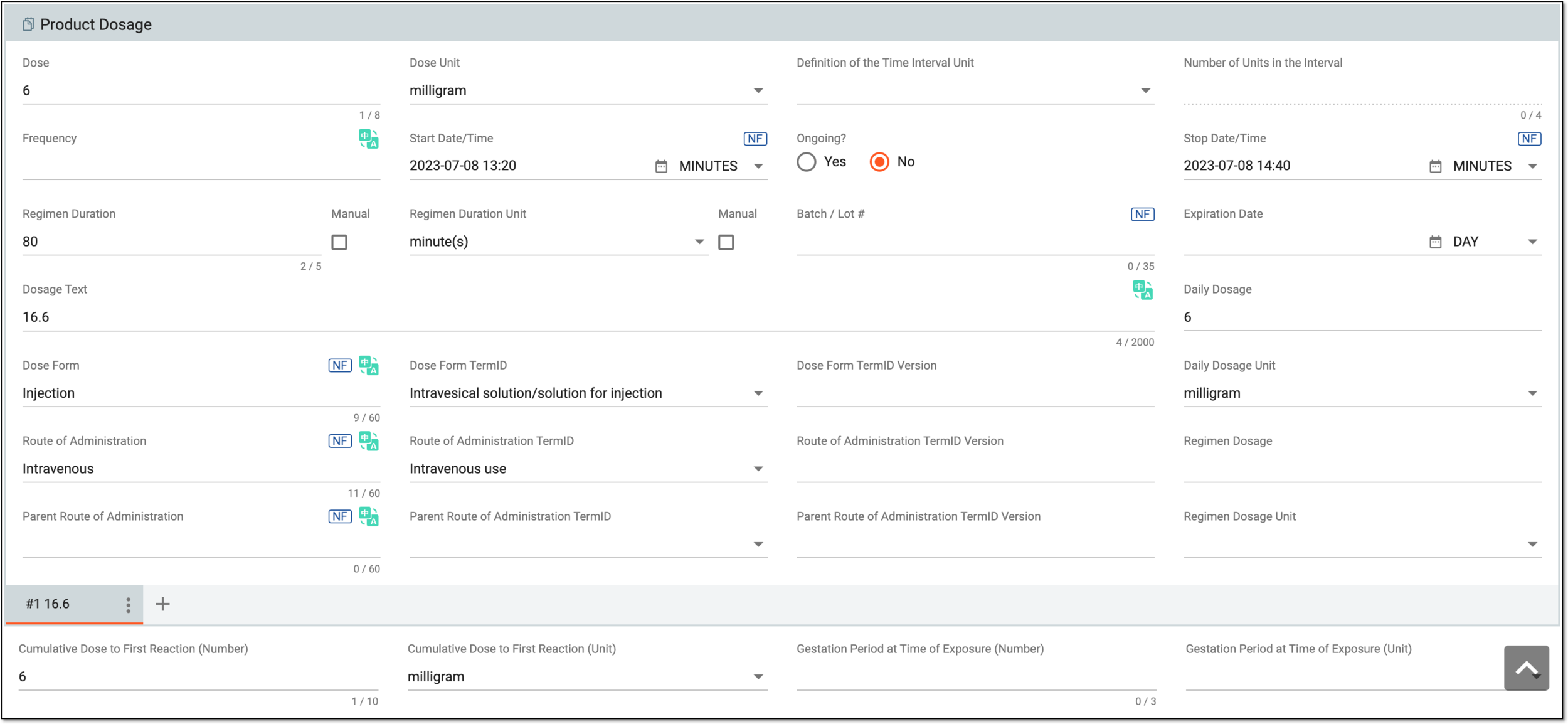 Figure 10. Completing product dosage details
Element
Details
Dose
Enter the concentration or quantity of a medicine or drug taken by the patient at a particular time.
Dose Unit
Select the unit to measure the dosage of the product given to the patient.
Definition of the Time Interval Unit
Select the time unit to measure the interval between the product intake by the patient.
Number of Units in the Interval
Enter the interval in the product intake by the patient according to the specified time unit.
For example, if the time interval is an hour and the number is 4 in this field, then the interval between the product intake is 4 hours.
Frequency
Enter the dosage frequency.
Start Date/Time
Specify the date and time of the first drug intake or device use.
The date can be specified fully or partially, for instance, "01.05.2024" or "01.2024." However, the system validates the start date not to be later than the end date.Ongoing?
Select Yes or No to indicate if the product is still or no longer given to the patient.
Stop Date/Time
Specify the latest date and time of last drug intake or device use before discontinuation. This field is available only if the product is not ongoing.
The date can be specified fully or partially, for instance, "01.05.2024" or "01.2024." However, the system validates the end date not to be earlier than the start date.Regimen Duration
Represents the interval of time during which the reported product has been administered to the patient. The value is autocalculated by the system based on the specified first and last dates of administering the drug.
The autocalculation happens upon saving the form with specified Start Date/Time and Stop Date/Time values.To amend the value, select the Manual checkbox.
Regimen Duration Unit
Represents the time unit to measure the duration of administering the product. For the autocalculated regimen duration value, the unit is also calculated automatically.
The autocalculation happens upon saving the form with specified Start Date/Time and Stop Date/Time values.To amend the value, select the Manual checkbox.
Manual
Select this checkbox next to both the Regimen Duration and Regimen Duration Unit fields to change their value manually, disabling the autocalculation functionality.
-
If selected, you can manually enter the field value and save the form as is.
-
If cleared and you enter a custom value manually, the system overrides your manual entry according to the autocalculation rule upon saving the form.
Batch / Lot #
Select the batch or lot number.
Expiration Date
Specify the expiration date of the product dosage.
Dosage Text
Enter the description of the product dosage.
Daily Dosage
Enter the number for the daily product dosage.
Daily Dosage Unit
Select the unit for the daily product dosage.
Regimen Dosage
Enter the number for the regimen product dosage.
Regimen Dosage Unit
Select the unit for the regimen product dosage.
Dose Form
Enter the description of the pharmaceutical dosage form of the product entered manually.
Dose Form TermID
Select the form of the product as per terminology in the Identification of Medicinal Products (IDMP) standard.
Dose Form TermID Version
Enter the version of the product form as per terminology in the Identification of Medicinal Products (IDMP) standard.
Route of Administration
Enter the description of the administration route of the product entered manually.
Route of Administration TermID
Select the administration route of the product as per terminology in the Identification of Medicinal Products (IDMP) standard.
Route of Administration TermID Version
Enter the version of the administration route of the product as per terminology in the Identification of Medicinal Products (IDMP) standard.
Parent Route of Administration
Enter the description of the parent administration route of the product entered manually.
Parent Route of Administration TermID
Select the parent administration route of the product as per terminology in the Identification of Medicinal Products (IDMP) standard.
Parent Route of Administration TermID Version
Enter the version of the parent administration route of the product as per terminology in the Identification of Medicinal Products (IDMP) standard.
Select this icon in the Product Dosage block to add a new product dosage.
Note that you can add new product dosages only after saving the previously added one.Cumulative Dose to First Reaction (Number)
Enter the cumulative number or amount of doses taken until the first onset of the event or first symptoms.
Cumulative Dose to First Reaction (Unit)
Select the unit to measure the cumulative number or amount of doses taken until the first onset of the event or first symptoms.
Gestation Period at Time of Exposure (Number)
Enter the gestation period when the pregnant female patient has been first exposed to the substance, drug, or device product.
Gestation Period at Time of Exposure (Unit)
Select the unit to measure the time when the pregnant woman has been exposed to the product.
Null flavor
Select
next to the form field if you need to describe the reason for missing data. By selecting it, you activate the options No Information, Masked, Unknown, and so on. You can find the details for the available null flavor options and their codes in Appendix A. Null flavor specification.Translation
Select
next to the form field to translate its value into available languages.SAVE
Select
to save the implemented changes.Refresh
Select
to reload the page, discard any changes you have made, and return to the last saved values in all fields.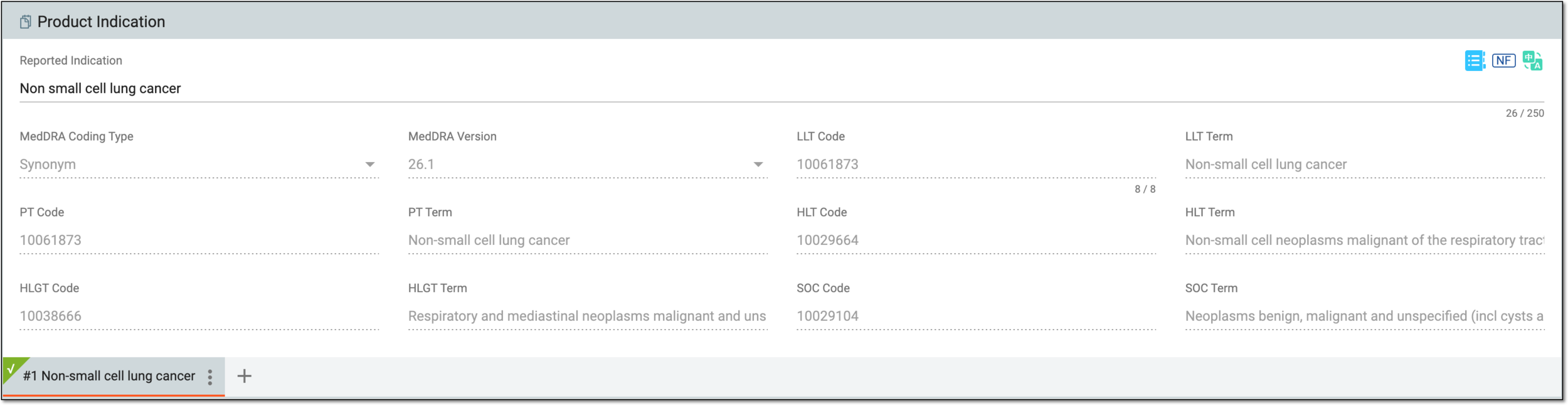 Figure 11. Completing product indication details
Element
Details
Reported Indication
Select MedDRA Search
 to apply MedDRA term coding for the state of the patient when the product has been given to them. The details about the selected term are populated in corresponding fields of
the form and they are inactive by default.
to apply MedDRA term coding for the state of the patient when the product has been given to them. The details about the selected term are populated in corresponding fields of
the form and they are inactive by default.If a company drug has been coded and the preconfigured indication has been selected when coding, the indication is auto-populated in this field.Select this icon in the Product Indication block to add a new product indication.
Note that you can add new indications only after saving the previously added one.Null flavor
Select
next to the form field if you need to describe the reason for missing data. By selecting it, you activate the options No Information, Masked, Unknown, and so on. You can find the details for the available null flavor options and their codes in Appendix A. Null flavor specification.Translation
Select
next to the form field to translate its value into available languages.SAVE
Select
to save the implemented changes.Refresh
Select
to reload the page, discard any changes you have made, and return to the last saved values in all fields. -
Upon saving, the Product form of your ICSR is completed, and you can proceed to the following forms, such as Complete events form, Complete assessment form, and so on.
The Events form contains information on the adverse events (AEs) or serious adverse events (SAEs), which are the subject of the Individual Case Safety Report (ICSR). When creating an ICSR from scratch, the Events form should be completed manually and coded (translated) from the verbatim terms used by the reporter into preferred terms according to MedDRA. If there are multiple AEs in direct relation to the ICSR, you can add other forms to have an individual one for each event.
-
In the PV application header, select the ICSR tab.
-
On the ICSR List page that opens, select the needed case.
Figure 1. Accessing case details
-
On the page that opens in the new browser tab, from the left pane, select Event.
-
In the form that appears, complete event details as explained in the following table.
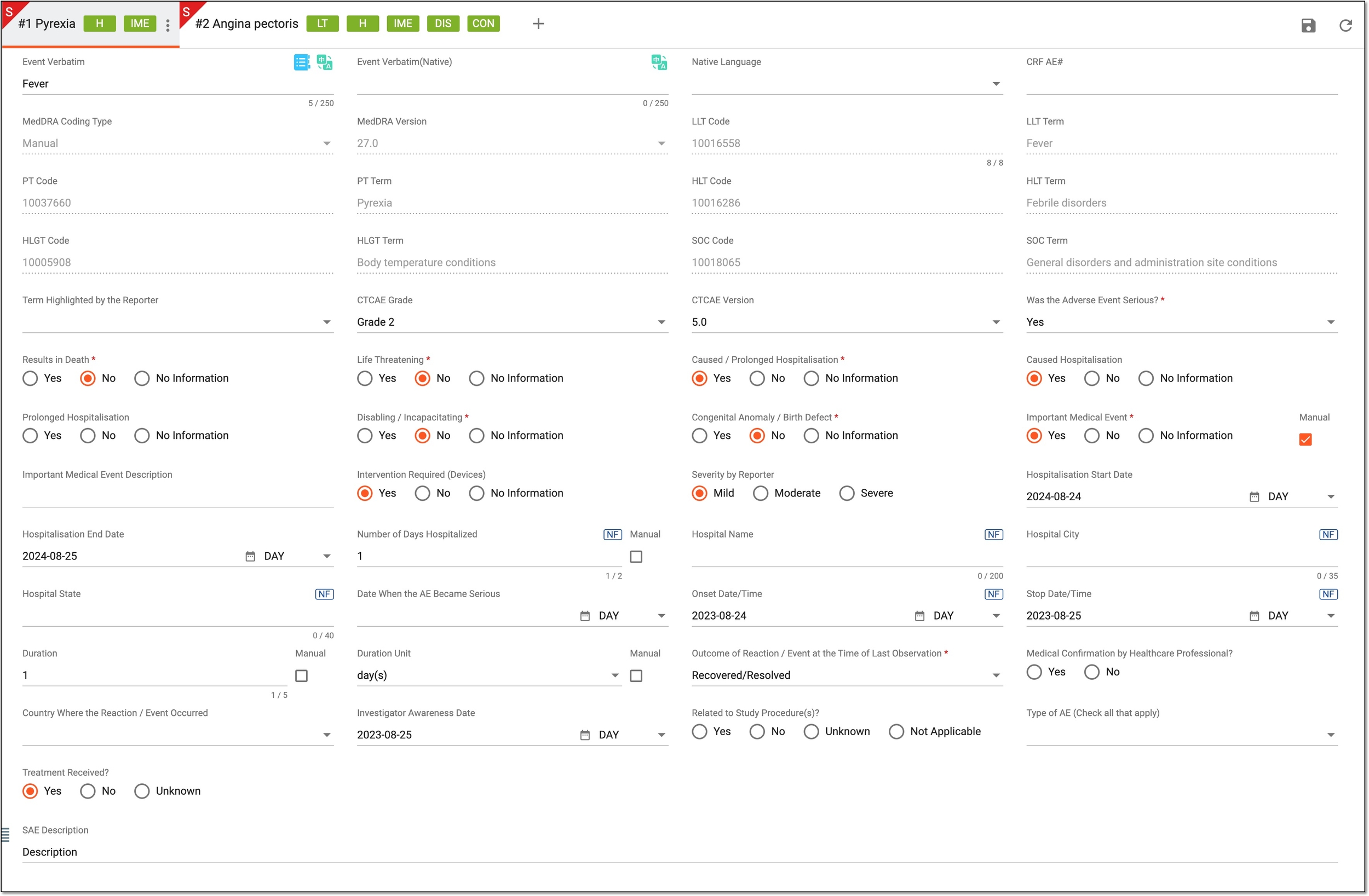 Figure 2. Completing event information
Tip
In the following table, mandatory elements are marked with an asterisk (*).
Element
Details
Event Verbatim
Select
to perform the
manual coding according to MedDRA for the occurred event. All the details pertaining to the selected Lowest Level Term (LLT) term are populated in the corresponding fields of the form and they are disabled by default.Event Verbatim(Native)
Enter the original words or short phrases used by the reporter to describe the reaction/event in the native language it is received if it is other than English.
This value along with CRF AE# and Onset Date/Time form a combination of parameters required to recognize the case imported from EDC as the same ICSR follow-up version.Native Language*
Select the native language in which the event has been reported.
CRF AE#
Enter the sequential number of the AE/SAE record in EDC.
This value along with Event Verbatim(Native) and Onset Date/Time form a combination of parameters required to recognize the case imported from EDC as the same ICSR follow-up version.Event Verbatim Translation
Represents the verbatim in the native language reported by the reporter.
Severity by Reporter
Select one of the options to indicate how the reporter of the event has assessed the degree of intensity or seriousness of this event as follows.
-
Mild: the event is of low intensity and usually does not interfere significantly with the individual's daily activities.
-
Moderate: the event is of intermediate intensity, causing some interference with daily activities but not preventing them.
-
Severe: the event is of high intensity and significantly interferes with the individual's ability to carry out daily activities.
Term Highlighted by the Reporter
Represents the term of an adverse reaction or event that the primary source indicated was a major concern or reason for reporting the case. This field can be used to indicate the specific diagnosis that has been identified by the reporter.
CTCAE Grade
Represents the grade on the scale of the Common Terminology Criteria for Adverse Events system.
CTCAE Version
Represents the version of the Common Terminology Criteria for Adverse Events system that has been used to grade the reported event.
Was the Adverse Event Serious?*
Select one of the following:
-
Yes: if the reported event is serious. If selected, then you need to specify what caused the seriousness of the event from the following options: resulted in death, life-threatening, caused hospitalization, caused disability, or it is a defect.
-
No: if the reported event is not serious.
Results in Death*
Select one of the following:
-
Yes: if the event has resulted in the death of the patient. If selected, the adverse event must be marked as serious.
-
No: if the reported event has not resulted in the death of the patient.
-
No Information: if there is no available data on whether the event has resulted in the death of the patient.
Life Threatening*
Select one of the following:
-
Yes: if the event is life-threatening to the patient. If selected, the adverse event must be marked as serious.
-
No: if the reported event is not life-threatening to the patient.
-
No Information: if there is no available data on whether the event is life-threatening to the patient.
Caused / Prolonged Hospitalization*
Select one of the following:
-
Yes: if the event has caused or prolonged the patient's hospitalization. If selected, the adverse event must be marked as serious.
-
No: if the event has not caused or prolonged the patient's hospitalization.
-
No Information: if there is no available data on whether the event has caused or prolonged the patient's hospitalization.
Caused Hospitalisation
Select one of the following:
-
Yes: if the event has caused the patient's hospitalization.
-
No: if the event has not caused the patient's hospitalization.
-
No Information: if there is no available data on whether the event has caused the patient's hospitalization.
This field is available only if it has been mentioned that the event has caused any hospitalization.Prolonged Hospitalisation
Select one of the following:
-
Yes: if the event has prolonged the patient's hospitalization.
-
No: if the event has not prolonged the patient's hospitalization.
-
No Information: if there is no available data on whether the event has prolonged the patient's hospitalization.
This field is available only if it has been mentioned that the event has caused any hospitalization.Disabling / Incapacitating*
Select one of the following:
-
Yes: if the event has resulted in the patient's disability or incapacity. If selected, the adverse event must be marked as serious.
-
No: if the event has not resulted in the patient's disability or incapacity.
-
No Information: if there is no available data on whether the event has resulted in the patient's disability or incapacity.
Disabling
Select one of the following:
-
Yes: if the event has resulted in the patient's disability.
-
No: if the event has not resulted in the patient's disability.
-
No Information: if there is no available data on whether the event has resulted in the patient's disability.
This field is available only if it has been mentioned that the event has caused any disability.Incapacitating
Select one of the following:
-
Yes: if the event has resulted in the patient's incapacity.
-
No: if the event has not resulted in the patient's incapacity.
-
No Information: if there is no available data on whether the event has resulted in the patient's incapacity.
This field is available only if it has been mentioned that the event has caused any disability.Congenital Anomaly / Birth Defect*
Select one of the following:
-
Yes: if the event is a congenital anomaly or a birth defect of the patient. If selected, the adverse event must be marked as serious.
-
No: if the event is not a congenital anomaly or a birth defect of the patient.
-
No Information: if there is no available data on whether the event is a congenital anomaly or a birth defect of the patient.
Important Medical Event*
Select one of the following:
-
Yes: if the event may not be immediately life-threatening, result in death, or hospitalization but may jeopardize the patient, or may require intervention to prevent one of the outcomes of any seriousness criteria.
-
No: if the event is not immediately life-threatening, results in death, or hospitalization, and does not jeopardize the patient, or require intervention to prevent one of the outcomes of any seriousness criteria.
-
No Information: if there is no available data on whether the event can jeopardize the patient, or require intervention to prevent one of the outcomes of any seriousness criteria.
Hospitalisation Start Date
Represents the date when the patient has been hospitalized.
The date can be specified fully or partially, for instance, "01.05.2024" or "01.2024." However, the system validates the start date not to be later than the end date.This field is available only if it has been mentioned that the event has caused the patient's hospitalization.Hospitalisation End Date
Represents the date when the patient has been released from the hospital.
The date can be specified fully or partially, for instance, "01.05.2024" or "01.2024." However, the system validates the end date not to be earlier than the start date.This field is available only if it has been mentioned that the event has caused the patient's hospitalization.Number of Days Hospitalized
Represents the number of days the patient has been hospitalized. This value is autocalculated by the system as the difference between the dates specified in the Hospitalisation Start Date and Hospitalisation End Date fields.
The autocalculation happens upon saving the form with specified Hospitalisation Start Date and Hospitalisation End Date values.To amend the value, select the Manual checkbox.
Manual
Select this checkbox next to the Number of Days Hospitalized field to change the value manually disabling the autocalculation functionality.
-
If selected, you can manually enter the field value and save the form as is.
-
If cleared and you enter a custom value manually, the system overrides your manual entry according to the autocalculation rule upon saving the form.
Hospital Name
Represents the name of the hospital where the patient has been admitted.
This field is available only if it has been mentioned that the event has caused the patient's hospitalization.Hospital City
Represents the city where the hospital is located.
This field is available only if it has been mentioned that the event has caused the patient's hospitalization.Hospital State
Represents the state where the hospital is located. This field is available only if it has been mentioned that the event has caused the patient's hospitalization.
Date AE Became Serious
Represents the date when the adverse event has become serious.
The date can be specified fully or partially, for instance, "01.05.2024" or "01.2024."Onset Date/Time
Represents the date when the adverse reaction or event has started.
The date can be specified fully or partially, for instance, "01.05.2024" or "01.2024." However, the system validates the start date not to be later than the end date.This value along with Event Verbatim(Native) and CRF AE# form a combination of parameters required to recognize the case imported from EDC as the same ICSR follow-up version.Stop Date/Time
Represents the date when the adverse reaction or event has ended.
The date can be specified fully or partially, for instance, "01.05.2024" or "01.2024." However, the system validates the end date not to be earlier than the start date.Duration
Represents the time interval of the adverse reaction or event occurrence. This value is autocalculated by the system as the difference between the dates specified in the Onset Date/Time and Stop Date/Time fields.
The autocalculation happens upon saving the form with specified Onset Date/Time and Stop Date/Time values.To amend the value, select the Manual checkbox.
Duration Unit
Represents the time unit to measure the adverse reaction or event occurrence.
The autocalculation happens upon saving the form with specified Onset Date/Time and Stop Date/Time values.To amend the value, select the Manual checkbox.
Manual
Select this checkbox next to both the Duration and Duration Unit fields to change their values manually disabling the autocalculation functionality.
-
If selected, you can manually enter the field value and save the form as is.
-
If cleared and you enter a custom value manually, the system overrides your manual entry according to the autocalculation rule upon saving the form.
Outcome of Reaction / Event at the Time of Last Observation*
Represents the outcome of the adverse reaction or event at the time of the last patient's observation, for example, resolved or recovering.
If Not Resolved, Stable or Not Stable?
Represents the current health status of the patient if the reaction or event is still ongoing.
This field is available only if the Not Recovered/Not Resolved/Ongoing option has been selected in the previous field.Specify Sequelae
Represents the description of health complications in the patient who experienced an adverse reaction or event.
This field is available only if the Recovered/Resolved With Sequelae option has been selected in the previous field.Medical Confirmation by Healthcare Professional?
Select Yes if the adverse event in the patient has been confirmed by a healthcare professional. If the event is only reported but not confirmed by a healthcare professional, do not select any value in this field.
Country Where the Reaction / Event Occurred
Represents the country where the patient has experienced the adverse reaction or event.
Investigator Awareness Date
Represents the date when the study investigator has become aware of the event.
Related to Study Procedure(s)?
Select one of the following:
-
Yes: if the event is related to the study procedures.
-
No: if the event is not related to the study procedures.
If the Event is Not Study Procedure Related, Provide an Alternative Cause Below:
Represents the description of the event if it is not related to the study procedures.
This field is available only if No has been selected in the previous
                                        field.
Type of AE (Check all that apply)
Represents the type of adverse event, for example, SAE or infusion-related. You can select multiple options in this field.
Treatment Received?
Select one of the following:
-
Yes: if the patient has received treatment for the occurred event and its consequences.
-
No: if the patient has not received treatment for the occurred event and its consequences.
-
Unknown: if there is no available data on whether the patient has received treatment for the occurred event and its consequences.
SAE Description
Represents the description of the serious adverse event in the reported case.
Translation
Select
next to the form field to translate its value into available languages.SAVE
Select
to save the implemented changes.Select this icon to add a new event. Bear in mind, that you can add new events only after saving the previously added one.
Tip
For some of the fields, Null flavor
is available. This option is used to describe
the reason for missing data. By selecting it, you activate the options No Information, Masked, Unknown, and so on. You can find the details for the available null flavor options and their
codes in Appendix A. Null flavor specification. -
Upon saving, the Event form of your ICSR is completed, and you can proceed to the following forms, such as Complete assessment form, Complete narrative form, and so on.
The Assessment form represents assessment information on the causal relationship between the suspect product and adverse events, which are the subject of the Information Case Report Form (ICSR). Based on this form, the safety team can understand and analyze the product's relation to the occurrence of adverse reactions or events in the patient. When creating an ICSR from scratch, the Assessment form should be completed manually.
-
In the PV application header, select the ICSR tab.
-
On the ICSR List page that opens, select the needed case.
Figure 1. Accessing case details
-
On the page that opens in the new browser tab, from the left pane, select Assessment.
-
In the form that appears, complete the assessment details as explained in the following table.
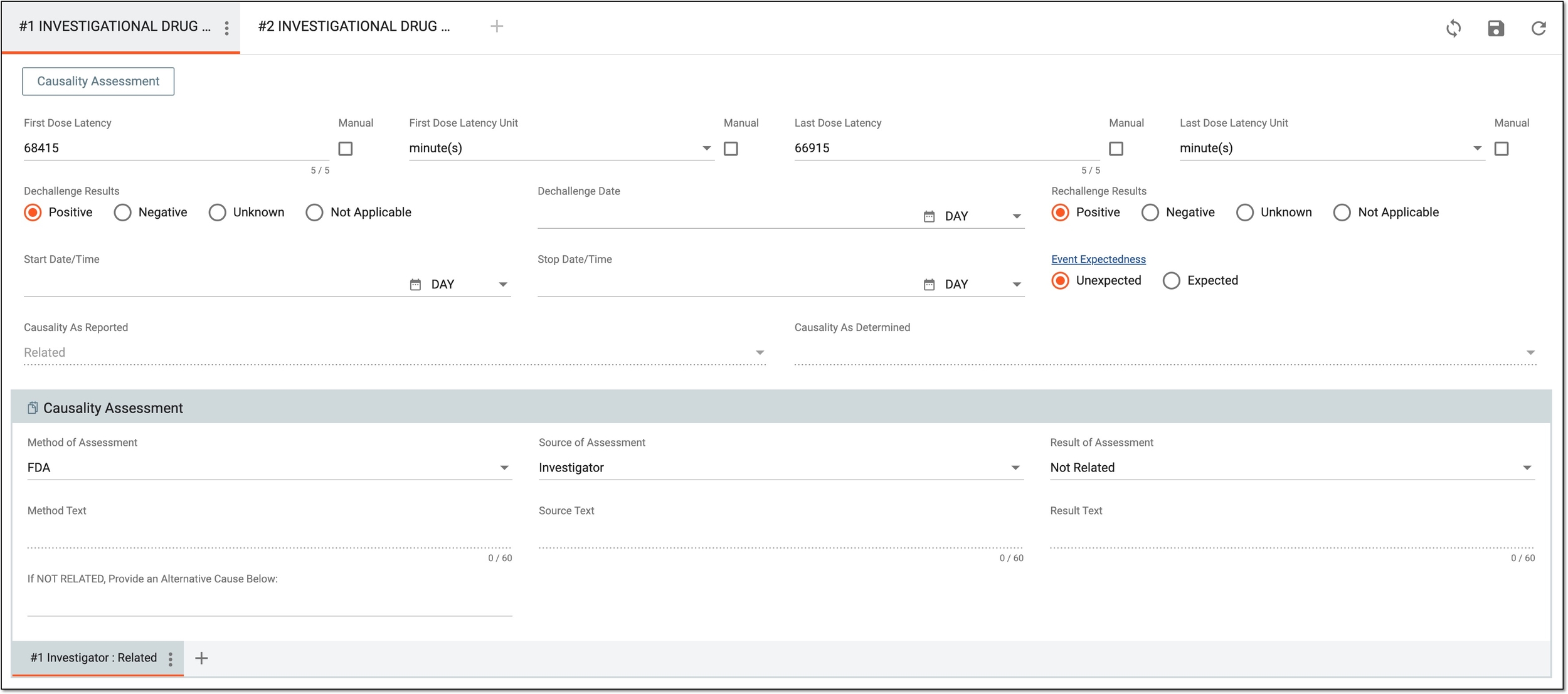 Figure 2. Completing assessment information
Tip
In the following table, mandatory elements are marked with an asterisk (*).
Element
Details
First Dose Latency
Represents the interval between the first time the product has been administered and the first onset of the adverse reaction or event. The value is autocalculated by the system as the difference between dates specified in the Onset Date field of the respective record in the Events form and the First Dose field of the respective drug record in the Products form.
To amend the value, select the Manual checkbox.
First Dose Latency Unit
Represents the time unit to measure the interval between the first time the product has been administered and the first onset of the adverse reaction or event. For the autocalculated First Dose Latency value, the unit is also updated automatically.
To amend the value, select the Manual checkbox.
Last Dose Latency
Represents the interval between the last time the product has been administered and the onset of the adverse reaction or event. The value is autocalculated by the system as the difference between dates specified in the Onset Date field of the respective record in the Events form and the Last Dose field of the respective drug record in the Products form.
To amend the value, select the Manual checkbox.
Last Dose Latency Unit
Represents the time unit to measure the interval between the last time the product has been administered and the onset of the adverse reaction or event. For the autocalculated Last Dose Latency value, the unit is also updated automatically.
To amend the value, select the Manual checkbox.
Manual
Select this checkbox next to both the First Dose Latency and First Dose Latency Unit or Last Dose Latency and Last Dose Latency Unit fields to change their values manually disabling the autocalculation functionality.
-
If selected, you can manually enter the field value and save the form as is.
-
If cleared and you enter a custom value manually, the system overrides your manual entry according to the autocalculation rule upon saving the form.
Dechallenge Results
If the suspect product has been stopped or interrupted or the dose has been reduced, identify if the AE diminished—lessened in degree or intensity, including its complete disappearance. To identify, select the needed option as follows.
Dechallenge Date
Select the date when the drug has been withdrawn or stopped.
Rechallenge Results
Identify whether the AE reappeared if the suspect product was reintroduced by selecting the appropriate result (response) as follows.
Start Date/Time
Select the date when the drug has been reintroduced.
Stop Date/Time
Select the date when the reintroduced drug has been withdrawn again.
Event Expectedness
The field is populated with Unexpected or Expected values based on the event expectedness for the product according to the data sheet revision number. To populate values to the field, select Generate Record
 .
.Causality As Reported
Represents the reported result of causality assessment automatically populated by the system based on the Causality Assessment block values of the Assessment form of your ICSR. The calculation follows the configured rules.
The autocalculation rules can be configured according to customer requirements by the EDETEK administrator.The currently configured rules are found in Appendix B. Causality as reported rules.Causality As Determined
The field is read-only and represents the result of company causality automatically populated by the system based on the Causality Assessment block values according to configured rules.
The autocalculation rules can be configured according to customer requirements by the EDETEK administrator.The currently configured rules are found in Appendix C. Causality as determined rules.Generate Record
Select
to tie the product that has been flagged as suspect to all of the reported events.SAVE
Select
to save the implemented changes.Causality Assessment
Method of Assessment*
Select the method of how the assessment has been conducted.
This field becomes inactive if the assessment method is specified in the Method Text field because these fields are alternative and
                                        data can be specified only in one or the other, but not simultaneously.
Source of Assessment*
Select the stakeholder who has conducted the assessment.
This field becomes inactive if the source of assessment is specified in the Source Text field because these fields are alternative and
                                        data can be specified only in one or the other, but not simultaneously.
Result of Assessment*
Select the outcome of the assessment conducted to identify whether adverse reactions or events are related to the product flagged as suspect.
The field is populated with Related or Not Related values based on the event expectedness for the product according to the data sheet. To populate values to the field, select Generate Record
.The causality autocalculation rules can be configured according to customer requirements by the EDETEK administrator. The currently configured rules can be found in Appendix D. Case causality rules.This field becomes inactive if the result of assessment is specified in the Result Text field because these fields are alternative and data can be specified only in one or the other, but not simultaneously.Method Text
Enter a free-text description of the method of how the assessment has been conducted. This field is mostly used to enter the unmapped details manually upon data migration.
This field becomes inactive if the assessment method is specified in the Method of Assessment field because these fields are
                                        alternative and data can be specified only in one or the other, but not simultaneously.
Source Text
Enter a free-text description of the stakeholder who has conducted the assessment. This field is mostly used to enter the unmapped details manually upon data migration.
Note that:-
This field becomes mandatory if the Method Text value is specified. -
This field becomes inactive if the source of assessment is specified in the Source of Assessment field because these fields are
                                              alternative and data can be specified only in one or the other, but not simultaneously.
Result Text
Enter a free-text outcome of the assessment conducted to identify whether adverse reactions or events are related to the product flagged as suspect. This field is mostly used to enter the unmapped details manually upon data migration.
Note that:-
This field becomes mandatory if the Method Text value is specified. -
This field becomes inactive if the result of assessment is specified in the Result of Assessment field because these fields are
                                              alternative and data can be specified only in one or the other, but not simultaneously.
If NOT RELATED, Provide an Alternative Cause Below
Enter the assessment description if the stakeholder has determined that adverse reactions or events are not related to the product flagged as suspect.
Select this icon to add a new causality assessment record.
Note that you can add new causality assessment records only after saving the previously added one. -
Upon saving, the Assessment form of your ICSR is completed, and you can proceed to the following forms, such as Complete narrative form, Complete source form, and so on.
The Narrative form describes in detail a patient's adverse event (AE) or suspected adverse reaction that has occurred following exposure to a medicinal product, vaccine, or medical device. The form provides a comprehensive account of the circumstances surrounding the adverse event, including patient demographics, medical history, concomitant medications, and other relevant factors. When creating an ICSR from scratch, the Narrative form should be completed manually.
Tip
The narrative texts can be translated. For more details, refer to the Translate ICSR form field section.
-
In the PV application header, select the ICSR tab.
-
On the ICSR List page that opens, select the needed case.
Figure 1. Accessing case details
-
On the page that opens in the new browser tab, from the left pane, select Narrative.
-
In the Narrative form that appears, complete the narrative details as explained in the following table.
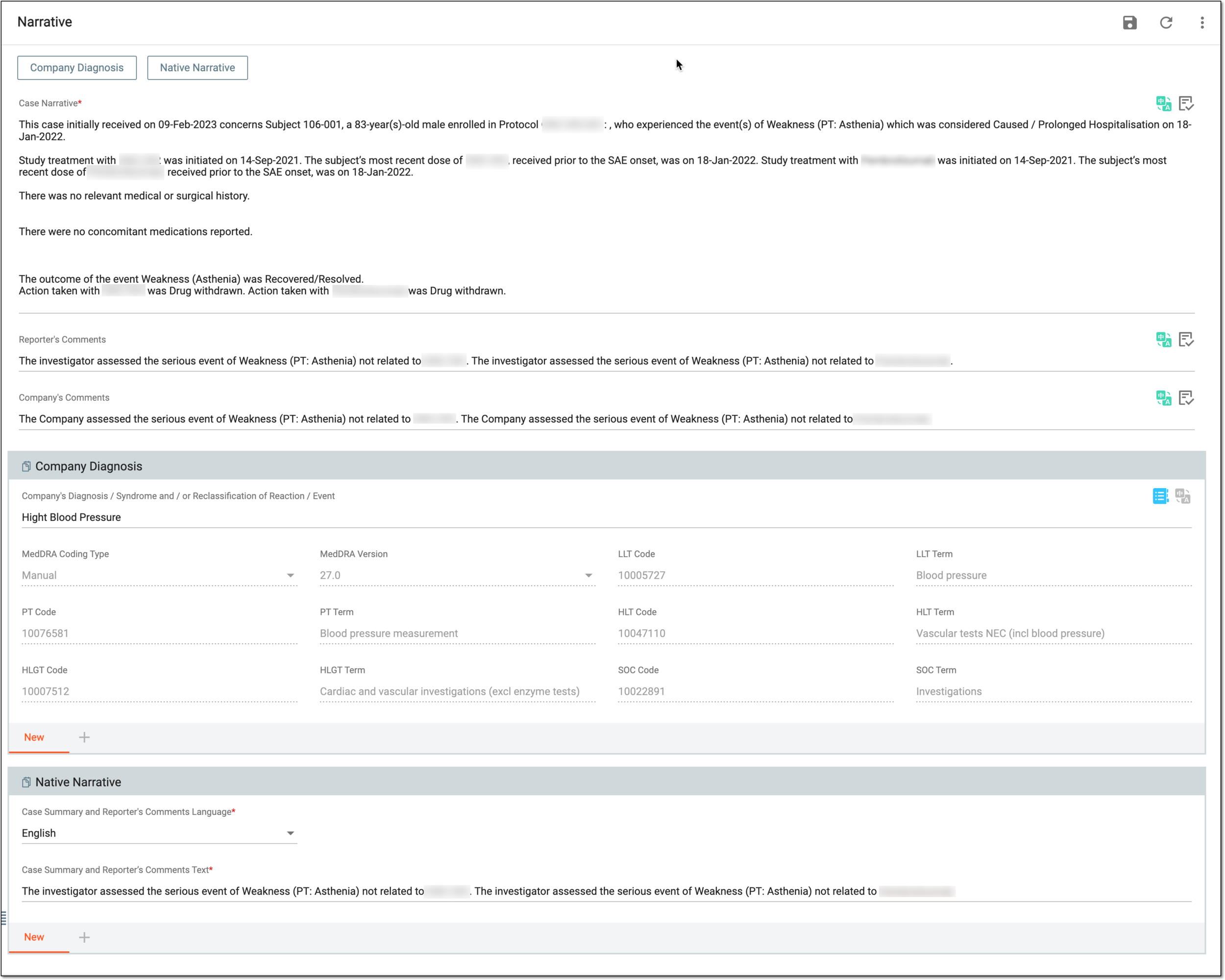 Figure 2. Completing narrative information
Tip
In the following table, mandatory elements are marked with an asterisk (*).
Element
Details
Case Narrative*
There are two options for adding a narrative:
-
Manually enter the details of the clinical course, therapeutic measures, treatment outcomes, and other important information related to the patient who has experienced the reported adverse reaction or event.
-
Automatically generate the narrative based on all the details provided in General, Patient, Products, Events, and other forms of the ICSR by selecting Generate Narrative
 .
.
Reporter's Comments
There are two options for adding reporter's comments:
-
Manually enter the event-related comments provided by the reporter including diagnosis information and causality assessment.
-
Automatically generate the reporter's comment based on the details provided in the Events and Assessment forms of the ICSR by selecting Generate Narrative
.
Company's Comments
There are two options for adding reporter's comments:
-
Manually enter the company's assessment of the case including expectedness and causality based on the case information, narrative, and reporter's comments.
-
Automatically generate the company's comment based on the details provided in the Events and Assessment forms of the ICSR by selecting Generate Narrative
.Note that these details are pulled from different fields of the mentioned forms than the Reporter's Comments details.
Translation
Select
next to the form field to translate its value into available languages.SAVE
Select SAVE
to save the implemented changes.Company Diagnosis
Company's Diagnosis / Syndrome and / or Reclassification of Reaction / Event
Select MedDRA Search
to choose the MedDRA LLT term that combines the company assessment with the signs and
symptoms that have been reported into a succinct diagnosis. All the details of the selected LLT term are populated in the corresponding fields of the form and they are disabled by default.Select this icon in the Company Diagnosis block, to add a new patient's diagnosis that is related to the occurred event. Bear in mind, that you can add new diagnoses only after saving the previously added one.
Native Narrative
Case Summary and Reporter's Comments Language*
Represents the language used by the case reporter to record his findings pertaining to the adverse reaction or event.
Case Summary and Reporter's Comments Text*
Represents information on the clinical course of the case, therapeutic measures, outcome, and other relevant information, as well as the reporter's comments on the case in a language different from the one used in the Case Narrative, Reporter's Comments, and Company's Comments fields.
Select the plus icon in the Native Narrative block, to add a new native narrative record. Bear in mind, you can add new native narrative records only after saving the previously added one.
Tip
The narrative-related comments can be quite extensive, thus the field capacity for data input in this form is 100,000 characters.
-
Upon saving, the Narrative form of your ICSR is completed, and you can proceed to the following forms, such as Complete source form, Complete literature form, and so on.
Generate narrative information and AOSE automatically
The Narrative form describes in detail a patient's adverse event (AE) or suspected adverse reaction that has occurred following exposure to a medicinal product, vaccine, or medical device.
In PV, when managing the narrative information, you have three fields to complete—Case Narrative, Reporter's Comments, and Company's Comments. For each of these fields, you can generate the text automatically by selecting a relevant template and letting the system pull the details previously provided in other forms of your ICSR.
While generating narrative information for a case intended for the FDA submission, to satisfy the regulatory requirements, you need to include a summary of all cases that have similar events registered in the PV system. Such a summary aims for a better understanding of the Investigational New Drug (IND) safety. For this, you can perform the analysis of similar events (AOSE) by letting the system pull the previously registered similar events in other cases and then append these details to your narrative information.
-
In the PV application header, select the ICSR tab.
-
On the ICSR List page that opens, select the needed case.
Figure 1. Accessing case details
-
On the page that opens in the new browser tab, from the left pane, select Narrative.
-
In the Narrative form that appears, based on the kind of information you need to add, go to one of the following fields—Case Narrative, Reporter's Comments, or Company's Comments—and select Generate Narrative
.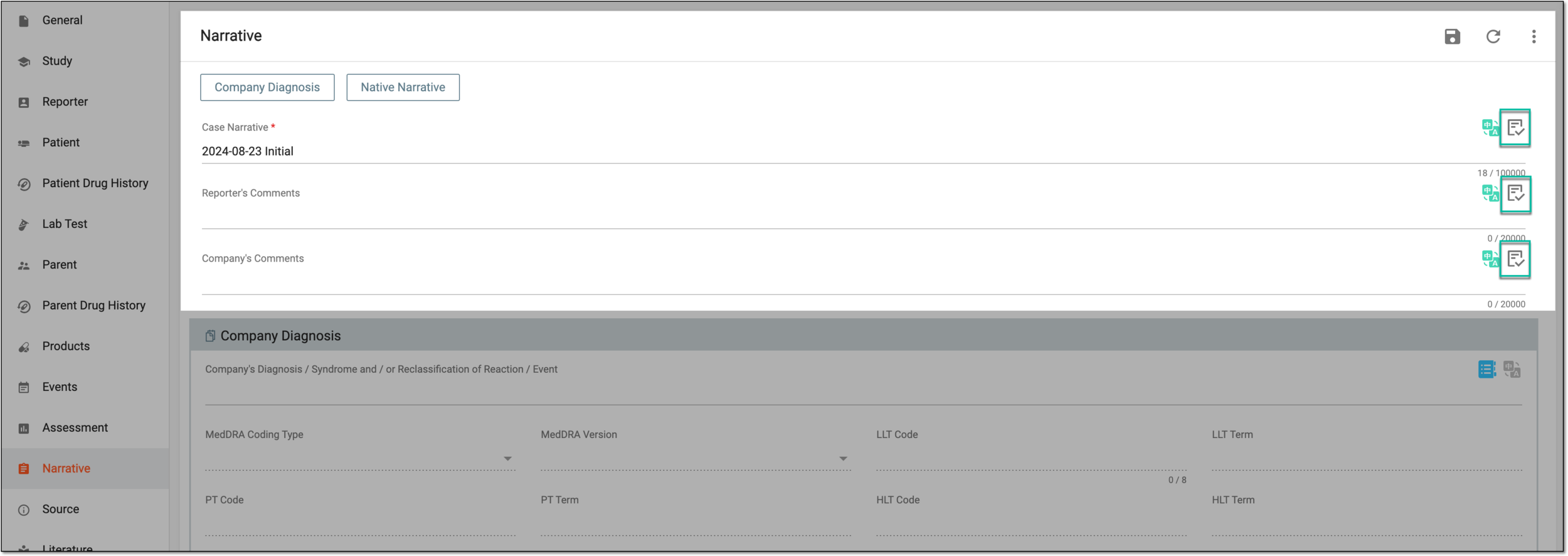 Figure 2. Generating narrative
-
In the dialog that opens, at the Select Template step, select the template for your narrative information generation as explained in the following table.
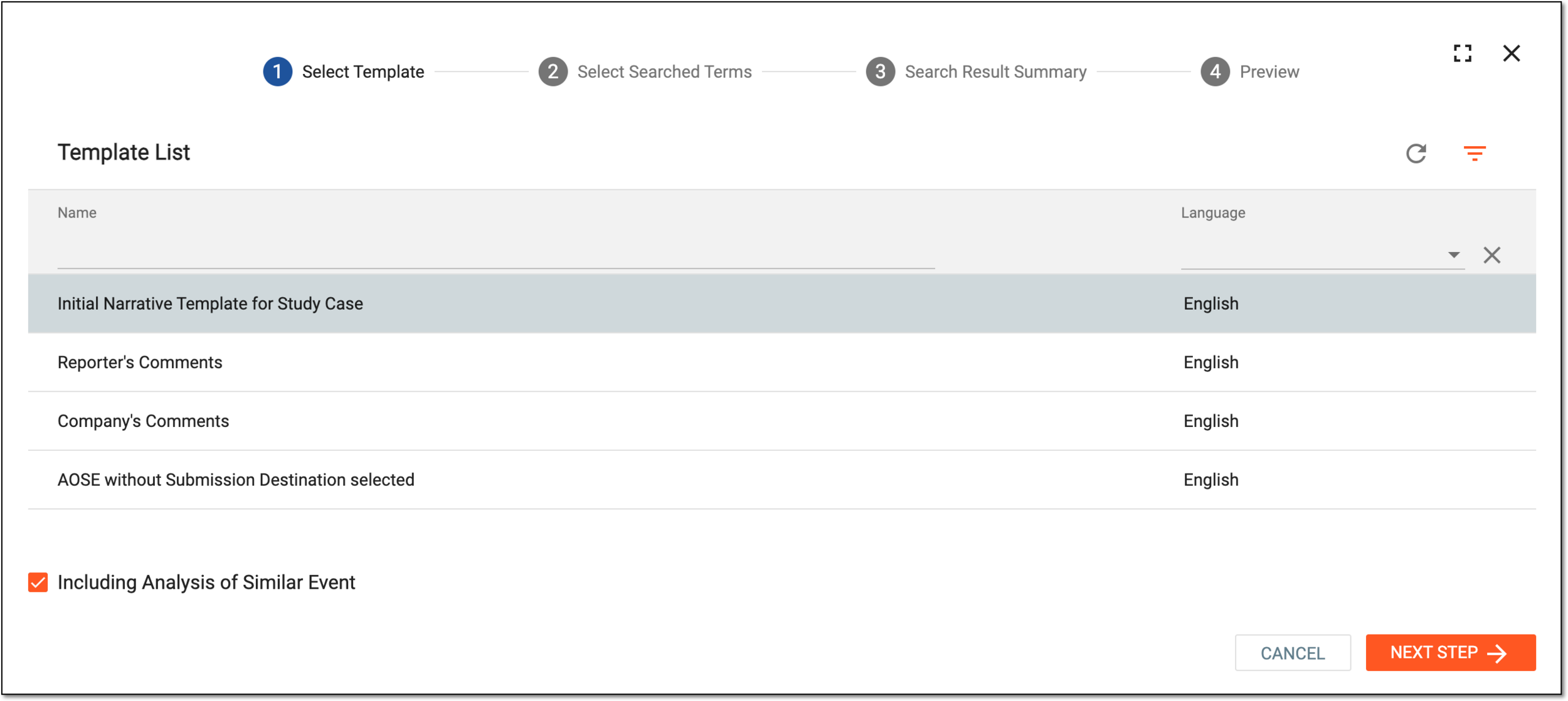 Figure 3. Selecting narrative template
Element
Details
Initial Narrative Template for Study Case
Select this template to generate a new narrative text for a case. This template is most useful for initial cases with no previously added narrative information.
Use this template together with the Including Analysis of Similar Event checkbox to add the AOSE details to your initial narrative.Reporter's Comments
Select this template to generate the event-related comments provided by the case reporter based on the details provided in the Events and Assessment forms of the ICSR.
Use this template together with the Including Analysis of Similar Event checkbox to add the AOSE details to your reporter's comment.Company's Comments
Select this template to generate the company's assessment of the case, including expectedness and causality based on the case information, narrative, and reporter's comments. The autogenerated company's comment is based on the details provided in the Events and Assessment forms of the ICSR. However, these details are pulled from different fields of the mentioned forms than the reporter's comment details.
Use this template together with the Including Analysis of Similar Event checkbox to add the AOSE details to your company's comment.AOSE without Submission Destination selected
Select this template to generate only the AOSE statement. This template is most useful for the cases that already have a narrative added previously, so you only need to append the AOSE details.
Use this template together with the Including Analysis of Similar Event checkbox to enable the respective
                                          steps intended for the AOSE.
Including Analysis of Similar Event
Select or clear the checkbox as follows:
-
Select this checkbox to add the AOSE details to your narrative, reporter's comments, or company's comments.
If selected, the Select Searched Terms and Search Result Summary steps become available for completion upon selecting NEXT STEP. -
Clear this checkbox to skip adding the AOSE details to your narrative, reporter's comments, or company's comments.
If cleared, selecting NEXT STEP brings you straight to the Review stage.
Full Screen/Full Screen Exit
Select Full Screen
 to expand your narrative generation window to a full-screen view. To exit the
full-screen view, select Full Screen Exit
to expand your narrative generation window to a full-screen view. To exit the
full-screen view, select Full Screen Exit  .
.NEXT STEP
Select
 to proceed to the next step of the narrative generation as follows:
-
If the Including Analysis of Similar Event checkbox is selected, the next step is to select searched terms for the AOSE.
-
If the Including Analysis of Similar Event checkbox is cleared, the next step is to review the text autogenerated by the system for your selected template.
CANCEL
Select
 to close the dialog and discard the changes without saving.
 -
-
At the Select Searched Terms step, select the Standardized MedDRA Queries (SMQs), Preferred Terms (PTs), or both to define the similar events for which the system must perform the analysis as explained in the following table.
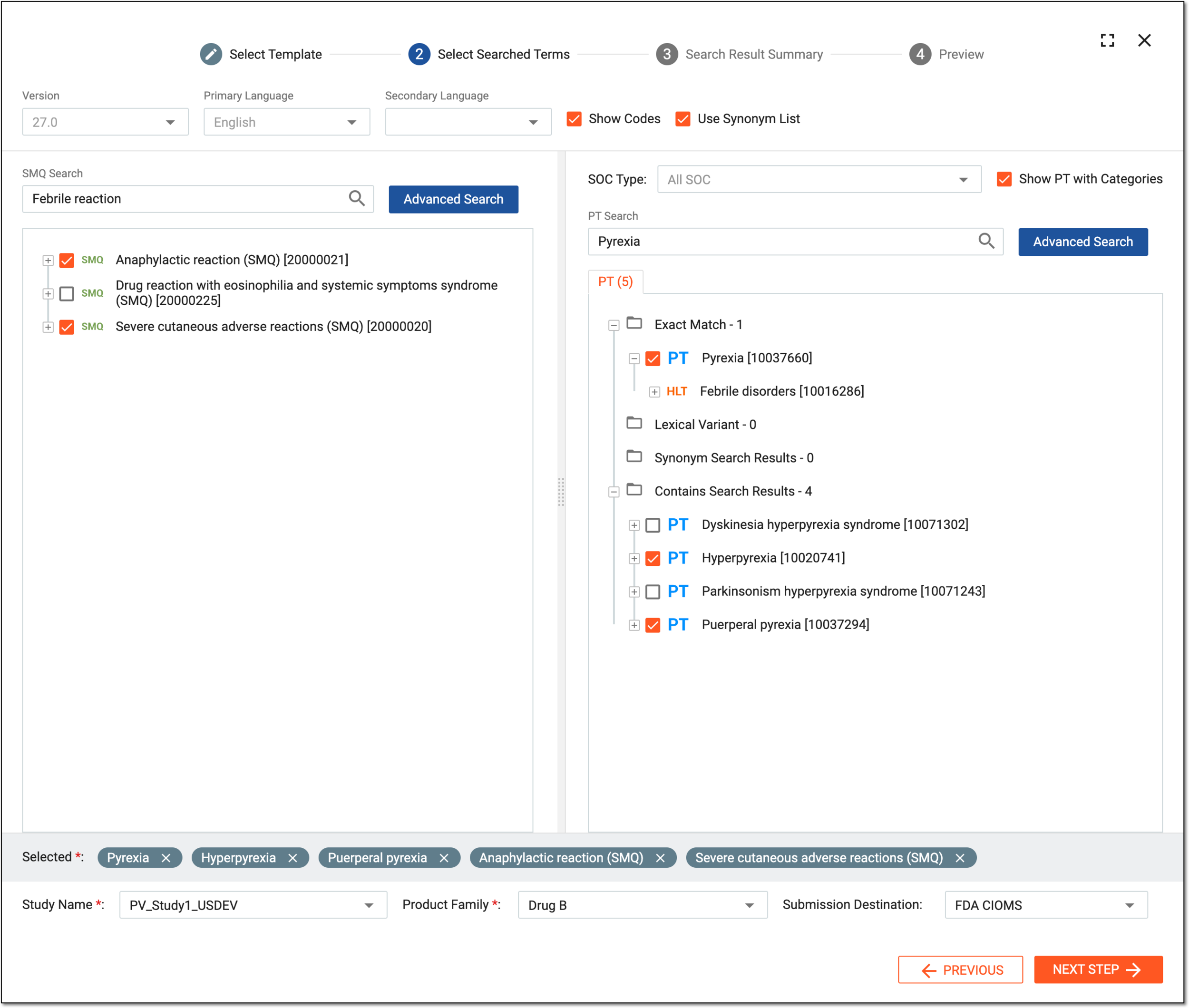 Figure 4. Selecting searched terms for AOSE
Tip
In the following table, mandatory elements are marked with an asterisk (*).
Element
Details
Version
Represents the MedDRA version according to which the case terms are coded in the Events form. The search will be performed based on this MedDRA version.
Primary Language
Represents the primary language in which you will receive the search results. This is the language in which the case is to be submitted and the terms are provided in other ICSR forms, so it cannot be changed here.
Secondary Language
Expand the list and select the secondary language in which you want to view the search results.
Show Codes
Select this checkbox to display the MedDRA code associated with each term in the search results.
Use Synonym List
Select the checkbox to include synonyms in your search criteria.
SMQ Search
Enter the SMQ to use it as a searched term for similar events analysis.
An SMQ is a group of terms—ordinarily at the PT level—that relate to a defined medical condition or area of interest. SMQs are intended to aid the identification and retrieval of potentially relevant case records.Once the search results appear, select the checkbox next to the SMQ that fits your search criteria. Some SMQs are hierarchically related, thus, you can expand the inclusive SMQ and select some or all of its subordinate SMQs.
Only the PTs of the selected SMQs are used for similar event search.Advanced Search
Select
 to facilitate your SMQ search with additional keywords or phrases by using options like Contains, Begins With, Exact Match, Ends With, and Not Contains to narrow down the list of potential
matches to find the most appropriate MedDRA term.
to facilitate your SMQ search with additional keywords or phrases by using options like Contains, Begins With, Exact Match, Ends With, and Not Contains to narrow down the list of potential
matches to find the most appropriate MedDRA term.Use the AND/OR operators to further customize your advanced search:
-
AND: narrows your search by requiring that all keywords or phrases you have entered must be present in the potential matches.
-
OR: expands your search by allowing any of the keywords or phrases to be present in the potential matches.
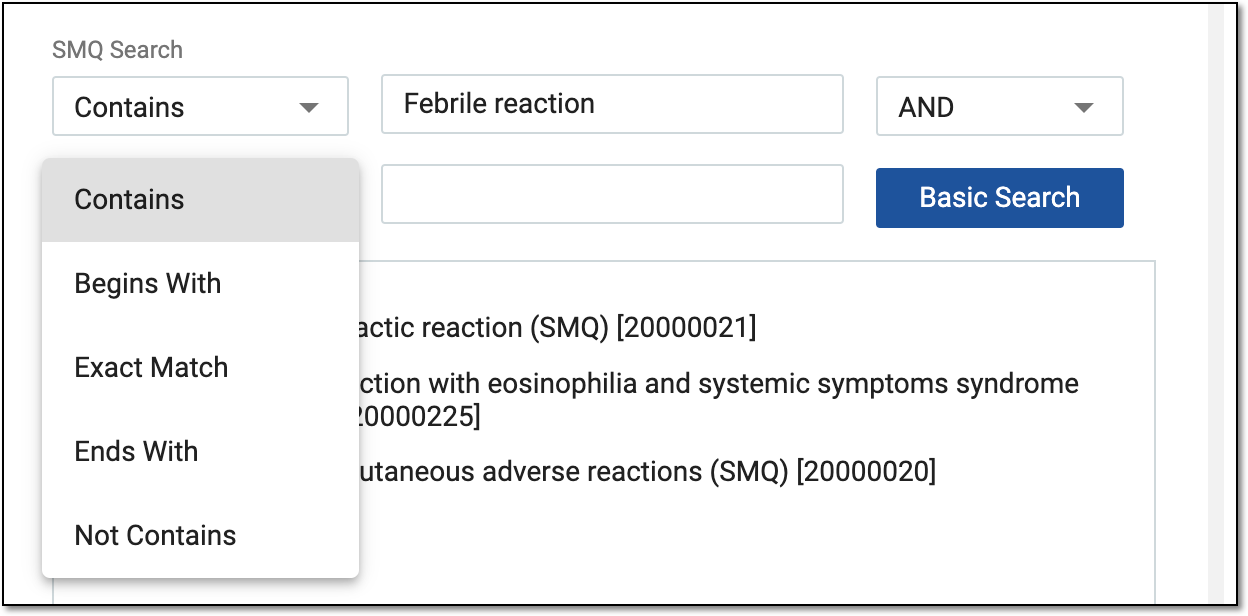 Figure 5. Advanced search example for SMQ
To get back to the basic search, select .
.SOC Type
Expand the list and select the needed option to narrow down your search to a specific type of SOC (System Organ Class).
Show PT with Categories
Select the checkbox to organize the searched MedDRA terms based on the PT categories.
PT Search
Enter the PT to use it as a searched term for similar events analysis.
A PT is a standardized term used to describe a specific medical concept. Each PT is a descriptive label for a particular clinical finding, symptom, or adverse event.Once the search results appear, select the checkboxes next to the MedDRA PTs that you want to include as searched terms for similar events analysis.
Advanced Search
Select
to facilitate your PT search with additional keywords or phrases by using options like Contains, Begins With, Exact Match, Ends With, and Not Contains to narrow down the list of potential
matches to find the most appropriate MedDRA term.Use the AND/OR operators to further customize your advanced search:
-
AND: narrows your search by requiring that all keywords or phrases you have entered must be present in the potential matches.
-
OR: expands your search by allowing any of the keywords or phrases to be present in the potential matches.
To get back to the basic search, select.Selected*
Represents the list of terms selected from SMQ search and PT search results for the AOSE process.
You can remove the term added by mistake by selecting the cross icon next to it.
Study Name*
Select the study or a group of studies whose cases you want to include in the AOSE process. Only the similar events of the cases that belong to the selected studies are included in the AOSE details.
Product Family*
Select the product family whose cases you want to include in the AOSE process. Only the similar events of the cases recorded in relation to the products of the selected family are included in the AOSE details.
Submission Destination
Select the submission destination(s) whose cases you want to include in the AOSE process. Only the similar events of the cases that are intended for the selected submission destination are included in the AOSE details.
NEXT STEP
Select
to proceed to the search result summary step of the narrative generation.PREVIOUS
Select
 to return to the narrative template selection step.
 -
-
At the Search Result Summary step, review the number of cases detected satisfying each of your searched terms. Then select one of the following options:
-
Select
if the results are suitable and you are ready to review the text autogenerated by the system based on these results and the selected template. -
Select
if you want to return to the terms selection step and revise your search.
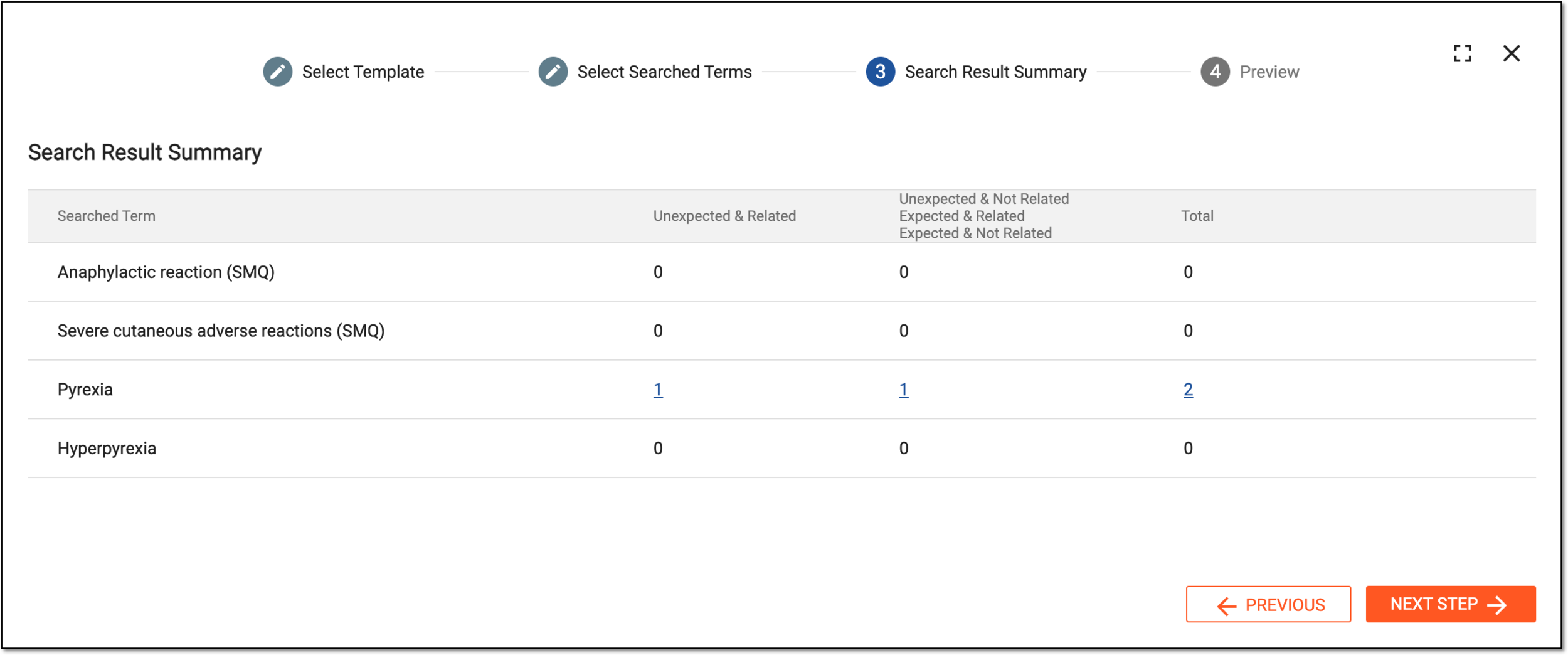 Figure 6. Reviewing search result summary
Tip
The search result numbers above zero are active links. Select the number of your interest to open the Case Listing dialog and see the list of cases found for a certain term. If more details are needed, select Go To ICSR
 to open the case of your interest in the new browser tab.
 Figure 7. Accessing cases with similar events
-
-
At the Review step, go through the autogenerated text based on the selected template. You can edit the text here as needed to better satisfy your narrative information requirements. Once ready, select one of the following options:
-
Select
 to replace the existing narrative text with the newly generated one.
 -
Select
 to add the newly generated narrative text to the existing one.
 -
Select
to return to the search result summary step.
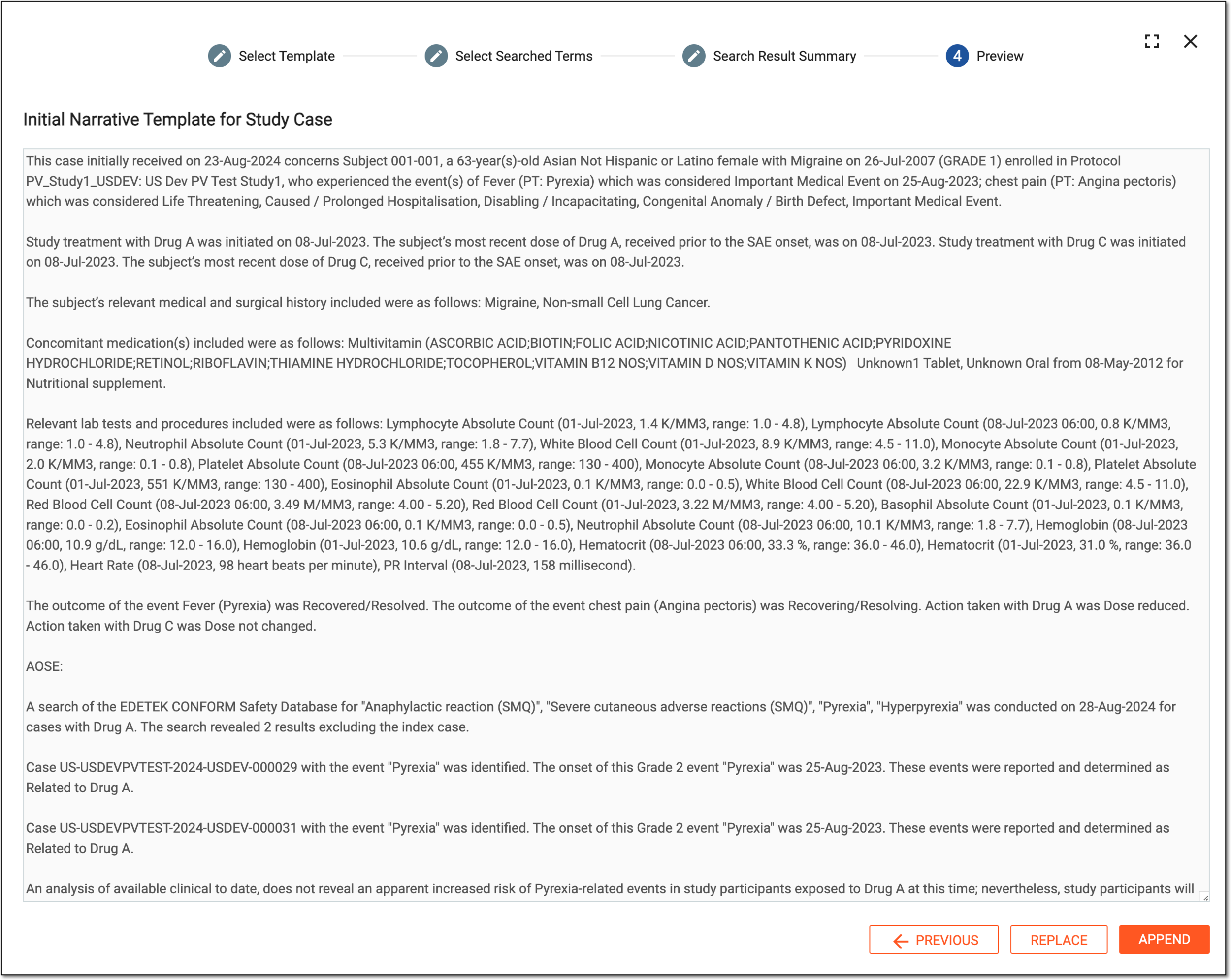 Figure 8. Reviewing generated narrative text
-
Once replaced or appended, your autogenerated text is added to the respective field within the Narrative form. You can repeat this procedure until you fill in all the needed details of the form—narrative, reporter's comments, and company's assessment.
The Source form is used for the upload of documents, which are the basis of the Individual Case Safety Report (ICSR). The types of documents that can be uploaded here are patient medical records, electronic copies of lab results, paper case report forms (CRFs), survey forms, and so on. The Source form is the only form where you can upload documents relevant to data intake from EDC to PV.
Unlike the documents uploaded in the Literature and Attachments forms, source records are not automatically exported to the package formed upon ICSR submission. However, by selecting a certain type of uploaded document, you inform the system that the file is supposed to go into the submission package, so the file is included in the resulting XML.
Important
The system can automatically attach the generated submission file and classify it by the type in the Source form if configured so in the respective submission setting.
In this section, you can learn how to upload files and specify their types for the Source form.
-
In the PV application header, select the ICSR tab.
-
On the ICSR List page that opens, select the needed case.
Figure 1. Accessing case details
-
On the page that opens in the new browser tab, from the left pane, select Source.
-
In the form that appears, perform the file upload and configuration as explained in the following table.
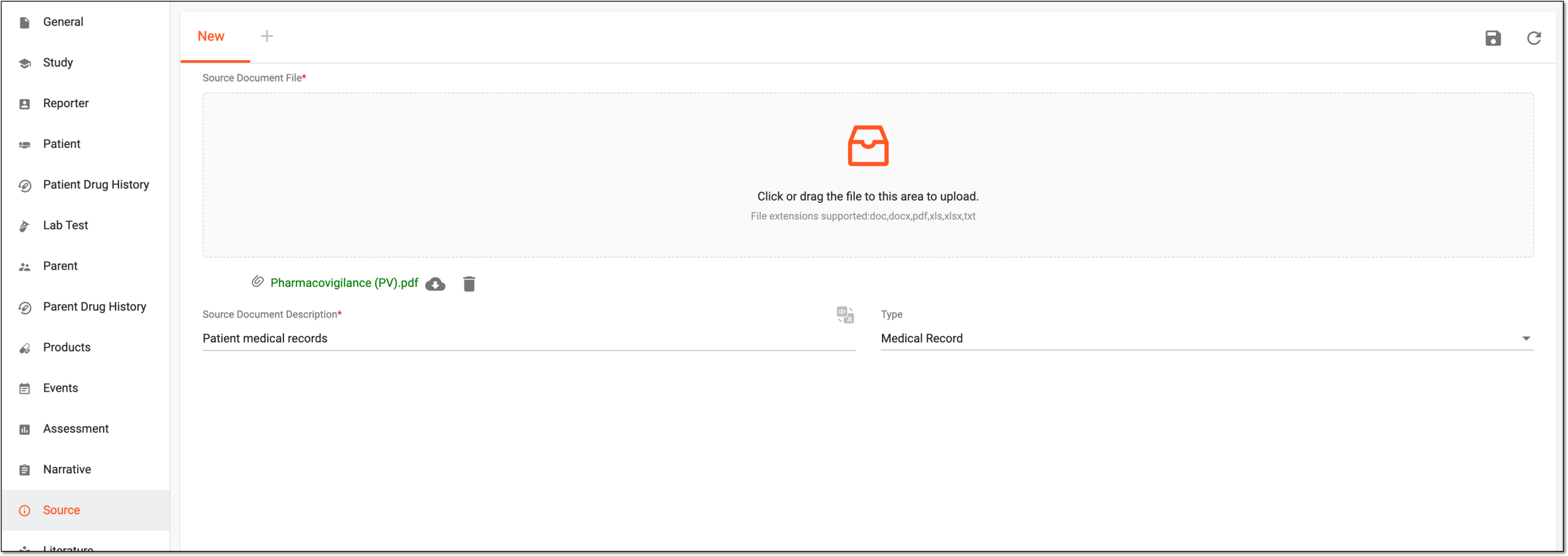 Figure 2. Uploading source document
Tip
In the following table, mandatory elements are marked with an asterisk (*).
Element
Details
Source Document File*
Select the designated area and choose the file on your computer to upload. Alternatively, drag your file to the designated area. Based on the file size, you might need to wait for the system to complete the upload.
The source materials must be in the following formats: DOC, DOCX, PDF, XLS, XLSX, or TXT.Source Document Description*
Enter a description of the uploaded document to elaborate on its specifics.
Type
Select the type of the document being uploaded.
Note that when the file type is the same as the selected type in which the submission destination is used for exporting E2B R3 XML, the matched source file is to be exported into the submission package.SAVE
Select
to save the implemented changes.Refresh
Select
to discard your changes and clear all fields.Download
Select
 to download the source file.
Delete
Select
 to remove the uploaded source file from the form.
New
Once the form is saved, select
to add
a new form where you can upload another source file.
Upon saving, the source document is added to the ICSR.
The Literature form is used to provide literature articles that pertain to the created ICSR. This can be a photocopy or an electronic copy of a medical journal, annals, case studies, or anything that is published and considered a literature article. Mind that this form is not suitable for the articles used in data analysis. Any attachments added to this form are included in electronic submissions and will be seen by receivers.
The literature materials must be in PDF, DOC, DOCX, XLS, XLSX, and TXT format only and cannot exceed the size of 15 Megabytes. After uploading a literature document, you need to provide a reference to the article because, after the submission, the article is sent in an attachment, in the Literature Form data element C.4.r.1 according to (ICH E2B(R3)), and the electronic version of the document is attached to the ICSR in the included documents data element C.4.r.2 according to (ICH E2B(R3)). If an article has already been submitted with an ICSR, this document cannot be resubmitted for any subsequent follow-up ICSRs.
-
In the PV application header, select the ICSR tab.
-
On the ICSR List page that opens, select the needed case.
Figure 1. Accessing case details
-
On the page that opens in the new browser tab, from the left pane, select Literature.
-
In the form that appears, select or drag the file to the designated area and wait for the system to make the file upload.
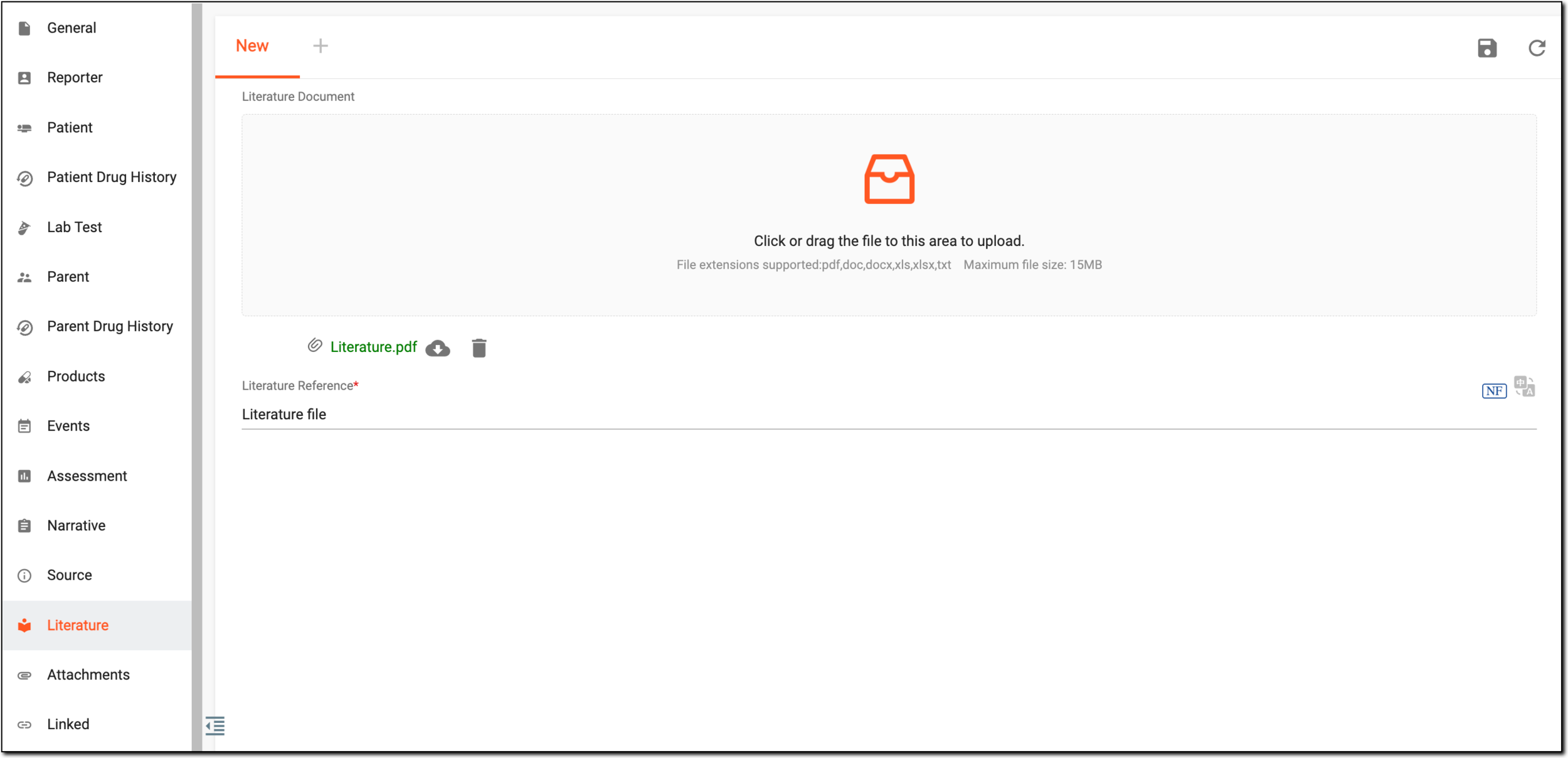 Figure 2. Uploading literature document
-
In the Literature Reference* field, enter the description for the uploaded file.
Important
The literature reference (citation) must be provided according to the style specifications of the Vancouver Convention (Vancouver Style) developed by the International Committee of Medical Journal Editors. As part of EMA recommendations, the Digital Object Identifier (DOI) for the article needs to be included if applicable.
Select
next to the field to activate the null flavor selection (NI, UNK, and so on). You can find the details for the available null flavor options in Appendix A. Null flavor
specification. -
Then from the workspace toolbar, select
 to save the form with the uploaded file.
Tip
After saving the uploaded literature file, you can perform one of the following actions:
-
Add new
: select this option to add a new form where you can upload another literature
document. -
Download
: select this option to download the literature file. -
Delete
: select this option to remove the uploaded literature file from the
form.
-
Upon saving, the literature document is added to the ICSR.
The Attachments form is used to provide clinical documents other than literature articles. This can be autopsy reports, ECG strips, chest X-rays, or photographs. Any attachments added to this form are automatically included in electronic submissions and are available for the receivers. This form must be completed if it has been indicated in the Lab Test form that there is more information available.
All attachments must be in PDF, DOC, DOCX, XLS, XLSX, and TXT format only and cannot exceed the size of 15 Megabytes. After uploading the attachment document, you need to add its description because, after the submission, this description is provided in the documents held by sender element C.1.6.1.r.1 according to the (ICH E2B(R3)). The electronic version of all clinical documents is provided as attachments in the included documents element C.1.6.1.r.2 according to the (ICH E2B(R3)).
-
In the PV application header, select the ICSR tab.
-
On the ICSR List page that opens, select the needed case.
Figure 1. Accessing case details
-
On the page that opens in the new browser tab, from the left pane, select Attachments.
-
In the form that appears, select or drag the file to the designated area and wait for the system to make the file upload.
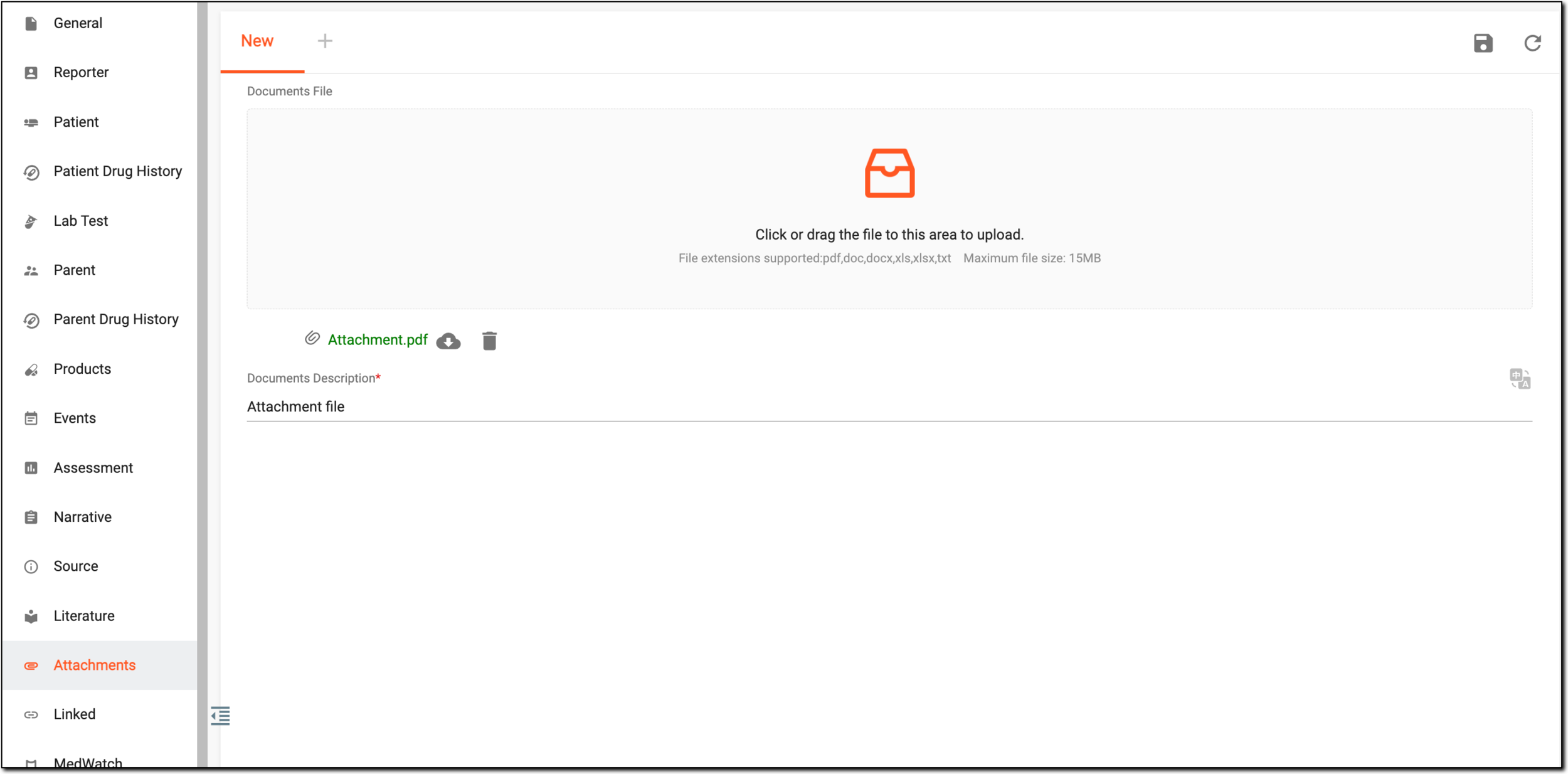 Figure 2. Uploading attachment
-
In the Documents Description* field, enter the description for the uploaded file.
-
Then from the workspace toolbar, select
to save the form with the uploaded file.Tip
After saving the uploaded attachment, you can perform one of the following actions:
-
Add new
: select this option to add a new form where you can upload another
attachment. -
Download
: select this option to download the attachment. -
Delete
: select this option to remove the uploaded attachment from the
form.
-
Upon saving, the attachment is added to the ICSR.
The Linked form is used to provide identification of another report or case that warrants being evaluated together with this ICSR. This includes but is not limited to, a parent/child pair where both have experienced an adverse event or reaction, siblings with common exposure, several reports involving the same patient, an ICSR previously sent via paper without a conformant E2B Worldwide Unique Case Identification Number or several similar reports from the same reporter (cluster).
-
In the PV application header, select the ICSR tab.
-
On the ICSR List page that opens, select the needed case.
Figure 1. Accessing case details
-
On the page that opens in the new browser tab, from the left pane, select Linked.
-
In the form that appears, complete the linked details as explained in the following table.
 Figure 2. Completing linked information
Tip
In the following table, mandatory elements are marked with an asterisk (*).
Element
Details
Case Relationship Type*
Select the relationship of the case to the one that is to be linked: Other Case Identifiers in Previous Transmissions, Local Reference No., or Linked to This Report.
Source(s) of the Case Identifier
Represents all the involved entities (for example, organizations) that have contributed sources of information for this ICSR and have their corresponding case identifiers. This field is available only if the Other Case Identifiers in Previous Transmissions case relationship type is selected.
Case Identifier(s)
Represents the source case identifiers. This field is available only if the Other Case Identifiers in Previous Transmissions case relationship type is selected.
Identification Number of the Report Which is Linked to this Report
Represents an identifier of another report or case that warrants being evaluated together with this ICSR. This field is available only if the Linked to This Report case relationship type is selected.
Link Reason
Represents the reason for the case linking. This field is available only if the Linked to This Report case relationship type is selected.
Notes
Represents the name of the source where the linked ICSR is located. This field is available only if the Local Reference No. case relationship type is selected.
Number
Represents the case report ID in the source location indicated previously. This field is available only if the Local Reference No. case relationship type is selected.
Select this icon to add a new linked record to the ICSR. Bear in mind, that you can add new linked records only after saving the previously added one.
SAVE
Select
to save the implemented changes.
Upon saving, the Linked form of your ICSR is completed, and you can proceed to the following forms, such as Complete MedWatch form, Submission form, and so on.
MedWatch is a program operated by the United States Food and Drug Administration (FDA) that collects and analyzes reports of adverse events and medication errors associated with the use of FDA-regulated products, including drugs, biologics, medical devices, and dietary supplements. MedWatch provides a platform for healthcare professionals, patients, and consumers to report adverse events and medication errors that occur during the use of these products.
When creating an ICSR from scratch or updating an existing report, the MedWatch form can be used to provide the required information for FDA MedWatch safety reporting on the AE occurrence for which the ICSR has been created.
-
In the PV application header, select the ICSR tab.
-
On the ICSR List page that opens, select the needed case.
Figure 1. Accessing case details
-
On the page that opens in the new browser tab, from the left pane, select MedWatch.
-
In the form that appears, complete the details as explained in the following table.
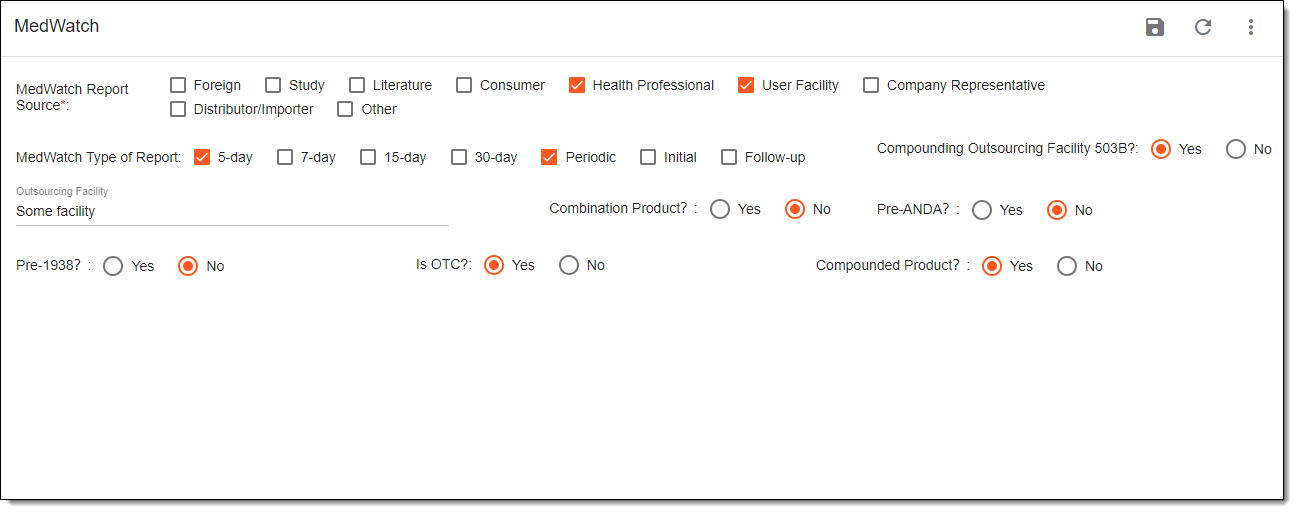 Figure 2. Completing MedWatch form
Tip
In the following table, mandatory elements are marked with an asterisk (*).
Element
Details
MedWatch Report Source*
Represents how the manufacturer became aware of the reported adverse event or the source from which the adverse event information has originated.
MedWatch Type of Report
Represents the qualifications of the ICSR for FDA submissions or reporting based on the seriousness and expectedness of adverse events. This includes the regulatory reporting timeline and the type of report.
Compounding Outsourcing Facility 503B?
Select Yes if the manufacturer is registered as a 503B facility. As per US FDA, under section 503B, a compounder can become an outsourcing facility. The law defines an outsourcing facility as a facility at one geographic location or address that is engaged in the compounding of sterile drugs, has elected to register as an outsourcing facility, and complies with all of the requirements of section 503B.
Outsourcing Facility
Represent the name of the outsourcing facility utilized by the manufacturer. This field is only available if the Yes value has been selected in the Compounding Outsourcing Facility 503B field.
Combination Product?
Select Yes if the suspect product is comprised of a drug-device, device-biological, drug-biological, or a drug-device-biological product. The US FDA defines combination products as therapeutic and diagnostic products that combine drugs, devices, or biological products.
Pre-ANDA?
Select Yes if the suspect product is an investigational new drug exempt BA/BE premarket serious adverse events. The Pre-ANDA Program has been developed for complex generic products to assist ANDA (Abbreviated New Drug Applications) applicants and prospective applicants before they submit ANDA to FDA.
Pre-1938?
Select Yes if the suspected product has been marketed prior to 1938 and does not have an application number.
Is OTC?
Select Yes if the suspect monograph product or medical device can be purchased without a prescription.
Compounded Product?
Select Yes if the product is a compounded product.
Select this icon to add a new linked record to the ICSR. Bear in mind, you can add new linked records only after saving the previously added one.
SAVE
Select
to save the implemented changes.
Upon saving, the MedWatch form of your ICSR is completed, and you can proceed to the Submission form.
The ICSR submission is the process by which pharmaceutical companies, healthcare providers, and other stakeholders in the healthcare industry report adverse events or side effects associated with a particular drug or medical device to regulatory authorities.
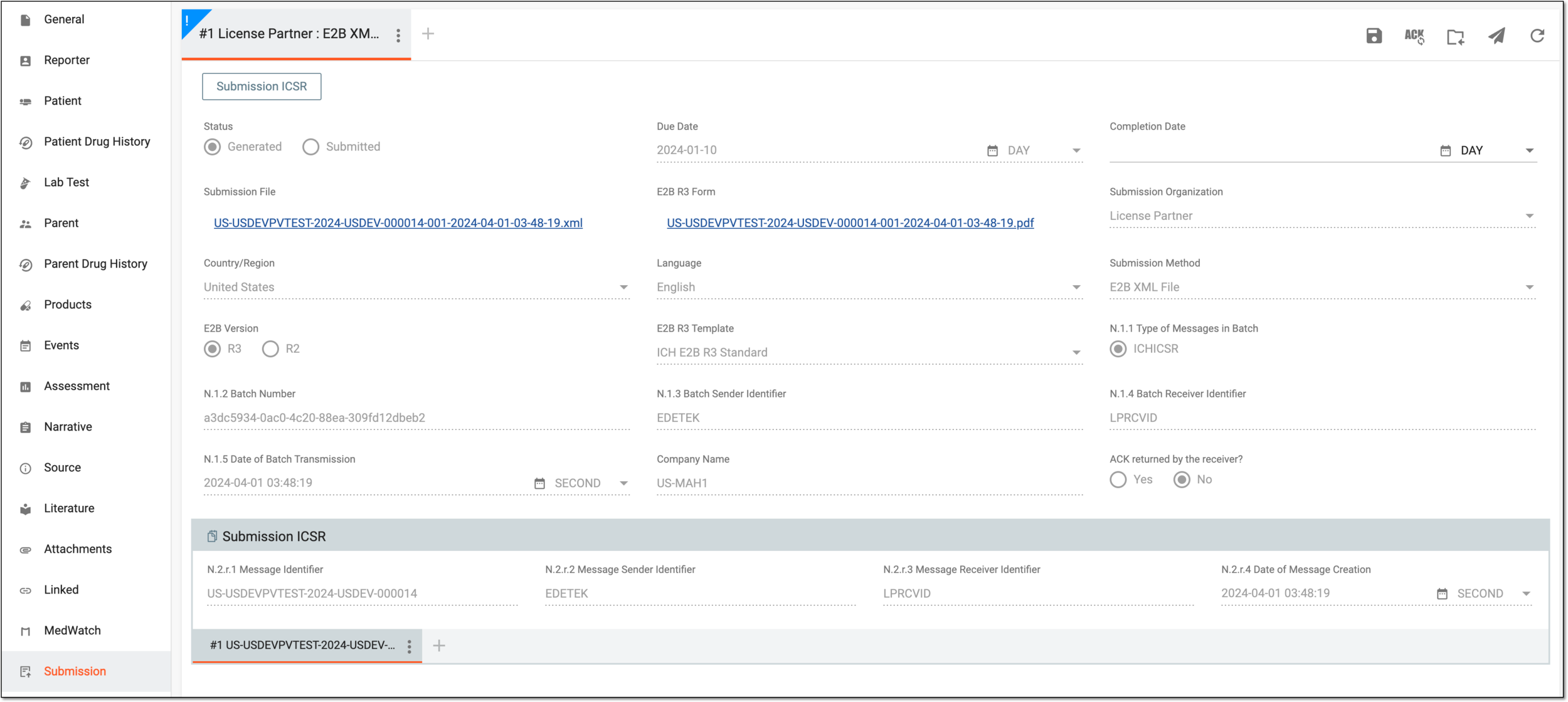
Submission records that you see in the Submission form cannot be generated manually in this form and their details cannot be edited. In order for the records to appear here, you need to generate them through the ICSR submission feature. Nevertheless, for some submission methods, you may update some details, for example, the completion date or other information for the offline submission method, such as a CIOMS-I or MedWatch report.
Important
The date of submission completion cannot be earlier than the submission generation date. You can check the submission generation date via change history.