Configure product using WHODrug coding
The WHODrug Global is a standardized drug dictionary used for coding and analyzing medication data. It comes in different formats, with B3 and C3 being two of them. The C3 format contains all the information found in the B3 format but includes additional details.
Some regulatory agencies, like the Ministry of Food and Drug Safety (MFDS) in South Korea and the Federal Commission for Protection against Health Risks (COFEPRIS) in Mexico, have started to require the use of the WHODrug C3 format. As a result of such requirements, the PV system provides capabilities to exclusively use the WHODrug C3 format for product coding in different forms across the application.
Learn more about how to use the WHODrug C3 format for drug coding. The general approach to the C3 format coding can be depicted with the following schema.
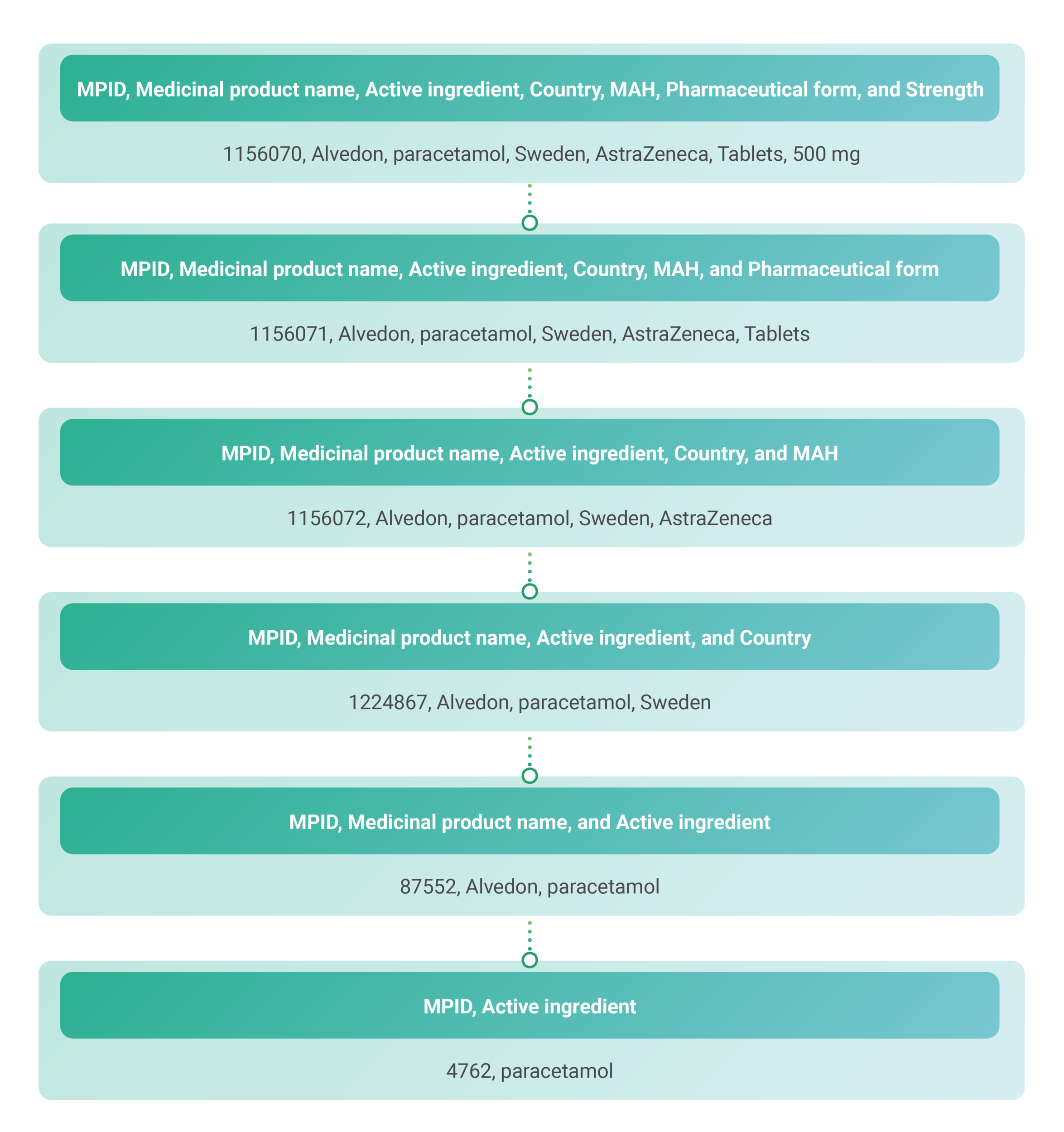
The utilization of a standardized coding system like WHODrug enables consistent reporting, analysis, and interpretation of medication data worldwide. It facilitates the tracking of adverse drug reactions and other safety-related issues by ensuring that products are accurately identified across different reports. Even though the product name can be entered manually in any corresponding form of PV, it is recommended that WHODrug coding be applied.
-
In the PV application header, select the PRODUCT tab.
-
On the page that opens, in the left pane, expand the product family within which your product resides.
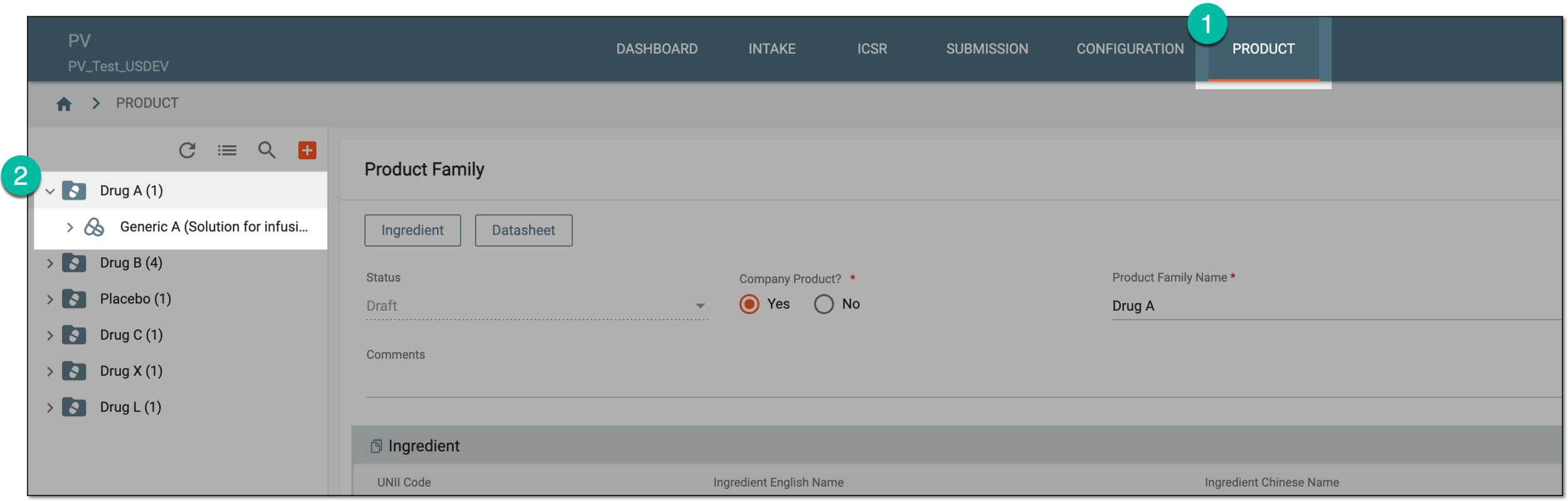 Figure 2. Accessing product family
-
From the expanded list, select the product for which you want to perform the WHODrug coding.
If needed, configure a new product under the product family.
 Figure 3. Selecting product to code
-
In the form that opens, from the Product Name field, select WHODrug
 .
. -
In the WHODrug Search dialog that appears, search for the necessary WHODrug term for your product name by using the elements explained in the following table.
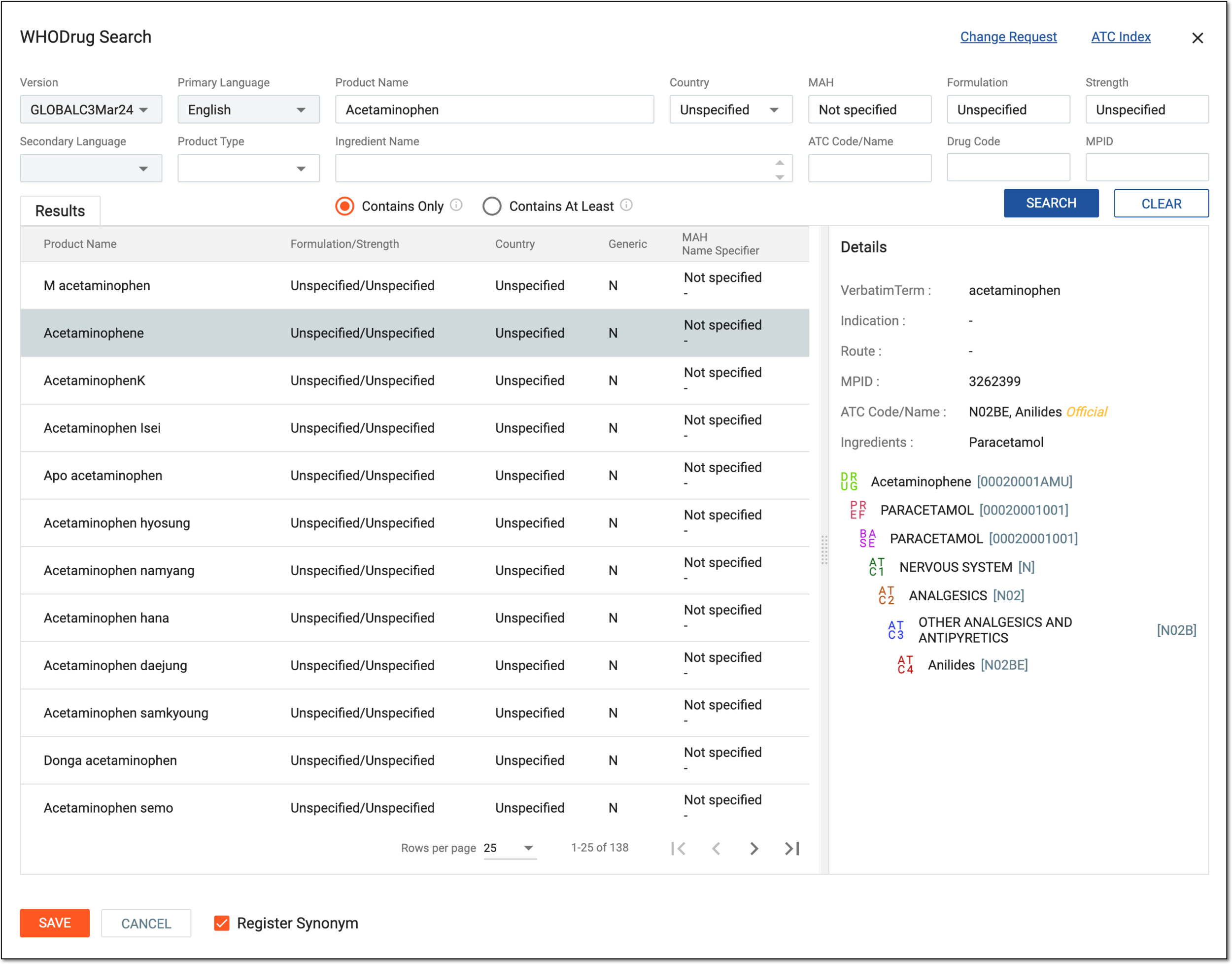 Figure 4. Searching for WHODrug product
Element
Details
Change Request
Select to open the WHODrug change request tool in the new browser tab.
ATC Index
Select to open the ATC/DDD Index in the new browser tab.
Version
Select the version of the WHODrug Global dictionary to be used for the search. The dictionary is regularly updated, so this field provides searching capabilities with the most current or a specific past version.
Primary Language
Select the language to use for searching within the WHODrug dictionary.
For an ICSR, the default value is the same as the case language.Product Name
Start entering the substance name or trade name of a drug so you can use autocomplete suggestions to select the needed value from the WHODrug dictionary.
Country
Enter the country name to narrow down the search to drugs available in a particular country or enter Unspecified or Not applicable if no information is available.
MAH
Enter the Marketing Authorization Holder name to search for the product coding options that belong to a certain MAH or leave the Not specified value if no MAH information is available.
Formulation
Specify the dosage form of the product or leave the Unspecified value if no pharmaceutical form information is available.
Strength
Enter the amount of active pharmaceutical ingredient present in a product, usually measured in terms of concentration or dose per unit, such as milligrams per tablet, milliliters per dose, and so on. Leave the Unspecified value if no product strength information is available.
Secondary Language
The secondary language is used for the bilingual display only since the WHODrug search always uses the primary language.
This field is inactive because this feature is currently under development.Product Type
Select one or multiple of the following product types to search within the WHODrug database:
-
Preferred: for all WHODrug records, the preferred name is also a generic name of active substances, preferably an International Non-proprietary Name (INN). If no INN exists, another globally recognized non-proprietary name (for example, the United States Adopted Name (USAN) or a chemical name) is used. The accepted scientific name for herbal records is the preferred name. This type can be selected along with either of the other types—Generic, Old Form, and Umbrella Records.
-
Generic: a generic name in WHODrug is a record representing one or more active substances. Generic names correspond to the names of one or more substances used as ingredients for WHODrug records. This type can be selected along the Preferred type, but not with Old Form or Umbrella Records.
-
Old Form: medicinal products that are withdrawn or no longer marketed are flagged as an old form in the WHODrug dictionary. The old form flag is uniquely added to a drug name with a specific set of ingredients on a specific market (for example, country name). This type can be selected along the Preferred type, but not with Generic or Umbrella Records.
-
Umbrella Records: a record representing a drug category or a placeholder record rather than a specific drug name (for example, corticosteroids or placebo). Umbrella records are used for coding imprecise verbatim terms when coding to a specific drug is not possible. Umbrella records always lack ingredients and start with 9. This type can be selected along the Preferred type, but not with Generic or Old Form.
Ingredient Name
Start entering the active ingredient name of a product record so you can use autocomplete suggestions to select the needed value from the WHODrug dictionary. You can select multiple ingredients to search for a specific drug.
ATC Code/Name
Start entering the first characters of an ATC or the complete ATC code or name so you can use autocomplete suggestions to select the needed value from the WHODrug dictionary.
The Anatomical Therapeutic Chemical (ATC) classification is a hierarchical classification system that classifies active substances according to the organ or system on which they act, as well as their therapeutic, pharmacological, and chemical
                                  properties.
Drug Code
Enter a unique identifier for a specific drug within the WHODrug database.
The drug code is an aggregation of Drug Record Number (DrugRecNo), Sequence Number 1 (Seq1), and Sequence Number 2 (Seq2). The drug
                                  code uniquely identifies a drug name and its active substances or an umbrella record. The drug code is used in both the B3 and the C3 formats and is the unique identifier in the B3 format.
MPID
Enter the unique medicinal product identifier if you are searching for a record in the C3 format. Unlike the drug code, it is a serial number with no intrinsic meaning.
Contains Only
Select this option to retrieve products from the WHODrug database containing only indicated ingredients.
Contains At Least
Select this option to retrieve products from the WHODrug database containing entered ingredients in combination or with other ingredients.
SEARCH
Select
 to browse the WHODrug database for the product matching specified search criteria.
CLEAR
Select
 to empty the search criteria.
Results
In this block, select the needed product from the list of records found in the WHODrug dictionary matching the search criteria entered. Selected term information is displayed in the Details block.
Details
In this block, review the hierarchical structure and all pertinent details of the WHODrug dictionary term selected from the Results block.
Register Synonym
Select this checkbox to add your manual coding result to the synonym list preconfigured in the CODING application and associated with your study in PV. If added, the coding can be applied automatically based on the synonym list for succeeding cases with the same product verbatim term.
SAVE
Select
 to apply the WHODrug product coding.
CANCEL
Select
 to close the dialog discarding all the changes without saving.
 -
Once saved, the WHODrug product coding is applied.