Configure product
In the pharmaceutical industry, a product refers to a medicinal product that is being monitored for its safety and efficacy. A product can be a prescription drug, biologic, vaccine, herbal medicine, or any other health-related product that is used to diagnose, treat, prevent, or alleviate medical conditions in humans.
In PV, every company product should belong to a product family that shares the same key ingredient and data sheets but can have a different concentration for the active ingredient. Thus, before adding products, make sure the respective product family is configured in PV.
It is recommended to group your products based on different dosage forms and strengths as follows:
-
For pre-marketing products regulated by the US FDA, since the FDA may allocate a new IND number for each indication, it is recommended to group the product based on different indications even when dosage form and strength are the same. This means that there can be multiple products (for instance, same dosage form, same strength) with different license numbers (IND number).
-
For post-marketing products regulated by Japan PMDA, since PMDA may allocate different J-codes for the same drug formulation, it is recommended to group the product based on different J-codes even when the drug dosage form and strength are the same.
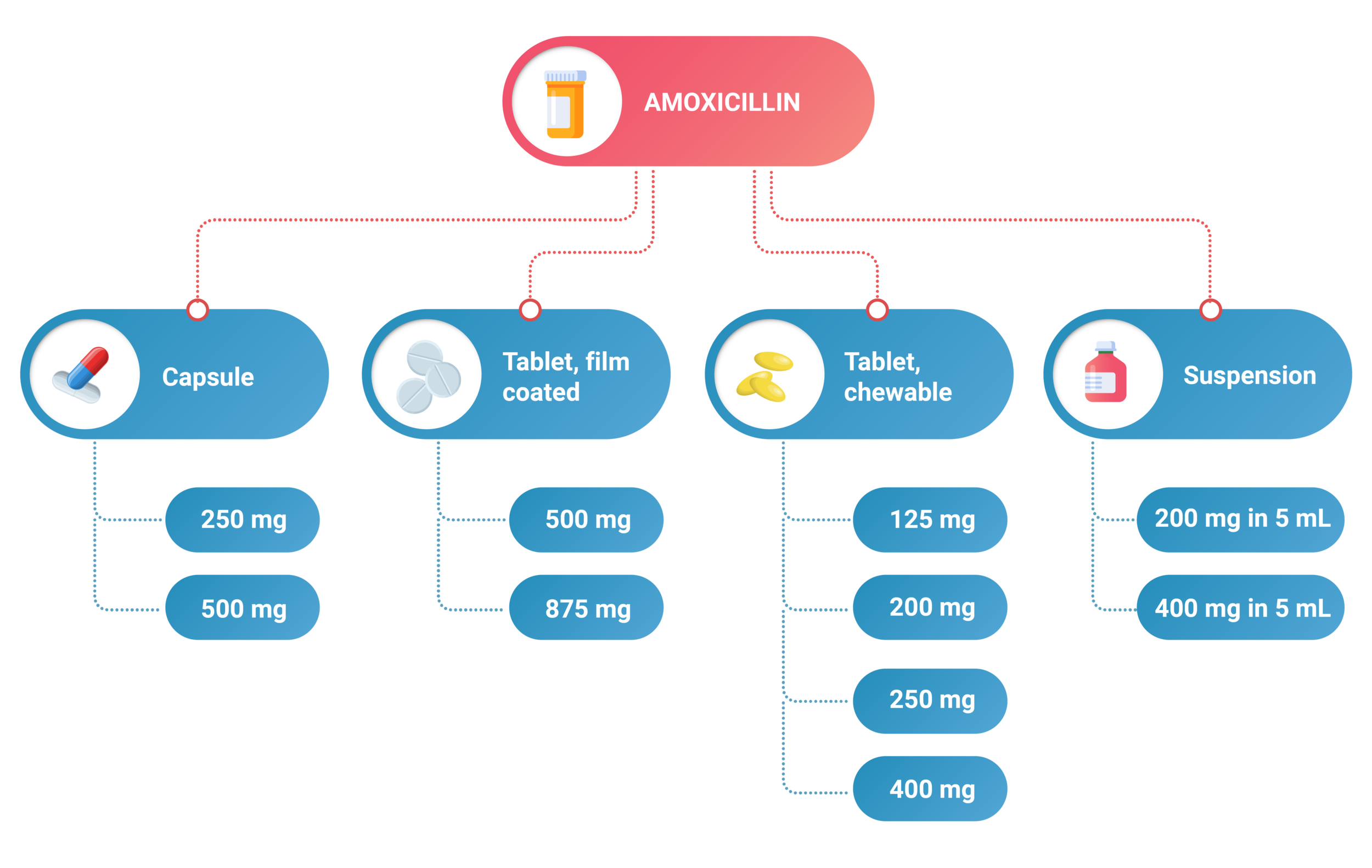
In the preceding schema, you can see that the active ingredient is the same, which is amoxicillin, but there are four different dosage forms of the drug, each of which contains multiple strengths. Thus, ten products need to be configured.
-
In the PV application header, select the PRODUCT tab.
-
On the page that opens, in the left pane, right-click the product family to which you need to add a product.
Important
You can only add products to product families in draft status. Once the product family is sent for review or already approved, you cannot add products to it. To add products to a product family, return the product family route to the Draft status.
-
From the expanded menu, select Add Product
 .
.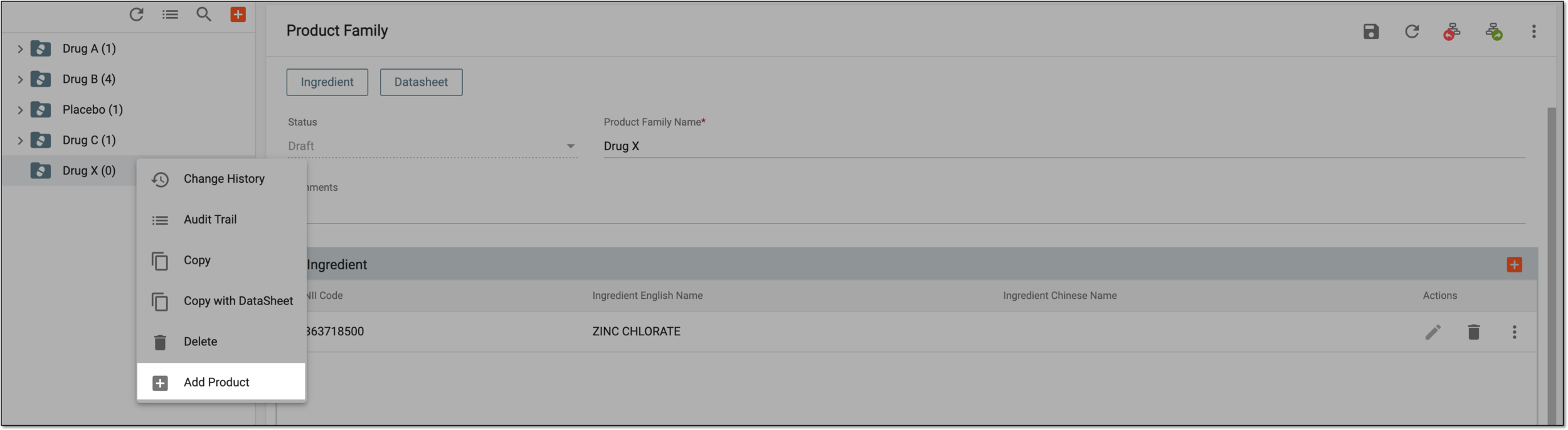 Figure 2. Adding product to product family
-
On the Product form page that opens, complete configurations as explained in the following table.
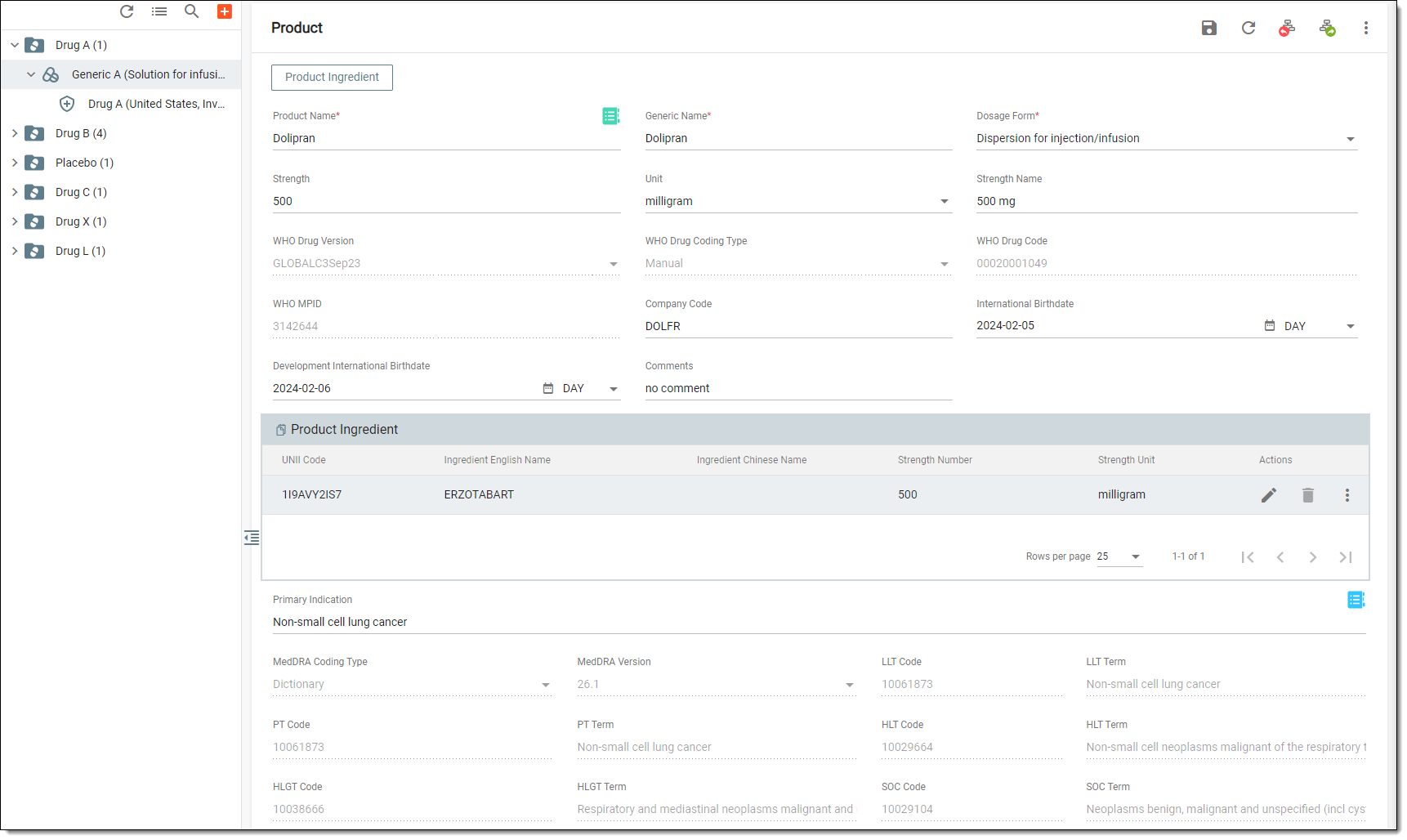 Figure 3. Configuring product
Tip
In the following table, mandatory elements are marked with an asterisk (*).
Element
Details
Product Name*
Enter the unique product name given to the medication by a pharmaceutical company. Or select WHODrug
 to apply WHODrug coding to the existing product.
Generic Name*
Enter the generic name that is commonly the name of the active ingredient used universally to identify the medication's chemical composition.
Dosage Form*
Select the medication form, for instance, tablet, injection, solution for infusion, and so on.
Strength
Enter the amount representing how much of an active ingredient the medication contains.
For instance, one injection of the medication contains 150 mg of the active ingredient, so in this field, you enter 150.
Unit
Select the unit of the medication strength measurement.
For instance, one injection of the medication contains 150 mg of the active ingredient, so in this field, you select milligrams.
Strength Name
Enter the product's strength if it is present in the medicinal product name.
For instance, for "Discopan 50 mg soft capsules" the strength name is 50mg, and for "Fuldimil 25mg-Filmtabletten"—25 mg.
WHO Drug Version
Represents the version of the World Health Organization (WHO) Drug Dictionary used for coding drug information. The field is read-only and populated via product coding.
WHO Drug Coding Type
Represents the type of coding used for product creation within PV. The field is read-only and populated via product coding.
WHO Drug Code
Represents a unique identifier for a drug within the WHO Drug Dictionary. The field is read-only and populated via product coding.
WHO MPID
Represents the WHO medical product identifier, which is a unique number assigned to a drug for identification purposes. The field is read-only and populated via product coding.
International Birthdate
Enter the date on which the first regulatory authority that has to approve a particular drug for marketing has done so.
Development International Birthdate
Enter the date of first approval (or authorization) for conducting an interventional clinical trial in any country.
Company Code
Configure a specific Company Drug Code, such as “Study Drug”, "#VAC", or else.
Ensure to configure the company drug code according to your company SOP/WI and always keep it consistent. This field can be used as a filter when company product coding.Comments
Enter comments to give more insights into the product details, if needed.
SAVE
Select
 to save the implemented changes.
Once saved, the Product Ingredient block is automatically populated with the ingredient(s) configured for the product family to which this drug belongs.
Product Ingredient
Product ingredient information is automatically synchronized from the ingredient of its product family when
                                  the product is created (that means only upon the first saving operation for the product record). Here, you need to update only the strength and unit values. Thus, add all the ingredients in the product family before adding products.
Note that when you delete an ingredient at the product family level, the ingredients of all products that belong to this family are deleted automatically.UNII Code
Represents the active ingredient code according to the FDA Unique Ingredient Identifier (UNII) terminology to implement the ISO Identification of Medicinal Products (IDMP) standards.
Ingredient English Name
Represents the name of the active ingredient in English.
Ingredient Chinese Name
Represents the name of the active ingredient in Chinese.
If the multilingual submission is involved and the relevant Chinese name is unavailable, contact the EDETEK administrator to add it. Currently, only part of the ingredient contains the Chinese name obtained from the Chinese version of the WHODrug dictionary.Strength Number
Represents how much of an active ingredient the medication contains.
This value can be configured upon the product ingredient editing.
Strength Unit
Select the unit of the active ingredient strength measurement.
This value can be configured upon the product ingredient editing.
Primary Indication block
Primary Indication
Select MedDRA Search
 to code the indication terminology for your product according to MedDRA dictionary.
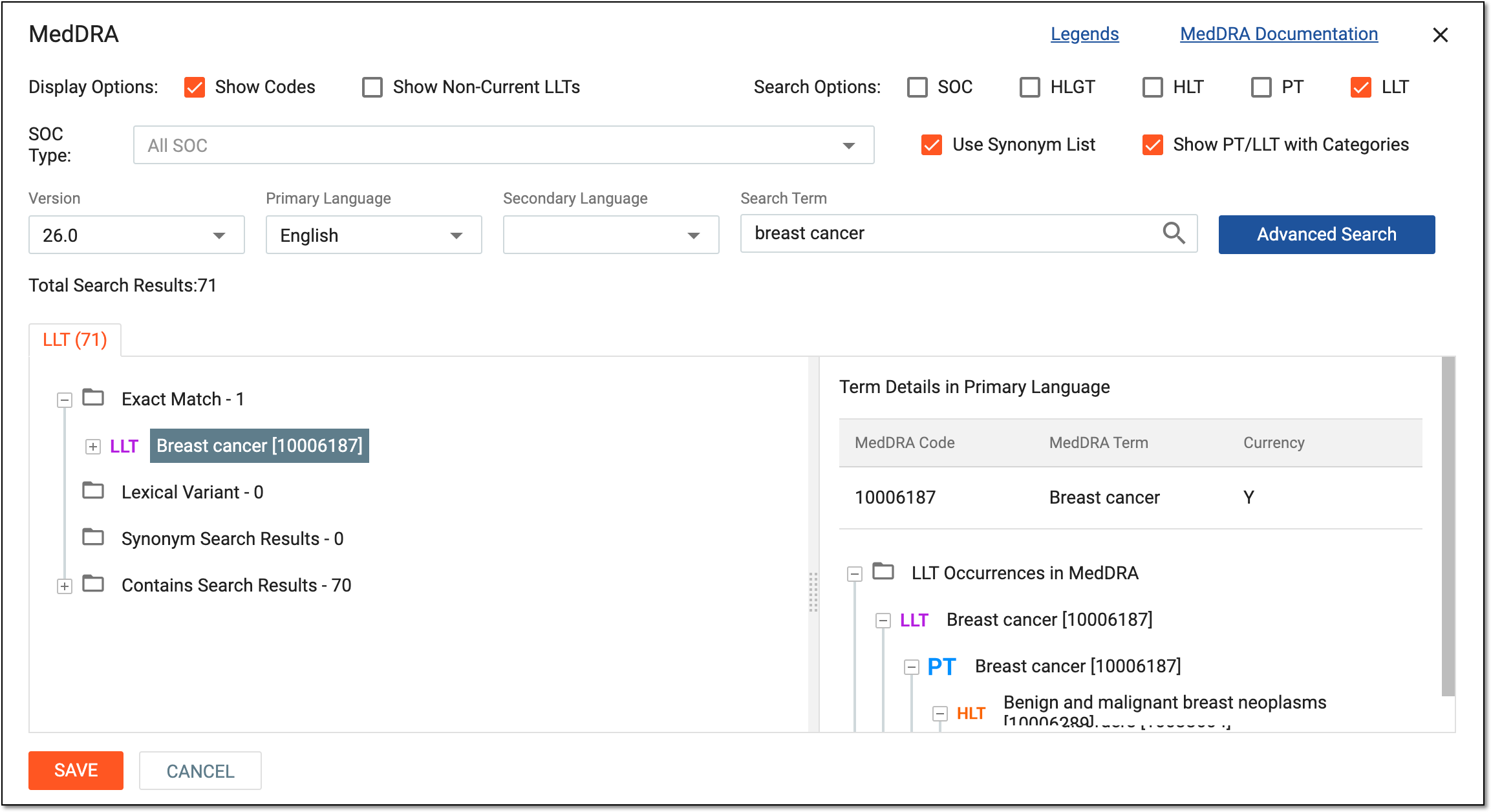 Figure 4. Coding MedDRA term
You can code your terms using a similar logic as explained in the Autocoding in ICSR forms and Manual coding in ICSR forms sections.
MedDRA Coding Type
Represents the applied type of the MedDRA coding—manual or auto.
MedDRA Version
Represents the version of the MedDRA dictionary that is used to code the term.
Ensure to keep the MedDRA version the same as used in ICSR that is pertinent to the product.LLT Code
Represents the code of Lowest Level Term (LLT) according to MedDRA. The field is read-only and populated via coding.
LLT Term
Represents the coded Lowest Level Term (LLT) according to MedDRA. The field is read-only and populated via coding.
PT Code
Represents the code of Preferred Term (PT) according to MedDRA. The field is read-only and populated via coding.
PT Term
Represents the coded Preferred Term (PT) according to MedDRA. The field is read-only and populated via coding.
HLT Code
Represents the code of High Level Term (HLT) according to MedDRA. The field is read-only and populated via coding.
HLT Term
Represents the coded High Level Term (HLT) according to MedDRA. The field is read-only and populated via coding.
HLGT Code
Represents the code of High Level Group Term (HLGT) according to MedDRA. The field is read-only and populated via coding.
HLGT Term
Represents the coded High Level Group Term (HLGT) according to MedDRA. The field is read-only and populated via coding.
SOC Code
Represents the code of System Organ Class (SOC) according to MedDRA. The field is read-only and populated via coding.
SOC Term
Represents the coded System Organ Class (SOC) according to MedDRA. The field is read-only and populated via coding.