Autocoding in ICSR forms
When creating Individual Case Safety Reports (ICSRs), specific report forms (such as Events, Patient Drug History, Laboratory Tests, and others) require the coding of reported case details. The coding process involves interpreting the reporter's own words and phrases, also known as verbatim terms into standard terms according to the MedDRA and WHODrug terminology. By doing so, the information in the ICSR form becomes standardized and compliant to the established medical terminology, so that the ICSR can be properly reviewed and accepted by regulatory bodies.
In PV, when filling out an ICSR form, you can code the ICRS data using one of two methods—automatically or manually.
In this section, we will walk you through the implementation of the autocoding feature for MedDRA and WHODrug terms.
The MedDRA dictionary coding helps you transform the verbatim terms of the Events, Lab Tests, and other forms containing information on a patient's condition or symptoms. The PV system can automatically retain the reported verbatim terms and autocode them with standardized MedDRA terms based on the current configuration.
Important
Make sure that the verbatim term you use to describe a patient's event (including their conditions, symptoms, or other details) is associated with the corresponding Preferred Term (PT) or Lowest Level Term (LLT) in the MedDRA dictionary. You can do this by using the MedDRA Synonym feature of the PV application or by building your own MedDRA Synonym library and then importing it into the PV system.
-
In the PV application header, select the ICSR tab.
-
On the ICSR List page that opens, select the needed case.
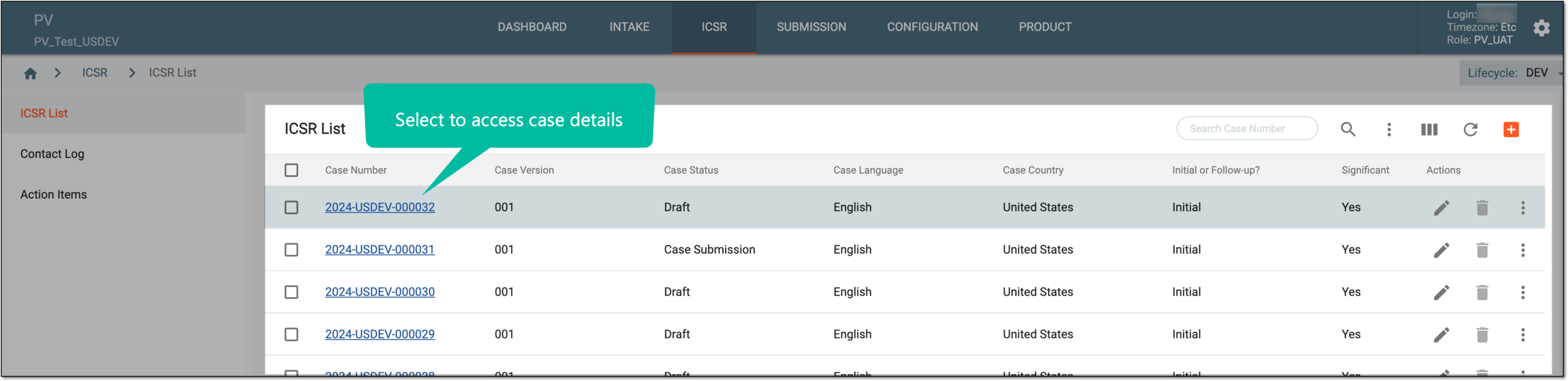 Figure 1. Accessing case details
-
On the page that opens in the new browser tab, from the left pane, select the ICSR form you need to fill out.
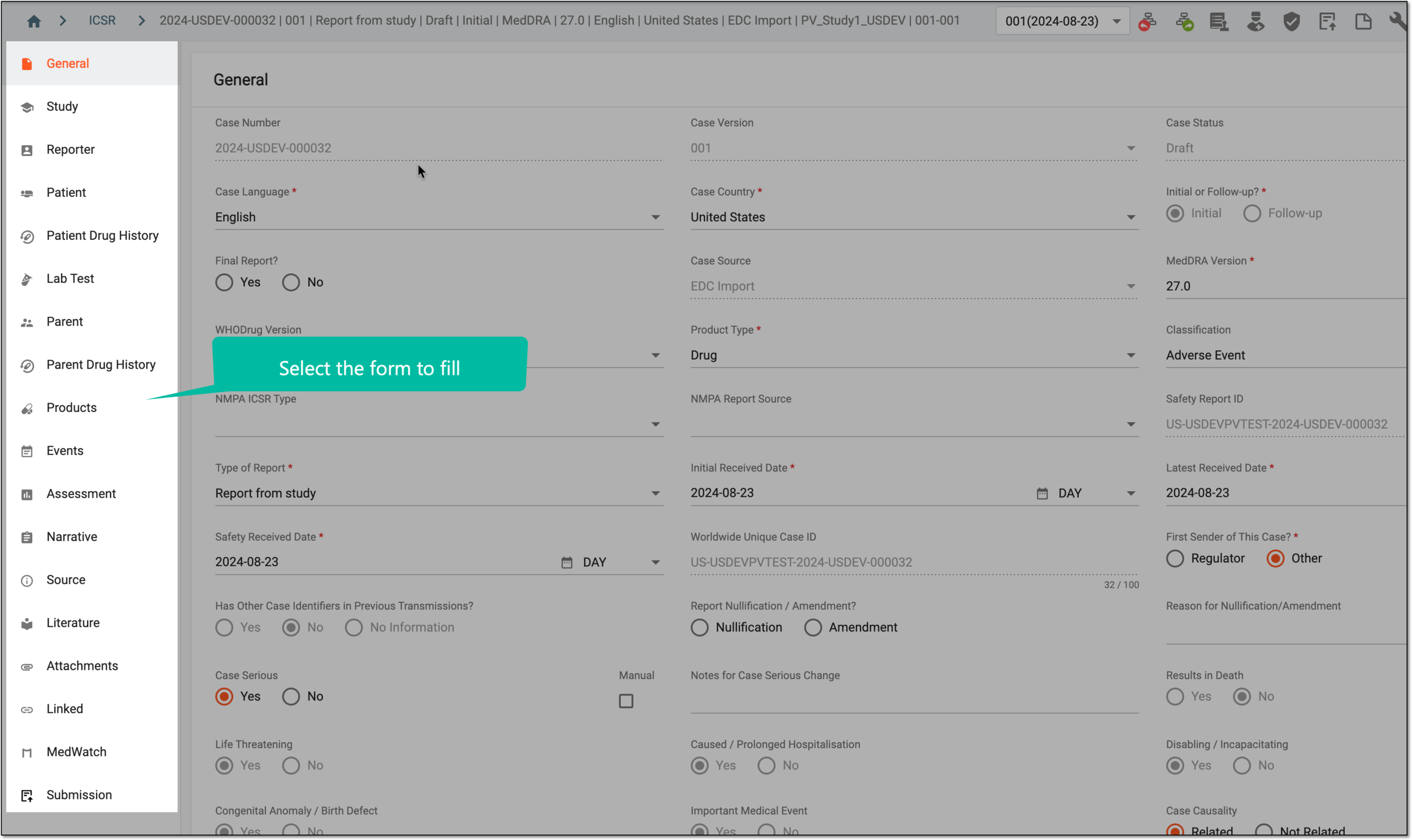 Figure 2. Selecting form to fill
-
In the respective verbatim term field of your form, enter the exact verbatim term that has been previously associated with the respective MedDRA term to describe a patient's event, including conditions, symptoms, or other details. Then, click anywhere on the screen or press the Tab key on your keyboard.
-
If a match is found in the MedDRA dictionary, the PV system autocodes the remaining fields accordingly.
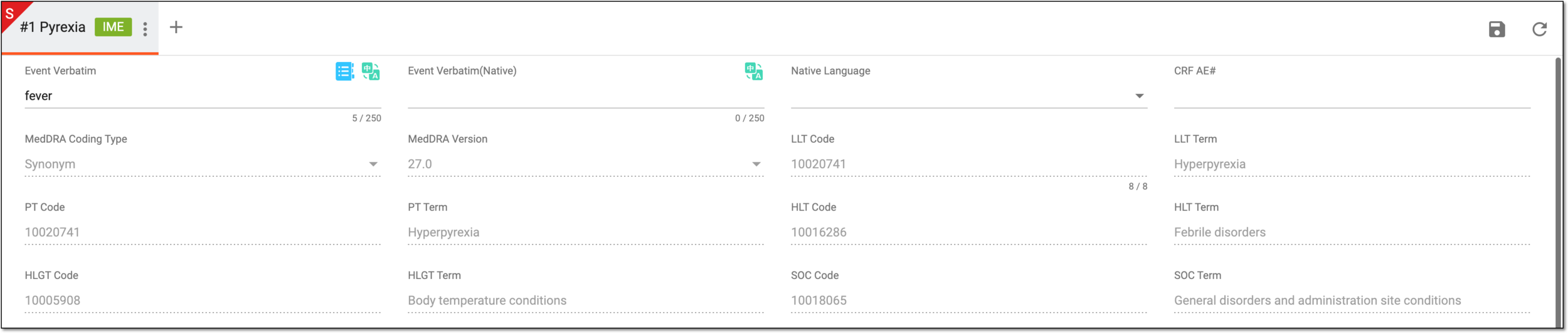 Figure 3. Autocoding verbatim term with MedDRA dictionary
Tip
Pay attention to the MedDRA Coding Type field. If the field displays Synonym, it indicates that the PV system has successfully associated the entered verbatim term with the required MedDRA term and code, based on the previously configured MedDRA synonym.
If the field displays Dictionary, it means that the PV system has directly linked your verbatim term to the corresponding MedDRA code. In this case, the coding has been done using the exact term from the MedDRA dictionary.
-
To preserve the implemented changes in your ICSR form, from the workspace toolbar, select SAVE
 .
.
Upon saving, the coded data fields in the ICSR form are automatically updated based on the autocoding process. If no matches are found during the autocoding attempt or if the identified matches do not align with your specific requirements, use manual coding.
The WHODrug dictionary coding helps you transform the verbatim terms of the Products, Parent Drug History, and other forms containing information on investigational products and concomitant medication the patient takes. The PV system can automatically retain the reported verbatim terms and autocode them with standardized WHODrug analogs based on the current configuration.
To facilitate the autocoding of the product names to WHODrug terms, you can configure the synonym list for your study via the CODING app and then associate it with your study in PV. A synonym list is a collection of verbatim terms that are or can be used in your study, and that are already mapped to the WHODrug terminology. These predefined coding results can be implemented in your autocoding process to facilitate efficient data interpretation, minimize discrepancies, and support the integrity of the study's findings.
Important
To autocode your verbatim term to a synonym, the WHODrug version in the General form of your ICSR and the WHODrug version of the synonym list associated with your study should match.
For autocoding, the system follows the established priority: first, the synonym list check, then the exact WHODrug dictionary term check, and then the WHODrug dictionary similar term check.
-
In the PV application header, select the ICSR tab.
-
On the ICSR List page that opens, select the needed case.
Figure 1. Accessing case details
-
On the page that opens in the new browser tab, from the left pane, select the ICSR form you need to fill out.
Figure 2. Selecting form to fill
-
In the respective verbatim term field of your form, enter the verbatim term—the medicinal product name—that has been previously associated with the respective WHODrug term.
-
From the workspace toolbar, select SAVE
. Figure 3. Saving verbatim term for product name
-
Once saved, from the application toolbar, select Coding Review
 .
. Figure 4. Accessing coding review
-
On the page that opens, go to the WHODrug tab, and from the workspace toolbar, select Auto Coding
 .
. Figure 5. Autocoding WHODrug terms
-
The autocoding results appear in the table and can be interpreted as explained in the following table.
 Figure 6. Saving coding results
Element
Details
Form
Represents the name of the ICSR form where the verbatim term is located.
# Verbatim Term
Represents the sequential number of the record in the respective ICSR form where the verbatim term resides and the verbatim term itself—the original data entry that must be coded according to the MedDRA dictionary. It is also an active link selection which leads you to the exact form and record where the verbatim term resides.
WHODrug Search
In the # Verbatim Term column, locate the needed verbatim name of the drug. Then next to it, select WHODrug Search
 to apply the manual coding. For more details on this type of coding, refer to the Code WHODrug terms manually section.
Indication
Represents the condition or disease for which a medicinal product is prescribed or intended. It is the therapeutic purpose or reason for using the drug.
This value is autopopulated once the term coding is completed.Route
Represents the method or pathway by which a medicinal product is administered to the patient and how the drug enters the body and reaches its site of action.
This value is autopopulated once the term coding is completed.Coding Type
Represents how the verbatim is coded in PV and can be one of the following:
-
Manual: the verbatim term is coded manually by mapping the product name to the selected term from the WHODrug dictionary.
-
Synonym: the verbatim term is coded automatically by the system by finding matching term in the synonym list preconfigured in the CODING application and associated with your study in PV.
-
Similarity Match: the verbatim term is coded automatically by the system by finding the matching WHODrug dictionary term.
For autocoding, the system follows the established priority: first, the synonym list check, then the exact WHODrug dictionary term check, and then the WHODrug dictionary similar term check.
This value is autopopulated once the term coding is completed.Coding Version
Represents the WHODrug dictionary version that is used for the term coding.
This value is autopopulated once the term coding is completed.Drug Code
Represents a unique identifier assigned to the pharmaceutical ingredient (API) or substance ща the medicinal product in the WHODrug dictionary. The drug code is assigned to the chemical substance or drug entity itself, regardless of the brand or formulation.
This value is autopopulated once the term coding is completed.MPID
Represents a unique code (Medicinal Product Identifier) used in the WHODrug dictionary to determine a specific medicinal product or formulation that may contain one or more active ingredients. The MPID is used to identify commercial products—including brand names and generic formulations—that are available in the market.
This value is autopopulated once the term coding is completed.Source And Narrative
From the workspace toolbar, select Source And Narrative
 to open the side panel with the following tabs:
-
Source: contains the source document uploaded to your ICSR via the Source form. Here, the preview is available for PDF files only.
-
Narrative: contains detailed information about an adverse event or suspected adverse reaction that has occurred in a patient added to your ICSR via the Narrative form.
If multiple source documents are added to different case versions, you can review all of them on one page. Select the needed version from the dropdown menu and preview the respective source document or narrative.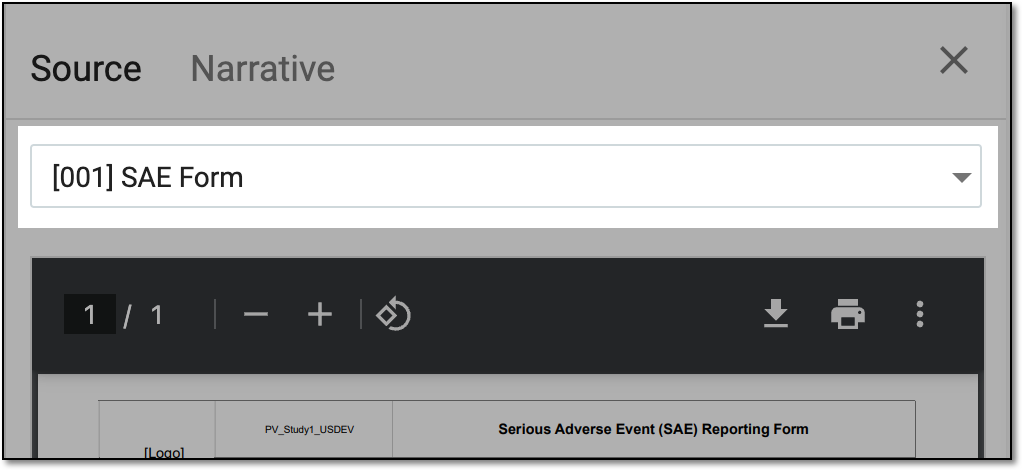 Figure 7. Source/Narrative case version menu
SAVE
Select
 to save the coding applied to verbatim terms and populate them to the respective ICSR form.
Back
Select
 to return to the ICSR form without saving the autocoded results.
 -
Upon saving, the coded data fields in the ICSR form are automatically updated based on the autocoding process. If no matches are found during the autocoding attempt or if the identified matches do not align with your specific requirements, use manual coding.