Add new MedDRA synonym
MedDRA (Medical Dictionary for Regulatory Activities) is a standardized medical terminology used by regulatory agencies, pharmaceutical companies, and other healthcare organizations to facilitate the exchange of medical information.
If the needed synonym or alternative name for a particular term is not available in MedDRA, you can easily add that synonym to MedDRA via the PV application. By adding and configuring it, you can capture and report data using the terms that are most commonly used in your local healthcare organization, which can help you ensure that the data is more complete and accurate.
For example, if you use a particular term to describe a medical condition that is not included in the standard MedDRA terminology, you can add this term as a synonym in the MedDRA database. Thus, you can still use the term in your documentation and reporting, and map it to the standardized MedDRA terminology.
With the PV application, you can add and configure MedDRA synonyms one by one or in bulk as explained in the following sections.
When working with medical data, it is important to have accurate and standardized terminology. While MedDRA provides a comprehensive set of medical terms, it may not always include all the synonyms that are used in your particular healthcare setting. In such cases, you may need to add and configure new MedDRA synonyms to ensure that your medical data reporting is consistent and accurate.
This section covers the process of adding and configuring MedDRA synonyms manually one by one. If you need to create multiple MedDRA synonyms in bulk, refer to the Add multiple MedDRA synonyms at once section instead.
-
In the PV application header, select the CONFIGURATION tab.
-
In the left pane, select MedDRA Synonym.
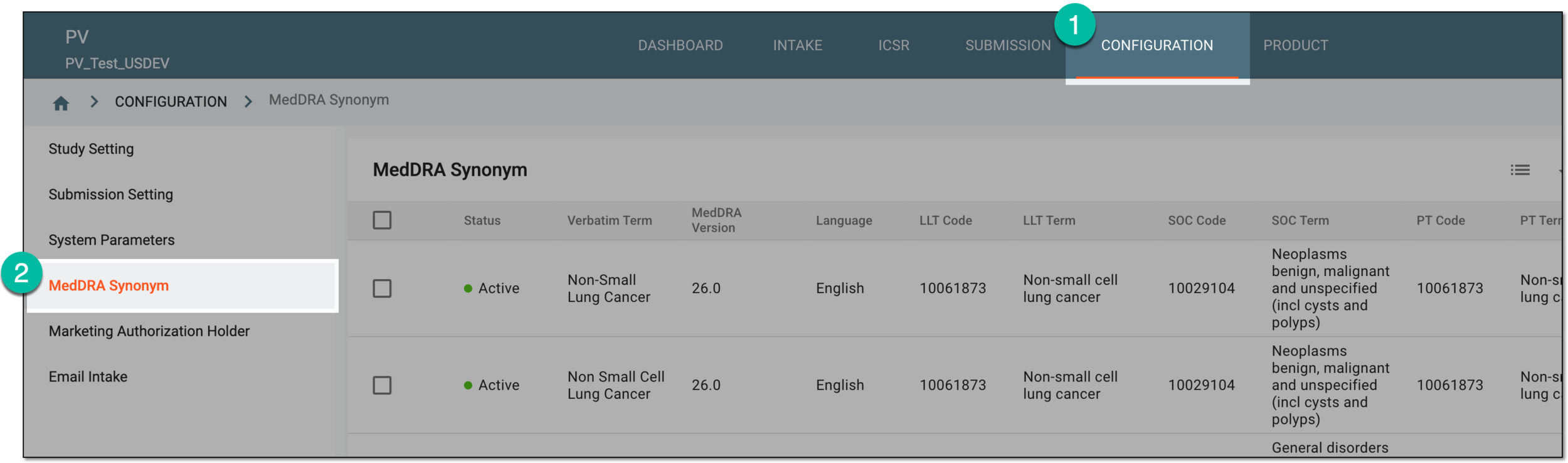 Figure 1. Accessing MedDRA synonym configuration
-
On the MedDRA Synonym page that opens, on the workspace toolbar, select New
 .
. Figure 2. Selecting to add new synonym
-
In the form that opens, in the Verbatim Term field, enter the precise term or phrase that you want to add as a synonym, and then select MedDRA Search
 .
. Figure 3. MedDRA synonym specified
-
In the MedDRA dialog that opens, in the Search Term field, enter a keyword or phrase related to your verbatim term (synonym) and press Enter or Return on your keyboard based on your operating system.
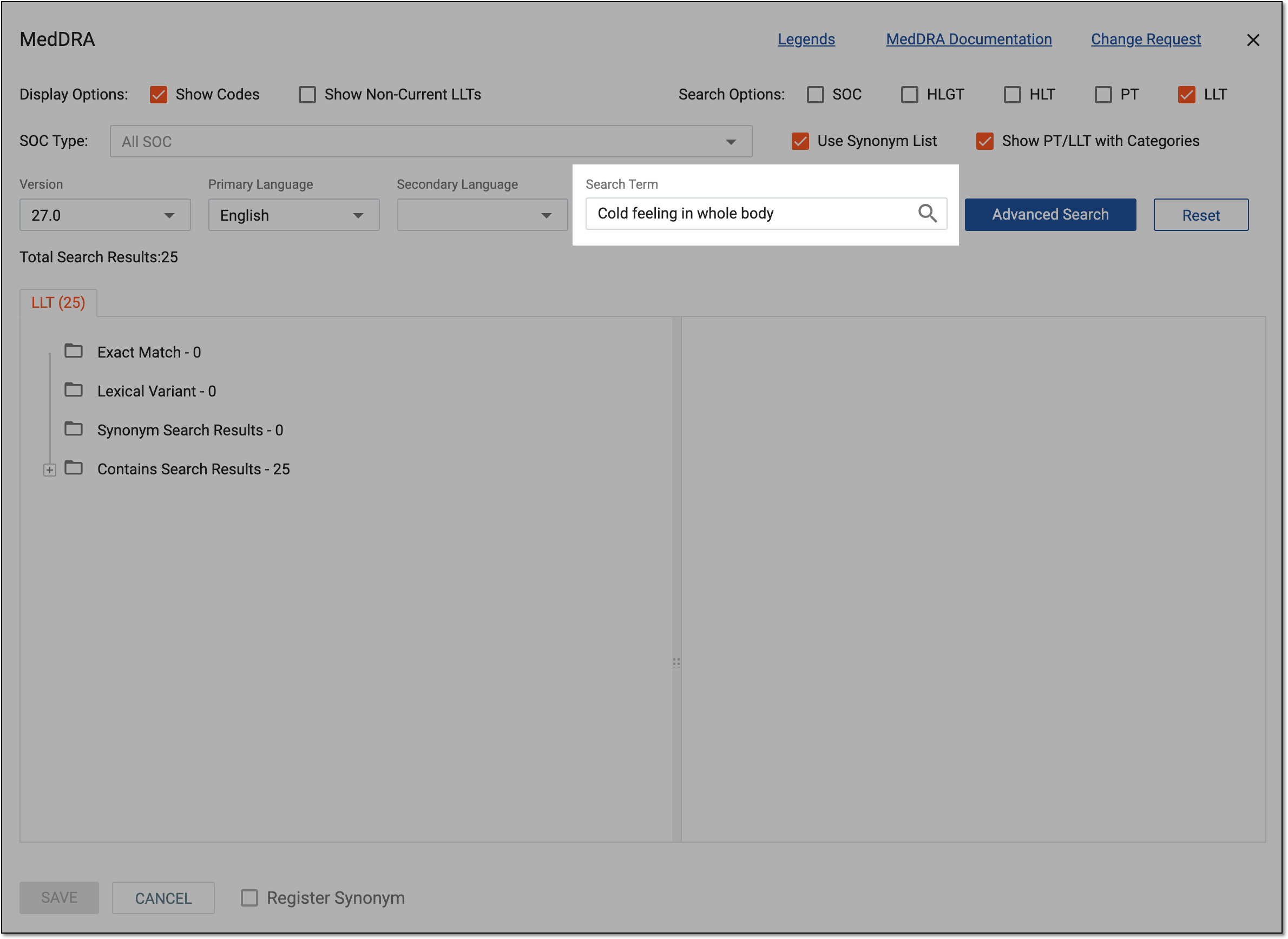 Figure 4. Searching MedDRA database
Tip
To discard your applied searching parameters, select
 .
. -
Optionally, select Advanced Search and facilitate your search with additional keywords or phrases, as follows:
-
Customize the search criteria by using options like Contains, Begins With, Exact Match, Ends With, and Not Contains to narrow down the list of potential matches to find the most appropriate MedDRA term.
-
Use the AND / OR operators to further customize your advanced search:
-
AND: narrows your search by requiring that all keywords or phrases you have entered must be present in the potential matches.
-
OR: expands your search by allowing any of the keywords or phrases to be present in the potential matches.
-
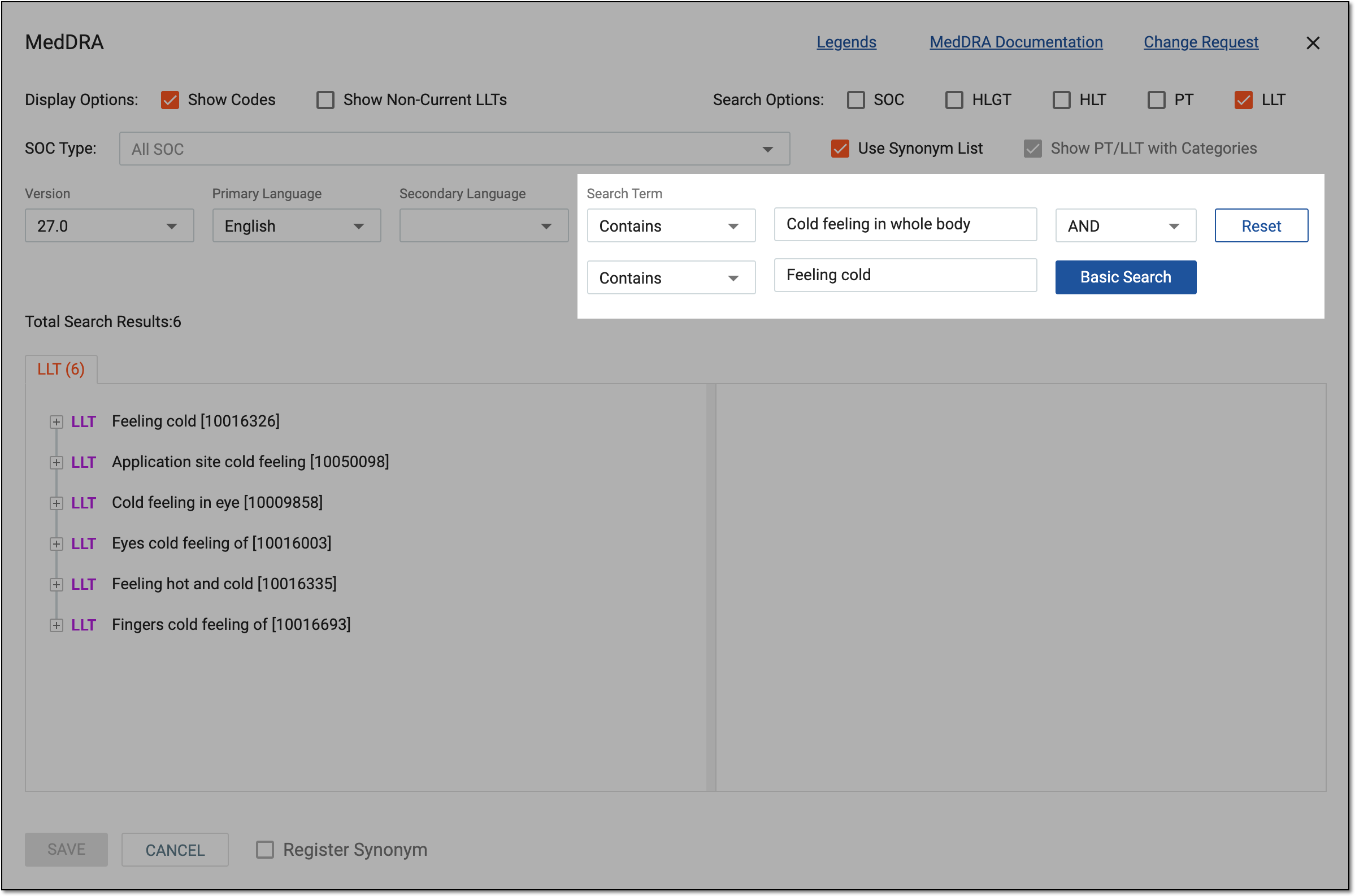 Figure 5. Performing advanced search
Tip
To get back to the basic search, select
 .
.To discard your applied searching parameters, select
. -
-
Refine the search results and tailor them to your specific needs by selecting one of the options explained in the following table.
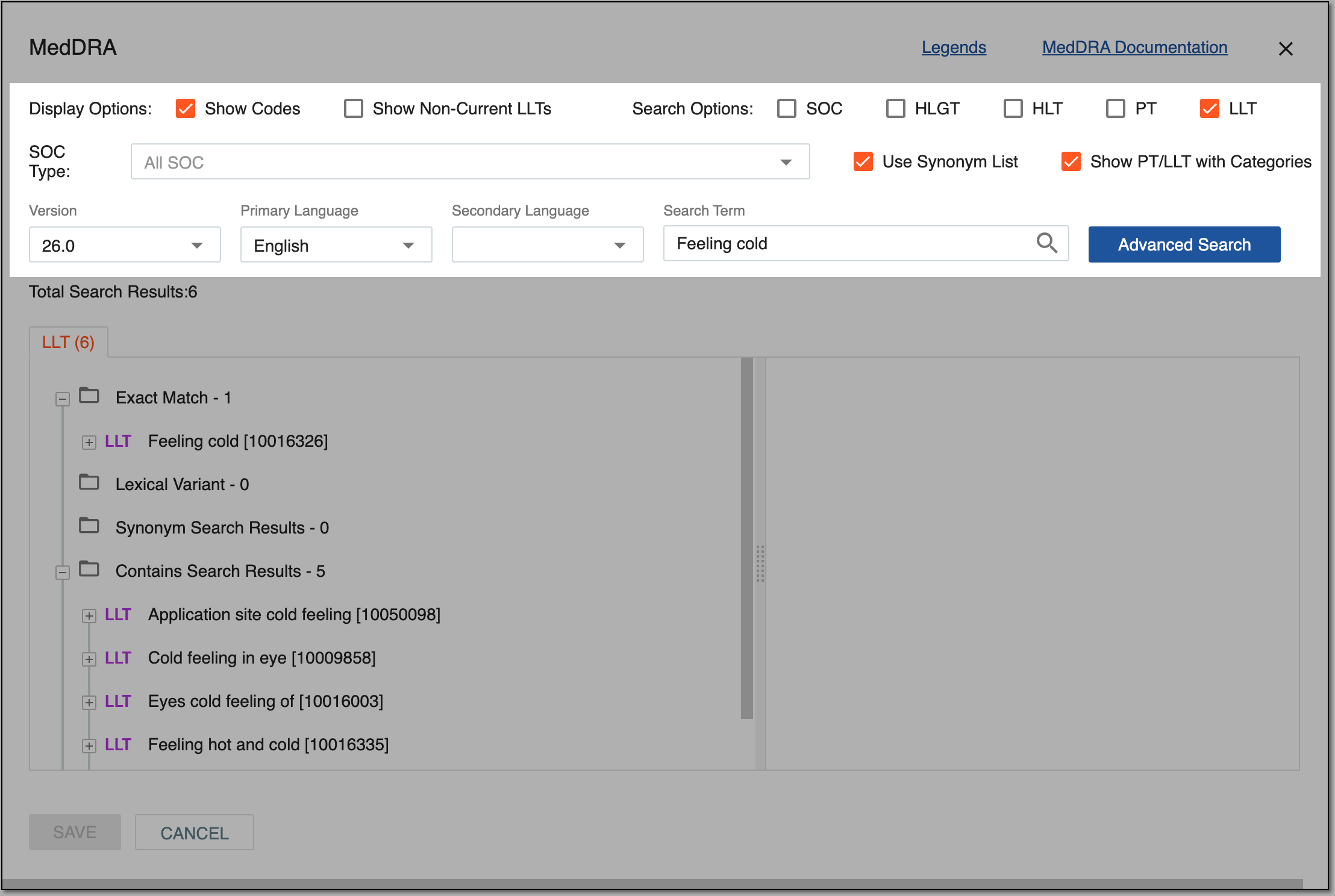 Figure 6. Customizing search results
Option
Details
Legends
Select the link to open the Legend dialog and review the details on available icons and symbols.
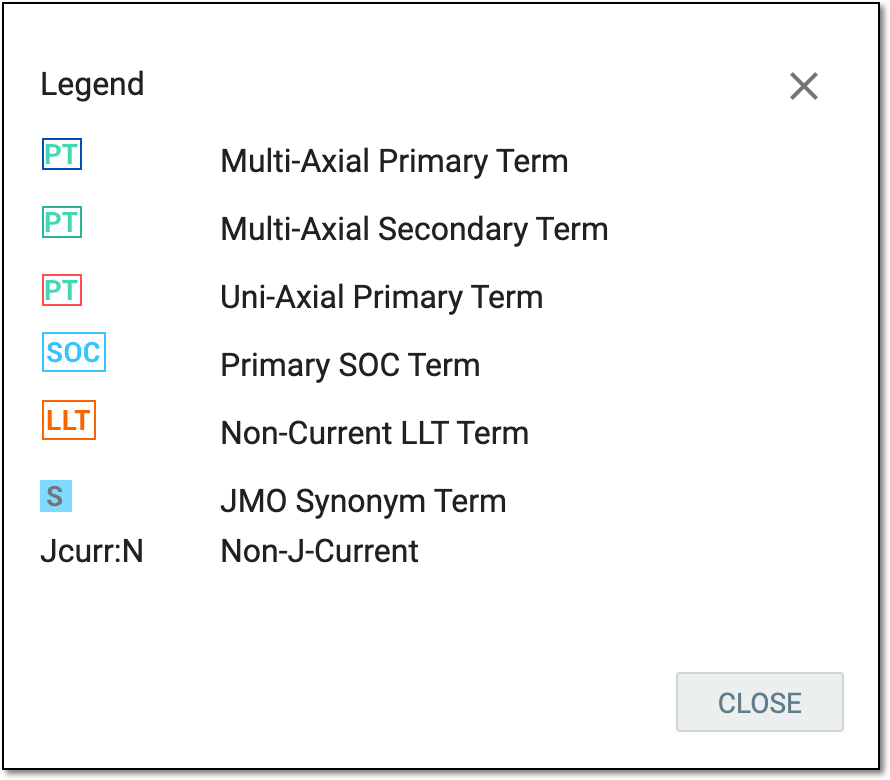 Figure 7. Reviewing legends
MedDRA Documentation
Select the link to open the MedDRA Support Documentation website in a new browser tab.
Change Request
Select the link to open the MedDRA Web Change Request Tool (WebCR) website in a new browser tab.
Display Options
Select the checkboxes from this group to:
-
Show Codes: display the MedDRA code associated with each term in the search results.
-
Show Non-Current LLTs: view MedDRA terms that are no longer current and that are very vague, ambiguous, truncated, abbreviated, outdated, or misspelled. Non-current LLTs (Lowest Level Terms) are terms that have been retained from the current version of MedDRA but are not recommended for ongoing utilization, although they may still have certain situational relevance.
Search Options
Narrow down the search results by specifying which level of the MedDRA hierarchy you want to search within. The MedDRA hierarchy is organized into different levels, including:
-
SOC (System Organ Class): the highest level of the MedDRA hierarchy. It is a broad category used to group related medical conditions and adverse events (AEs). Examples of SOC categories include "Infections and infestations," "Nervous system disorders," and "Musculoskeletal and connective tissue disorders."
-
HLGT (High-Level Group Term): a level of the MedDRA hierarchy that provides a way of grouping related High-Level Terms (HLTs) together.
-
HLT (High-Level Term): a level of the MedDRA hierarchy that provides a way of grouping related Preferred Terms (PTs) together. Each HLT represents a concept that encompasses multiple PTs that are related in terms of clinical presentation or etiology.
-
PT (Preferred Term): a level of the MedDRA hierarchy that provides a standardized way of describing medical conditions and AEs in clinical trials and pharmacovigilance activities. Each PT represents a single medical concept, such as a symptom, sign, disease, or AE.
-
LLT (Lowest Level Term): the most granular level of term in the MedDRA hierarchy. It provides the greatest level of specificity in the terminology.
By selecting one or more checkboxes within this group, you can customize your search to focus on specific levels of the hierarchy.
For example, if you select the PT checkbox, the search will return only Preferred Terms (PTs) that match the search criteria. This can be helpful when you already know which level of the hierarchy is most relevant to your search.
SOC Type
Expand the list and select the needed option to narrow down your search to a specific type of SOC (System Organ Class).
Use Synonym List
Select the checkbox to include synonyms in your search criteria.
Show PT/LLT with Categories
Select the checkbox to categorize the searched MedDRA term based on the LLT relationship with its PT.
Version
Expand the list and select the needed version of the MedDRA hierarchy.
Primary Language
Expand the list and select the primary language in which you want to view the search results.
Secondary Language
Expand the list and select the secondary language in which you want to view the search results.
-
-
Upon the successful search, from the list of potential terms that appear in the search results, map your synonym to the appropriate MedDRA term as follows:
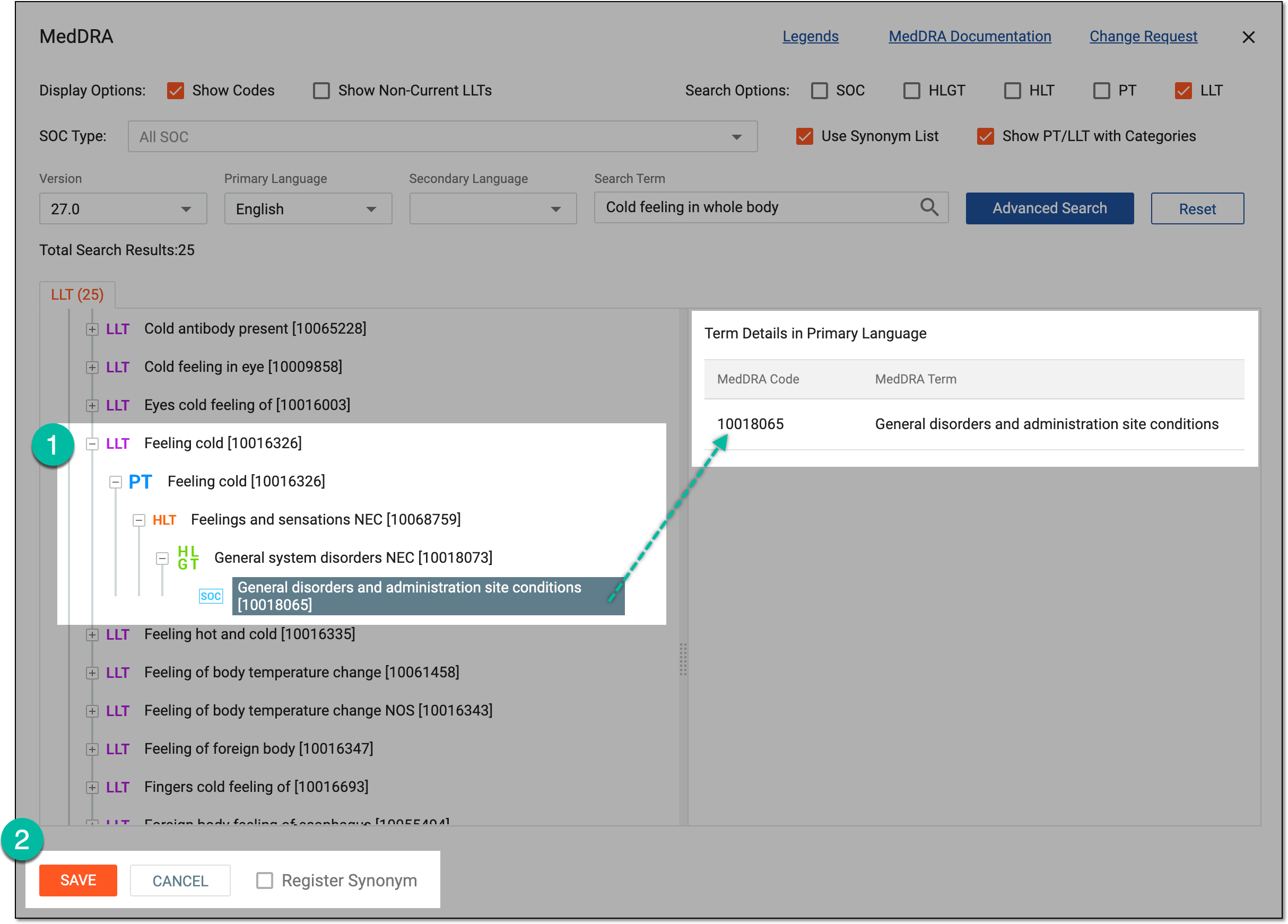 Figure 8. Mapping synonym with MedDRA term
-
Select the term from the LLT hierarchy.
-
Check if this LLT maps to the preferred SOC (since there are multiaxial terms in which the same PT can map to different SOC).
-
Check the details of the term you have found including the MedDRA code and term that are displayed on the right-hand side of the MedDRA dialog.
-
Select the Register Synonym checkbox if you want to add the MedDRA term to the PV library of synonyms.
-
Select
 to map the term to your synonym (this will finalize the mapping process and add the new synonym to the MedDRA hierarchy).
-
-
The MedDRA dialog closes. You are redirected back to the form with the read-only fields that are automatically filled in by the PV system based on the mapped MedDRA term. The fields are explained in the following table.
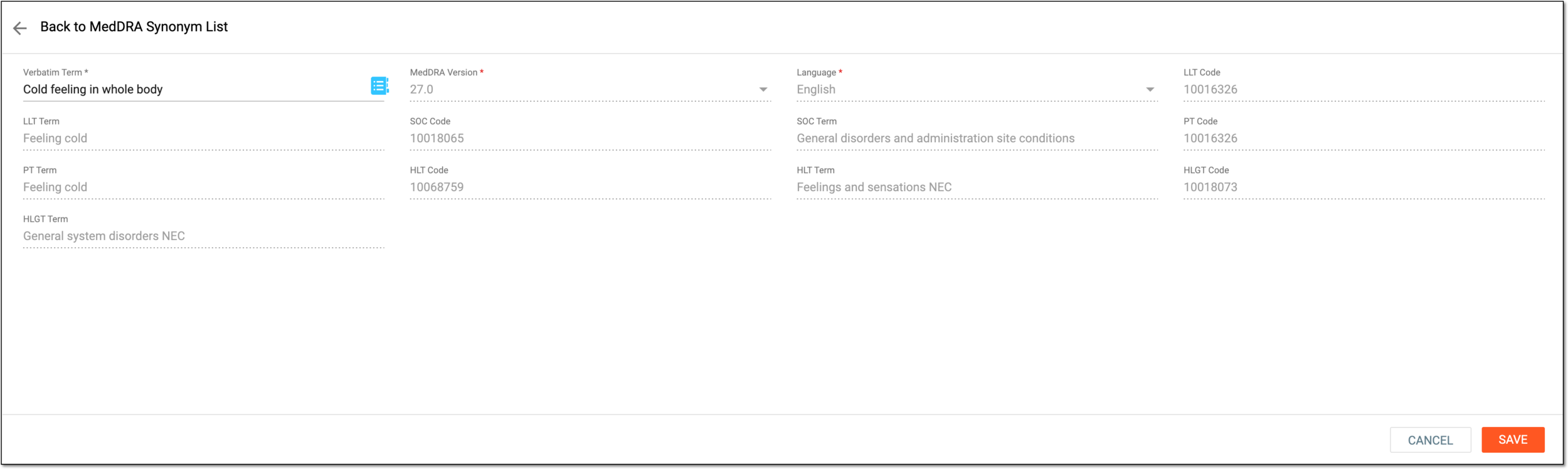 Figure 9. Form fields automatically populated by PV
Tip
In the following table, mandatory elements are marked with an asterisk (*).
Element
Details
MedDRA Version*
Represents a specific version of MedDRA that corresponds to your synonym.
Language*
Represents a language in which the synonym is written.
LLT Code
Represents the code of the LLT associated with your synonym.
For example, if the verbatim term is "Muscle weakness," the PV system maps it to the appropriate MedDRA LLT code, which is 10028350.
LLT Term
Represents the LLT term associated with your synonym.
For example, if the verbatim term is "Muscle weakness," the PV system maps it to the appropriate MedDRA LLT term, which is "Muscle weakness".
SOC Code
Represents the code of the SOC—the high-level classification—associated with your synonym.
For instance, if the new synonym is "chest pain," the SOC category code that the system assigns is "10000001 - Cardiac disorders," indicating that this synonym belongs to the Cardiac disorders category.
SOC Term
Represents the SOC term associated with your synonym.
PT Code
Represents the code assigned to the PT that is associated with your synonym.
PT Term
Represents the PT associated with your synonym.
HLT Code
Represents the code of the HLT associated with your synonym.
HLT Term
Represents the HLT associated with your synonym.
HLGT Code
Represents the code of the HLGT associated with your synonym.
HLGT Term
Represents the HLGT associated with your synonym.
SAVE
Select
to save the new MedDRA synonym.CANCEL
Select
 to cancel the addition of a new MedDRA synonym. In this case, the mapping you have made is lost.
If saved, a new MedDRA synonym is added. Now, you can use it to describe AEs, medical conditions, indications, medical and surgical procedures, and other data in the PV system.
Important
When there is an existing verbatim term already added as a synonym and you try to add the same verbatim for the same MedDRA version, the system informs you that the existing records will be inactivated, and the new verbatim term will become the active one.
When working with medical data, it is important to have accurate and standardized terminology. While MedDRA provides a comprehensive set of medical terms, it may not always include all the synonyms that are used in your particular healthcare setting. In such cases, you may need to add and configure new MedDRA synonyms to ensure that your medical data reporting is consistent and accurate.
In this section, we will cover the process of adding and configuring multiple MedDRA synonyms at once by utilizing the Import feature. If you need to create MedDRA synonyms one by one individually, refer to the Add new MedDRA synonyms individually section instead.
Important
Before executing the following procedure, make sure to prepare an Excel file on your computer that contains the MedDRA synonyms you want to add.
The file should have a specific structure with certain columns and data types. The example of the file structure, including the required columns and their corresponding data types, is presented in the following figure.

-
In the PV application header, select the CONFIGURATION tab.
-
In the left pane, select MedDRA Synonym.
Figure 2. Accessing MedDRA synonym configuration
-
On the MedDRA Synonym page that opens, on the workspace toolbar, select Import
 .
. Figure 3. Selecting option to import MedDRA synonyms
-
In the Import dialog that opens, select or drag the needed Excel file and select
.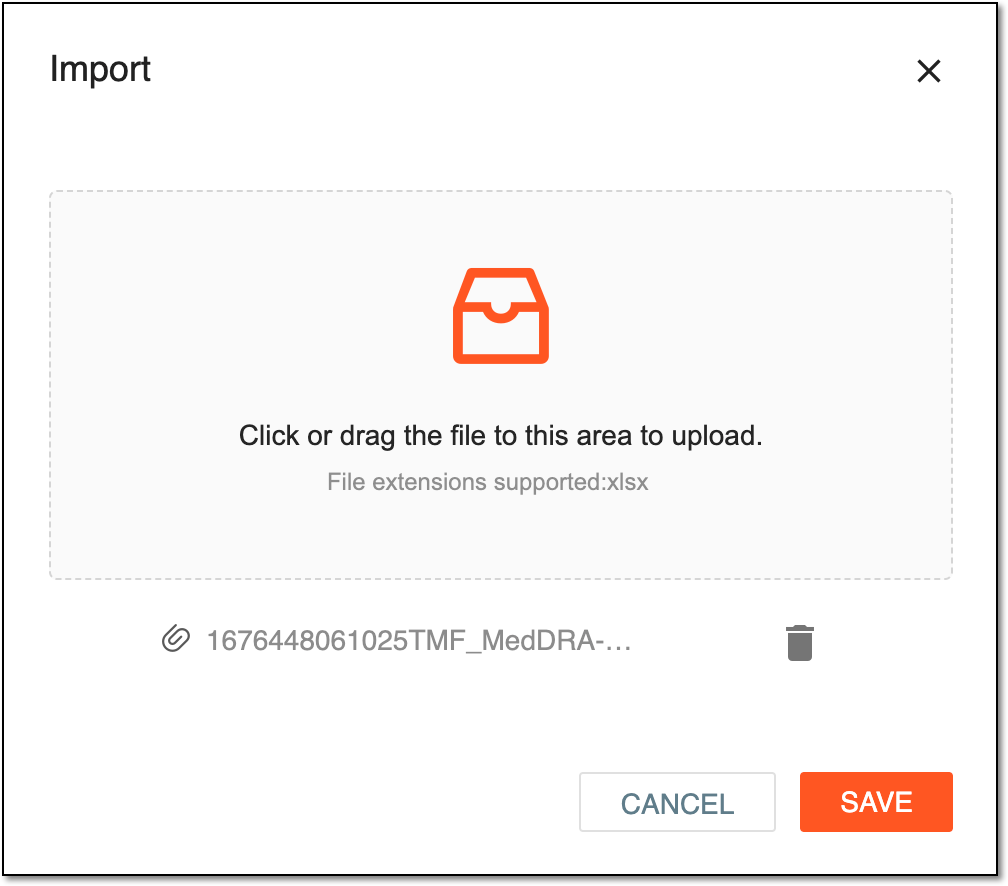 Figure 4. Importing MedDRA synonyms from Excel file
Once done, the data from the imported file is displayed on the MedDRA Synonyms page. You can now use the imported MedDRA synonyms to describe various data in the PV system, such as adverse effects (AEs), medical conditions, indications, medical and surgical procedures, and more.
Important
When new synonyms are created, duplicate records are skipped (ignored) during the Import process, and similar records are inactivated.
*Similar records refer to those with the same verbatim term, MedDRA version, and language, but LLT code and SOC code is different.