Manual coding in ICSR forms
When creating Individual Case Safety Reports (ICSRs), specific report forms (such as Events, Patient Drug History, Laboratory Tests, and others) require the coding of reported case details. The coding process involves translating the reporter's own words and phrases, also known as verbatim terms into standard terms according to the MedDRA and WHODrug terminology. By doing so, the information in the ICSR form becomes standardized and conforms to the established medical terminology, so that the ICSR can be properly reviewed and accepted by regulatory bodies.
In PV, when filling out an ICSR form, you can code (translate) the ICRS data using one of two methods—manually or automatically.
In this section, we will focus on implementing the manual coding feature for MedDRA and WHODrug terms.
Manual coding facilitates associating the verbatim terms to the MedDRA dictionary if the automatic process fails or the identified matches do not align with your specific needs.
-
In the PV application header, select the ICSR tab.
-
On the ICSR List page that opens, select the needed case.
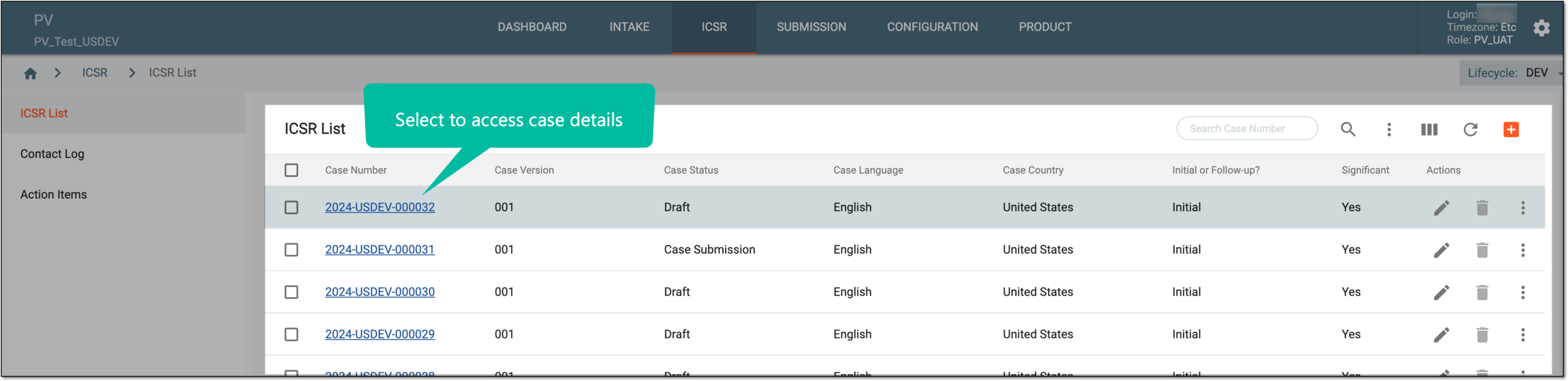 Figure 1. Accessing case details
-
On the page that opens in the new browser tab, from the left pane, select the ICSR form you need to fill out.
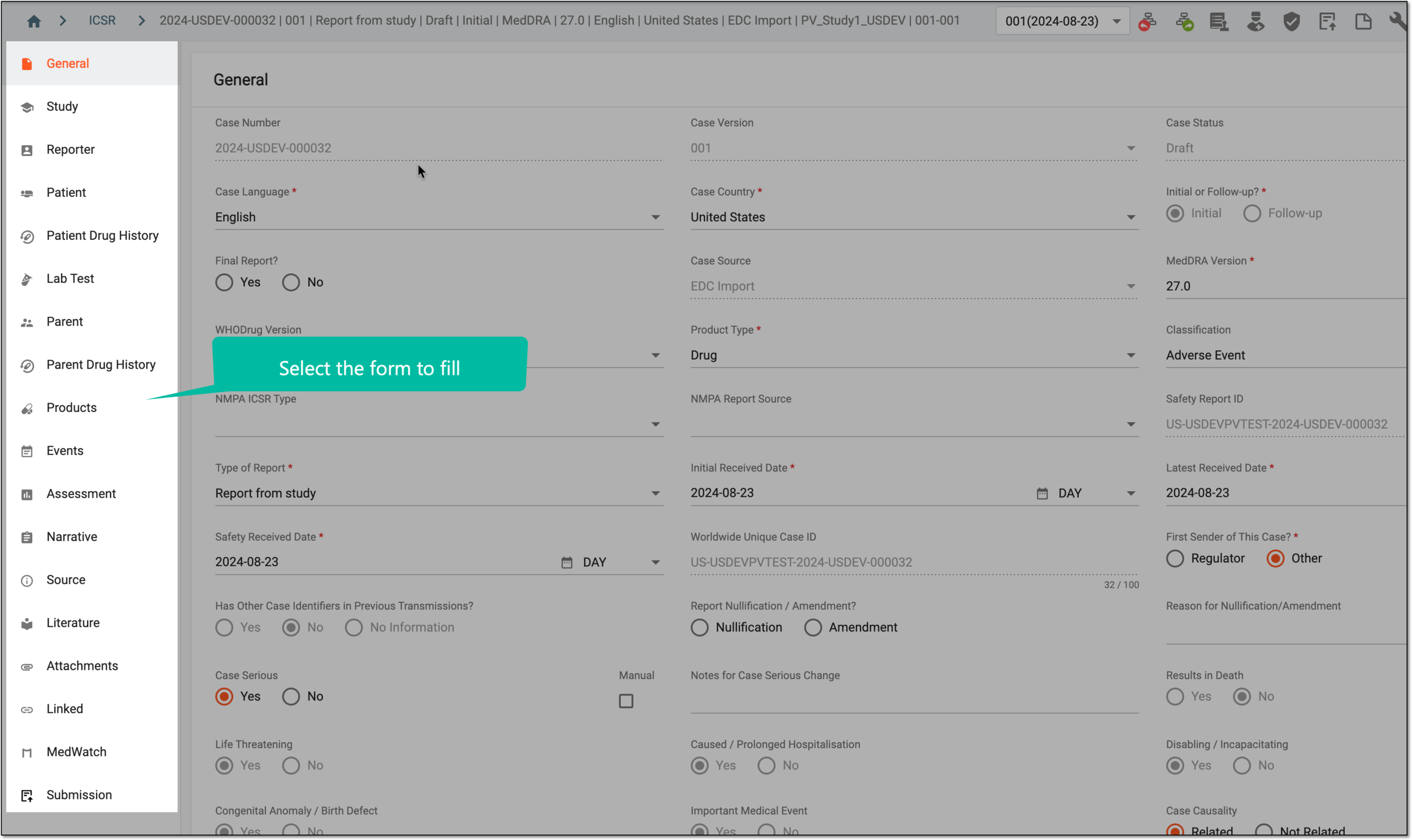 Figure 2. Selecting form to fill
-
In the form that opens, perform one of the following actions:
-
In the respective verbatim term field of your form, enter the exact verbatim term that may have been previously linked to the standardized MedDRA term to describe a patient's event, including conditions, symptoms, or other patient details. Then, click anywhere on the screen or press the Tab key on your keyboard to initiate automatic coding. If no matches are found, the MedDRA dialog opens.
-
Next to the respective verbatim term field of your form, select MedDRA Search
 .
.
-
-
In the MedDRA dialog that opens, in the Search Term field, enter a keyword or phrase related to your verbatim term (synonym) and press Enter or Return on your keyboard based on your operating system.
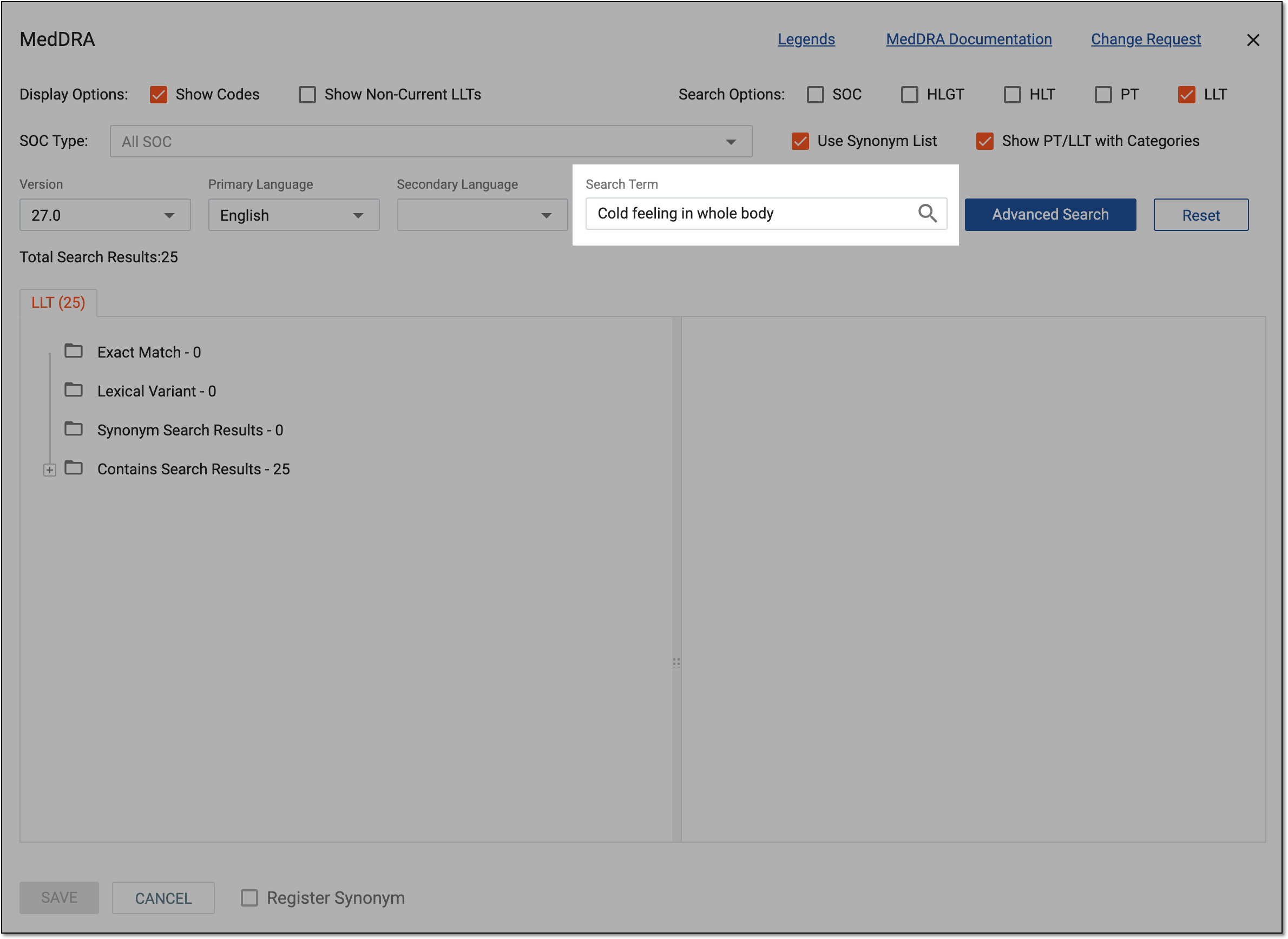 Figure 3. Searching MedDRA database
Tip
To discard your applied searching parameters, select
 .
. -
Optionally, select Advanced Search and facilitate your search with additional keywords or phrases, as follows:
-
Customize the search criteria by using options like Contains, Begins With, Exact Match, Ends With, and Not Contains to narrow down the list of potential matches to find the most appropriate MedDRA term.
-
Use the AND / OR operators to further customize your advanced search:
-
AND: narrows your search by requiring that all keywords or phrases you have entered must be present in the potential matches.
-
OR: expands your search by allowing any of the keywords or phrases to be present in the potential matches.
-
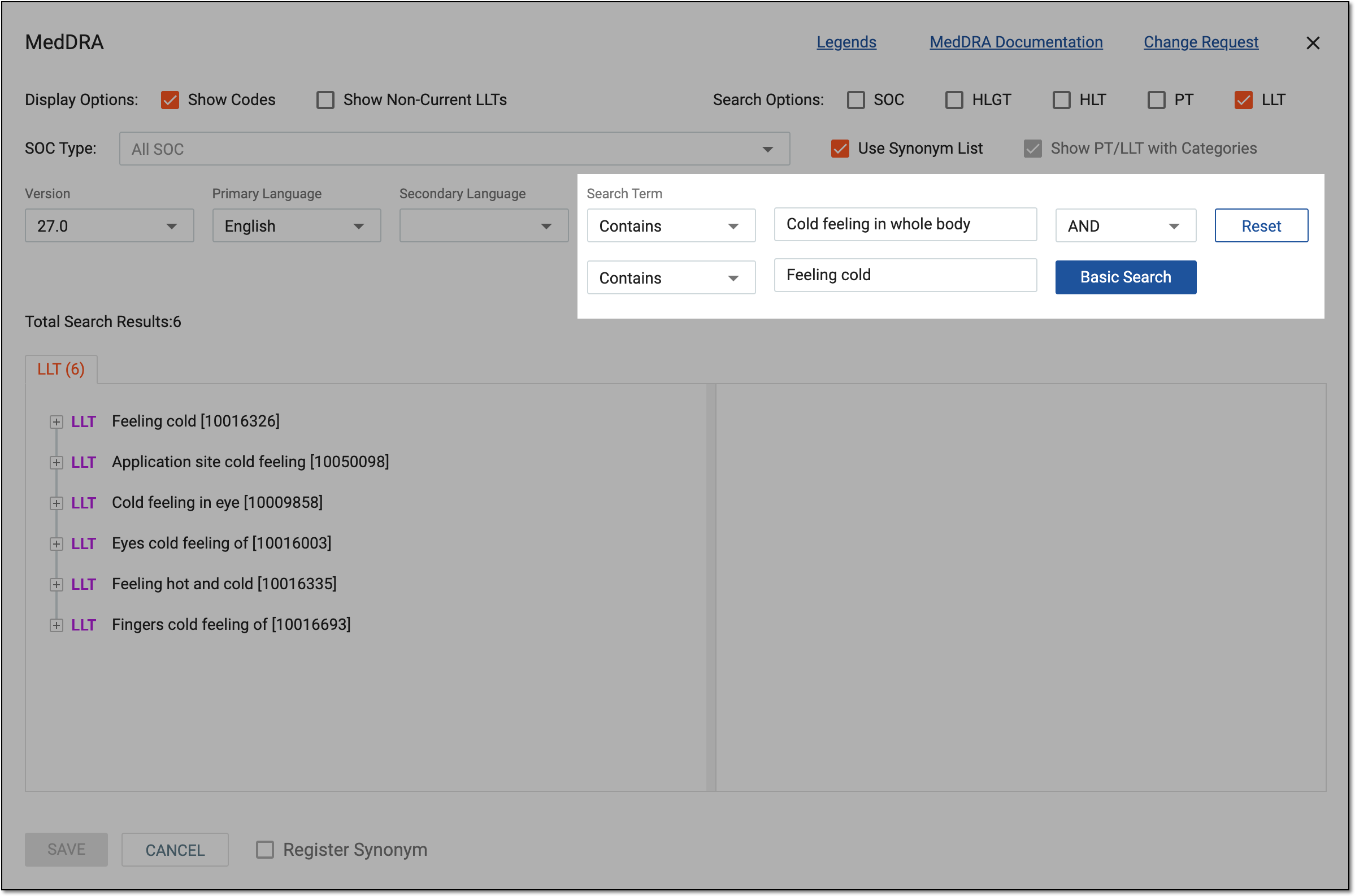 Figure 4. Performing advanced search
Tip
To get back to the basic search, select
 .
.To discard your applied searching parameters, select
. -
-
Refine the search results and tailor them to your specific needs by selecting one of the options explained in the following table.
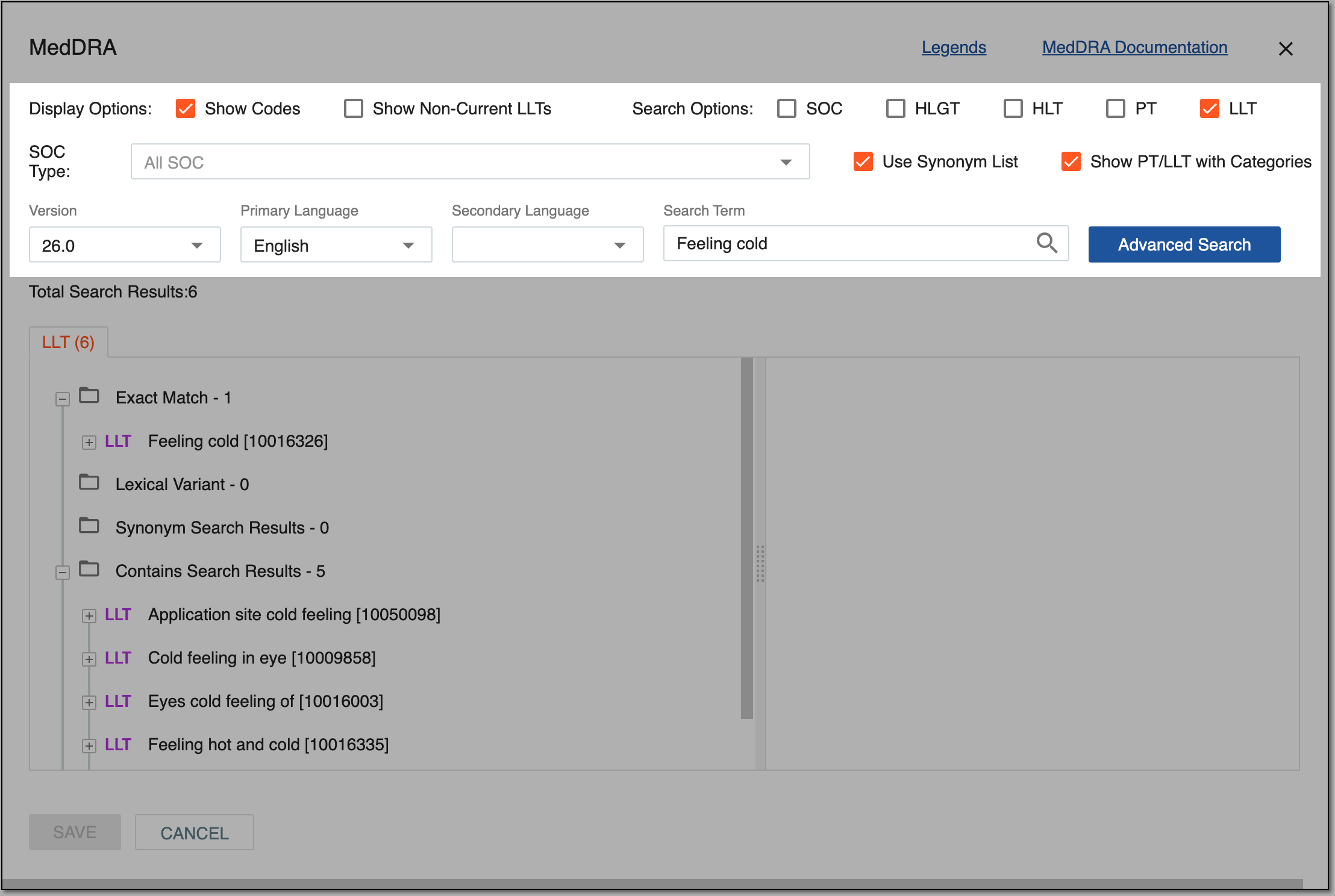 Figure 5. Customizing search results
Option
Details
Legends
Select the link to open the Legend dialog and review the details on available icons and symbols.
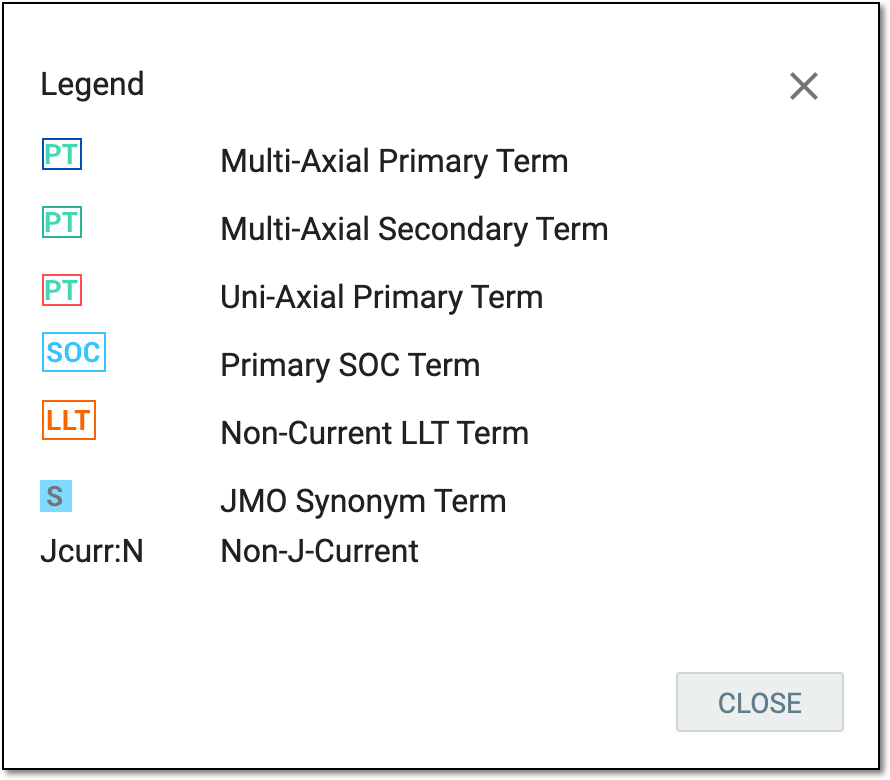 Figure 6. Reviewing legends
MedDRA Documentation
Select the link to open the MedDRA Support Documentation website in a new browser tab.
Change Request
Select the link to open the MedDRA Web Change Request Tool (WebCR) website in a new browser tab.
Display Options
Select the checkboxes from this group to:
-
Show Codes: display the MedDRA code associated with each term in the search results.
-
Show Non-Current LLTs: view MedDRA terms that are no longer current and that are very vague, ambiguous, truncated, abbreviated, outdated, or misspelled. Non-current LLTs (Lowest Level Terms) are terms that have been retained from the current version of MedDRA but are not recommended for ongoing utilization, although they may still have certain situational relevance.
Search Options
Narrow down the search results by specifying which level of the MedDRA hierarchy you want to search within. The MedDRA hierarchy is organized into different levels, including:
-
SOC (System Organ Class): the highest level of the MedDRA hierarchy. It is a broad category used to group related medical conditions and adverse events (AEs). Examples of SOC categories include "Infections and infestations," "Nervous system disorders," and "Musculoskeletal and connective tissue disorders."
-
HLGT (High-Level Group Term): a level of the MedDRA hierarchy that provides a way of grouping related High-Level Terms (HLTs) together.
-
HLT (High-Level Term): a level of the MedDRA hierarchy that provides a way of grouping related Preferred Terms (PTs) together. Each HLT represents a concept that encompasses multiple PTs that are related in terms of clinical presentation or etiology.
-
PT (Preferred Term): a level of the MedDRA hierarchy that provides a standardized way of describing medical conditions and AEs in clinical trials and pharmacovigilance activities. Each PT represents a single medical concept, such as a symptom, sign, disease, or AE.
-
LLT (Lowest Level Term): the most granular level of term in the MedDRA hierarchy. It provides the greatest level of specificity in the terminology.
By selecting one or more checkboxes within this group, you can customize your search to focus on specific levels of the hierarchy.
For example, if you select the PT checkbox, the search will return only Preferred Terms (PTs) that match the search criteria. This can be helpful when you already know which level of the hierarchy is most relevant to your search.
SOC Type
Expand the list and select the needed option to narrow down your search to a specific type of SOC (System Organ Class).
Use Synonym List
Select the checkbox to include synonyms in your search criteria.
Show PT/LLT with Categories
Select the checkbox to categorize the searched MedDRA term based on the LLT relationship with its PT.
Version
Expand the list and select the needed version of the MedDRA hierarchy.
Primary Language
Expand the list and select the primary language in which you want to view the search results.
Secondary Language
Expand the list and select the secondary language in which you want to view the search results.
-
-
Upon the successful search, from the list of potential terms that appear in the search results, map your synonym to the appropriate MedDRA term as follows:
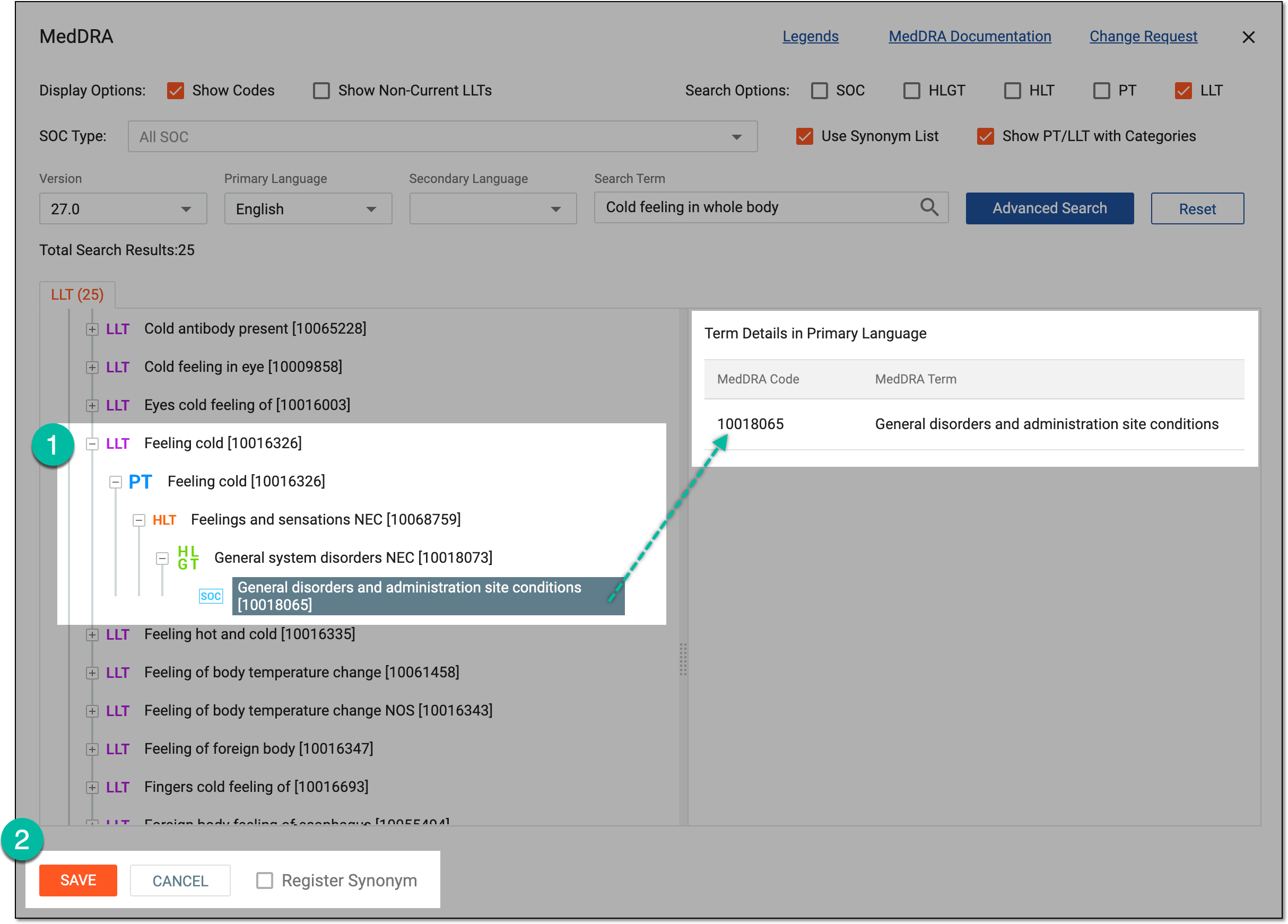 Figure 7. Mapping synonym with MedDRA term
-
Select the term from the LLT hierarchy.
-
Check if this LLT maps to the preferred SOC (since there are multiaxial terms in which the same PT can map to different SOC).
-
Check the details of the term you have found including the MedDRA code and term that are displayed on the right-hand side of the MedDRA dialog.
-
Select the Register Synonym checkbox if you want to add the MedDRA term to the PV library of synonyms.
-
-
Select
 to map the term to your synonym and finalize the coding process.
Upon saving, the reported verbatim in your ICSR form is coded with the selected MedDRA term and code.
In addition, manually coded terms are saved in the PV system as MedDRA synonyms so the next time the user enters the same reported verbatim term, it will automatically be coded according to the previous MedDRA code used.
Manual coding facilitates associating the verbatim product names to the WHODrug dictionary if the automatic process fails or the identified matches do not align with your specific needs.
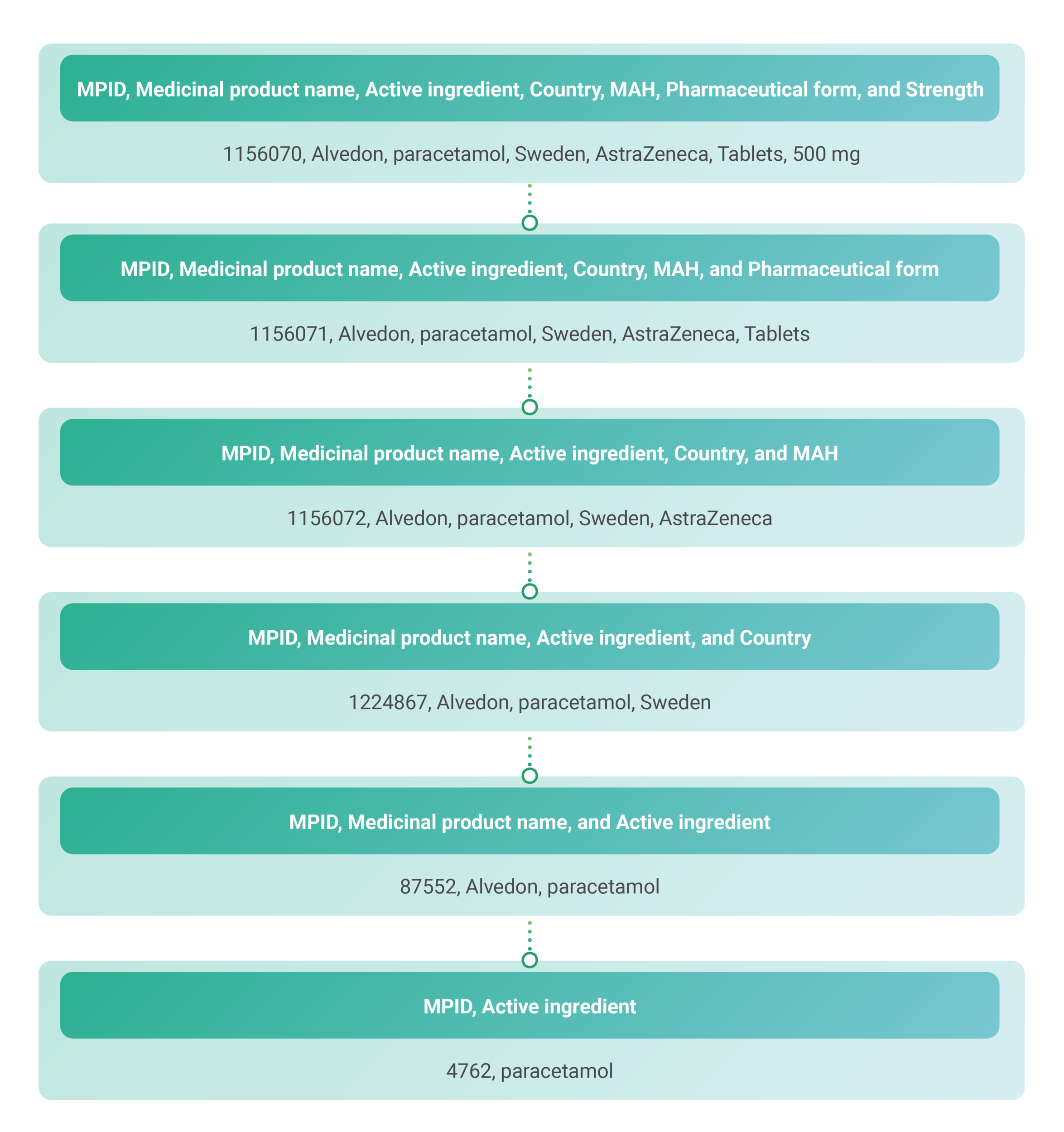
The PV system provides capabilities to exclusively use the WHODrug C3 format for product coding in different forms across the application. This is because some regulatory agencies, like the Ministry of Food and Drug Safety (MFDS) in South Korea and the Federal Commission for Protection against Health Risks (COFEPRIS) in Mexico, have started to require the use of the WHODrug C3 format.
Learn more about how to use the WHODrug C3 format for drug coding. The general approach to the C3 format coding can be depicted with the following schema.
-
In the PV application header, select the ICSR tab.
-
On the ICSR List page that opens, select the needed case.
Figure 2. Accessing case details
-
On the page that opens in the new browser tab, from the left pane, select the ICSR form you need to fill out.
Figure 3. Selecting form to fill
-
In the form that opens, from the Product Name field, select WHODrug
 .
. -
In the WHODrug Search dialog that appears, search for the necessary WHODrug term for your product name by using the elements explained in the following table.
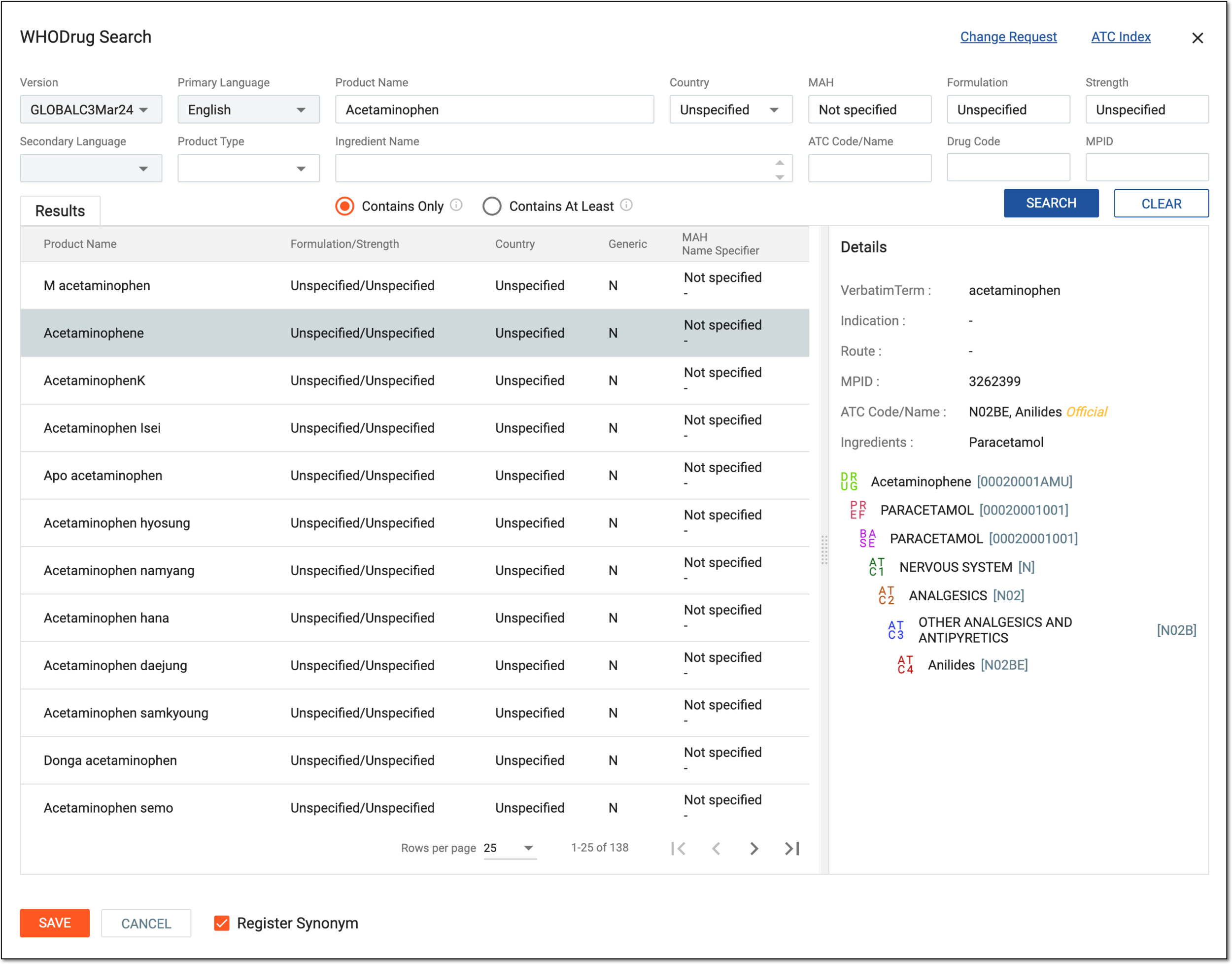 Figure 4. Searching for WHODrug product
Element
Details
Change Request
Select to open the WHODrug change request tool in the new browser tab.
ATC Index
Select to open the ATC/DDD Index in the new browser tab.
Version
Select the version of the WHODrug Global dictionary to be used for the search. The dictionary is regularly updated, so this field provides searching capabilities with the most current or a specific past version.
Primary Language
Select the language to use for searching within the WHODrug dictionary.
For an ICSR, the default value is the same as the case language.Product Name
Start entering the substance name or trade name of a drug so you can use autocomplete suggestions to select the needed value from the WHODrug dictionary.
Country
Enter the country name to narrow down the search to drugs available in a particular country or enter Unspecified or Not applicable if no information is available.
MAH
Enter the Marketing Authorization Holder name to search for the product coding options that belong to a certain MAH or leave the Not specified value if no MAH information is available.
Formulation
Specify the dosage form of the product or leave the Unspecified value if no pharmaceutical form information is available.
Strength
Enter the amount of active pharmaceutical ingredient present in a product, usually measured in terms of concentration or dose per unit, such as milligrams per tablet, milliliters per dose, and so on. Leave the Unspecified value if no product strength information is available.
Secondary Language
The secondary language is used for the bilingual display only since the WHODrug search always uses the primary language.
This field is inactive because this feature is currently under development.Product Type
Select one or multiple of the following product types to search within the WHODrug database:
-
Preferred: for all WHODrug records, the preferred name is also a generic name of active substances, preferably an International Non-proprietary Name (INN). If no INN exists, another globally recognized non-proprietary name (for example, the United States Adopted Name (USAN) or a chemical name) is used. The accepted scientific name for herbal records is the preferred name. This type can be selected along with either of the other types—Generic, Old Form, and Umbrella Records.
-
Generic: a generic name in WHODrug is a record representing one or more active substances. Generic names correspond to the names of one or more substances used as ingredients for WHODrug records. This type can be selected along the Preferred type, but not with Old Form or Umbrella Records.
-
Old Form: medicinal products that are withdrawn or no longer marketed are flagged as an old form in the WHODrug dictionary. The old form flag is uniquely added to a drug name with a specific set of ingredients on a specific market (for example, country name). This type can be selected along the Preferred type, but not with Generic or Umbrella Records.
-
Umbrella Records: a record representing a drug category or a placeholder record rather than a specific drug name (for example, corticosteroids or placebo). Umbrella records are used for coding imprecise verbatim terms when coding to a specific drug is not possible. Umbrella records always lack ingredients and start with 9. This type can be selected along the Preferred type, but not with Generic or Old Form.
Ingredient Name
Start entering the active ingredient name of a product record so you can use autocomplete suggestions to select the needed value from the WHODrug dictionary. You can select multiple ingredients to search for a specific drug.
ATC Code/Name
Start entering the first characters of an ATC or the complete ATC code or name so you can use autocomplete suggestions to select the needed value from the WHODrug dictionary.
The Anatomical Therapeutic Chemical (ATC) classification is a hierarchical classification system that classifies active substances according to the organ or system on which they act, as well as their therapeutic, pharmacological, and chemical
                                        properties.
Drug Code
Enter a unique identifier for a specific drug within the WHODrug database.
The drug code is an aggregation of Drug Record Number (DrugRecNo), Sequence Number 1 (Seq1), and Sequence Number 2 (Seq2). The
                                        drug code uniquely identifies a drug name and its active substances or an umbrella record. The drug code is used in both the B3 and the C3 formats and is the unique identifier in the B3 format.
MPID
Enter the unique medicinal product identifier if you are searching for a record in the C3 format. Unlike the drug code, it is a serial number with no intrinsic meaning.
Contains Only
Select this option to retrieve products from the WHODrug database containing only indicated ingredients.
Contains At Least
Select this option to retrieve products from the WHODrug database containing entered ingredients in combination or with other ingredients.
SEARCH
Select
 to browse the WHODrug database for the product matching specified search criteria.
CLEAR
Select
 to empty the search criteria.
Results
In this block, select the needed product from the list of records found in the WHODrug dictionary matching the search criteria entered. Selected term information is displayed in the Details block.
Details
In this block, review the hierarchical structure and all pertinent details of the WHODrug dictionary term selected from the Results block.
Register Synonym
Select this checkbox to add your manual coding result to the synonym list preconfigured in the CODING application and associated with your study in PV. If added, the coding can be applied automatically based on the synonym list for succeeding cases with the same product verbatim term.
SAVE
Select
 to apply the WHODrug product coding.
CANCEL
Select
 to close the dialog discarding all the changes without saving.
 -
Once saved, the WHODrug product coding is applied.