Configure study
In PV, basic details about the study, like its name, timeframe, and such, are pulled automatically from the basic study information block of CTMS or from the ADMIN app, depending on which system is available for the client.
However, you need to configure some additional details manually via the Study Setting feature. Here, you can configure your study arms, specify study products pertaining to each arm, and add study references, such as the registration details and more. These study configurations are then used when completing respective ICSR forms, mainly—the Study form.
-
In the PV application header, select the CONFIGURATION tab.
-
On the page that opens, in the left pane, select the Study Setting subtab.
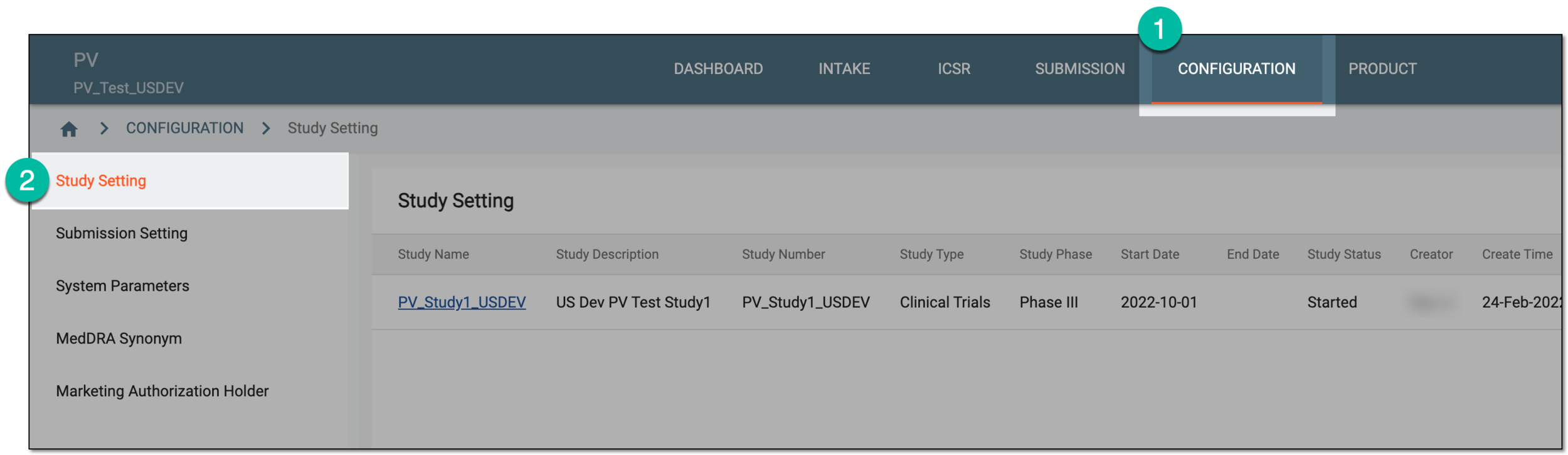 Figure 1. Accessing study setting
-
On the Study Setting page that opens, in the table, you can find the list of studies to which you have access. Select the name of the study for which you want to configure details.
Important
The list of studies available here depends on the study access permissions granted to your user group via the ADMIN application.
 Figure 2. Selecting study
-
In the form that appears, manage the study details as explained in the following table.
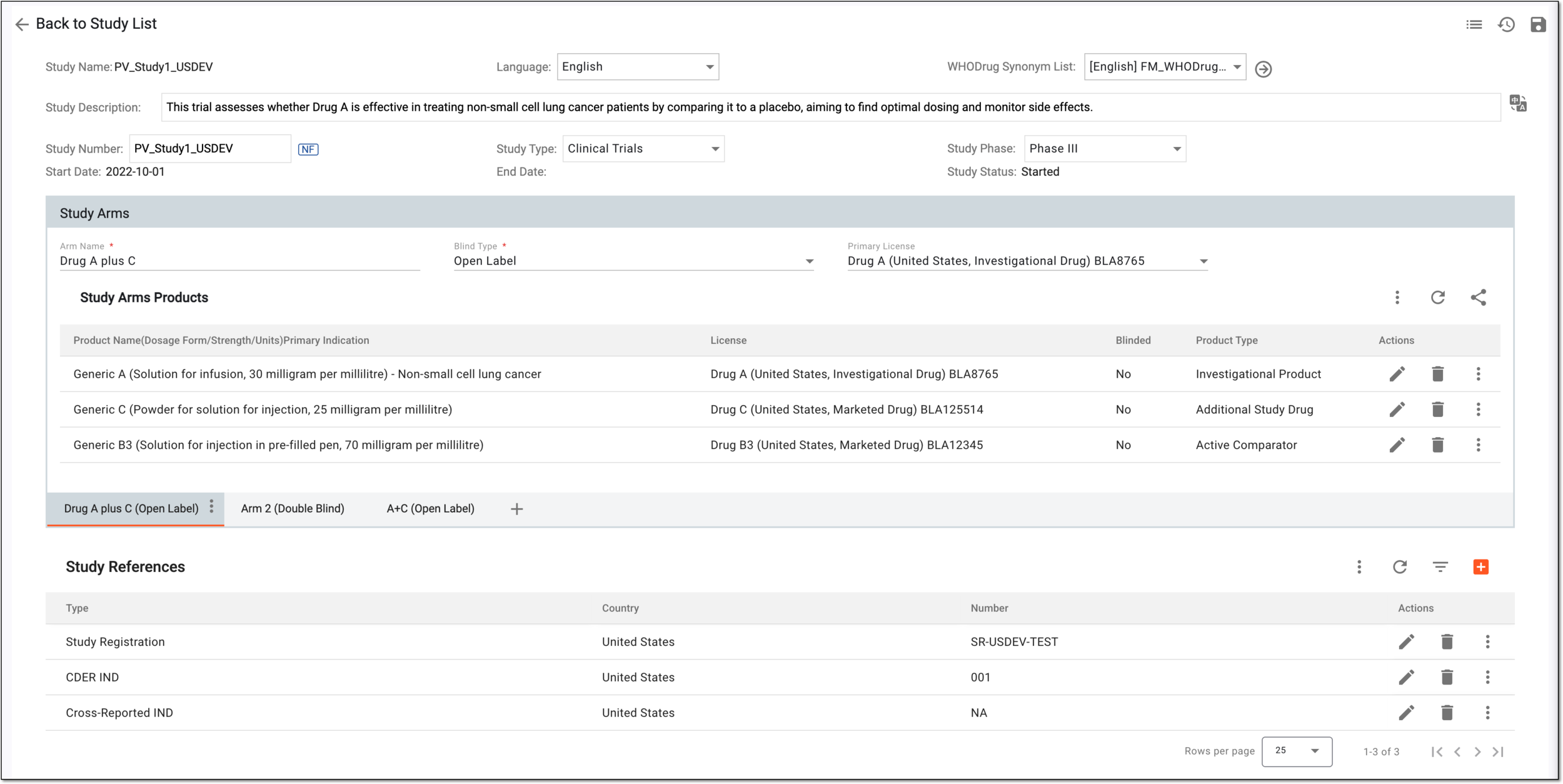 Figure 3. Configuring study details
Tip
In the following table, mandatory elements are marked with an asterisk (*).
Element
Details
Study Name
Represents the name of the study that is uneditable and automatically pulled from CTMS or ADMIN, depending on which system is available for data pull.
Language
Select the primary language of the study.
WHODrug Synonym List
Select the list of WHODrug synonyms preconfigured for your study via the CODING application.
Using synonym lists enhances case processing by applying autocoding for all verbatim terms of product names within the cases in your study based on the previous manual coding applied to a similar product verbatim term. This eliminates user interaction to manually code the drug names individually for each submitted case of the study.
WHODrug Synonym Detail
Select
 to open and preview the list of verbatim terms and their WHODrug coding results configured for your study.
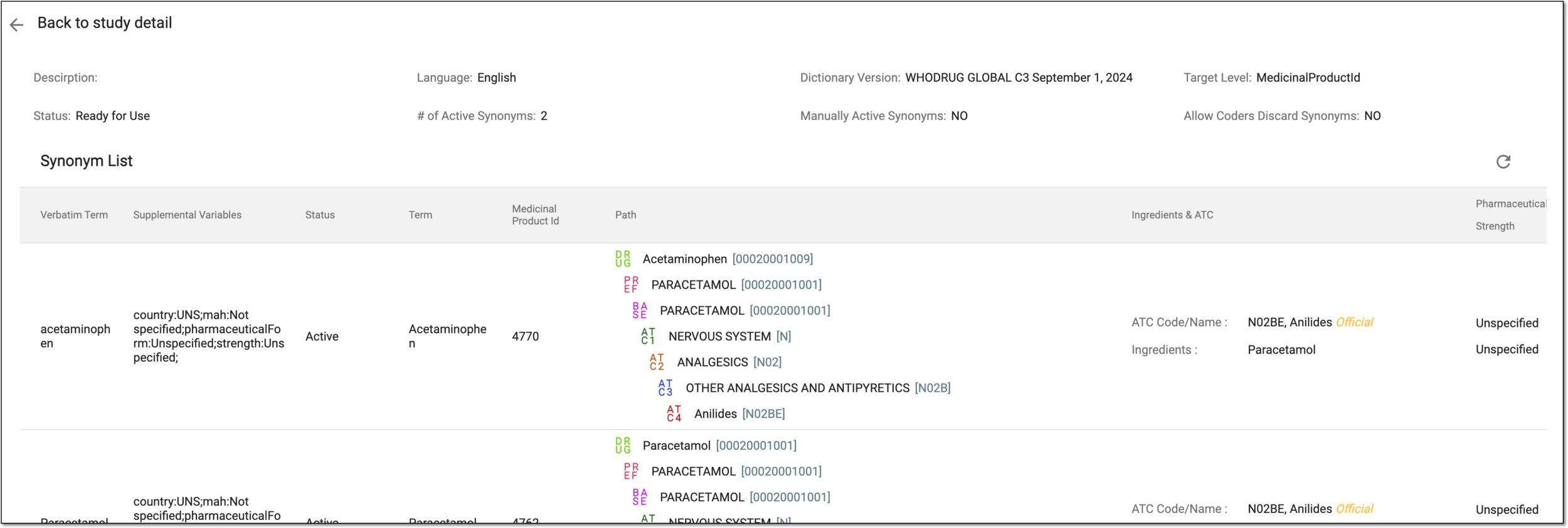 Figure 4. Checking WHODrug synonym list details
This feature cannot be used to edit the synonym list but only view the details. To update the synonym list, go to CODING > SYNONYM.Study Description
Represents the description of the study that is automatically pulled from CTMS. If the value is empty, it is not provided on the CTMS side or the CTMS data pull is unavailable, and you can enter the study description manually.
The synchronization of the study description with CTMS occurs only once, and if this value is missing, you have to provide it manually in PV, even if it is later entered in CTMS.Translation
Select
 and in the Translation dialog that opens, select the translation language of the
study description. Then you can enter the translation text manually or select
and in the Translation dialog that opens, select the translation language of the
study description. Then you can enter the translation text manually or select  to perform the AI translation. Save the changes to implement the
translation.
to perform the AI translation. Save the changes to implement the
translation.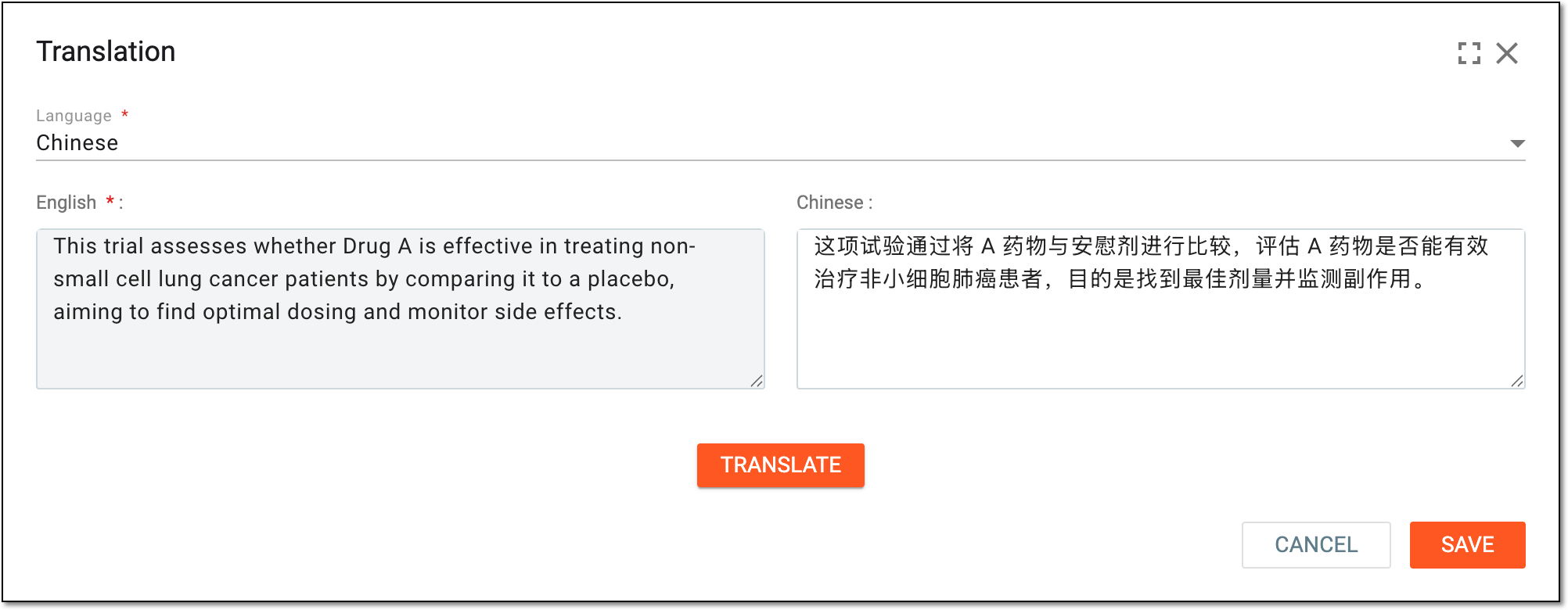 Figure 5. Translating study description
Study Number
Enter the identification number of your study. If unavailable, select
 next to the field for the system to insert the null flavor value.
Study Type
Select the type of your study, such as Clinical Trial, Individual Patient Use, or else.
Study Phase
Represents the current phase of the study. The value is automatically pulled from CTMS but can be selected manually if the CTMS data pull is unavailable.
Start Date
Represents the actual start date of the study. The value is uneditable and automatically pulled from CTMS.
End Date
Represents the actual end date of the study. The value is uneditable and automatically pulled from CTMS.
Study Status
Represents the status of the study, for instance, Subject enrollment. The value is uneditable and automatically pulled from CTMS.
Study Arms
Arm Name*
Enter the name of the study arm.
Blind Type*
Select the blinding type (Open Label, Single Blind, Double Blind, or Triple Blind).
Primary License
Select the primary license from the list of available ones. You can use search to locate your license in the list faster.
The primary license can only be selected after the study arm products are added.If the study arm is blinded (Single Blind, Double Blind, and Triple Blind) and also contains an unblinded product, you can only select a blinded product license as the primary license.Study Arm Products
Configure your study arm products here and then perform the following actions if needed:
New
Select
 to configure another arm for the study.
Study References
Type
Represents the type of the study reference, such as study registration, CDER IND, or else.
Country
Represents the country that is assigned the study reference.
Number
Represents the number that is assigned to the study reference as per the reporting region, such as the number of the study registration, the number of the application, or else.
New
Select
 to configure a
study reference by type.
to configure a
study reference by type.SAVE
Select
 to save changes implemented to any of the study setting form fields.
Tip
You can switch between different studies directly from the configuration page with no need to return to the Study Setting table. Simply expand the menu from the toolbar and select the study of your interest.
 Figure 6. Switching between study configurations
Upon saving, the updates to the study details are implemented.