Configure study arm
In PV, the basic information about the study, like its name, timeframe, and such, is automatically pulled from the CTMS application. Nevertheless, there are some manually configurable details. Namely, from the Study Setting tab, you can configure study arms to help you diversify between groups of patients and their treatment plans.
You can configure a new study arm from scratch or by copying the existing arm. This section concentrates on how you can add a new arm from scratch.
Tip
You can switch between different studies directly from the configuration page with no need to return to the Study Setting table. Simply expand the menu from the toolbar and select the study of your interest.

-
In the PV application header, select the CONFIGURATION tab.
-
On the page that opens, in the left pane, select the Study Setting subtab.
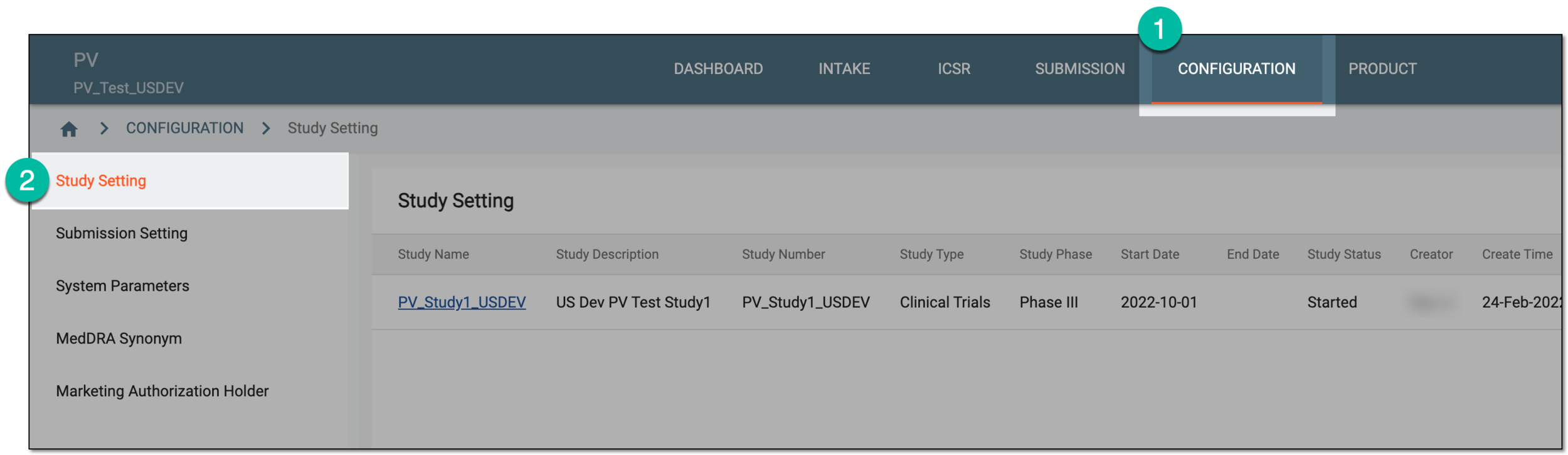 Figure 2. Accessing study setting
-
On the Study Setting page that opens, from the Study Name column, select a particular study.
Important
The list of studies available here depends on the study access permissions granted to your user group via the ADMIN application.
 Figure 3. Selecting study
-
On the page that opens, in the Study Arms block, select New
 .
.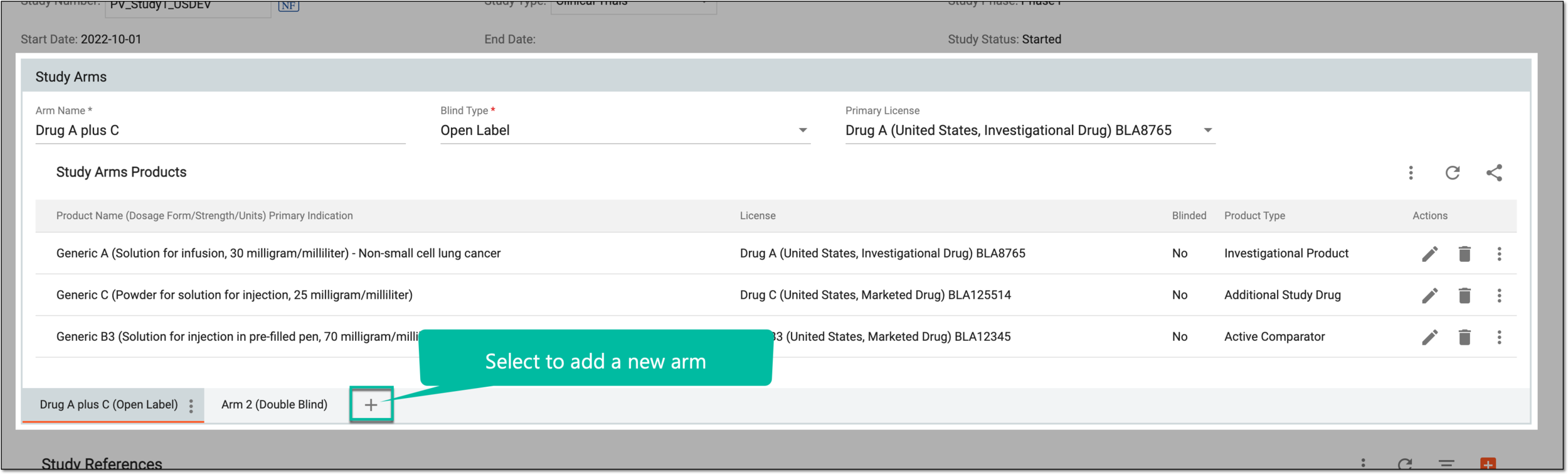 Figure 4. Selecting New in Study Arm table
-
On the Study Arm table, fill in all the details as explained in the following table.
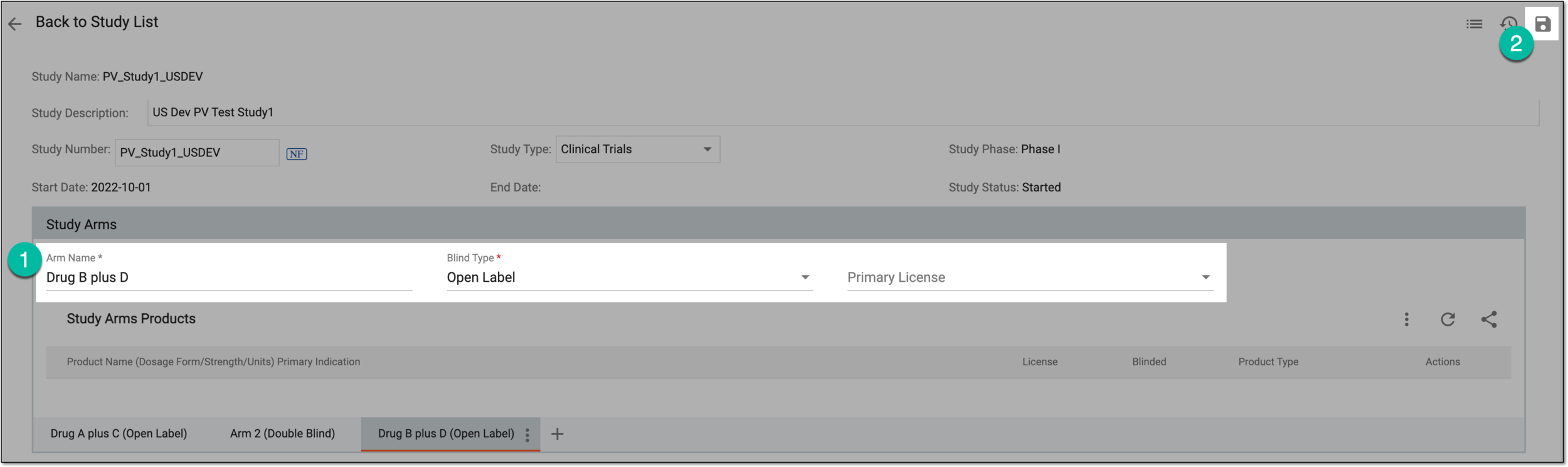 Figure 5. Viewing Study Arm table
Tip
In the following table, mandatory elements are marked with an asterisk (*).
Element
Details
Arm Name*
Enter the name of the study arm.
Blind Type*
Select the blinding type (Open Label, Single Blind, Double Blind, or Triple Blind).
Primary License
Select the primary license from the list of available ones.
The primary license can only be selected after you add study arm products.If the study arm is blinded (Single Blind, Double Blind, and Triple Blind), and also contains an unblinded product, you can only select a blinded product license as the primary license.SAVE
Select
 to save changes and create the new study arm.
Once saved, the new study arm is configured. You can now configure a study product for this arm.