Configure study reference by type
In PV, the basic information about the study, like its name, timeframe, and such, is automatically pulled from the CTMS application. Nevertheless, there are some manually configurable details. Namely, from the Study Setting tab, you can configure a study reference by type. The essential details of the study configured here, such as the registration information or else, are then referenced by the system when submitting cases pertinent to the study to authorities.
Tip
You can switch between different studies directly from the configuration page with no need to return to the Study Setting table. Simply expand the menu from the toolbar and select the study of your interest.

-
In the PV application header, select the CONFIGURATION tab.
-
On the page that opens, in the left pane, select the Study Setting subtab.
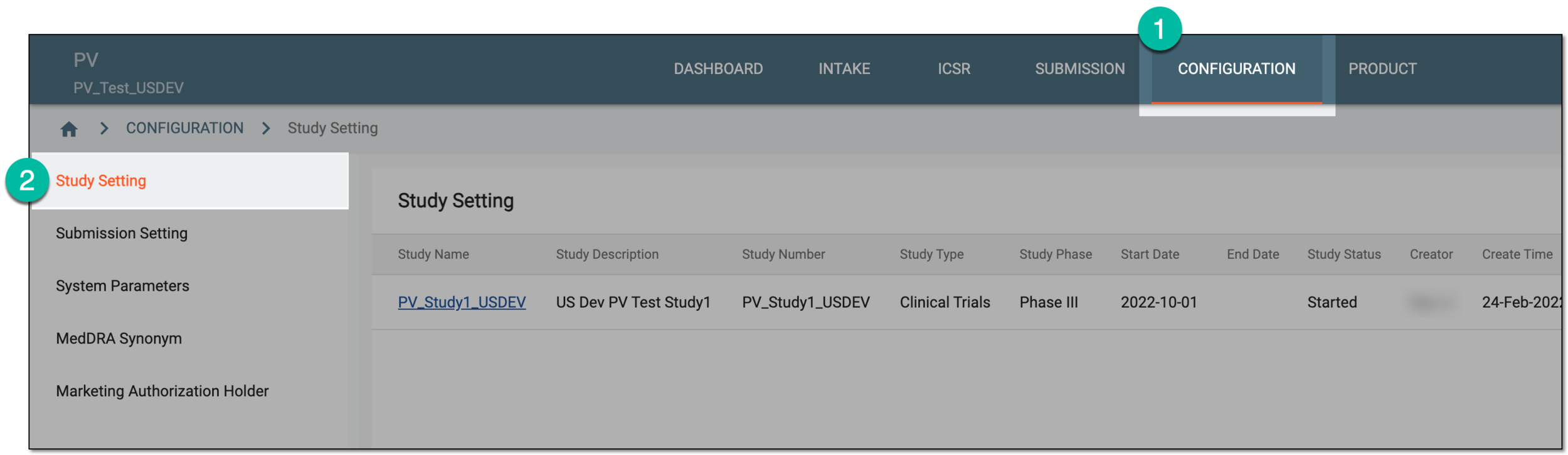 Figure 2. Accessing study setting
-
On the Study Setting page that opens, from the Study Name column, select a particular study.
Important
The list of studies available here depends on the study access permissions granted to your user group via the ADMIN application.
 Figure 3. Selecting study
-
On the page that appears, in the Study References block, select New
 .
.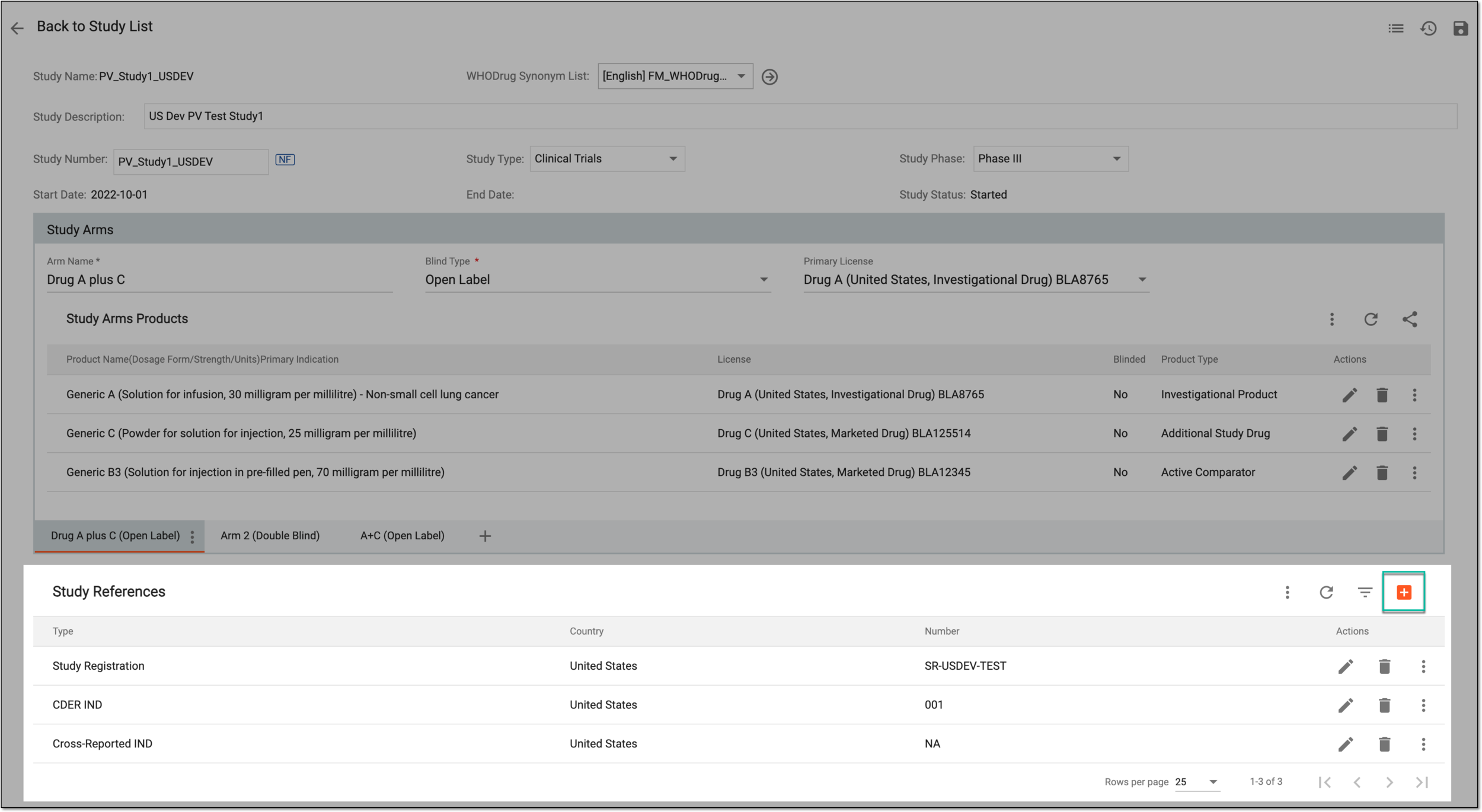 Figure 4. Selecting to add new study reference
-
In the New dialog that appears, provide the data as explained in the following table.
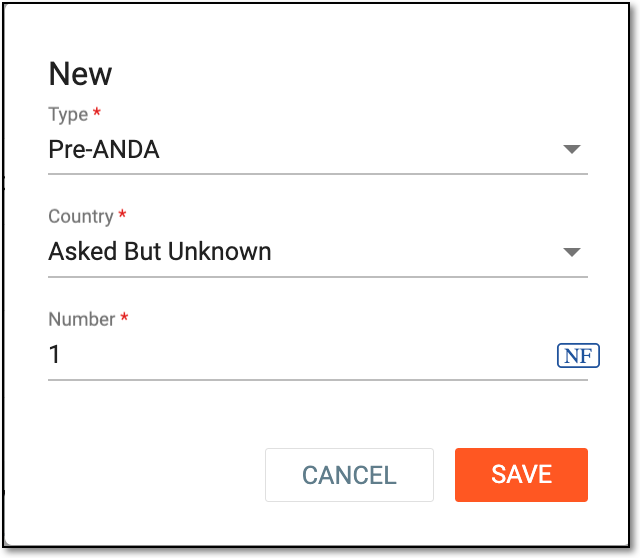 Figure 5. Configuring study reference by type
Tip
In the following table, mandatory elements are marked with an asterisk (*).
Element
Details
Type*
Select the type of the study reference being added.
Country*
Select the country that is assigned to the study reference being added.
Number*
Enter the number that is assigned to the study reference being added as per the reporting region.
For this field, Null flavor is available. Select next to the field to activate the null flavor selection (No Information, Masked, Unknown, and so on). You can find the details for the available null flavor options and their codes in Appendix A. Null flavor specification.
SAVE
Select
 to apply the changes.
CANCEL
Select
 to discard the changes.
Once saved, the new study reference based on the selected type is configured.