Configure system parameters
In PV, before starting business operations, such as ICSR data entry, you need to configure system parameters.
-
In the PV application header, select the CONFIGURATION tab.
-
On the page that opens, in the left pane, select the System Parameters subtab.
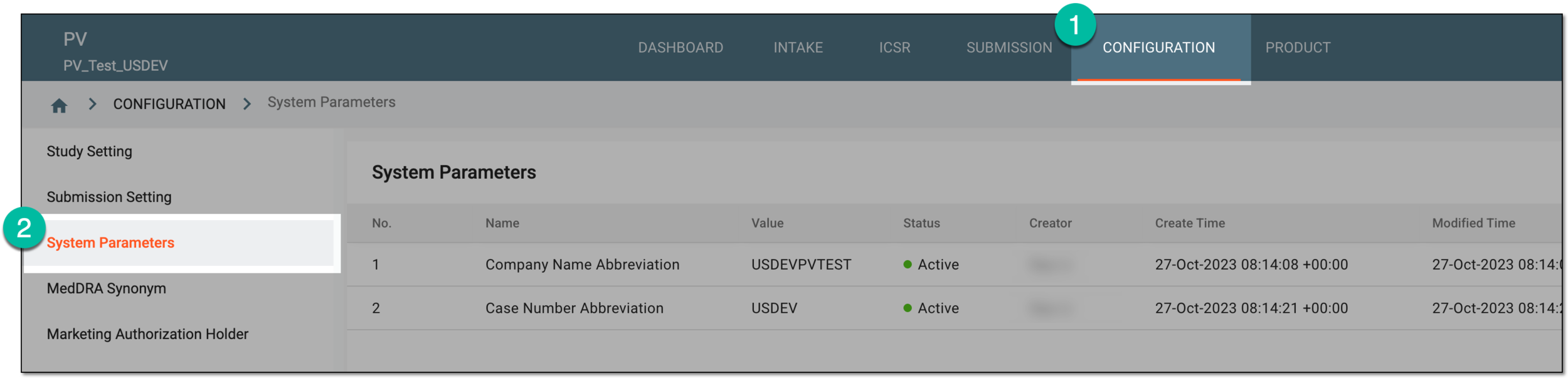 Figure 1. Accessing system parameters configuration
-
On the System Parameters page that opens, on the workspace toolbar, select New
 .
. Figure 2. Selecting to add new system parameter
-
In the Add dialog that opens, select the values as explained in the following table.
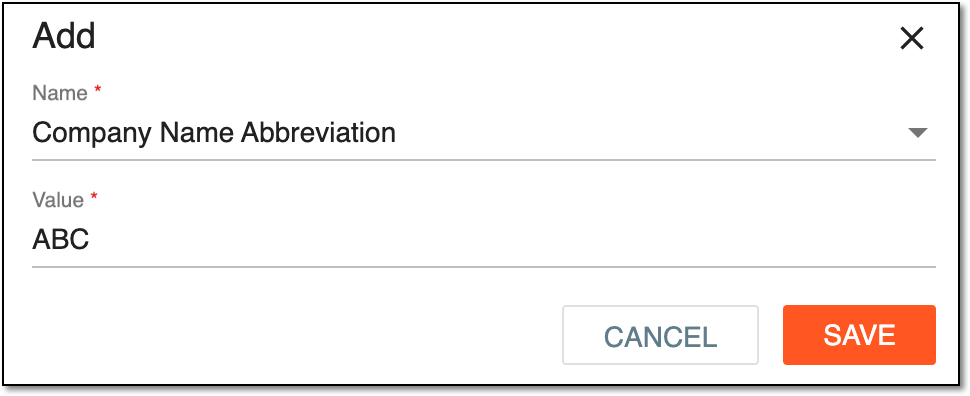 Figure 3. Adding new system parameter
Tip
In the following table, mandatory elements are marked with an asterisk (*).
Element
Details
Name*
Select the name of the system parameter that you want to add, such as Company Name Abbreviation or Case No.Abbreviation.
Value*
Enter the value for the selected system parameter. For instance, for the Company Name Abbreviation parameter, the value is the acronym for your company name.
SAVE
Select
 to save the implemented changes.
CANCEL
Select
 to discard the changes without saving and return to the System Parameters page.
Upon saving, the new system parameter is added to the System Parameters table. As all the needed parameters are configured, you can proceed to the ICSR data entry.