Edit synonym list
With the help of the Edit feature, administrators can modify and update existing synonym lists used in the coding process. By using this feature, administrators can adjust elements, such as list name, description, and operational preferences like manually activating synonyms or permitting coders to discard synonyms during coding. These edits enable the adaptation of synonym lists to evolving study requirements, ensuring that medical terms are consistently and accurately coded throughout the course of the clinical study.
-
In the Coding Admin application header, select the SYNONYM tab.
 Figure 1. Accessing synonym configurations
-
In the left pane, select Synonym List.
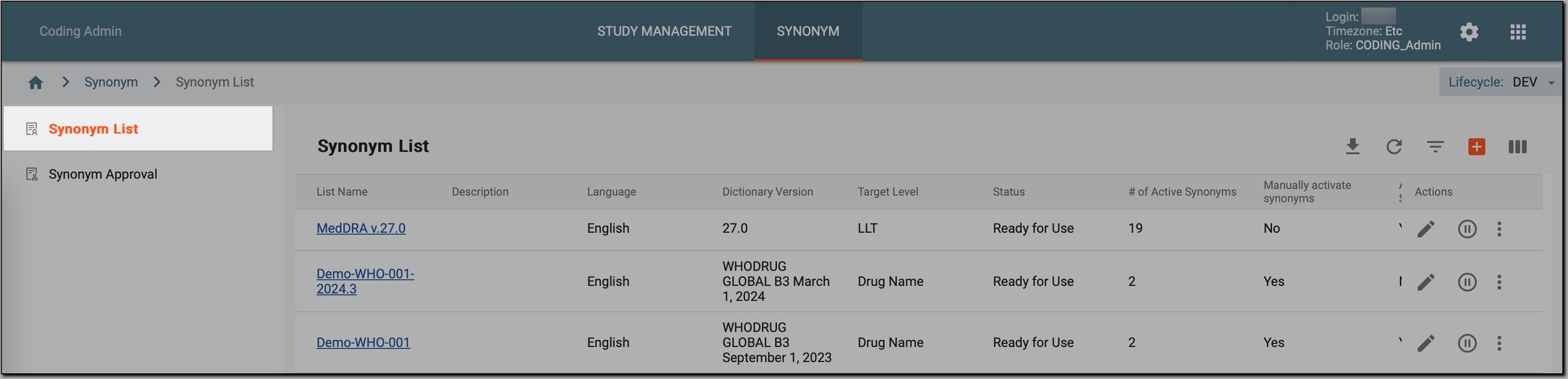 Figure 2. Accessing synonyms
-
In the Synonym List table that appears, go to the synonym list that you want to edit and select Edit
 next to it.
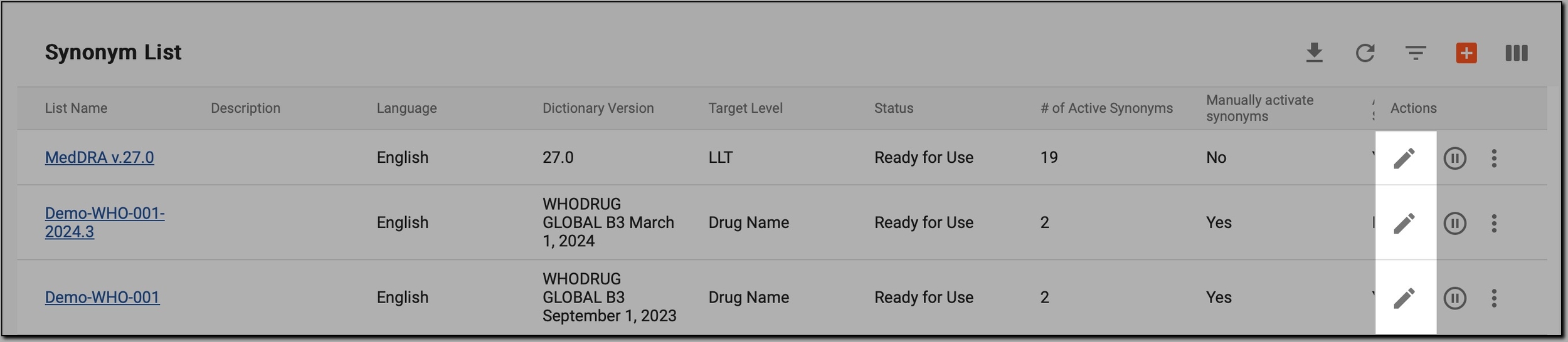 Figure 3. Initiating synonym list update
-
In the Edit form that appears, update the fields as needed. These fields are identical to the ones explained in the table of the Create new synonym list section.
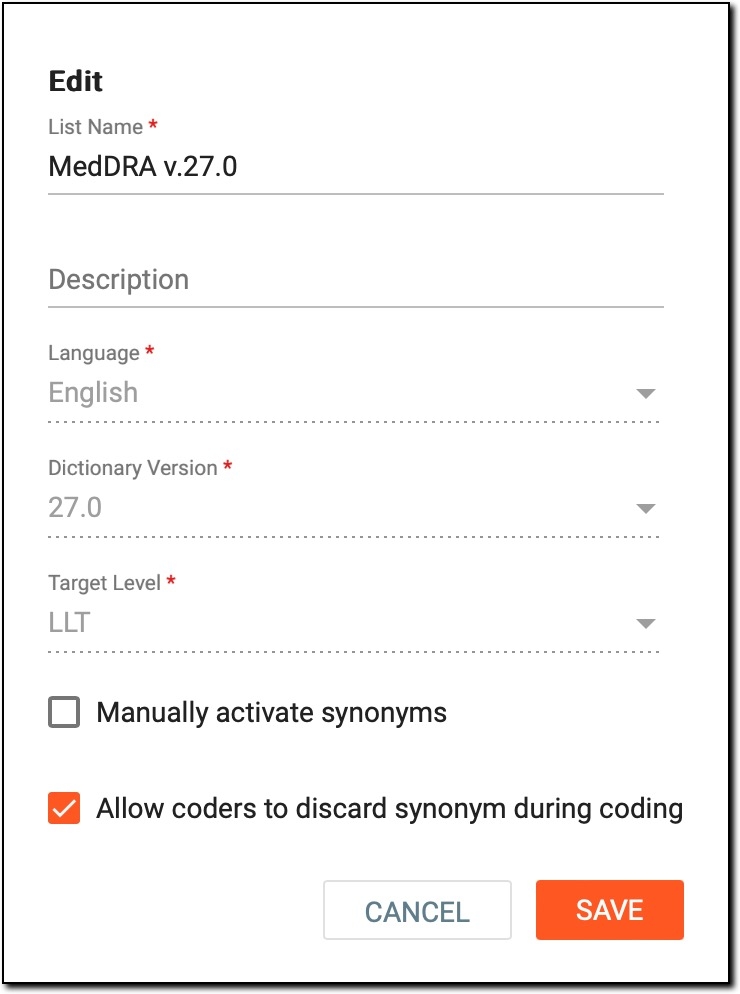 Figure 4. Editing synonym list
Important
The Language, Dictionary Version, and Target Level fields cannot be edited if the synonym list already has some synonyms. Changing these parameters can cause inconsistencies or conflicts with the existing synonyms.
How do I know the list already has some synonyms added?
You can determine if the list already has some synonyms added by checking the # of Active Synonyms column.
To see which synonyms are included in the synonym list, in the List Name column, select the name of the synonym list. If the link is not available, it means that the synonyms are in the Pending Review status.
-
Select
 to save your changes.
Once submitted, the synonym list becomes updated.