Reconcile synonym list
Whenever a new MedDRA or WHODrug dictionary version is released, it is necessary to update the synonym lists already available in the CODING system. This ensures that studies using these lists for coding purposes have access to the most up-to-date data.
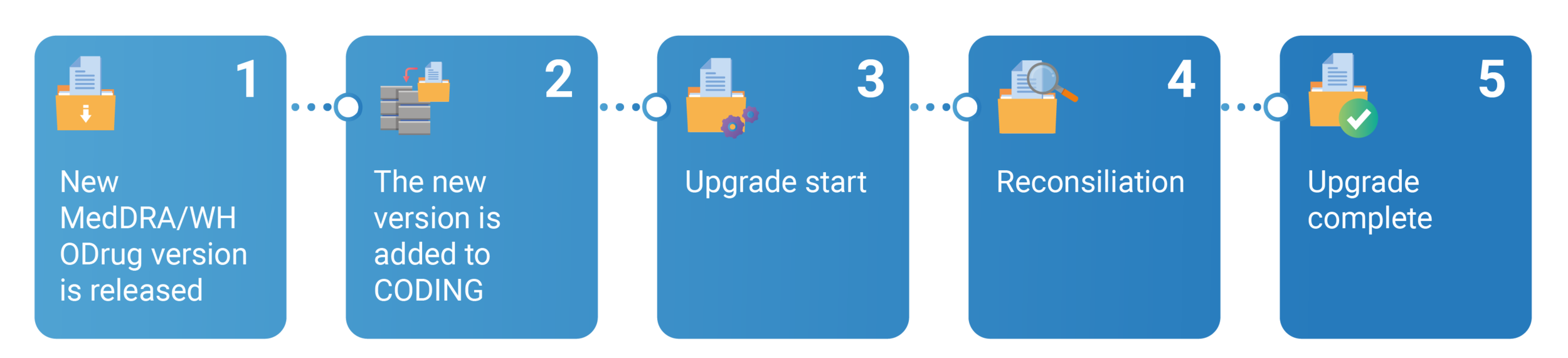
The flow of updating a specific synonym list to the latest version is illustrated in the following schema.
-
A new version of the MedDRA/WHODrug dictionary is released.
-
The new version is added to the CODING system by an EDETEK administrator. You cannot do it on your own.
-
The user initiates the upgrade of a synonym list to the new version via the Upgrade feature. In this case, the system creates a new synonym list and transfers the synonyms from the original list to the new one.
-
The user reviews and addresses the changes introduced in the new list via the Reconcile feature.
-
Once the review (reconciliation) is done, the new synonym list becomes available and can be used in a study, ensuring the use of the most current terminology for coding purposes.
Tip
For audit purposes, the old synonym list remains in the system.
-
In the Coding Admin application header, select the SYNONYM tab.
 Figure 2. Accessing synonym configurations
-
In the left pane, select Synonym List.
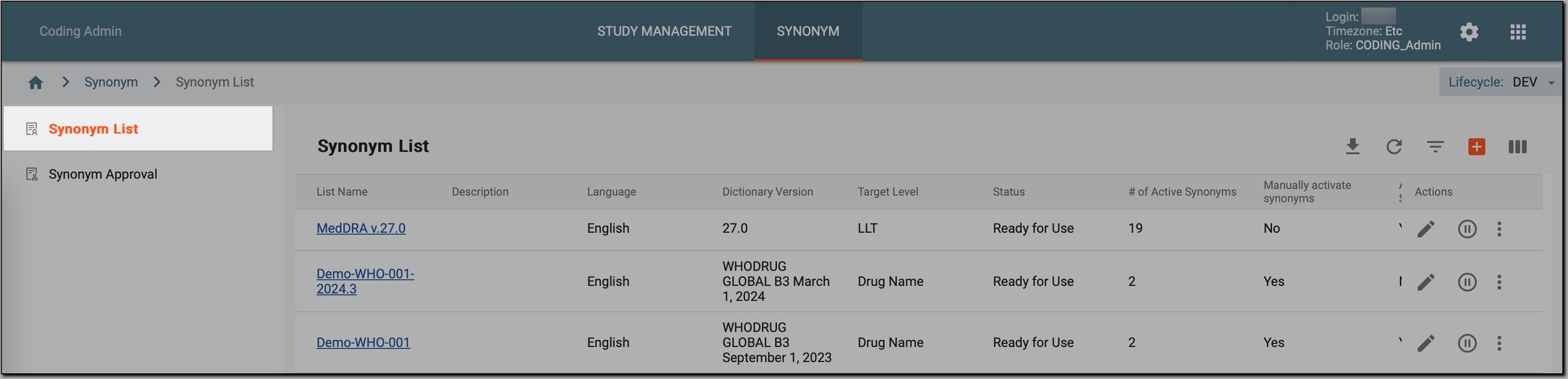 Figure 3. Accessing synonyms
-
In the Synonym List table that appears, go to the synonym list that is marked for upgrade. These lists typically display options such as Reconcile
 and Delete
  .
.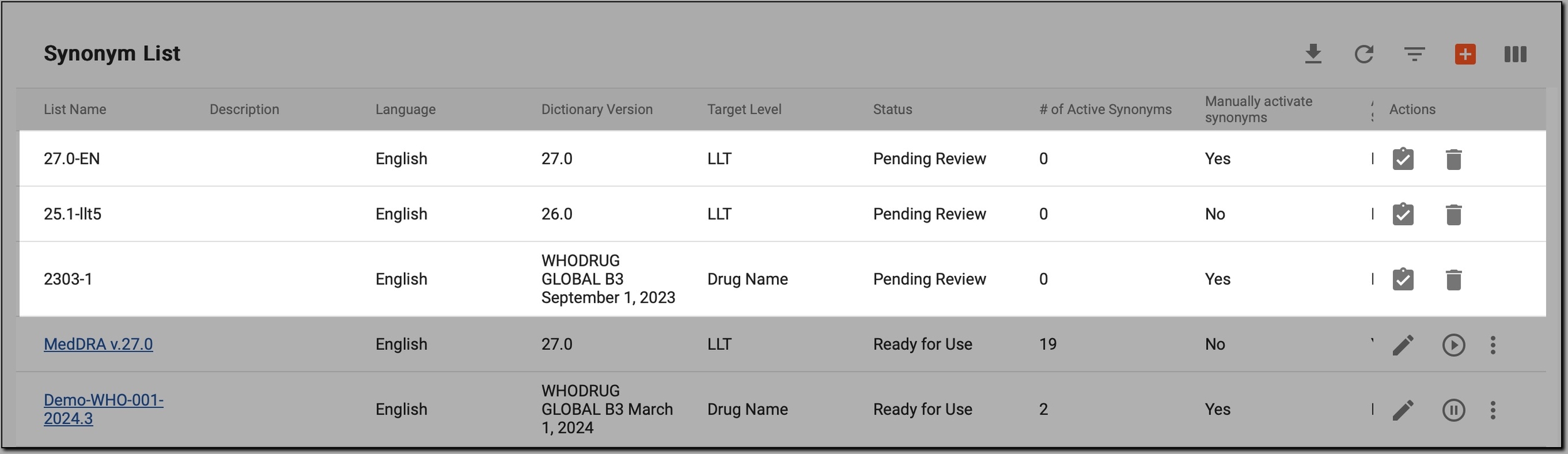 Figure 4. Navigating to synonym lists ready for upgrade
-
Next to this list, select Reconcile
. Figure 5. Initiating reconciliation
-
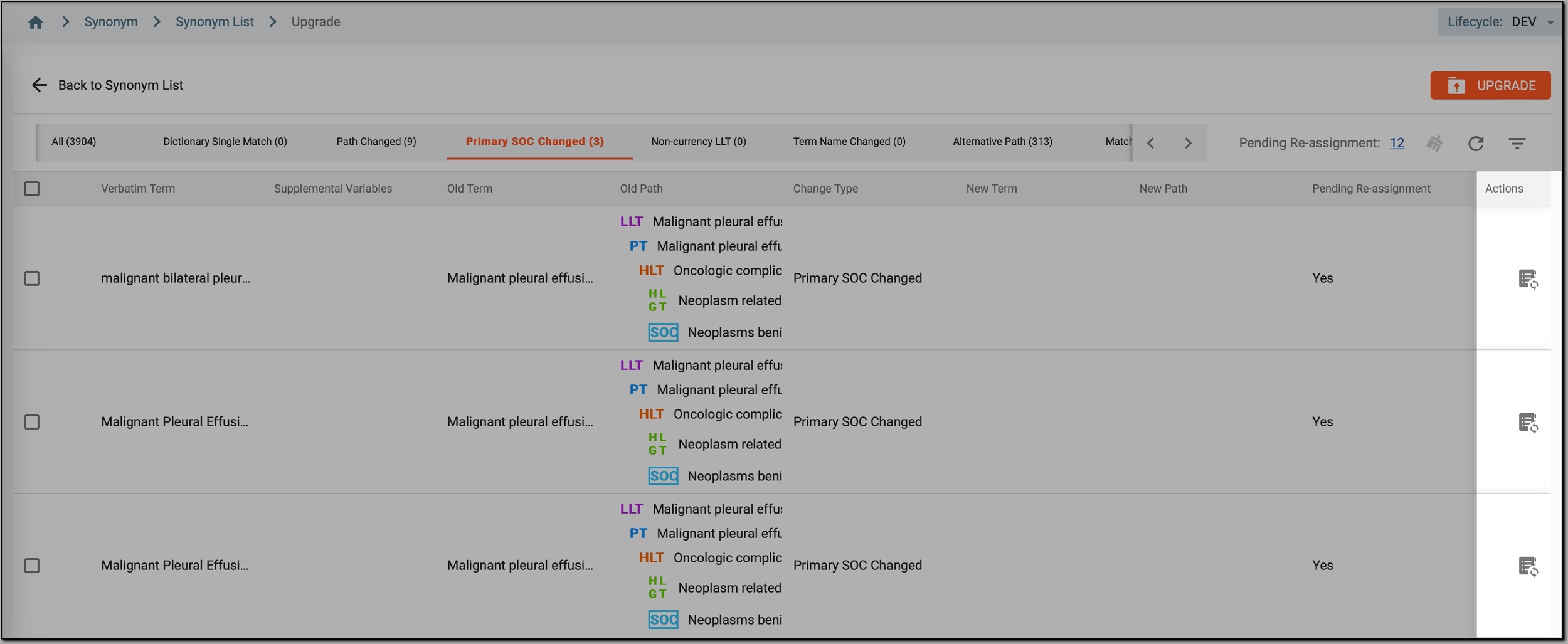
On the Upgrade page that opens, compare the new dictionary version with the old synonyms as explained in the following table. For convenience, switch between the tabs to analyze changes by categories, facilitating a detailed comparison and adjustment.
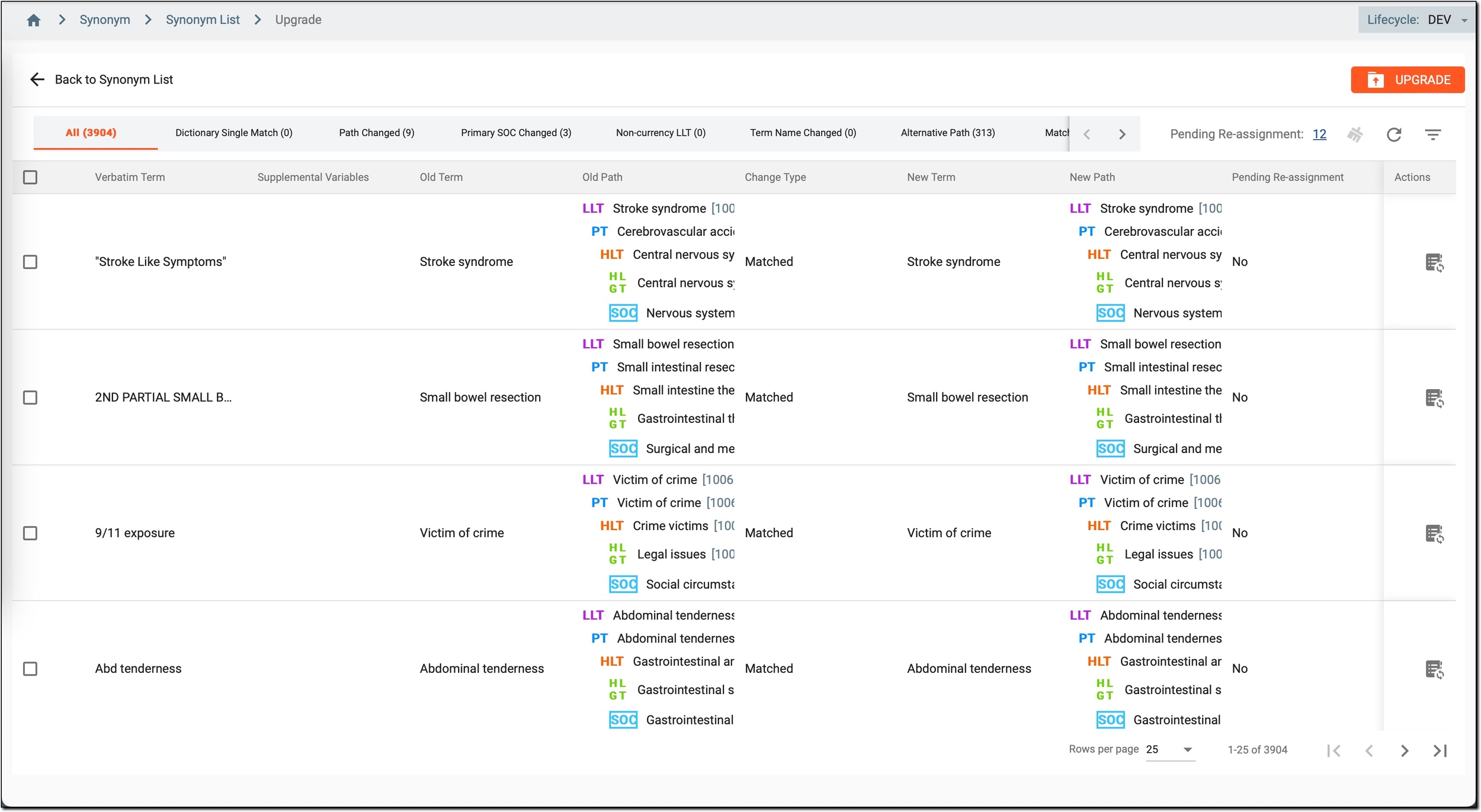 Figure 6. Reconciling changes
For example, the table under the All tab shows all synonyms pending review, while the table under the Path Changed tab only displays synonyms with changed paths.
Important
Sometimes, the content of the columns is not fully visible. To fix it, drag the column border to the right.
Column
Details
TABS
All
Presents all types of changes across a synonym list in a consolidated view, providing a comprehensive overview of all updates made in the new dictionary version.
Dictionary Single Match
Shows synonyms with direct matching terms in the new dictionary version, where the term path is unique.
Path Changed
Highlights synonyms where the exact term path could not be found in the new dictionary version, probably due to removed terms or Prefered Terms (PTs) demoted to the Lowest Level Term (LLT) level.
Primary SOC Changed
Displays synonyms where the term path exists, but the System Organ Class (SOC) of this path has changed to a non-primary SOC in the new version.
Non-currency LLT
Lists synonyms where the term path is available, but the LLT along this path has become non-current in the new version.
Term Name Changed
Shows synonyms where the term path is available, but the names of the terms along this path have been changed in the new version.
Alternative Path
Indicates synonyms where the term path is available, but there are new LLTs under this path's PT, or new PTs under this path's Higher Level Term (HLT).
Matched
Displays synonyms where the term path is available and does not fall under any of the above categories.
COLUMNS
Verbatim Term
The original term of phrase that needs to be coded or mapped to a term in the dictionary.
Supplemental Variables
Additional variables or attributes associated with the verbatim term (VT) that provide extra content or details.
Old Term
The term from the old synonym list that has been previously mapped to the verbatim term.
Old Path
The code of the old term within the old dictionary version.
Change Type
The type of change that has occurred, indicating why the term needs to be reviewed or reassigned (for example, "Dictionary Single Match", "Primary SOC Changed", and so on).
New Term
The suggested new term from the updated dictionary version that should replace the old term.
New Path
The code of the new term within the updated dictionary version.
Pending Re-assignment
Indicates whether the verbatim term requires reassignment:
-
Yes: means the system cannot automatically map the original term with the new dictionary version and needs your decision.
-
No: means the system has successfully mapped the original term, but you can still change it if needed.
Actions
The only available option is Reassignment
 . Use it to map the verbatim term to a new term in the updated
dictionary version.
. Use it to map the verbatim term to a new term in the updated
dictionary version.-
For terms marked as Yes in the Pending Re-assignment column, use this option to update or change the existing mapping done by the system.
-
For terms marked as No, use this option to map the terms for the first time.
For more information on how to reassign the verbatim term, see step 6.
-
-
To reassign a verbatim term:
-
In the table, regardless of the selected tab, next to the term you want to reassign, select Reassign
.
Alternatively, in the workspace toolbar, find the Pending Re-assignment option with a hyperlink indicating the number of terms awaiting manual mapping. Select it to filter and view only these specific terms. This filtering ensures that regardless of the tab you are on, you are redirected to the All tab where you can focus on managing terms that require manual mapping only.
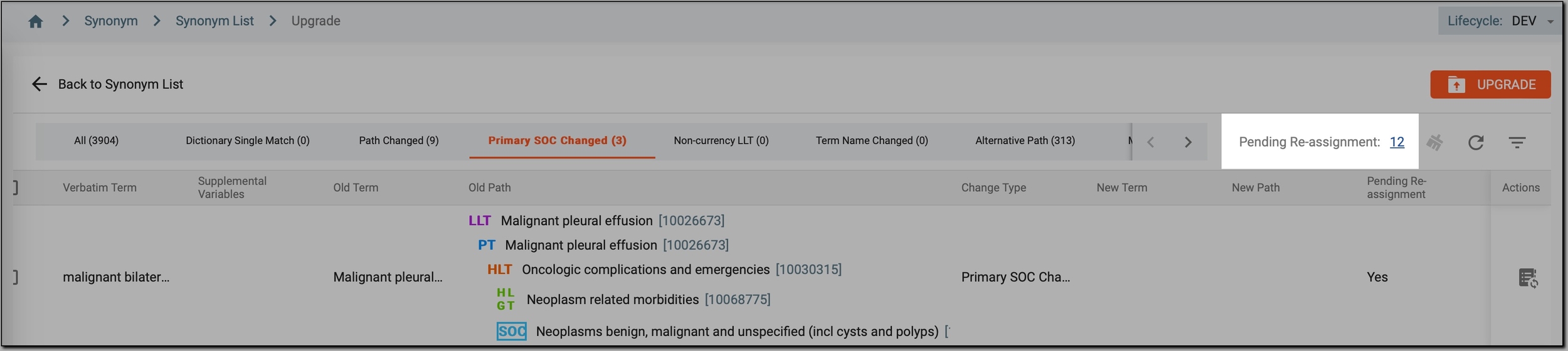 Figure 8. Locating Pending Re-assignment option
Figure 7. Initiating reassignment
-
On the Reassignment page, in the Result table, a list of suggested synonyms to which you can map your verbatim term is displayed. Review all of them and next to the most suitable term, select a checkbox.
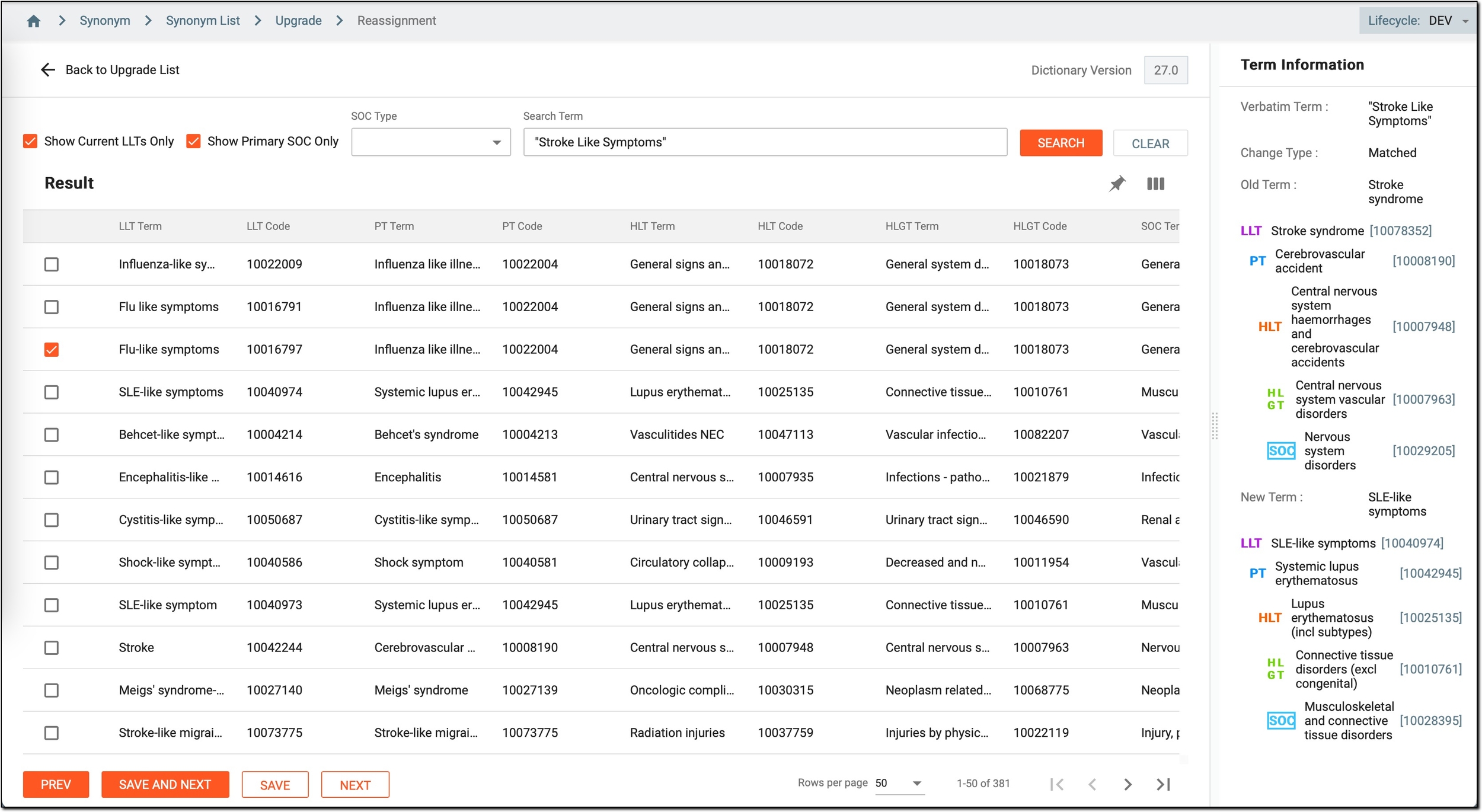 Figure 9. Mapping verbatim term with synonym
-
For convenience, during the reconciliation process, do the following:
-
Review term information: on the right, in the Term Information panel, view the details about the original term or phrase that needs to be coded or mapped to a term in the dictionary.
You can also review the type of change that has occurred, indicating why the term needs to be reviewed or reassigned, along with the term from the old synonym list that was previously mapped to the verbatim term.
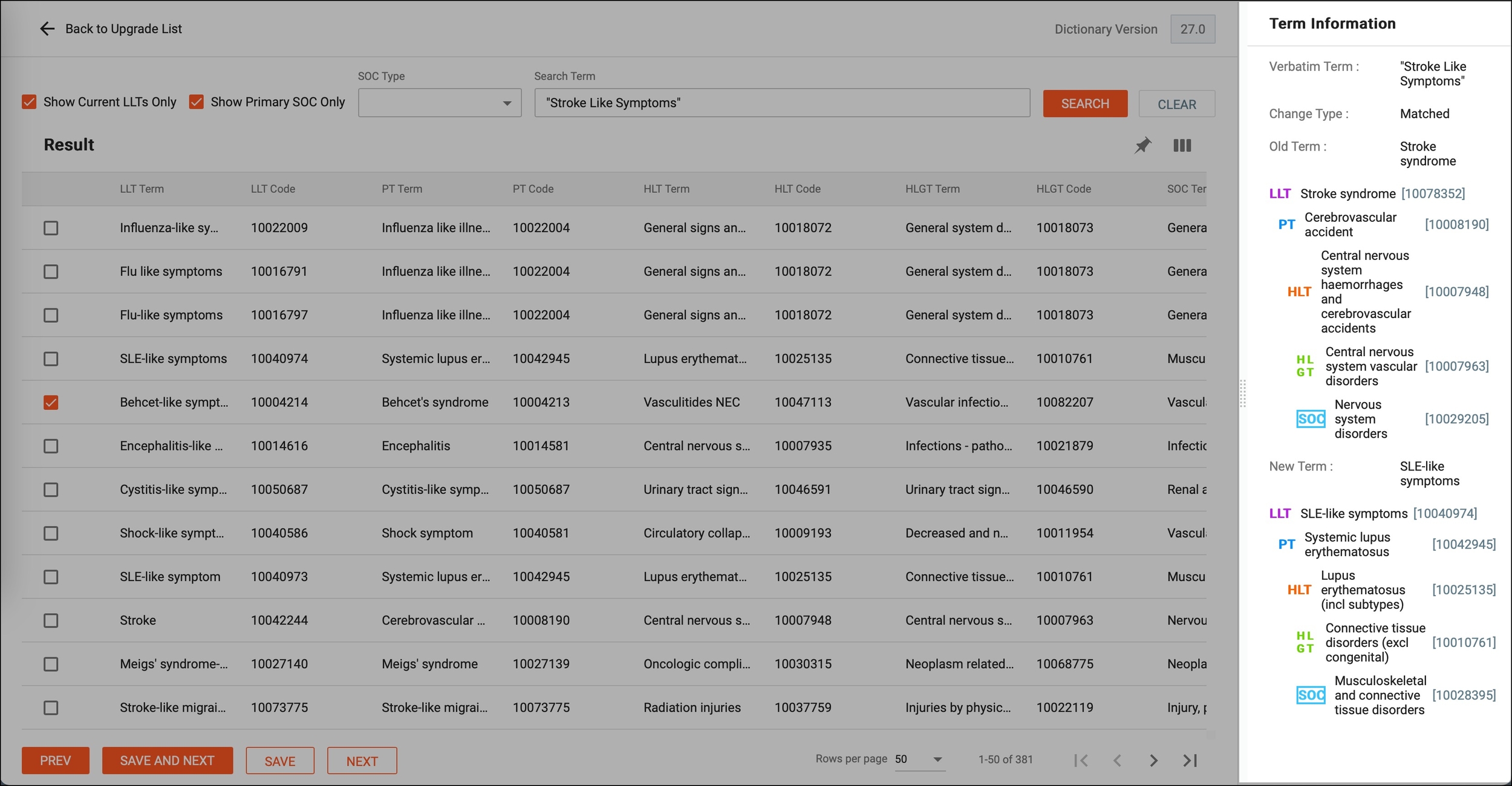 Figure 10. Reviewing term details
-
Filter result options: above the table, select one of the filtering options to filter the displayed data based on your preferences:
 Figure 11. Filtering Results table
-
Show Current LLTs Only: to display only the current LLTs from the dictionary.
-
Show Primary SOC Only: to display only the terms associated with the primary System Organ Class (SOC).
-
SOC Type: filter the terms displayed in the table based on the selected SOC type.
-
Search Term: enter a term or keyword to search for specific terms within the table and select
 next to it. If
needed, select
next to it. If
needed, select  to clear the search term and reset the table view to show all terms.
-
-
-
Once done, on the Reassignment page, select one of the following buttons:
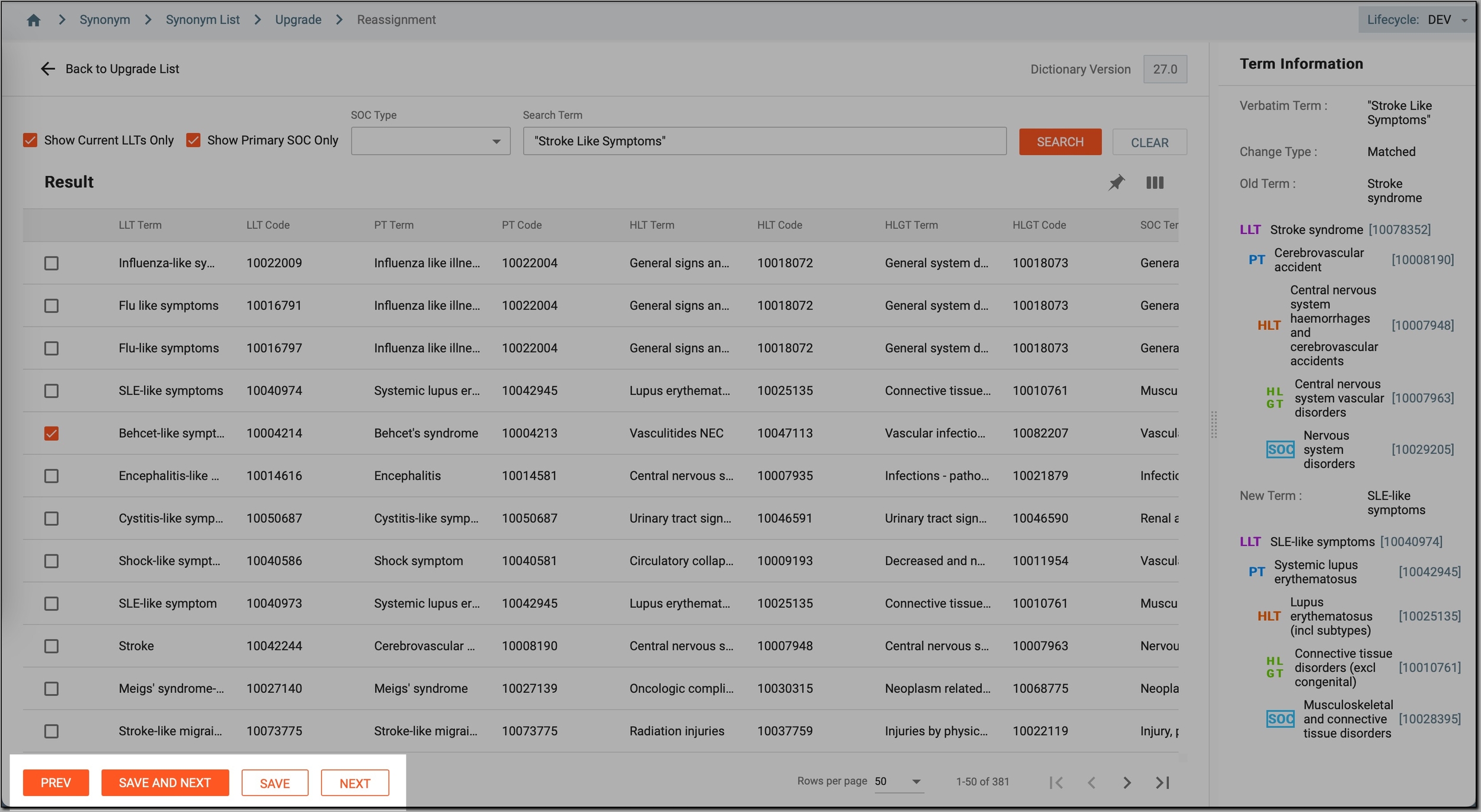 Figure 12. Completing reassignment
-
PREV: to go to the previous verbatim term that needs to be reassigned (mapped).
-
SAVE AND NEXT: to save current mappings and go to the next verbatim term.
-
SAVE: to save the current mappings without navigating to another verbatim term.
-
NEXT: to go to the next verbatim term without saving the current mappings.
-
-
-
Once everything is ready, go back to the Upgrade page and select
 to finalize the upgrade.
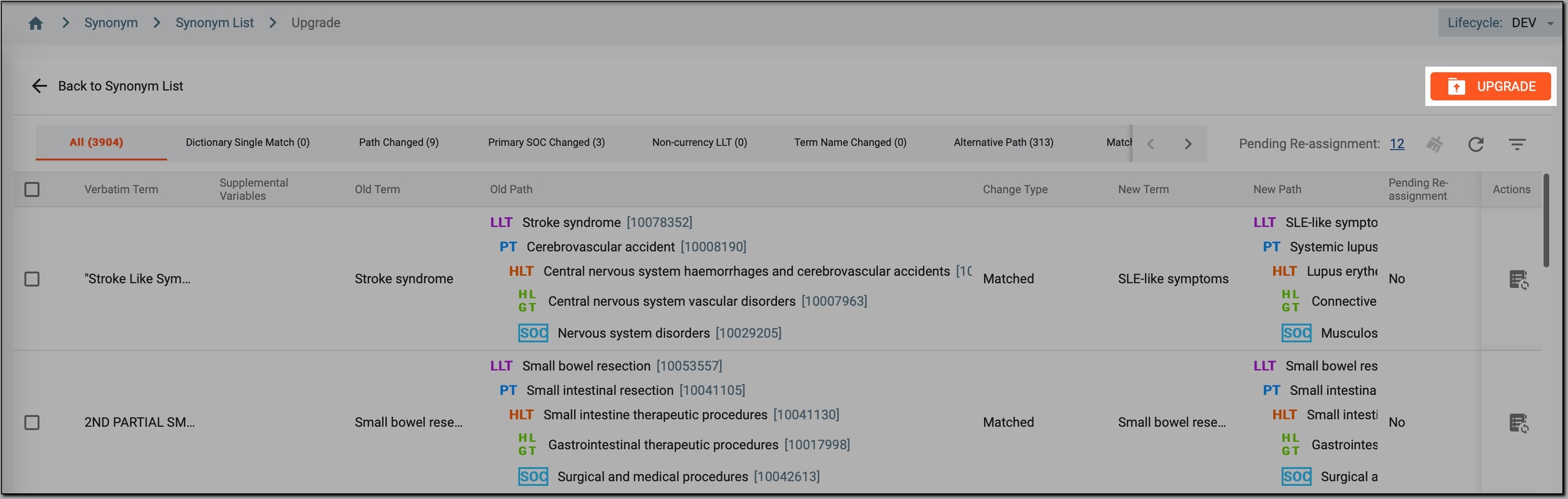 Figure 13. Completing synonym list upgrade
Important
If not all verbatim terms are mapped with new synonyms, the system displays a warning message. It informs you that any unassigned synonyms will not be migrated to the new synonym list and will be lost.
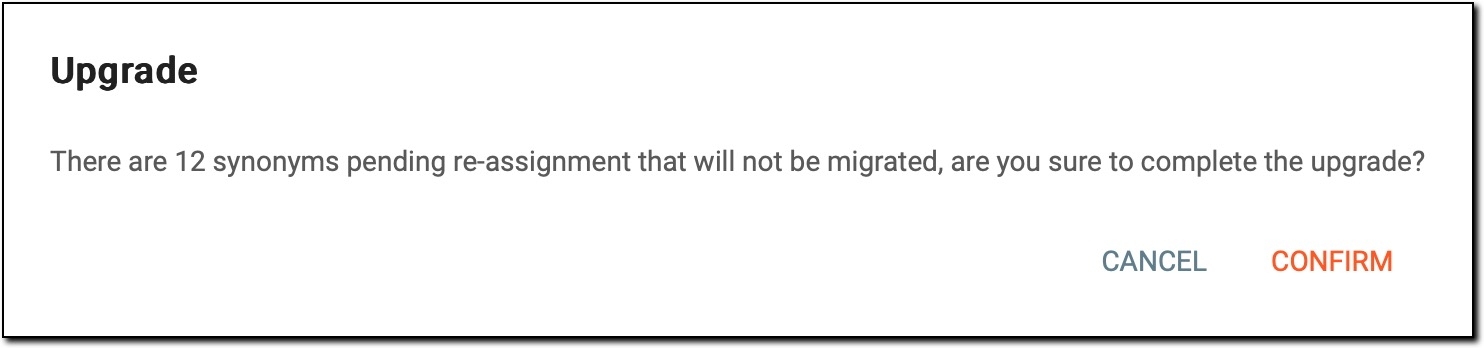 Figure 14. Upgrade warning
To continue, select one of the following:
-
CONFIRM: if you want to skip mapping these terms and exclude them from the new synonym list.
-
CANCEL: if you want to go back and reassign (map) the needed terms.
-
Once the reconciliation is complete, a new synonym list is created and is available for study coding, ensuring it includes the latest terminology and mappings.