Configure product family
In the PV application, under the PRODUCT tab, you can configure a custom library of products known in the industry as the Company Drug Dictionary (CDD), which defines products that meet regulatory requirements and internal reporting obligations for global organizations.
Every company product must belong to a product family. A product family is a group of products that share the same key ingredient and data sheets but can have a different concentration for the active ingredient.
Important
Create separate families or data sheets if products have different core data sheets or their active ingredients differ.
-
In the PV application header, select the PRODUCT tab.
-
On the page that opens, from the left pane toolbar, select Add Family
 .
.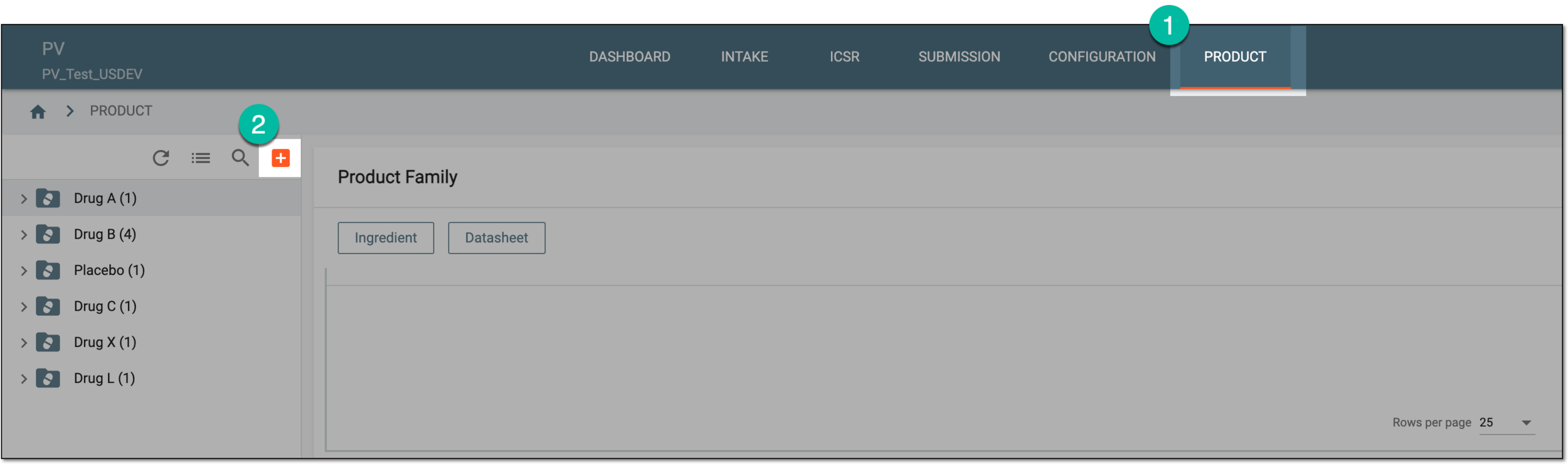 Figure 1. Adding product family
-
In the Product Family form that opens, complete configurations as explained in the following table.
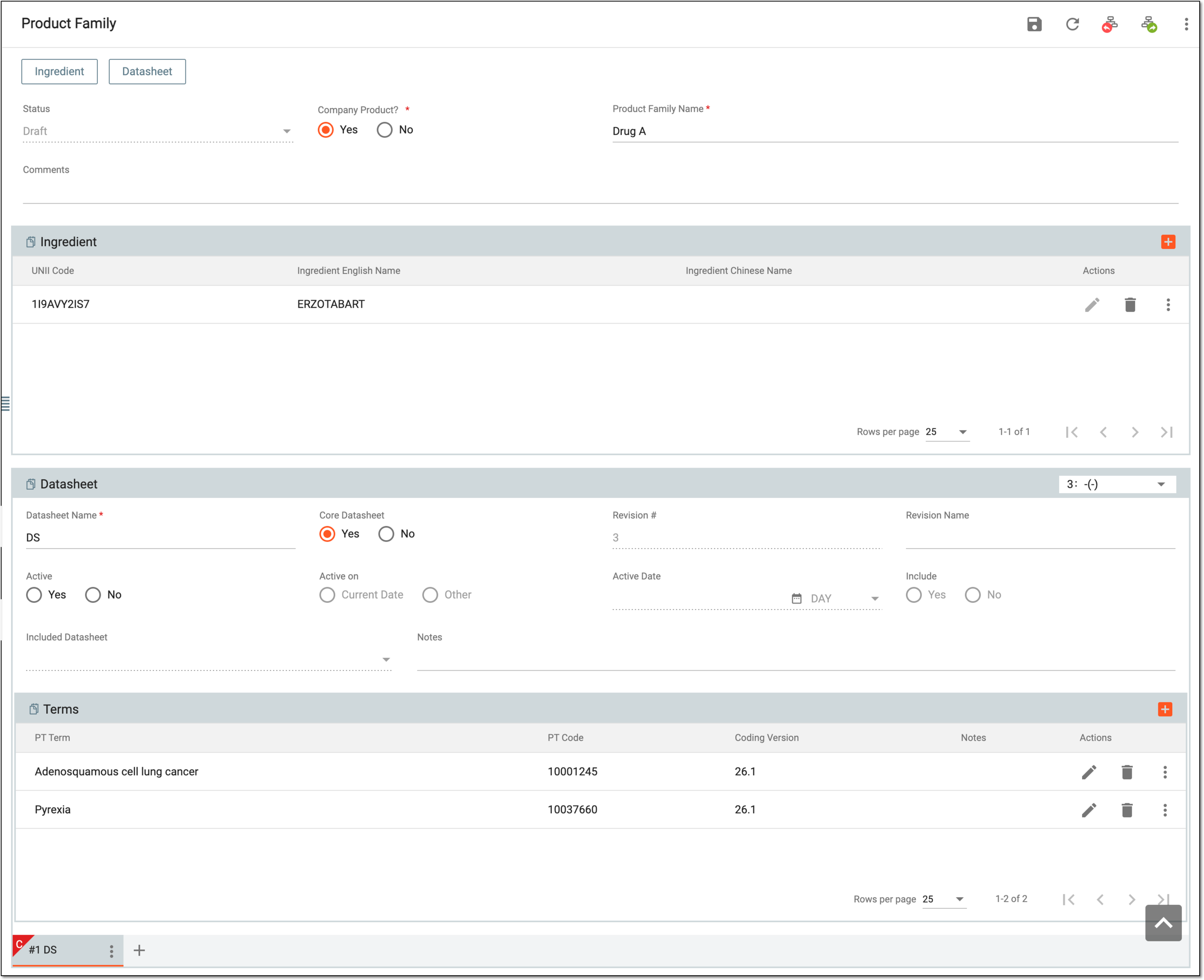 Figure 2. Completing product family details
Tip
In the following table, mandatory elements are marked with an asterisk (*).
Element
Details
Status
Represents the current status of your product family. Upon creation, it is in a draft state. To upgrade the product family, forward the workflow route.
The workflow of the product family review and approval process can be customarily configured by the EDETEK administrator according to the sponsor's requirements.Company Product?*
Select if the product is under study or is a sponsored product (Yes) or not (No).
Product Family Name*
Enter the descriptive product family name, for instance, derived from the active ingredient name or else.
Comment
Enter a comment to provide additional information about the product family, if needed.
SAVE
Select
 to save the implemented changes.
Ingredient
This block is only activated after the product family name is completed and saved.Add Record
Select
to open the Select Ingredient dialog and select the active ingredient for your product from the list of
available ones. For compounded products, for instance, there can be two active ingredients, so multiselect is available for this dialog.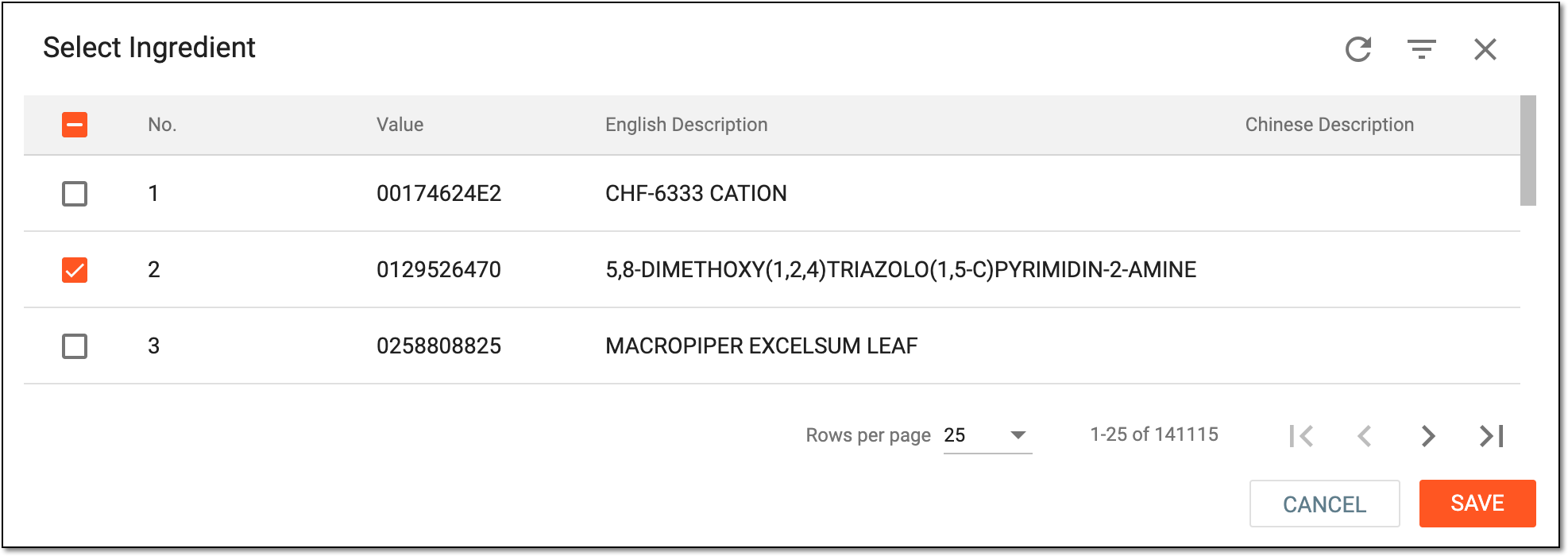 Figure 3. Selecting ingredient
The ingredient(s) configured for a product family are automatically populated to all the products added to this family.
If the needed ingredient is not available–which is common for investigational products—contact the EDETEK administrator to add it.For post-marketing products authorized by the FDA, it is recommended to add active ingredients according to the company labeling information. For example, use the DailyMed or FDA Label websites or obtain accurate information from the regulatory department of your company.UNII Code
Represents the active ingredient code according to the FDA Unique Ingredient Identifier (UNII) terminology to implement the ISO Identification of Medicinal Products (IDMP) standards.
FDA’s Global Substance Registration System (GSRS) generates UNIIs used in the electronic listing as seen on the DailyMed website. UNII is also used for other regulatory activities throughout product lifecycles. This would encompass clinical trial phases, product marketing, and post-marketing surveillance.
Ingredient English Name
Represents the name of the active ingredient in English.
Ingredient Chinese Name
Represents the name of the active ingredient in Chinese.
If the multilingual submission is involved and the relevant Chinese name is unavailable, contact the EDETEK administrator to add it. Currently, only part of the ingredient contains the Chinese name obtained from the Chinese version of the WHODrug dictionary.Datasheet
This block is only activated after the product family name is completed and saved.Datasheet Name*
Enter the name of your data sheet, which contains essential information about a medicinal product, its safety profile, and its intended use.
Ensure that the data sheet naming rules consistent between different product families, such as IB for clinical, SmPC for EMA post-marketing products, USPI for FDA post-marketing products, and so on.Core Datasheet
Select Yes or No to specify if this data sheet is the main reference for information about a medicinal product, its safety profile, and its intended use.
Only one data-sheet can be defined as a core for a product family.Revision #
Represents the revision number of the data sheet. The default revision number of the initially created data sheet is 1 and subsequent revisions are automatically incremented when generated.
Revision Name
Enter the revision name according to company SOP/WI or customer request.
Active
Select Yes or No to specify if this data sheet is active and can be referenced by the system for ICSR processing.
Active on
Select Current Date or Other to specify if the data sheet becomes active at the date of the form completion or another date.
Active Date
Select the date when the data sheet becomes (has become) active.
If the Current Date is selected in the Active on field, this field is automatically populated with the current date.
Include
Select Yes or No to specify if this data sheet includes another data sheet that can be an additional reference for product details.
Included Datasheet
If Yes is selected in the Include field, select the data sheet that you want to include in your main data sheet.
To add the included data sheet, add one to your product family via the New option.Notes
Enter additional notes related to the data sheet revision number to explain the changes.
SAVE
Select
to save the implemented changes.New
Select
 to add an additional data sheet to your product family. You can add as many data sheets as required.
Terms
This block is only activated after the data sheet details are completed and saved.Add Record
Select
to open the MedDRA coding dialog and configure the terminology for the labeled/listed/expected adverse events
specified in the data sheet.For instance, you can select "flu-like symptoms" if the data sheet specifies that this is an expected adverse event caused by the product.
You can code your terms using a similar logic as explained in the Autocoding in ICSR forms and Manual coding in ICSR forms sections.
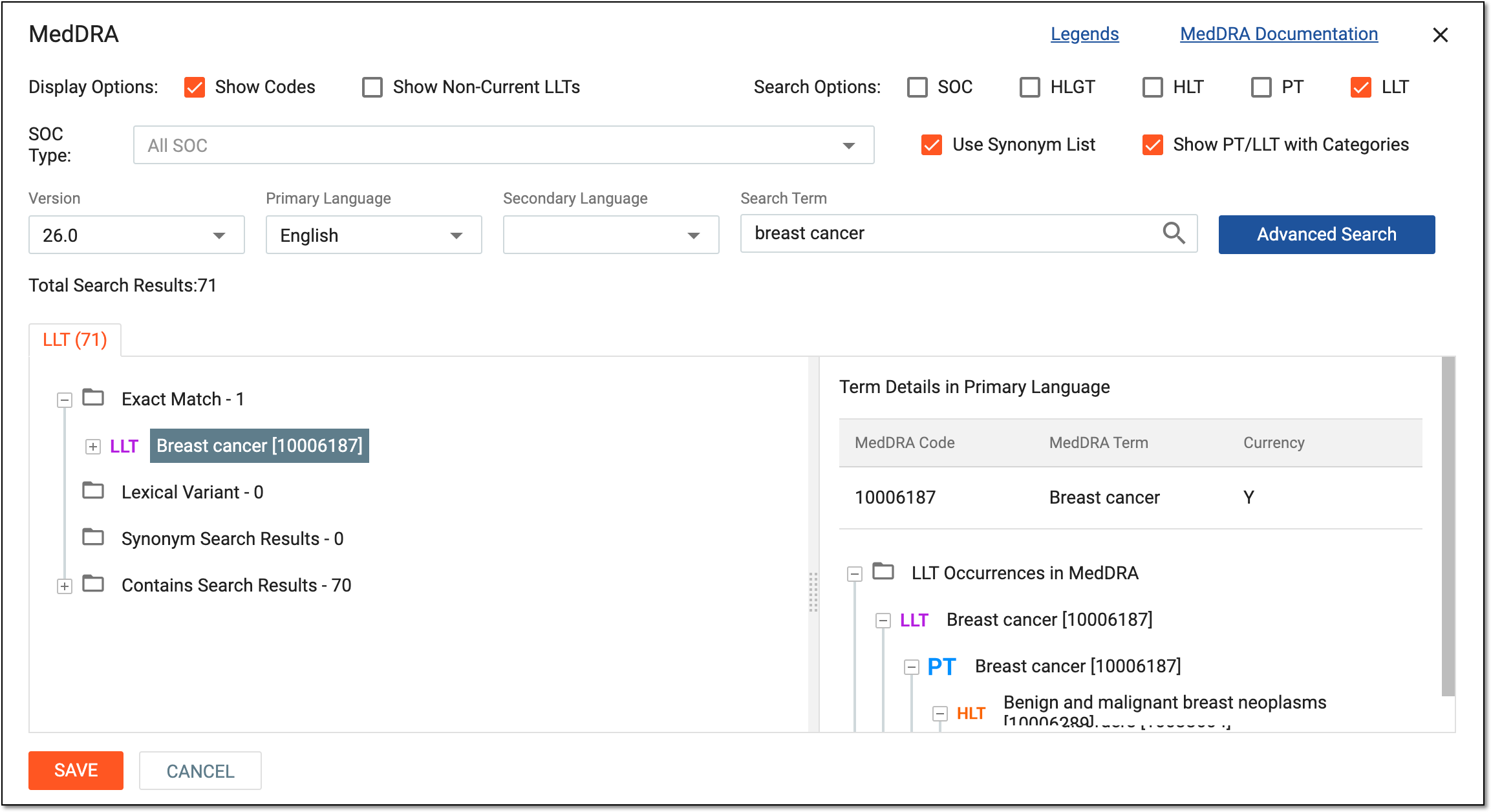 Figure 4. Coding MedDRA term
PT Term
Represents the Preferred Term (PT) according to the MedDRA dictionary.
PT Code
Represents the code of the Preferred Term (PT) according to the MedDRA dictionary.
Coding Version
Represents the version of the MedDRA dictionary that is used to code the term.
Ensure to keep the MedDRA version the same as used in ICSR that is pertinent to this product family.Notes
Represents notes added to the term upon editing, if any.
Once saved, the product family is configured. Now, if needed, you can forward its route to send it for approval. Once the approval is finalized, you can start configuring products within the family.