Delete ICSR form record
While managing forms of the Individual Case Safety Report (ICSR), you might need to remove some extra information previously added to one of the forms.
-
In the PV application header, select the ICSR tab.
 Figure 1. Accessing ICSR list
-
On the ICSR List page that opens, in the table, locate the ICSR record of your interest. Then select its case number to open the details page in the new browser tab.
Alternatively, from the Actions column next to your ICSR, select Edit
 to open the
ICSR details in the same browser tab.
to open the
ICSR details in the same browser tab. Figure 2. Accessing ICSR details
-
On the page that opens, from the left pane, select the form whose data you want to delete.
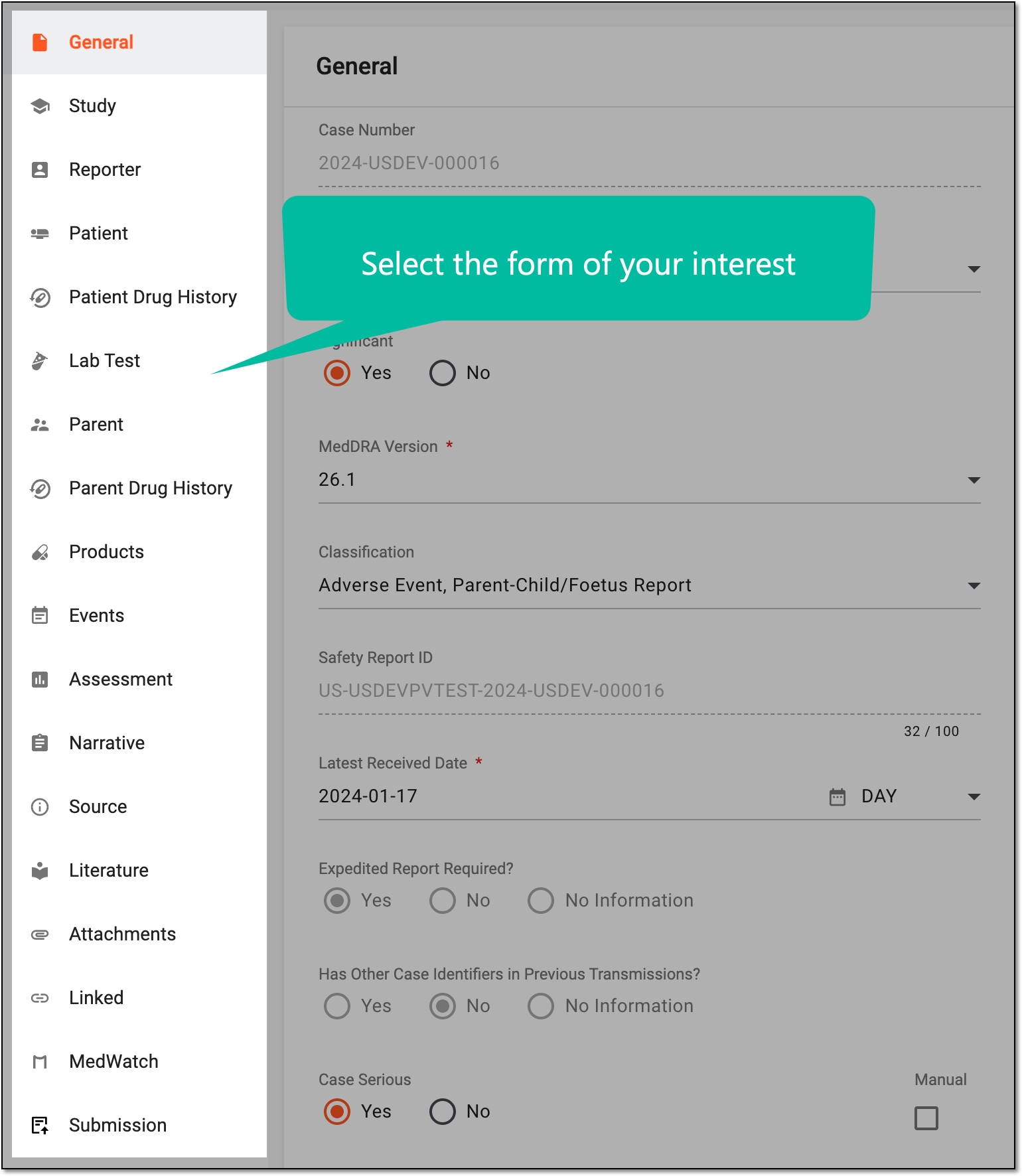 Figure 3. Selecting form
-
From the form workspace toolbar, select More
 > Delete
  .
. Figure 4. Deleting form record
Tip
The Delete
option is disabled if the record is crucial for the ICSR and cannot be
removed. -
In the confirmation dialog that appears, select
 to proceed with the record deletion.
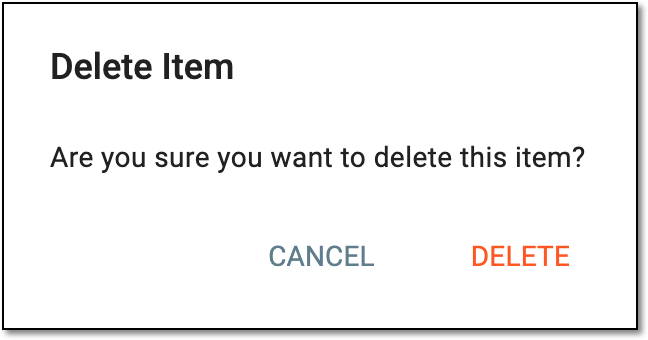 Figure 5. Confirming form record deletion
Tip
There can be system logic rules preventing you from the record deletion, for instance, you cannot remove the Parent form data if there are any parent drug history records and such. In this case, the system message with the reason appears and you can resolve it before attempting to delete the data again.
Once confirmed, the record is removed from the ICSR form.