Analyze change history per form record
While managing forms of the Individual Case Safety Report (ICSR), you can review the structured information on all the changes made to each of the report forms.
-
In the PV application header, select the ICSR tab.
 Figure 1. Accessing ICSR list
-
On the ICSR List page that opens, in the table, locate the ICSR record of your interest. Then select its case number to open the details page in the new browser tab.
Alternatively, from the Actions column next to your ICSR, select Edit
 to open the
ICSR details in the same browser tab.
to open the
ICSR details in the same browser tab. Figure 2. Accessing ICSR details
-
On the page that opens, from the left pane, select the form whose change history you want to analyze.
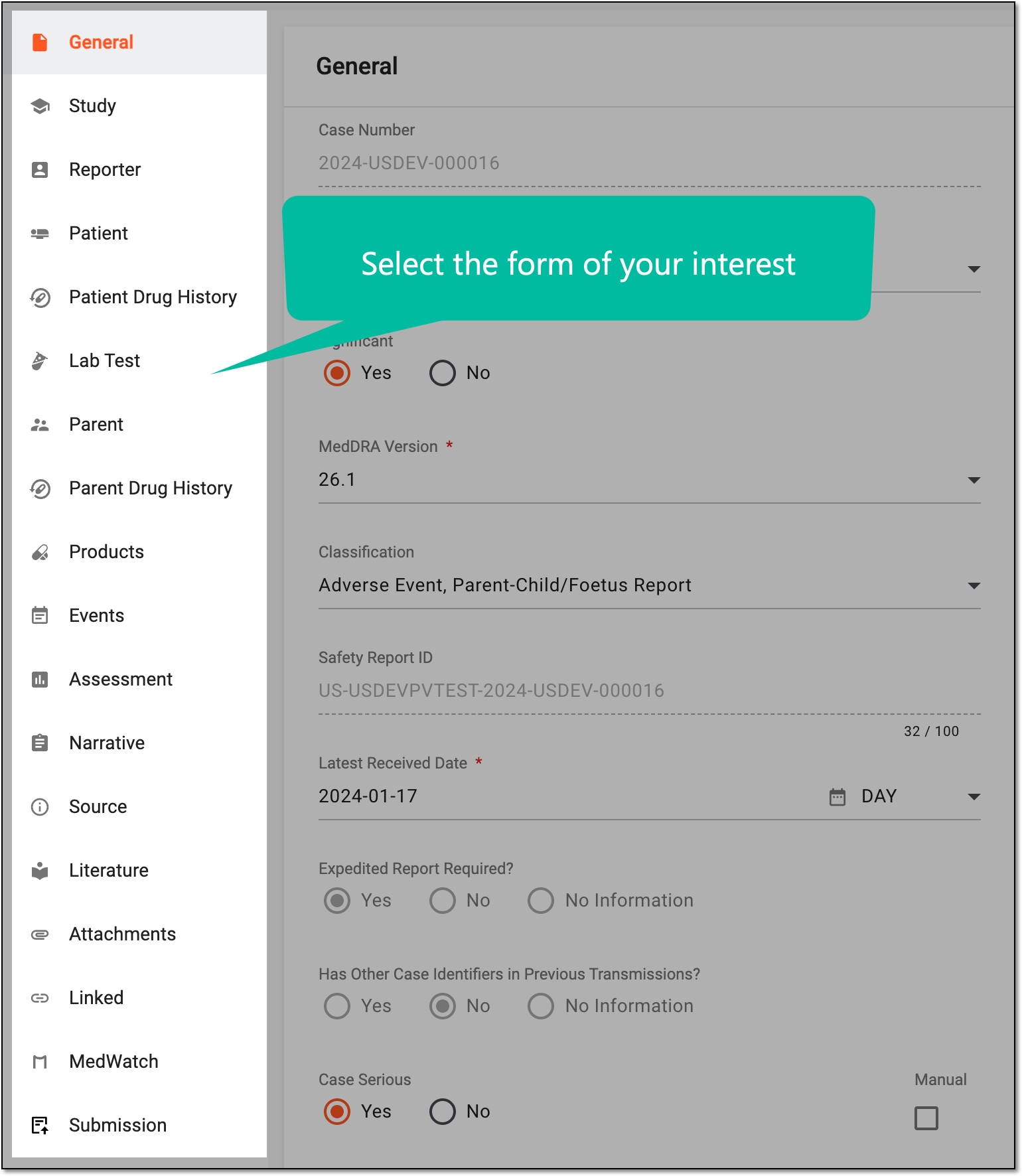 Figure 3. Selecting form
-
From the form workspace toolbar, select More
 > Change History
  .
. Figure 4. Accessing form change history
-
In the Audit Trail dialog that appears, analyze all the details of the changes made to the ICSR form.
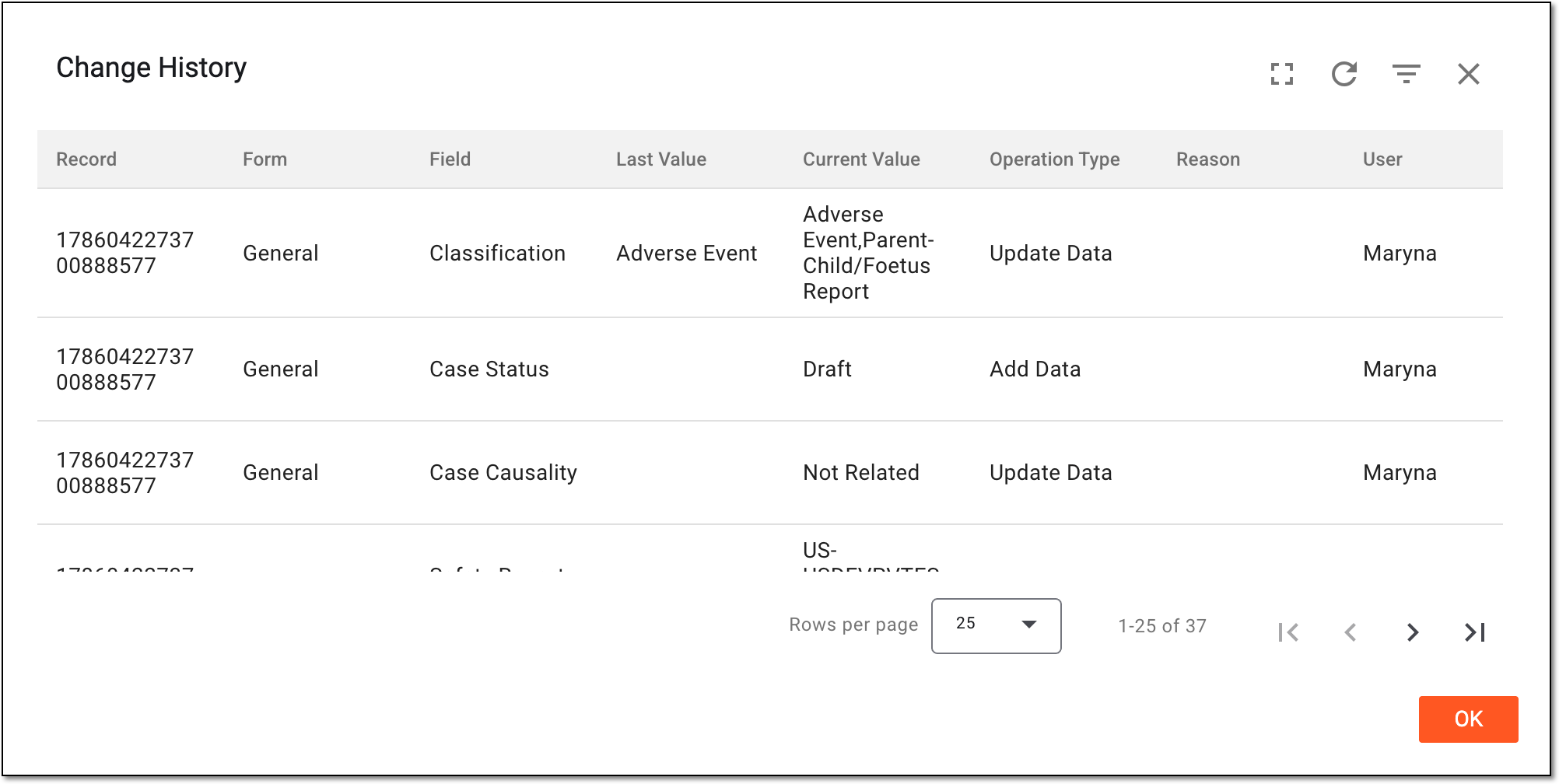 Figure 5. Analyzing form change history
Tip
Use filtering
 to filter the change history
records by time range for convenience.
to filter the change history
records by time range for convenience.Select Full Screen
 to expand the change history table to the page size for convenience.
Then select Full Screen Exit
to expand the change history table to the page size for convenience.
Then select Full Screen Exit  to go back to the compact dialog view.
 -
Select
 to close the dialog.
You have reviewed the change history of the ICSR form.