Generate submission record
This PV functionality focuses on the expedited submission of ICSRs to the authorities, affiliates, partners, investigators, or ethics committees.
Currently, the system does not support automatic report generation and submission, therefore, it needs to be done manually. Before generating a submission record, it is strongly recommended to run the ICSR validation manually to check whether the ICSR meets the minimum technical requirements for E2B R3 XML generation according to your company's business standard operating procedures (SOP) and work instruction (WI).
Within the same ICSR, you can only generate one record for each submission destination. The regulatory submission involves business compliance of the company, therefore, once the submission record is generated, it cannot be deleted.
Important
If you need to authorize the deletion permission of the submission record for any of your company's users, contact EDETEK administrators.
Depending on the type of the generated submission record, you may need to enter some information manually. If you generate a submission record of the E2B R3 Gateway type, this record is not editable so you can transmit it to the receiver by the EDI service electronically.
-
In the PV application header, select the ICSR tab.
-
On the ICSR List page that appears, next to the needed ICSR case, select More
 > Submission
  . Alternatively, open the ICSR case, and from the toolbar, select
Submission .
. Alternatively, open the ICSR case, and from the toolbar, select
Submission .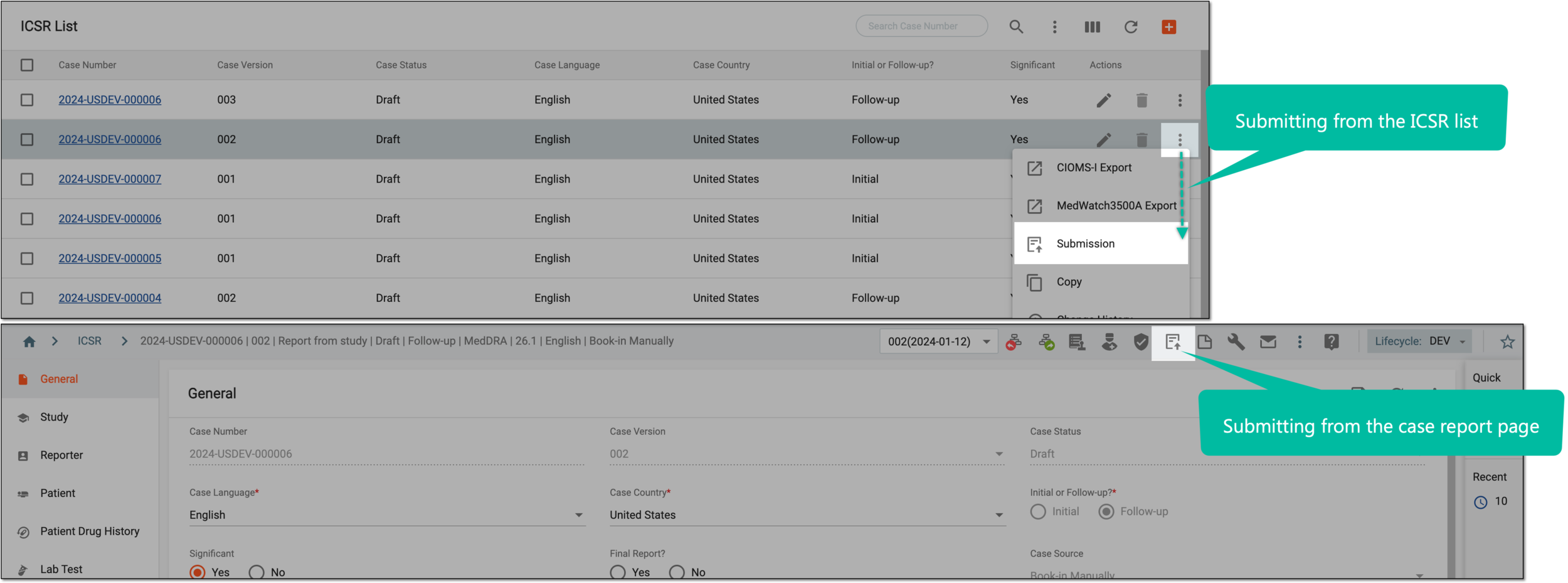 Figure 1. Alternative access to Submission option
Important
You can only generate submission records for ICSR if you have the PV_Submissions role associated with your user.
-
In the Submission dialog that opens, perform actions as suggested in the following table.
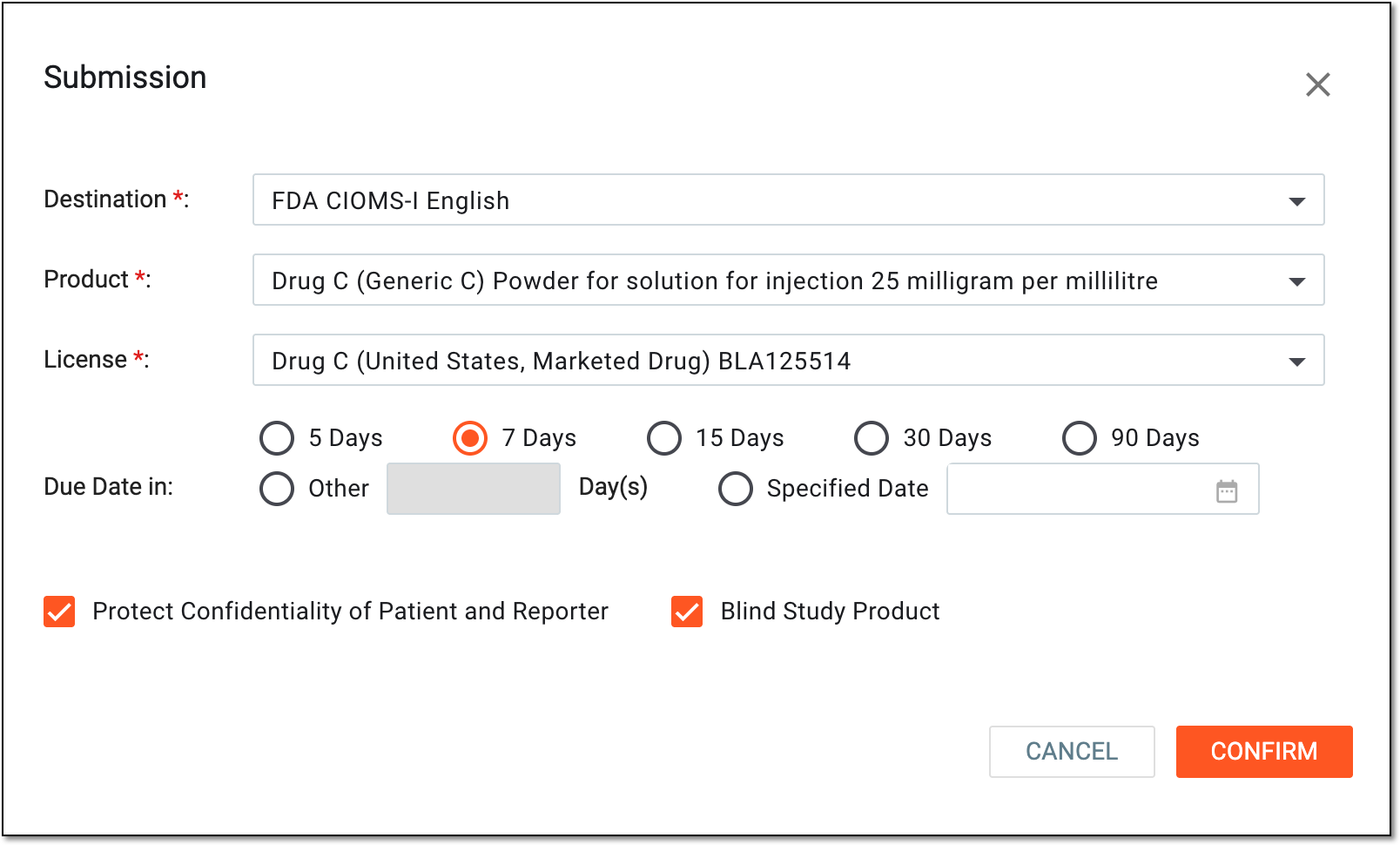 Figure 2. Selecting submission destination
Tip
In the following table, mandatory elements are marked with an asterisk (*).
Element
Details
Destination*
Select one of the available submission destinations depending on your company's business requirements.
Product*
Select the product for which the report is being submitted.
License*
Select the product license under which the report is being submitted.
Due Date in
Select the due date for the generated submission. You can select one of the suggested values or enter the custom one.
Protect Confidentiality of Patient and Reporter
Select this checkbox to hide the patient's and reporter's information in the generated submission file.
Blind Study Product
Select this checkbox to blind information about the study product in the generated submission file.
CONFIRM
Select
 to confirm the generation of the submission record and go to the record page.
CANCEL
Select
 to cancel the generation of the submission record.
 -
The Validation dialog appears if there are ICSR validation errors posted as a result of the submission record generation. Select
 to go to the form where the error(s) must be addressed. Once all the errors are resolved, repeat steps 2 and 3 to reinitiate the ICSR submission.
 Figure 3. Addressing validation errors
Important
Please note that if the submission XML file size or the size of attachments is greater than configured in the system, the validation fails. It is recommended to keep your XML file under 20 MB and attachments size under 15 MB by common regulatory agencies.
-
If no validation errors occur, you are redirected to the page of the generated submission record. On this page, you may need to update the completion date of the submission record and mark the submission record as complete depending on the selected submission destination.
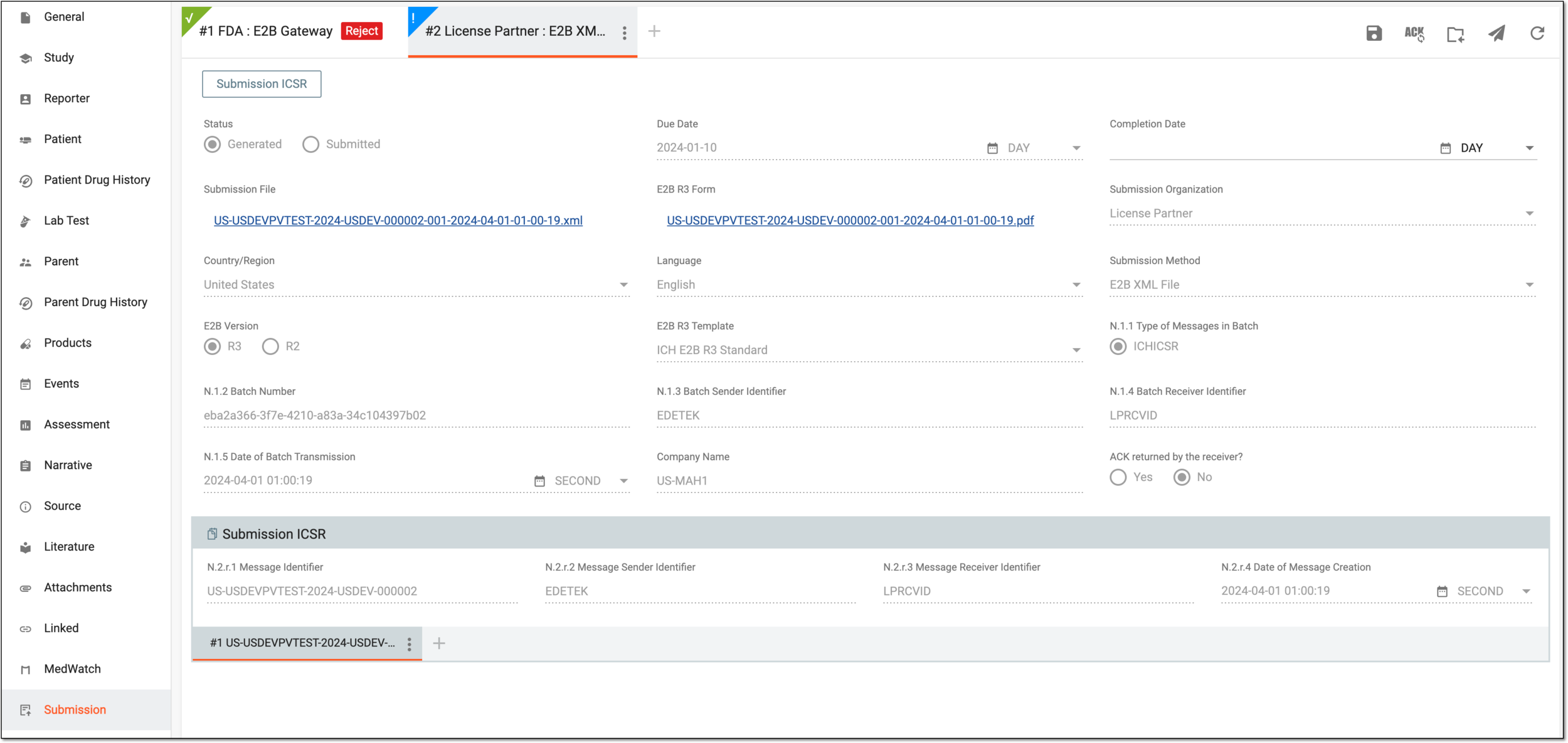 Figure 4. Viewing generated submission record
Tip
For the submission record of the E2B R3 Gateway type, the system generates a standard compliant XML file along with the PDF one.
Once done, the submission record is successfully generated. You can now transmit it.