Run ICSR validation
This PV functionality focuses on the expedited submission of ICSRs to the authorities, affiliates, partners, investigators, or ethics committees.
During the case data entry, you may want to verify that sufficient data and the quality of data collected are present in a valid E2B file before generating this file. To verify this data, you need to run an ICSR validation check that is required for E2B profiles. The outcome of the validation check provides a listing of data elements that do not satisfy the criteria required for generating an E2B report. For your convenience, the validation results are structured into three categories—field-level, record-level, and configuration errors.
-
In the PV application header, select the ICSR tab.
-
On the ICSR List page that opens, in the table, locate the ICSR record for which you need to run validation. Then select its case number to open the details page in the new browser tab.
Alternatively, from the Actions column next to your ICSR, select Edit
 to open the
ICSR details in the same browser tab.
to open the
ICSR details in the same browser tab. Figure 1. Selecting to edit ICSR
-
From the toolbar of the page that opens, select Validation
 .
.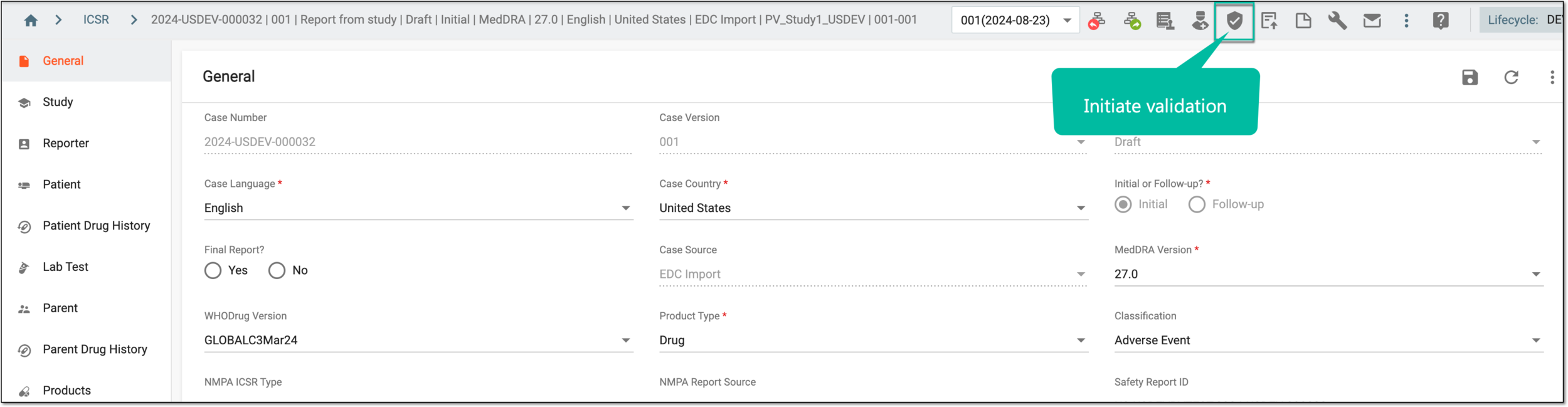 Figure 2. Initiating validation
Important
When working with the ICSR with multiple versions and needing to switch to another version, you can do so from the current page without returning to the ICSR List page. From the workspace toolbar, expand the version dropdown menu and select the needed one. The data appears in the following format: Case Version (Latest Date Received: YYYY-MM-DD).
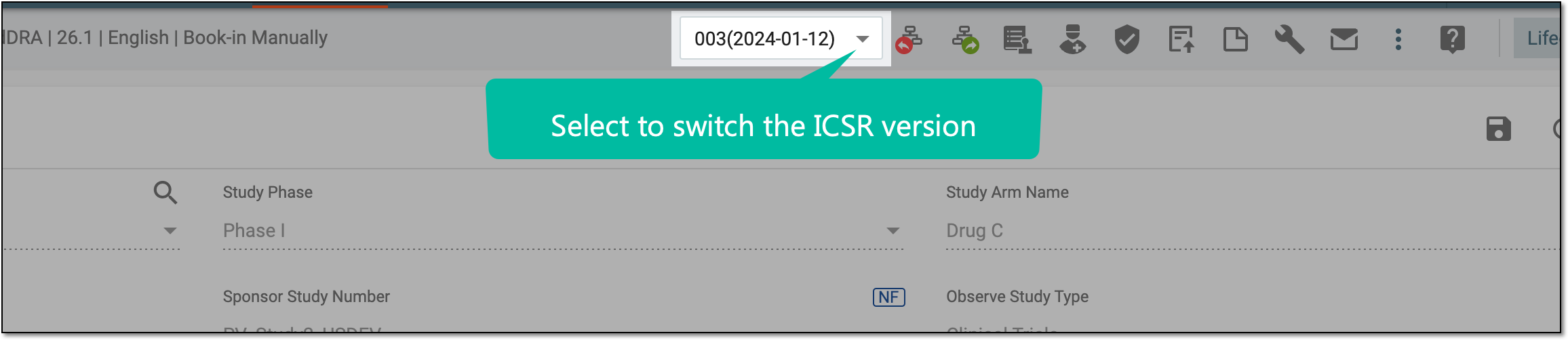 Figure 3. Switching case version
-
In the dialog that appears, at the Submission Setting step, select a submission destination(s) based on which the ICSR validation needs to be run. Use the Search Submission Destination filter to facilitate your search. Then select
 .
.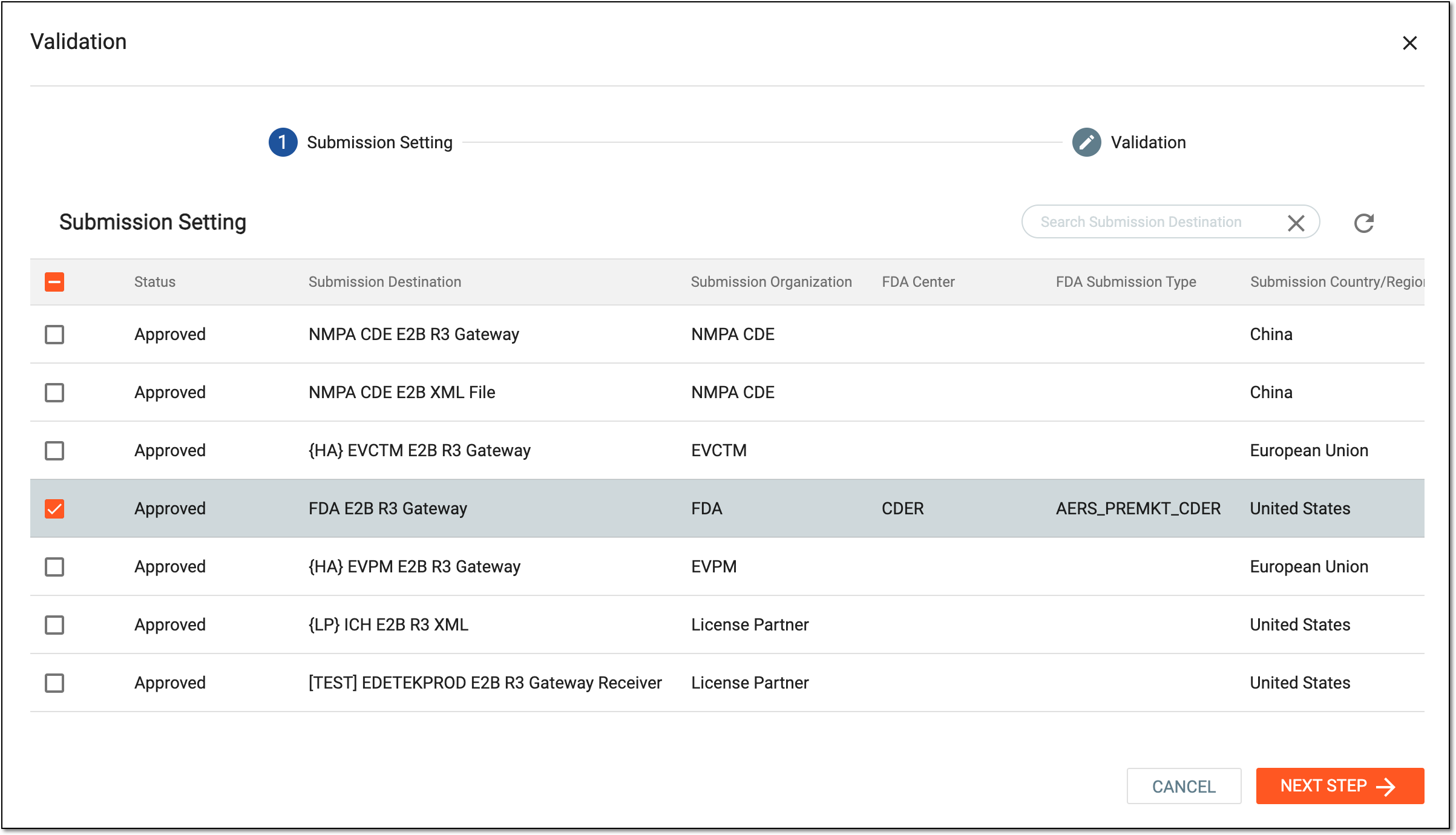 Figure 4. Selecting submission setting
Important
Only the submission settings with Approved status are and can be displayed. This is to ensure that the ICSR validation can only be used through the reviewed and approved submission settings for quality control purposes. Moreover, the approval workflow can be configured by EDETEK administrators as per company requirements.
-
At the Validation step, view the list of generated field-level, record-level, and configuration errors detected upon ICSR validation.
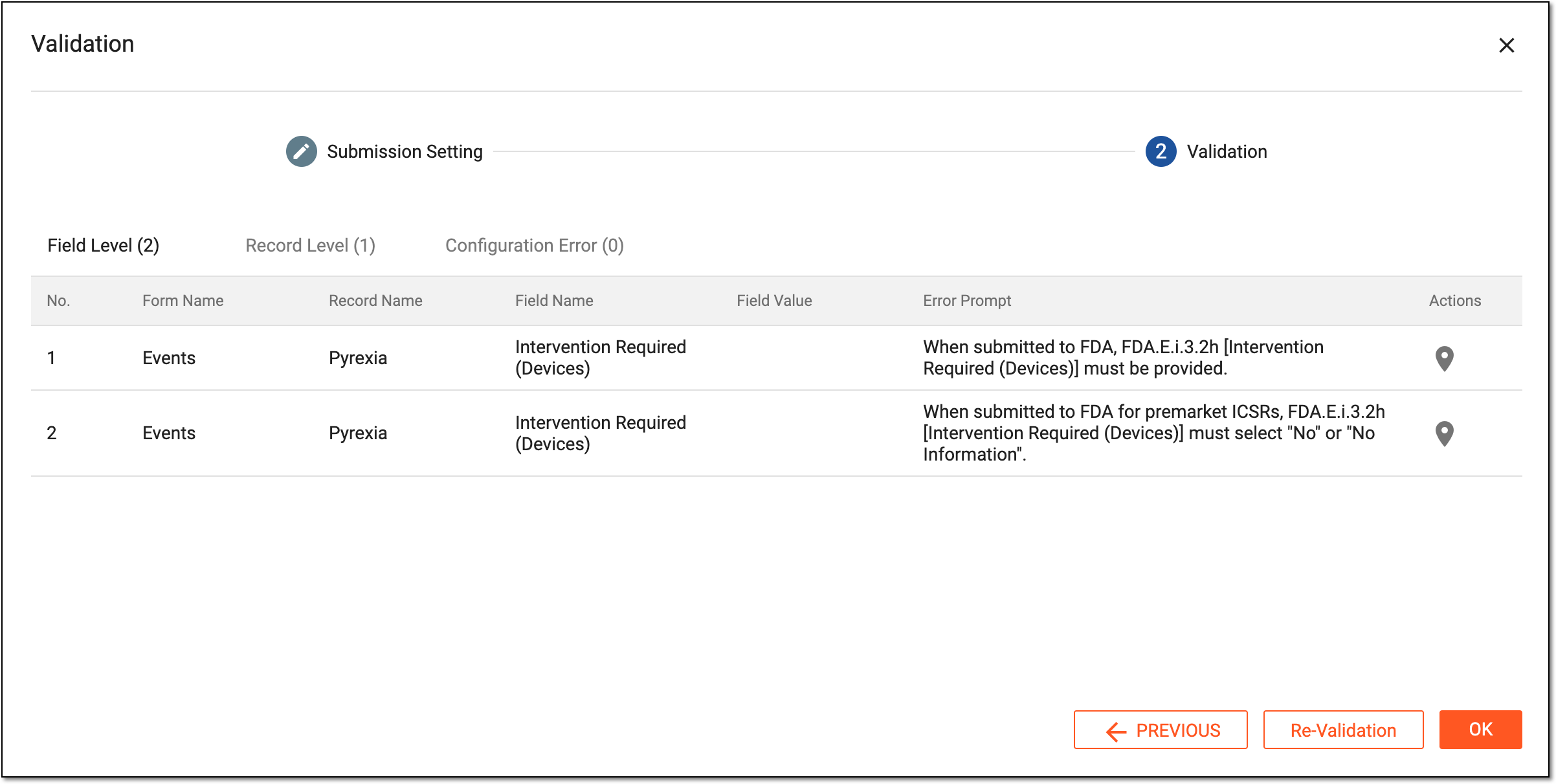 Figure 5. Running ICSR validation
-
Select Locate
 next to the needed validation error to go to its location within the case.
 -
Proceed to resolve all validation errors that you can navigate between from the interactive ICSR Validation panel of the case.
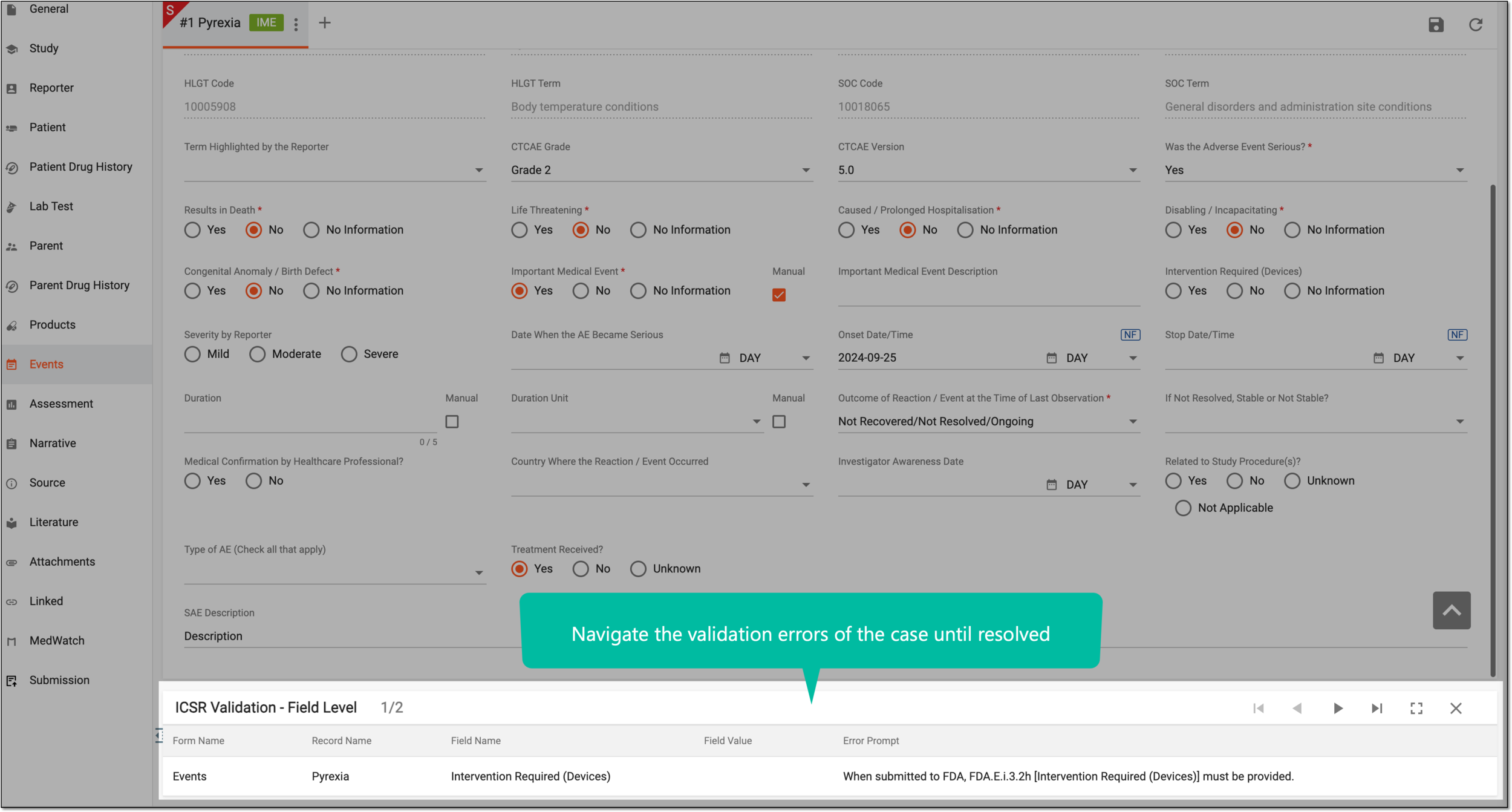 Figure 6. Navigating validation errors for case
-
Once ready, from the ICSR Validation panel, select Expand
 . Then from the
dialog that appears, select
. Then from the
dialog that appears, select  to run the ICSR validation again and ensure all errors are fixed.
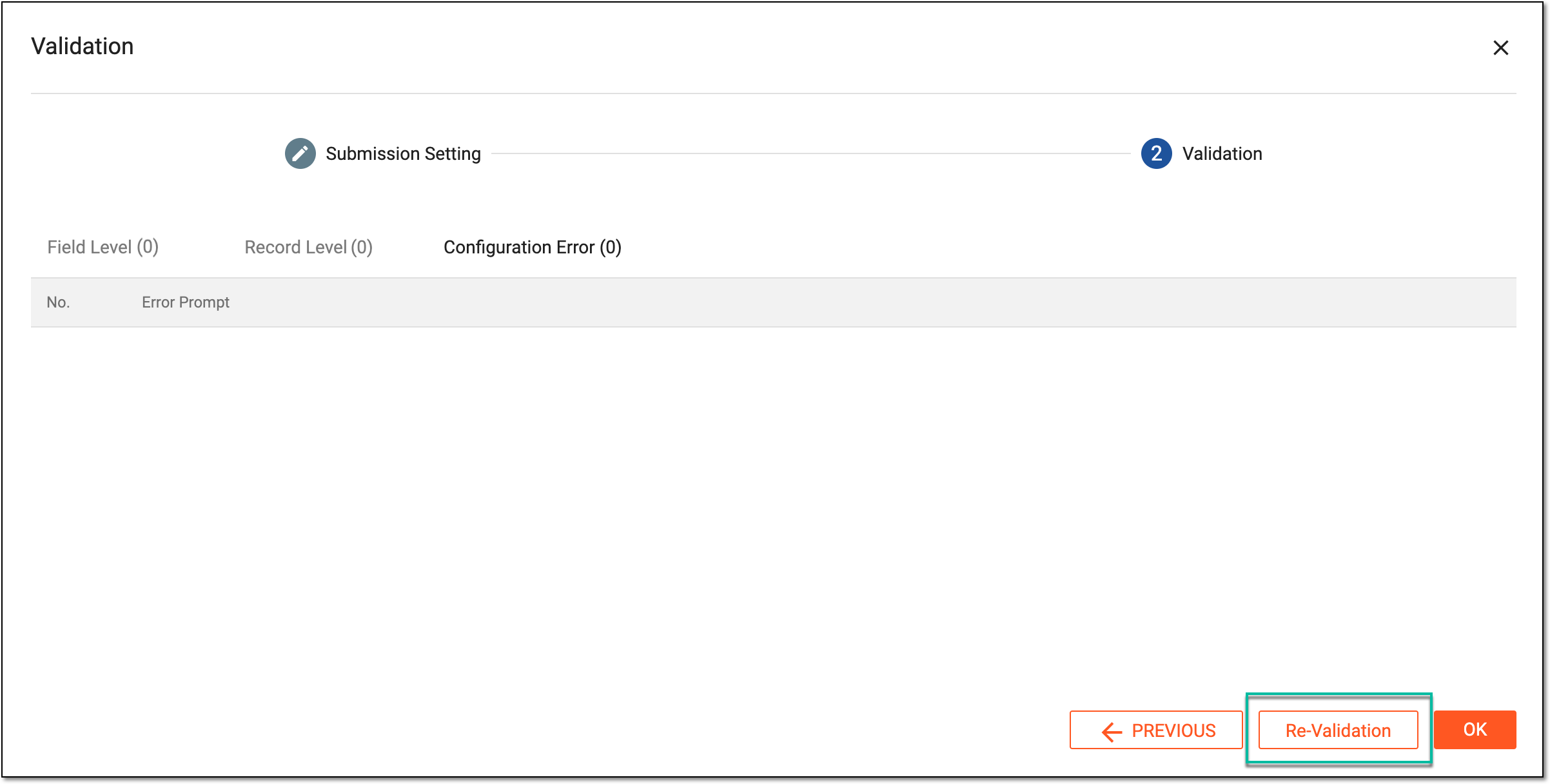 Figure 7. Running validation again
Once done and all errors are resolved, the ICSR validation is completed. You can now proceed to generate a submission record.